Why Does My Laptop Charger Cut Out During Heavy Gaming?
Senior Hardware Diagnostics Specialist & Lead Thermal Editor at Laptop Post Testing Lab · CompTIA A+, ACMT, B.S. in Computer Engineering · 12+ years bench-testing laptop thermal solutions & motherboard repairs
When your laptop charger cuts out during intense gaming, you are likely hitting a hard power limit. Many users ask why does my laptop charger turn off when playing heavy games, and the answer almost always comes down to safety circuits.
Your laptop demands peak wattage that can occasionally exceed what the power brick is rated to handle. As of 2026, many high-performance gaming laptops require power delivery that meets IEEE standards for electrical stability. When the system detects a potential overload, the charger temporarily shuts down to prevent permanent damage.
Quick Answer
Your laptop charger shuts down during gaming to prevent overheating. Heavy gaming causes sudden spikes in power consumption by your hardware. These spikes can exceed the rated capacity of your charger.
Internal protection circuits trigger a temporary reset to maintain safety. This protects both the adapter and your laptop from damage.
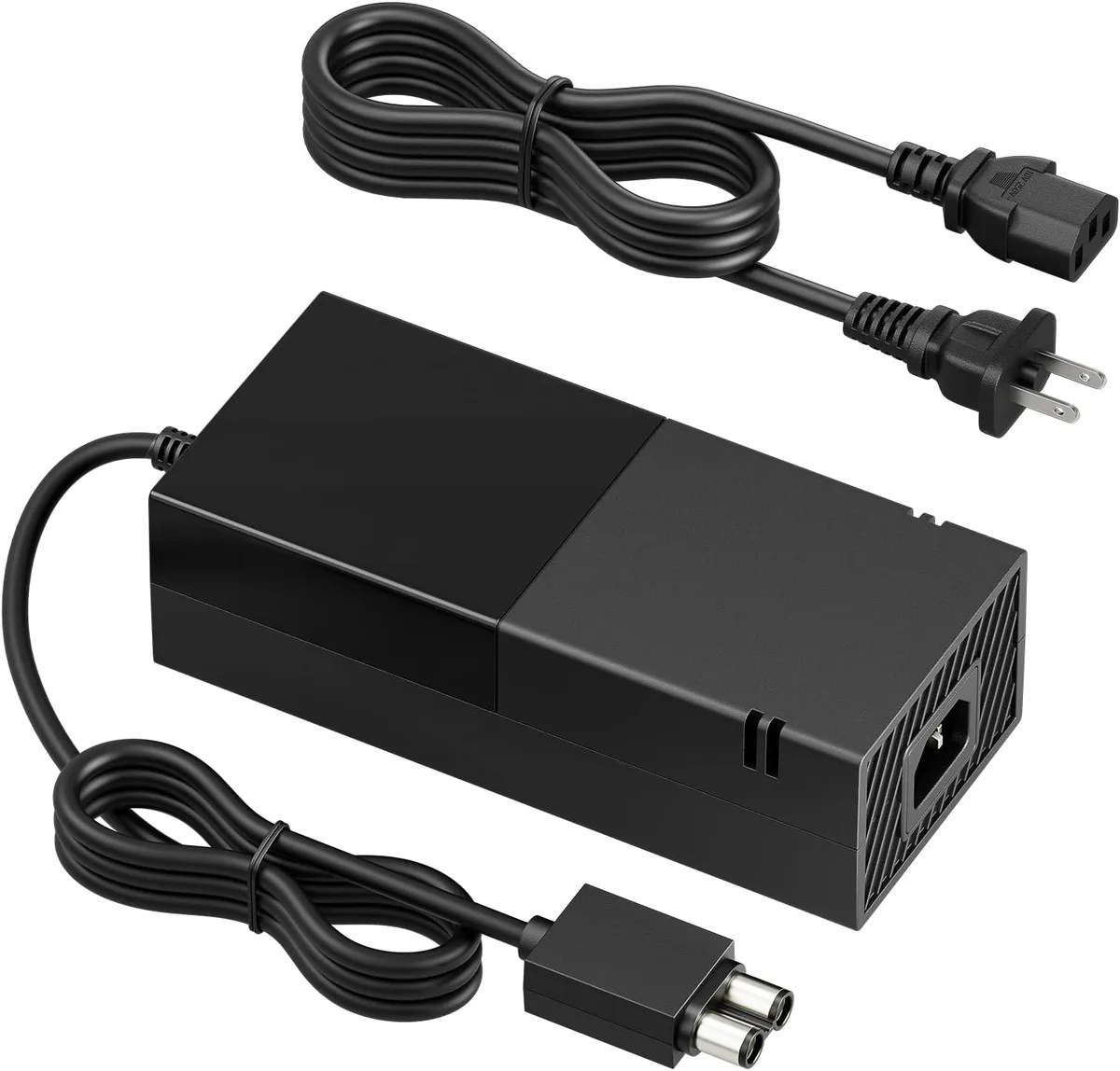
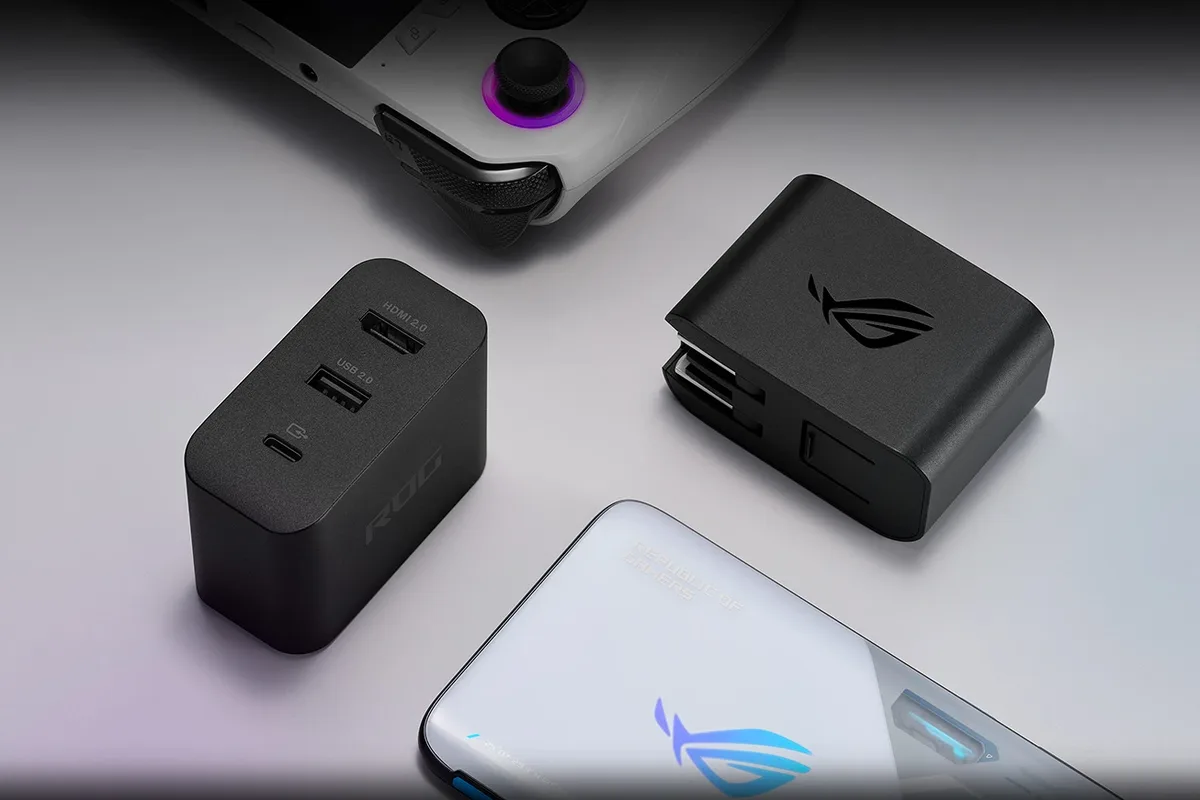
Image source: Bing (Web (fair-use with source credit))
The Reality of Power Spikes During Gaming
Gaming laptops act like miniature power plants. When you load a modern game, the Central Processing Unit and the Graphics Processing Unit perform millions of calculations per second. These components pull electricity in erratic, rapid-fire bursts rather than a steady, predictable stream.
Your power adapter is rated for a specific wattage, such as 230W or 330W. It manages steady loads easily during web browsing or document editing. Gaming introduces transient loads where the demand jumps for a few milliseconds.
If this spike crosses the safety threshold, the brick cuts the connection.
Understanding the Safe Shutdown Mechanism
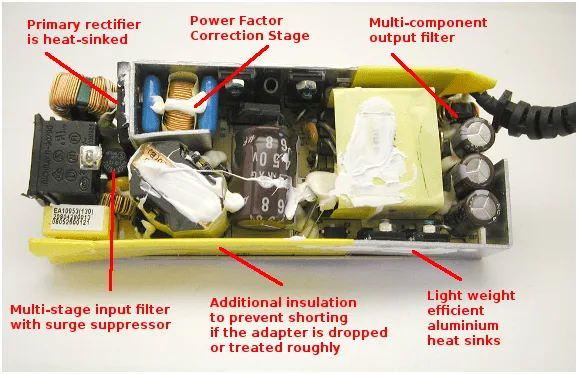
Every modern power adapter contains an internal protection circuit designed for safety. This circuit monitors voltage, current, and temperature in real-time. It operates on a simple logic gate that prioritizes hardware protection over continuous operation.
When the controller detects an over-current condition, it trips an internal breaker. This is why you see the light on the brick turn off or flicker. It stays off until the residual charge drains, which is why unplugging and replugging the brick often restores power.
Step-by-Step Diagnostic Workflow
You need to isolate the failure to determine if the issue is the adapter, the cable, or the laptop itself. Start by removing all variables that could cause power instability. Follow this workflow to identify the source of the dropouts.
| Step | Action | Objective |
|---|---|---|
| 1 | Test direct wall outlet | Eliminate power strip interference |
| 2 | Check brick temperature | Confirm thermal overload state |
| 3 | Inspect cable connections | Rule out physical pin damage |
| 4 | Measure voltage output | Confirm steady state power delivery |
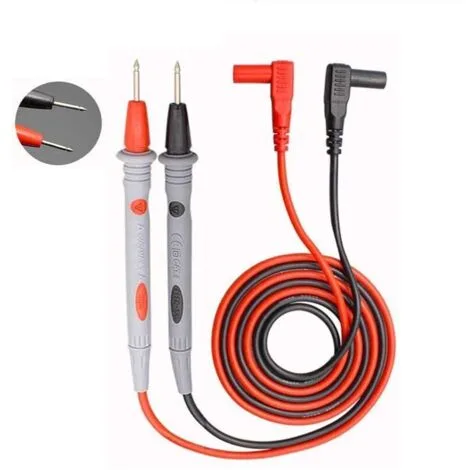
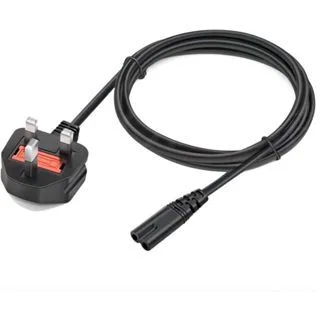
Image source: Bing (Web (fair-use with source credit))
Follow these steps to conduct a safe diagnostic:
- Unplug the charger from your laptop and the wall.
- Let the unit sit for five minutes to discharge completely.
- Connect the brick directly to a wall outlet, bypassing any extension cords.
- Monitor if the power stays active while the laptop is idle before launching a game.
Identifying Thermal Limits in Your Power Brick
Heat is the silent enemy of power electronics. If your power brick is placed on a carpeted floor or tucked inside a desk compartment, it cannot dissipate the heat generated during high-wattage conversion. This leads to premature thermal throttling of the internal components.

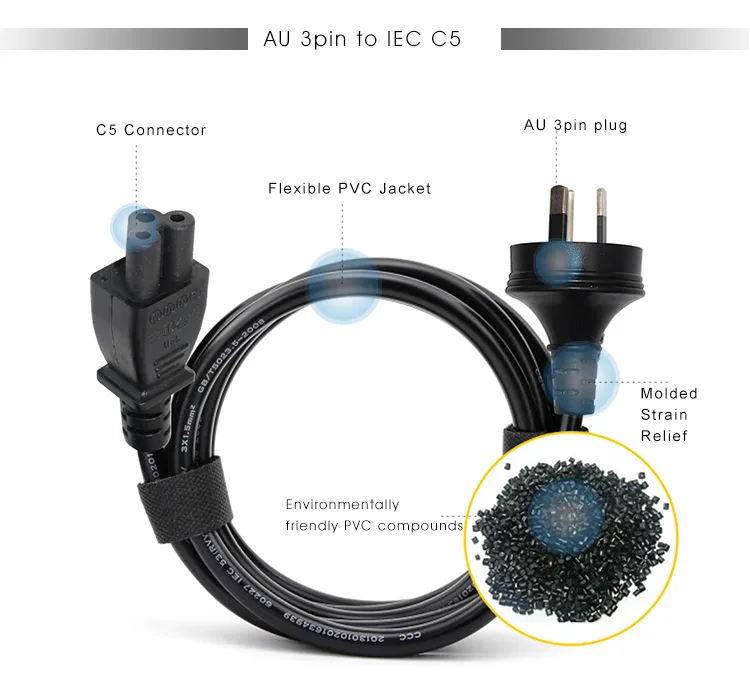
Image source: Bing (Web (fair-use with source credit))
The internal capacitors lose their efficiency as temperatures rise. If the brick reaches its thermal limit, it will shut down to protect the internal plastic housing from melting. Ensure your power brick sits on a flat, hard, and well-ventilated surface.
If the brick feels hot enough to cause discomfort when you touch it, that is a clear sign of poor thermal management.
Why Universal Chargers Often Fail Under Load
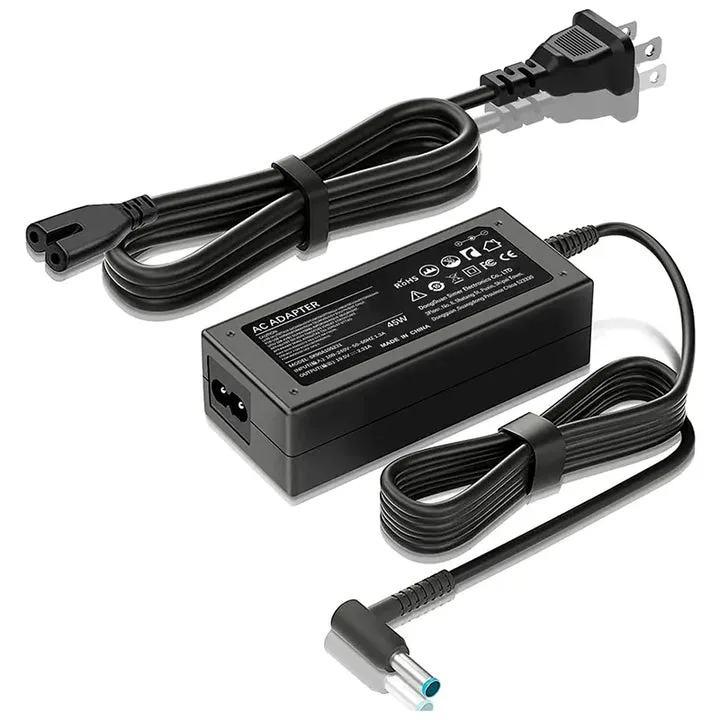
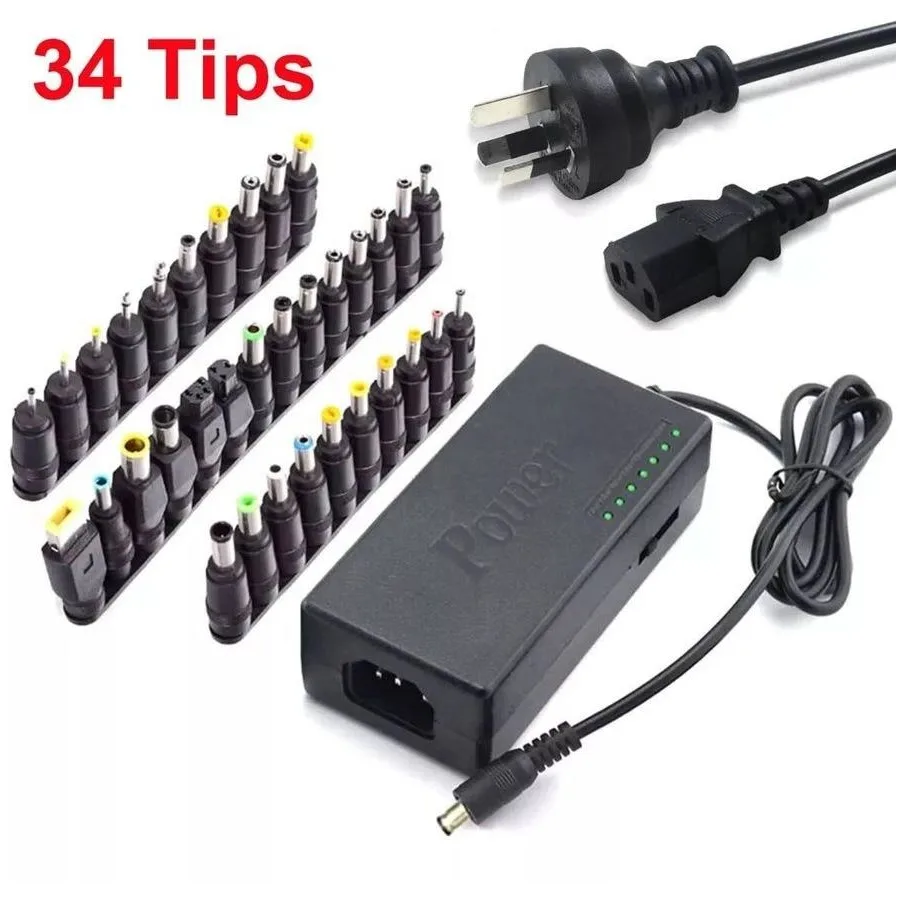
Many users purchase third-party universal adapters because they are cheaper than official replacements. These units often lack the high-quality voltage regulators required to handle the aggressive transients seen in gaming hardware. They might be labeled as the correct wattage, but they fail to maintain that power under sustained, high-load conditions.
Manufacturers design proprietary adapters to handle specific peak-load characteristics of their hardware. Using an adapter that meets official UL certification standards ensures the power delivery is reliable. Cheap, generic units often experience voltage sag where they cannot supply consistent power during GPU spikes.
This results in the laptop throttling performance or cutting the charge entirely to save the motherboard.
The Role of Battery Health and Peak Power Draw
Your battery acts as a crucial buffer during high-demand gaming sessions. Most modern gaming laptops employ a hybrid power system that pulls electricity from both the wall adapter and the internal battery simultaneously when the GPU demands maximum performance. If your battery is aged or capacity-depleted, it cannot effectively contribute to this load sharing.
When the battery fails to hold its expected charge, the laptop relies entirely on the AC adapter. This creates an immediate stress test for the power brick because it no longer has the battery to smooth out transient power spikes. You might notice the screen dimming or frame rates dropping during intensive scenes.
This is the hardware struggling to find enough current to maintain stability without the battery's support.
Inspecting Your Charging Port and Cable Integrity
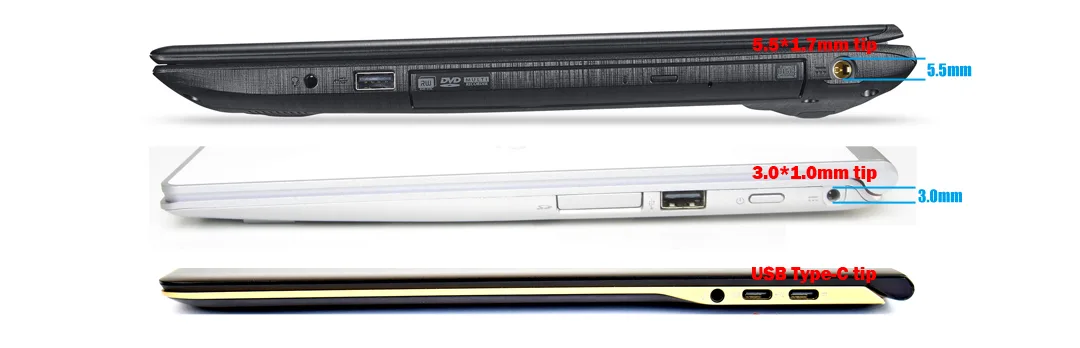
Physical wear is a frequent cause of power cutouts that many users overlook. The DC barrel jack or charging port on your laptop experiences significant mechanical stress over time. If the solder joints connecting the port to the motherboard become loose, the slightest vibration from your fans or desk movement can break the electrical circuit.
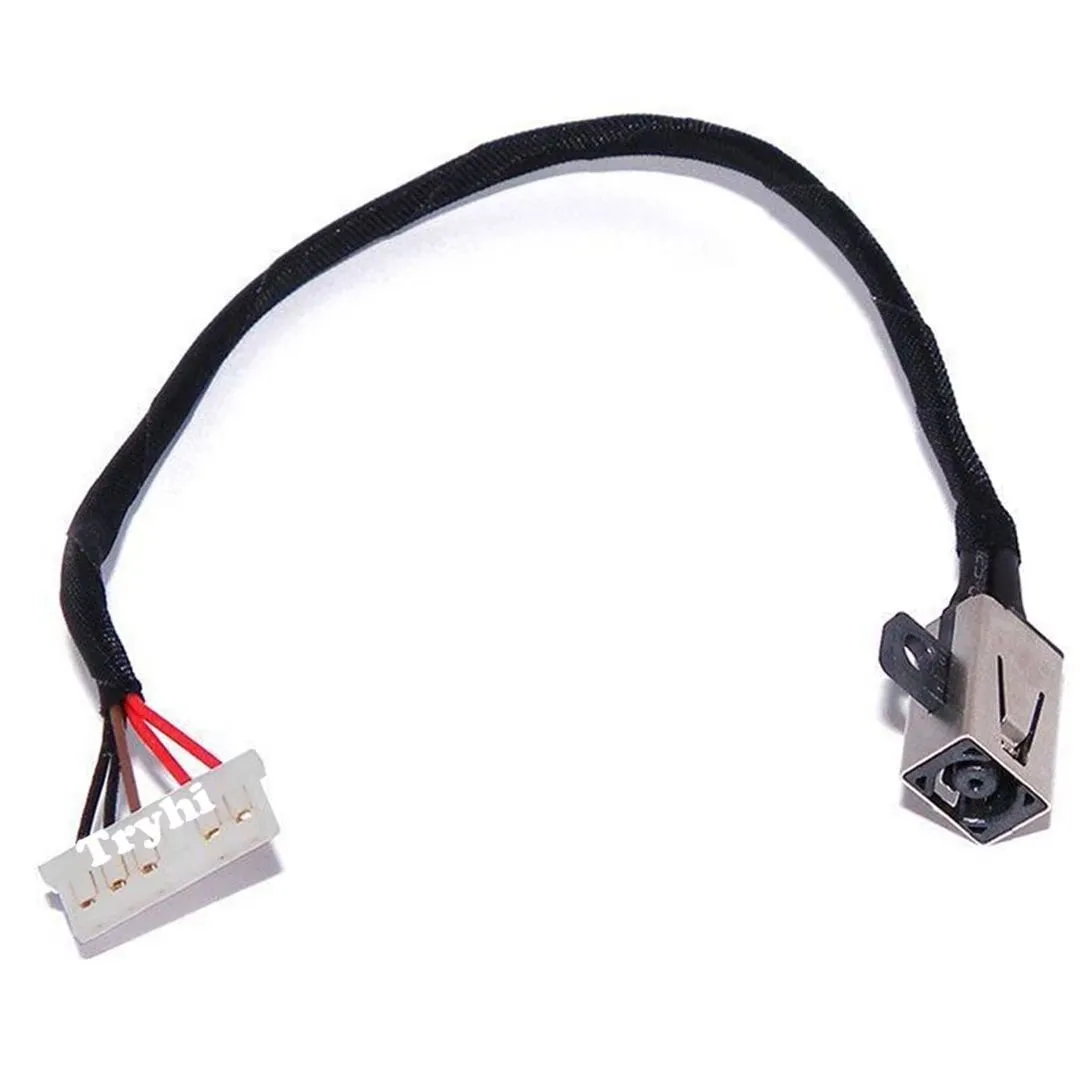
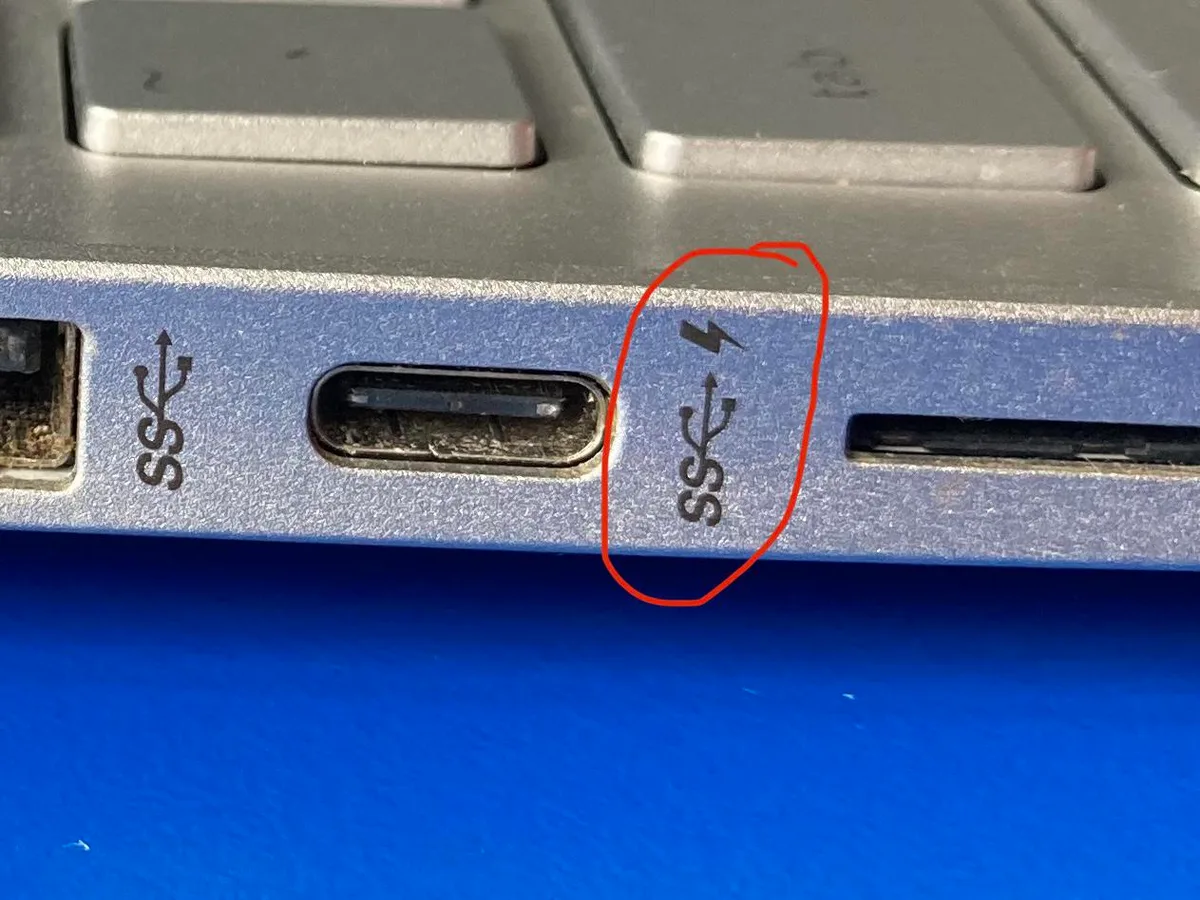
Image source: Bing (Web (fair-use with source credit))
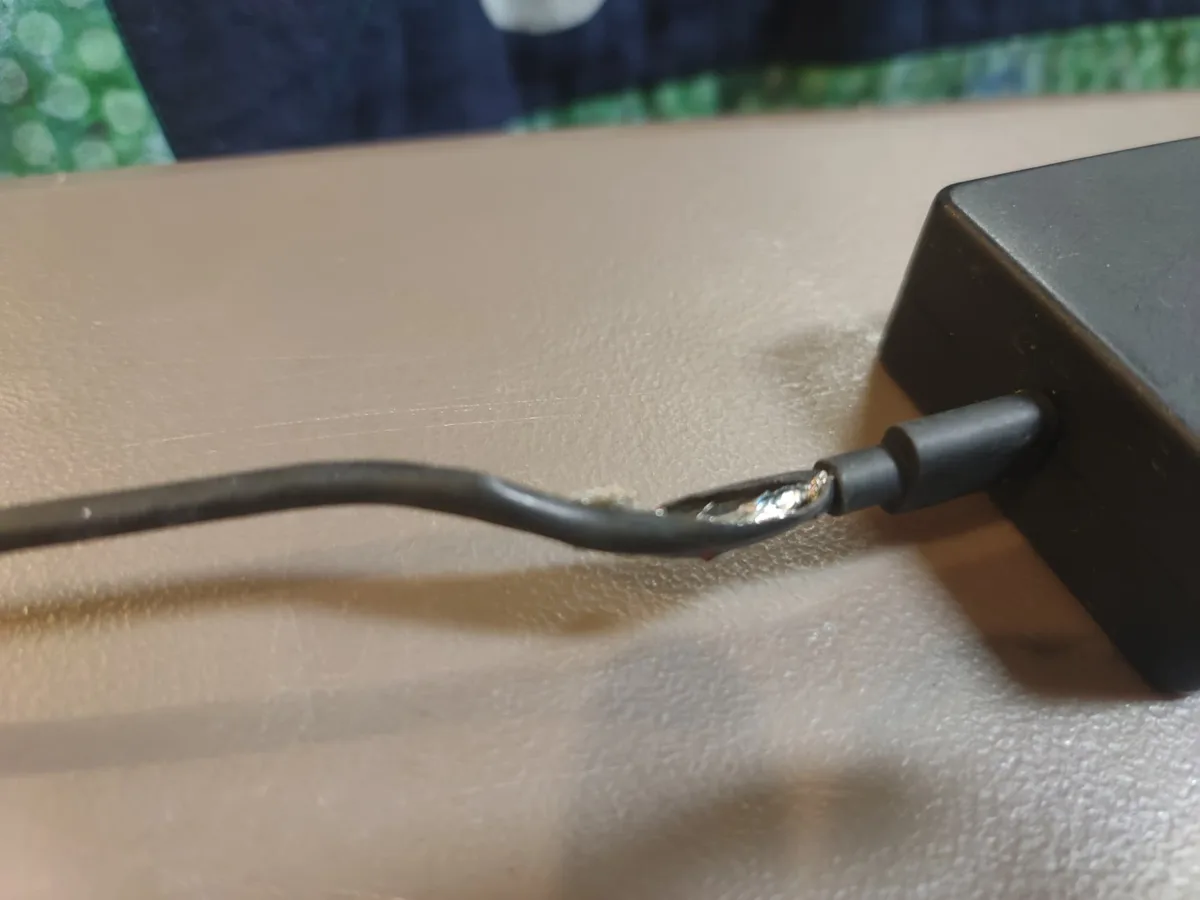
Examine the charging cable for any signs of internal fraying or exposed copper near the connector head. Even a small kink can cause the resistance to rise, which triggers the charger's safety sensor to kill the power to prevent overheating. Look closely at the center pin inside the charging port.
If it appears bent, discolored, or sunken, the connection is likely failing under the high electrical load of a gaming session.
Common Mistakes to Avoid When Troubleshooting
Don't rush into replacing hardware without ruling out simple environmental factors. A common mistake is using power strips that are not rated for high-wattage appliances. Gaming laptops often draw power equivalent to a small space heater, and cheap strips can cause voltage drops that confuse the charger's logic controller.
Avoid running multiple high-draw devices on the same wall circuit as your laptop. If your PC is sharing an outlet with a monitor, sound system, and desk lamp, the total current might be pushing the circuit breaker on your wall to its limit. Ensure your power brick is plugged into a clean, uncrowded outlet before assuming the adapter is the faulty component.
Safety Warnings and Fire Hazard Indicators
Ignoring signs of charger failure is a significant safety risk. If you notice a distinct burning plastic smell coming from the brick, stop using it immediately. This smell often indicates internal arcing or component failure that will not resolve on its own.
Look for these warning signs:
- The power brick casing is bulging or warping.
- The charger emits a high-pitched buzzing or whining sound.
- The power cable becomes excessively warm to the touch near the connection point.
- The laptop does not recognize the charger even when it is plugged in securely.
If you observe any of these, disconnect the device and unplug it from the wall outlet. Continuing to use a compromised power adapter creates a fire hazard and can permanently damage the power delivery circuitry on your motherboard.
When It’s Time to Invest in an OEM Replacement
You should source a replacement directly from the laptop manufacturer whenever possible. While third-party adapters often have the same voltage and amperage ratings, they rarely match the specific signal communication protocols that many gaming laptops use to verify charger authenticity. These handshake protocols allow the laptop to adjust its power consumption based on the charger's capabilities.
Using an off-brand charger often prevents your laptop from entering its maximum performance mode. The system detects an unknown power source and deliberately limits CPU and GPU power to prevent an overload. A genuine OEM adapter ensures the laptop knows exactly how much power is available, keeping your gaming experience fluid and your hardware protected against unexpected shutdowns.
Maintenance and Long-Term Optimization
Keeping your power delivery hardware clean is the best way to prevent unexpected shutdowns. Dust buildup inside the ventilation ports of your laptop forces fans to run faster and harder. This draws more current from your system, which places extra demand on your power adapter.
Use compressed air to blow out the exhaust vents on your laptop once a month. Clean the power brick by wiping it with a dry microfiber cloth to keep dust from clogging its casing. These simple maintenance habits keep your temperatures low and your power draw stable during high-performance tasks.
Maintenance Checklist
- Clear dust from all intake and exhaust grilles.
- Wipe down the power brick exterior for optimal heat radiation.
- Inspect cables for kinks and straighten them to prevent internal wire breakage.
- Keep the power brick off soft surfaces like blankets or carpets.
Final Verdict: Choosing the Right Power Solution
The most reliable solution for persistent power drops is returning to the original equipment manufacturer specifications. If your current adapter is failing under load, do not gamble on budget-friendly alternatives that lack the necessary certifications. High-wattage gaming hardware requires precision-engineered power delivery that generic bricks rarely replicate effectively.
Look for the exact model number printed on your current power brick when seeking a replacement. This ensures the output voltage and connector type perfectly match your laptop's requirements. Investing in a quality adapter now prevents potential motherboard damage and ensures you maintain the maximum frame rates your system is capable of producing.
Frequently Asked Questions
Is it safe to play games while the battery is at 0 percent?
Playing with a dead battery puts immense strain on your AC adapter. The power brick must handle 100 percent of the laptop's power spikes without any buffer support. This increases the risk of the charger tripping its safety breaker or failing prematurely.
It is best to let the battery charge fully before starting heavy games.
Can a loose charging port be fixed?
A loose port usually indicates a failed solder joint on the motherboard or a broken internal connector. You can often have this repaired by a professional technician who specializes in laptop hardware. Do not attempt this yourself unless you have experience with delicate micro-soldering, as you risk damaging the surrounding components on the mainboard.
Why does my charger only cut out during specific games?
Different games place different loads on your hardware. A title that uses intensive ray-tracing or high-resolution textures will force the GPU to pull more power than an indie game or a less demanding competitive shooter. Your charger likely has enough power for light loads, but the spikes from heavy titles exceed its safety limit.
Does setting an FPS cap help with charger cutouts?
Limiting your frames per second can significantly reduce the power draw of your GPU. By capping your frame rate, you prevent the hardware from working unnecessarily hard, which effectively flattens the power spikes. This simple adjustment often provides enough overhead to keep your charger from tripping its safety circuit during long gaming sessions.
How do I know if my charger is truly the bottleneck?
The most reliable way to verify this is by testing your laptop with a known-good charger of the same model and wattage. If the cutouts stop, you have isolated the issue to the original adapter. If the problem persists with a different charger, the fault likely lies within your laptop's internal power management system or battery.

Similar Posts