Acer Laptop Charger Light Blinking? How to Fix It Fast
Senior Hardware Diagnostics Specialist & Lead Thermal Editor at Laptop Post Testing Lab · CompTIA A+, ACMT, B.S. in Computer Engineering · 12+ years bench-testing laptop thermal solutions & motherboard repairs
If you're wondering how to fix an Acer laptop charger light blinking when plugged in, you aren't alone. This common warning sign indicates that your laptop is having trouble establishing a consistent flow of electricity. It usually points to a communication error between the power adapter and the motherboard.
Manufacturers like Acer often design these light signals as a built-in diagnostic tool. When the light cycles or blinks, the system might be detecting a voltage irregularity or a battery sensor fault. As of 2026, most standardized power management controllers use these blinking patterns to prevent potential hardware damage.
Quick Answer
A blinking light on an Acer laptop indicates a power delivery error. Disconnect the power cable and remove the battery if possible. Hold the power button for thirty seconds to drain residual static.
Reconnect the charger and attempt to power on the device. Check your charging cable for physical damage or loose connections. Seek professional help if the light continues to blink.
Why Your Acer Power Light Is Blinking
A blinking power light is a specific hardware alert. It means the laptop senses power but cannot successfully handshake with the internal power management circuit. This often happens because the system detects an incorrect voltage or a failure in the charging path.
Think of this as a safety gate. When the laptop's embedded controller detects resistance or noise on the power line, it forces the light to blink to prevent the internal components from overheating. Ignoring this signal can occasionally lead to premature wear on your lithium-ion battery or the motherboard itself.
The Hard Reset Fix: Clearing Static Charge
The most effective way to resolve this is a power flush. This process removes static electricity that sometimes gets trapped in the system's capacitors. It is a harmless procedure that essentially performs a cold boot of your power management system.
- Unplug the charger from your laptop.
- If your laptop has a removable battery, eject it carefully.
- Press and hold the power button for a full 30 seconds.
- Plug the charger back in, leaving the battery out for the first attempt.
- Try to power on the laptop normally.
If the laptop boots up, the issue was likely a minor static buildup. You can then power it down and reinsert the battery to see if the system recognizes the charge level correctly.
Evaluating the Charger and Charging Port
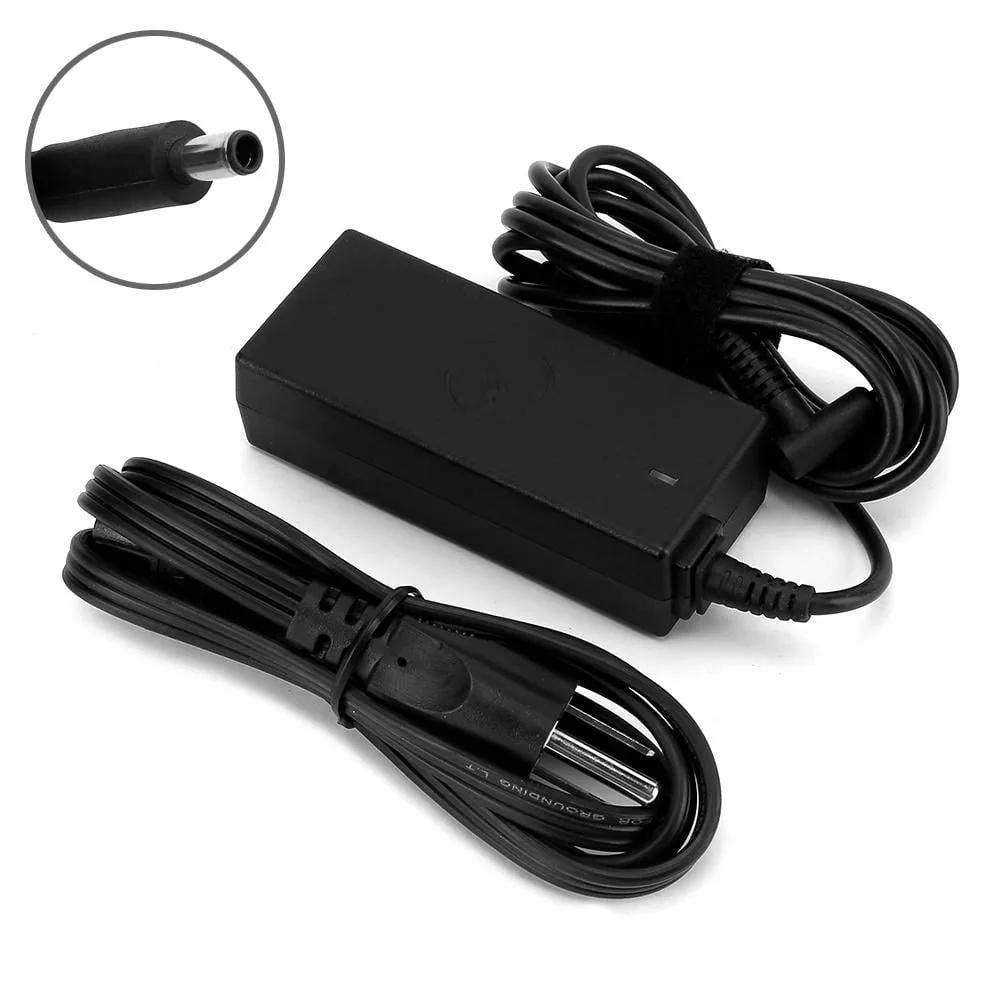
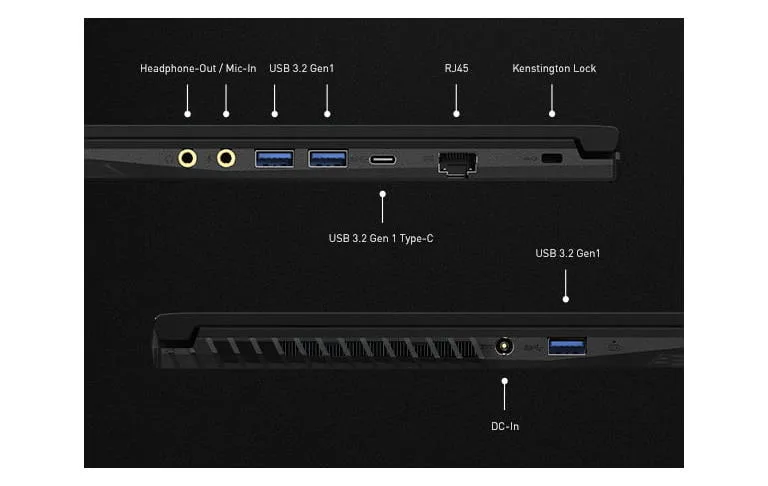
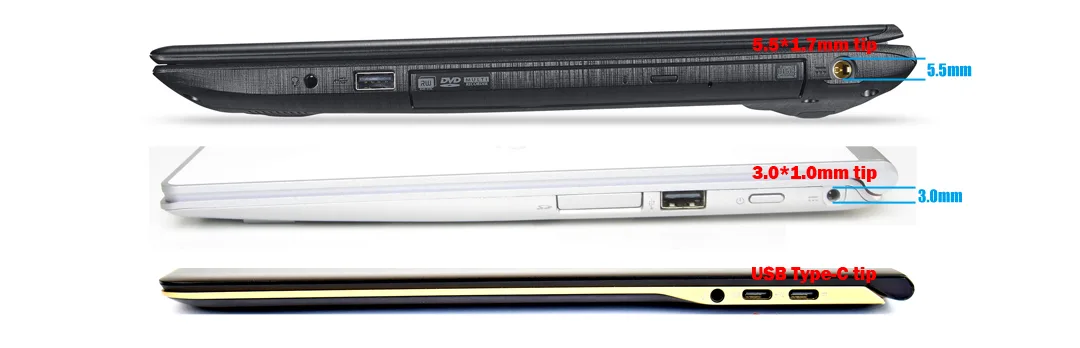
Your charger brick and the physical port are the most frequent points of failure. Even a slight bend in the center pin of the charger tip can prevent a solid connection to the internal IEEE compliant power standards.
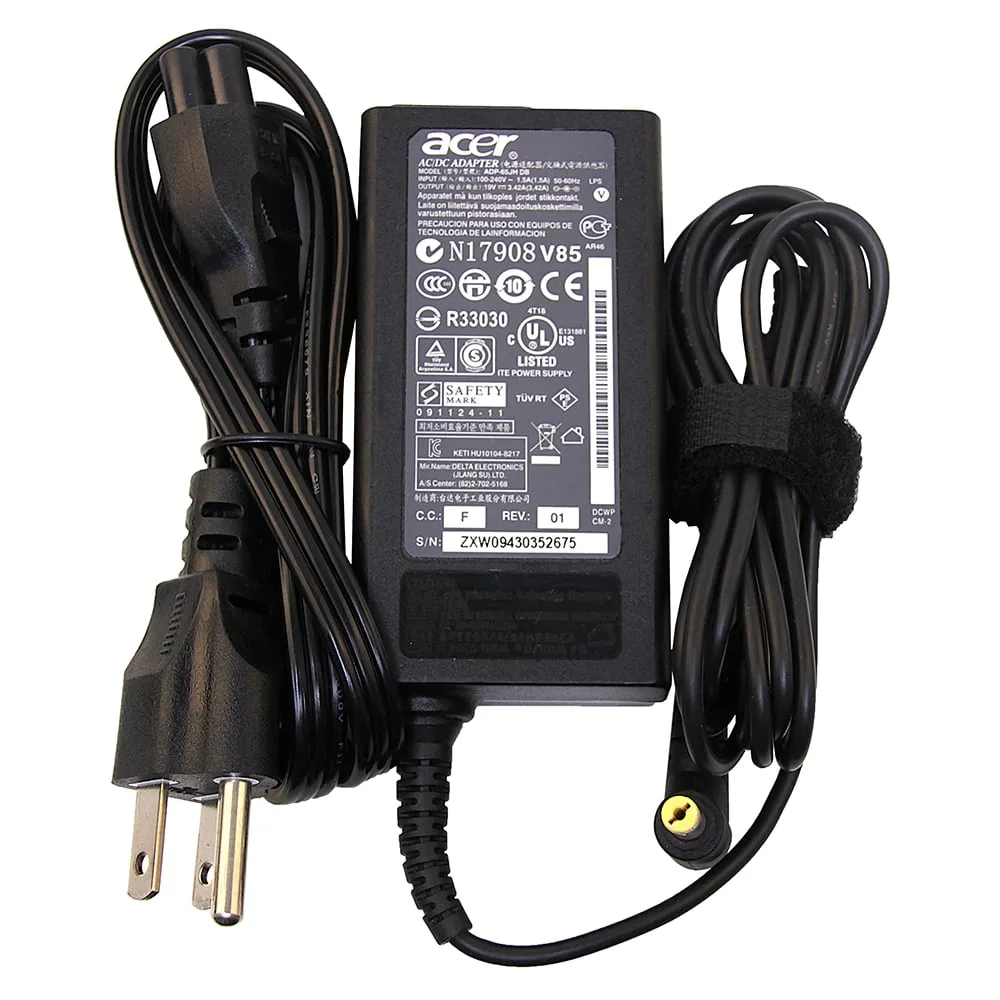
- Check the Brick: Ensure the connection between the power brick and the wall outlet is tight.
- Inspect the Tip: Look for debris inside the charging barrel. Use a flashlight to see if the metal pin inside the laptop port looks centered.
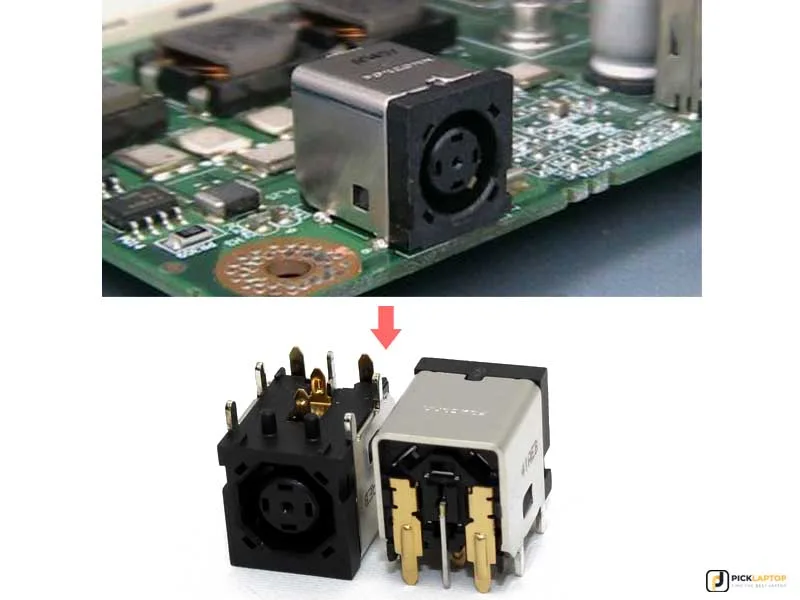
- Wiggle Test: Very gently move the plug while it is inserted. If the light changes from blinking to solid, the DC jack is likely worn out.
Troubleshooting the Battery Connection
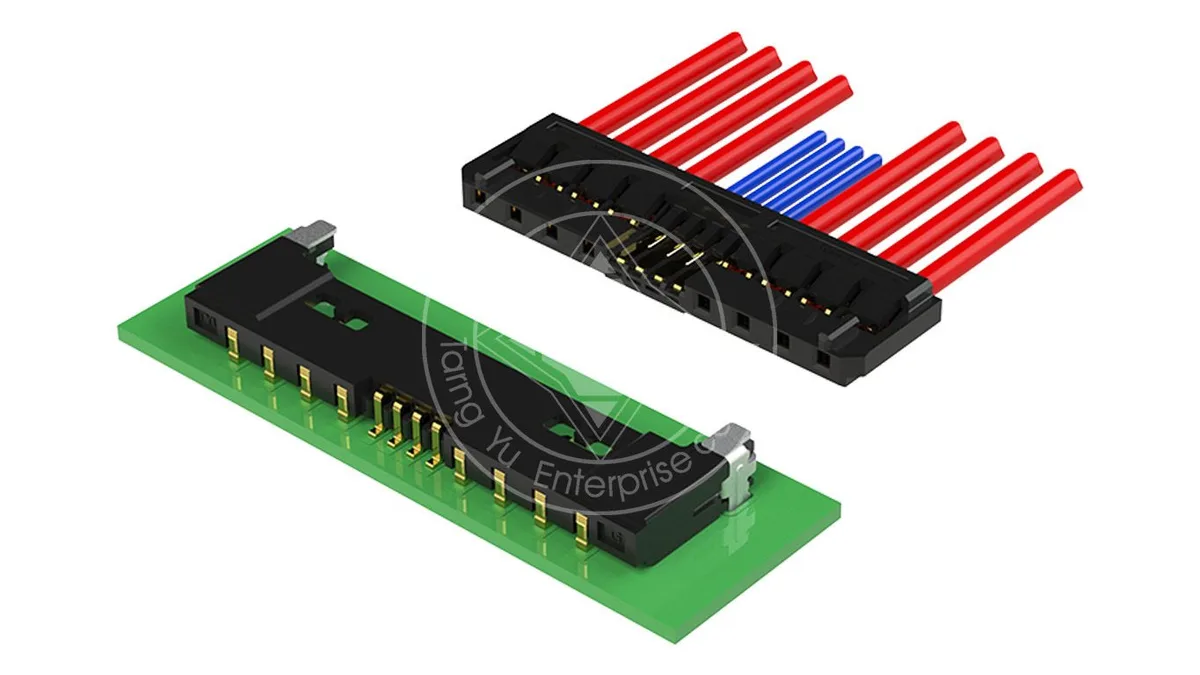
Sometimes the problem is not the external power, but the battery's communication with the board. If the battery connector is loose or oxidized, the laptop might think the battery is missing or critically low.
If you have a laptop where the battery is accessible, inspect the metal contacts for any signs of corrosion or dust. A simple cleaning with high-percentage isopropyl alcohol and a soft brush can sometimes restore the connection.
| Component | Inspection Method | Red Flag |
|---|---|---|
| Charging Port | Visual inspection | Loose casing or bent pins |
| AC Adapter | Physical handling | Frayed cords or burning smell |
| Battery | OS system report | "Service Required" warning |
Comparing Power Supply Issues vs. Hardware Failure
It is helpful to know if you are dealing with a replaceable accessory or a deeper system problem. You can often distinguish the two by watching the behavior of the device when the battery is removed.
- Charger Failure: The laptop will not turn on at all, or it only works when the cord is held in a specific position. This is easily fixed with a replacement charger that matches your laptop's original voltage and amperage.
- Motherboard Failure: The laptop shows no life even with a verified working charger. If you have confirmed the charger is outputting the correct voltage with a multimeter, the internal power circuit on the motherboard may have failed.
Mistakes to Avoid When Troubleshooting
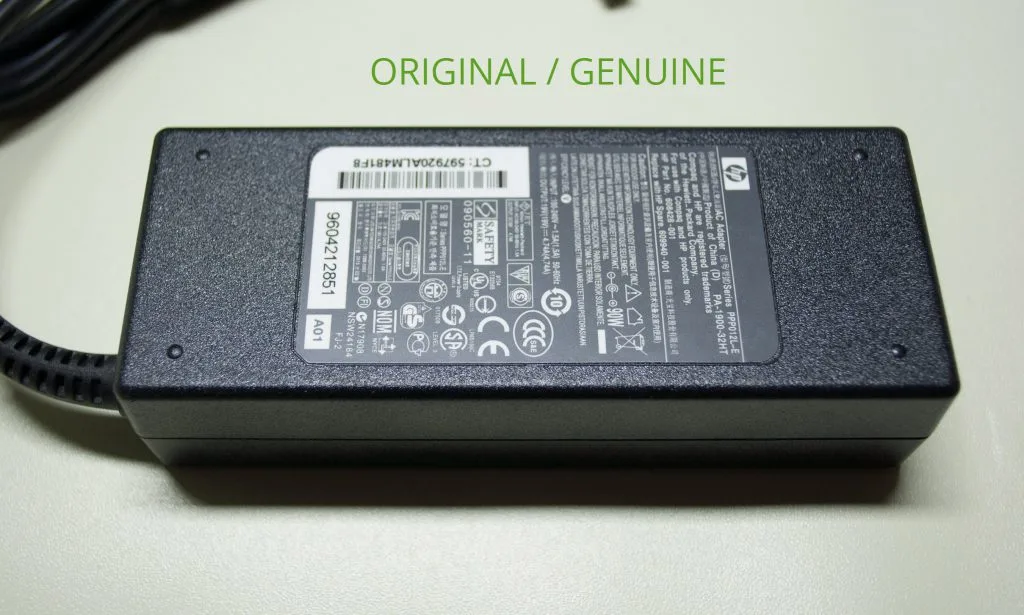
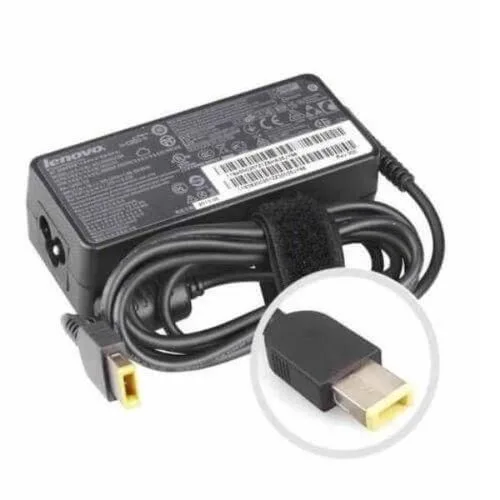
Avoid common traps that can turn a minor power hiccup into a permanent hardware failure. The biggest mistake is assuming any charger with the same connector shape will work. Acer laptops have specific wattage requirements, and using an underpowered charger from a different device can trigger that blinking light as a protective warning.
Never try to force a connection if the port feels loose. If you push the plug at an angle to force a contact, you risk snapping the tiny signal pin inside the DC jack. That type of internal damage is much harder and more expensive to repair than a simple port misalignment.
Finally, resist the urge to open the laptop casing if you aren't familiar with internal electronics. Modern laptops are densely packed, and static electricity from your hands can damage the motherboard components. If you do decide to open it, always ground yourself by touching a large, unpainted metal object first.
Safety Warnings and Thermal Risks
Protecting yourself and your hardware from thermal runaway is the highest priority. If your battery feels unusually hot to the touch or appears swollen, disconnect the power supply immediately. Do not attempt to charge a physically damaged battery, as this poses a significant fire hazard.
Follow these basic safety rules to ensure you don't compromise your workspace:
- Always use a surge-protected power strip to guard against electrical spikes.
- Keep charging cables clear of walkways to prevent accidental tugs on the port.
- Avoid placing the laptop on soft surfaces like beds or carpets while troubleshooting, as this traps heat near the components.
If you ever notice a faint scent of burning plastic, kill the power at the wall outlet first. Never attempt to handle a cable that shows signs of melting or exposed wires. Electricity is dangerous, and hardware can be replaced, but safety is non-negotiable.
When to Seek Professional Repair
You have reached the end of DIY options when the hardware simply refuses to cooperate after a hard reset. If you’ve tested a known-working charger and the machine still cycles a blinking light, the issue is almost certainly on the motherboard. This typically involves a fault in the charging controller chip.
Most local repair shops have the tools to perform a component-level repair on your board. They can desolder a broken DC jack or trace a short circuit far more cheaply than the manufacturer can replace the whole motherboard. Don't feel bad about needing help, as specialized diagnostics for modern circuits often require a schematic diagram and a steady hand.
Bring your charger along when you take the laptop to the shop. Having the technician verify your charger with their testing equipment is the fastest way to confirm whether the problem is limited to your machine. It saves them time, which usually keeps your repair bill lower.
Long-Term Battery and Power Port Care
Keeping your power system healthy starts with how you store and handle your gear daily. The most common cause of port wear is tension on the cable while the laptop is in use. Always position your laptop so there is a small amount of slack in the cord, preventing the plug from acting as a lever against the port.
Temperature management is equally vital for the longevity of your lithium-ion battery. Charging your laptop in an environment that is too hot or too cold can confuse the internal battery management system. Aim to keep the device at room temperature whenever it is plugged in for extended sessions.
Consider using an application that manages battery charging thresholds if you keep the laptop plugged in for weeks at a time. Keeping the charge level between 40% and 80% can significantly extend the chemical life of the cells. This prevents the battery from sitting at 100% saturation, which creates unnecessary internal stress.
Frequently Asked Questions
Why does my charger light blink only when the battery is inserted?
This usually means the laptop’s power management system has identified an error with the battery's health or its ability to report data. The light blinks to indicate that the battery is incompatible, failing, or failing to communicate properly. Try removing and reseating the battery to see if the contact clears the error.
Can a BIOS update fix a blinking charger light?
Yes, a BIOS update can resolve power issues if the blinking is caused by a firmware miscommunication between the motherboard and the battery. If your laptop boots into the operating system, check for available updates on the official manufacturer site. Only perform a BIOS update if your battery is at least 30% charged or if the device is connected to a stable power source.
Does a blinking light always mean the battery is dead?
No, a blinking light is a signal of a communication breakdown, not always a dead battery. It could indicate a faulty power supply, a loose internal connection, or a triggered safety circuit. Use the troubleshooting steps provided to isolate each component before concluding that the battery needs to be replaced.
Is it safe to use my laptop while the light is blinking?
You should avoid using the laptop while the light is blinking because the system cannot confirm its power stability. Running a laptop on an unreliable power source can lead to sudden shutdowns. These unexpected power cuts can corrupt your system files or damage the internal storage drive over time.

Similar Posts