Does Your USB-C Port Support Charging? How to Check in
Senior Hardware Diagnostics Specialist & Lead Thermal Editor at Laptop Post Testing Lab · CompTIA A+, ACMT, B.S. in Computer Engineering · 12+ years bench-testing laptop thermal solutions & motherboard repairs
Knowing how to test if your USB-C port supports charging on Windows 11 is the only way to avoid the headache of a dead battery. While these ports look identical on the outside, their internal wiring dictates whether they handle data, video, or power.
Most modern laptops require a connection that meets the USB Implementers Forum Power Delivery standards. As of 2026, understanding your specific port's capabilities prevents the frustration of buying chargers that fail to trigger a charge.
Quick Answer
You can verify USB-C charging through physical hardware markers or Windows software. Look for a lightning bolt icon next to your port. Open Device Manager to find USB4 or Power Delivery controllers.
Connect a charger and check the Power and Battery settings. If the status says charging, your port supports power delivery.
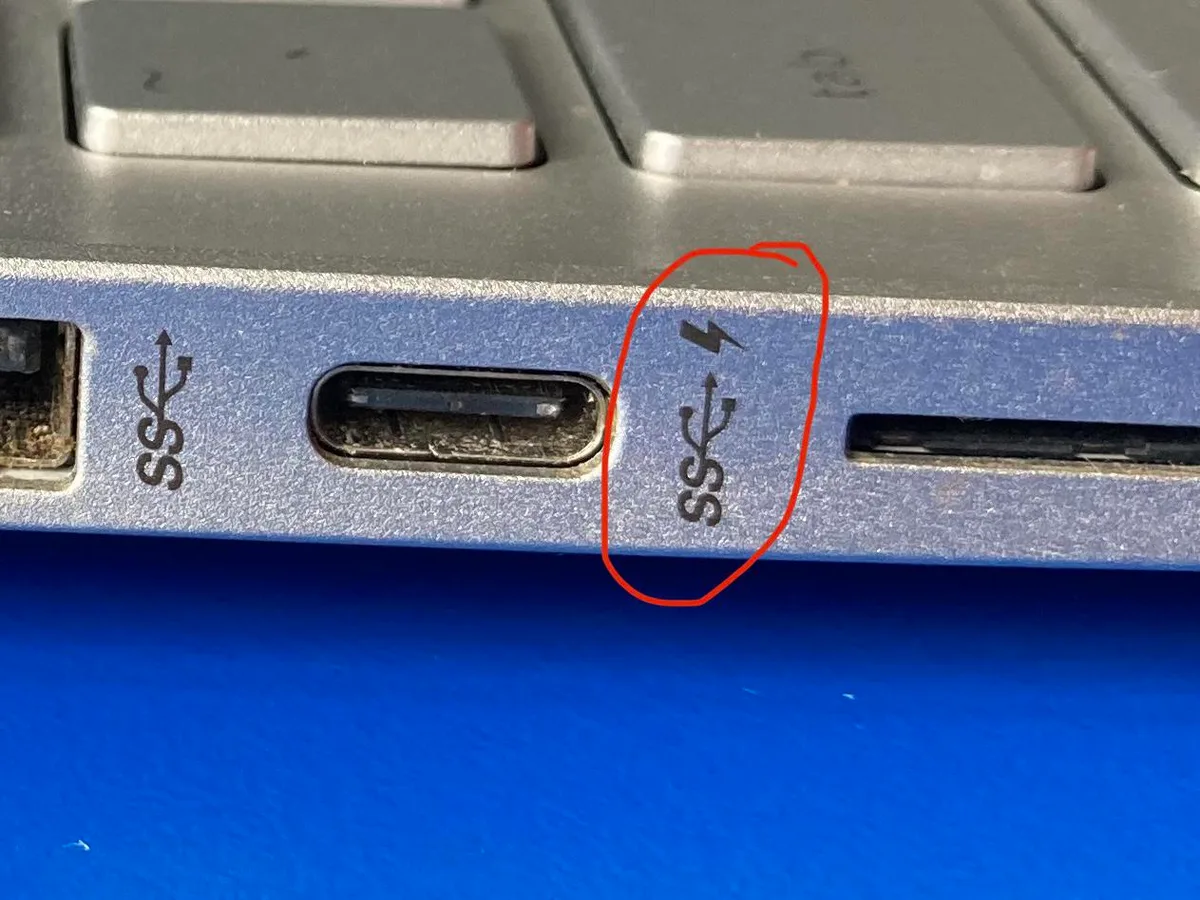
Image source: Bing (Web (fair-use with source credit))
The Why Isn't It Charging Problem
USB-C acts as a universal shape for many different technologies. It can transfer files, push high-resolution video to monitors, or deliver electricity to your system. The problem arises because manufacturers use the same physical housing for these different functions.
If your laptop has two or three USB-C ports, they might have different roles. One might charge the device while the others only move data. Relying on the shape alone leads to confusion and wasted time.
Identifying the correct port is the first step toward successful charging.
Decoding the Symbols: What Those Icons on Your Port Actually Mean
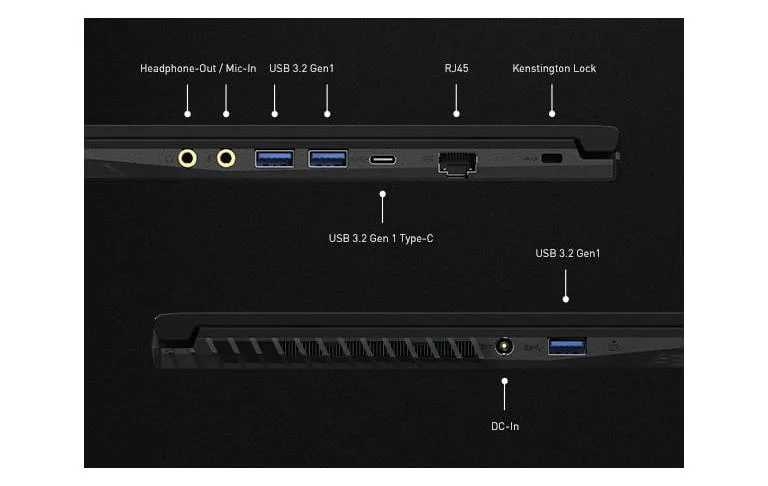
Manufacturers often place tiny symbols near the USB-C port to tell you what it does. These icons are the fastest way to verify hardware support without opening any software. A lack of an icon does not mean the port lacks power, but an icon provides instant certainty.
- Lightning Bolt: This is the most common indicator for Power Delivery. It confirms the port is wired to accept power from an external supply.
- Plug Icon: Some laptops use a small symbol that looks like an electrical plug. This confirms the port's primary purpose involves charging.
- Trident Symbol: This usually denotes data transfer speed. It does not guarantee power delivery support.
- DisplayPort Symbol: A stylized D icon indicates support for video output. This is often, but not always, paired with power delivery.
How to Check Your Port Status in Windows 11 Device Manager
Device Manager acts as the bridge between your hardware and the operating system. It lists the specific controllers that manage how your ports communicate. If you want a technical verification of your port's power capabilities, this is the place to start.
- Right-click the Start button and select Device Manager from the menu.
- Expand the section labeled Universal Serial Bus controllers.
- Look for names containing USB4, Power Delivery, or USB-C Connector System Software.
- If these items appear, your system includes a dedicated controller for power-related tasks.
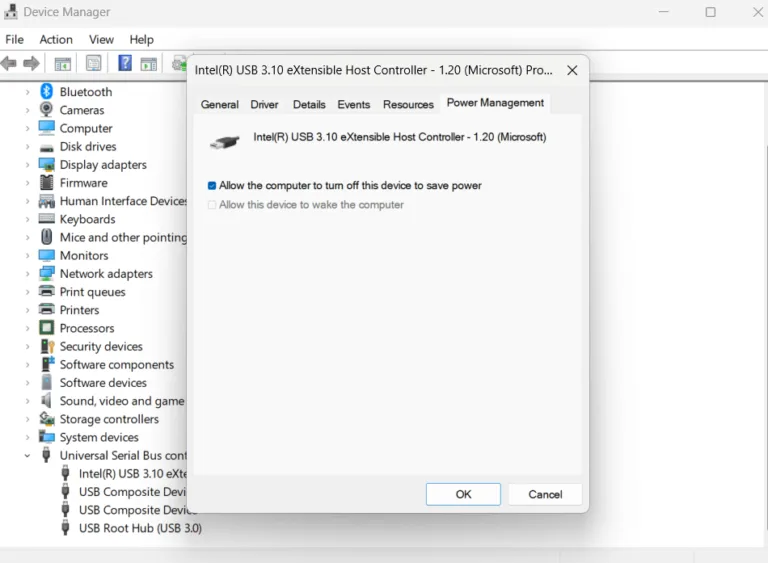
Image source: Bing (Web (fair-use with source credit))
If the list only shows standard host controllers, your port may not be configured for charging. These entries confirm the software side is ready to handle external power input. It verifies that your motherboard recognizes the hardware requirements for charging.
Reading Your Power & Battery Settings for Real-Time Feedback
The most reliable test is the actual connection of a power source. Windows 11 provides a simple interface to track your battery status while the device is plugged in. You don't need fancy diagnostics to see if the system accepts the charge.
- Navigate to Settings, then select System.
- Click on the Power & battery menu.
- Connect your USB-C charger to the suspect port.
- Observe the battery icon or the status text at the top of the menu.
If the port supports charging, the status changes to "Charging" within seconds. If the device remains in a "Plugged in" state without an active charging signal, the wattage might be insufficient. This usually happens when you use a phone charger on a laptop that demands higher power output.
Understanding the Role of Wattage and Power Delivery
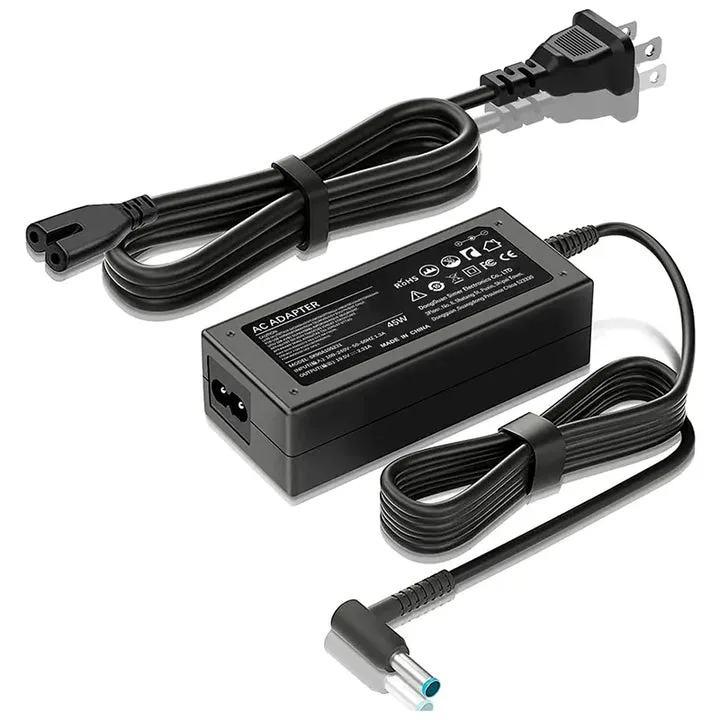
Charging a laptop requires more than just a compatible port. The charger must supply enough power to keep the system running while simultaneously filling the battery. USB Power Delivery is the specific standard that handles this negotiation between your laptop and the power brick.
| Charger Wattage | Typical Usage Case |
|---|---|
| 15W – 30W | Tablets and smartphones |
| 45W – 65W | Standard thin-and-light laptops |
| 100W+ | High-performance workstation laptops |
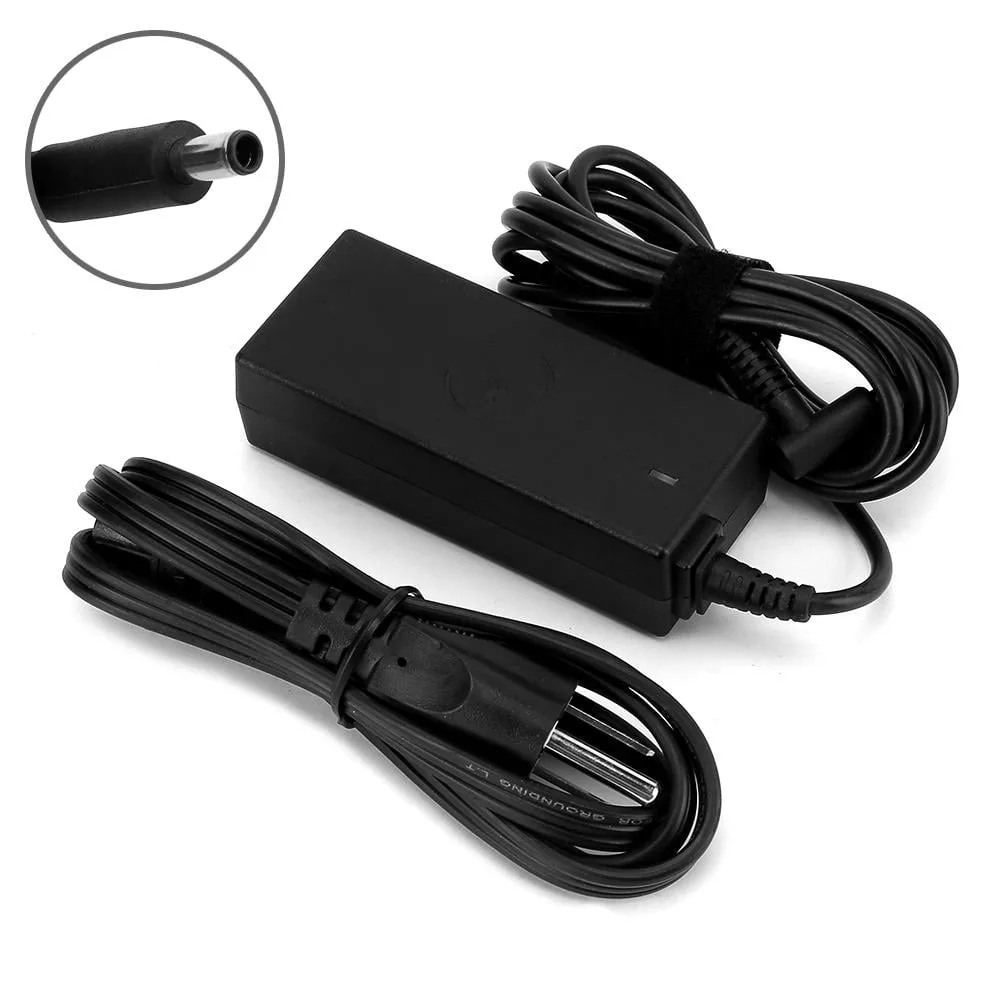
Your laptop will reject a charger if the wattage is too low to meet minimum safety requirements. This protects your hardware from overheating or drawing current in an unstable manner. Check your laptop's original power brick to see the required wattage, then ensure your USB-C charger matches or exceeds that number.
The Cable Trap: Why Your USB-C Cable Might Be the Real Issue
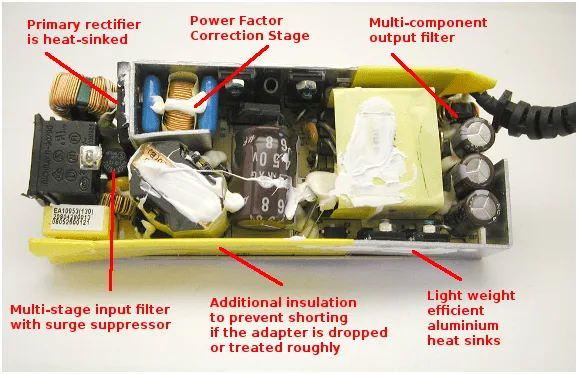
The cable you use is often the silent variable that causes charging failure. Many USB-C cables are designed strictly for data transfer, meaning they lack the copper wiring and internal electronics to carry high-voltage power. Even if your laptop port supports charging, a cheap or generic data cable will not work.
You should look for cables explicitly marked with 100W or 240W ratings. These cables include an E-Marker chip that communicates the cable's capacity to your laptop and power adapter. If this communication fails, the system defaults to a safe, low-power mode, which is usually not enough to charge a laptop.
Image source: Web (Bing) / openclipart.org (Web image (fair-use with source credit))
Check your cable’s housing for any printed wattage specs. If there are no markings, you should assume the cable is a standard 60W or lower data cable. Trying to force high-speed charging through these cables is a recipe for a sluggish experience, if not a total failure to charge.
Troubleshooting BIOS and Manufacturer-Level Restrictions
Sometimes, the hardware is perfectly capable of charging, but the system firmware has blocked the function. Laptop manufacturers occasionally disable USB-C charging via the BIOS or UEFI settings to prevent unauthorized power usage in corporate environments. Accessing these settings allows you to toggle port permissions if they were restricted at the factory level.
- Restart your computer and enter the BIOS menu by pressing the manufacturer-specific key.
- Look for Power, Advanced, or USB Configuration tabs.
- Search for a toggle like Charge via USB-C or Enable Power Delivery.
- Ensure the setting is toggled to Enabled and save your changes before exiting.
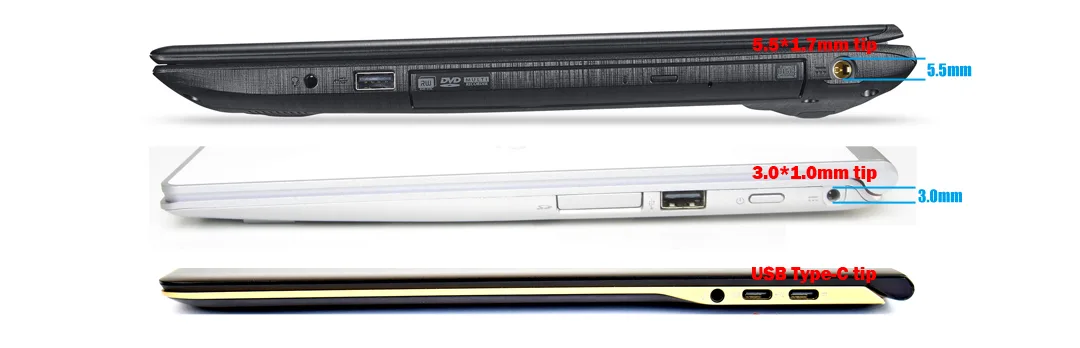
If you cannot find these settings, contact the manufacturer's support site for your specific model. Some machines prioritize traditional barrel-plug chargers and explicitly forbid USB-C input in the firmware. This is common in older professional-grade hardware or budget-oriented systems where USB-C was added as an afterthought.
Comparing Data-Only Ports vs. Full-Function Power Delivery Ports
Distinguishing between port types requires understanding the difference in signal and power pathways. A data-only port is the most basic implementation of the USB-C standard. It moves files quickly but stays electrically isolated from the system’s primary power rail.
In contrast, a full-function port acts as a gateway for the laptop's power management integrated circuit. These ports require thicker wiring and additional protection against voltage spikes. The table below helps differentiate between these common hardware configurations.
| Feature | Data-Only Port | Power Delivery Port |
|---|---|---|
| Primary Use | File transfer | Laptop charging |
| Video Output | Rare | Common |
| Internal Wiring | Basic | Reinforced |
| Windows Icon | Trident or SS | Lightning bolt or Plug |
If you are choosing between peripherals, always look for devices that explicitly state Power Delivery or PD support. Connecting a high-drain monitor or dock to a data-only port will result in a connection that works for data but leaves your battery slowly draining.
Common Mistakes That Prevent Successful USB-C Charging
The most frequent error is assuming that all USB-C chargers are interchangeable. While the connector is universal, the output voltage profiles vary drastically between phone chargers, laptop adapters, and hub-based power supplies. A charger that works for your tablet may not provide the 20V requirement your laptop needs to initiate a charge.
Another common mistake involves the chain of connections. If you plug a charger into a USB-C hub, and then connect that hub to your laptop, the hub itself often siphons off power for its own internal operations. This reduces the final wattage reaching your laptop to a point where the system refuses to charge.
- Daisy-chaining: Plugging a charger into a hub often limits available power.
- Dirty ports: Lint or dust inside the port can block the physical contacts, leading to an intermittent connection.
- Port swapping: Testing only one port and giving up when all ports on the device may not have the same features.
Always use a compressed air canister to clear out your USB-C ports before concluding that a failure is electronic. A small piece of debris can prevent the connector from seating properly, breaking the connection before the power handshake ever completes.
Expert Tips for Testing Hardware Without Fancy Tools
You can verify your power setup using nothing but the laptop's own hardware feedback. If you possess a second USB-C device, such as a modern smartphone, use it to test your cable and charger combination. If the charger successfully powers the phone but fails with your laptop, you have successfully narrowed the issue down to the laptop's port configuration or its minimum power requirements.
Consider the heat generated by the power brick during a connection attempt. A charger that is actively negotiating power will often become slightly warm to the touch. If the brick remains stone-cold, it is not communicating with the laptop, suggesting either a faulty cable or a communication failure in the laptop's controller.
Finally, keep track of your software updates. Windows 11 periodically receives firmware updates through Windows Update that improve power management stability. Check the Optional Updates section in the Windows Update menu to ensure your USB-C connector firmware is running the latest version from your hardware vendor.
Safety and Standards: Why USB-IF Certification Matters
Certification from the USB Implementers Forum guarantees that your hardware adheres to industry-wide safety protocols. Non-certified cables and chargers often skip the expensive protection circuitry required to handle high-wattage power safely. This can lead to overheating or permanent damage to your laptop’s sensitive charging circuits.
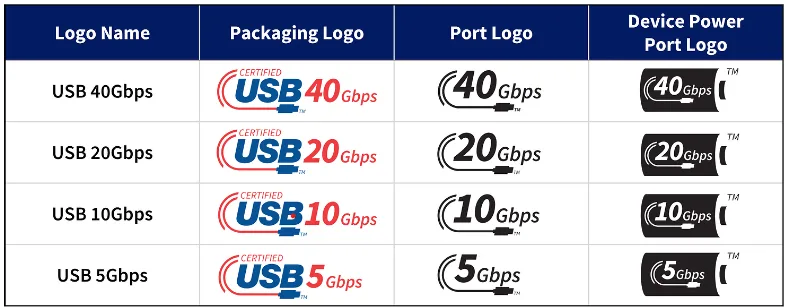
Image source: Bing (Web (fair-use with source credit))
Look for the official Certified USB logo on packaging to ensure your gear passes these rigorous benchmarks. Using unverified power supplies is a significant risk factor for hardware failure. Whenever possible, pair your laptop with a charger that holds a clear certification mark.
Frequently Asked Questions
Can I charge my laptop with a mobile phone charger?
You can plug a phone charger into your laptop, but it will rarely work. Most phone chargers provide far less wattage than the 45W or 65W minimum required by most laptops. If the charger is weak, Windows will likely report that it is plugged in but not charging.
Does a USB-C port with a display output always support charging?
Not always. While many ports with DisplayPort capability also support Power Delivery, some hardware designs separate these functions. You must verify the specific port capabilities using the Device Manager methods or physical icons mentioned earlier.
Check your manufacturer’s technical manual if you are still unsure.
Why does my laptop charge slowly when using a USB-C dock?
Docks often consume a portion of the incoming power to run their internal hubs, video outputs, and USB ports. If your dock receives 65W of power, it might only pass 45W or 50W to your laptop. This creates a charging deficit that results in slower battery replenishment.
Will a Thunderbolt port charge my laptop reliably?
Thunderbolt 3 and 4 ports almost always include mandatory support for power delivery and high-speed data. These are the most capable ports found on modern laptops. You should prioritize these ports for your charger if they are available on your machine.
What should I do if my port works for data but refuses to charge?
Start by cleaning the port with compressed air and testing a different high-wattage cable. If the issue persists, check your BIOS settings for any power management restrictions. If no settings are found, the internal power delivery controller might be faulty and require professional hardware repair.
Final Decision Guide: Troubleshooting Your Connectivity Issues
Follow this simple logical flow to isolate your charging issues. Start by inspecting the physical port for the lightning bolt icon, which provides the easiest confirmation of power delivery capabilities. If no icon exists, proceed to Device Manager to confirm that the OS detects the necessary power controllers.
If the software shows a compatible controller, verify that your charger meets the minimum wattage requirements found on your laptop’s original power brick. If you still face issues, replace your current cable with an E-Marked, 100W-rated version to rule out a cable limitation. Most connectivity problems resolve by ensuring you have enough power and a cable capable of carrying it.

Similar Posts