Why Is Your Laptop Charger Getting Hot on Carpet?
Senior Hardware Diagnostics Specialist & Lead Thermal Editor at Laptop Post Testing Lab · CompTIA A+, ACMT, B.S. in Computer Engineering · 12+ years bench-testing laptop thermal solutions & motherboard repairs
If you have ever reached down to move your laptop charger and found it burning to the touch, you have likely wondered why is my laptop charger getting hot on carpet. These power adapters generate heat as a normal byproduct of converting wall power into a usable format for your computer.
However, placing these bricks on soft surfaces like rugs or carpets creates a dangerous insulation effect. This setup traps heat inside the device instead of letting it dissipate safely into the room. Understanding the risks is essential for keeping your home hardware setup safe and functional as of 2026.
Quick Answer
A laptop charger gets hot on carpet because fibers trap generated heat. The charger casing needs air to cool down during power conversion. Carpet acts as an insulator and blocks this necessary airflow.
This heat buildup can damage the internal power components over time. Always move your charger to a hard surface for safe operation.
Understanding the Heat Exchange Process
Most laptop chargers use a process called switching power conversion to step down high-voltage AC from your wall to low-voltage DC. This conversion is efficient but not perfect. A small portion of the energy is lost as heat energy during the transfer.
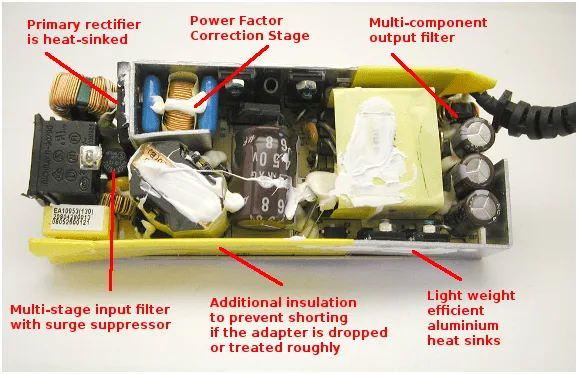
Manufacturers design the plastic casing of your power adapter to act as a heat sink. It draws heat away from the sensitive internal electronic components and radiates it out into the surrounding air. Proper ventilation is critical for this cooling cycle to function as the designers intended.
When the charger sits on a hard surface like a desk or a hardwood floor, air can flow around the bottom and sides. This constant air movement carries the heat away from the brick. According to standards set by the National Fire Protection Association, keeping electrical equipment clear of insulating materials is a foundational rule of fire prevention.
The Danger of Insulation and Blocked Airflow
Carpet is designed to insulate floors, which is great for comfort but terrible for electronics. The dense fibers of a rug or carpet wrap around the charger like a blanket. This configuration stops the natural convection of air.
As the charger continues to work, the internal temperature rises because the heat has nowhere to go. This creates a feedback loop where the charger becomes hotter than its design specifications allow. In many cases, the plastic housing may eventually feel soft or smell like ozone or burning dust.
Heat degrades the internal capacitors and transformers located inside the sealed unit. Even if the charger does not fail immediately, the cumulative stress significantly shortens the lifespan of the device. Persistent overheating can cause the thermal protection circuits inside the adapter to trigger, leading to intermittent power delivery or sudden, total failure.
Evaluating Your Charger’s Temperature
It helps to know what counts as normal operation versus an emergency. All power adapters get warm during heavy use. This is especially true when your laptop battery is charging from a low state or when you are running resource-heavy programs.
| Temperature Condition | Status | Expected Action |
|---|---|---|
| Warm to the touch | Normal | No action required. |
| Uncomfortably hot | Warning | Move to a hard surface. |
| Burning/Melting smell | Danger | Unplug immediately. |
If you cannot hold the charger in your hand for several seconds, it is running too hot. This usually indicates that the ambient temperature around the brick is too high or the unit is struggling to dissipate energy. You should immediately relocate it to a non-flammable, hard surface to allow it to recover.
Common Mistakes That Increase Fire Risk
Many users create unnecessary hazards without realizing the risks involved. Placing a charger under a pillow while working in bed is a common error. Fabrics trap heat just as effectively as carpet does, leading to rapid temperature spikes.
Stacking items on top of the charger is another frequent mistake. You might place a book or a notebook on the adapter to clear your desk. This effectively seals the device in a vacuum of heat.
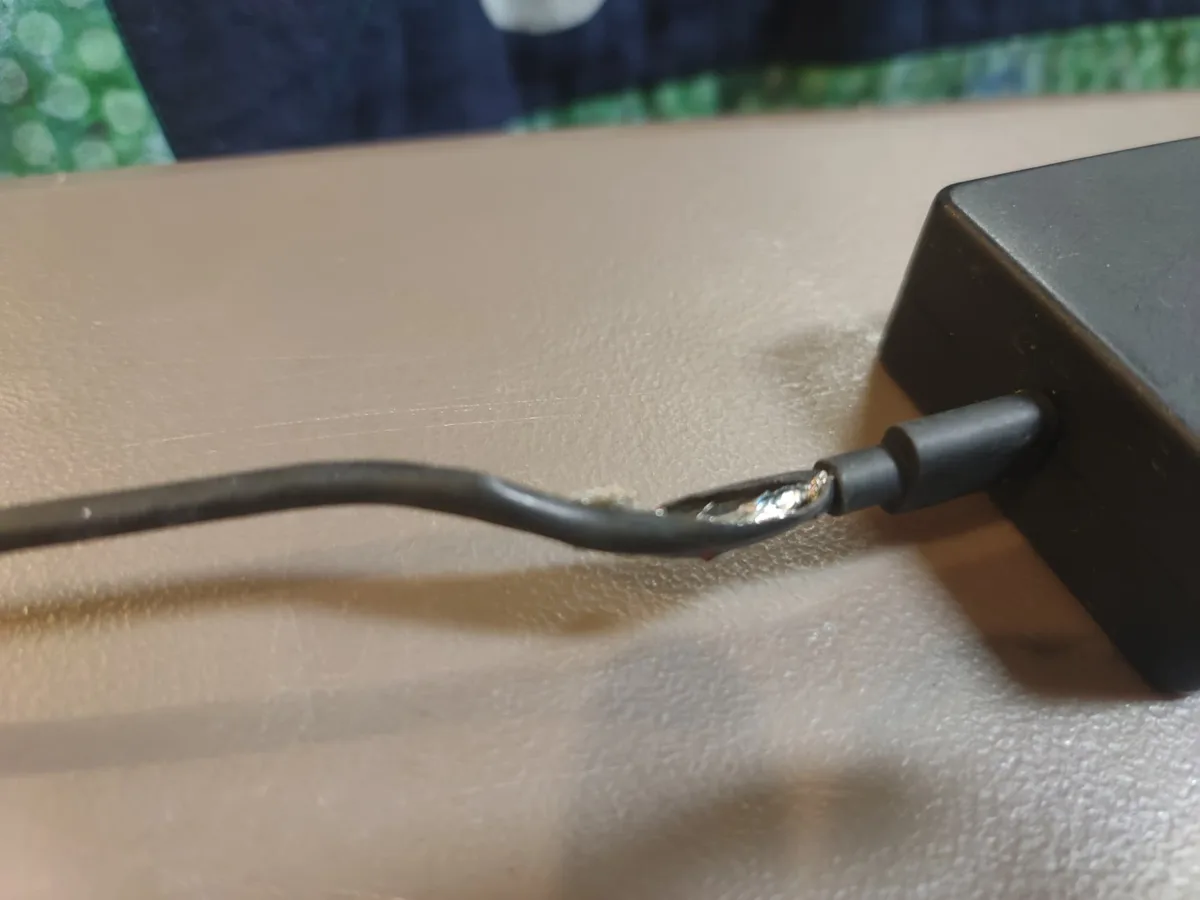
Ignoring visible signs of wear is also dangerous. If your cable is frayed or the adapter casing is cracked, the internal insulation is compromised. Damaged chargers often lose their thermal efficiency and run much hotter than healthy units.
Always prioritize replacing damaged hardware over trying to keep it running.
How to Position Your Adapter for Maximum Safety
The best strategy is to elevate your charger or place it on a dedicated hard surface. If your cord is long enough, keep the brick on a nightstand or a table rather than the floor. This provides the best possible airflow for the internal components.
If you must charge on the floor, use a small, non-flammable tray or a flat piece of wood as a base. This creates a gap between the charger and the carpet fibers. It also prevents any accidental contact between the hot casing and potentially flammable materials like synthetic carpet fibers.
Ensure the power cable is not pulled taut. Tension on the connector can loosen internal solder joints, which increases electrical resistance and causes more heat. A loose, relaxed cable connection helps maintain stable power delivery and keeps temperatures within the safe range established by the Underwriters Laboratories standards.
Signs of Internal Damage or Hardware Failure
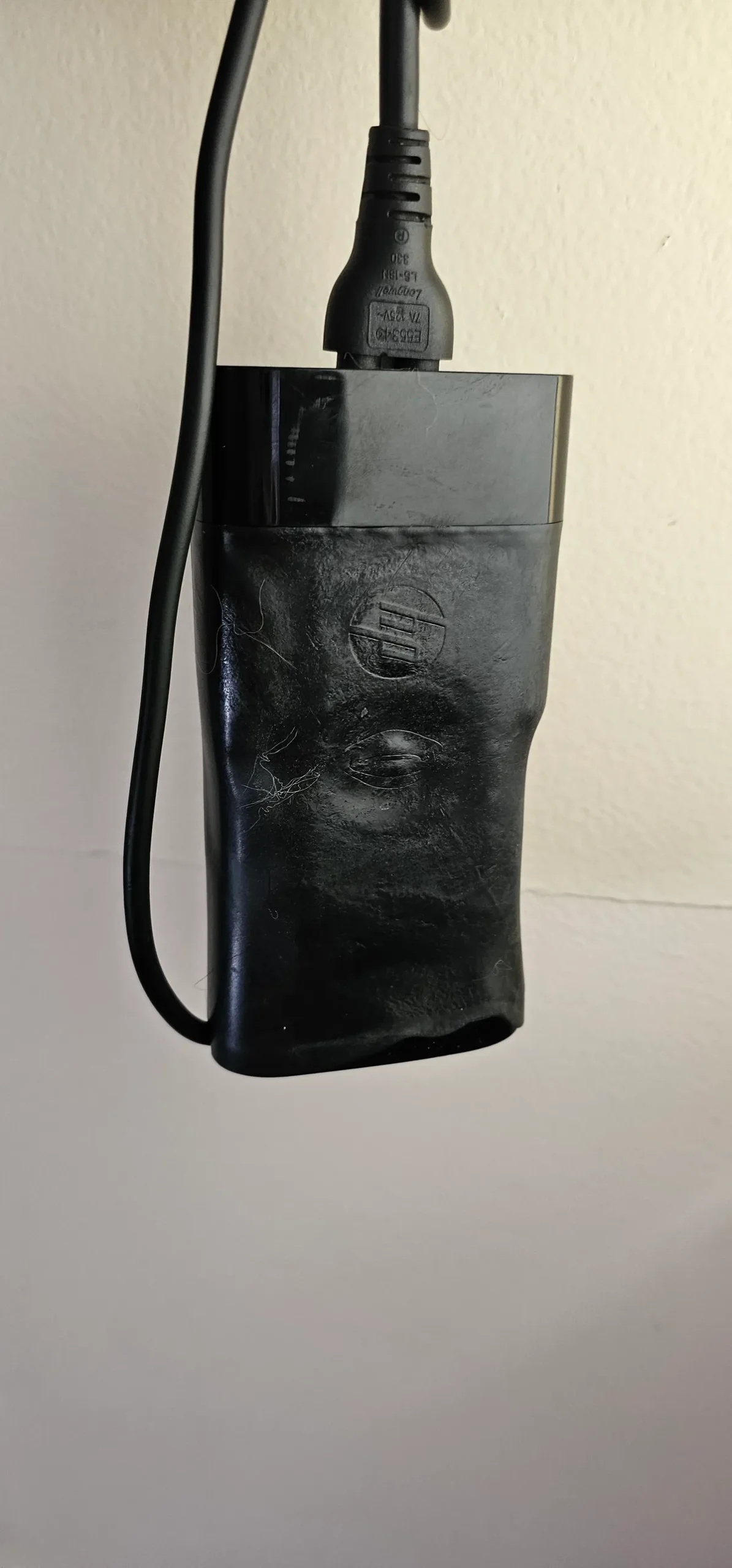
You should inspect your power adapter regularly for signs of physical stress. Even with proper ventilation, chargers can eventually fail due to age or electrical surges. Look for any bulging along the seams of the plastic casing.
A bulging case often signals that the internal components have suffered extreme heat damage, causing the internal protective wrapping to warp or expand.
Listen for abnormal noises during operation. A faint, high-pitched whining or clicking sound often indicates that the internal switching components are struggling to maintain a consistent voltage. This noise suggests that the charger is working well outside of its normal operating parameters.
If you notice any of these symptoms, the safest course of action is to stop using the device entirely.
Never attempt to open or repair a sealed power brick yourself. These units contain high-voltage capacitors that can hold a charge long after they are disconnected from the wall. If the casing is cracked, burnt, or physically separated, the unit has reached its end of life.
Relying on damaged electrical hardware is a primary cause of household electrical hazards.
Factors Influencing Charger Heat Output
Not every charger produces the same amount of heat. The total heat generated depends on the power rating of your adapter, measured in watts. Higher-performance laptops require bricks that push more power, and these typically run warmer even when operating perfectly.
If you are running a laptop during a demanding task, like video editing or gaming, the power draw increases significantly. The charger must convert more current to keep up with the high demand. This pushes the adapter closer to its thermal limits than it would be during basic web browsing.
Environmental factors also play a part in how quickly heat builds up. A room with high ambient temperatures reduces the ability of the charger to shed heat into the air. If your laptop is running in a hot room, the charger has less of a thermal gradient to work with, causing the external casing to feel noticeably warmer to the touch.
When to Contact Manufacturer Support
You should reach out to your laptop manufacturer if your power adapter is consistently hot enough to cause discomfort or if it triggers your laptop’s thermal warnings. Many companies have specific safety protocols for reporting chargers that show signs of premature failure or overheating.
Check your laptop’s warranty status before you attempt to replace the unit. Many manufacturers include the power adapter under the same warranty as the laptop itself. If the charger is failing due to a defect rather than misuse, they may provide a replacement at no cost.
Have your laptop’s serial number and the specific model number of the charger ready when you contact support. These details allow the representative to check for known safety recalls or common hardware issues. Documentation from the Consumer Product Safety Commission can often help you determine if your specific charger model has been part of a wider safety investigation.
Choosing the Right Surface for Long Sessions
Hard surfaces are your best defense against trapped heat. If you frequently work from a couch or a bed, use a lap desk or a hard tray to create a stable, breathable base for your computer and charger. These accessories provide a rigid barrier that keeps your devices away from soft fabrics.
A wooden or metal desk is ideal for dissipating heat, as these materials conduct heat away from the brick better than plastic or glass. If you do not have a desk, even a thin cutting board or a plastic book tray can work as a makeshift heat sink. The goal is to provide a solid base that prevents the charger from sinking into the floor’s pile.
If you are working in a temporary location, scout for a surface that allows for clearance on all sides. You want at least two inches of space around the brick to allow for natural airflow. This simple habit drastically improves the efficiency of the cooling process.
Electrical Efficiency and Modern Charging Tech
Newer laptop chargers often use Gallium Nitride (GaN) technology, which is significantly more efficient than older silicon-based designs. These chargers are smaller, lighter, and generate less waste heat for the same power output. Upgrading to a modern GaN adapter can be a smart move if you find your older equipment runs uncomfortably hot.
Efficiency matters because every percentage point of energy lost is converted into heat. A charger that is 90% efficient produces significantly less heat than one that is only 80% efficient. Manufacturers now list efficiency ratings on the back of the brick, often denoted by symbols like a roman numeral VI.
Always ensure that any replacement charger meets the original power specifications of your laptop. Using a charger with a lower wattage rating than what your laptop requires forces the adapter to run at maximum capacity constantly. This constant strain is a guaranteed way to overheat even the most well-designed hardware.
Long Term Care for Your Charging Cables
Cable health is often linked to the thermal stress placed on the brick. When a cable is kinked or tightly wrapped, the internal wire strands can suffer from increased electrical resistance. This causes the electricity to fight harder to reach your laptop, which generates localized heat at the stress points.
Never wrap your cables tightly around the charger brick when you store it. This practice puts excessive strain on the point where the cable meets the casing, which is the most frequent site for internal shorts. Instead, use a loose "figure-eight" or "over-under" loop to keep the cables organized.
If you find that your cables are constantly getting hot at the connector, check the port on your laptop for debris. A small amount of lint or dust in the charging port can impede the connection and lead to electrical arcing. Keep your ports clean with a small, dry brush or a puff of compressed air to maintain a secure electrical path.
Compliance Standards and Thermal Protection
Most modern chargers incorporate a thermal cut-off switch that detects if internal heat exceeds safety limits. This sensor automatically halts power flow before the brick can reach a critical failure point.
You should never rely on these internal safety systems as a daily cooling solution. If your charger frequently cuts out, it is signaling that your environment is too hot. Verify that your hardware includes a recognized safety certification mark, like UL or CE, to ensure these protective circuits are present and functional.
When to Discard a Faulty Power Adapter
Retire your charger immediately if it shows any signs of melting, sticky plastic, or scorched marks. A lingering smell of ozone or burnt plastic indicates a failed internal component that poses a genuine fire risk.
Stop using the unit right away, even if it still successfully charges your laptop. Improper disposal is another concern, so avoid putting damaged chargers in household trash. Use local electronics recycling centers to dispose of the hazardous components safely and correctly.
Routine Safety Checks for Your Power Setup
Add a quick charger inspection to your weekly cleaning schedule. Brush away any dust or fibers that have accumulated around the vents to prevent airflow restrictions.
Examine your wall outlet for signs of charring or loose fits. A poor electrical connection creates heat at the wall before the power ever reaches your adapter. Keeping your connections tight and clean maintains the integrity of your entire charging system.
Frequently Asked Questions
Is it safe to leave my laptop charger plugged in all day?
Yes, it is generally safe to leave a high-quality, functioning charger plugged in when not connected to the laptop. Modern power units consume minimal energy in standby mode. If the charger feels hot while not in use, it likely has an internal fault and should be replaced.
Can a hot charger ruin my laptop battery?
A hot charger does not usually damage the battery directly, but it indicates inefficient power delivery. Most laptops use internal regulators to protect the battery from unstable power. Persistent heat suggests the charger is struggling, which often leads to the charger failing long before the battery.
Do I need to buy a specific brand of replacement charger?
Using a charger made by your laptop manufacturer is highly recommended for safety. They are calibrated to the specific electrical requirements of your machine. Cheap generic versions often lack the necessary thermal shielding and safety protections found in original equipment.

Similar Posts