HP Blue Tip vs. Black Tip Charger: How to Tell the
Senior Hardware Diagnostics Specialist & Lead Thermal Editor at Laptop Post Testing Lab · CompTIA A+, ACMT, B.S. in Computer Engineering · 12+ years bench-testing laptop thermal solutions & motherboard repairs
Knowing how to identify HP blue tip vs black tip barrel charger saves you from buying the wrong accessory or damaging your charging port. HP power adapters use specific physical connectors and internal signaling to verify the hardware identity before they provide any electricity to your laptop battery.
If you match the wrong charger to your port, the system often rejects the power connection entirely. These barrel jacks rely on distinct physical dimensions and internal communication pins to maintain safety. Understanding these differences ensures your laptop stays powered without risking damage to the internal power management circuitry.
Quick Answer
You identify the correct HP charger by checking the tip color. A blue tip indicates a modern 4.5mm barrel connector. A black tip indicates an older 7.4mm barrel connector.
Check the printed wattage on your power brick label. Ensure the wattage matches your laptop's specific power requirements exactly. Never force a mismatched connector into your charging port.
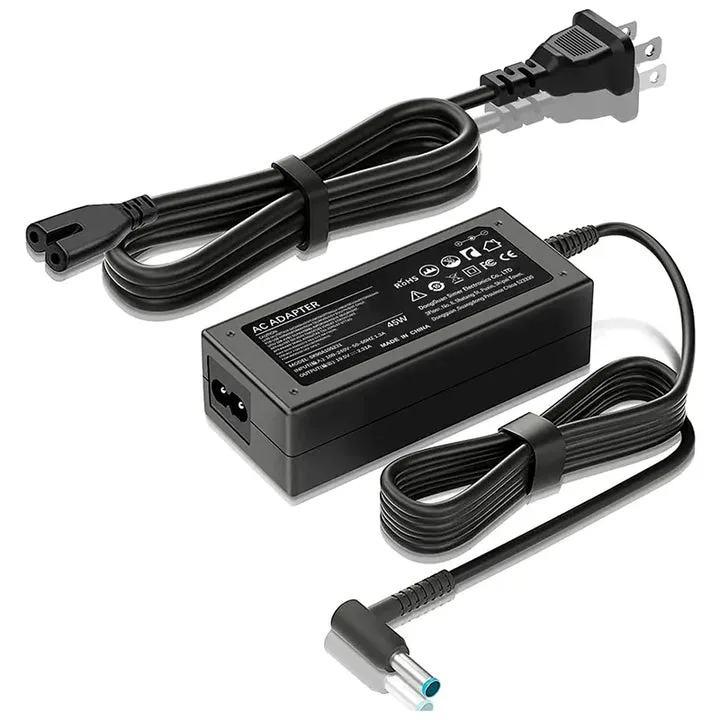
Image source: Bing (Web (fair-use with source credit))
Why Your Charger Tip Color Is a Critical Hardware Signal
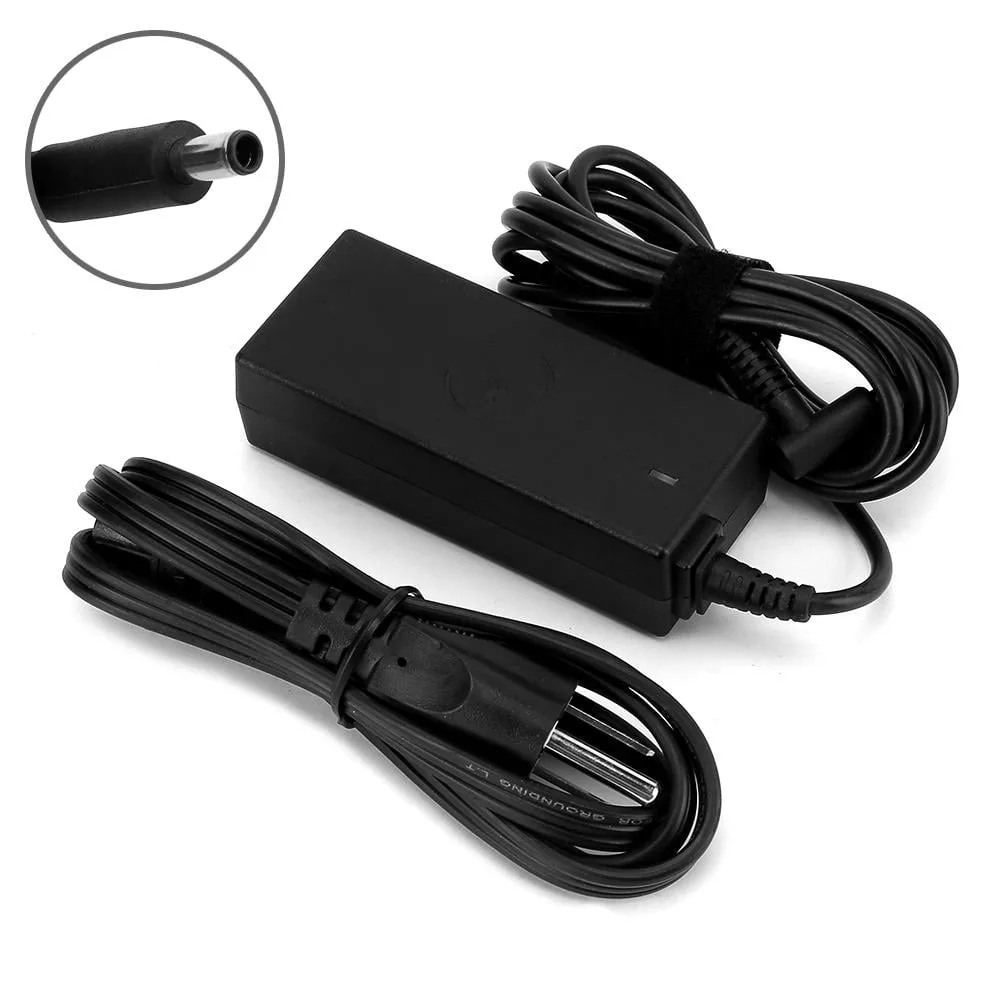
The color on your charger tip functions as a visual indicator of the barrel diameter. HP transitioned from the larger 7.4mm standard to the sleeker 4.5mm standard as their laptop designs moved toward thinner profiles. This color change helps you quickly distinguish between generations of hardware.
Beyond the aesthetics, the tip serves as a physical gatekeeper. The internal design of these chargers features a smart signaling pin. This pin sends a specific voltage signal to the laptop motherboard to negotiate power delivery.
If the laptop does not receive the expected signal, it will refuse to draw current.
This design prevents you from accidentally using an undersized charger on a high-performance machine. Using a 45W charger on a workstation that requires 120W could lead to overheating or system instability. The blue or black collar acts as a pre-check before you even insert the plug.
The Quick ID: Blue Tip vs. Black Tip at a Glance
Identifying your charger starts with a simple visual check of the plastic ring. Most HP chargers manufactured as of 2026 follow this specific color-coding system to help you find the right fit for your machine.
- Blue Tip: These feature a 4.5mm outer diameter and are standard for HP Spectre, Envy, and Pavilion lines.
- Black Tip: These feature a larger 7.4mm outer diameter and are common on older EliteBook and ProBook models.
You can often find the compatibility information by looking at the official HP support page for your specific laptop model. Always match the connector style to the port depth on your chassis. If the tip feels loose, it is likely the wrong size.
Decoding the Barrel Jack: 4.5mm vs. 7.4mm Dimensions
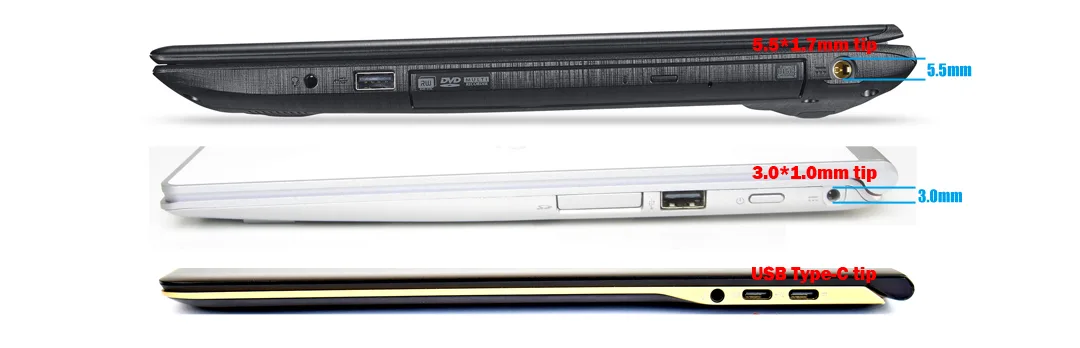
The physical difference between these two connectors centers on their outer diameter measurements. A 4.5mm barrel jack is significantly smaller and more delicate than the older 7.4mm version. This size reduction allows modern laptops to maintain a thinner footprint at the charging port.
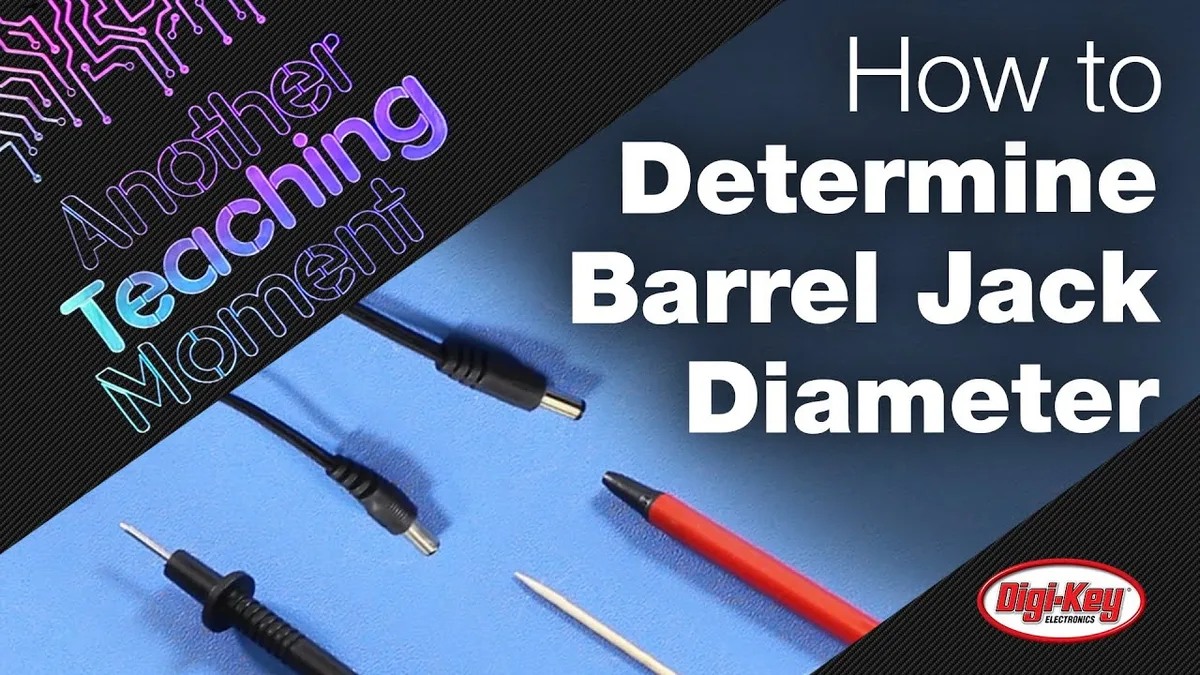
Image source: Bing (Web (fair-use with source credit))
Measuring these requires a precision tool like a digital caliper for an exact reading. Most users can distinguish them simply by looking at the thickness of the barrel. The 7.4mm black tip looks almost twice as wide as the 4.5mm blue tip.
Never attempt to use a physical adapter to squeeze a 7.4mm jack into a 4.5mm port. These adapters often lack the internal wiring needed to pass the smart-pin signal. Even if the barrel fits the hole, the laptop will not recognize the power source.
How HP Smart Power Technology Negotiates Voltage
HP laptops use a process known as power negotiation to ensure the charger provides the correct amount of current. This happens through the tiny center pin located inside the barrel connector. When you plug in the charger, this pin makes contact with a sensor inside the laptop port.
The laptop sends a small voltage across that center pin to query the charger. The charger responds with a specific resistance value that tells the laptop its total capacity in watts. If the charger cannot provide the required wattage, the laptop ignores the connection to protect the battery and internal components.
This technology is standard across most modern HP business and consumer laptops. It prevents the use of generic chargers that might lack the proper power delivery regulation. Always prioritize genuine HP branded hardware to ensure the signaling pin functions as intended.
Step-by-Step: Identifying the Right Charger for Your Laptop
Start by locating your laptop serial number on the bottom of the case. Visit the official manufacturer website and input this code to see the specific power requirements for your device. Most modern HP models will explicitly list the required wattage and tip size under the accessory documentation.
Next, inspect your current power brick label for the output specifications. You should see a line that says "Output: 19.5V," followed by an amperage rating. Multiply the voltage by the amperage to confirm the total wattage capacity of your existing unit.
Finally, compare these numbers to the requirements listed for your laptop model. If you are replacing a lost charger, search for the part number printed on the brick label. This ensures you receive the exact electrical match rather than just a physical match for the plug.
Why "Physically Fits" Doesn't Mean "Compatible"
Just because a connector slides into your laptop port does not mean the charger is working correctly. A common issue occurs when users source older, high-wattage bricks that have the wrong internal circuitry. Even if the plug is the correct size, the laptop may reject the adapter because it fails the handshake signal.
You might notice the power light on the side of your laptop blinking or remaining off when you connect a mismatched unit. This is the hardware safety protocol in action. The laptop is physically capable of receiving the plug, but it is electrically blocking the input.
Using a charger that fits physically but carries the wrong electrical profile can cause "Plugged in, not charging" status messages. This persists until you provide a charger that meets the specific wattage and signaling requirements for your model. Avoid forcing any connection that does not slide in smoothly.
Common Mistakes When Buying Replacement Adapters
The most frequent error is prioritizing the barrel size over the electrical wattage rating. A 45W charger might fit into a laptop designed for 90W, but the battery will charge incredibly slowly or not at all. Worse, the charger will run excessively hot as it struggles to meet the demand.
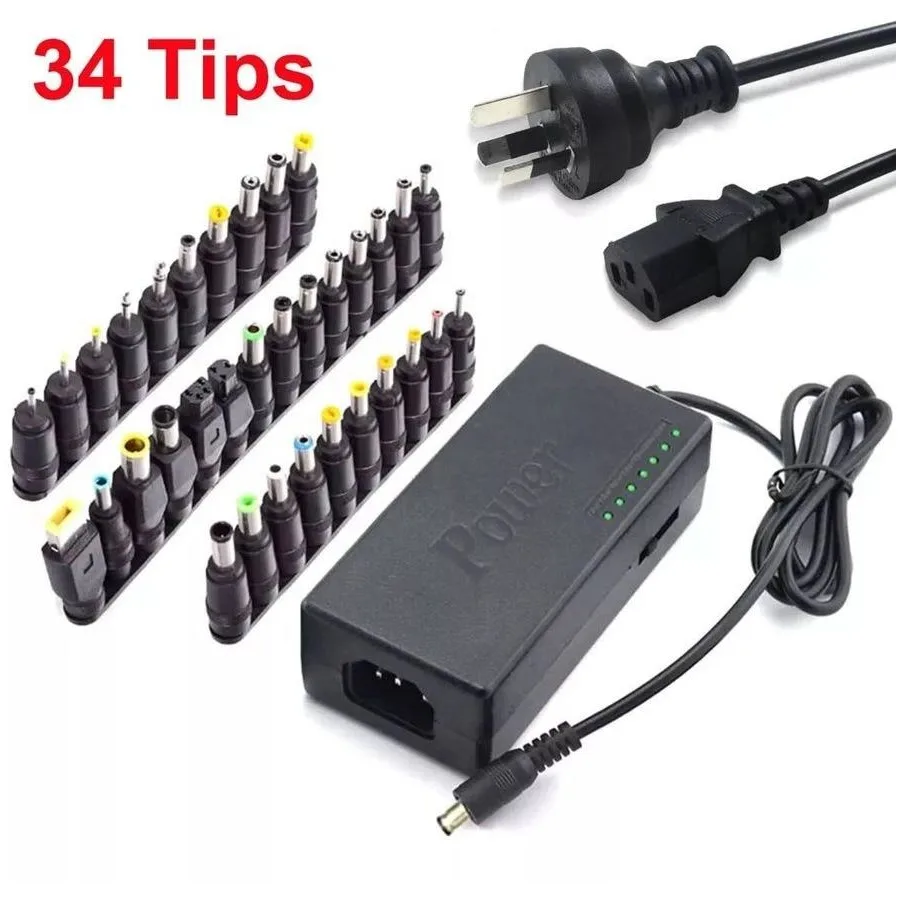
Another mistake is trusting third-party adapters that claim to be universal. Many of these units rely on generic passive circuitry that ignores HP’s proprietary signal pin. You save a few dollars upfront only to encounter charging errors that shorten your battery lifespan over time.
Always avoid aftermarket converters that bridge two different plug types. These passive plastic adapters often lose the communication pin connection entirely. If you have a legacy black-tip charger and a modern blue-tip laptop, replace the entire cable unit instead of using a converter dongle.
Decoding the Power Brick Label: Wattage and Amperage
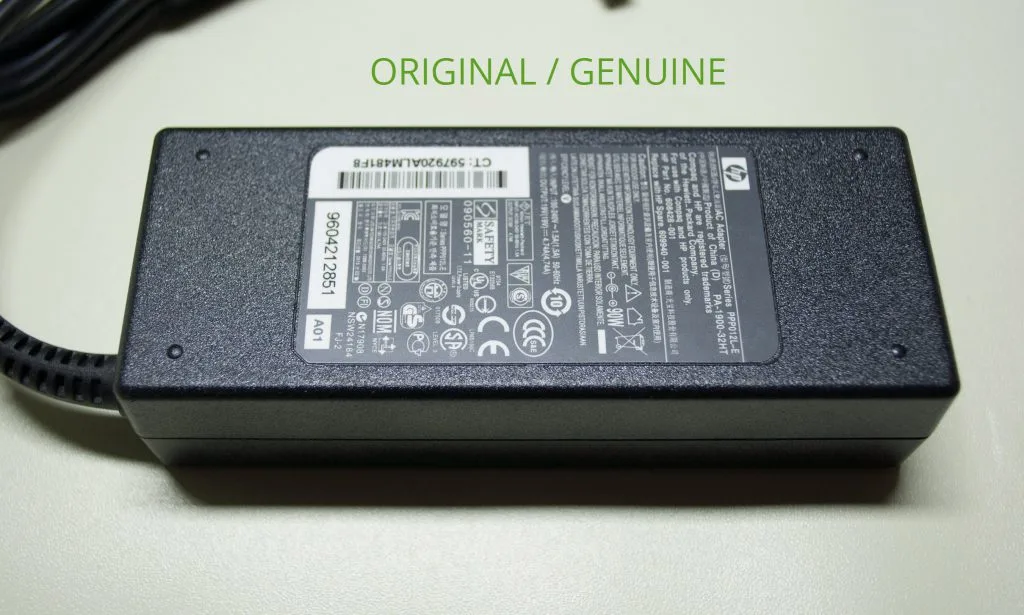
Every HP power brick features a label that acts as your primary reference for compatibility. Look for the "Output" section to determine the voltage and current capacity of your device. This data is non-negotiable for system performance and hardware safety.
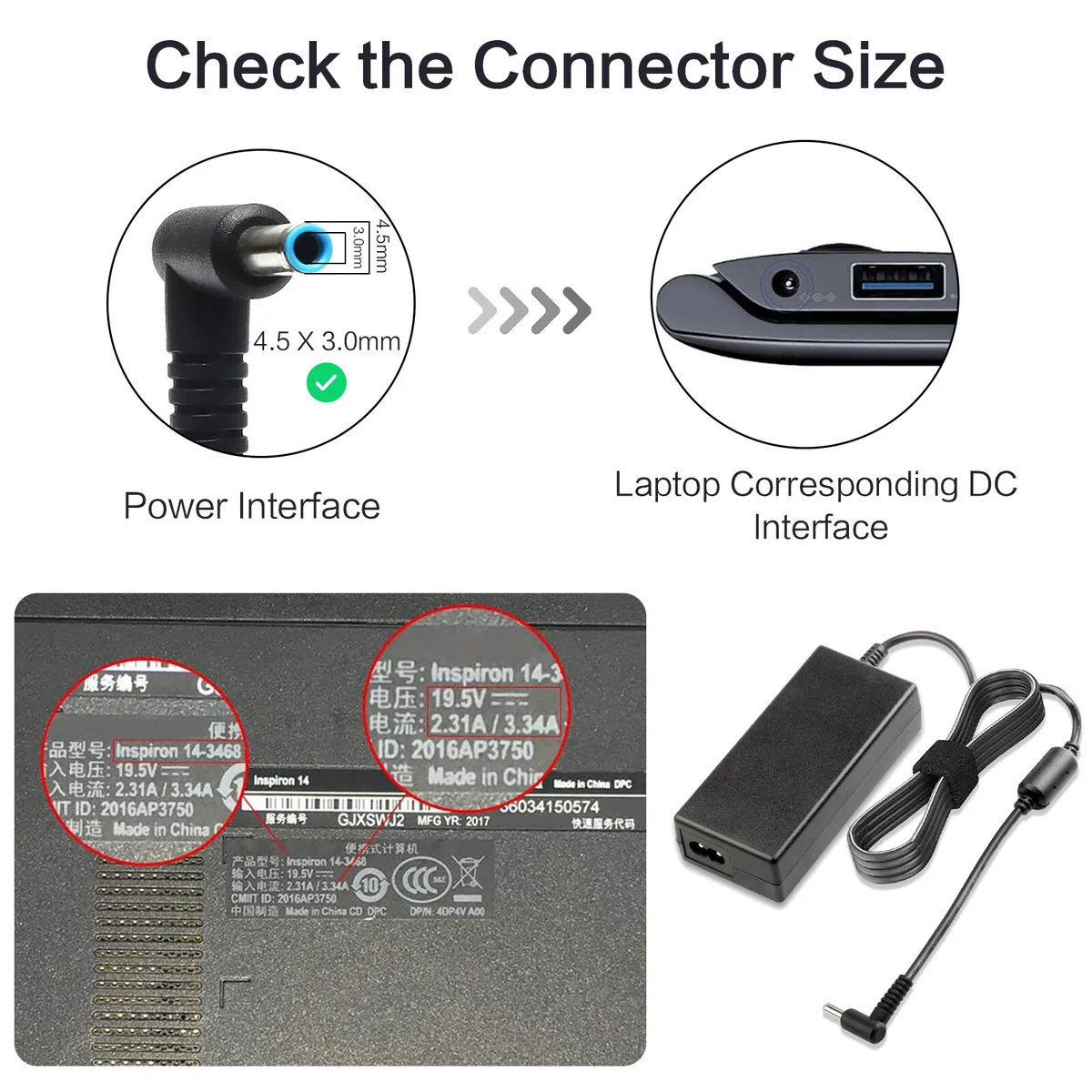
Image source: Bing (Web (fair-use with source credit))
- Volts (V): Most HP chargers operate at 19.5V.
- Amps (A): This indicates how much current the adapter can supply to your system.
- Watts (W): This is the result of multiplying Volts by Amps.
Match these numbers to your laptop's label or the official specifications page for your serial number. If your laptop requires 65W, you can safely use a 90W charger, as the laptop will only pull what it needs. Never use a charger with a lower wattage rating than what your system demands.
The Risk of Using Non-OEM Converters and Dongles
Using an uncertified dongle introduces a physical failure point between your power brick and the laptop. These small adapters often feature loose internal connections that spark or cause intermittent power drops. This behavior can eventually damage the sensitive power management controller on your motherboard.
Non-OEM products frequently fail to account for the resistance value required by the smart-pin signal. When the laptop cannot verify the charger, it defaults to a low-power state or shuts off the charging circuit entirely. This renders the adapter useless for actual battery maintenance.
If you are concerned about hardware longevity, stick to official HP replacement parts. They are designed to meet the exact tolerances of your laptop port. Saving money on a cheap, unverified power component often leads to more expensive repair bills for your charging port or internal battery.
Expert Tips for Preserving Your Center Pin
The center pin is the most fragile part of your charger. It is a hair-thin wire connection that must remain perfectly straight to signal the laptop correctly. If this pin bends or snaps, the charger will stop functioning immediately.
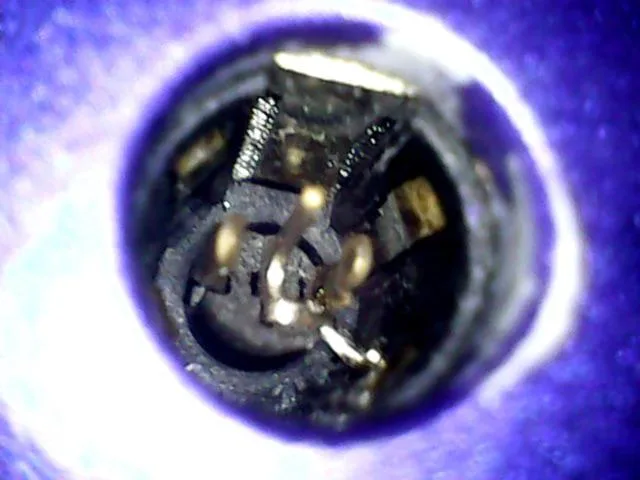
Image source: Bing (Web (fair-use with source credit))
- Avoid sharp bends: Do not wrap the cable tightly around the brick, as this puts stress on the tip.
- Store carefully: Use a small pouch or cable tie to keep the barrel end protected.
- Insert gently: Never force the connector at an angle if you feel resistance.
If you see the pin leaning to one side, you can sometimes use fine-tipped tweezers to carefully nudge it back into the center. Be extremely gentle, as the pin is prone to breaking off if forced. If it breaks, the only option is to replace the charger entirely.
When to Replace vs. Repair Your Charging Cable
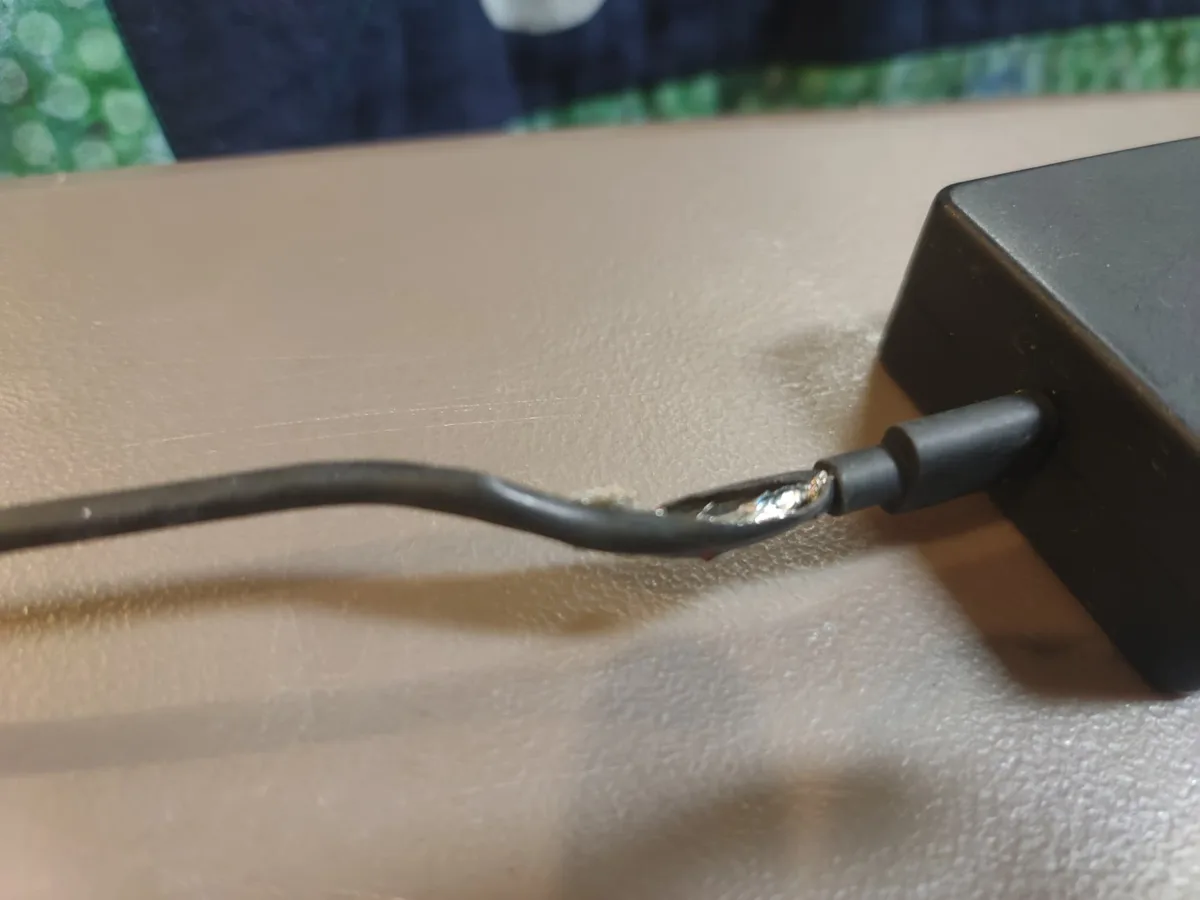
Repairing a charging cable is rarely recommended for safety and performance reasons. Splicing a cable or replacing the barrel tip requires precision soldering that many users are not equipped to perform correctly. A poor solder job leads to resistance, heat buildup, and potential fire hazards.
Replace the cable if you notice exposed wires, melted plastic near the tip, or intermittent charging when you wiggle the cord. These signs indicate internal wire degradation that compromises the integrity of the power supply. You cannot fix damaged insulation effectively with tape or temporary covers.
For a permanent solution, purchase an entire new power adapter assembly. This keeps the electrical signaling path clear and avoids the safety risks associated with DIY electrical repairs. It is the only way to guarantee your laptop receives a stable, regulated flow of power.
Troubleshooting "Plugged In, Not Charging" Errors
This error message usually indicates that the laptop has detected a charger but cannot verify its capacity. First, unplug the charger from both the wall and the laptop. Wait thirty seconds to allow the internal power capacitors to discharge completely.
Plug the charger back into the wall outlet first, then connect it to your laptop. Check your OS power settings to see if the charger is now identified by its wattage. If the system still does not recognize the charger, try a different wall outlet to rule out electrical supply issues.
If the problem persists, inspect the port inside your laptop with a flashlight. Look for debris or lint that might be blocking the connection between the charger pin and the port sensor. Gently clean the port with compressed air if you see any dust buildup.
Final Decision Guide: Ensuring a Perfect Power Match
Choose your replacement by looking at your current brick label first. If the label is faded or missing, search your laptop model number on the official manufacturer site. This is the only way to ensure you get the right voltage and amperage for your specific machine.
When you hold the new charger, verify that the tip color matches your original unit. If your laptop requires a blue tip, do not buy a black tip even if the voltage matches. The barrel diameter is a fundamental part of the hardware identity and safety signaling.
Finally, confirm the wattage matches or exceeds your laptop requirements. A matching wattage ensures the system can handle heavy tasks without draining the battery. Following these steps ensures your HP laptop continues to run reliably without power delivery errors.
Maintenance for Long-Term Power Reliability
Keep your charging equipment clean to ensure the barrel jack maintains a solid connection. Dust or lint inside the port can prevent the center pin from making contact. Use a blast of compressed air to clear the port annually.
Inspect the cable sheathing for cracks regularly. Exposed wiring increases the risk of shorts. Retire any charger with fraying insulation immediately.
Real Scenarios and Power Delivery Diagnostics
Users often mistake a failed battery for a faulty charger. If your laptop refuses to charge, check the battery health report in your system settings. A degraded battery often rejects current even if the power adapter is functioning.
Another common issue involves power throttling. If your system runs slowly while plugged in, verify the adapter wattage. A low-wattage brick may not provide enough power for high-performance tasks.
Troubleshooting Common Power Negotiation Errors
The "Unsupported Power Adapter" warning appears when the laptop fails to read the charger's smart signal. Unplug the unit for sixty seconds to reset the controller. This often clears firmware-level handshake errors.
Examine the barrel jack for physical debris if the error persists. A tiny piece of lint can block the center pin. Carefully remove any obstruction with a non-conductive tool.
Professional Guidelines for Charging Safety
Keep your charger away from heat sources and liquids. Power bricks require adequate airflow to function safely during operation. Never cover the brick with cushions while it is plugged in.
Use only certified power adapters to comply with electrical safety standards. Third-party units often lack proper electromagnetic shielding. This can cause erratic trackpad behavior or system freezes during use.
Final Verdict for Replacement and Repair Decisions
Always choose an official manufacturer replacement when your charger fails. Genuine units ensure the correct signaling and voltage regulation for your specific motherboard. It is the cheapest insurance for your laptop's longevity.
Verify the tip color and part number before purchase. Proper maintenance and high-quality replacements keep your system running reliably. Stick to official components to avoid long-term hardware damage.
Frequently Asked Questions
Can I use a 90W charger on a 45W laptop?
Yes, this is generally safe. Your laptop will only draw the 45W it needs to function. The charger will simply run cooler because it is operating below its maximum capacity.
Just ensure the barrel tip and voltage match your original adapter requirements exactly.
Why does my charger tip feel loose in the port?
A loose tip usually means the barrel diameter is slightly too small for your port or the internal retaining clips are worn. Do not attempt to wedge it in place with tape. This creates an inconsistent electrical connection that risks shorting out your laptop's charging circuitry.
Does the blue tip signify higher wattage?
Not necessarily. The blue tip simply denotes the 4.5mm size standard used on modern, thin-chassis laptops. Both blue and black tips come in various wattage ratings.
Always check the printed wattage on the brick label rather than assuming the tip color indicates power capacity.
What should I do if my center pin breaks off?
If the center pin breaks, the charger is permanently non-functional. The pin is required to negotiate the power signal with your laptop. You must replace the entire charger unit.
Do not attempt to solder a new pin onto the existing cable as it is a significant fire hazard.
How do I know if my charger is genuine HP?
Look for the official HP logo, a regulatory compliance mark, and a consistent serial number on the brick. Cheap third-party chargers often lack these safety certifications. Genuine units feature integrated power regulation circuitry designed specifically to protect your laptop's delicate motherboard and battery.

Similar Posts