Can a Faulty Laptop Charger Cause Blue Screen Errors?
Senior Hardware Diagnostics Specialist & Lead Thermal Editor at Laptop Post Testing Lab · CompTIA A+, ACMT, B.S. in Computer Engineering · 12+ years bench-testing laptop thermal solutions & motherboard repairs
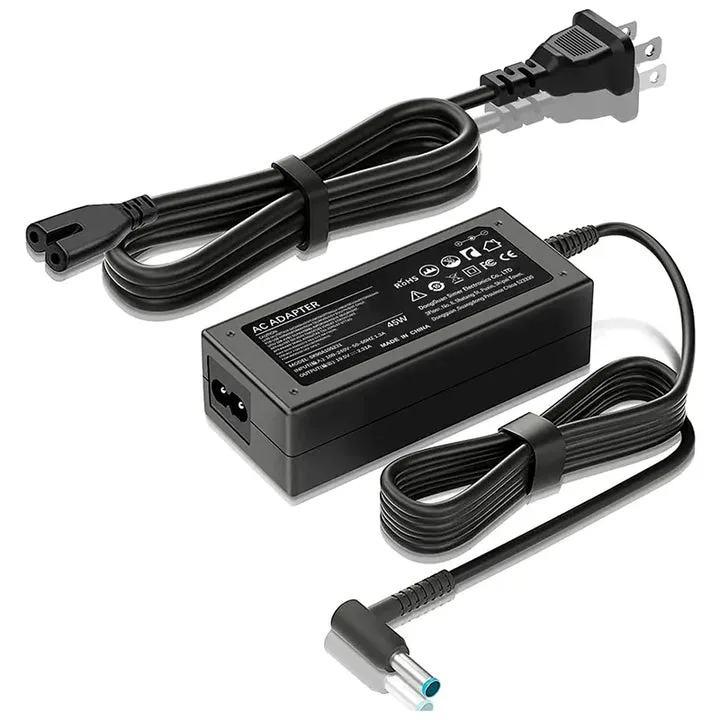
Yes, a faulty laptop charger can cause blue screen of death errors. When your power supply delivers inconsistent or dirty voltage to the motherboard, the system kernel may crash to protect sensitive components from damage.
This issue is common as of 2026, especially as power management systems become more sensitive to electrical noise. Hardware manufacturers often publish official UL certification standards to ensure power adapters maintain safe and steady delivery. If your charger fails to meet these stable output requirements, your laptop is essentially being starved of reliable power.
Quick Answer
A faulty charger can cause blue screen of death errors. It sends unstable voltage to your system hardware. Your laptop kernel crashes to prevent permanent damage.
You should test your laptop on battery power. This helps confirm if the charger is failing.
The Hidden Link: Why Your Charger Might Be Crashing Your Laptop
Most users assume a blue screen of death, or BSOD, points directly to a software bug or a failing hard drive. However, your laptop is an electrical system that requires precise, clean power to function. If the power supply, or AC adapter, begins to degrade, it introduces electrical ripples that the system cannot ignore.
When you perform tasks like video rendering or gaming, your processor demands a sudden spike in power. A faulty charger might fail to provide this surge, causing a brief brownout within the logic board. The operating system detects this voltage drop as a critical hardware failure.
It triggers an immediate shutdown to prevent a fire or physical component destruction.
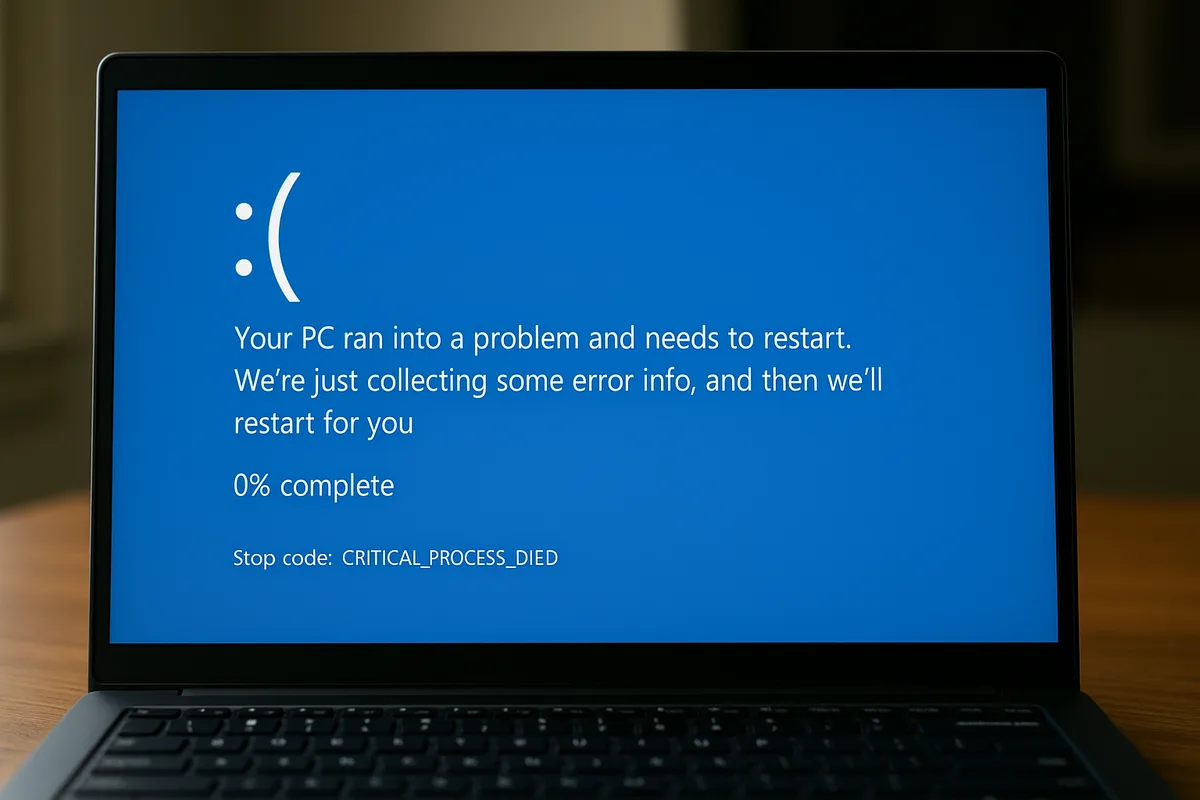
Image source: Bing (Web (fair-use with source credit))
How Power Instability Triggers the Blue Screen of Death
Modern laptops use a Power Management Integrated Circuit to regulate the flow of electricity from the wall outlet to the CPU and GPU. This circuit expects a steady, filtered current. Any deviation beyond a specific tolerance range forces the system to enter a safety state.
If the charger brick has failing internal capacitors, it creates noisy power that fluctuates rapidly. Your laptop firmware monitors these fluctuations in real time. If the noise level exceeds safe limits, the processor halts execution.
This results in the classic blue screen error message, which is the system way of forcing a reboot to regain stability.
Why Your Laptop’s Motherboard Panics During Voltage Dips
The motherboard acts as the central hub for every electrical signal in your machine. It relies on consistent voltage rails to keep the RAM, processor, and solid-state drive synchronized. When your charger provides a dirty signal, these rails become unstable.
A sudden dip in voltage, known as an under-voltage event, can cause your RAM to lose its data integrity for a fraction of a second. The Operating System Kernel recognizes that the data in memory is now corrupted. It crashes to stop you from saving broken files to your drive.

Image source: Web (Bing) / syntelligence.jp (Web image (fair-use with source credit))
Quick Diagnostic: Is It the Charger or the System?
You can determine if the power supply is the root cause through a simple isolation process. This method requires no tools and only a few minutes of your time. You should treat the charger as a potential failure point until proven otherwise.
- Disconnect the charger from your laptop and the wall outlet.
- Use the laptop on battery power only for one hour.
- Execute the same tasks that previously caused the blue screen.
- If the system remains stable on battery power, your charger is faulty.
If the crashes continue while running on the battery, the issue likely resides in your internal drivers or your motherboard. You should consult the official support page for your specific hardware brand to check for known power management updates.
The Wiggle Test and Physical Integrity Check
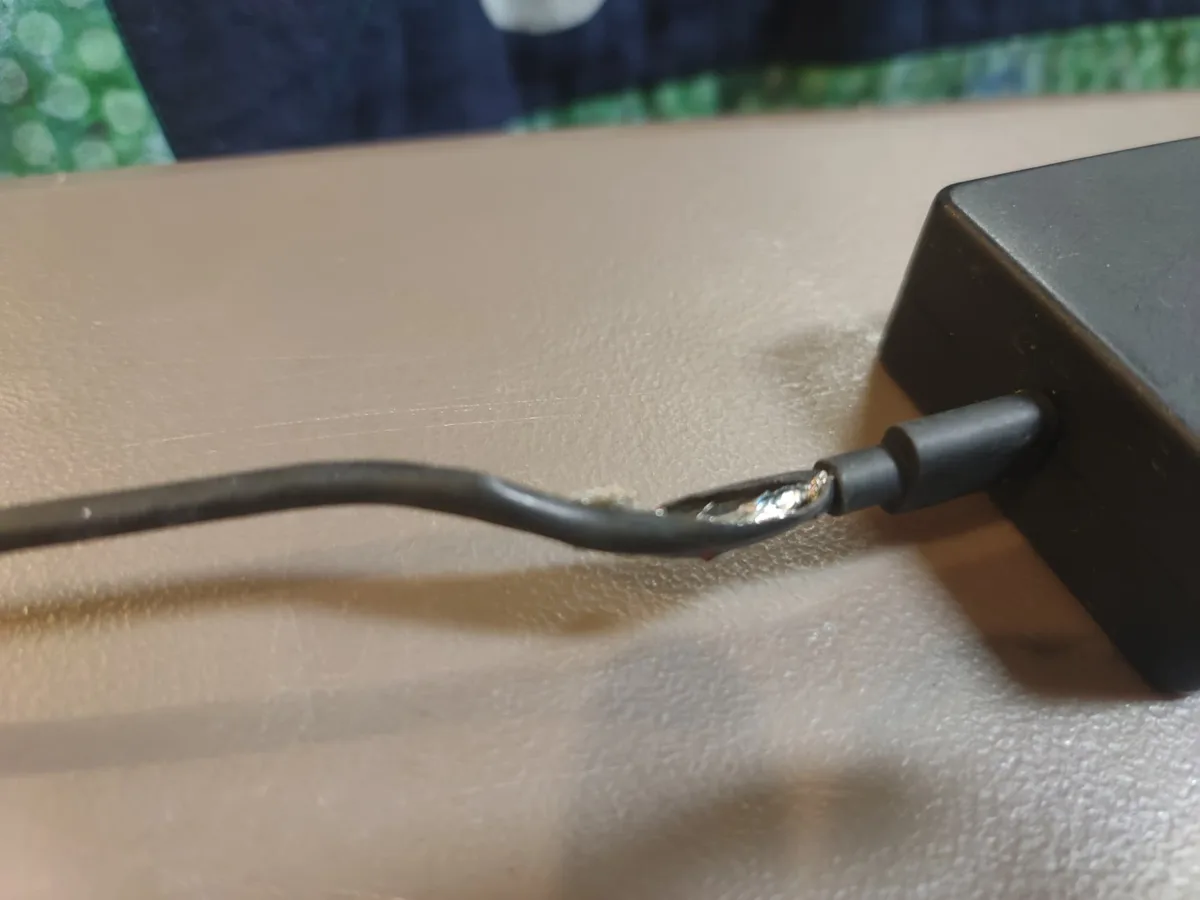
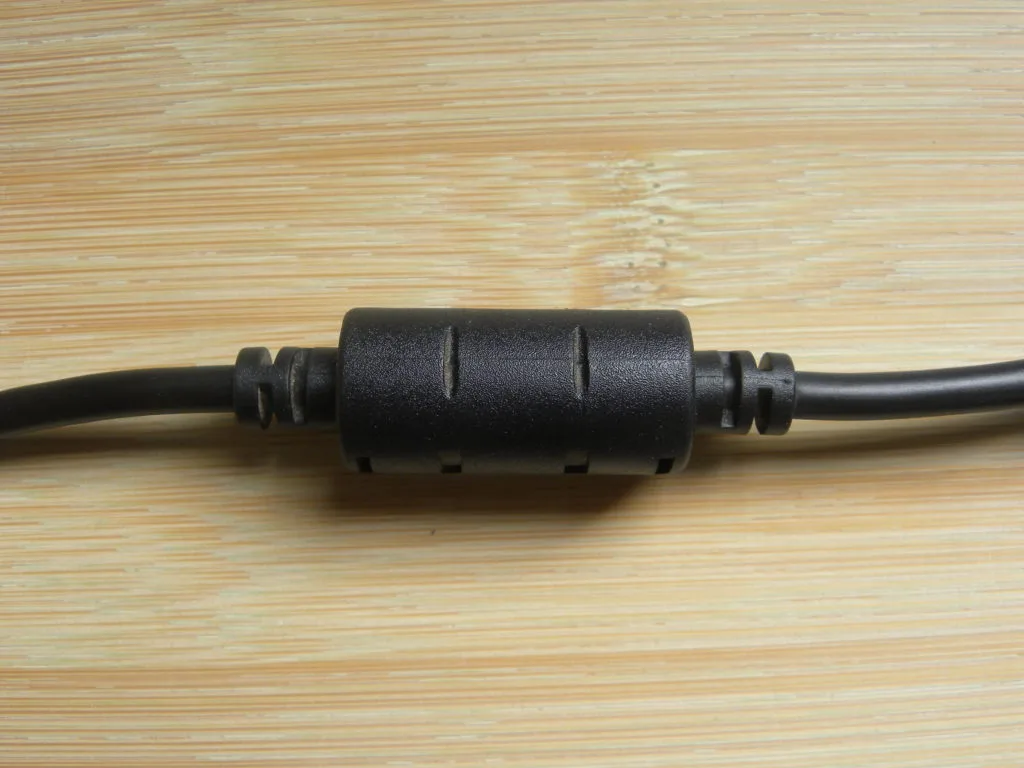
Physical damage to the power cable is often the silent culprit behind intermittent crashes. Even if the cable looks intact from the outside, the internal copper shielding may be severed or fatigued. This leads to connection drops that mimic a power-cycle event.
Perform the wiggle test while your laptop is powered on and plugged in. Gently move the cable near the barrel plug or the charger brick. If your screen flickers, the system status changes from plugged in to battery mode, or the laptop crashes, you have found your issue.
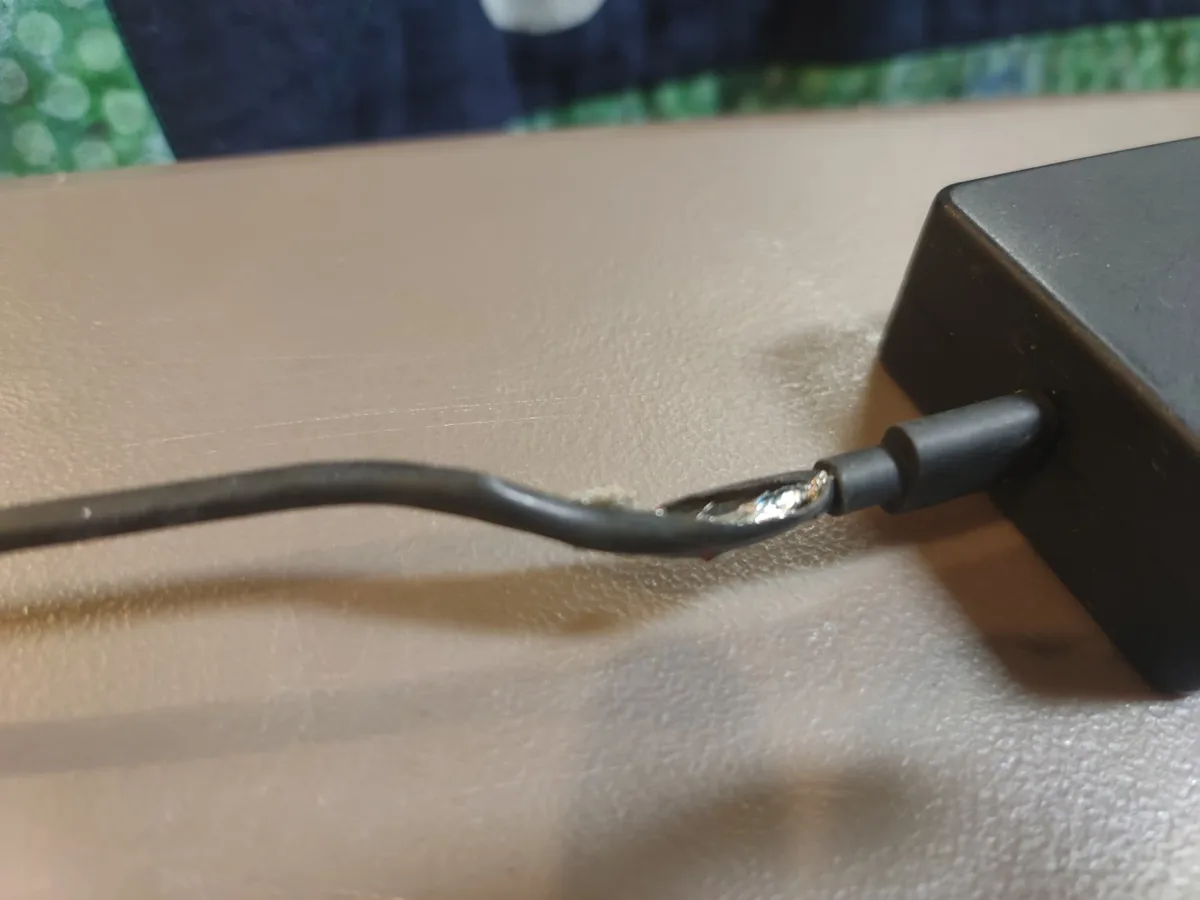
Image source: Bing (Web (fair-use with source credit))
| Symptom | Likely Cause | Action |
|---|---|---|
| Flickering status light | Damaged DC jack or plug | Repair or replace plug |
| Crashing under load | Inadequate wattage/dirty power | Replace charger brick |
| Heat at the connector | Internal arcing/short | Stop use immediately |
| Intermittent power | Frayed wire/fatigue | Replace power cable |
Why Third-Party Chargers Often Cause System Instability
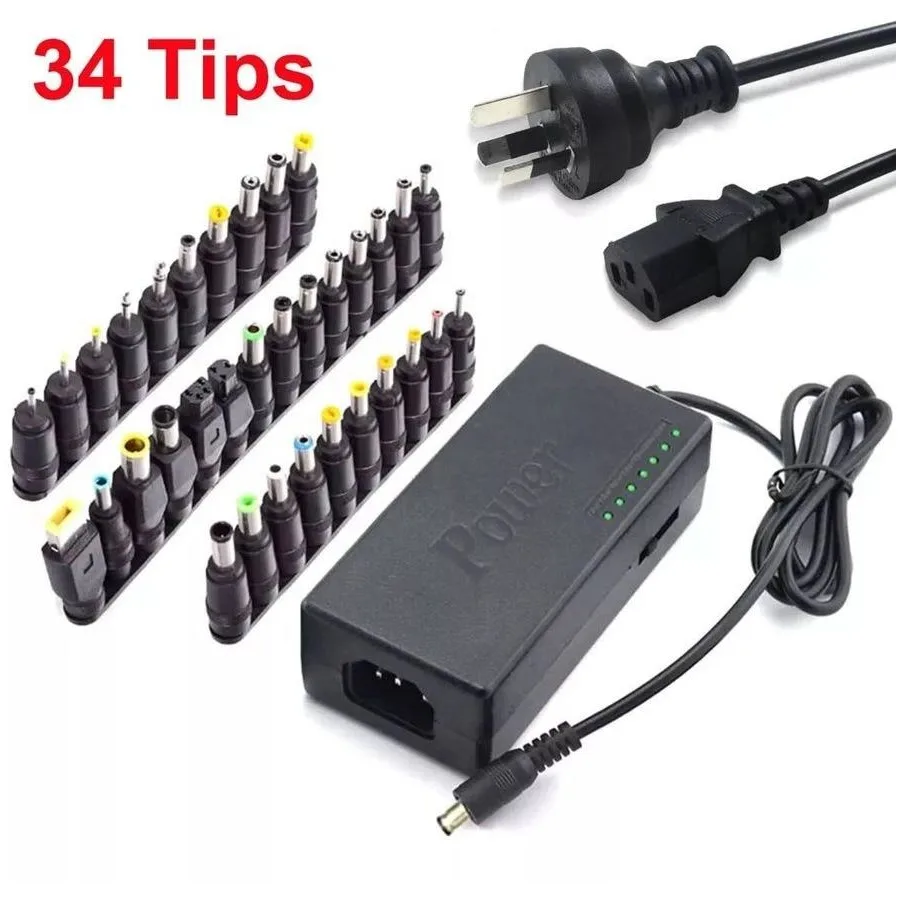
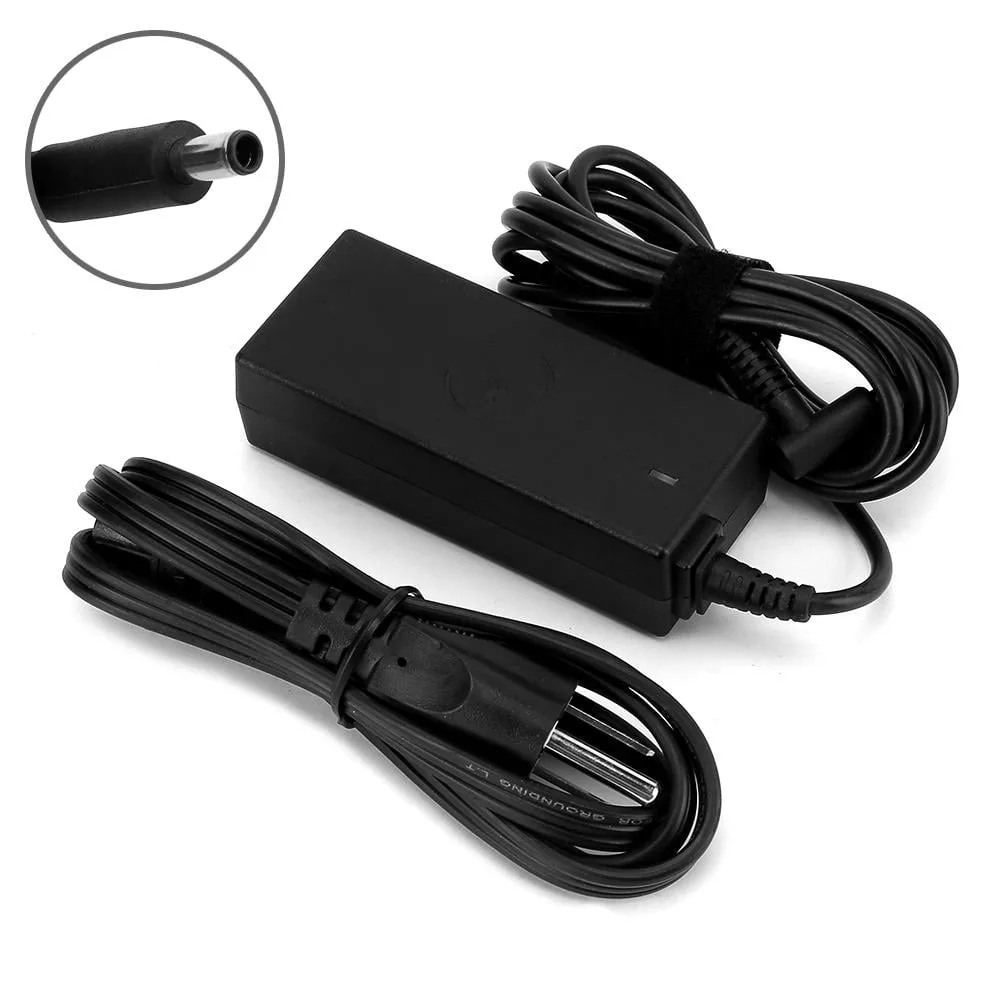
Generic, third-party power adapters frequently fail to meet the rigorous electrical standards set by laptop manufacturers. While they might provide the correct voltage, they often lack the sophisticated filtering components required to suppress electrical noise. This instability can trick your system sensors into reporting a power fault.
Many universal chargers skip necessary components like heavy-duty capacitors and EMI shielding to save on manufacturing costs. These missing parts allow voltage ripples to reach your motherboard. Your laptop hardware is designed to shut down instantly if it detects such dirty power, leading to those recurring system crashes.
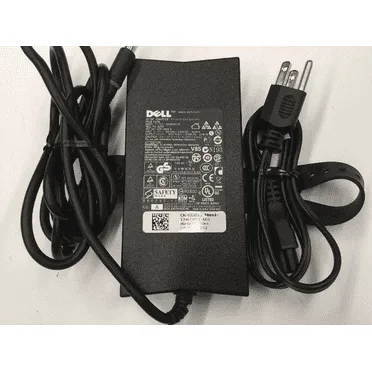
Image source: Bing (Web (fair-use with source credit))
Step-by-Step Isolation Workflow: Battery vs. AC Power
You can systematically prove if your power supply is the culprit by isolating the input source. This method relies on changing one variable at a time to observe system behavior. If the computer runs flawlessly without the charger attached, you have effectively narrowed the root cause to the external power delivery system.
Follow these steps for a clean diagnostic:
- Unplug the AC adapter from the wall and the laptop port.
- Power your system on using only the battery.
- Run the specific applications that normally trigger the error.
- If no crash occurs, proceed to test while plugged into a different power outlet.
- If the system crashes only when plugged in, verify the adapter output or replace the unit.
Common Mistakes: Don’t Ignore Minor Power Flickers
It is a common mistake to ignore brief screen brightness changes or flickering charge icons. Many users assume these are minor glitches that don't impact system performance. In reality, these flickers are visible warnings that the power connection is failing.
Ignoring these early signs often leads to more significant system damage. Continued exposure to unstable power can cause the logic board capacitors to fail over time. It is much cheaper to replace a faulty cable or power brick than it is to repair or replace a motherboard damaged by electrical spikes.
The Long-Term Risks of Using Faulty Power Hardware
Using a damaged charger carries risks that go far beyond a simple blue screen error. Constant, unstable power delivery can lead to permanent degradation of your internal battery cells. When the charger fails to negotiate proper power delivery, the battery controller often attempts to compensate, which places unnecessary strain on the chemistry of the battery.
There is also the real risk of file system corruption. If your laptop loses power for even a few milliseconds during a write operation, the operating system may fail to save critical data correctly. This often results in a boot loop or a corrupted Windows profile that requires a full system restoration.
Safety Warnings: When to Retire a Power Brick
You should treat any charger that shows physical signs of degradation as an immediate safety hazard. Never attempt to repair frayed wires with electrical tape or temporary splices. A compromised wire creates a risk of arcing, which can pose a fire danger if the cable touches conductive surfaces or flammable materials.
Retire your charger immediately if you notice:
- The charger brick becomes excessively hot to the touch during normal use.
- The cable has visible cuts, exposed copper, or significant kinking.
- The plastic housing of the brick is cracked, melted, or emitting a burning smell.
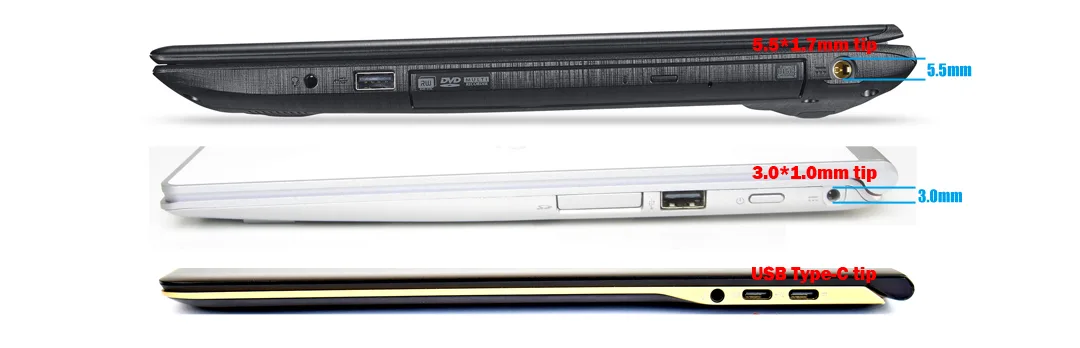
- The charger output port has bent, loose, or corroded pins.
Expert Tips for Spotting Dirty Power and Voltage Noise
You can often hear or feel signs of dirty power before your system fails. A high-pitched whining sound, known as coil whine, coming from your power brick is a red flag. This noise indicates that internal inductors are vibrating under inconsistent electrical loads, suggesting they aren't regulating voltage as efficiently as they should.
Pay attention to how your laptop behaves when you touch the metal chassis while plugged in. If you feel a faint tingling or vibration sensation, your charger lacks proper grounding. This leakage current can interfere with sensitive data lines on your motherboard, leading to those unexplained system crashes you are trying to resolve.
Final Verdict: When to Replace Your Charger Immediately
You should replace your charger the moment you verify that it is the source of your system instability. Continuing to use a faulty adapter is a gamble that rarely pays off. You are essentially risking the health of your motherboard voltage regulation modules for the sake of a replacement part.
When choosing a new unit, always prioritize an OEM replacement. Manufacturer-branded adapters are built to meet the specific peak load requirements of your hardware. While they cost more than aftermarket alternatives, they provide the consistent, ripple-free power that your system requires to prevent kernel panic errors.
Frequently Asked Questions
What happens if I keep using a charger that triggers errors?
Continued use leads to cumulative damage. You risk frying the internal power management circuitry or corrupting your boot drive. The system will likely continue to crash until a hardware component finally fails entirely.
Replacing the charger early prevents these costly long-term repairs.
Are there software tools to check my charger?
No software tool can directly read the health of your AC adapter. You can check the Event Viewer in Windows to look for kernel-power errors, but that only confirms the symptom, not the cause. Physical testing with a multimeter or an isolation test remains the most reliable diagnostic method.
How do I know if my power port is the problem?
The port can fail just like the charger. If you have tested your laptop with a known-good charger and the issues persist, the DC jack inside your laptop may be loose. This is a common point of failure that creates the same symptoms as a faulty adapter.
Does a frayed cable always mean the charger is dead?
It depends on the depth of the fray. If the outer insulation is scuffed but the wires are solid, the charger may still function. However, if the inner shielding is visible or the cable feels warm at the kink, the unit is compromised.
Safety guidelines dictate that you should stop using any cable with visible structural damage.

Similar Posts