Is a 7-Year-Old Laptop Obsolete? The Truth
Senior Hardware Diagnostics Specialist & Lead Thermal Editor at Laptop Post Testing Lab · CompTIA A+, ACMT, B.S. in Computer Engineering · 12+ years bench-testing laptop thermal solutions & motherboard repairs
When you look at your 7-year-old laptop, you might wonder: Is a 7 year old laptop too old? It’s a fair question, especially as technology sprints forward. That trusty machine has served you well, but is it now hindering your productivity or becoming a security risk?
The answer isn't a simple yes or no; it depends entirely on how you use it and what its original specs were. For some basic tasks, it might still be perfectly capable, while for others, it's already well past its prime. Let's break down what you need to consider.
Is Your 7-Year-Old Laptop Still Up to Snuff?
The short answer is: sometimes. A 7-year-old laptop can still be useful if your computing needs are light. Tasks like basic web browsing, email, and simple document editing are often still manageable.
However, for more demanding applications, it's likely to feel sluggish and outdated.
This machine's suitability hinges on its original build quality and processing power from when it was new. A high-end laptop from 2016 might outperform a budget model from 2020 in certain tasks. You need to evaluate its core components against today's software requirements to make an informed decision about its future.
When Is a 7-Year-Old Laptop Officially "Too Old"?
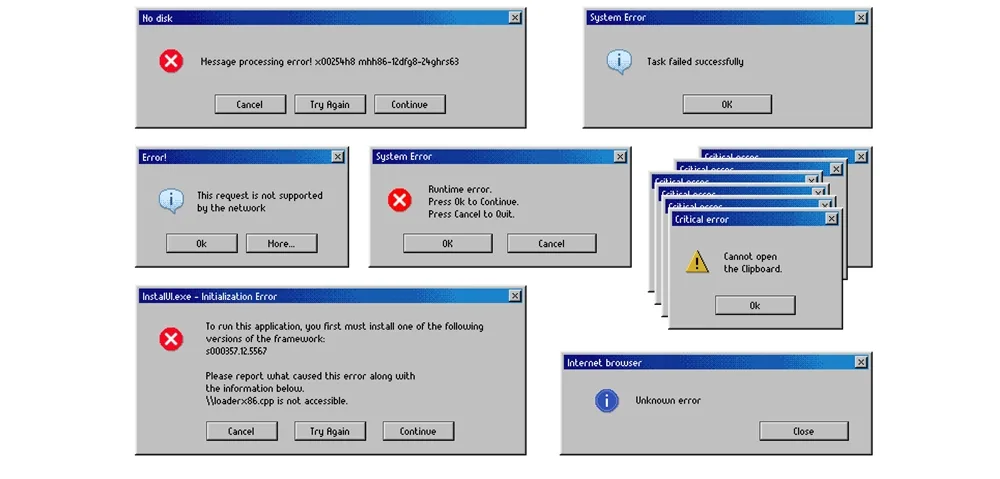
Image source: Web (Bing) / smetoday.co.uk (Web image (fair-use with source credit))
A laptop is generally considered "too old" when it can no longer perform essential tasks efficiently or securely. This typically happens when its hardware can't keep up with modern operating system (OS) updates or demanding software. For many, this threshold is crossed when it takes minutes, not seconds, to open common applications.
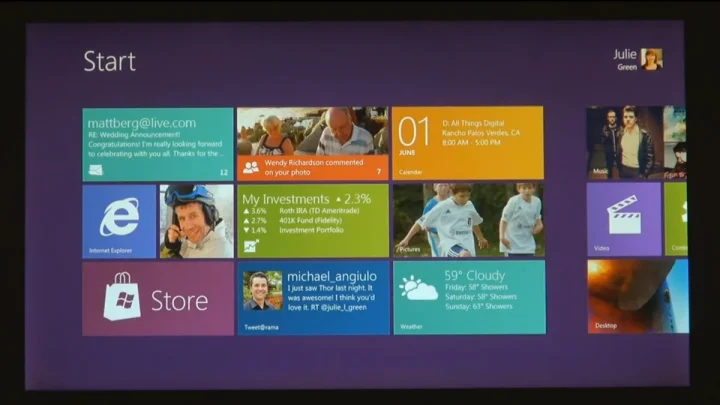
Another major factor is support lifecycles. For instance, Microsoft ended mainstream support for Windows 8.1 in January 2023, meaning no more security updates. While Windows 10 is supported until October 2025, many manufacturers stop providing driver updates for hardware that’s 7 years old, impacting compatibility with newer OS versions and software.
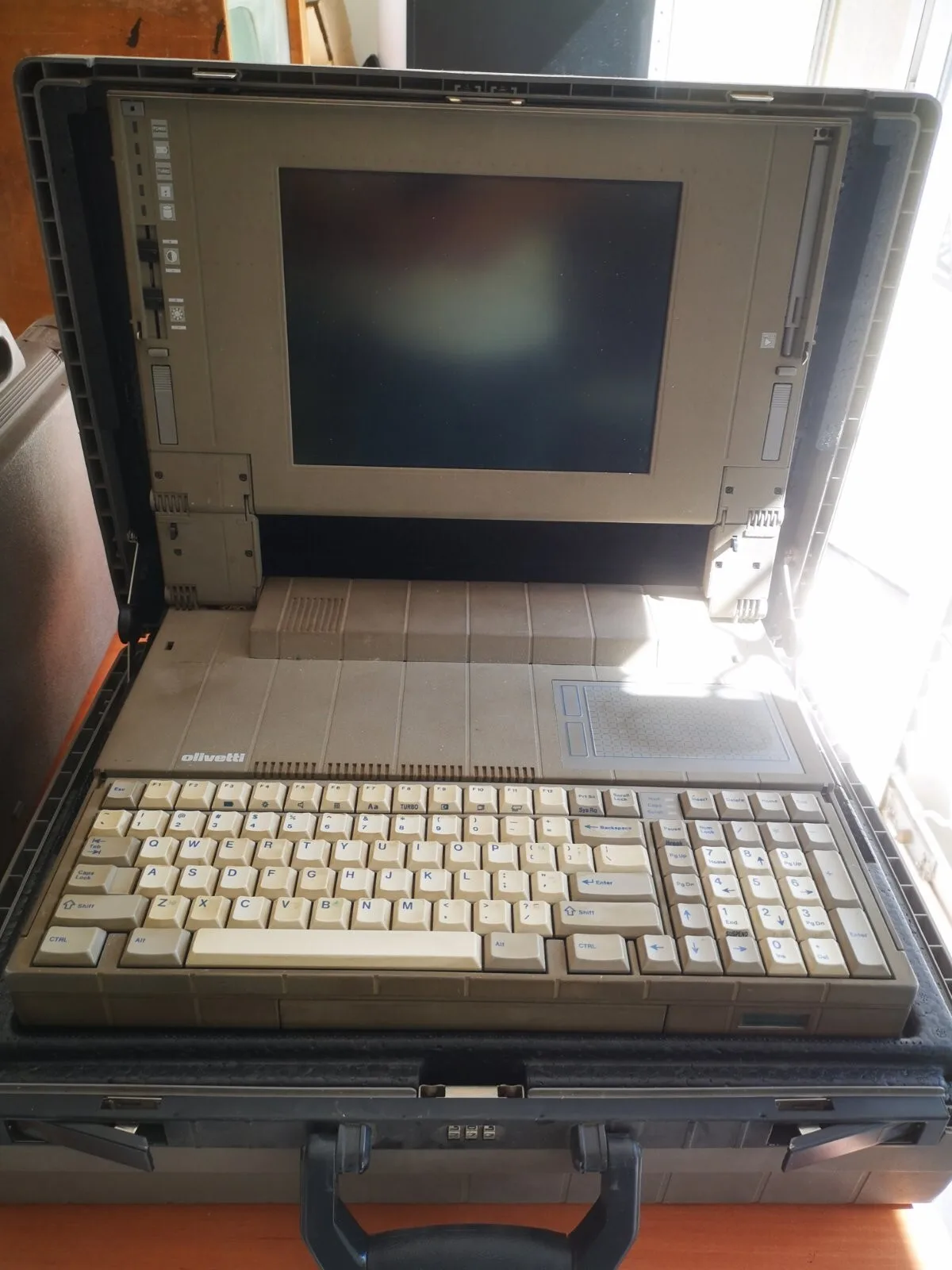
Image source: Web (Bing) / ebay.com (Web image (fair-use with source credit))
Common Pain Points with Aging Laptops
Slow Performance and Lag
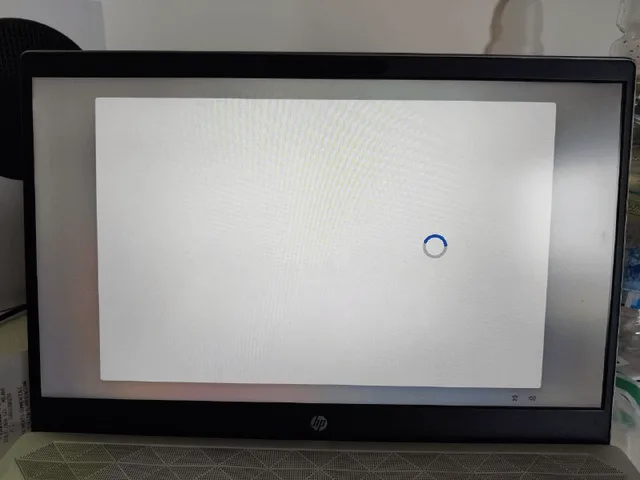
Image source: Web (Bing) / reddit.com (Web image (fair-use with source credit))
This is often the most noticeable sign that your laptop is aging. Opening applications, switching between tabs, or even booting up can take an uncomfortably long time. This lag stems from older processors (CPUs) that are less powerful than today’s chips, and often insufficient Random Access Memory (RAM).
When your laptop’s processor struggles to handle instructions quickly or its RAM is maxed out, it resorts to using slower storage as virtual memory. This process, known as swapping, dramatically slows down performance. Aggregate user reviews frequently mention this as the primary frustration with older machines.
Software and Security Update Gaps
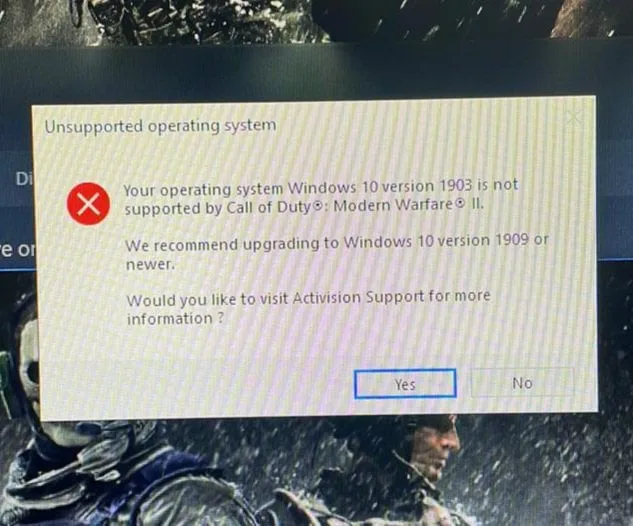
Image source: Web (Bing) / reddit.com (Web image (fair-use with source credit))
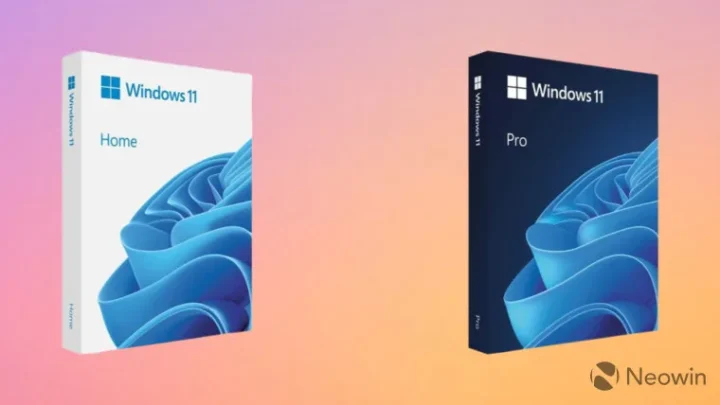
Operating systems and software are constantly updated to add features, improve performance, and patch security vulnerabilities. A 7-year-old laptop might struggle to run the latest versions of operating systems like Windows 11 or macOS. More critically, if the OS itself is no longer supported, it won't receive security patches.
Running an unsupported OS is a significant security risk. It leaves your device vulnerable to malware and cyberattacks that exploit known weaknesses. According to the U.S.
Cybersecurity & Infrastructure Security Agency (CISA), keeping software updated is a foundational step in protecting against cyber threats.
Battery Drain and Overheating
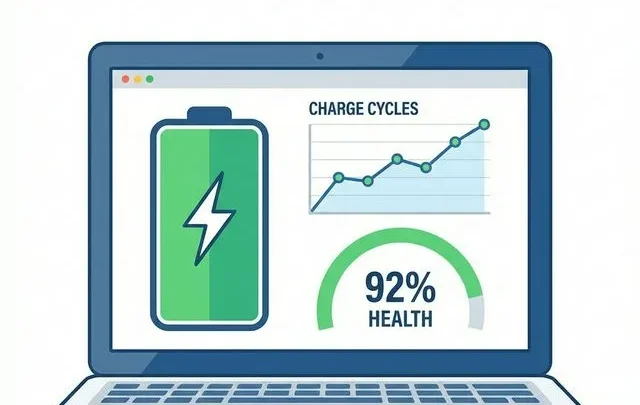
Battery health degrades over time, and a 7-year-old laptop is likely to have a battery that holds a charge for only a fraction of its original lifespan. You might find yourself tethered to a power outlet for even light usage. This is a common wear-and-tear issue that affects most rechargeable batteries.
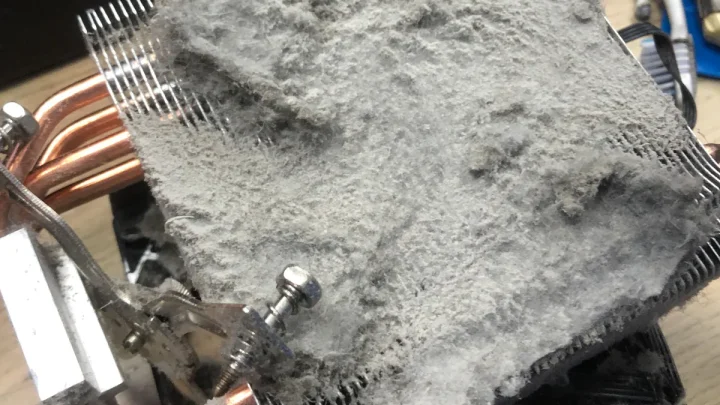
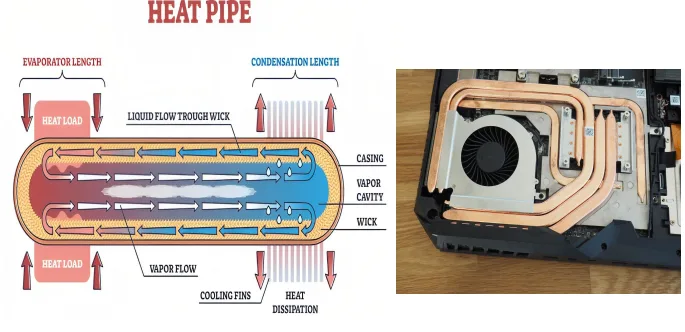
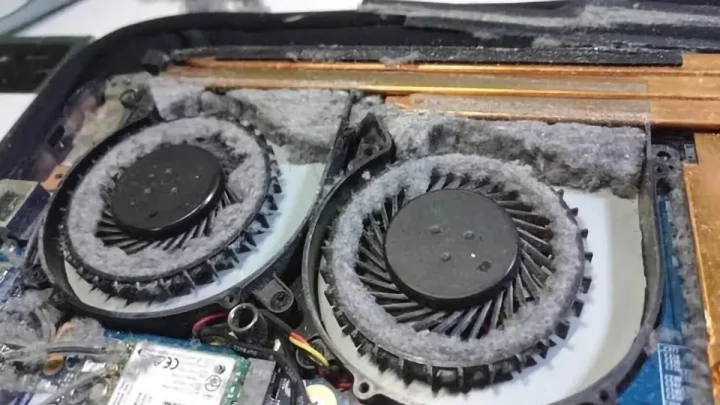
Overheating can also become a problem as internal fans and heat sinks accumulate dust and debris. This buildup prevents efficient heat dissipation, causing components to run hotter. Excessive heat can not only make the laptop uncomfortable to use but also potentially shorten the lifespan of internal parts like the CPU and GPU.
What Can a 7-Year-Old Laptop Still Handle?
A 7-year-old laptop can still be a perfectly serviceable tool for a specific set of tasks. If your daily computing involves mostly web browsing, checking emails, or working on documents in applications like Microsoft Word or Google Docs, your machine might be sufficient. Streaming standard-definition video content is also usually within its capabilities.
For these less demanding use cases, the investment in a new device may not be immediately necessary. It’s about matching the tool to the job; if the job is simple, an older tool can often still get it done. However, if you're looking to run newer, more resource-intensive software, this will quickly become a limitation.
Ideal Use Cases for Older Machines
- Basic Web Browsing: Visiting websites, reading news, and casual social media use.
- Email and Document Editing: Composing emails, writing reports, and managing spreadsheets with standard office suites.
- Video Streaming: Watching movies or TV shows on platforms like YouTube or Netflix, especially at resolutions up to 1080p.
- Light Photo Viewing: Browsing through personal photo albums or simple image management.
- Online Learning: Accessing course materials, participating in basic video lectures, and completing simple assignments.
Tasks That Will Likely Struggle
- Modern Gaming: Running any recent video games will likely be impossible due to outdated graphics and processing power.
- Heavy Photo/Video Editing: Professional-grade editing software requires substantial processing power and RAM that older laptops usually lack.
- Complex Software Development: Running virtual machines, large IDEs (Integrated Development Environments), or compiling large codebases will be slow.
- Virtual Reality (VR): VR experiences demand cutting-edge hardware for rendering and responsiveness.
- Running Multiple Demanding Applications Simultaneously: Juggling several heavy programs will quickly overwhelm the system.
Evaluating Your Laptop's Key Specs
To truly understand if your 7-year-old laptop is up to the task, you need to look at its core specifications. These numbers tell the real story about its capabilities and limitations. Knowing these details is crucial for determining if it meets the requirements of the software you want to use.
You can usually find this information by looking at a sticker on the bottom of your laptop, checking your system information within the operating system, or referring to the original purchase receipt or manufacturer's website. Armed with these specs, you can then compare them against the system requirements for your desired applications.
Processor (CPU) and RAM: The Brains and Memory
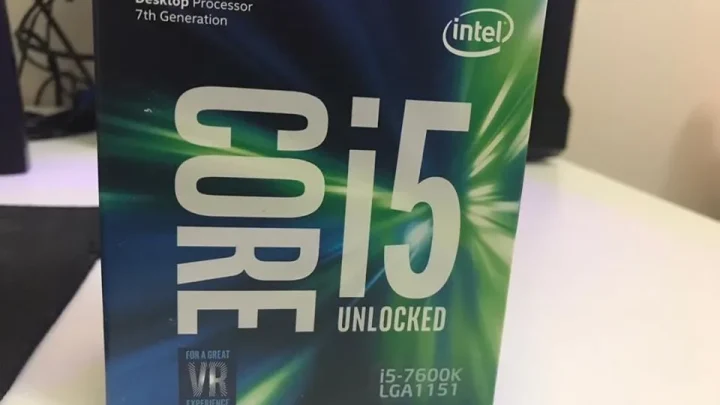
The processor (CPU) is the brain of your laptop, handling all the calculations and instructions. A 7-year-old laptop likely has a processor from Intel's 4th to 7th generation Core series (e.g., Intel Core i5-4xxx or i7-7xxx) or a comparable AMD chip. While functional, these are significantly less powerful and efficient than current-generation processors.
RAM (Random Access Memory) is where your laptop temporarily stores data for quick access. Many 7-year-old laptops came with 4GB or 8GB of RAM. For modern computing, 8GB is often considered the minimum for basic tasks, with 16GB or more being ideal for smoother multitasking.
Insufficient RAM forces the system to use slower storage, causing lag.
Storage: HDD vs. SSD and Capacity
How your laptop stores data, whether on a Hard Disk Drive (HDD) or a Solid State Drive (SSD), makes a massive difference in speed. HDDs use spinning platters and are slower, while SSDs use flash memory, offering much faster boot times and application loading. A 7-year-old laptop might have either, but if it has an HDD, that’s a prime bottleneck for performance.
The capacity of your storage also matters. If you only have 128GB or 256GB, you might find yourself constantly running out of space for software, files, and updates. Newer operating systems and applications also tend to take up more room than their predecessors.
Graphics (GPU): Integrated vs. Dedicated
The graphics processing unit (GPU) handles everything visual, from your desktop interface to games and video playback. Most older laptops have integrated graphics, meaning the GPU is built into the CPU package. These are designed for basic display output and have limited power.
Dedicated graphics cards (GPUs) are separate, more powerful components designed for demanding visual tasks like gaming or professional design work. If your 7-year-old laptop has an integrated GPU, it will struggle significantly with anything beyond basic display output. You’ll notice choppiness in videos and an inability to run anything graphically intensive.
Can You Breathe New Life into an Old Laptop?
Sometimes, a 7-year-old laptop isn't "too old" if you're willing to give it a little TLC. Simple upgrades can make a world of difference in performance, often at a fraction of the cost of a new machine. Before you relegate it to the recycling bin, explore these options.
The most impactful upgrades usually involve the storage and memory. Swapping out an old Hard Disk Drive (HDD) for a Solid State Drive (SSD) is like giving your laptop a whole new set of legs. Adding more RAM can also help it handle more tasks simultaneously without slowing down.
Practical Upgrade Options (SSD, RAM)
For many older laptops, upgrading to a Solid State Drive (SSD) is the single most effective performance boost. A typical 2.5-inch SATA SSD, often found in laptops from this era, can dramatically reduce boot times and application loading speeds. Verified buyer feedback consistently shows a massive improvement.
Adding more RAM is another excellent option, especially if your laptop came with 4GB. Many 7-year-old laptops support 8GB or even 16GB of DDR3 or DDR4 RAM. Check your laptop's manual or manufacturer support pages, like those found on Dell's support site, to confirm the maximum supported RAM and the correct type.
Maintenance and Optimization Tips
Beyond hardware upgrades, software maintenance is crucial. Regularly cleaning out temporary files and uninstalling programs you no longer use can free up valuable storage space. Running a disk cleanup utility or using third-party tools can help with this.
A clean installation of your operating system can also work wonders. Over years of use, systems can accumulate clutter and settings that slow them down. Performing a fresh OS install, like a clean install of Windows 10, can make your laptop feel much snappier and more responsive.
Considering Your Next Move: Alternatives to Keeping It
If upgrading or maintaining your 7-year-old laptop doesn't seem feasible or desirable, it’s time to look at alternatives. While your current machine might still serve some basic purposes, newer technology offers significant advantages in speed, security, and functionality. Deciding on the right path depends on your budget and needs.
Exploring options beyond just a brand-new, top-of-the-line laptop can be smart. There are many cost-effective solutions available that can still provide a significant upgrade from your current setup without breaking the bank. Thinking about how you’ll use the device is key to finding the best fit.
Budget-Friendly New Laptops
When considering a new laptop, you don't necessarily need to spend a fortune. Many manufacturers offer solid, entry-level machines that are more than capable for everyday tasks. These often feature newer processors, faster storage (like SSDs), and guaranteed security updates for years to come.
For example, many Chromebooks offer excellent value by focusing on web-based applications and cloud storage, which can be very efficient. Alternatively, budget Windows laptops from brands like Acer or Lenovo often provide a good balance of features and price for general use.
Other Device Options (Chromebooks, Tablets)
If your primary use is web browsing, email, and streaming, a Chromebook might be an ideal alternative. These devices run Google's ChromeOS, which is lightweight, secure, and focuses on cloud-based applications. A modern Chromebook will likely feel much faster and more responsive than a 7-year-old Windows or macOS laptop for these tasks.
Tablets, like iPads or Android tablets, also offer portability and simplicity for many common activities. While they aren't suitable for heavy multitasking or complex software, they excel at media consumption, reading, and casual browsing. Their touch-interface and app ecosystem can be very user-friendly.
Frequently Asked Questions
### Is a 7-year-old laptop too old for basic web browsing?
Generally, a 7-year-old laptop can still handle basic web browsing adequately, provided it has at least 4GB of RAM and an SSD. Performance may be slower on very image-heavy or complex websites compared to newer machines.
### Can I upgrade the operating system on a 7-year-old laptop?
Yes, you can often upgrade the operating system, but compatibility varies. For example, many 7-year-old laptops can run Windows 10, but may not meet the requirements for Windows 11. Always check manufacturer specifications and OS system requirements first.
### How much does it cost to upgrade an old laptop's storage to an SSD?
Upgrading to an SSD typically costs between $30 and $100, depending on the drive's capacity and brand. This is often a very cost-effective way to significantly improve your laptop's speed.
### Is it safe to use a 7-year-old laptop without updated security software?
No, it is not safe to use an unsupported 7-year-old laptop without regular security updates. Unpatched vulnerabilities leave your device highly susceptible to malware and cyberattacks. The U.S.
Cybersecurity & Infrastructure Security Agency (CISA) strongly advises against using outdated operating systems.

Similar Posts