How Often Should You Clean Your Laptop? Complete Guide
Senior Hardware Diagnostics Specialist & Lead Thermal Editor at Laptop Post Testing Lab · CompTIA A+, ACMT, B.S. in Computer Engineering · 12+ years bench-testing laptop thermal solutions & motherboard repairs
How many times should I clean my laptop? The honest answer sits somewhere between "weekly" and "never opened it in three years", and that gap is exactly where overheating, sticky keys, and dead ports live. Most people wait until the fan sounds like a jet engine or a key stops registering, but by then you're already losing performance and component life.
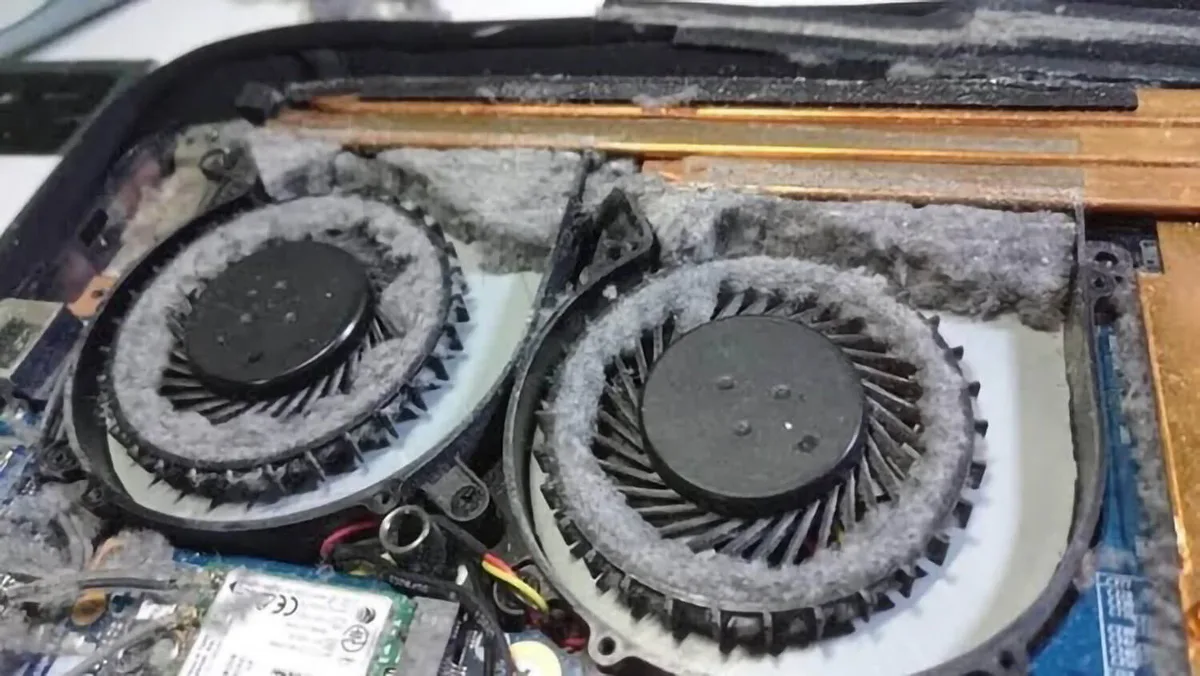
Thermal testing shows a clogged heatsink runs 15 to 25 °C hotter under sustained load, and keyboard swabs routinely hit 20,000 CFU per square inch, roughly 100× a toilet seat. The schedule below lets you match cleaning effort to how you actually use the machine.
The Real Answer: It Depends on Your Environment (Here's the Baseline)
Clean the outside weekly if you eat at your desk, have pets, or commute daily. Push external wiping to monthly only if you work in a clean office, never snack near the keyboard, and keep the laptop on a stand with good airflow. The baseline for internal deep cleaning is once every 12 to 18 months for typical users, sooner if temps climb or fan noise changes.
Dust loading isn't linear. A bedroom with one cat adds measurable dander to intake vents within two weeks. A workshop or open-window setup can cake heatsink fins in 30 days.
Manufacturer service manuals from Dell, Lenovo, and Framework all specify vent inspection intervals, not fixed calendar dates, because environment drives the real timeline.
Screen and trackpad need attention whenever they look smudged, oils degrade oleophobic coatings permanently. Ports only need cleaning when a cable doesn't seat cleanly. The keyboard deck falls somewhere in between: weekly for crumb generators, monthly for everyone else.
Find Your Cleaning Cadence: The Decision Tree
Start with your environment, then layer in usage habits to land on a personal schedule. The decision tree below replaces generic "monthly" advice with condition-based triggers you can actually follow.
| Condition | External Wipe | Vent Check | Port Clean | Deep Clean (Internal) |
|---|---|---|---|---|
| Clean office, no food, no pets, light use | Monthly | Quarterly | Semi-annually | 18–24 months |
| Home office, occasional snacks, no pets | Biweekly | Bi-monthly | Quarterly | 12–18 months |
| Daily commute / backpack lint | Weekly | Monthly | Bi-monthly | 12 months |
| Pets (shedding), eating at desk | Weekly | Biweekly | Monthly | 6–9 months |
| Heavy gaming / rendering loads | Biweekly | Monthly | Quarterly | 6–9 months |
| Dusty workshop / construction / open window | Daily wipe | Weekly | Monthly | 3–6 months |
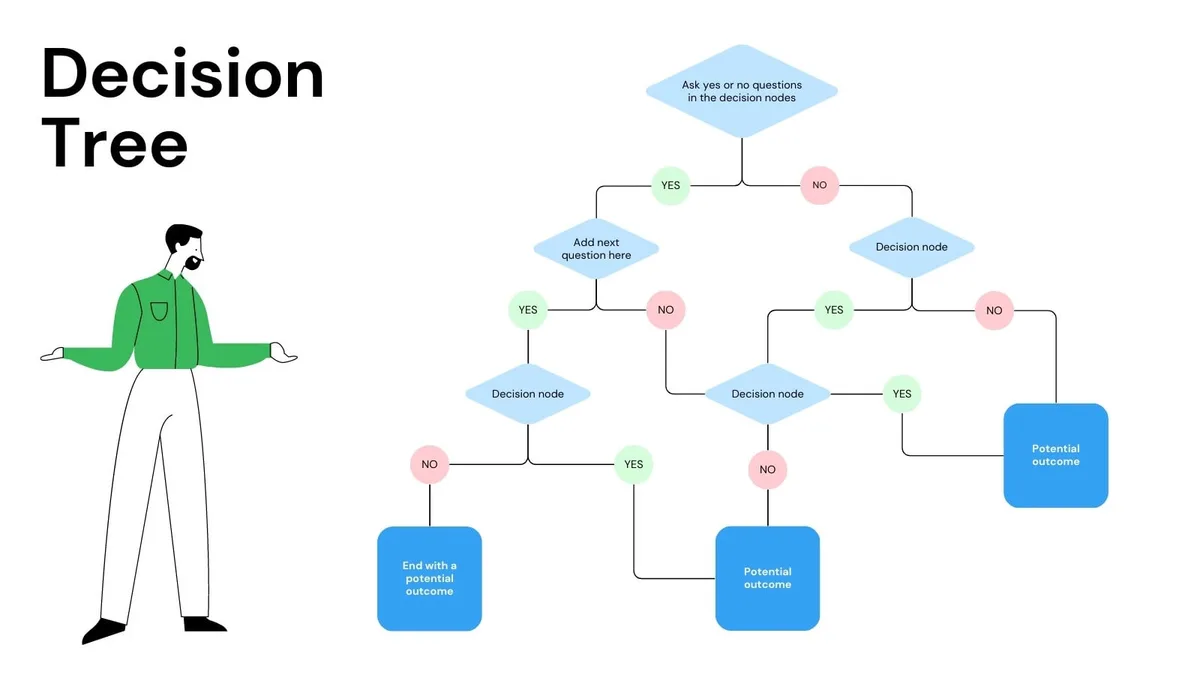
Add one tier faster if you notice any of these: fan audible at idle, core temps 10 °C above your baseline under the same workload, gritty key feel, or intermittent USB-C connections. Subtract one tier if you run a laptop stand with filtered intake and never touch the screen.
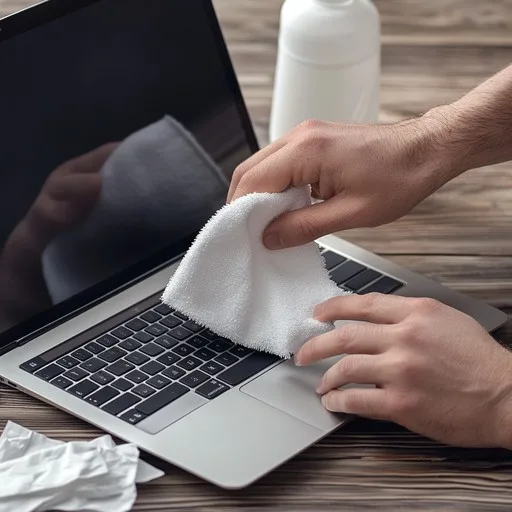
External Cleaning Routine: Screen, Keyboard, Vents & Ports
Power off, unplug, and hold the power button 30 seconds to drain flea power before any liquid touches the chassis. This prevents short circuits from residual charge and is standard procedure in every manufacturer service manual.
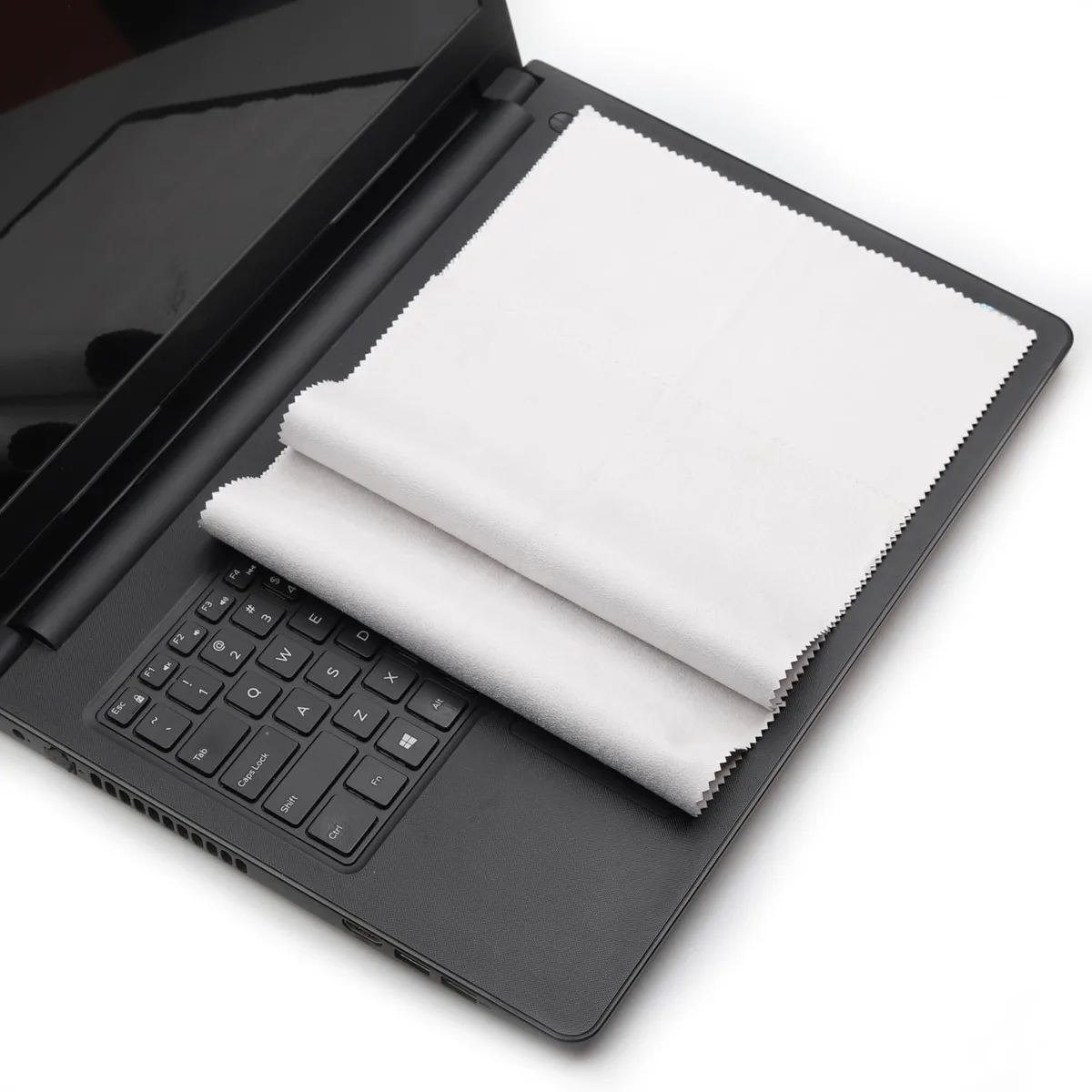
Screen & trackpad: Lightly dampen a lint-free microfiber cloth with 70 % isopropyl alcohol or a dedicated electronics wipe (WHOOSH, iKlear). Wipe in straight lines, never circles, and never spray directly on the display. Apple, Dell, Lenovo, and Microsoft all approve 70 % IPA; avoid 99 % (evaporates too fast for disinfection) and any ammonia, bleach, or hydrogen peroxide products.
Keyboard deck: Tilt the laptop 75 ° upside down and tap gently to dislodge crumbs. Follow with short bursts from an electric duster (DataVac, X3 Hurricane) held upright. For sticky residue, use a cotton swab barely damp with 70 % IPA on keycap tops only, never let liquid run under switches.
Vents: Blast compressed air through exhaust grilles in short pulses while holding the fan blades stationary with a plastic spudger. Overspinning the fan generates voltage that can fry the embedded controller. Aim air toward the outside of the chassis, not deeper inside.
Ports: Use a wooden toothpick wrapped in a single microfiber strand to sweep USB-C, HDMI, and 3.5 mm jacks. Follow with one quick burst of electric duster. Never use metal tools, pin damage is instant and irreversible.
Deep Clean Triggers: When Your Laptop Begs for Internal Service
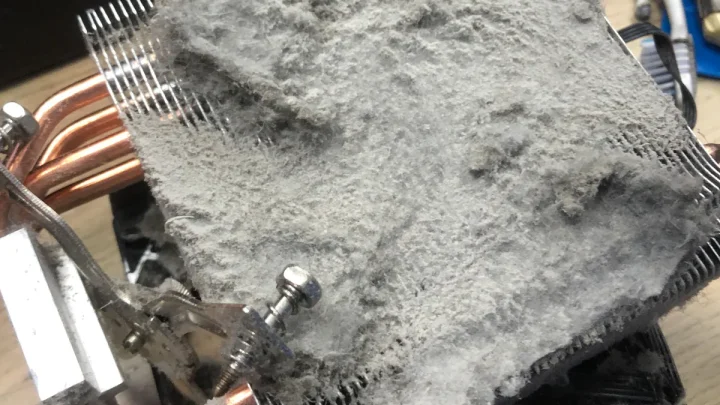
Open the chassis when sustained load temps exceed baseline by 10 °C, fan noise changes pitch at constant RPM, or you see visible dust cakes through the exhaust grille. These are objective signals, not calendar dates, that the heatsink fins are choked.
Baseline temps are easy to capture: run a 10-minute Cinebench or similar all-core load on a fresh machine (or after a known-good clean) and log package temperature in HWMonitor, HWiNFO, or Intel XTU. Save that number. When the same test runs 10 °C hotter, it's time.
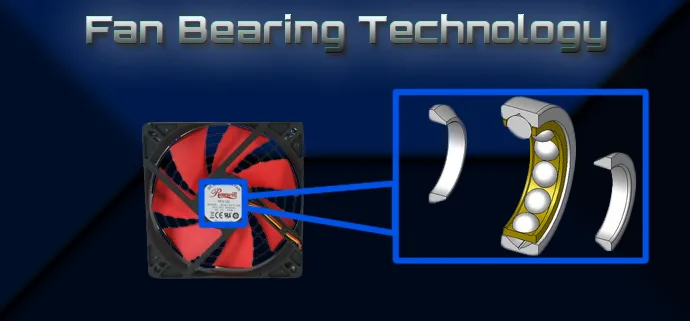
Fan bearing whine or rattle means dust has unbalanced the rotor. Intermittent throttling at lower temps than before confirms reduced thermal capacity. Both warrant disassembly even if the calendar says "not yet."
Annual preventive deep cleans make sense for high-dust environments or machines running 80 W+ sustained (gaming laptops, mobile workstations). Ultrabooks with vapor chambers and single thin fans, MacBook Air M-series, Dell XPS 13, Framework 13, have less thermal margin; a 6-month check is prudent if you push them.
Tools That Work (And What Ruins Coatings)
Electric dusters (DataVac ED500, X3 Hurricane) pay for themselves in three canned-air replacements and don't chill props mid-job. Canned air works for occasional use but loses pressure after 10, 15 seconds of continuous spray as propellant cools.
| Tool | Best For | Avoid If |
|---|---|---|
| Electric duster (DataVac, X3) | Vents, heatsinks, keyboard crevices | Tight budgets, rare use |
| Canned air (Falcon, Dust-Off) | Occasional port/vent touch-ups | Frequent deep cleans — cost adds up |
| Anti-static brush (horse hair) | Fan blades, heatsink fins, motherboard | Heavy dust cakes — use air first |
| Gel putty (ColorCoral) | Keyboard keycap gaps | Leaves residue on warm surfaces |
| 70 % IPA + microfiber | Screen, trackpad, chassis | Direct spray, paper towels, tissues |
| Distilled water + microfiber | Light screen smudges only | Disinfection, oily residues |
| Plastic spudger / nylon pry | Holding fan, opening clips | Metal tools — short risk |
| Torx T5 / Pentalobe P5 / PH#00 | Bottom case screws | Wrong driver — strips heads instantly |
Never use standard vacuums, static discharge kills components. Never use paper towels, tissues, or cloth napkins on screens; wood fibers scratch oleophobic coatings permanently. Never spray anything directly on the laptop.
Apply to cloth first.
Thermal paste repaste belongs on a 3, 5 year cycle (standard silicone) or 5, 7 years (high-end PTM7950, Kryonaut). Do not repaste during routine cleaning unless the paste is visibly dried, cracked, or the laptop is already open for another repair.
Common Mistakes That Kill Laptops
Spraying cleaner directly on the screen or keyboard is the fastest way to write off a display panel or short the motherboard. Liquid runs under keycaps in seconds and migrates along ribbon cables to the trackpad controller. Always apply solution to the cloth first.
Using a household vacuum cleaner creates static discharge that can zap the embedded controller or USB-C PHY. The motor also generates electromagnetic interference that confuses sensor readings. An anti-static brush and electric duster cost less than a logic board replacement.
Forgetting to disconnect the battery before removing the bottom case risks a short across the main power rail. A slipped screwdriver on a live board burns traces instantly. Hold the power button 30 seconds after unplugging to drain flea power, then unplug the battery connector first.
Overspinning fans with compressed air generates back-EMF that feeds into the fan header and can damage the EC firmware. Hold blades stationary with a plastic spudger while blowing air through the heatsink. Short bursts only.
Reapplying thermal paste on a schedule instead of by condition wastes time and risks air bubbles. Paste lasts 3 to 5 years for standard silicone and 5 to 7 years for premium compounds like PTM7950. Repaste only when temps rise inexplicably or the paste is visibly cracked.
Using paper towels or tissues on the screen scratches the oleophobic coating permanently. Wood fibers in cheap paper act like fine sandpaper. Microfiber cloths designed for optics are the only safe option.
Frequently Asked Questions
Can I use Clorox wipes on my laptop keyboard?
No, Clorox wipes contain bleach and quaternary ammonium compounds that degrade keyboard coatings and can seep under keycaps. Use 70 percent isopropyl alcohol on a microfiber cloth instead. Wring the cloth until barely damp.
How do I know if my laptop needs repasting?
Run a 10 minute all core load test and compare package temperature to your baseline from when the machine was new or last cleaned. A rise of 10 degrees Celsius or more under the same workload signals dried or pump out paste. Visual inspection through the fan grille sometimes shows cracked compound.
Is it safe to clean laptop vents with a vacuum?
No, standard vacuums generate static electricity that can destroy the embedded controller or USB controller. Use an electric duster or canned air while holding fan blades still with a plastic spudger. Anti static brushes work for loose dust on heatsink fins.
How often should I clean my laptop if I have cats?
Clean external surfaces weekly and check intake vents every two weeks. Cat dander cakes heatsink fins faster than dust alone. Schedule a deep clean at 6 to 9 month intervals instead of 12 to 18 months.
A laptop stand with a washable intake filter cuts buildup significantly.
Can compressed air damage my laptop?
Canned air is safe if used in short upright bursts with the fan blades held stationary. Tilting the can sprays liquid propellant that can short components. Electric dusters eliminate propellant risk and maintain consistent pressure.
Never spin fans above their rated RPM with air pressure.

Similar Posts