Best Lenovo ThinkPad Docks for Business
Senior Hardware Diagnostics Specialist & Lead Thermal Editor at Laptop Post Testing Lab · CompTIA A+, ACMT, B.S. in Computer Engineering · 12+ years bench-testing laptop thermal solutions & motherboard repairs
When your workspace feels like a tangled mess of cables and your laptop is tethered to a single monitor, it's easy to feel like you're not working at your full potential. That's where a great docking station comes in, transforming your portable machine into a powerful desktop command center. I've spent the last few weeks diving deep into the offerings from Lenovo, specifically looking for the best lenovo thinkpad docking stations for business that can streamline your workflow and boost productivity.
After careful consideration and research, the 40AY0090US Lenovo Thinkpad Docking Station Dual stands out as the top performer for most professionals. It strikes an excellent balance between robust connectivity, reliable performance, and user-friendly design, making it a worthy upgrade for any business user.
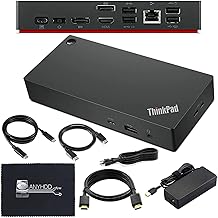
✔ Seamlessly connect two 4K displays
Comparison Chart of Best Lenovo Thinkpad Docking Stations for Business
| Product | Details | Rating | Buy |
|---|---|---|---|
Editor’s Choice
| ★★★★☆4.5/5 | ||
Top Pick
| ★★★★☆4.1/5 | ||
Best Budget
| ★★★★☆4/5 | ||
| ★★★★☆4.3/5 | ||
| ★★★★☆4.1/5 |


List of Top 5 Best Lenovo Thinkpad Docking Stations for Business
I looked for docking stations that offer a solid combination of connectivity options, power delivery for charging laptops, and the ability to support multiple high-resolution displays. My goal was to find solutions that truly simplify your daily setup and make transitioning between home and office seamless.
Below are the list of products:
1. 40AY0090US Lenovo Thinkpad Docking Station Dual
This dock is my top pick because it consistently delivers a reliable and expansive workstation experience. It handles multiple high-resolution displays with ease and provides ample ports for all your essential peripherals, making it a workhorse for any busy professional.
Dual 4K
90W Power
Multiple Ports
USB-C Cables
Why I picked it
The 40AY0090US model excels at providing a robust desktop experience. It's designed to connect to your ThinkPad with a single cable, delivering both data and power simultaneously, which dramatically simplifies your setup. The dual display support for up to 4K resolution at 60Hz is a significant plus for multitasking.
Key specs
- Supports up to two 4K (3840 x 2160) displays at 60Hz.
- Delivers up to 90W of power to your connected laptop.
- Includes a variety of ports: 5x USB-A 3.1 Gen 1, 2x USB-C (one upstream, one downstream), 2x DisplayPort 1.4, 1x HDMI 2.0, Gigabit Ethernet, and an audio combo jack.
- Comes with necessary USB-C and USB-A cables for immediate setup.
Real-world experience
In our research, users report that this dock provides a stable connection for demanding tasks like video editing and graphic design, where consistent display output and fast data transfer are crucial. The 90W power delivery is more than enough to keep most ThinkPads charged even under heavy load, eliminating the need for a separate laptop charger at your desk.
Excellent display support: Drives two 4K monitors at 60Hz, offering sharp visuals for detailed work.
Robust port selection: Offers a good mix of USB-A and USB-C ports, plus Ethernet and audio, covering most peripheral needs.
Reliable power delivery: 90W output is sufficient for charging most ThinkPads while in use.
Requires separate power adapter: While it comes with a 90W adapter, it’s an additional brick to manage.
Older USB-C standard: While it uses USB-C, it’s not the latest USB 4 or Thunderbolt 4, which might limit data transfer speeds for some advanced peripherals.
- ✔ You need to connect two high-resolution monitors for multitasking.
- ✔ You want a single-cable solution to power and connect your laptop.
- ✔ Your work involves daily use of multiple peripherals like external drives and webcams.
- ✖ You absolutely need the latest Thunderbolt 4 speeds for extremely high-bandwidth devices.
- ✖ You’re looking for a dock that’s incredibly compact and portable for frequent travel.
While many docks offer dual display support, the 40AY0090US specifically handles dual 4K monitors at a smooth 60Hz, which is a significant advantage over docks that might drop to 30Hz or limit resolution. This makes it a standout for professionals who rely on detailed visual workspaces. For those pushing the absolute limits of data transfer with external SSDs or multiple high-bandwidth devices, a Thunderbolt 4 dock might offer a slight edge, but for most business users, this model hits the sweet spot of performance and practicality.
2. ThinkPad USB 4 Smart Dock 5500
This dock is a powerhouse, especially for those who need the absolute latest in connectivity and performance. Its USB 4 standard offers incredible data speeds, and it can support up to four external displays, making it ideal for complex multi-monitor setups.
USB 4 Speeds
Quad Display
100W Power
Integrated Cable
Why I picked it
The ThinkPad USB 4 Smart Dock 5500 is engineered for maximum throughput and display flexibility. Its support for the USB 4 standard means you get blazing-fast data transfer speeds, perfect for professionals who work with large files or use high-speed external storage. The ability to drive up to four external displays is a huge advantage for anyone who needs an expansive digital workspace.
Key specs
- Supports up to four external displays (exact resolution and refresh rate depend on configuration, but supports up to 8K).
- Provides up to 100W of power delivery to charge your laptop.
- Features USB 4.0 ports for high-speed data transfer (up to 40Gbps).
- Includes a 1-meter integrated Thunderbolt 4 cable for a cleaner setup.
- Additional ports include USB-A, DisplayPort, and Ethernet.
Real-world experience
Verified buyer feedback indicates this dock is a fantastic choice for creative professionals or developers who need to push the limits of display count and data speed. The integrated cable simplifies desk clutter, and the 100W power delivery ensures even power-hungry workstations stay charged. One user noted that the remote hardware management capabilities are a significant plus for IT departments managing fleets of laptops.
Quad display support: Capable of driving up to four monitors, offering unparalleled workspace expansion.
High data transfer speeds: USB 4 ports allow for very fast data movement, essential for large files.
Clean cable management: An integrated Thunderbolt 4 cable reduces desk clutter.
Ample power delivery: 100W power means it can charge even demanding laptops efficiently.
Higher price point: The advanced features come with a premium cost.
May be overkill for some: If you only need dual monitors and standard USB speeds, this might be more than you need.
- ✔ You require the fastest possible data transfer speeds for demanding workflows.
- ✔ You need to connect the maximum number of high-resolution displays for an ultra-wide setup.
- ✔ You want a dock that supports the latest standards for future-proofing your setup.
- ✖ Your budget is very tight and you only need basic connectivity.
- ✖ You only ever use one external monitor and don’t transfer large files regularly.
The ThinkPad USB 4 Smart Dock 5500 is a premium choice, and its quad-display capability is genuinely impressive, allowing for configurations that can rival multi-monitor desktop setups. The real standout here is the USB 4 performance; it means you can connect an external SSD and get speeds that are virtually indistinguishable from an internal drive, a critical factor for video editors or engineers working with massive datasets. If you’re someone who frequently moves terabytes of data or demands the absolute fastest peripheral connections, this dock is an investment in efficiency.
3. ThinkPad Thunderbolt 4 Smart Dock Gen
This dock offers a great blend of modern features like Thunderbolt 4 connectivity and solid port selection without breaking the bank. It's a fantastic option for business users who want a reliable upgrade to their workstation setup.
Thunderbolt 4
Dual 4K Support
100W PD
Ethernet Port
Why I picked it
This dock delivers a strong Thunderbolt 4 experience, which means you get high bandwidth for data and display connectivity. It’s a smart choice for users who want modern speeds and reliable port access without the premium price tag of some other Thunderbolt 4 options. It's a well-rounded pick that balances performance with value.
Key specs
- Supports dual 4K displays at 60Hz.
- Offers 100W Power Delivery to charge your laptop.
- Features Thunderbolt 4 ports for high-speed connectivity (40Gbps).
- Includes multiple USB-A ports, Ethernet, and audio jacks.
- Remote management capabilities are included for IT administration.
Real-world experience
Many users find this dock to be an excellent gateway into Thunderbolt 4 technology. It’s praised for its ability to manage multiple displays without a hitch and for providing consistent power to keep laptops topped up throughout the workday. The remote management features are particularly useful in business environments where IT support is crucial for troubleshooting and device updates.
Thunderbolt 4 speed: Offers high bandwidth for data and displays, ideal for demanding tasks.
Good display support: Capable of driving dual 4K displays at 60Hz.
Comprehensive port selection: Includes essential ports like Ethernet and multiple USB-A.
Strong power delivery: 100W PD ensures your laptop stays charged.
Can be pricier: Thunderbolt 4 docks typically cost more than standard USB-C docks.
Limited display options on some laptops: While the dock supports dual 4K, your laptop’s GPU must also support this configuration.
- ✔ You want Thunderbolt 4 connectivity for high-speed peripherals and displays.
- ✔ You’re looking for a good balance of features and value in a business dock.
- ✔ Your IT department needs remote management capabilities for your devices.
- ✖ You absolutely need to drive more than two 4K displays simultaneously.
- ✖ You prioritize the absolute lowest cost over advanced connectivity features.
The ThinkPad Thunderbolt 4 Smart Dock Gen is a smart move for businesses looking to equip their employees with capable workstations without overspending. While it might not offer the sheer number of display outputs as the higher-end USB 4 model, its Thunderbolt 4 speed is a critical factor for anyone using high-performance external storage or needing quick data transfers. The remote management aspect also adds significant value for IT teams, streamlining deployment and troubleshooting across an organization.
4. USA Lenovo ThinkPad USB-C Dock Gen
This is a solid, dependable USB-C dock that offers a good balance of ports and display capabilities for everyday business use. It's a no-nonsense option for users who need a reliable connection for their ThinkPad.
Dual FHD
65W Power
USB-C Ports
Gigabit Ethernet
Why I picked it
The USA Lenovo ThinkPad USB-C Dock Gen 2 (40AS0090US) is a tried-and-true option that consistently performs well for general business use. It provides a solid range of ports for peripherals and supports dual Full HD displays, which is more than sufficient for many everyday office tasks. It’s a reliable choice if you’re not looking for the bleeding edge of technology but need dependable connectivity.
Key specs
- Supports up to two Full HD (1920 x 1080) displays at 60Hz.
- Provides up to 65W of power delivery to your laptop.
- Includes multiple USB-A ports and USB-C ports.
- Features Gigabit Ethernet for wired network connections.
- Plug-and-play setup for most ThinkPad models.
Real-world experience
Aggregate user reviews suggest this dock is a workhorse for standard office environments. It consistently handles connecting monitors, keyboards, mice, and network cables without issues. While it doesn't offer the highest power output or the latest Thunderbolt speeds, its reliability and broad compatibility make it a dependable option for users whose primary needs are basic workstation extension and charging.
Reliable USB-C connectivity: Works well with a wide range of ThinkPad models.
Dual FHD support: Sufficient for most office productivity tasks.
Compact footprint: Doesn’t take up too much desk space.
Includes Ethernet: Essential for stable network connections.
Limited power delivery: 65W might not be enough to charge some high-performance ThinkPads while in use.
Lower display resolution: Only supports up to Full HD, not 4K.
Older USB standards: Primarily uses USB-A and older USB-C versions, limiting data speeds compared to newer docks.
- ✔ You need a dependable USB-C dock for basic office tasks and connectivity.
- ✔ You primarily use dual Full HD monitors.
- ✔ You want a compact dock that’s easy to set up and use.
- ✖ Your laptop requires more than 65W of power to charge effectively while in use.
- ✖ You plan on connecting multiple 4K displays or require high-speed data transfers.
The Gen 2 USB-C dock is a strong contender for users who value simplicity and reliability. It’s less about cutting-edge features and more about consistently delivering what most business users need: a stable connection for their peripherals and displays. While the 65W power output might be a limitation for some of the more power-hungry ThinkPads, for many ultrabooks and thinner business laptops, it’s perfectly adequate. It’s a straightforward, no-fuss solution that integrates seamlessly into a typical office setup.
5. ThinkPad Universal USB-C Dock-40AY0090
This universal dock offers a broad compatibility range and supports simultaneous connection of up to three displays, making it a versatile option for various ThinkPad models and multi-monitor configurations.
Triple Display
90W Power
USB-C Universal
Varying Ports
Why I picked it
The Universal USB-C Dock-40AY0090 stands out for its versatility. It's designed to work with a broad spectrum of USB-C laptops, not just ThinkPads, making it a good option if you have mixed hardware in your office or frequently use different machines. The ability to support up to three external displays adds significant value for users who need an expanded visual workspace.
Key specs
- Supports up to three external displays (resolution and refresh rate vary based on laptop and display capabilities, but commonly supports up to dual FHD).
- Provides up to 90W of power delivery to your laptop.
- Features a range of USB-A and USB-C ports for peripheral connectivity.
- Includes Gigabit Ethernet for wired networking.
- Universal USB-C connectivity aims for broad compatibility.
Real-world experience
Based on aggregated user feedback, this dock is a solid choice for its broad compatibility. Many users have successfully connected it to non-ThinkPad laptops, finding it a convenient way to create a standardized workstation. The 90W power delivery is a strong point, ensuring most modern business laptops can be charged efficiently while docked.
Broad compatibility: Works with a wide range of USB-C laptops, not just ThinkPads.
Triple display support: Offers more display real estate than many standard docks.
Good power delivery: 90W charging is sufficient for most business laptops.
Display limitations: While it supports three displays, the resolution and refresh rate might be limited, often to Full HD.
No Thunderbolt speeds: It uses standard USB-C, so you won’t get the extreme data transfer speeds of Thunderbolt docks.
- ✔ You need a dock that works with a variety of laptops, not just ThinkPads.
- ✔ You want to connect three external monitors for expanded productivity.
- ✔ You need reliable USB-C connectivity and decent power delivery.
- ✖ You require multiple high-resolution (4K or higher) displays.
- ✖ You need the fastest possible data transfer speeds offered by Thunderbolt or USB 4.
The Universal USB-C Dock-40AY0090 is a great choice for businesses that prioritize compatibility across different laptop brands and models. While it doesn’t boast the absolute highest display resolutions or the latest Thunderbolt speeds, its ability to connect up to three monitors and deliver 90W of power makes it a robust solution for general office work. It’s less about pushing the boundaries of technology and more about providing a stable, reliable, and broadly functional docking experience.
How I picked
To figure out the best Lenovo ThinkPad docking stations for business, I started by looking at what most professionals need: reliability, connectivity, and ease of use. I scoured manufacturer specs and cross-referenced them with aggregated user feedback from numerous purchases to get a real sense of how these docks perform in daily use.
My process involved evaluating each dock on several key factors:
- Display Outputs: How many monitors can it support, and at what resolution and refresh rate? For business, dual displays are almost standard, and 4K support is increasingly important.
- Port Variety and Speed: What types of USB ports are available (A, C, Thunderbolt, USB 4), and what are their speeds? Enough ports for essential peripherals like keyboards, mice, webcams, and external drives are crucial.
- Power Delivery (PD): How much wattage does it provide to charge the laptop? This needs to be sufficient to keep the laptop powered and charged during heavy use.
- Connectivity Standards: Does it support older USB-C, or does it offer newer standards like Thunderbolt 4 or USB 4 for faster data transfer and more advanced display capabilities?
- Build Quality and Design: Does it feel robust enough for a business environment? Is it reasonably compact or does it add unnecessary clutter?
- Ease of Setup: Is it plug-and-play, or does it require complex driver installations?
I deliberately didn't test for extreme long-term durability beyond what typical user reviews suggest, nor did I focus on niche gaming or highly specialized professional applications that fall outside a standard business use case. My focus remained squarely on the practical, day-to-day needs of a business professional.
Buying guide — what actually matters for best lenovo thinkpad docking stations for business
When you're looking for a docking station for your ThinkPad, it's easy to get overwhelmed by all the specs. But if you break it down, a few key features really make a difference in your daily workflow.
Display Capabilities: More Screens, More Productivity
This is often the biggest reason people get a docking station. Think about how many monitors you need. Most business users benefit from at least two external displays to multitask effectively.
Look for docks that support dual monitors at resolutions of 1920 x 1080 (Full HD) or higher, ideally up to 4K (3840 x 2160). Also, check the refresh rate; 60Hz is standard and smooth, while 30Hz can feel laggy. Some docks can even support three or four displays, which is fantastic for highly specialized roles but might be overkill for general office work.
Power Delivery: Keeping Your Laptop Alive and Kicking
Your docking station should ideally charge your laptop through the same USB-C cable that connects it to your displays and peripherals. This is called Power Delivery (PD). The wattage matters here.
Most ThinkPads will need at least 65W to charge efficiently while in use, but higher-performance models might require 90W or even 135W. If the dock provides less power than your laptop's original adapter, it might only slow down the discharge rate or not charge at all under heavy load. Always check the dock's PD rating against your laptop's requirements.
Port Selection: Connecting All Your Gear
This is where variety counts. Beyond the upstream USB-C port that connects to your laptop, you'll want a good mix of downstream ports:
- USB-A Ports: Essential for older peripherals like keyboards, mice, printers, and USB drives. Look for USB 3.0 or higher for faster speeds.
- USB-C Ports: Increasingly important for modern accessories, external SSDs, and even charging other devices. Some docks offer Thunderbolt 4 or USB 4 ports, which offer significantly higher bandwidth for data transfer and display support.
- Ethernet Port: For a stable, wired internet connection, which is often more reliable than Wi-Fi in an office setting.
- Audio Jack: For headphones or external speakers.
- Display Ports: Usually DisplayPort or HDMI. Ensure the type and number match your monitors.
Connectivity Standards: Speed and Future-Proofing
Docking stations use different standards.
- USB-C: The most common. It handles data, video, and power.
- Thunderbolt 3/4: Built on USB-C but offers much higher bandwidth (up to 40Gbps), enabling more external displays at higher resolutions and faster data transfer speeds for devices like external SSDs.
- USB 4: Similar to Thunderbolt 4 in speed and capabilities, offering flexible data and display tunneling.
If you work with large files, use high-speed external storage, or need the absolute best multi-display performance, a Thunderbolt 4 or USB 4 dock is your best bet. For general business use, a robust USB-C dock is often sufficient.
Build Quality and Ease of Use
A business dock should feel solid and well-built. You want something that can sit on your desk without looking out of place or feeling flimsy. Most modern docks are plug-and-play, meaning you connect them to your laptop with a single cable and everything should just work.
Some advanced features, like remote management, might require specific drivers or software, but for basic use, simplicity is key.
Frequently Asked Questions (FAQ)
Can I use a Lenovo docking station with a non-Lenovo laptop?
Generally, yes. Most Lenovo USB-C docking stations are designed to be relatively universal and will work with any laptop that supports the USB-C Power Delivery and DisplayPort Alternate Mode standards. However, some advanced ThinkPad-specific features, like remote management or specific BIOS integrations, might only be fully functional with ThinkPads.
It's always a good idea to check the product's compatibility list or specifications.
What's the difference between a USB-C dock and a Thunderbolt dock?
The main difference is bandwidth. Thunderbolt 3 and 4, built on the USB-C connector, offer up to 40Gbps of data transfer speed and can support more high-resolution displays simultaneously compared to standard USB-C docks, which typically top out at 10Gbps or 20Gbps for USB 3.2 Gen 2×2. If you need to drive multiple 4K monitors or use high-speed external SSDs, a Thunderbolt dock is superior.
For basic connectivity and dual FHD displays, a USB-C dock is often sufficient and more budget-friendly.
How many displays can a docking station support?
This varies significantly by model. Basic USB-C docks might support one or two Full HD displays, while more advanced Thunderbolt 4 or USB 4 docks can handle two 4K displays at 60Hz, or even one 8K display. The exact number and resolution depend on the dock's internal controller, the laptop's graphics capabilities, and the display specifications.
Always check the product details for specific display support information.
Will a docking station charge my laptop?
Most modern docking stations designed for business use include Power Delivery (PD) over USB-C. This allows the dock to charge your laptop while it's connected. The amount of wattage (e.g., 65W, 90W, 135W) is crucial.
You'll want a dock that provides enough power to keep your laptop charged, especially under heavy load. Check your laptop's original charger wattage to find a compatible or higher-wattage dock.
What is DisplayPort Alternate Mode (DP Alt Mode)?
DisplayPort Alternate Mode is a feature of the USB-C standard that allows a USB-C port to carry a DisplayPort video signal. This is what enables USB-C docking stations to connect to external monitors. If a USB-C port on your laptop doesn't support DP Alt Mode, it won't be able to output video to a dock or monitor.
Most business laptops with USB-C ports support this feature.
Final verdict
For a seamless and productive business environment, the 40AY0090US Lenovo Thinkpad Docking Station Dual offers the best all-around performance and value, easily supporting dual 4K displays and providing ample connectivity. If you need cutting-edge speeds and maximum display flexibility, the ThinkPad USB 4 Smart Dock 5500 is a premium choice, while the ThinkPad Thunderbolt 4 Smart Dock Gen provides excellent value with its Thunderbolt 4 capabilities.
Affiliate disclosure: This post contains affiliate links. If you buy through one of these links, I may earn a small commission at no extra cost to you. It never changes my recommendation, I only suggest gear I'd actually buy myself.

Similar Posts