how to use a vertical laptop stand in clamshell mode with external monitor
Senior Hardware Diagnostics Specialist & Lead Thermal Editor at Laptop Post Testing Lab · CompTIA A+, ACMT, B.S. in Computer Engineering · 12+ years bench-testing laptop thermal solutions & motherboard repairs
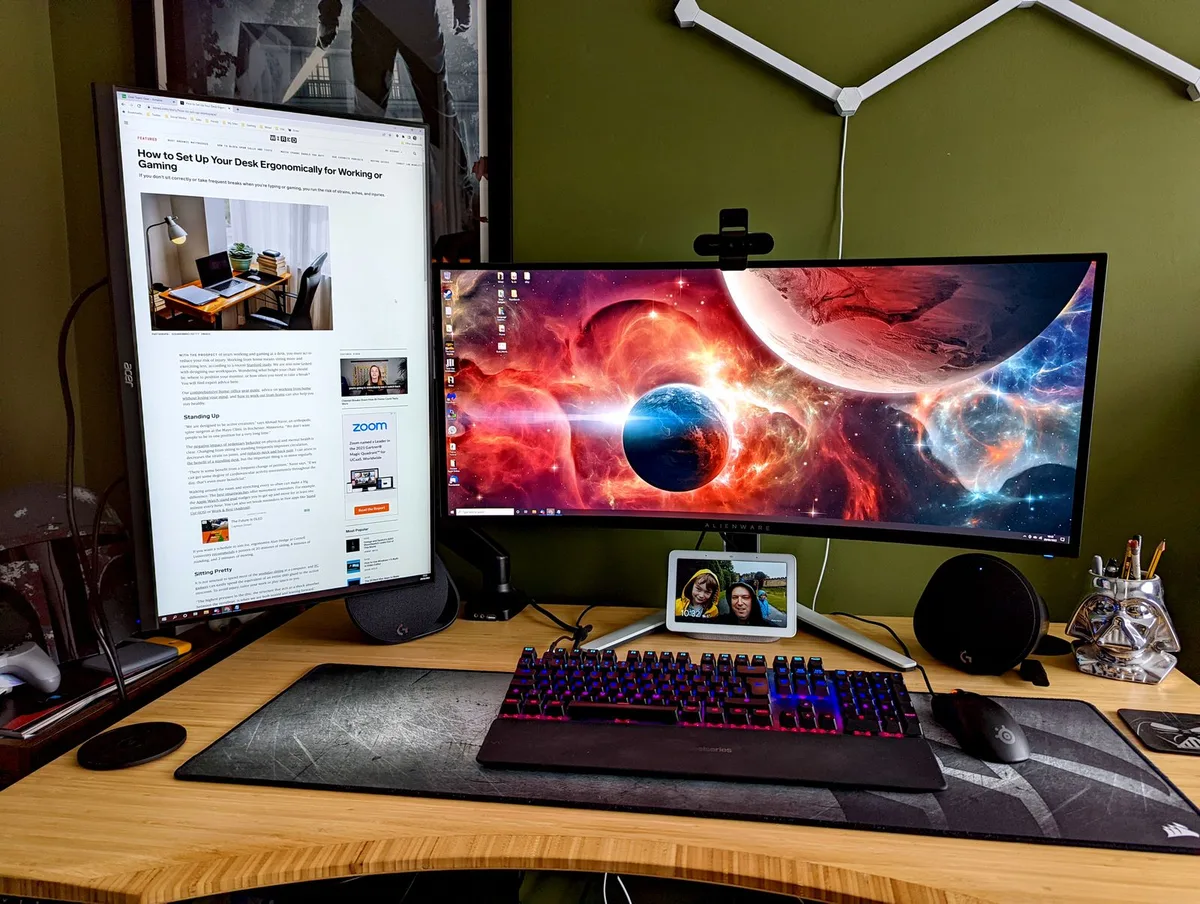
Using a vertical laptop stand in clamshell mode with an external monitor is a simple way to clear clutter while keeping your workspace organized. This setup allows you to use your laptop as a powerful desktop computer by closing the lid and pushing the signal to a larger screen.
As of 2026, most modern hardware supports this transition without needing extra software. You’ll just need to connect your peripherals and power to the machine before closing it. This approach keeps your desk footprint minimal while maintaining full performance.
Quick Answer
To use a vertical laptop stand, place your machine in the cradle. Connect your external monitor and power supply via a docking station. Attach a wireless keyboard and mouse for control.
Close your laptop lid to trigger clamshell mode. Ensure your laptop vents have clear airflow.
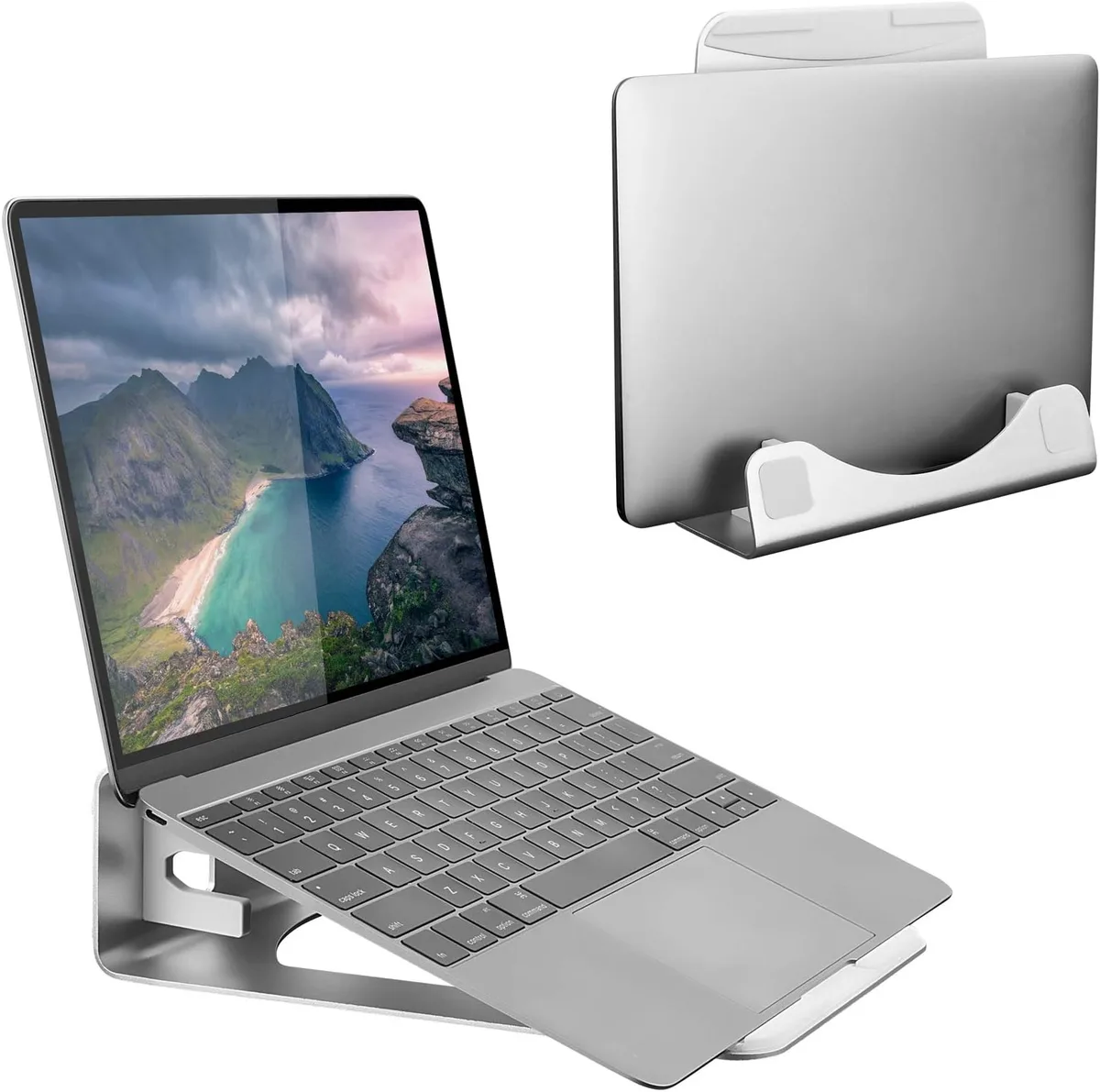
The Appeal of the Vertical Desk Setup
Moving your laptop into a vertical stand changes how you interact with your workspace. By lifting the machine off the desk surface, you save space for paperwork or peripherals. This configuration effectively turns a mobile device into a permanent workstation component.
Minimalist setups benefit from the lack of visual noise. When you hide the laptop chassis, you focus entirely on the external display. This approach works well for home offices where space is limited and aesthetics matter as much as function.
How Clamshell Mode Actually Works
Clamshell mode is a feature built into modern operating systems that detects when an external monitor is attached. Once it senses a display, the system redirects all visual data to the external screen. It then allows the laptop to enter a high-performance state even with the lid shut.
Most systems require three specific items to wake the screen: an external display, a power source, and an external input device. Once these connections are active, the system assumes you want a desktop experience. It keeps the processor running and enables peripheral support.
Essential Hardware for a Stable Configuration
You need more than just the stand to make this work reliably. A stable setup relies on a few key components that communicate effectively with your computer. Using certified cables ensures you don't experience signal drops or flickering.
| Component | Purpose | Requirement |
|---|---|---|
| Vertical Stand | Holds the laptop upright | Sturdy, non-slip base |
| Docking Station | Centralizes all connections | Powered USB-C or Thunderbolt |
| Wireless Input | Controls the system | Bluetooth or 2.4GHz receiver |
| High-Speed Cable | Sends visual data | HDMI 2.1 or DisplayPort 1.4 |
Manufacturer documentation for your laptop usually outlines specific port requirements for external displays. You can review official hardware standards at USB-IF to ensure your cables and ports support the necessary bandwidth.
Choosing the Right Vertical Stand
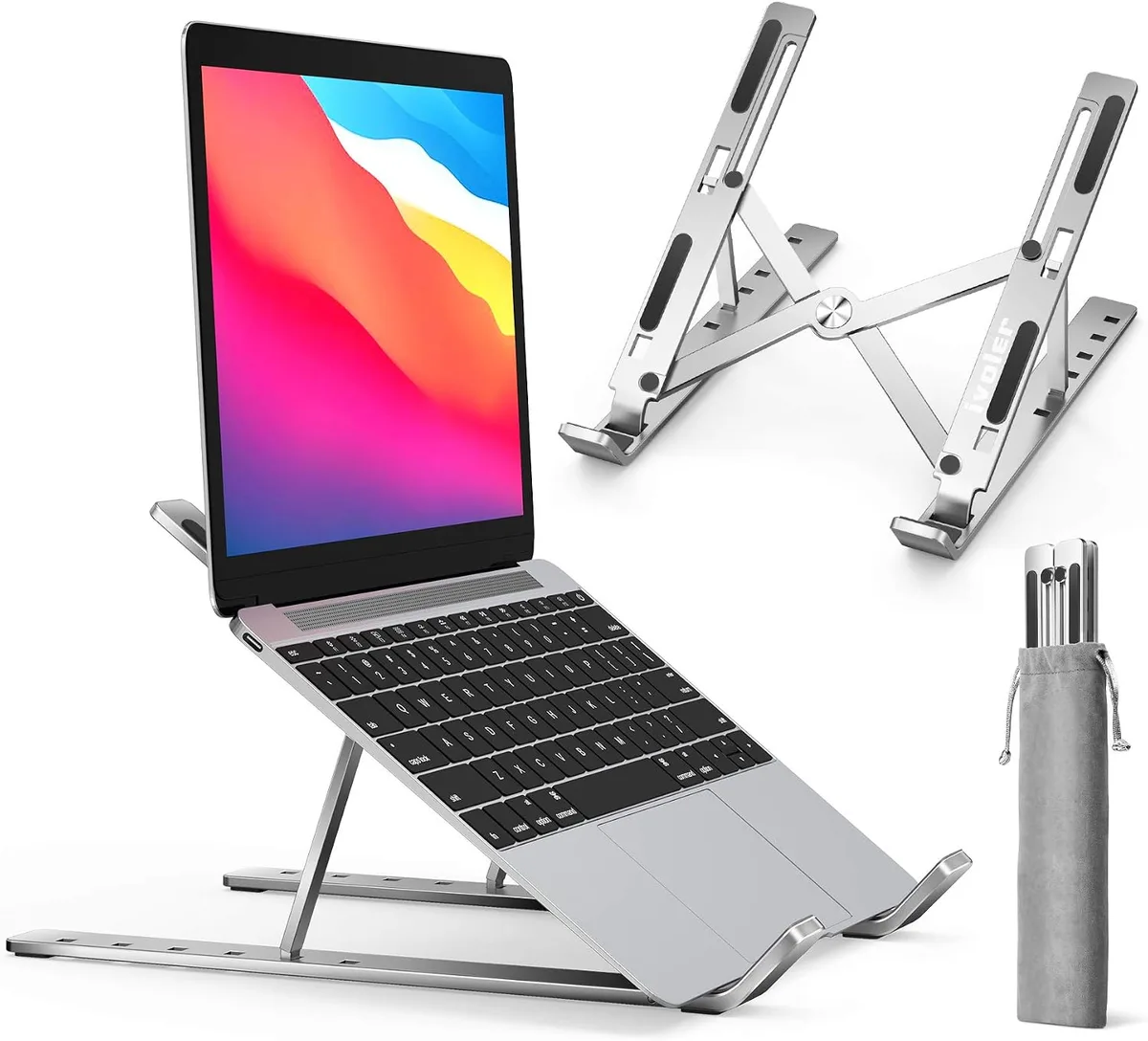
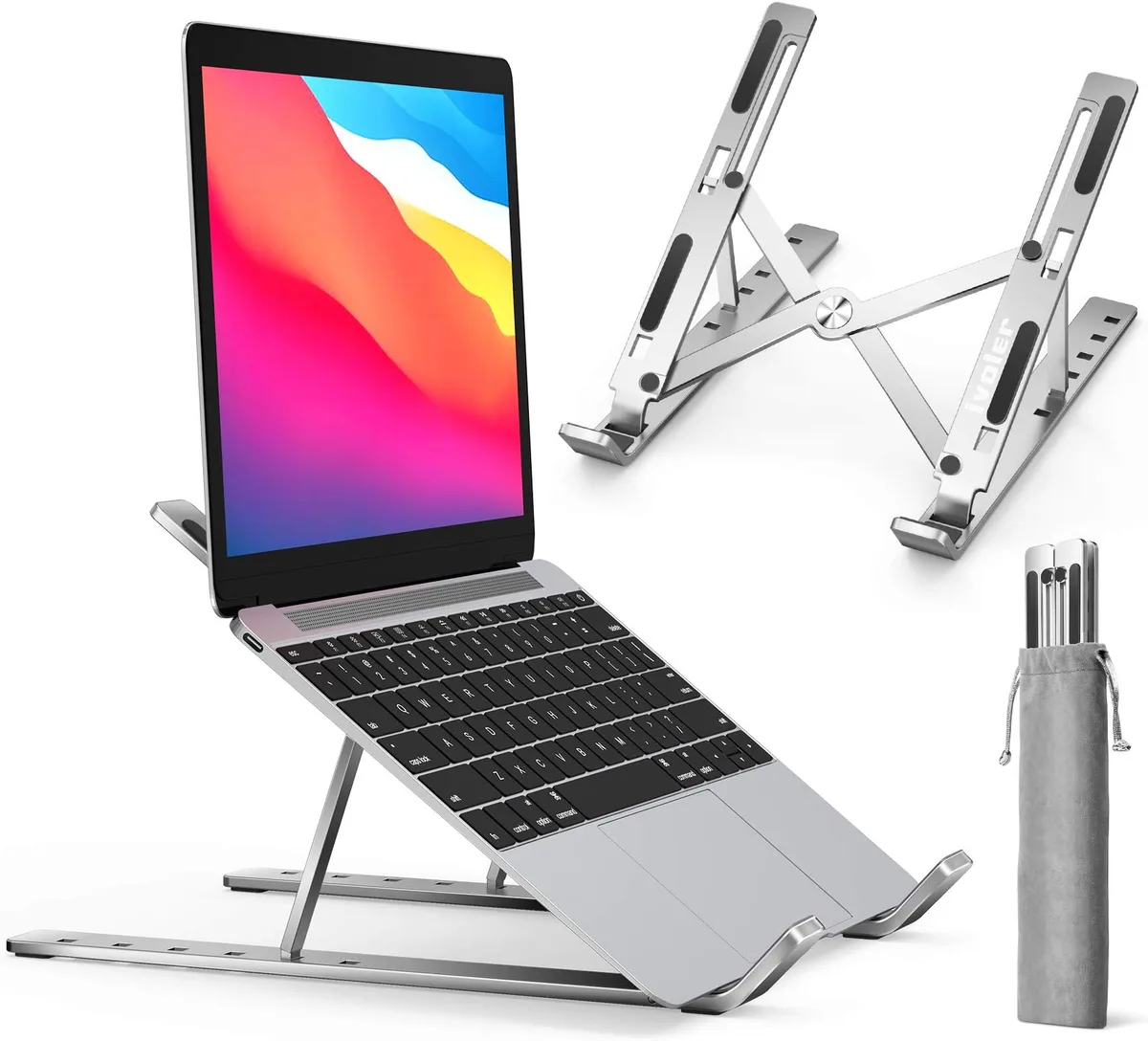
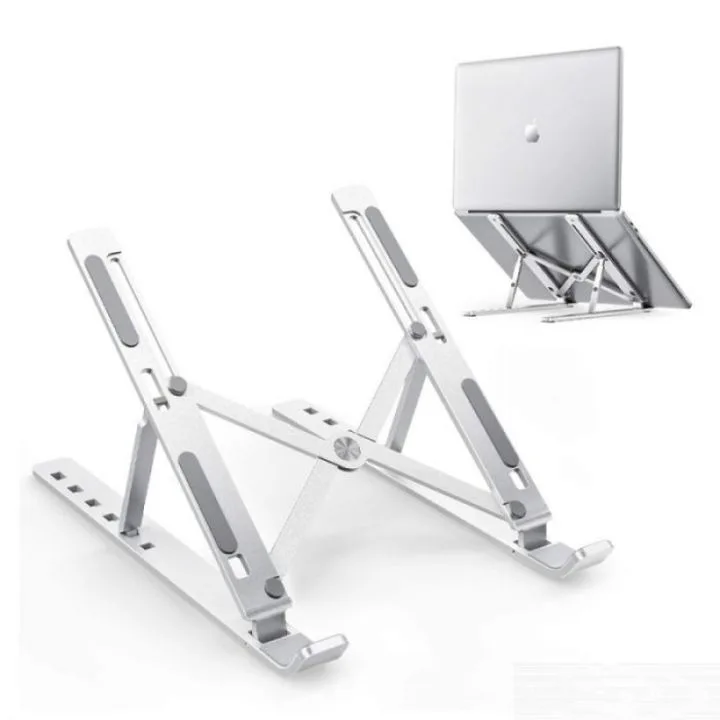
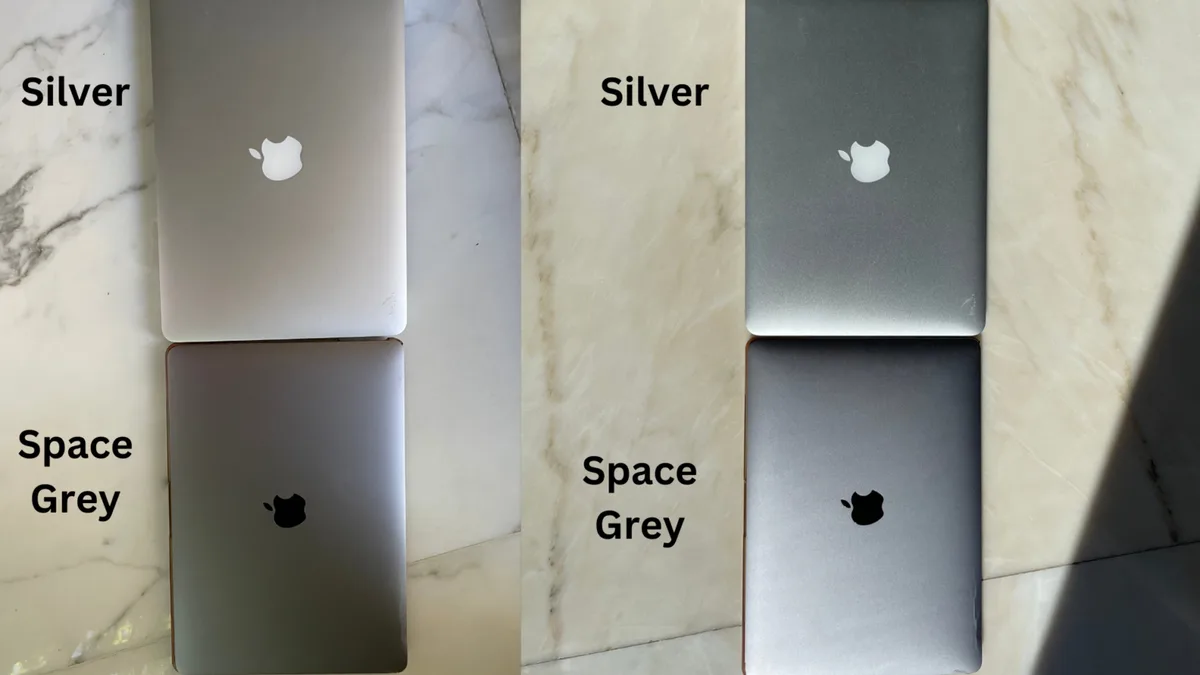
Not every stand is built to handle the weight of modern high-performance laptops. Look for models constructed from anodized aluminum, as these provide the weight needed to prevent tipping. Rubberized inserts are also essential to prevent cosmetic damage to your laptop finish.
Adjustability is a major factor if you own multiple devices. Some stands use a tension screw, while others feature interchangeable pads to accommodate different laptop thicknesses. A stand that grips your machine too tightly can put stress on the display panel.
Step-by-Step: Configuring Your Display and Power Settings
Start by placing your laptop in the stand with the exhaust vents facing upward or toward an open area. Connect your power adapter to the laptop or your docking station to ensure it remains charged. Plug in your external monitor using the highest-quality cable available.
Connect your wireless keyboard and mouse receiver to the dock or the laptop. If you use Bluetooth, pair your devices before closing the lid. Go to your system display settings and define which monitor acts as the primary screen.
- Power on the laptop while it is still open.
- Plug in the external display cable and power adapter.
- Confirm that the external monitor is receiving a signal.
- Close the laptop lid firmly.
- Tap a key on your external keyboard to wake the system.
If the screen stays black, check your system power settings to ensure the computer is not set to sleep when the lid is closed. Adjust these preferences to do nothing when the lid closes while the unit is plugged into power.
Mastering Cable Management and Port Strain Relief
A clean desk relies on managing the gravity of your cable connections. When a laptop sits vertically, the weight of multiple heavy cables can pull at the ports on the side of the chassis. This constant tension eventually damages the solder joints or the delicate internal contacts of the ports.
Use a cable management sleeve to bundle your power, display, and data lines into one organized cord. This allows you to anchor the weight of the cables to the desk leg or the back of the stand. It prevents the cables from hanging freely and creating unnecessary stress on the laptop ports.
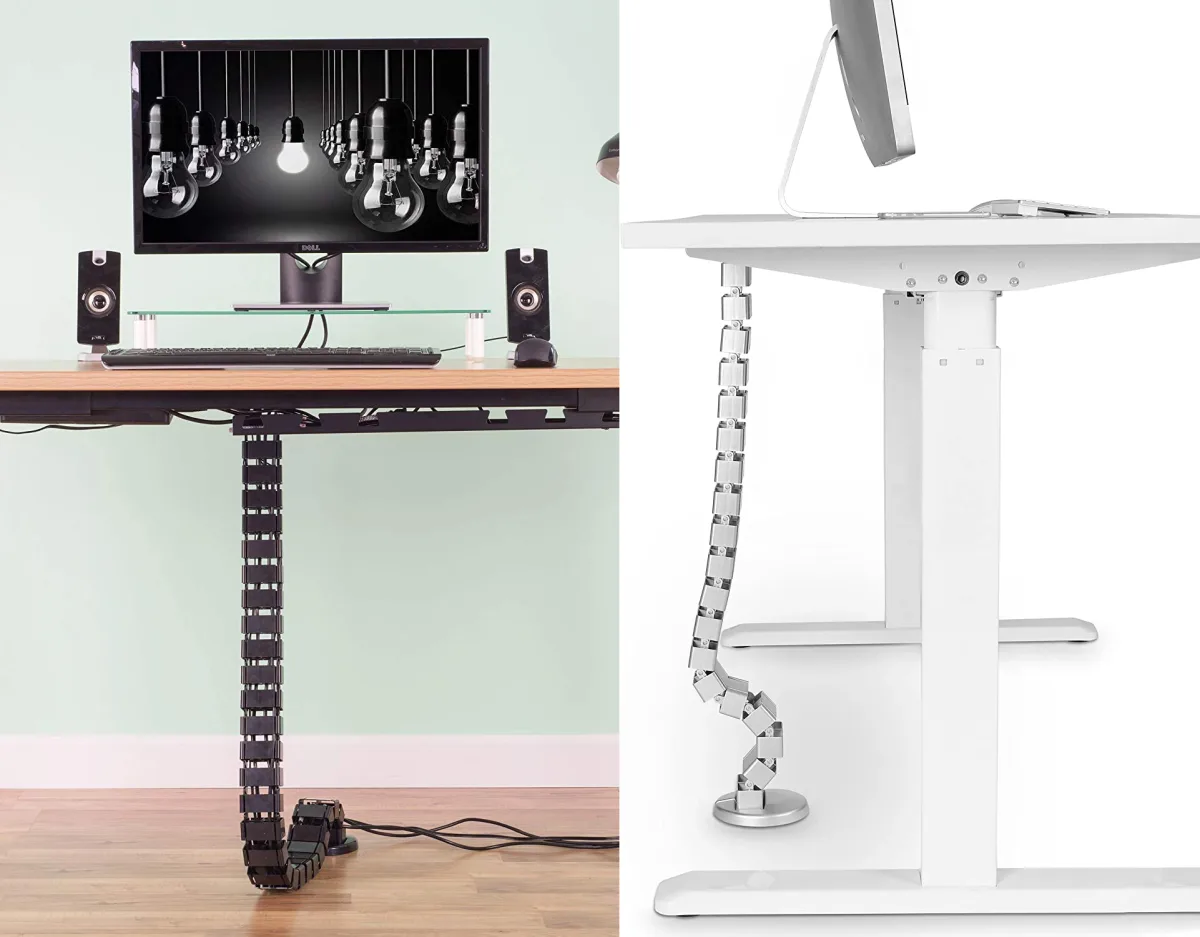
Image source: Bing (Web (fair-use with source credit))
Consider using a 90-degree adapter if you find that cables are still pushing against the side of your laptop. These small connectors allow the cable to run flush against the machine instead of sticking out like a lever. Reducing this leverage is the most effective way to protect your hardware from long-term wear and tear.
Thermal Safety: Managing Heat in Closed-Lid Mode
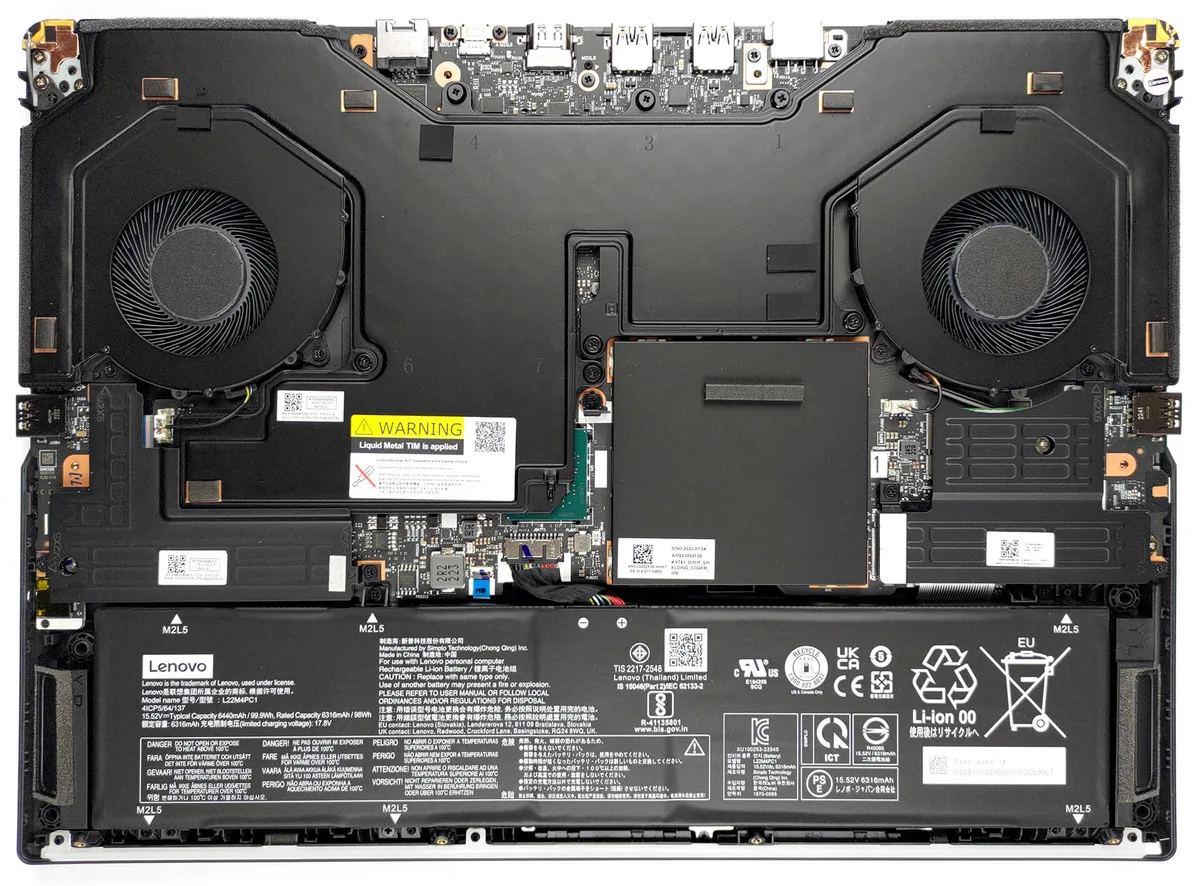
Modern laptops are designed to dissipate heat through the keyboard and the hinge area. When you close the lid, you physically obstruct some of this primary exhaust path. Most systems adjust their fan profiles automatically when they detect an external monitor, but you should still monitor your baseline temperatures.
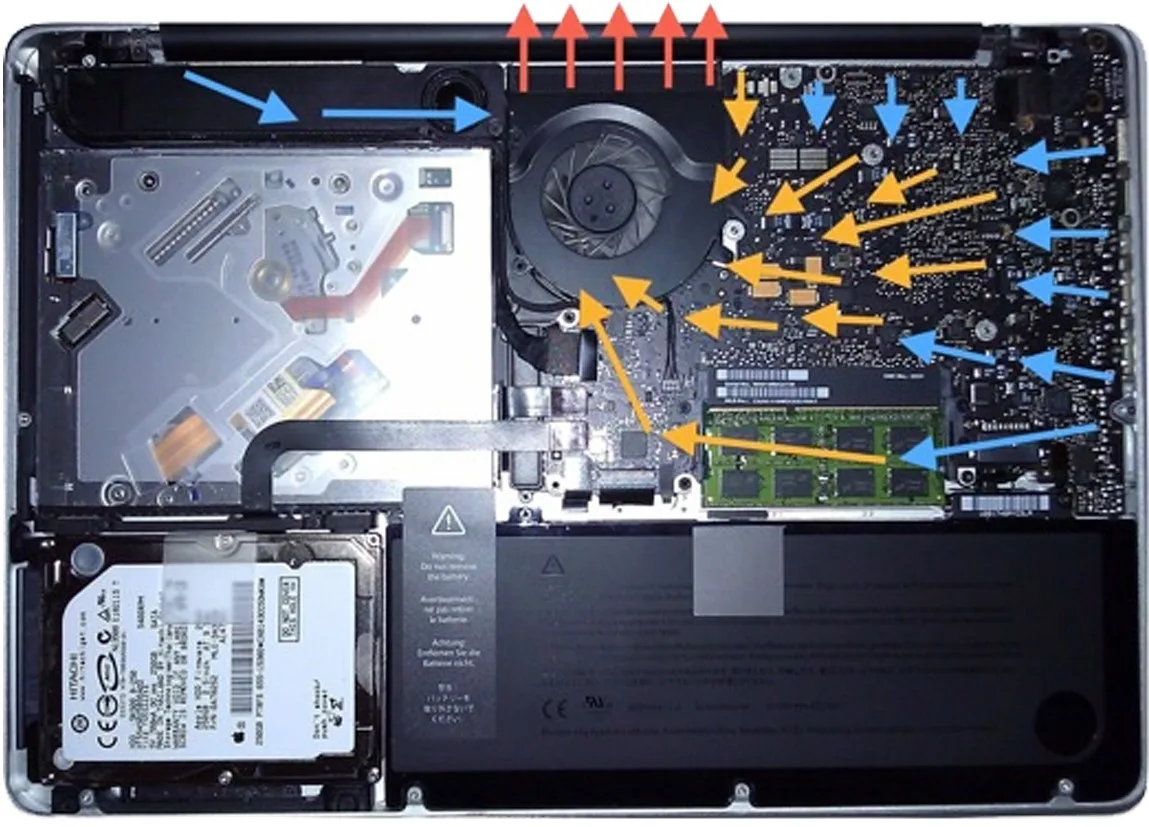
Image source: Bing (Web (fair-use with source credit))
Check your specific model documentation to see how it handles thermal throttling under load. If your device vents heat through the keyboard, place it in the stand with the hinge facing upward to let hot air escape naturally. Avoid placing the stand near heaters or in direct sunlight.
Aggressive tasks like 4K video rendering or high-end gaming generate significant heat. If you hear your cooling fans running at maximum speed for extended periods, your laptop may be struggling to keep up with the thermal load. Consider running these heavy tasks during cooler times of the day.
Common Visual and Connection Mistakes
The most frequent error is misconfiguring the display resolution after plugging in the monitor. Sometimes the system defaults to a lower resolution, making text appear blurry or jagged on a high-definition screen. Manually navigate to your display settings to ensure the output resolution matches the native pixels of your external monitor.
Another issue involves signal latency during the initial wake sequence. If you connect your monitor to the dock and the dock to the laptop, the handshake between devices can sometimes time out. Always wait a few seconds after connecting the dock before trying to wake the machine with your keyboard.
Finally, avoid using unshielded or extremely long cables for high-bandwidth connections. Poor-quality HDMI or DisplayPort cables often lead to flickering, artifacts, or complete signal loss. Stick to cables that meet the specific standard recommended by your monitor manufacturer, such as DisplayPort 1.4 or HDMI 2.1, for the best reliability.
Optimizing Your Docking Workflow
A well-configured docking station transforms your experience by consolidating all connections into one interface. This creates a true plug-and-play environment where you only ever handle a single connector. It significantly reduces the physical strain on your laptop's delicate ports over time.
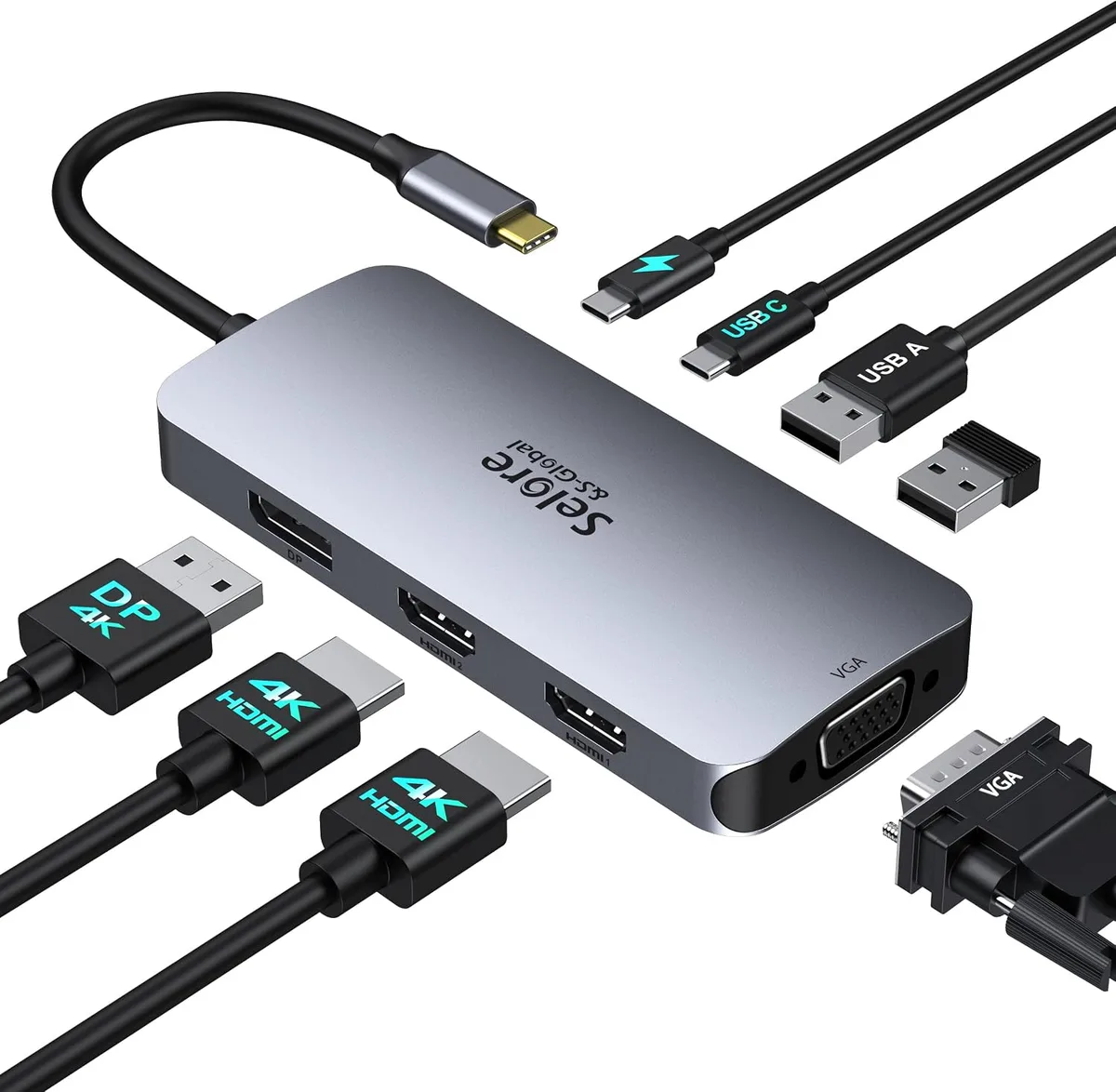
Image source: Bing (Web (fair-use with source credit))
Choose a dock that provides enough power delivery to run your laptop at full capacity. Check the wattage requirements listed on your original power brick and ensure the dock meets or exceeds that number. A dock providing less than the required wattage may cause your laptop to charge slowly or trigger performance throttling.
Keep your dock's firmware updated to ensure compatibility with your OS updates. Manufacturers frequently release patches that fix connection bugs, USB-C handshaking issues, and external monitor support. You can usually find these updates on the official manufacturer website for your specific docking unit.
Troubleshooting Wake-Sleep and Signal Issues
Intermittent wake-up failures often point to sleep settings within your operating system. If the system fails to wake upon pressing a key, check if your peripheral settings permit the mouse or keyboard to wake the computer. This is often disabled by default to save power on some Windows installations.
If your external monitor displays a No Signal error, the issue may be a loose connection at the port. Disconnect and firmly reconnect the cable to ensure it has seated correctly. If the problem persists, try a different port on the docking station or bypass the dock temporarily to verify the cable itself is functional.
Sometimes a hard reset is the only solution for a frozen handshake between the laptop and the monitor. Power down both the monitor and the docking station, wait ten seconds, and turn them back on in sequence. This forces a fresh identification of all connected devices and usually clears any persistent software errors.
Best Practices for Long-Term Equipment Health
Maintaining your hardware involves regular inspections of the contact points where the laptop meets the stand. Dirt or debris trapped in these inserts can cause tiny, permanent scratches on your laptop casing. Use a soft, microfiber cloth to wipe down the stand inserts every few weeks to keep them clean.
Avoid placing liquids near your vertical setup. Because your laptop is open to the air in a fixed position, an accidental spill is harder to contain compared to a flat device. Keep your coffee mugs or water bottles on a separate side of the desk entirely.
Check your external battery health periodically if you keep the laptop plugged in 24/7. While modern power management systems limit charging to prevent swelling, some older models benefit from an occasional cycle where you run the battery down to 50 percent. Check your manufacturer software for battery health or optimized charging toggles to automate this process.
Frequently Asked Questions
Will my laptop overheat in a closed stand?
Most modern laptops function perfectly in a vertical, closed-lid state. They adjust fan speeds based on internal thermal sensors rather than the lid position. If you perform intensive tasks, ensure the intake and exhaust vents remain completely unobstructed by the stand structure.
Do I need special software for this?
No, you do not need special software for a basic clamshell setup. Modern operating systems, including macOS and Windows 10 or 11, detect external monitors automatically when you connect them. Your system firmware handles the transition to a high-performance state without any additional drivers or configuration.
How do I stop the laptop from sleeping?
Go to your power and sleep settings within your operating system. Find the option labeled When I close the lid and change it to Do nothing when the device is plugged into power. This allows the computer to remain fully active while connected to your monitor, keyboard, and mouse.
Can I use a vertical stand with a curved monitor?
Yes, you can use a vertical stand with a curved monitor, provided your hardware supports the resolution. Curved displays do not change how the laptop detects an output signal. Simply connect via DisplayPort or HDMI, and the monitor will act as your primary display just like a flat panel.
Should I remove my laptop case?
It is best to remove bulky protective cases before using a vertical stand. Many stands are precision-engineered to fit specific laptop thicknesses. Adding a case can make the laptop too wide for the grip, creating uneven pressure or causing it to sit precariously at an angle.
What if my monitor does not wake up?
If the monitor fails to wake, ensure your keyboard and mouse are active. Many systems require a physical key press on an external peripheral to trigger the wake signal from a deep sleep state. If that fails, check that your docking station power light is on and cables are fully seated.

Similar Posts