Can You Put a Cooling Pad on an Elevated Laptop Stand?
Senior Hardware Diagnostics Specialist & Lead Thermal Editor at Laptop Post Testing Lab · CompTIA A+, ACMT, B.S. in Computer Engineering · 12+ years bench-testing laptop thermal solutions & motherboard repairs
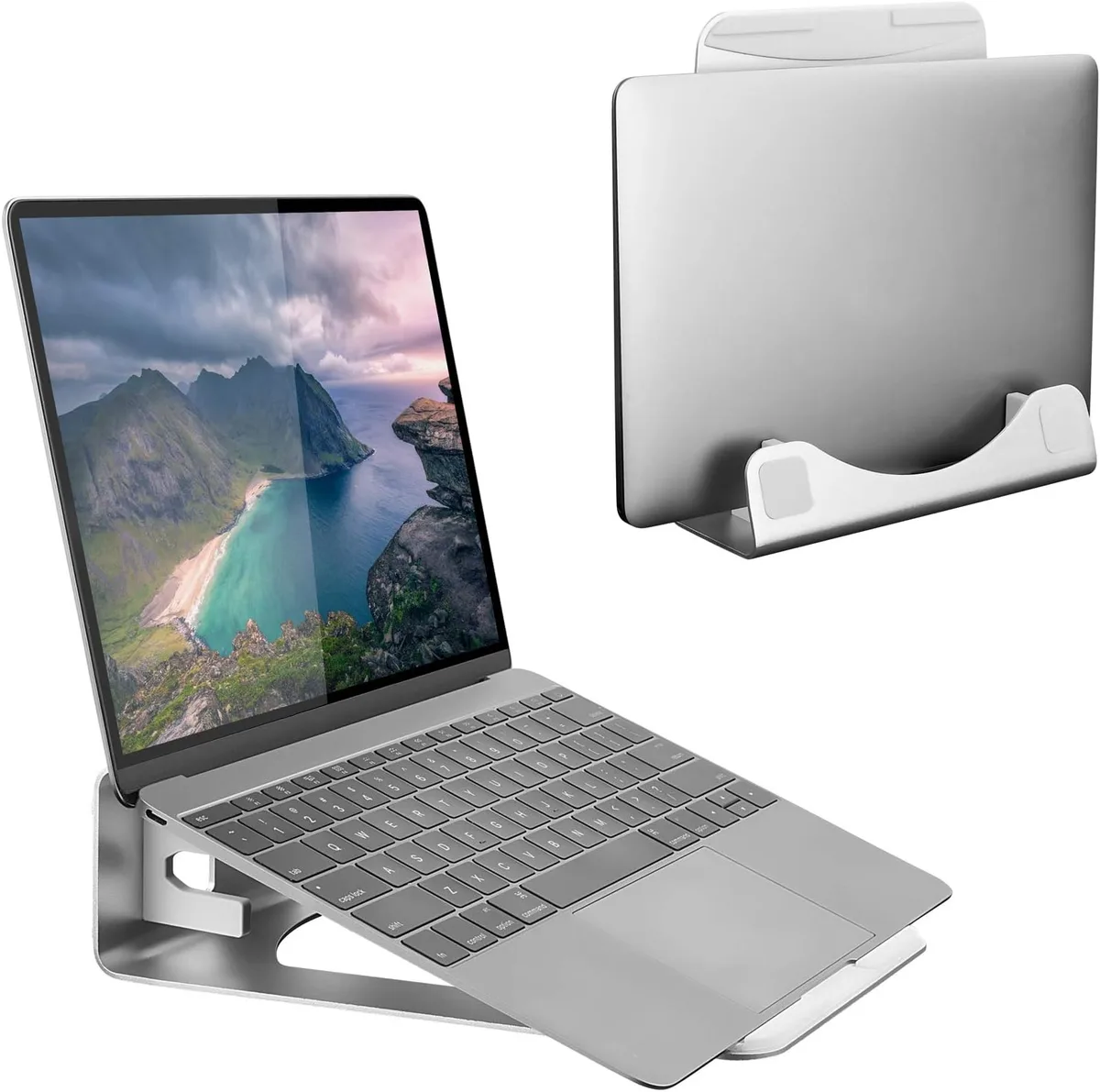
You can certainly put a laptop cooling pad on top of an elevated laptop stand, but it is rarely the most effective or safest way to manage thermal load. Combining these two accessories changes the physical stability of your setup and can actually interfere with how your hardware handles heat.
While modern laptops are designed to operate within specific temperature ranges, many users look for additional cooling solutions. As of 2026, most gaming and workstation laptops include internal thermal management systems governed by fan curves and heat pipe dissipation. Adding layers to your workspace requires careful attention to weight limits and airflow intake.
Quick Answer
You can place a cooling pad on a stand. This setup often causes stability issues. You may also block essential laptop air vents.
It is usually better to choose one solution. Most stands provide enough passive cooling for daily tasks. Active cooling pads work best on flat surfaces.
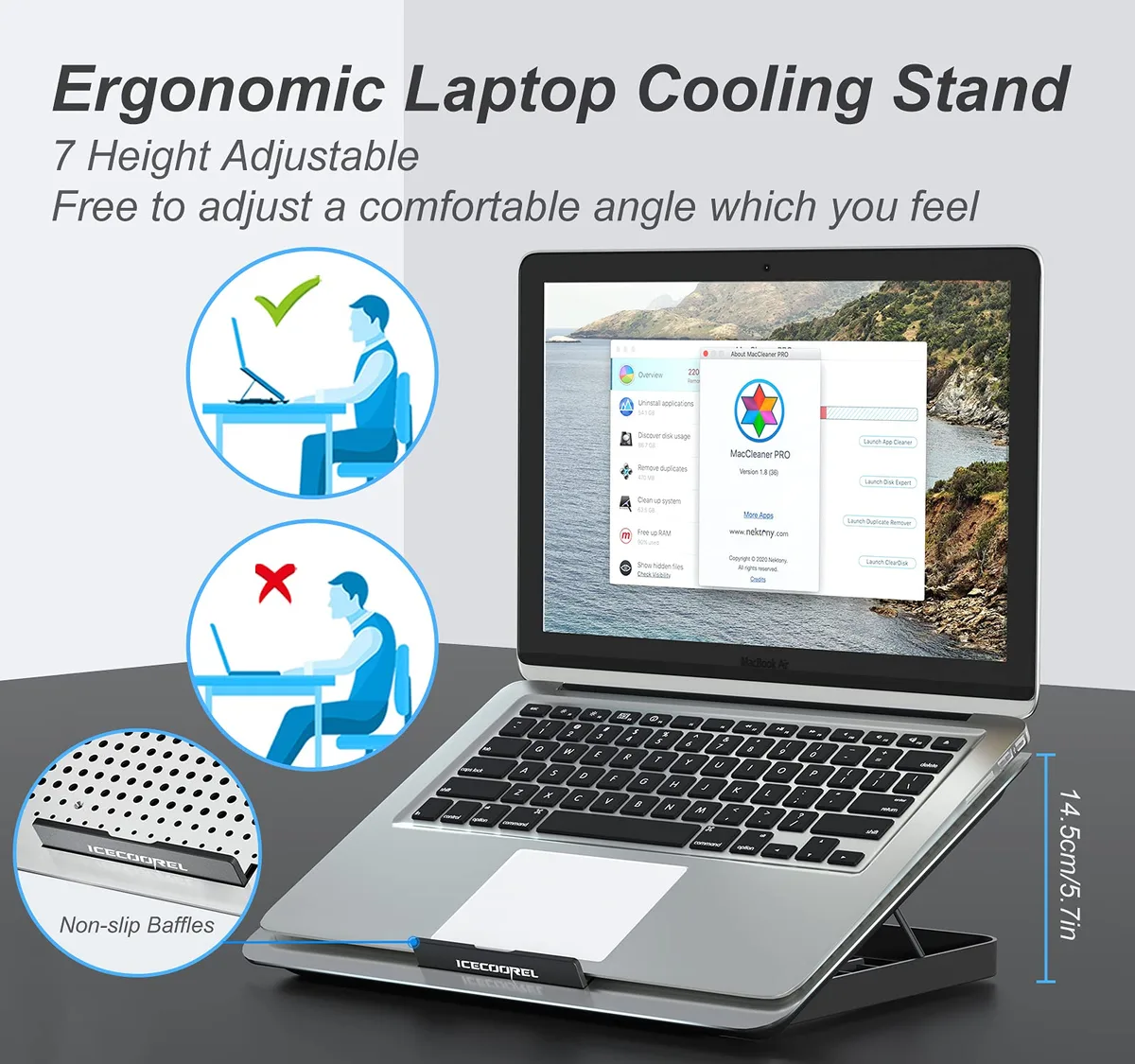
Why Stacking Cooling Hardware Usually Doesn’t Work
The primary reason to avoid stacking these devices is the physical footprint of the hardware. Laptop stands are engineered to support the specific weight and center of gravity of a computer. When you introduce a cooling pad, you add a secondary, often bulky, object that was never meant to be suspended in the air.
Most cooling pads feature plastic shells and integrated fans that rely on a solid desk surface for stability. Perching this on a stand creates a top-heavy assembly that is prone to tipping. If your stand features rubberized grips, those grips may not align with the smooth plastic bottom of a cooling pad, leading to sliding and potential equipment damage.
Visualizing the Mechanical Stability Risk
Stability is a major concern when you deviate from the manufacturer's intended design. Most laptop stands are tested for specific load capacities, often cited in the NIST guidance on equipment safety and workplace ergonomics. When you stack two devices, you significantly shift the center of gravity.
A stand that functions perfectly with a laptop might buckle or tilt under the dual load of a heavy laptop and an active cooling pad.
If you visualize your setup from a side profile, the stack increases the height of the device relative to its base. This height increase turns a gentle nudge into a lever, significantly increasing the force applied to the stand's joints. Check for any wobbling or hinge creep after you place the hardware.
If the stand shows even slight signs of bending or uneven leveling, dismantle the stack immediately to prevent a tumble.
Evaluating the Airflow Path: Intake vs. Exhaust
Airflow is the lifeblood of your laptop’s thermal management. Most laptops pull air in through the bottom and push it out through the rear or side vents. When you place a cooling pad on a stand, you create a potential air-starvation scenario.
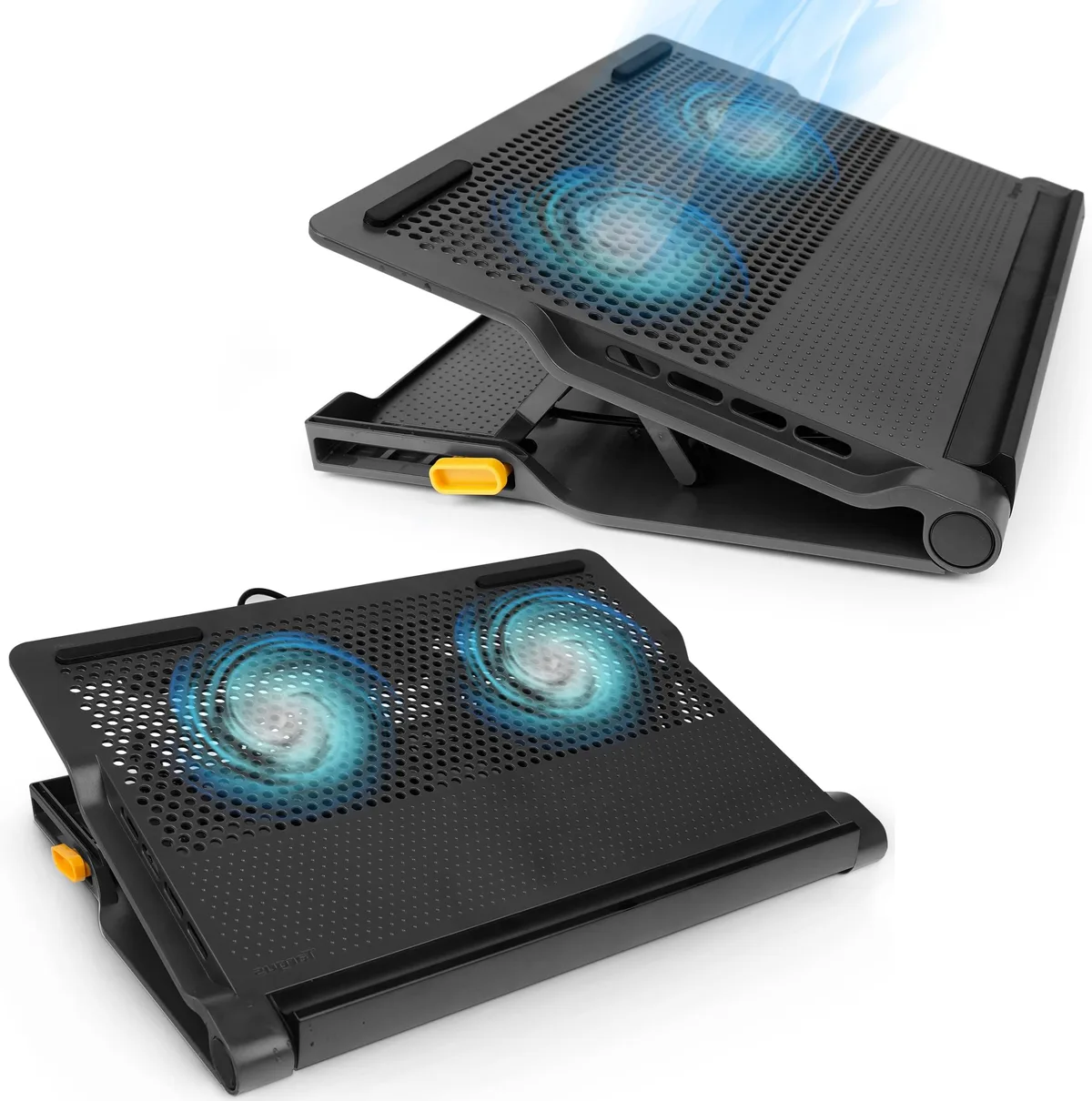
If your laptop has intake vents on the bottom, it needs a clear path to draw cool air from the room. A cooling pad works by blowing air directly into these vents. However, the cooling pad itself needs to draw in air from the space below it.
If the stand's platform blocks the underside of the cooling pad, the fans will only recirculate warm air trapped in the small gap between the two devices.
| Airflow Component | Standard Laptop Stand | Stacked Cooling Setup |
|---|---|---|
| Intake Source | Ambient air | Restricted air / Recycled heat |
| Path Distance | Clear | Obstructed by platform |
| Efficiency | Passive convection | Fan-driven potential error |
Ensure that the stand does not cover the intake grille of your cooling pad. If you choose to stack them, use a stand with an open-frame design rather than a solid tray. This allows the cooling pad's intake fans to breathe, keeping your thermal cycle efficient and preventing the internal components from overheating.
Common Structural Mismatches You Should Spot
Mismatching surface types is a common error that leads to hardware fatigue. Most laptop stands feature small rubber pads designed to mate with the chassis of a laptop. These pads are often spaced specifically to avoid blocking critical areas of the laptop bottom.
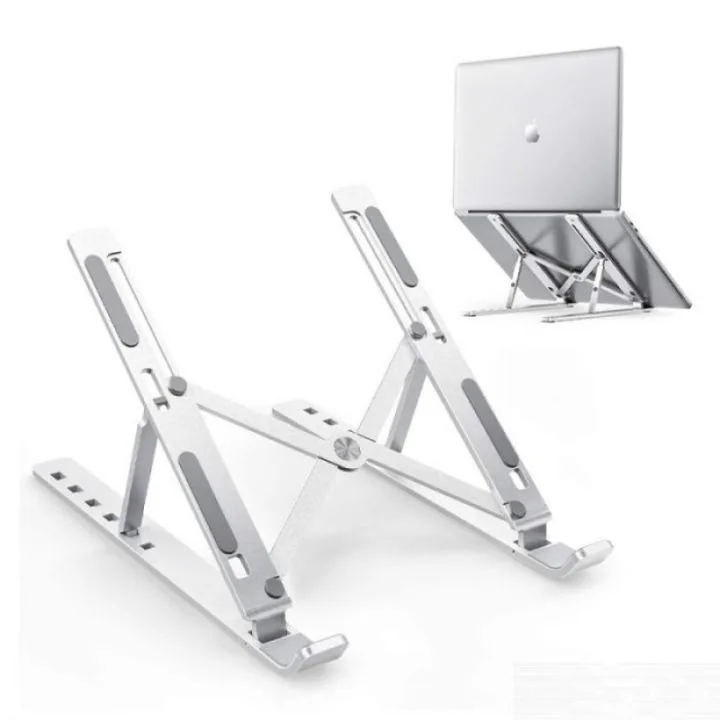
A cooling pad often has a wider, flatter, and more slippery bottom than a laptop. It will not sit securely on the rubber contact points meant for a smaller, heavier device. If your stand features thin arms or a central pillar, the cooling pad may experience uneven pressure.
This can cause the plastic casing of the pad to crack over time, or the unit might slowly slide off the stand entirely.
Look for these red flags during your setup:
- Overhang: Any part of the cooling pad extending beyond the edge of the stand's support tray.
- Hinge deflection: The stand hinges visibly sagging under the combined weight.
- Surface shifting: The cooling pad rotates or slides when you apply pressure to the laptop keyboard.
If you encounter any of these, stop using the configuration. It is far better to place your cooling pad directly on the desk and elevate the back of your laptop with a small, simple wedge. This maintains proper weight distribution while still allowing the cooling pad to do its job.
Comparing Alternatives: Mesh Stands vs. Dedicated Cooling Pads
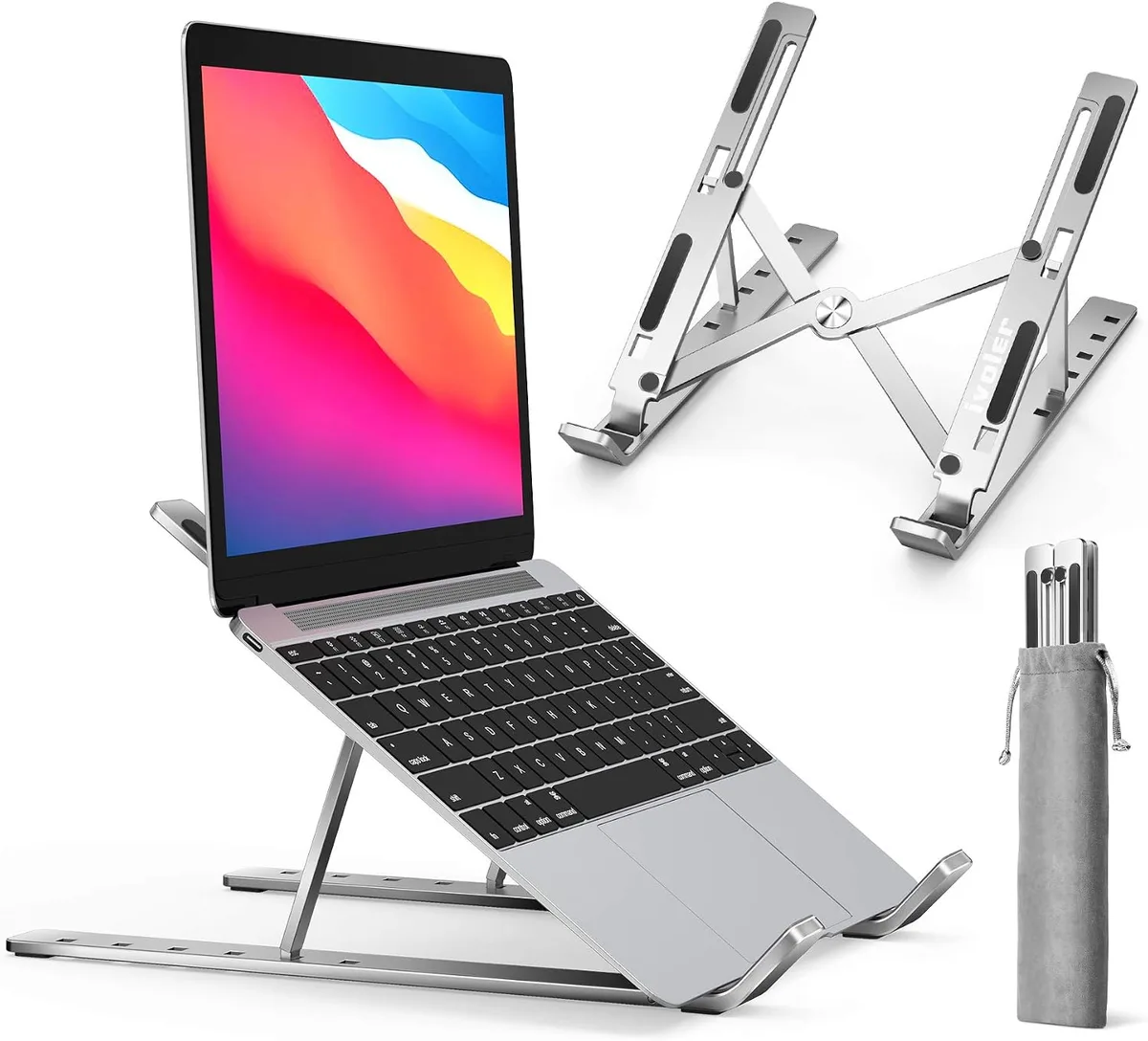
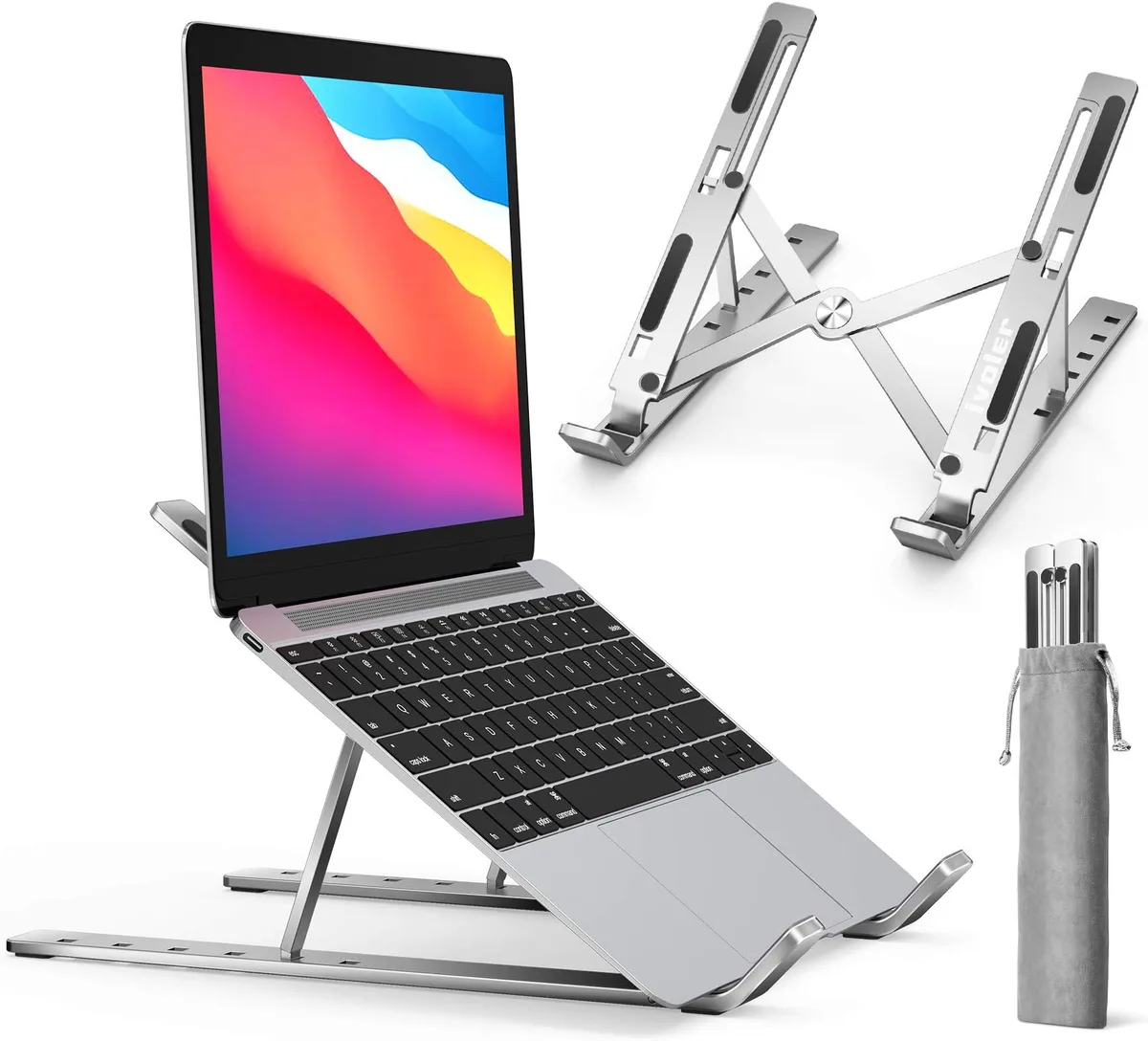
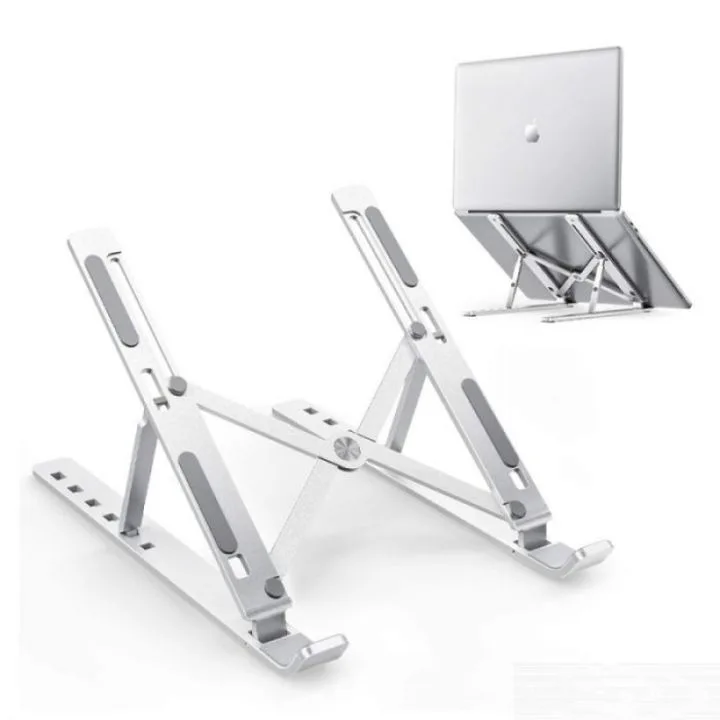
Mesh stands are the preferred option for most users because they provide a stable platform without moving parts. They allow for full, unobstructed airflow to the laptop's intake vents.
Active cooling pads are strictly for high-performance needs like gaming or video editing. If you choose this path, prioritize a flat, stable desk surface. Keeping the pad and stand separate ensures your system remains balanced and reliable during long work sessions.

Benefits and Drawbacks of the Stacked Setup
When you choose to stack, you are effectively prioritizing two goals simultaneously: vertical ergonomics and active heat extraction. We've compiled the trade-offs to help you decide if the configuration is worth the risk for your specific workspace.
- Pros:
- Enhanced screen height for improved posture.
- Maximum surface-level airflow during extreme sustained workloads.
- Possible reduction in ambient chassis temperature during heavy use.
- Cons:
- Significant risk of equipment instability and accidental tipping.
- Increased cable clutter from two powered devices.
- Potential for blocked intake vents if the stand footprint is too narrow.
- Added weight stress on stand adjustment mechanisms.
If your primary objective is long-term equipment health, the drawbacks usually outweigh the benefits. A stable, single-purpose setup is easier to maintain and poses less risk to your hardware. If you find your system still runs hot despite using a stand, look toward cleaner maintenance practices, such as removing dust from internal fans, rather than adding more external hardware.
Step-by-Step Stability Check Before You Stack
If you are determined to try this configuration, follow a rigorous stability protocol to minimize your risk. Don't skip these checks, as the safety of your hardware depends on the friction and structural integrity of the base.
- Place the laptop stand on a completely flat, non-slip desk surface.
- Mount the cooling pad on the stand tray, ensuring the pad's feet or base contact points align with the stand's frame.
- Apply firm, downward pressure on all four corners of the cooling pad to check for wobbling or shifting.
- Carefully place your laptop on the pad, starting from the back edge to avoid tipping the assembly.
- Perform a keyboard check by typing normally to see if the stand bounces or vibrates excessively.
If you observe any movement during the keyboard check, remove the laptop and re-adjust. A vibrating stand causes fan bearings to wear out prematurely and creates annoying noise during use. If the vibration persists, the combined weight is likely overwhelming the stand’s dampers.
Thermal Throttling vs. Active Cooling
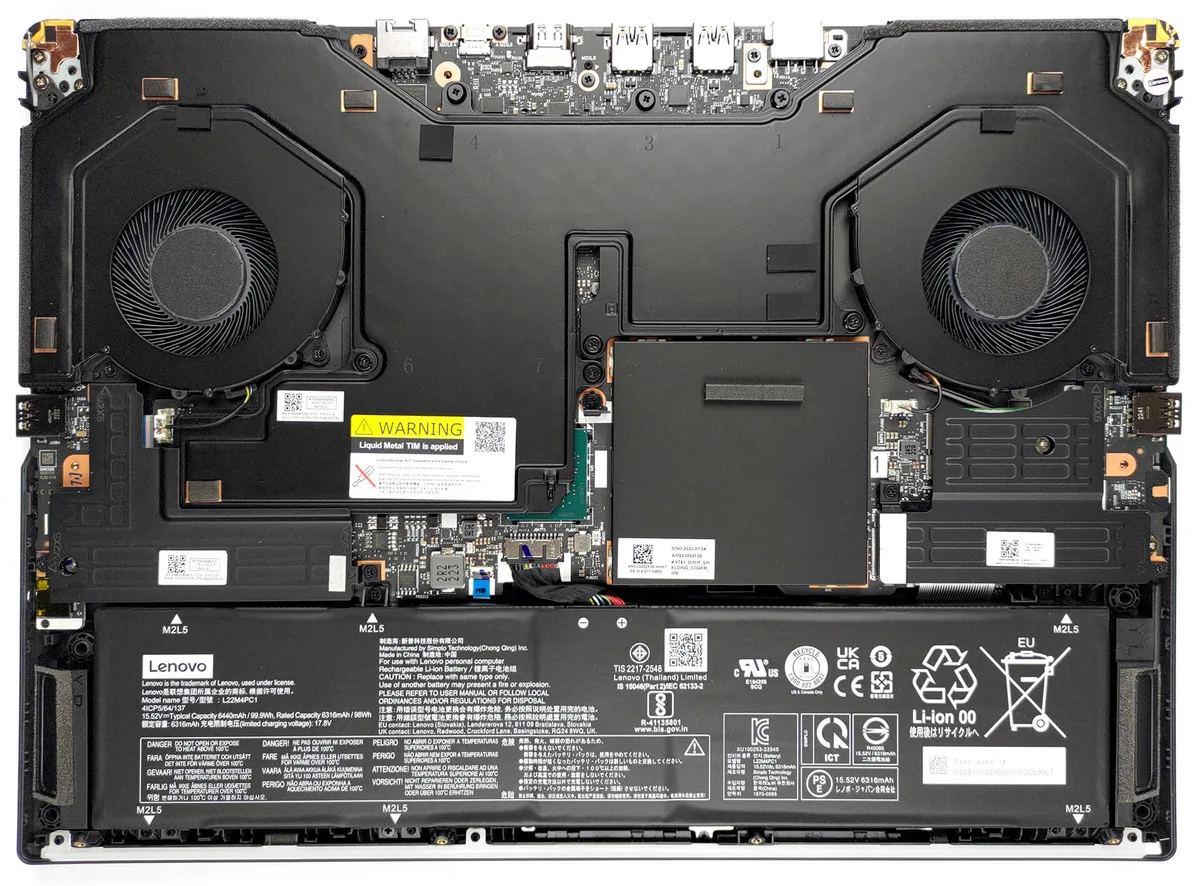
Thermal throttling occurs when your hardware lowers its clock speed to prevent heat damage. Cooling pads attempt to counteract this by forcing air against the chassis, but they can only succeed if the laptop’s vents are aligned with the pad's fan output.
If your laptop has a sealed underside, a cooling pad is ineffective. In these cases, simply propping up the rear of the device with a small wedge can allow for better natural airflow. This simple trick often provides the same temperature reduction as an active fan without any added mechanical risk.
Common Stacking Mistakes to Avoid
A common mistake is assuming that more fans equal more cooling. Stacking an active pad on a stand often restricts intake airflow, leading to the recycling of warm air.
Always ensure that the cooling pad does not hang over the edges of the stand. Overhang creates an imbalanced weight distribution that invites the entire setup to tip over. Secure your setup by ensuring the footprint of the pad fits entirely within the stand tray.
Safety Warnings: Weight Limits and Tipping Hazards
Weight limits are not mere suggestions, as hinges and joints have real-world load capacities. Exceeding these limits can cause structural failure, potentially damaging your expensive laptop during a collapse.
Always consider the center of gravity in your workstation. An elevated stack is inherently more unstable than a low-profile desk setup. Keep the setup away from high-traffic areas where accidental bumps could result in a fall.
Optimization Strategy: Choosing the Right Cooling Solution
Clean your laptop’s internal vents with compressed air every few months for maximum efficiency. This fundamental step does more for thermals than any external device.
If you still need external help, use an open-frame stand that promotes natural heat dissipation. By focusing on maintaining a clean, simple, and well-balanced workstation, you ensure your hardware runs cooler and lasts longer. Avoid the temptation to over-engineer your desk with unnecessary, precarious additions.
Frequently Asked Questions
Will stacking my cooling pad void my laptop warranty?
While using a stand or pad won't void your warranty, accidental damage caused by a device toppling over is typically not covered. If the stack falls and causes physical harm to the chassis or screen, you are likely responsible for those repair costs.
How do I know if my laptop is overheating?
Look for symptoms like fan noise that never stops, sluggish performance, or the system shutting down randomly. Many laptops also have software tools that monitor CPU and GPU temperatures. If your temperatures consistently exceed 90 degrees Celsius during normal use, it is time for a professional cleaning.
Are there stands designed specifically for cooling pads?
Some manufacturers sell combined units, but these are distinct from stacking separate devices. A combined unit is engineered as a single, stable base. If you really want both functions, look for a specialized integrated cooling stand rather than attempting to build one yourself.
What is the safest way to use a laptop stand?
The safest way is to place the stand on a clean, flat, and hard surface. Always ensure your laptop is centered on the stand to keep the weight evenly distributed. Check the joints of your stand periodically to make sure the screws are tight and the hinges are not loose.
Final Verdict: When to Keep Them Separate
Separate your devices to ensure the best performance and the highest level of safety. A stand does its job best when it holds only the laptop, maintaining the geometry and balance intended by the manufacturer. A cooling pad does its job best when it sits firmly on a flat, solid surface.
By keeping them separate, you improve your cable management, increase the stability of your screen, and ensure maximum airflow for your internal fans. You also protect your investment by avoiding the mechanical stress caused by stacking heavy hardware. Most setups are more professional and reliable when you choose the right tool for each job individually.
If you find that your workstation is still too hot, invest in a dedicated laptop maintenance kit or upgrade your internal components. Trying to force a complex, stacked setup rarely solves the fundamental issue. Simplicity remains the most reliable way to maintain a high-performance workspace over the long term.

Similar Posts