How to Safely Walk and Work Using a Treadmill Laptop Stand
Senior Hardware Diagnostics Specialist & Lead Thermal Editor at Laptop Post Testing Lab · CompTIA A+, ACMT, B.S. in Computer Engineering · 12+ years bench-testing laptop thermal solutions & motherboard repairs
Integrating a laptop stand into your treadmill setup is a practical way to manage sedentary time while staying productive. Learning how to use laptop stand on treadmill for walking while working requires careful attention to equipment placement to ensure your hardware remains secure while the belt is in motion.
Industry research regarding movement and focus highlights that light activity can help maintain alertness during long tasks. According to the Occupational Safety and Health Administration, proper ergonomic setup is vital for preventing repetitive strain injuries in office-style environments. As of 2026, most office-based fitness integrations rely on specific anchor points and balanced weight distribution to keep devices stable.
Quick Answer
You must secure a heavy-duty laptop stand on a flat treadmill surface. Use non-slip adhesive pads to prevent sliding from constant machine vibrations. Position the screen at eye level to avoid neck strain.
Connect a separate wireless keyboard for comfortable arm placement while walking. Always keep the emergency stop cord accessible and clear of all hardware.
The Reality of Combining a Laptop Stand with a Treadmill
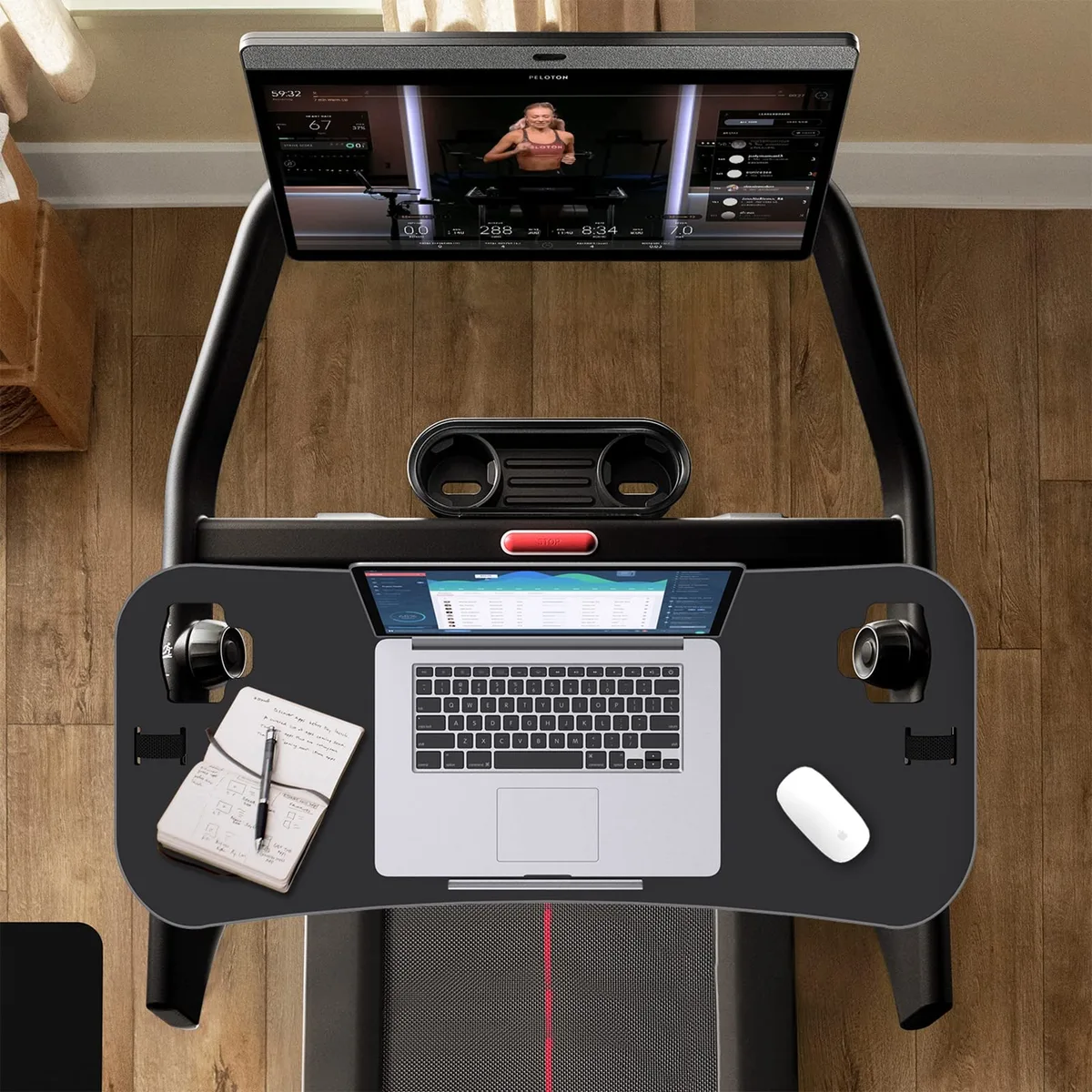
Image source: Bing (Web (fair-use with source credit))
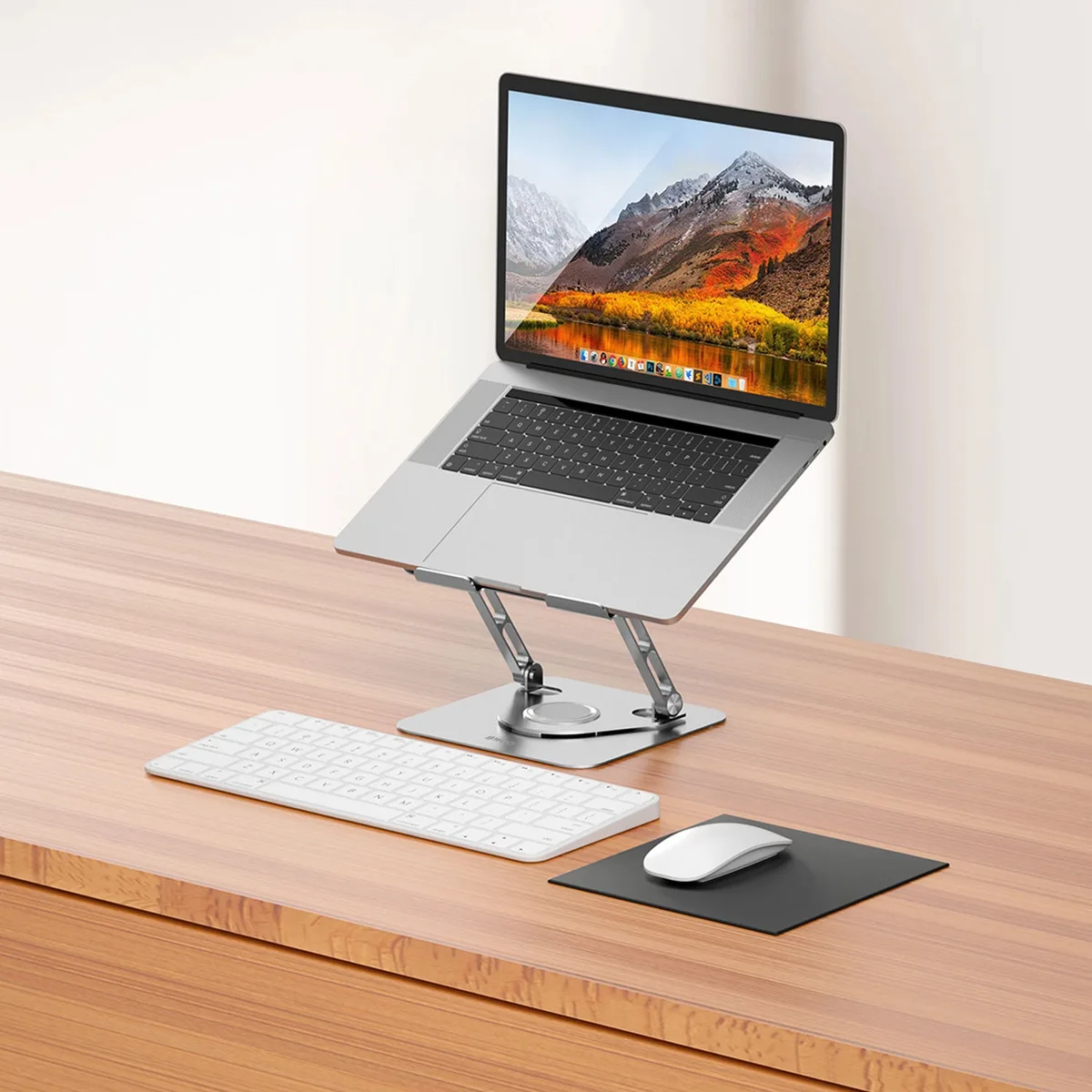
Setting up a workstation on a treadmill involves dealing with constant, rhythmic vibration. Most standard desk-style laptop stands are designed for static surfaces and often lack the friction needed for a motorized treadmill belt or console.
When you start the motor, the natural tilt and mechanical movement of the treadmill frame create a shifting environment. If your stand is too light or lacks a wide base, it will gradually migrate toward the rear of the machine. You must counteract this movement by increasing the base's grip or using a mechanical tether to hold the gear in place.
Why Stability and Vibration Are Your Biggest Hurdles
Vibration acts as a liquidator of friction, causing even heavy objects to shift over time. Treadmill motors produce varying levels of frequency depending on the speed, which can cause your laptop stand to oscillate or chatter against the console.
If your setup vibrates excessively, it compromises your ability to read the screen and increases the risk of the stand losing its footing. Aggravated vibration often indicates that the stand is not making full contact with the treadmill surface. Adding high-density rubber or silicone padding between the stand and the treadmill plastic helps dampen these micro-vibrations significantly.
Identifying the Right Stand for a Moving Surface
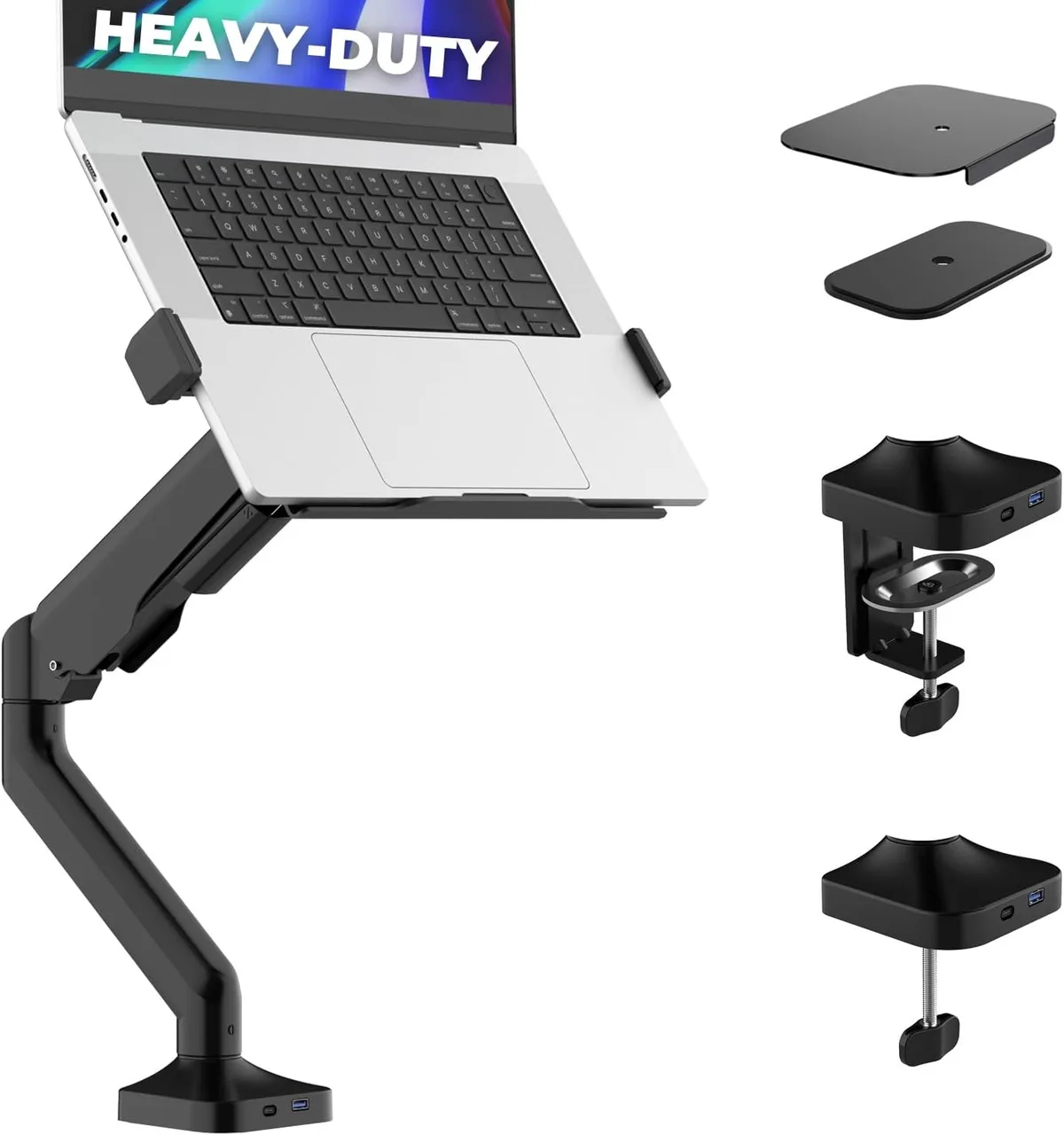
Image source: Bing (Web (fair-use with source credit))
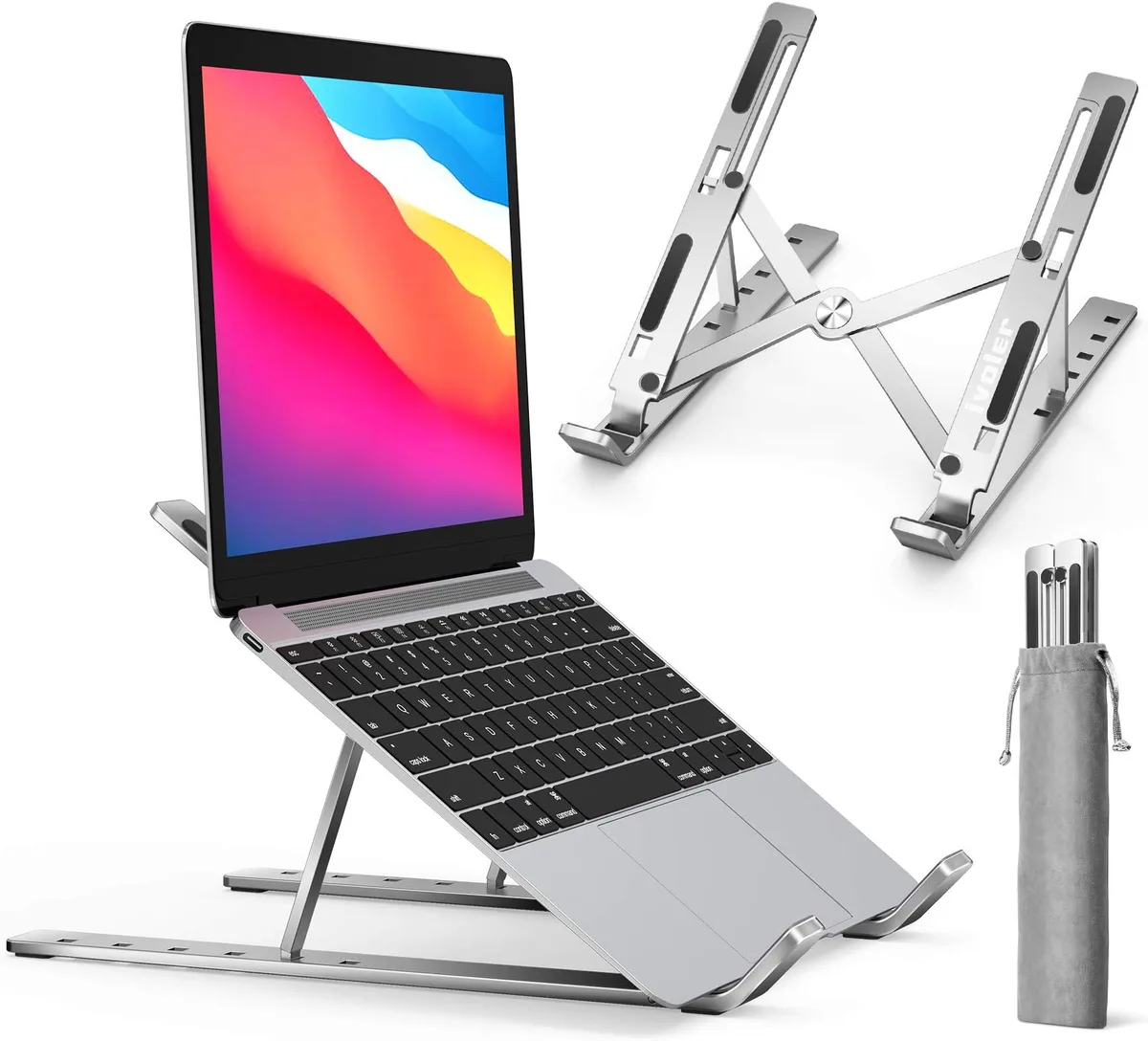
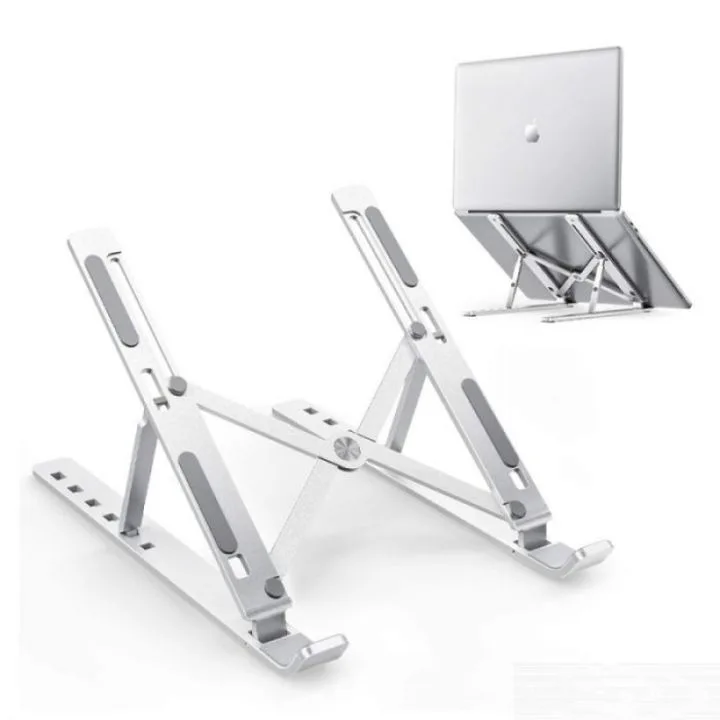
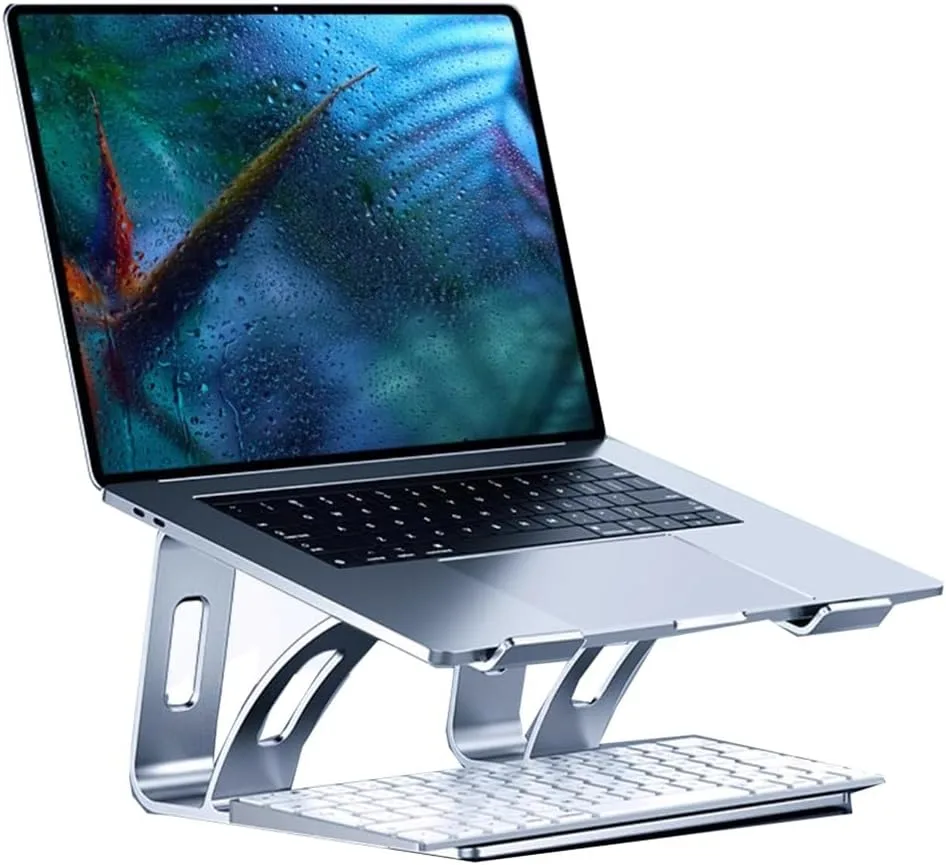
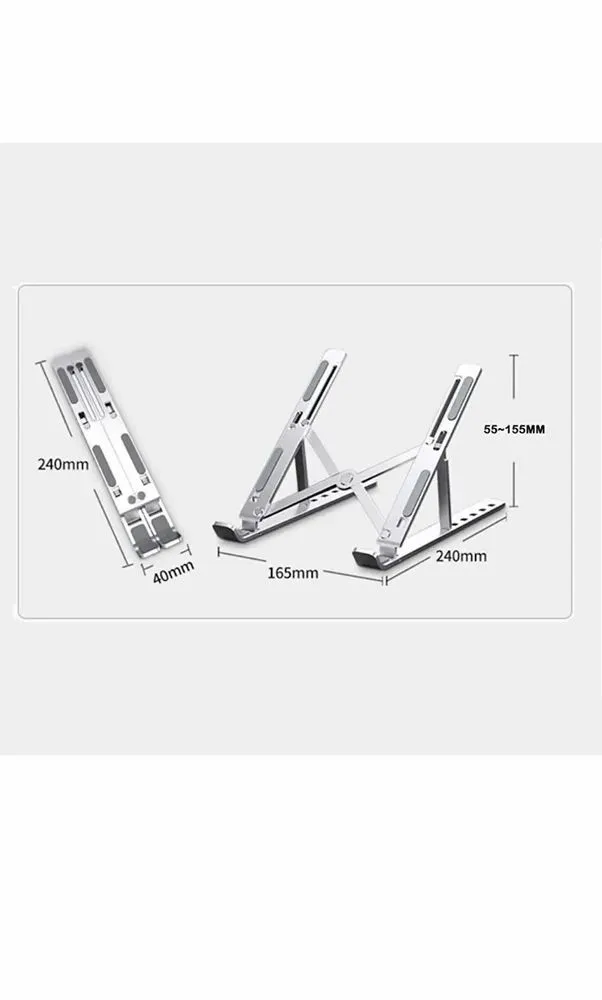
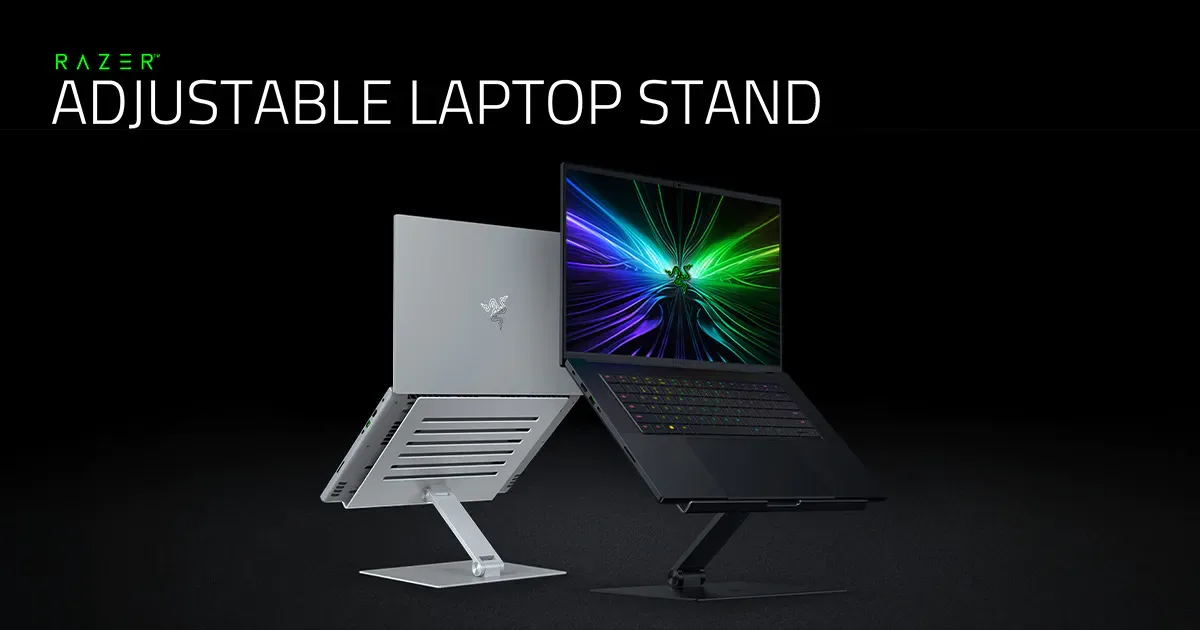
You should prioritize heavy-duty, low-center-of-gravity stands over lightweight, collapsible aluminum models. The ideal stand uses a solid, weighted base that maximizes contact area with the treadmill frame.
Look for models featuring adjustable height settings, as you’ll need to clear the treadmill console while keeping the screen aligned with your eye line. A stand with a built-in "lip" or front ledge is also necessary to prevent your laptop from sliding forward during sudden stops or speed changes.
| Feature | Why It Matters |
|---|---|
| Wide Base | Lowers center of gravity for stability. |
| Rubberized Feet | Increases friction to stop vibration-induced sliding. |
| Adjustable Angle | Allows you to keep the screen vertical. |
| Integrated Lip | Prevents laptop from falling off during movement. |
Essential Ergonomic Benchmarks for Moving Workstations

Image source: Web (Bing) / ikumen.blog (Web image (fair-use with source credit))
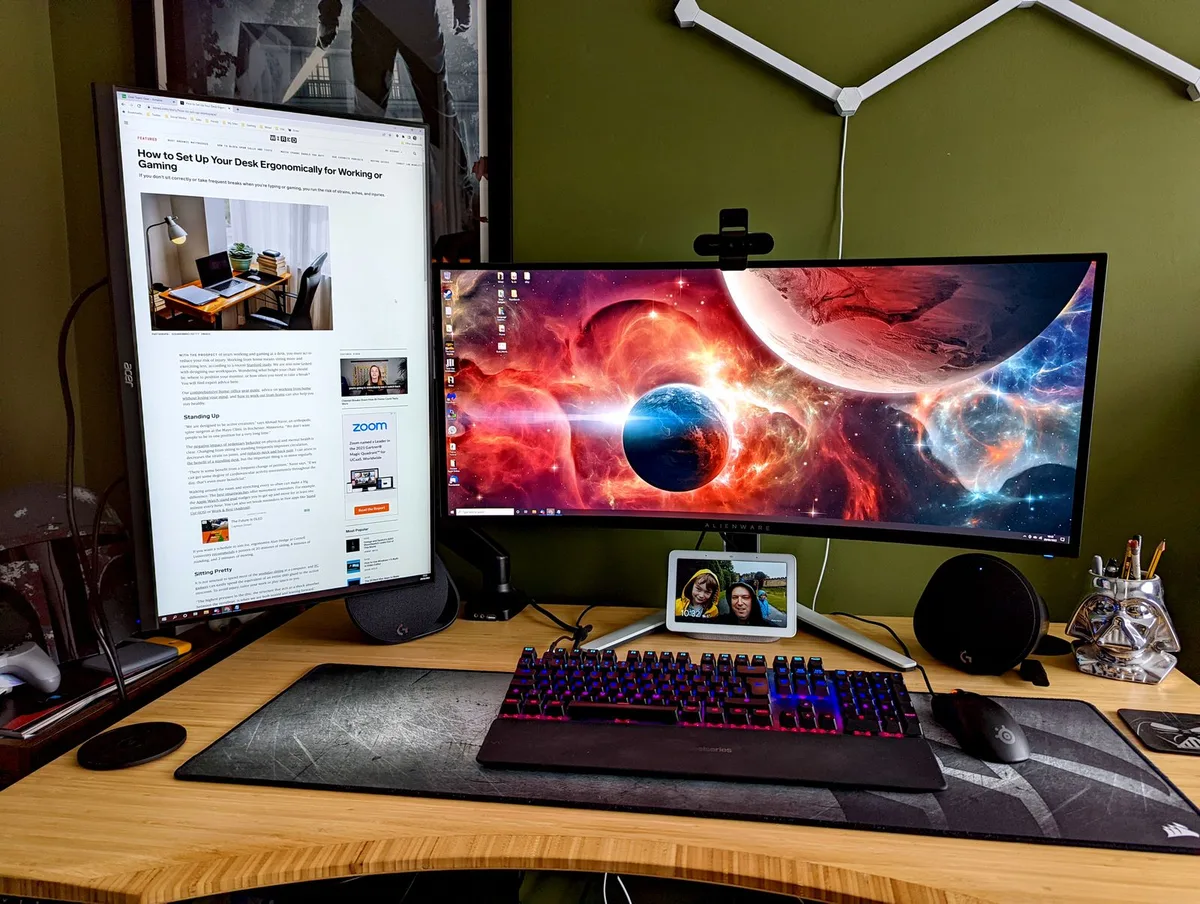
Ergonomics on a treadmill follow the same rules as a stationary desk, with a few added constraints. Your screen must be positioned so that the top third is at eye level when you stand in an upright, neutral posture.
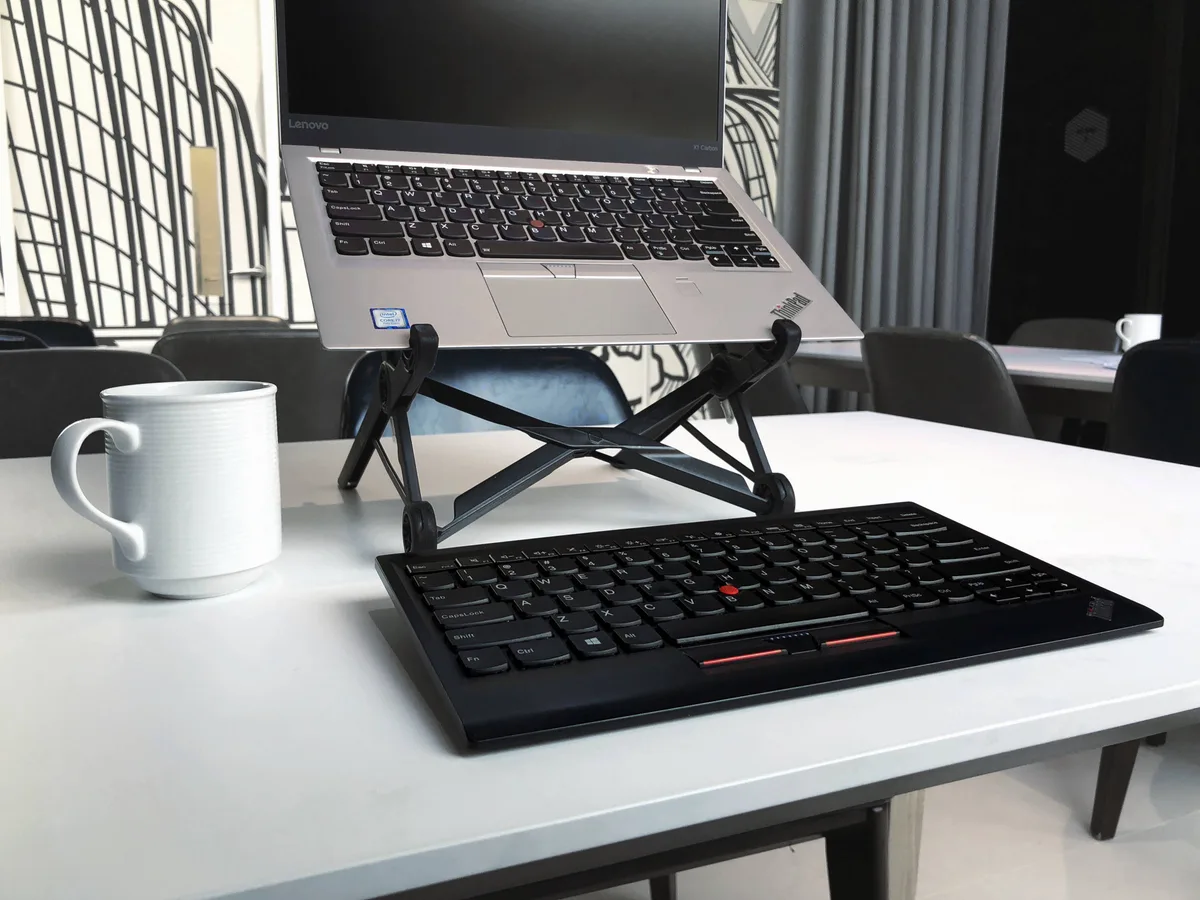
Your elbows should remain at a 90 to 100-degree angle while typing. If your keyboard is too high, you will inevitably hunch your shoulders, which causes tension after only a few minutes of walking. Use an external wireless keyboard placed on the treadmill's console shelf to ensure your hands remain in a relaxed, neutral position.
Step-by-Step Setup: Locking Down Your Gear
Before stepping onto the belt, confirm that your stand is perfectly centered on the console or the dedicated treadmill attachment. If the stand is off-balance, the belt’s natural sway will pull it toward the edge, increasing the risk of equipment damage.
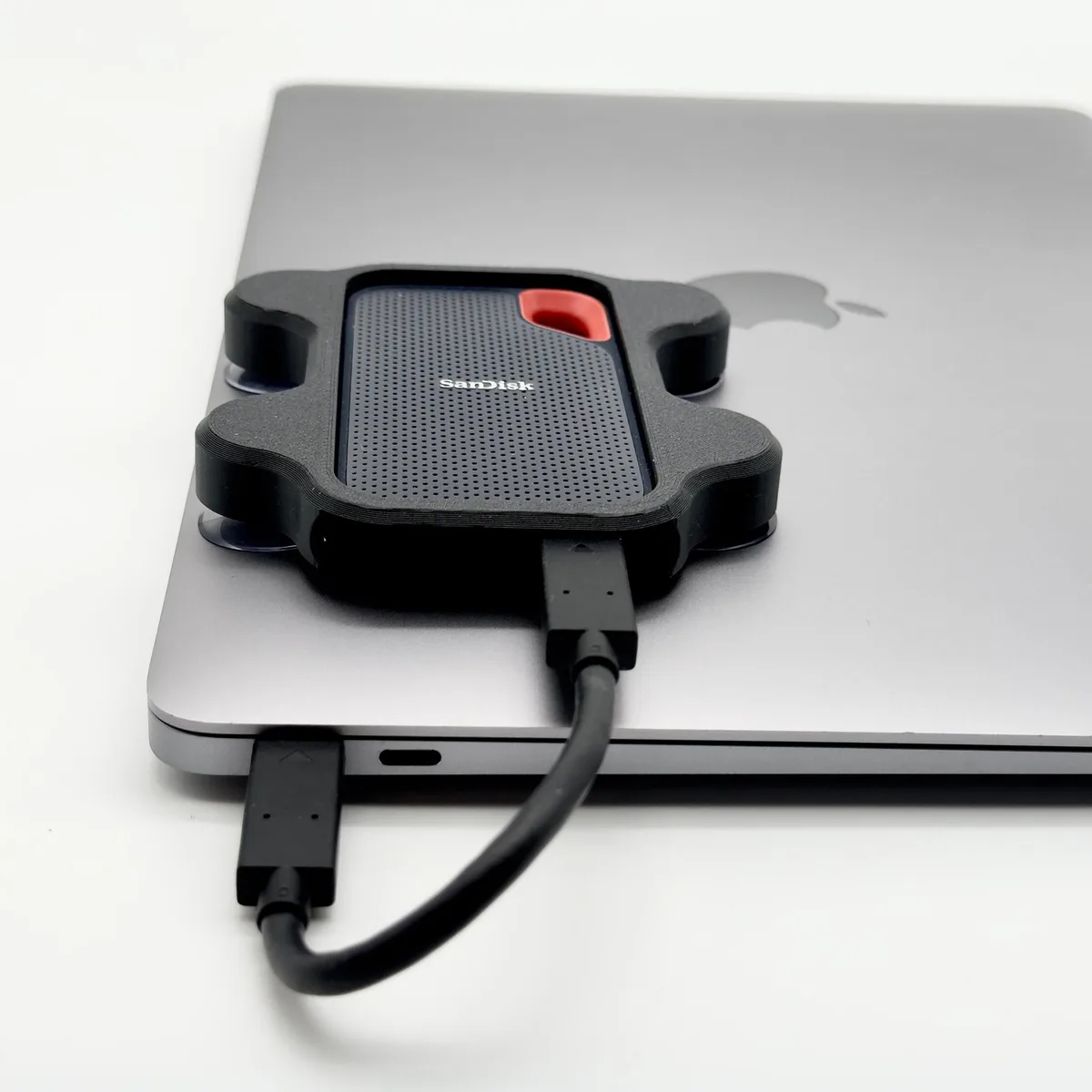
Clean the console surface with isopropyl alcohol to remove dust and oils. Apply high-friction silicone pads to the bottom of your stand’s base. Place the stand securely on the flattest available part of the console.
Test the stand for stability by gently pushing it with your palm.
If it moves easily, add a secondary strap or Velcro tether to the frame. Position your laptop and lock the tilt angle to prevent slipping.
Optimizing Your Peripheral Setup for Typing While Walking
Effective typing on a moving belt requires separating your input devices from your primary display. Placing your keyboard directly on the laptop keyboard deck forces your arms into an unnatural, high-reach position.
Use a wireless keyboard and a trackball mouse to keep your hands at a comfortable distance from your body. A trackball is superior to a standard mouse because it requires zero surface movement, meaning you won't accidentally knock a peripheral off your stand while concentrating on your work.
Place these devices on the treadmill console shelf if possible. This area is usually stationary relative to the belt, providing a much steadier base than the vibrating laptop stand itself.
Safety Protocols: Managing the Emergency Stop and Cables
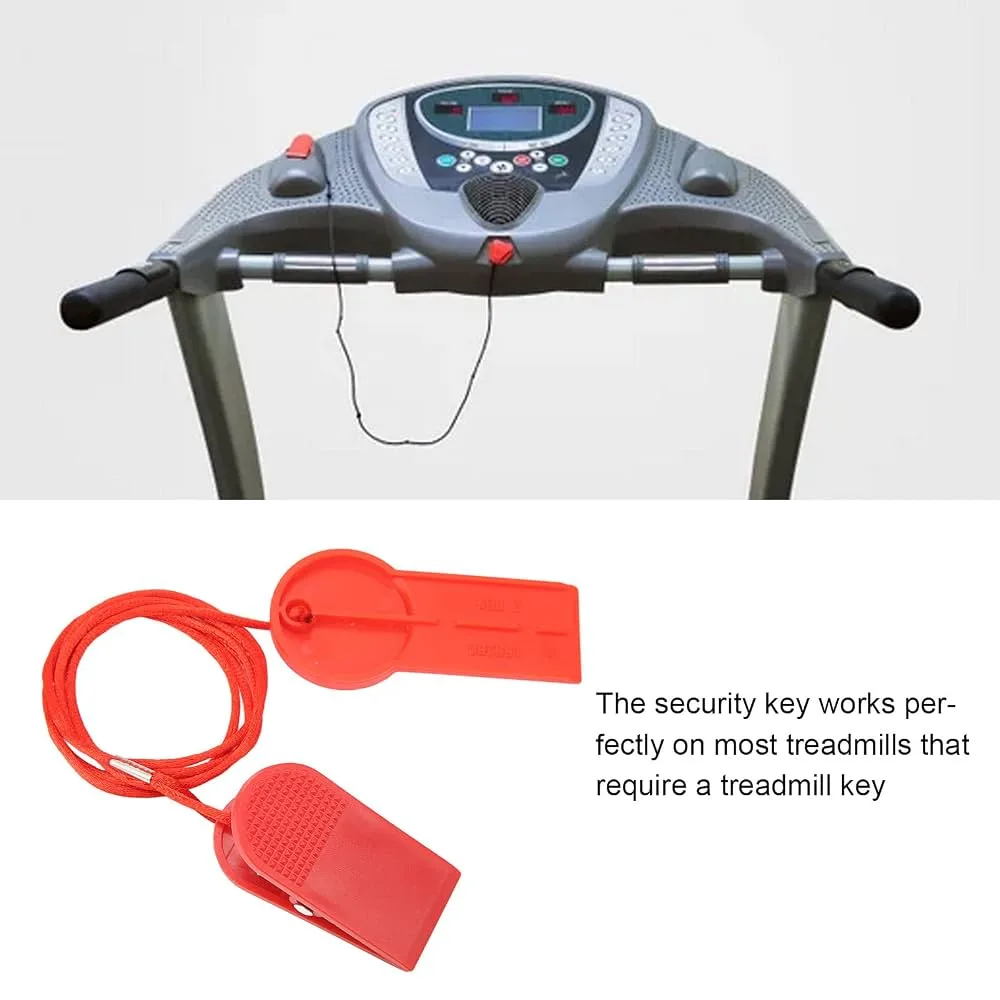
Image source: Bing (Web (fair-use with source credit))
The emergency stop tether is the single most important safety feature on any treadmill. Never block the console or the tether attachment point with your laptop stand.
If your stand obscures the emergency stop clip, relocate the stand immediately. In an emergency, you need instant access to the safety key to cut power to the belt.
Route your power and data cables so they do not hang near the side rails or the rear of the belt. A snagged cable can jerk your laptop off the stand or cause you to lose your footing unexpectedly. Use adhesive cable clips to secure wires firmly to the console frame.
Managing Treadmill Vibration and Mechanical Wear
Treadmills are designed to handle the impact of footsteps, not the continuous load of a static workstation. Excess weight on the console housing can stress the plastic casing or interfere with the incline motor performance.
If you notice a rattling sound while walking, your stand is likely vibrating against the treadmill console. Use small felt or rubber shims to isolate the stand from the hard plastic surface of the machine.
Avoid placing heavy monitors or secondary devices on the same mount as your laptop. The added weight increases the torque on the console mounting points, which may lead to cracks or sagging over time.
Common Mistakes That Lead to Equipment Damage
The most frequent error is neglecting to secure the laptop to the stand itself. A sudden change in treadmill speed or a stumble can cause the machine to jar the laptop forward.
Many users fail to account for the "treadmill drift" caused by the belt’s mechanical belt-tensioning cycles. Even a seemingly level treadmill will have a subtle, uneven gait that pulls objects in a specific direction over time.
- Failing to use a non-slip base, leading to slow migration.
- Blocking the console vents, which causes the treadmill motor to overheat.
- Routing cables across walking paths, creating a severe tripping hazard.
- Ignoring manufacturer weight limits for the console accessory tray.
Finding Your Optimal Walking Cadence for Productivity
Productivity while walking is a skill that develops with repetition. Start by walking at a slow pace, typically 1.0 to 1.5 miles per hour, to allow your brain to adjust to the physical movement while focusing on screen content.
Attempting to type at high speeds while walking often leads to fatigue and poor posture. You'll find that your accuracy improves when you synchronize your typing with your heel strike.
If you feel winded or unable to focus, lower the belt speed by 0.2 miles per hour. The goal is active movement, not aerobic exercise. You should be able to hold a normal conversation while working without feeling out of breath.
Maintenance and Long-Term Optimization
Your treadmill workstation requires periodic inspections to ensure safety and equipment longevity. Every 50 hours of use, check the tightness of all mounting hardware on your laptop stand.
Vibration can loosen screws over time, even with thread-locking compounds. Tighten any bolts or joints that show signs of movement during your walking sessions.
Inspect the treadmill belt for any uneven wear patterns caused by your standing position. If you always stand in the same spot, the belt may develop a depression or wear down faster in that area. Shift your position slightly every 30 minutes to distribute the weight and impact across the belt surface.
Frequently Asked Questions
Can I use a regular desk instead of a treadmill attachment?
Standard desks are generally too high or too deep to sit comfortably over a treadmill. They often block the console, prevent access to the emergency stop, and restrict your natural walking stride. A dedicated attachment or a specialized height-adjustable stand is necessary for a safe, ergonomic fit.
How do I stop my laptop from sliding?
High-friction silicone shelf liners provide the best grip for flat bases. You can also use industrial-strength Velcro or adjustable bungee tethers to secure the laptop chassis directly to the stand frame. Always verify that your chosen tether does not block cooling vents on the bottom of the device.
Is it safe to type while walking at higher speeds?
Typing accuracy and physical safety both drop significantly above 2.0 miles per hour. Most users find that 1.2 to 1.5 miles per hour is the sweet spot for maintaining cognitive focus and physical balance. If you need to walk faster for cardio, pause your work to avoid potential tripping or errors.
Why does my treadmill make a clicking noise when I work?
Clicking sounds usually indicate the stand is vibrating against the treadmill console or the plastic frame. Check for small gaps where the stand feet meet the treadmill surface. Adding a thin layer of foam or rubber shims between the two surfaces typically eliminates the noise immediately.
What should I do if I feel dizzy after walking and working?
Dizziness often results from splitting your focus between a moving belt and a stationary screen for too long. Take a break, step off the treadmill, and let your inner ear recalibrate to stationary ground. If the sensation persists, reduce your screen time or lower the belt speed to a more manageable pace.
Final Recommendation
Building a functional workstation on a treadmill is about balancing safety, stability, and ergonomics. Start with a solid, heavy-duty stand that minimizes vibration and ensures your screen is always at eye level.
Keep your peripherals separate to avoid shoulder strain and always maintain clear access to the emergency stop mechanism. When in doubt, lean toward a slower walking pace that allows you to focus without distraction.
Your goal is to build a setup that integrates movement into your day without becoming a secondary source of stress. Start simple, test your stability with the machine off, and adjust as you gain experience with your new workflow.

Similar Posts