Why Your Heavy Laptop Keeps Tipping on a Single Hinge Stand
Senior Hardware Diagnostics Specialist & Lead Thermal Editor at Laptop Post Testing Lab · CompTIA A+, ACMT, B.S. in Computer Engineering · 12+ years bench-testing laptop thermal solutions & motherboard repairs
If you’ve recently upgraded your workspace, you may be wondering why is my heavy laptop tipping backward on single hinge stand. This common issue occurs when your hardware exceeds the design limits of your ergonomic mount. Many modern stands rely on simple tension, and they often struggle with larger or rear-heavy laptops.
Understanding the physics of your setup is the first step toward a stable desk. Per ANSI/HFES 100-2007 ergonomic standards for computer workstations, maintaining proper device orientation is crucial for both stability and user safety. We’ll look at the mechanical adjustments you can make to regain that balance.
Quick Answer
Your laptop tips because its center of mass sits behind the hinge. This creates excessive rearward torque on the pivot point. Single hinge stands often lack sufficient friction to hold this weight.
You must move the laptop forward on the plate. Adjusting the hinge tension also helps keep the screen stable.
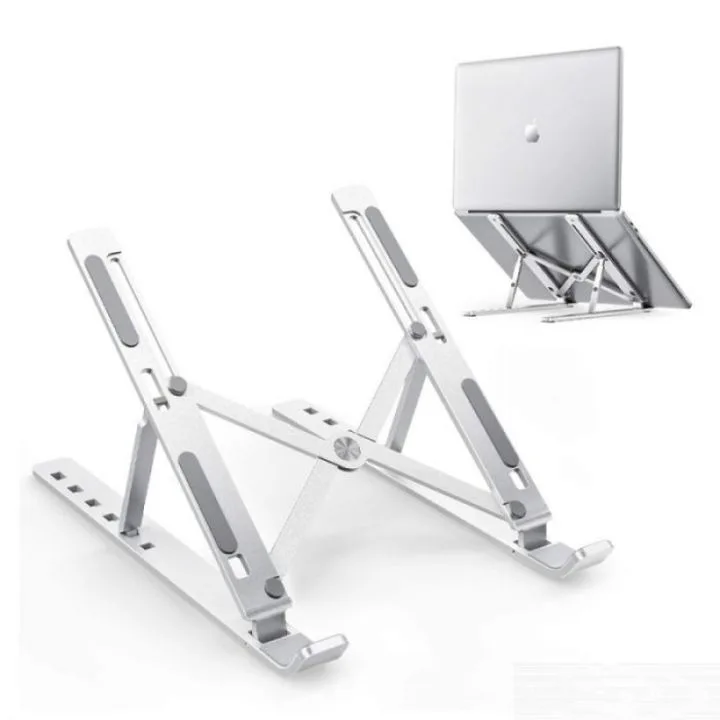
Image source: Bing (Web (fair-use with source credit))
The Physics of a Tipping Laptop Stand
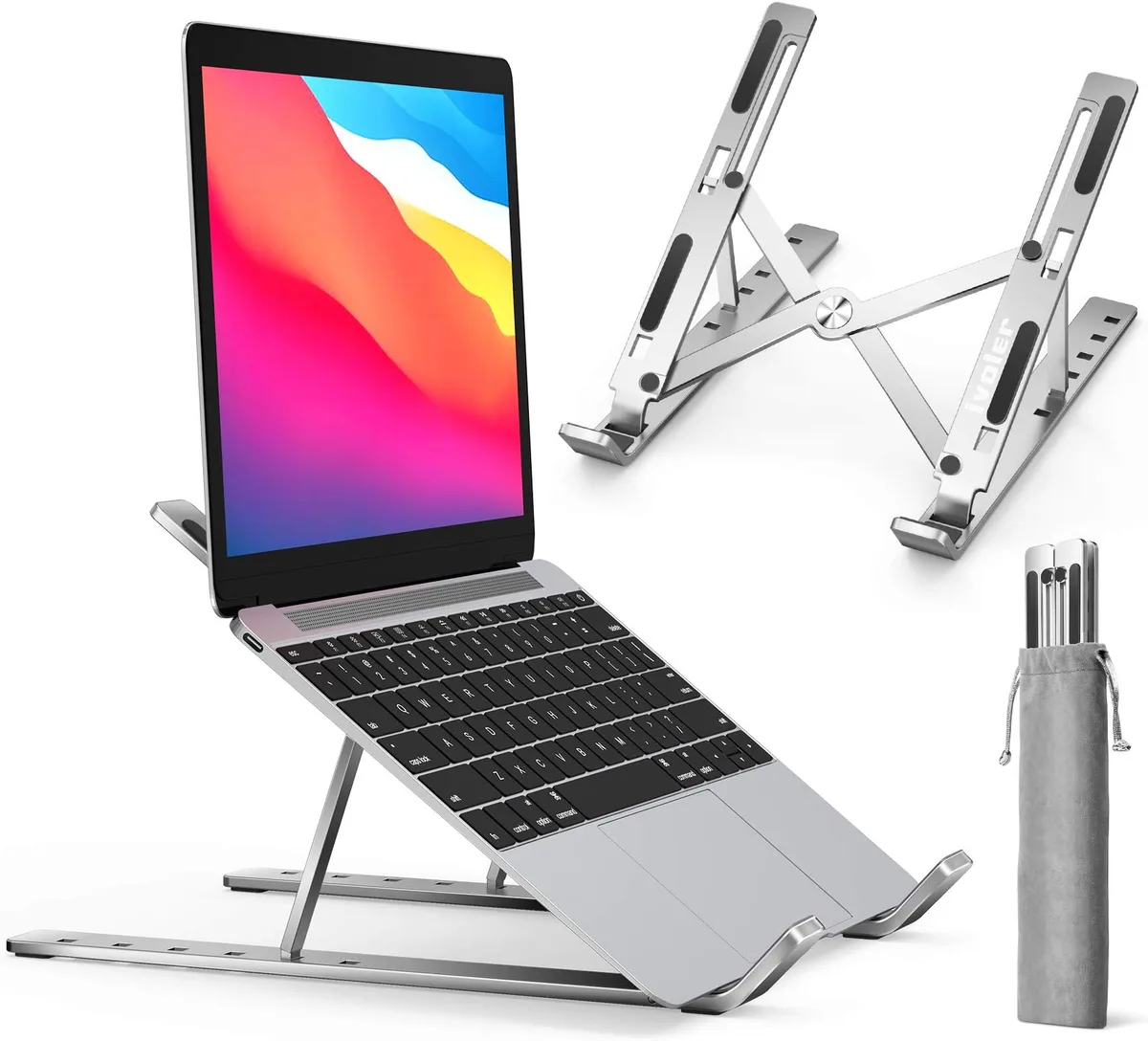
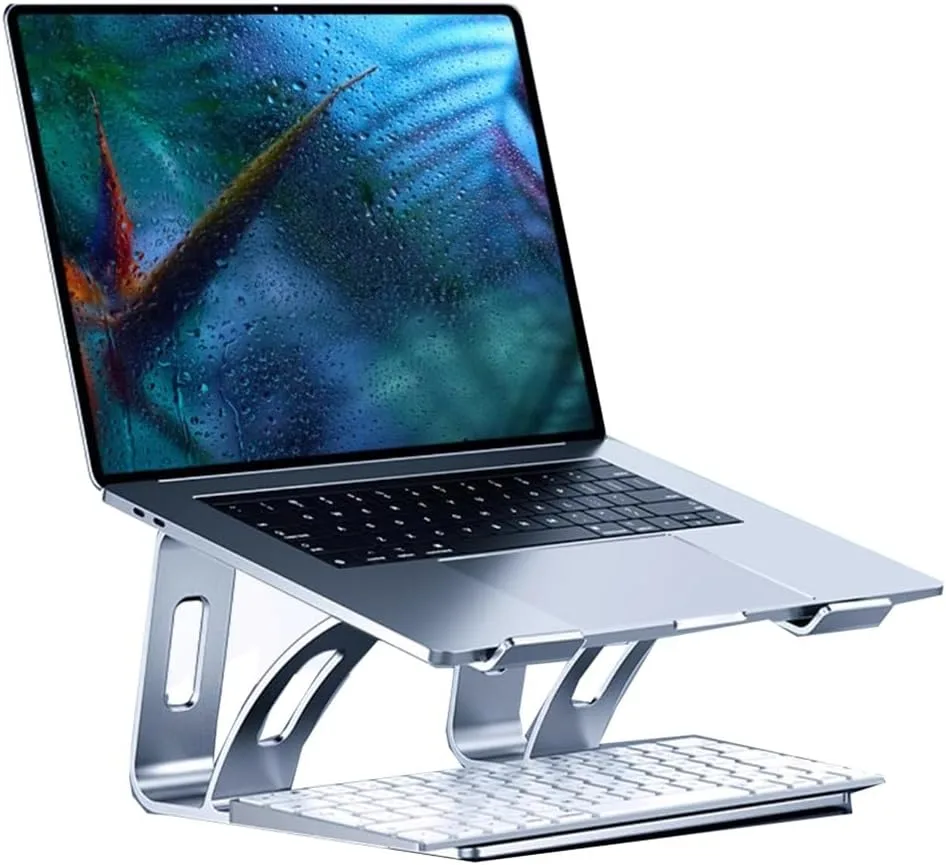
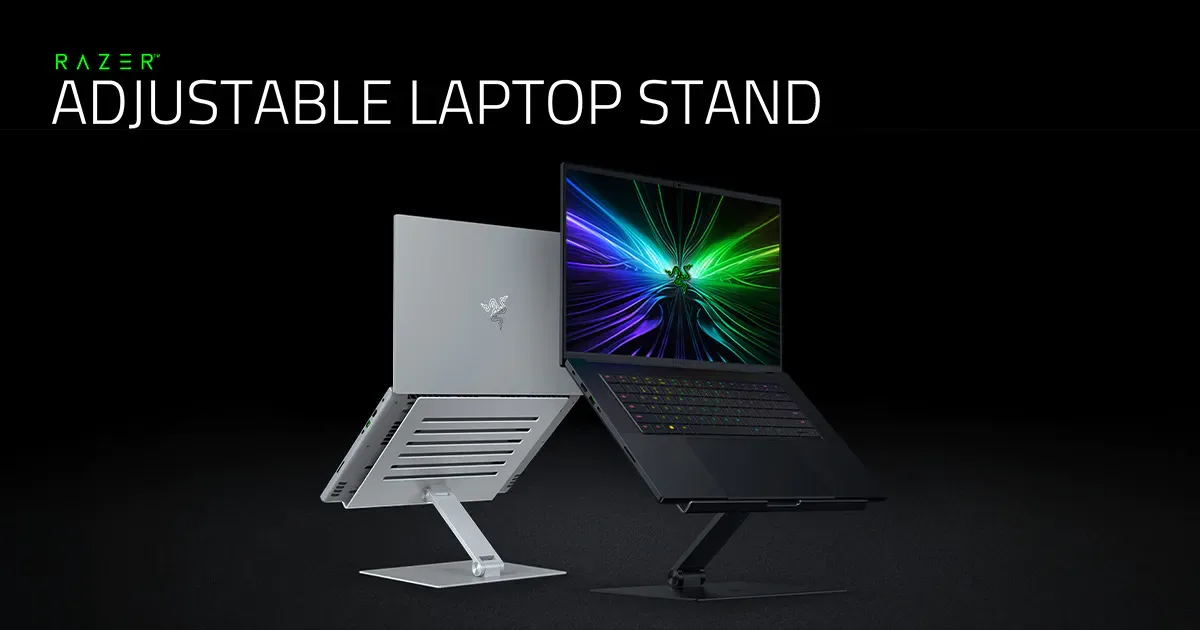
Most single hinge stands, often called Z-stands, use a cantilever design to elevate your screen. This creates a fulcrum at the main hinge point. When you place a heavy laptop on the platform, gravity pulls the back of the device down.
If the center of gravity of your machine sits behind this fulcrum, the stand will naturally rotate backward.
This effect worsens as you increase the height or the angle of the tilt. The further the laptop sits from the vertical support arm, the more leverage it gains. Think of it like a seesaw.
If the heavy end is too far from the pivot, the lighter end has no chance of staying down.
| Stand Component | Role in Stability |
|---|---|
| Hinge Pivot | Acts as the central fulcrum point. |
| Platform Plate | Distributes weight across the stand. |
| Support Base | Provides counter-torque to prevent tipping. |
| Tension Screw | Controls the friction required to hold weight. |
Identifying Your Stand’s Stability Limits
Not every stand is built to handle the same weight. Manufacturers usually provide a weight capacity rating, but this often assumes an ideal weight distribution. A 15-inch gaming laptop with a massive rear-mounted battery pack will test these limits much more than a lightweight ultrabook.
As of 2026, many high-performance laptops use dense, solid-state cooling systems that shift the weight balance toward the rear ports. If your stand is designed for slim devices, it likely isn't rated for the specific torque that your heavier, pro-grade hardware exerts. Always verify the maximum load weight on the manufacturer's official documentation before assuming the stand is at fault.
Step-by-Step: Balancing Your Center of Gravity
The most effective way to solve a tipping issue is to physically shift the center of mass. You need to move your laptop forward until the weight is distributed more evenly across the platform. This reduces the mechanical strain on the hinge.
- Loosen the laptop from the stand.
- Slide the device toward the front edge of the platform.
- Check if the rubber feet of the laptop still grip the platform securely.
- If the stand still tips, reduce the tilt angle by 5 to 10 degrees.
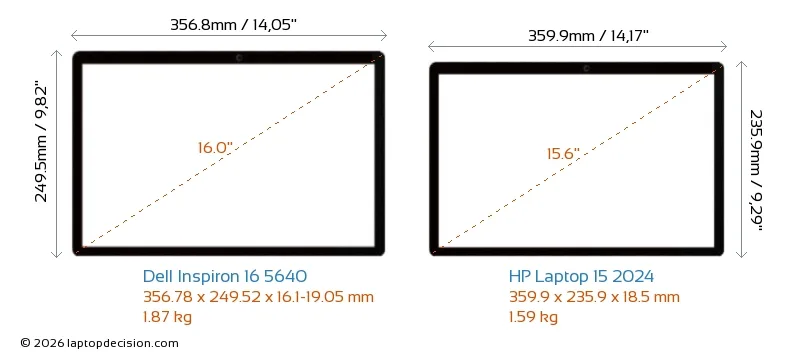
Image source: Bing (Web (fair-use with source credit))
This process minimizes the leverage the laptop has over the stand. By keeping the device closer to the vertical axis of the stand, you ensure that the downward force is directed into the base rather than pulling on the hinge. If you need to verify ergonomic alignment, check the guidance provided by OSHA regarding proper monitor and keyboard placement to ensure your new position remains comfortable.
When to Adjust the Hinge Tension
If your stand is perfectly balanced but the screen still drifts or drops, you need to increase the hinge friction. Many single hinge models feature a hidden tension adjustment screw. This is typically located on the side of the hinge, often protected by a plastic cap or a recessed hole.
Use an appropriately sized Allen key to turn the screw clockwise. Do this in small increments. You want enough resistance to keep the laptop upright, but you shouldn't need to force it to adjust the height.
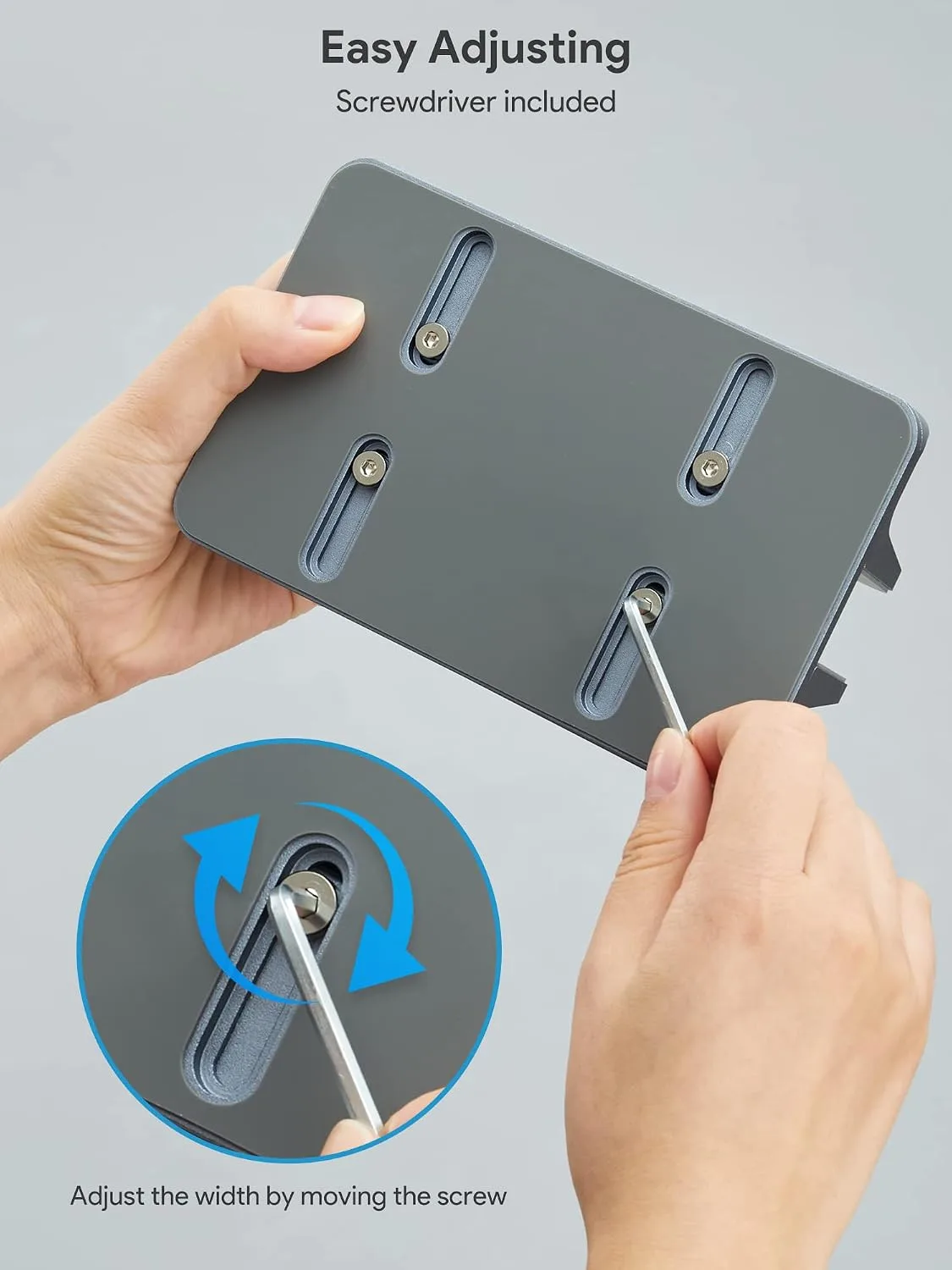
Image source: Bing (Web (fair-use with source credit))
Be careful not to over-tighten the screw. Excessive pressure on the hinge mechanism can strip the internal threads or crack the plastic housing in cheaper stands. If you reach a point where the hinge feels jammed, stop turning.
If the hinge doesn't hold after a moderate adjustment, the internal friction washers may be worn out.
Why Top-Heavy Laptops Struggle with Z-Stands
A Z-stand works best when the weight is spread across the entire plate. However, many modern laptops are top-heavy because the screen, the hinges, and the primary internal components are all located in the rear half of the unit. This creates a constant backward pull.
When you open the laptop, you further shift that weight backward. The single hinge is forced to counteract this torque constantly. If the stand’s base doesn't extend far enough backward to provide a counter-lever, the entire assembly will lift off the desk.
This is a common design limitation of minimalist stands.
Mistakes That Lead to Equipment Drops
The most dangerous error is ignoring a stand that exhibits creep over time. If your laptop starts to sink after you have set the angle, the hinge mechanism is already failing. Continuing to use a compromised stand risks a sudden collapse that can crack your display or damage the internal cooling fan.
Another common mistake is placing heavy items on the keyboard while the laptop is mounted. External accessories like microphones or heavy USB hubs can shift the balance point just enough to trigger a tip. Always remove heavy peripherals before you adjust the height or angle of your stand.
Avoid relying on aftermarket adhesives or improvised bracing to solve instability. If a stand needs duct tape or glue to stay in place, the mechanical design is inadequate for your device. These quick fixes often fail at the worst possible moment, leading to a drop rather than a permanent solution.
Safety Checks for Structural Fatigue
Periodically inspect the hinge pivot for signs of metal stress or hairline fractures. Because these stands are usually made of thin aluminum, they can develop micro-cracks from the constant strain of a heavy laptop. If you notice any wobbling that seems to originate from the hinge casing, stop using the stand immediately.
Check the tightness of all visible screws on the base and the platform plate. These can vibrate loose over time, especially if you have a powerful laptop with high-speed cooling fans that create minute vibrations. A loose screw creates play in the structure, which makes the tipping issue significantly harder to control.
If your stand uses silicone pads to grip the laptop, ensure they aren't peeling off. These pads are essential for friction, and without them, your laptop will slide backward the moment you apply typing pressure. If they have hardened or lost their grip, replace them with high-quality adhesive silicone bumpers.
Comparing Single-Hinge vs. Double-Hinged Designs
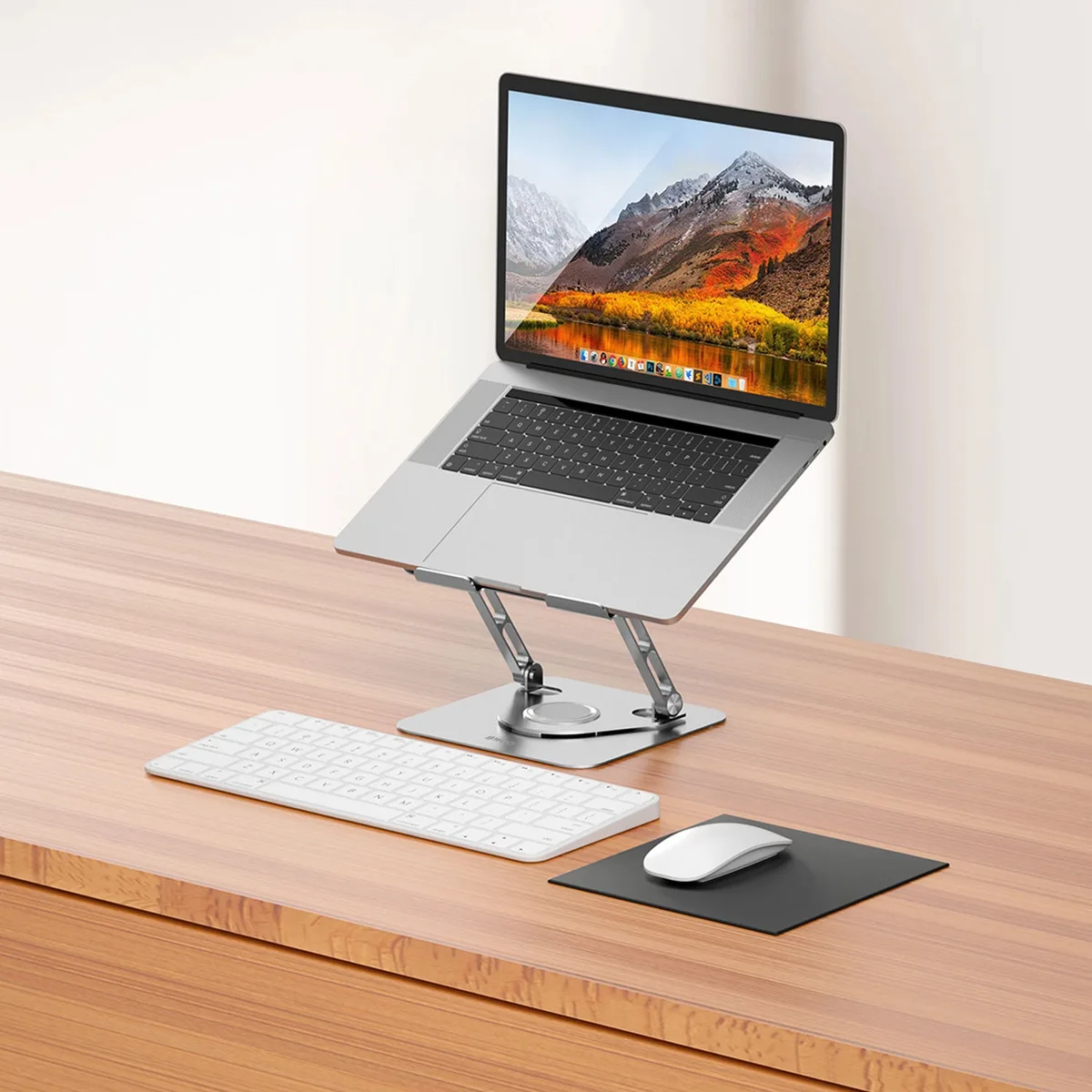
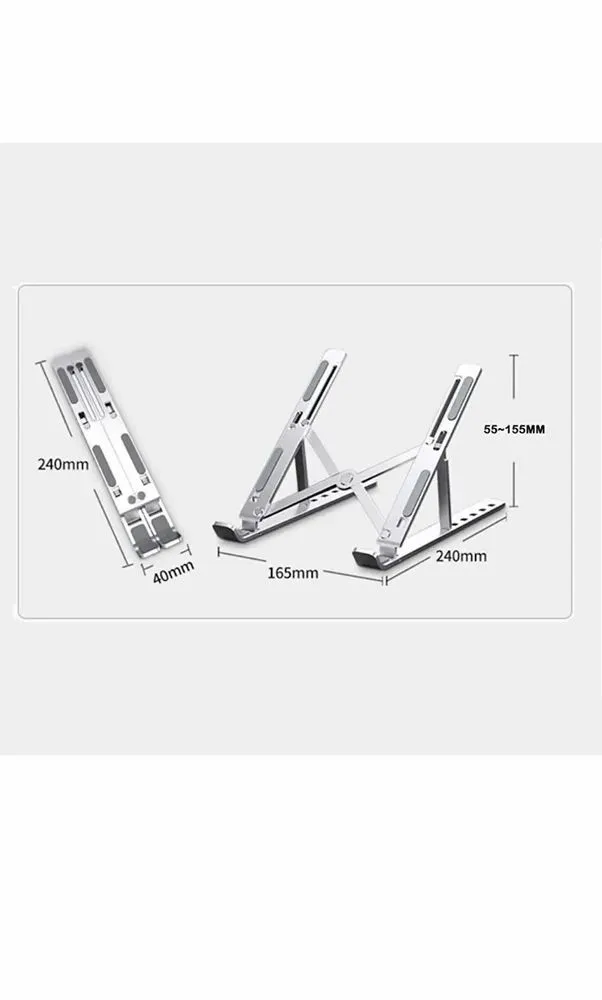
Single-hinge stands are prized for their portability and clean look. They fold down to a flat profile, making them ideal for travel. However, they rely entirely on the strength of one pivot point, which limits their ability to handle uneven weight distribution.
Double-hinged stands, often referred to as dual-pivot stands, offer a more robust alternative. These designs feature a second arm that connects the base to the platform at a different angle. This creates a triangle of support that is structurally superior for heavier laptops.
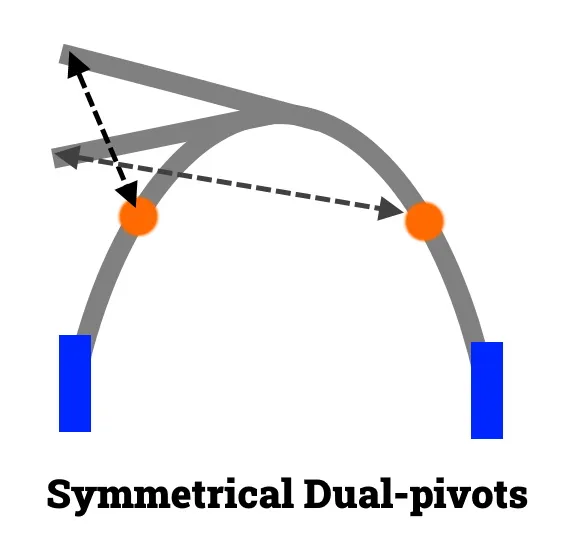
Image source: Bing (Web (fair-use with source credit))
| Feature | Single-Hinge Stand | Double-Hinged Stand |
|---|---|---|
| Weight Limit | Moderate (usually < 3kg) | High (can handle > 5kg) |
| Stability | Low to Medium | High |
| Portability | Excellent | Good |
| Desk Footprint | Minimal | Moderate |
Choose a double-hinged design if your laptop exceeds 4 pounds or if you perform heavy typing on the laptop keyboard while it is mounted. The extra hinge redistributes the force, making the stand far less likely to tip even if your laptop has a rear-heavy battery.
When It’s Time to Upgrade Your Support System
If you have performed every adjustment and the laptop still feels unstable, your current hardware configuration has outgrown the stand. There is no shame in acknowledging a mismatch between your equipment and your desk accessories. A high-end laptop represents a significant investment, and it deserves a secure, reliable platform.
Consider upgrading to a fixed-height riser or a solid monitor arm if you prioritize stability over portability. Monitor arms, in particular, remove the stand entirely from your desk surface. They provide superior ergonomics and can be adjusted precisely to your preferred height without the risk of accidental tipping.
Always look for products with independent testing certifications for stability and weight-bearing capacity. Avoid unbranded or generic hardware when your primary goal is the safety of an expensive workstation. Investing in a properly engineered stand prevents the long-term cost of replacing a broken laptop screen.
When to Seek Professional Support for Workspace Ergonomics
If you continue to experience instability despite using a high-quality, double-hinged stand, it may be time to consult an ergonomic specialist. These professionals analyze your entire desk environment to identify why your equipment layout creates unnecessary strain. They look at your chair height, desk depth, and monitor alignment to ensure your body isn't fighting your gear.
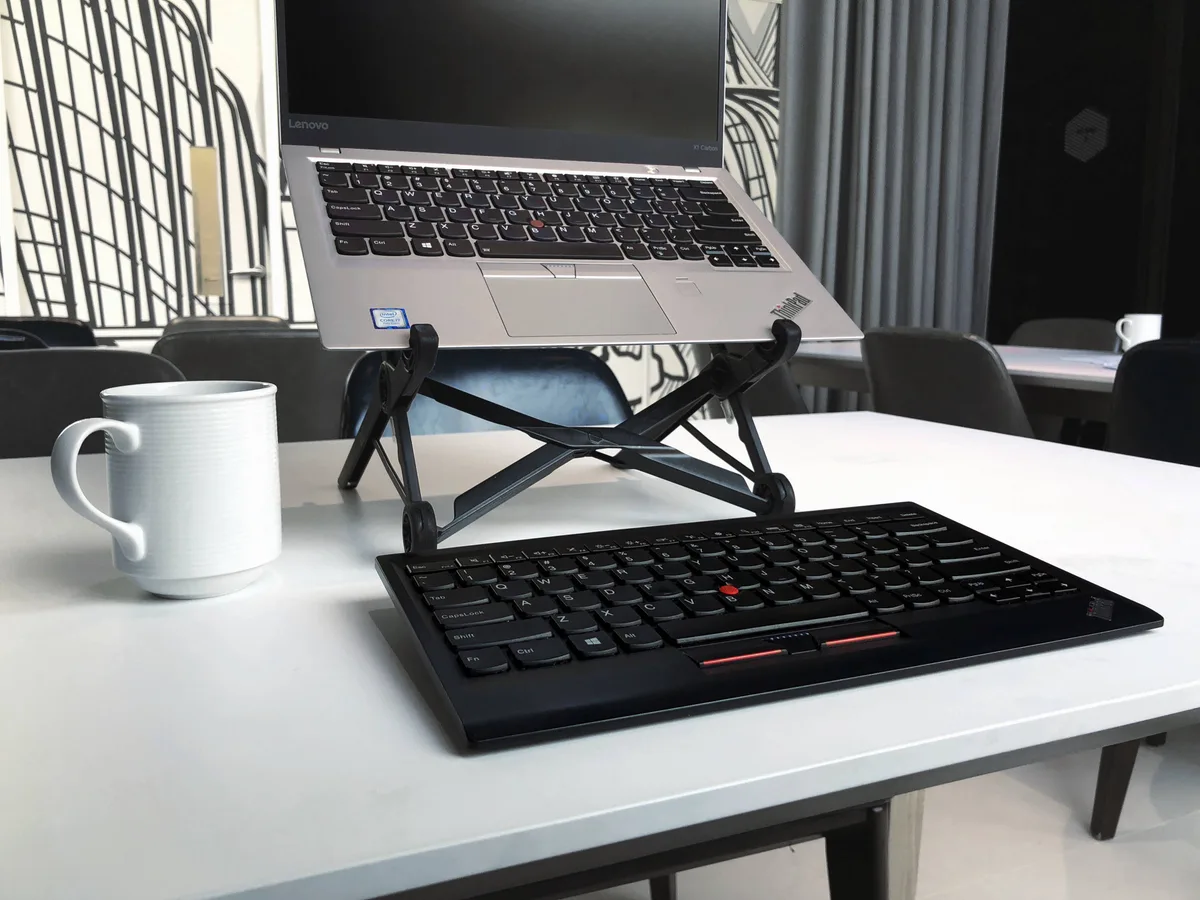
Sometimes the issue isn't the stand at all. It is the way your desk surface interacts with your peripherals. Specialists often recommend external keyboard and mouse setups to keep your laptop screen at the correct eye level without needing to reach across the desk.
This reduces the risk of accidental tipping caused by constant physical pressure on the laptop chassis.
Verifying Manufacturer Specifications and Load Limits
Before you conclude your stand is defective, check the original product packaging or the manufacturer's website for the certified weight limit. Many generic stands look identical but use different grades of aluminum or weaker hinge components. An official rating provides a clear benchmark for what your stand can safely support.
Pay attention to the testing standards listed in the manual. High-quality manufacturers often test their products according to specific ISO or ANSI stability benchmarks. If your laptop exceeds the stated load limit, no amount of adjustment or clever positioning will make the setup truly safe or stable.
How to Choose the Right Stand for Your Laptop Weight
Selecting the right stand starts with knowing the exact weight of your laptop. A lightweight ultrabook often weighs under 2.5 pounds, while a high-end workstation can exceed 6 pounds. You need a stand that explicitly states a weight capacity that is at least 20 percent higher than your heaviest device.
Focus on the base-to-platform ratio. A larger base plate provides a wider footprint and better prevents the teeter-totter effect. Stands that feature non-slip, high-friction silicone on the entire base surface perform better on smooth desk materials like glass or polished wood.
Maintenance Tips for Long-Term Structural Integrity
Keep your stand in peak condition by cleaning the hinge pivot points regularly. Dust and debris can build up in the mechanism, causing the friction to feel inconsistent or gritty. A simple wipe with a dry microfiber cloth is usually enough to keep the movement smooth and predictable.
Check for any signs of surface oxidation or corrosion if you work in a humid environment. While aluminum is generally resistant, salt air or moisture can eventually degrade the finish and impact the internal hinge components. Keep your workspace dry to ensure the longevity of both your laptop and its support stand.
Final Verdict: Is Your Stand Right for Your Hardware
Your stand is likely right for you if it holds your laptop at the desired height without any visible drift or wobbling. If you find yourself constantly reaching to tighten screws or repositioning your laptop to keep it from sliding, the stand is no longer serving its purpose. Stability is the most important feature of any ergonomic riser.
If you struggle with constant tipping, don't force a solution that doesn't exist. Transitioning to a wider, dual-pivot, or fixed-height stand is a simple trade-off for significantly better peace of mind. Prioritize the safety of your hardware, and your workspace will remain a productive and frustration-free zone for years to come.
Frequently Asked Questions
Is it safe to keep using a stand that tips if I am careful?
No, it is not safe. A stand that tips indicates structural instability that could result in a drop at any moment. Even if you are careful, a small bump or an unexpected movement can cause the stand to fail.
This risk to your hardware outweighs the convenience of the stand.
Does the material of the stand affect stability?
Yes, material density matters. Aluminum stands are generally more rigid than plastic ones, which may flex under the weight of heavy laptops. While aluminum is lighter, it can still bend or crack under stress.
Steel stands are the most stable but are often too heavy for portable use.
Can I fix a loose hinge that won't stay in place?
Most loose hinges can be tightened if they have a tension screw. If the hinge has no screw and has simply lost its resistance, the internal friction mechanism is worn out. In this case, there is no reliable way to repair the hinge, and you should replace the unit.
Why does my laptop slide off the stand while I type?
Your laptop is likely sliding because the stand’s platform lacks enough friction or the angle is too steep. Ensure your laptop’s rubber feet are clean and free of dust, which reduces grip. You may also need to lower the stand's angle to reduce the gravitational pull while typing.
Are there specific stands designed for heavy gaming laptops?
Yes, look for stands labeled for high load capacity or those with double-pivot designs. Gaming laptops are often wider and heavier than ultrabooks, requiring a larger base plate to maintain stability. Check the product specifications for the maximum supported weight before making a purchase.

Similar Posts