Best Laptop Stands for Classroom Podiums: A Buying Guide
Senior Hardware Diagnostics Specialist & Lead Thermal Editor at Laptop Post Testing Lab · CompTIA A+, ACMT, B.S. in Computer Engineering · 12+ years bench-testing laptop thermal solutions & motherboard repairs
Learning how to choose a laptop stand for teaching in a classroom podium helps you avoid chronic neck and shoulder strain. Many teachers struggle with fixed, low-height podiums that force a constant downward gaze during long lectures.
Ergonomic research from sources like the Occupational Safety and Health Administration suggests that keeping your screen at eye level reduces musculoskeletal stress. As of 2026, selecting the right equipment involves balancing your physical height with the limited surface area of a standard lecture podium.
Quick Answer
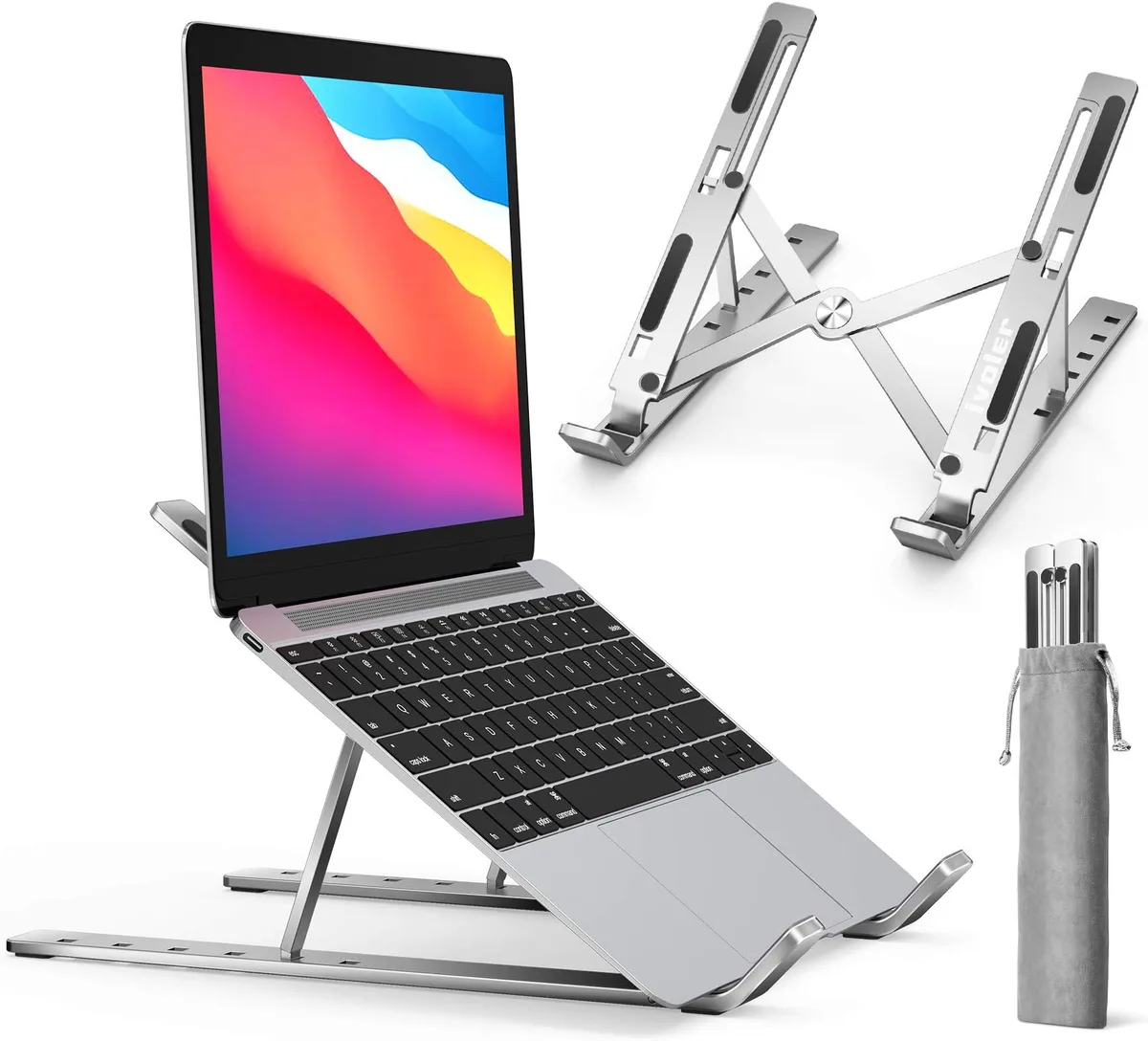
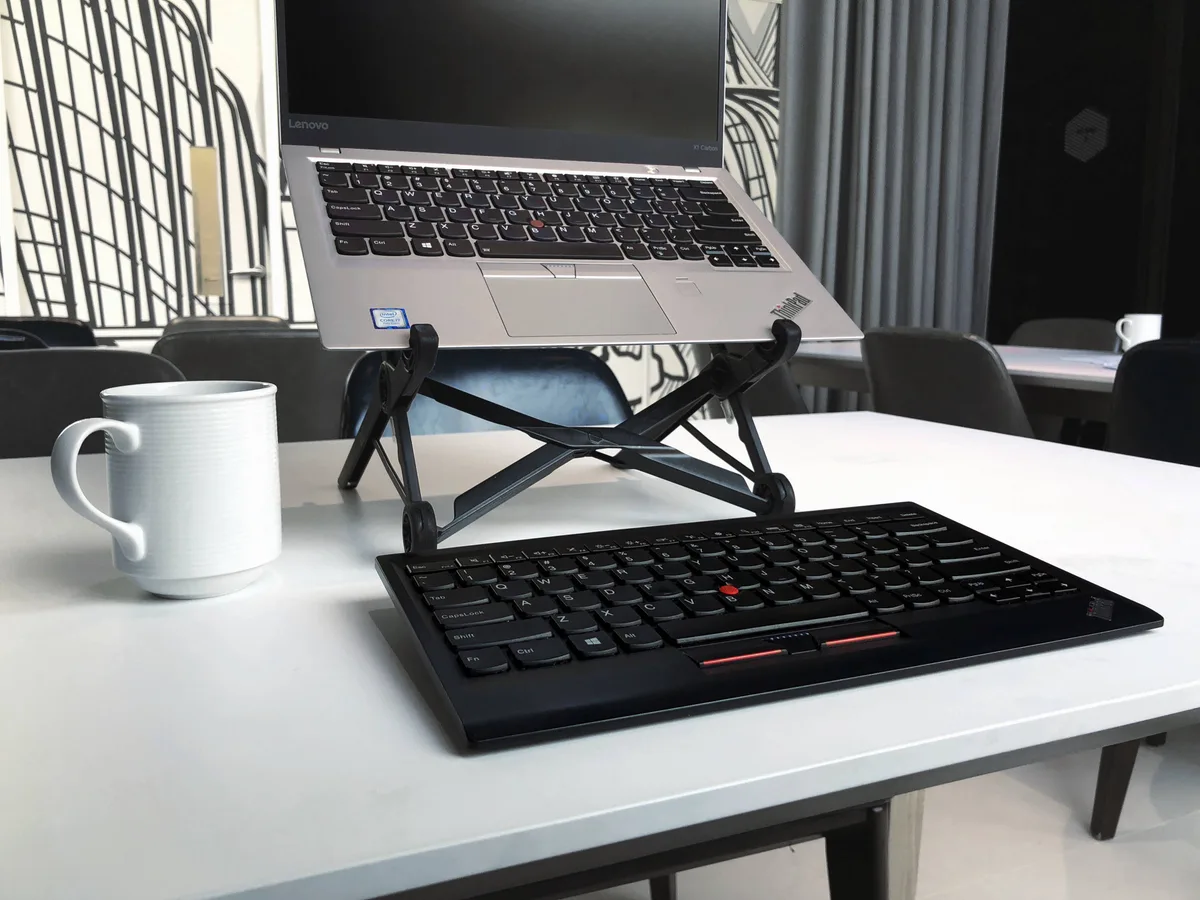
Choose a lightweight, Z-shaped aluminum laptop stand. Pick a model with height and angle adjustments. Ensure the base fits your podium surface.
Use a separate wireless keyboard for wrist comfort. This setup prevents neck strain during long lectures.
The Physical Toll of Teaching at a Podium
Teaching requires you to engage with students, look at your notes, and operate your laptop simultaneously. When that laptop sits flat on a podium, you are forced into a hunched position. This repetitive motion causes significant fatigue in your upper trapezius and neck muscles.
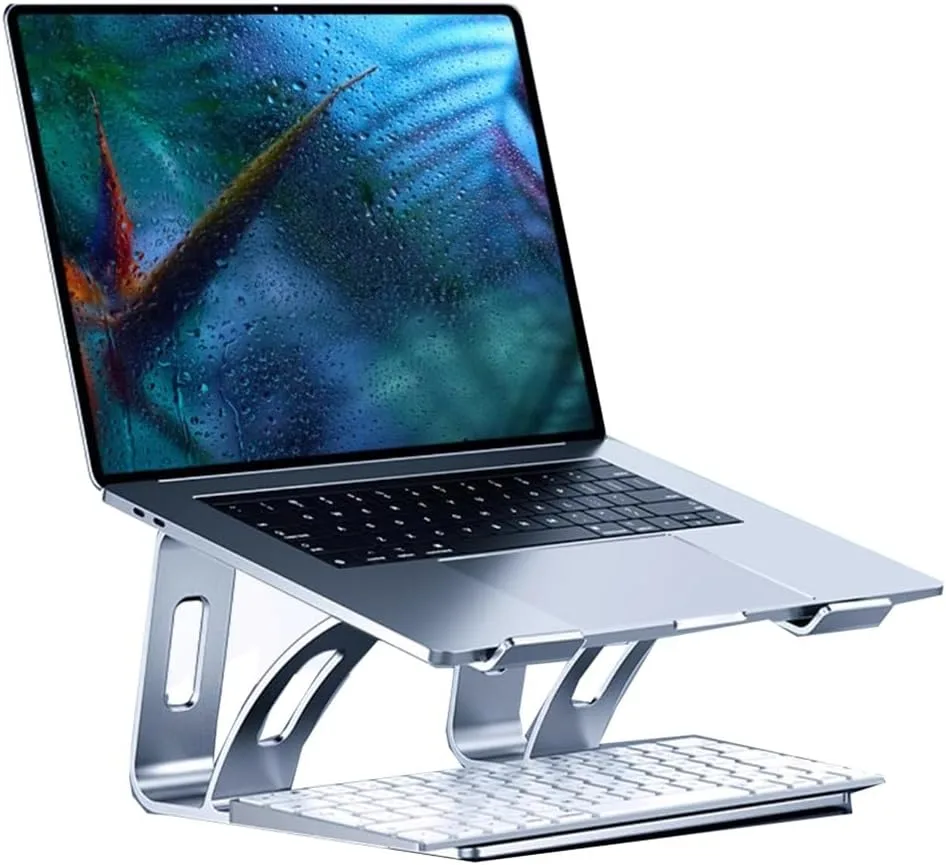
Over time, this posture leads to cervicogenic headaches and shoulder blade pain. A laptop stand corrects this by elevating your screen. It brings the display closer to your line of sight, allowing your neck to remain in a neutral, vertical position.
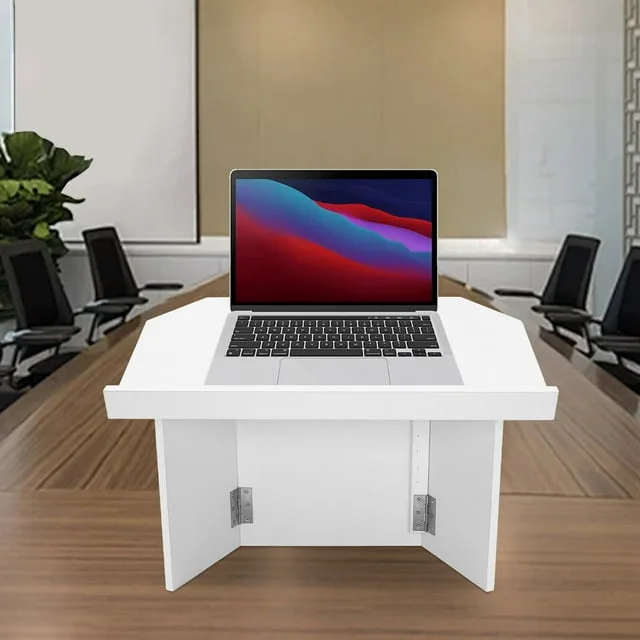
Image source: Bing (Web (fair-use with source credit))
Why Your Current Setup Might Be Hurting Your Back
Most classroom podiums were built before laptops became the primary teaching tool. They are often fixed at a height that is comfortable for standing, but they lack space for ergonomic input devices. If you try to type on a laptop while it sits at an awkward angle, your wrists will suffer.
You might notice that your laptop slides toward the edge of a slanted podium surface. Many podiums feature a small lip, but they rarely provide enough friction to hold a sleek metal laptop in place. Using a stand with non-slip rubber feet creates the necessary grip to keep your machine stable and secure.
Evaluating Your Classroom Podium Space Constraints
Before you purchase any equipment, you must measure the available space on your podium. Some podiums have a raised edge that limits the footprint of your stand. Others are completely flat, but they might be shared with other tech like document cameras or control panels.
Check if your podium has a sloped or flat surface. A Z-shaped stand requires a flat surface to maintain its balance. If your podium is tilted, look for a stand with a bottom plate that can be secured or one with a very low center of gravity.
Core Features That Actually Matter in a Classroom Stand
You do not need a complicated, motorized, or heavy-duty stand. The best choice is often the simplest one. Focus on these three specific traits that directly impact your teaching efficiency and physical comfort.
- Hinge Tension: The stand must hold your laptop's weight without collapsing. Look for adjustable hinges that stay firm even after months of use.
- Thermal Management: Ensure the design allows for airflow underneath the laptop. Metal stands are excellent for dissipating heat during long presentations.
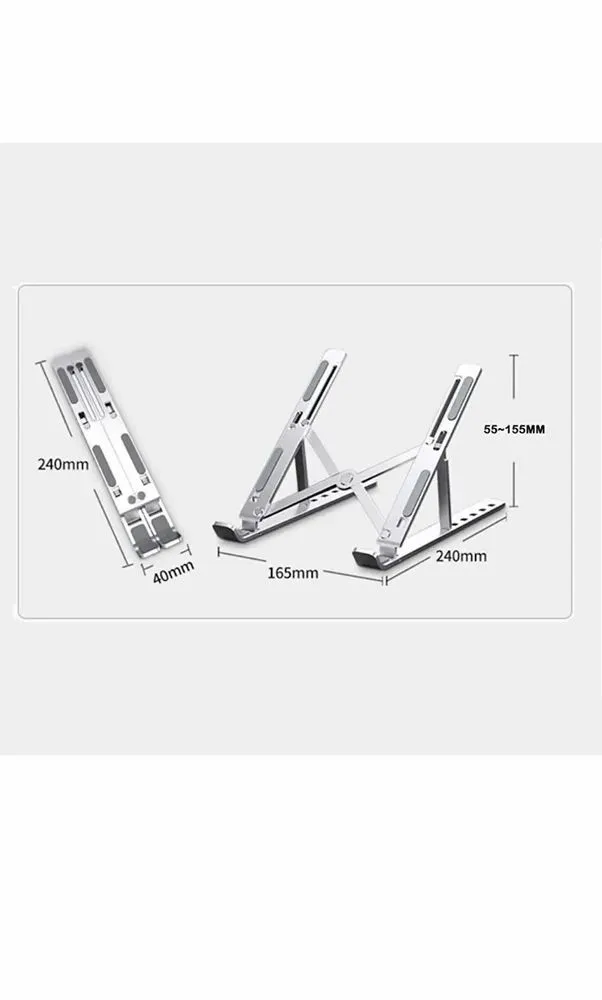
- Footprint Dimensions: Verify that the base of the stand is narrow enough to leave room for your other teaching materials.
| Feature | Importance | Benefit |
|---|---|---|
| Height Adjustability | High | Prevents neck bending. |
| Stability | High | Stops keyboard bounce. |
| Foldability | Medium | Easy to pack in a bag. |
The Mandatory Ergonomic Rule: Why You Need an External Keyboard
Raising your laptop screen to eye level makes the built-in keyboard impossible to use. If you attempt to type on an elevated keyboard, you will force your wrists into an unnatural, extended position. This creates significant strain on the carpal tunnel.
Always pack a slim, portable wireless keyboard. This allows you to place the laptop at the correct height while keeping your hands at a natural, low level on the podium surface. It creates a complete workstation that protects your wrists just as well as your neck.
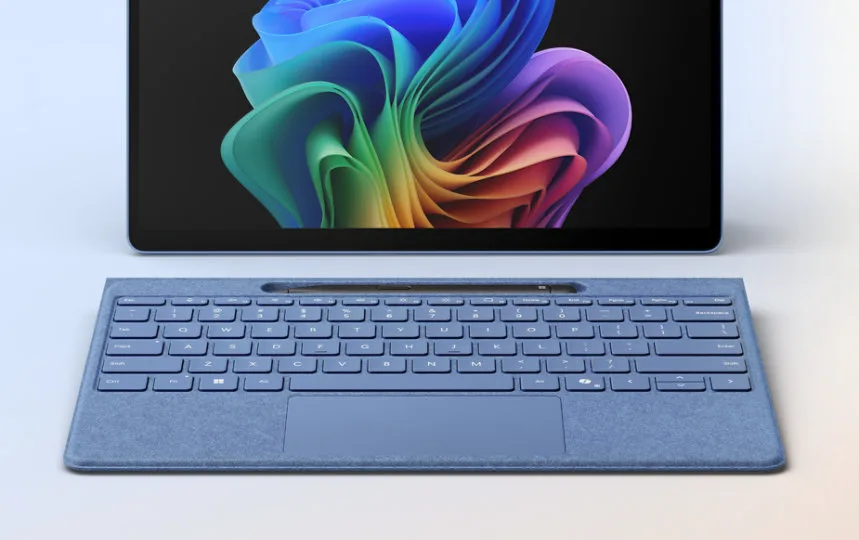
Image source: Bing (Web (fair-use with source credit))
Step-by-Step Selection: How to Match a Stand to Your Teaching Style
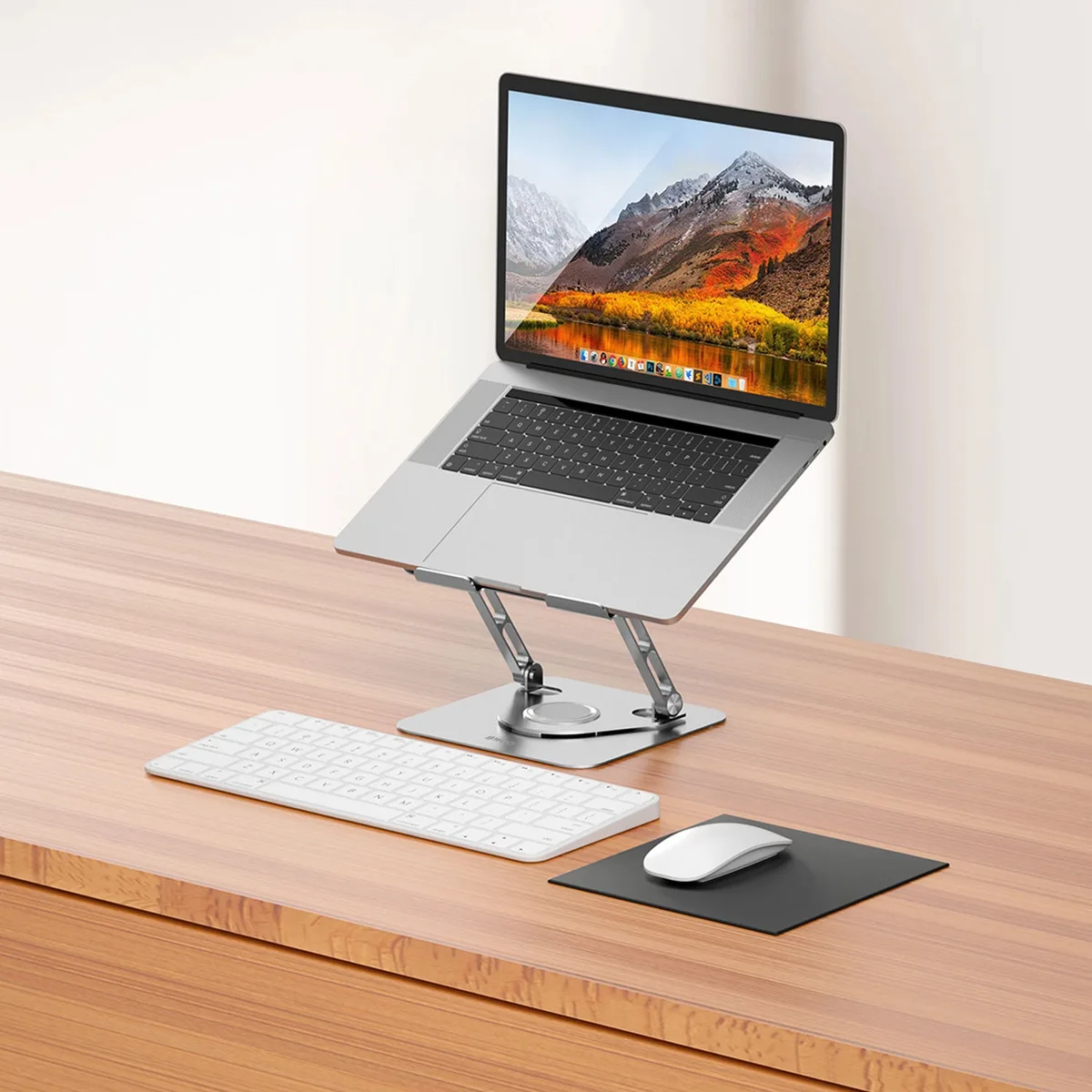
The goal is to find a balance between professional appearance and ease of use. You don't want a stand that takes five minutes to unfold while your students wait. Choose a model that features a single-pivot or double-pivot design for fast deployment.
Observe the height settings during your search. A good stand should offer at least three distinct angles. This allows you to adjust the screen based on the height of the podium and your own physical stature.
If you are tall, you need a stand that provides significant lift to keep your eyes forward.
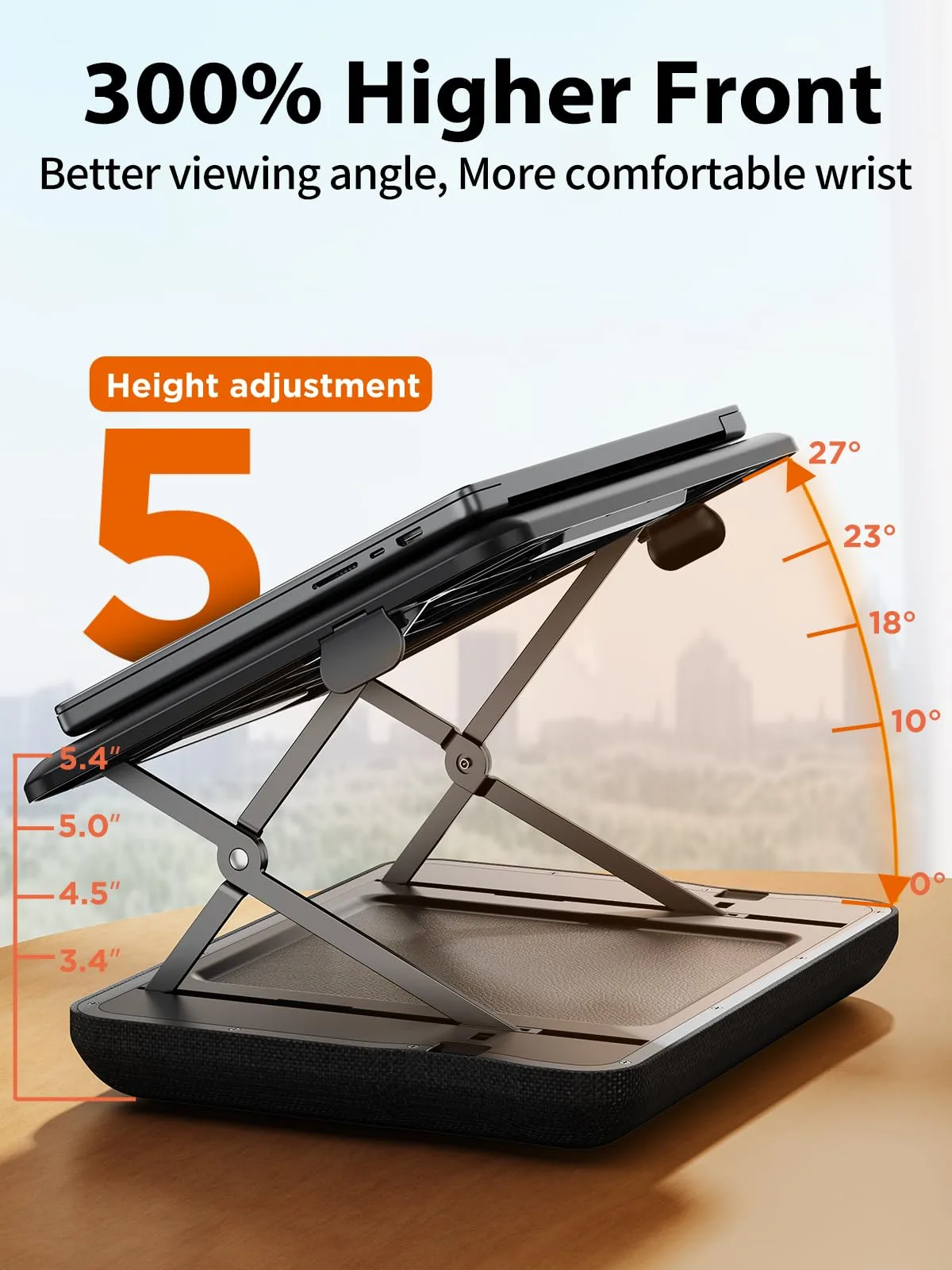
Image source: Bing (Web (fair-use with source credit))
Common Podium Pitfalls: Stability, Surface Slopes, and Setup Speed
Stability is the biggest challenge in any lecture hall. If your stand wobbles, the screen will shake while you type or touch your trackpad. Always verify that the stand features rubber pads on both the top and the bottom to provide maximum grip.
Surface slope is another hidden danger. A steep podium can cause a lightweight stand to shift during a presentation. If your classroom has slanted podiums, select a stand with a bottom ledge or lip that prevents the laptop from sliding forward.
Setup speed directly impacts your classroom workflow. A stand that requires tightening screws or adjusting multiple arms will quickly become a burden. Stick to tension-based hinges that stay where you set them without needing a tool to lock them into place.
Balancing Portability Against Daily Utility
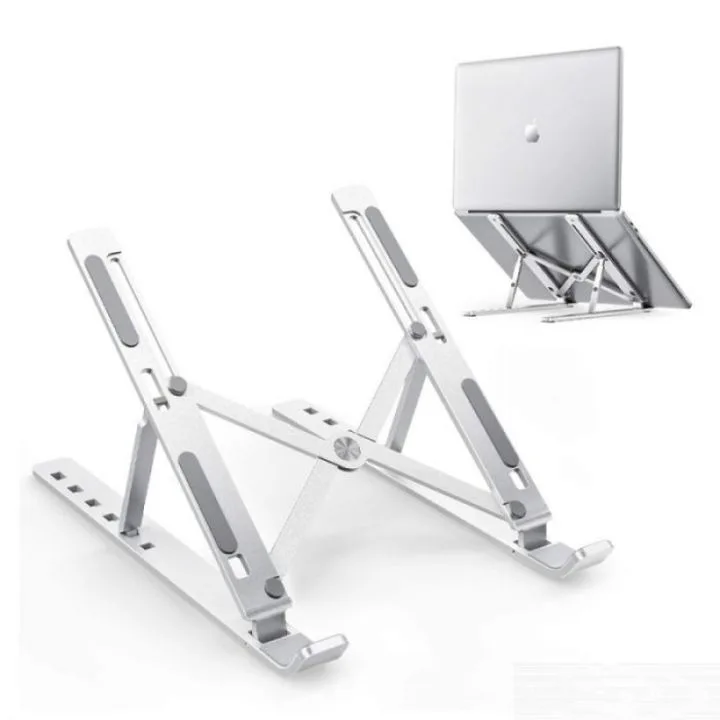
If you teach in multiple buildings or different rooms, portability is your highest priority. You need a stand that folds to a thickness of less than half an inch. This allows it to slide into the laptop pocket of your bag without adding significant bulk.
Look for materials like aircraft-grade aluminum. It is incredibly light but remains rigid under the weight of a standard 13-inch or 15-inch laptop. Avoid heavy plastic models that feel brittle or prone to cracking after repeated use.
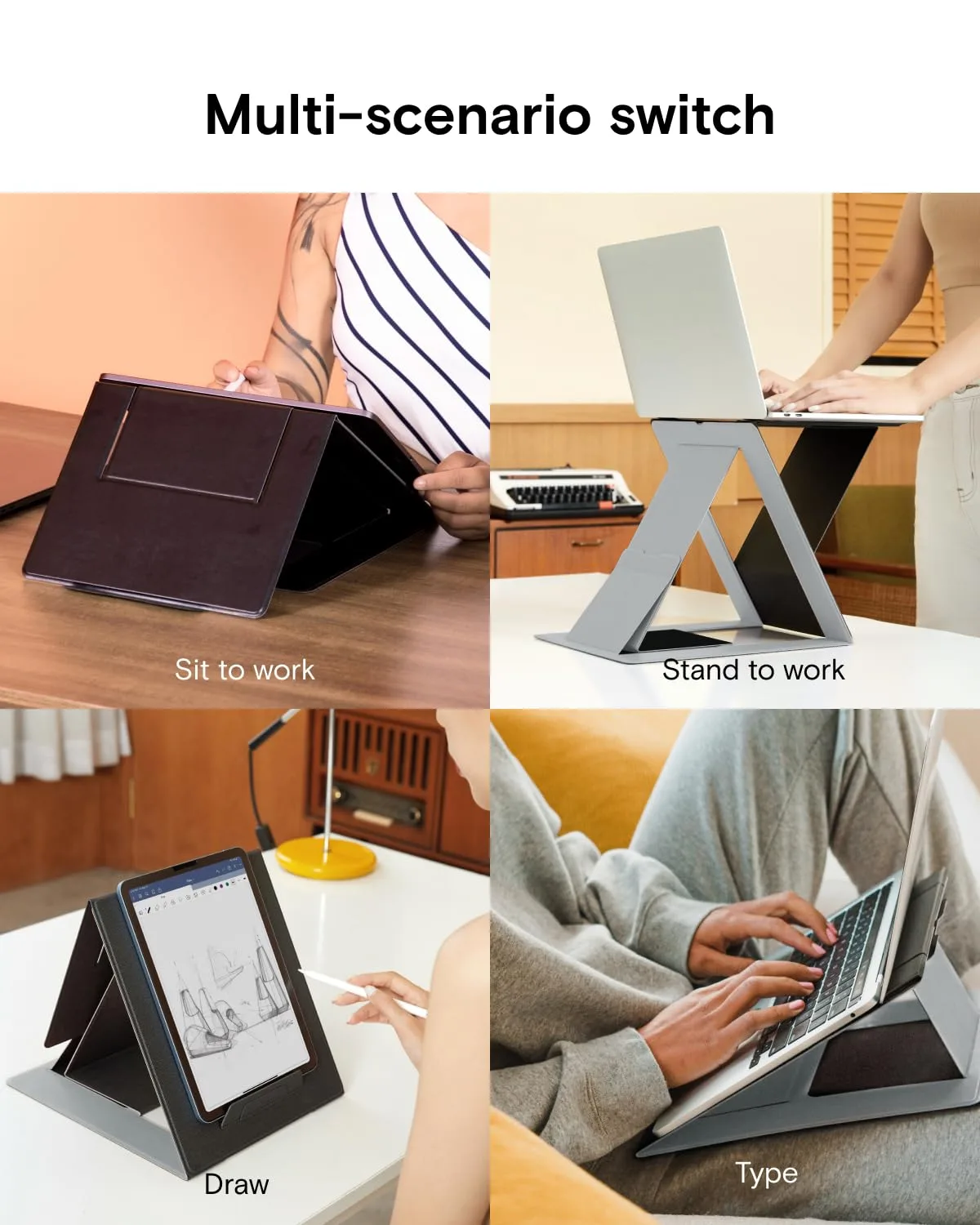
Image source: Bing (Web (fair-use with source credit))
Expert Tips for Integrating Your Tech Before the First Bell
Arrive at your classroom at least five minutes before the lecture begins. This provides the necessary buffer to calibrate your stand height and position your wireless peripherals. Ensure your external keyboard is connected to your laptop before you start the lecture.
Test your webcam angle while standing at the podium. If your laptop camera sits too low, adjust the rear hinge of the stand to tilt the screen slightly forward. This helps keep your face centered for students joining the class via remote video links.
Verify that all cables are tucked neatly behind the stand. Loose cables are trip hazards and often get snagged on other podium equipment. A clean, organized cable path reduces the risk of knocking your laptop over during an active presentation.
Safety and Stability Best Practices
Always position your stand away from the podium edge. Even a heavy-duty stand can tip if placed too close to a drop-off, especially if the podium surface is narrow. Ensure the stand base is centered on the flat area of the desk.
Follow the manufacturer’s load-bearing limits strictly. If your laptop is heavier than the stand’s rating, the hinges will gradually lose their grip. This creates a safety risk where the laptop might collapse suddenly while you are actively typing.
Check for any sharp edges or exposed metal points on the stand's base. Some budget-friendly metal stands have unfinished edges that can scratch the finish of a wooden podium. Apply small adhesive felt pads to the bottom of your stand if you notice any rough or abrasive surfaces.
Maintenance and Long-Term Optimization
A laptop stand is a simple mechanical tool, but it requires basic care to remain effective. Over time, the tension in the hinges may loosen due to the weight of your device. Many stands include a small hex key to tighten these joints.
Make it a habit to check the tightness of your hinges once every semester. If you notice the stand drifting or sinking under the weight of your laptop, tighten each hinge slightly. Do not over-tighten, as this can wear out the internal gaskets over time.
Clean the rubber grip pads regularly to maintain their effectiveness. Dust, lint, and classroom debris can build up on these pads and make them lose their friction. A quick wipe with a damp cloth keeps them tacky and prevents your laptop from shifting mid-lecture.
Real Scenarios: Dealing with Shared Teaching Spaces
Teaching in shared rooms means you rarely have a permanent desk. You need to account for varying podium heights and chair styles. If you find a podium is too tall for your seated position, you may need a stand that offers a lower starting height to avoid craning your neck upward.
Some instructors carry a small, portable seat cushion to normalize their own height in different rooms. This ensures that your screen remains at the same relative eye level regardless of the podium. Consistency in your visual alignment is key to reducing fatigue across a long teaching day.
Be prepared for limited connectivity options in older buildings. Bring a long, braided USB extension cable if the podium’s power outlet is far from your setup. A 6-foot cable provides enough slack to navigate around bulky podium hardware or fixed document cameras.
Troubleshooting Common Setup Issues
What if your stand is perfectly positioned but still feels unstable? The problem is often the surface itself, not the equipment. Many podiums are made of hollow plastic or light wood that resonates and amplifies vibrations.
Try placing a thin mousepad or a piece of felt beneath the entire stand. This absorbs the energy from your typing and prevents the screen from bouncing. If you are typing heavily, switch your technique to a lighter touch to reduce the transmission of mechanical force.
Check for wobble by pressing lightly on one corner of your laptop. If it tilts, the issue is uneven feet. Most modern stands allow for micro-adjustments or have enough flexibility in the frame to account for slightly warped surfaces.
Optimizing for Different Laptop Sizes
Not all laptops respond the same way to a stand. A small 13-inch laptop is easy to manage, but a larger 16-inch model has a different weight distribution. Ensure your stand has a wider base if you use a larger machine to prevent tipping.
Check the depth of the lip or hook at the front of your stand. Some stands have a shallow lip that cannot secure a thick, ruggedized laptop or one with a protective case. If you use a heavy-duty case, look for a stand with a deeper ledge to keep the device from falling off.
If you rotate between multiple laptops, such as a school-issued device and a personal machine, verify the hinge weight limits again. A stand rated for 5 pounds is usually sufficient for most modern ultrabooks. If you use an older, heavier workstation-grade laptop, look for industrial-grade aluminum models.
Final Verdict: Which Stand Fits Your Professional Life
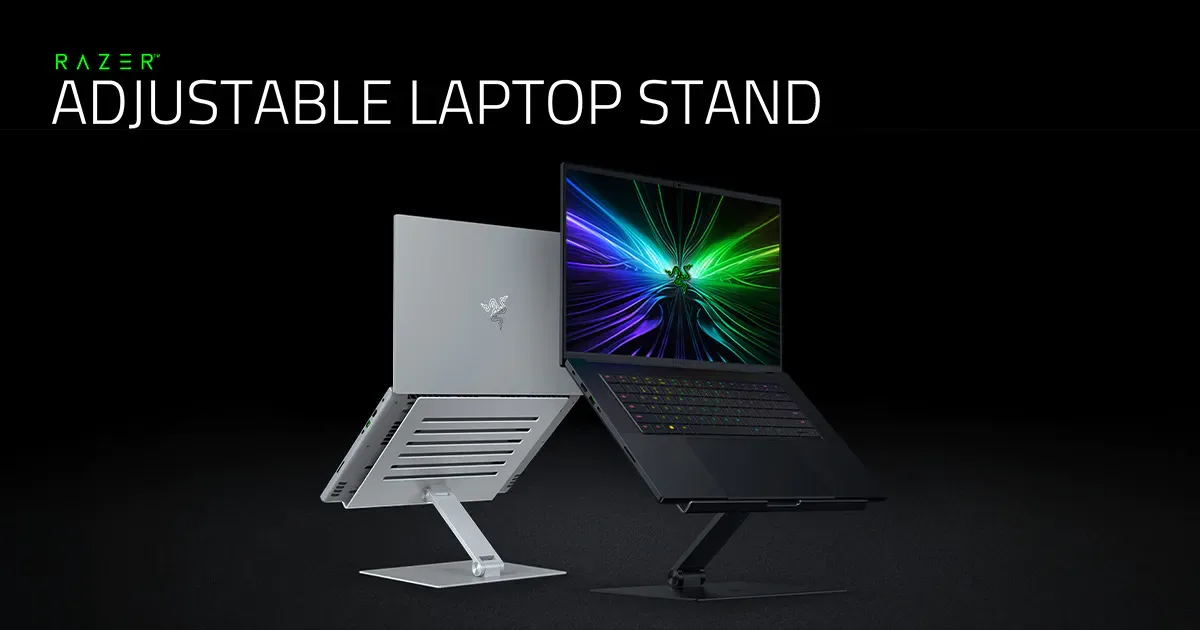
The best stand for your daily routine depends entirely on your mobility needs. If you stay in one classroom, select a rigid, stationary riser that prioritizes height and viewing angle over weight. These options are typically more stable and provide a better typing surface.
If you are a traveling teacher, choose the lightest Z-shaped model you can find. The minor sacrifice in rock-solid stability is worth the massive gain in daily comfort. It’s better to have a slightly bouncy stand than to have no stand at all because the heavier one was left at home.
Focus on hinges that feel tight and secure. Your stand should hold its position firmly without needing constant readjustments. When combined with a reliable external keyboard, this simple setup creates an ergonomic sanctuary that protects your neck and back for years.
Frequently Asked Questions
Do I need an expensive stand for a classroom podium?
You do not need a premium, high-cost stand to achieve good ergonomics. Most effective laptop stands are made from simple, durable aluminum. Look for consistent build quality, tight hinges, and non-slip pads rather than expensive brand names.
How do I stop my laptop from sliding on a slick podium?
Use a stand with high-quality silicone or rubber feet on the bottom to increase friction. If your podium is still slick, use a thin, non-slip shelf liner under the stand. This creates a secure base that prevents movement even on smooth metal surfaces.
Can a laptop stand help with hybrid teaching?
Yes, it aligns the laptop webcam with your eye level to improve remote student engagement. This removes the awkward, low-angle perspective that makes remote participants feel disconnected. Better eye contact helps you appear more natural and attentive on camera.
How heavy should my laptop stand be?
Aim for a weight between 0.5 and 1.5 pounds for maximum portability. This is the sweet spot for stands that offer sufficient stability without becoming a burden to carry. Anything significantly heavier is usually unnecessary for standard laptop use in a classroom.
Should I choose a stand with a built-in cooling fan?
Avoid cooling fans, as they are rarely necessary for lecture-based software. They add weight, require extra power, and introduce more cables to your setup. The open design of a standard metal stand provides plenty of passive cooling for your device.

Similar Posts