How to Position a Laptop Stand Next to Your Ultrawide
Senior Hardware Diagnostics Specialist & Lead Thermal Editor at Laptop Post Testing Lab · CompTIA A+, ACMT, B.S. in Computer Engineering · 12+ years bench-testing laptop thermal solutions & motherboard repairs
Finding the right desk configuration is a common hurdle when upgrading to an ultrawide display. Knowing how to position laptop stand next to ultrawide 34 inch monitor is key to keeping your workspace both functional and comfortable for long hours.
A well-planned setup reduces neck strain and minimizes unnecessary eye movement during your workday. Current ergonomic standards, as defined by OSHA, emphasize maintaining a neutral body posture to prevent musculoskeletal disorders in office environments.
Quick Answer
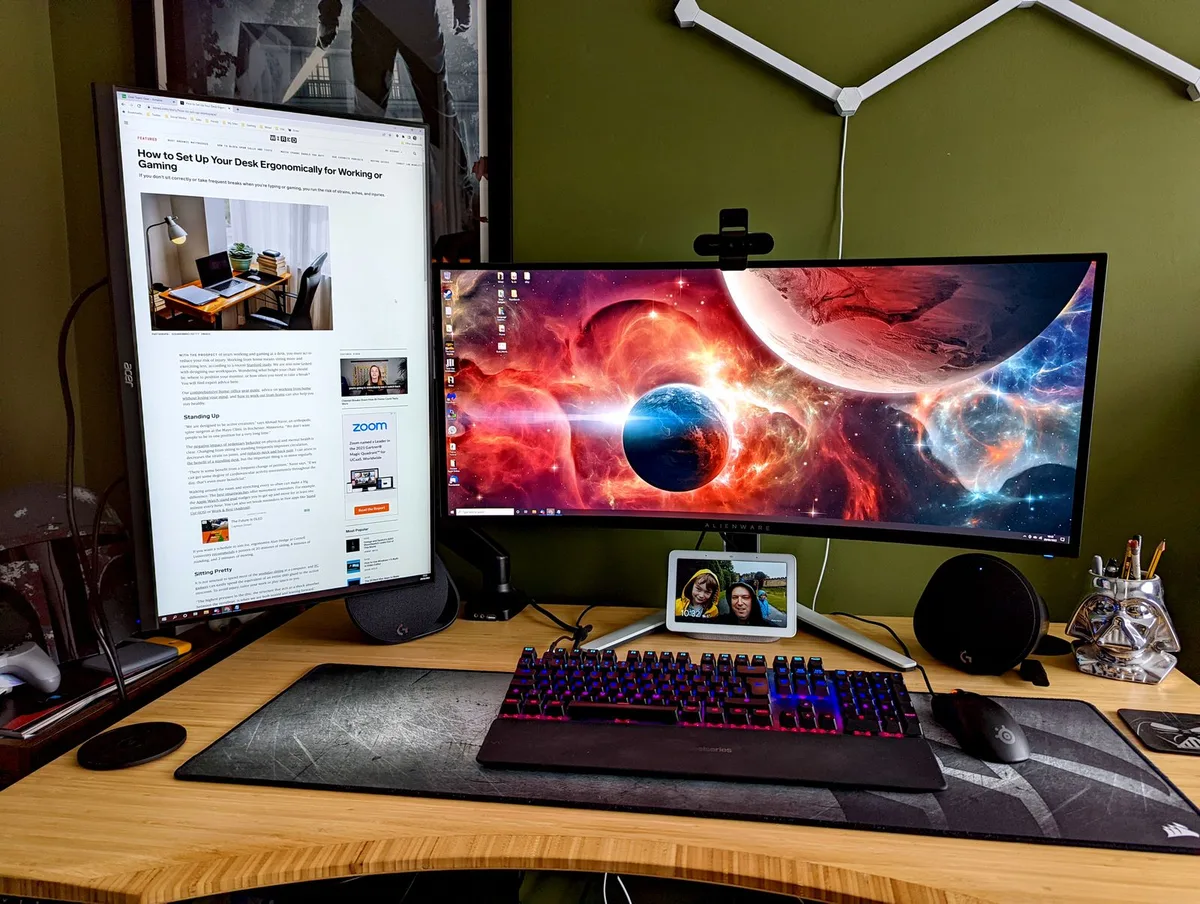
Place your laptop stand to the side of your ultrawide monitor. Align the bottom edges for easier horizontal eye movement. Use an external keyboard for a better posture.
Keep both screens at an arm's reach distance. This setup reduces neck rotation and eye strain significantly.
The Ergonomic Challenge of Your 34-Inch Ultrawide Setup
Transitioning to a 34-inch ultrawide screen changes your desk dynamics entirely. Because these monitors are significantly wider than standard displays, they take up the majority of your primary viewing area. Trying to include a laptop screen requires careful planning to ensure you aren't constantly twisting your neck.
Research suggests that horizontal neck rotation should be kept to a minimum to avoid fatigue. If you place the laptop too far to the side, you create an asymmetric posture. This often leads to shoulder tension after just a few hours of work.
Why Your Current Laptop Position is Likely Causing Neck Strain
Many users place their laptop directly on the desk surface next to their monitor. This forces you to look down and to the side simultaneously. Your neck muscles work hard to hold your head in this tilted, rotated position.
Persistent awkward postures are a leading cause of work-related discomfort. When your laptop screen is lower than your main monitor, your eyes must refocus and adjust to different heights constantly. This is a common trigger for both visual and physical fatigue.
Understanding Your Field of View with Curved Displays
Most 34-inch ultrawide monitors feature a curved panel to match the natural arc of your eyes. This design helps keep the edges of the screen within your peripheral vision. When you add a secondary laptop screen, it disrupts this continuous field of view.
You want the laptop screen to sit just outside the monitor's curve without forcing a sharp turn. If you push the laptop too far back, you lose the ability to read small text. If you pull it too far forward, it blocks your access to the edge of the ultrawide display.
Step-by-Step: Aligning the Laptop Stand for Natural Sightlines
To find the ideal position, start by placing your ultrawide monitor in your preferred spot. Clear your desk surface of any items that might block your line of sight.
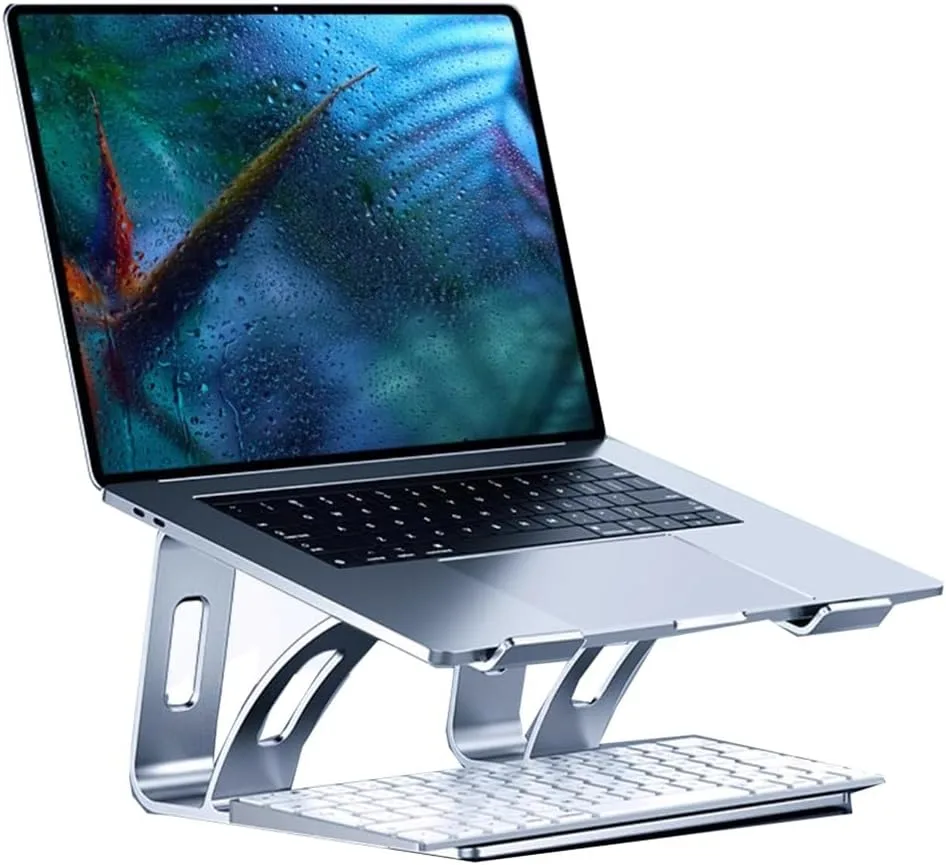
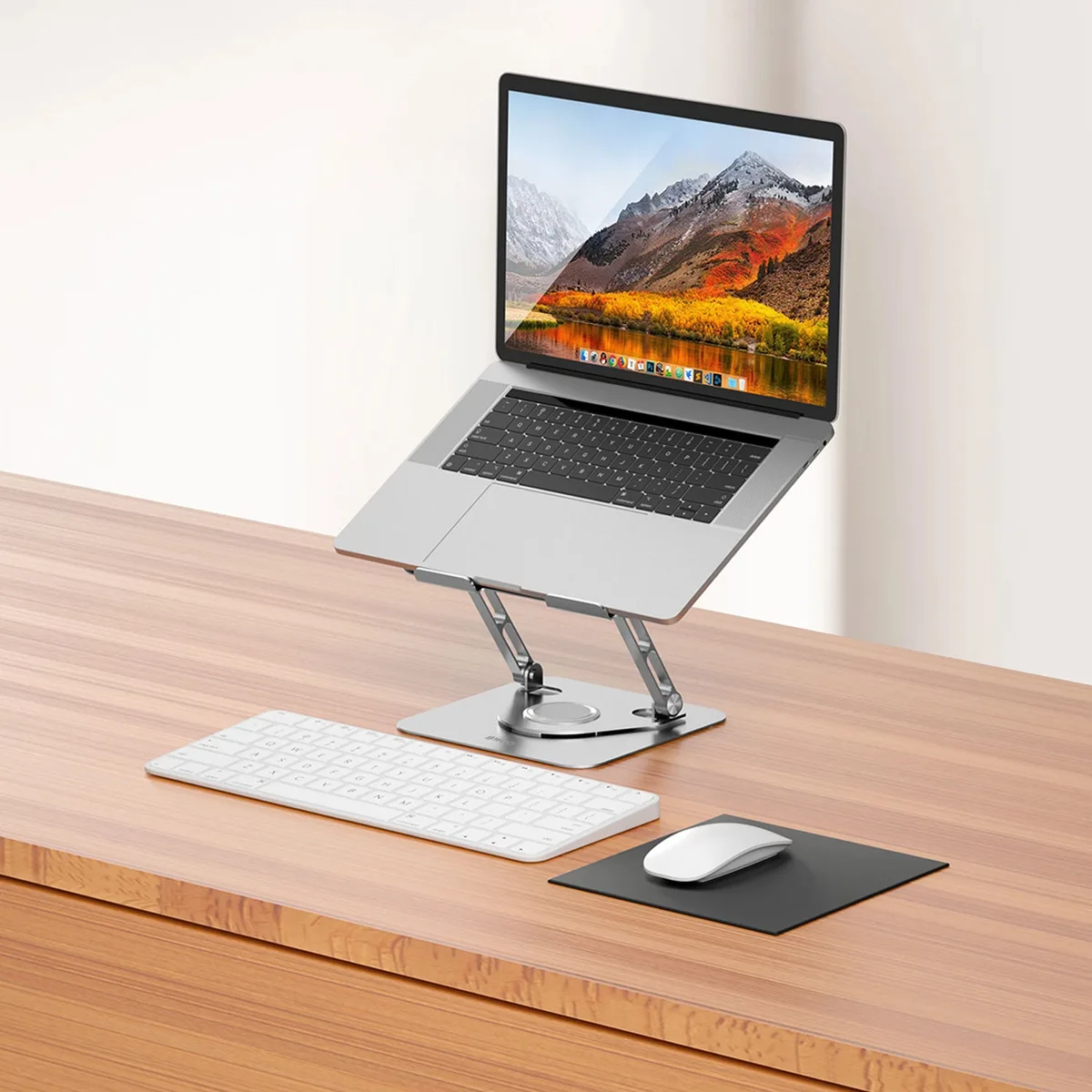
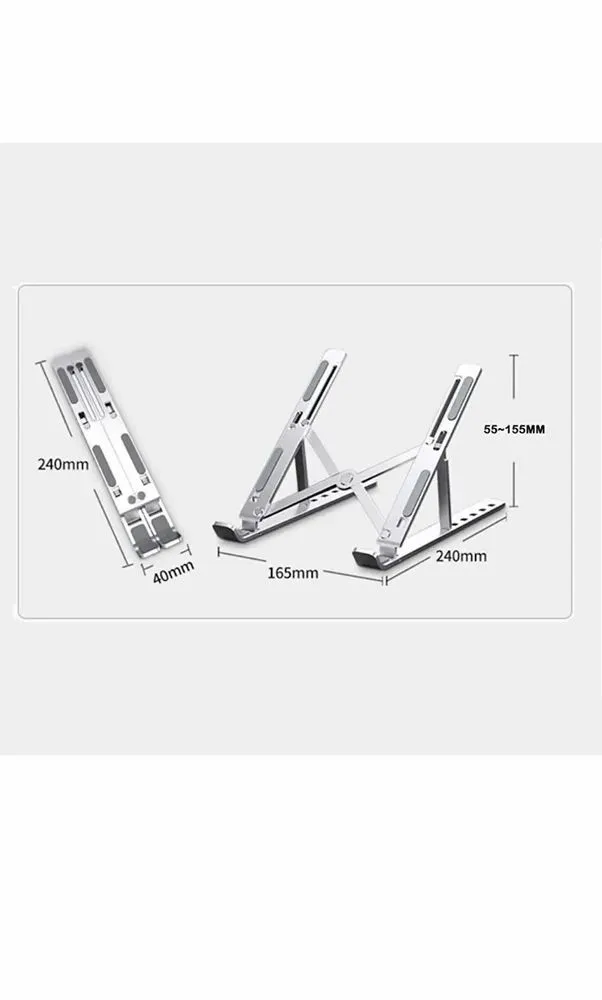
- Position your laptop stand to the left or right, depending on your dominant eye.
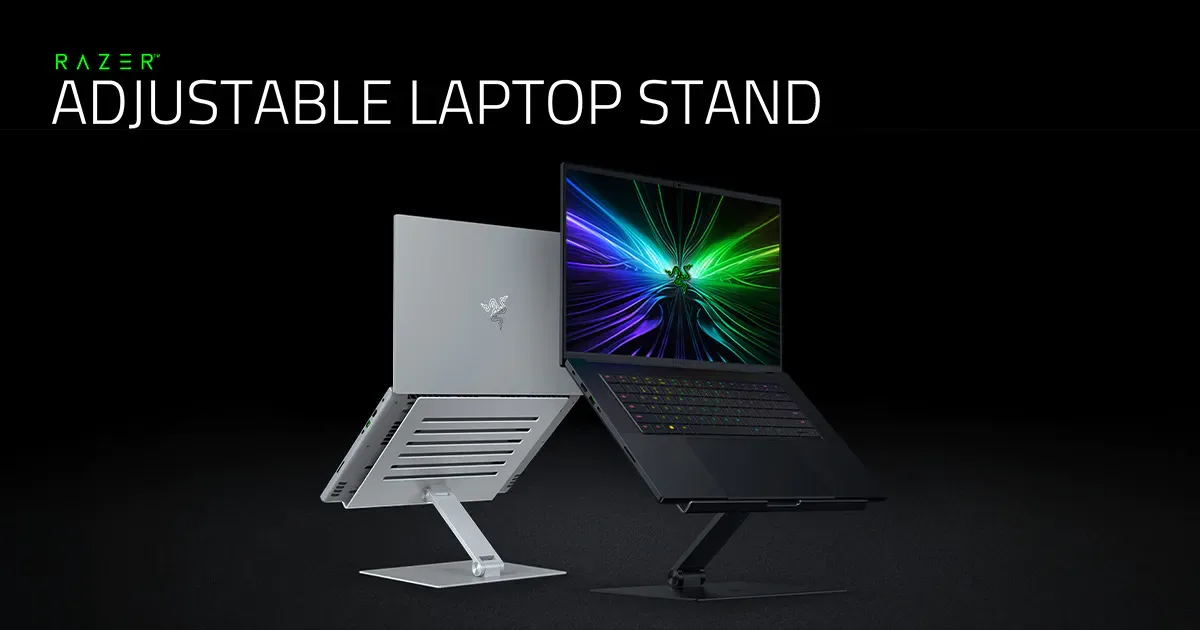
- Adjust the stand height until the top of the laptop screen is level with your ultrawide monitor.
- Angle the laptop stand toward the center of your chair to follow your natural gaze.
- Test the height by sitting straight and looking at both screens without moving your head.
- Fine-tune the distance so both screens feel equally accessible.
| Setup Component | Recommended Adjustment |
|---|---|
| Laptop Height | Bottom edge flush with monitor |
| Viewing Distance | One arm's length (20-30 inches) |
| Screen Tilt | 15-20 degrees toward user |
| Keyboard | External and centered on desk |
Comparing Setup Styles: Side-by-Side vs. Vertical Stacking
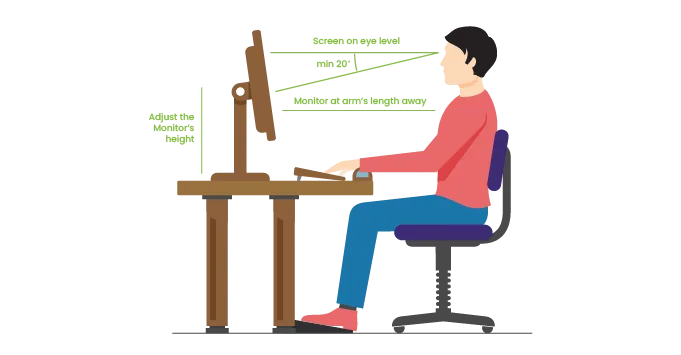
Choosing between side-by-side and vertical stacking depends on your available desk space. Side-by-side is best for users who frequently move windows between screens. It mimics a wide, continuous workspace, though it requires a very wide desk surface.
Vertical stacking places the laptop below the monitor on a specialized riser or shelf. This is the preferred method for smaller desks or those who want to keep their neck centered at all times. It forces you to look down, but keeps your head movement strictly vertical, which some find more comfortable.
Essential Ergonomic Metrics: The Top-Third Rule and Viewing Distance
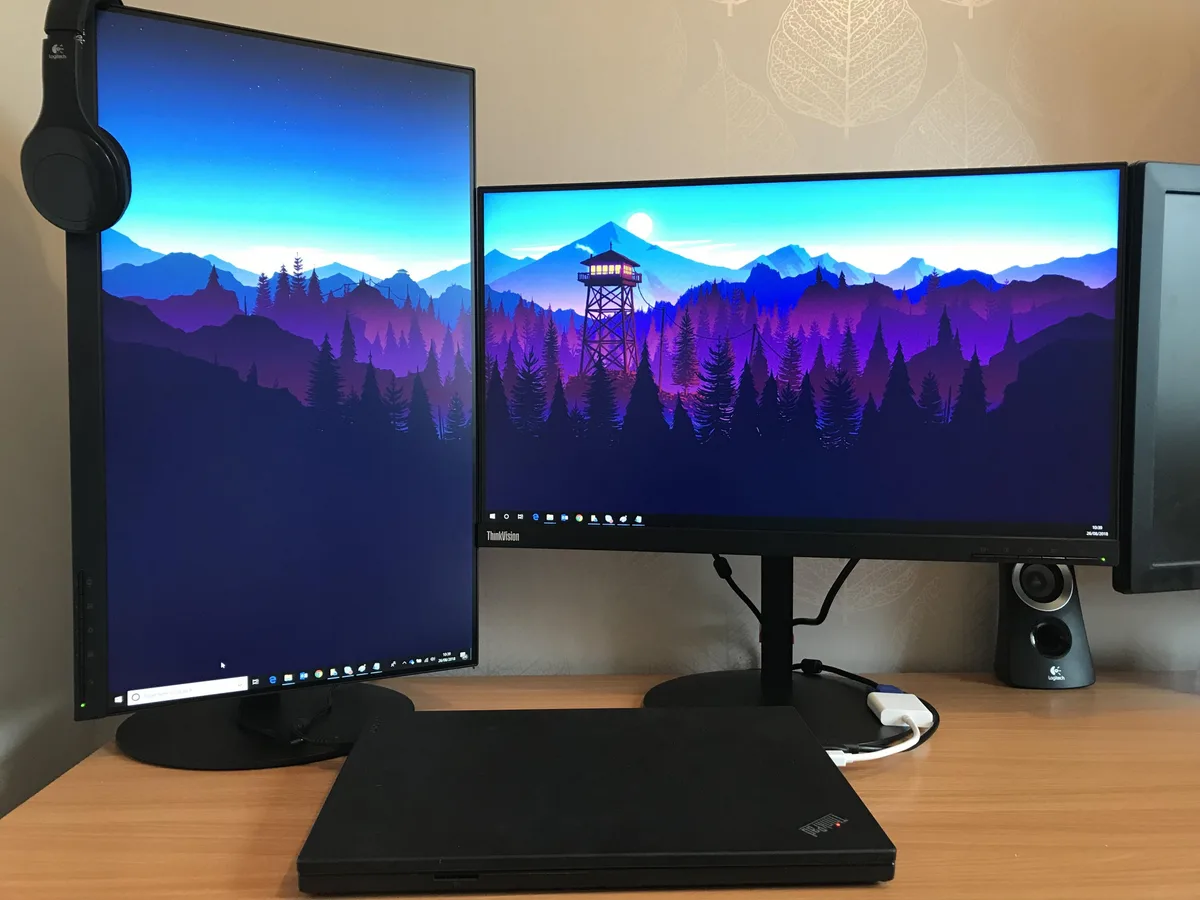
The top-third rule is a gold standard for monitor placement. It states that the top third of your display should sit exactly at your eye level. This prevents your chin from jutting forward and keeps your neck in a neutral alignment.
Distance matters as much as height. Aim for an arm's reach between your eyes and the screens, typically 20 to 30 inches. ISO 9241 provides international standards for human-system interaction, recommending that equipment be positioned to avoid glare and neck strain.
When to Abandon the Laptop Screen as a Secondary Display
Sometimes, adding a laptop screen to an ultrawide is simply not worth the desk clutter. If you rarely use the laptop screen for active work, consider using it only for status monitoring or music playback. You might find that hiding the laptop under the desk with a docking station provides more room for your peripherals.
If your ultrawide monitor has enough real estate to split into two virtual windows, do that instead. Software-based window management allows you to work in two apps side-by-side without needing a second physical display. This creates a cleaner, more focused, and ultimately more ergonomic environment.
Common Mistakes That Ruin Your Desk Workflow
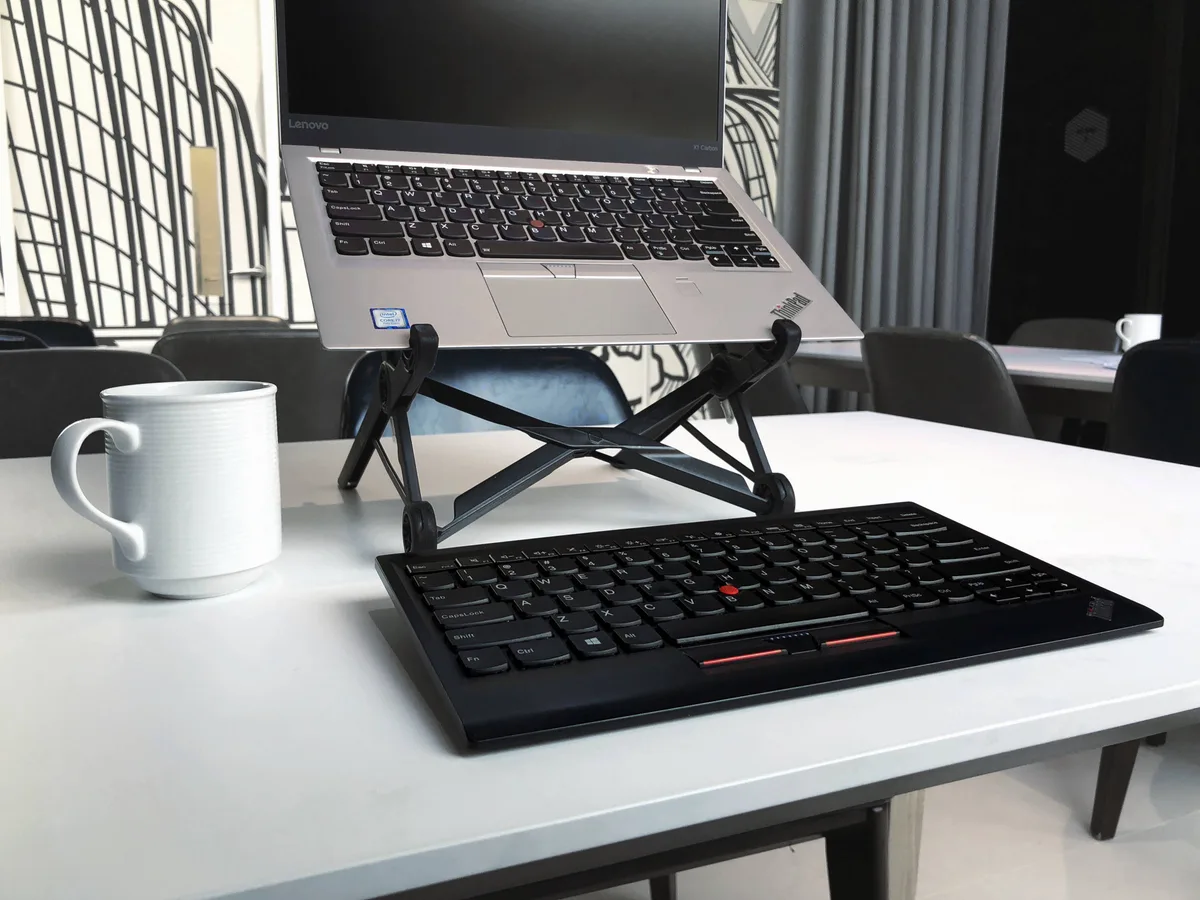
One frequent mistake is using the laptop keyboard while it sits on a stand. This forces your shoulders into an unnatural, raised position that causes rapid tension. Always use an external keyboard and mouse to keep your hands at desk level.
Another error is ignoring cable clutter. A mess of tangled cords creates a visual distraction that makes your desk feel smaller than it is. Proper management turns a chaotic workspace into a professional-grade station.
Pro-Tips for Managing Cables and Desk Footprint
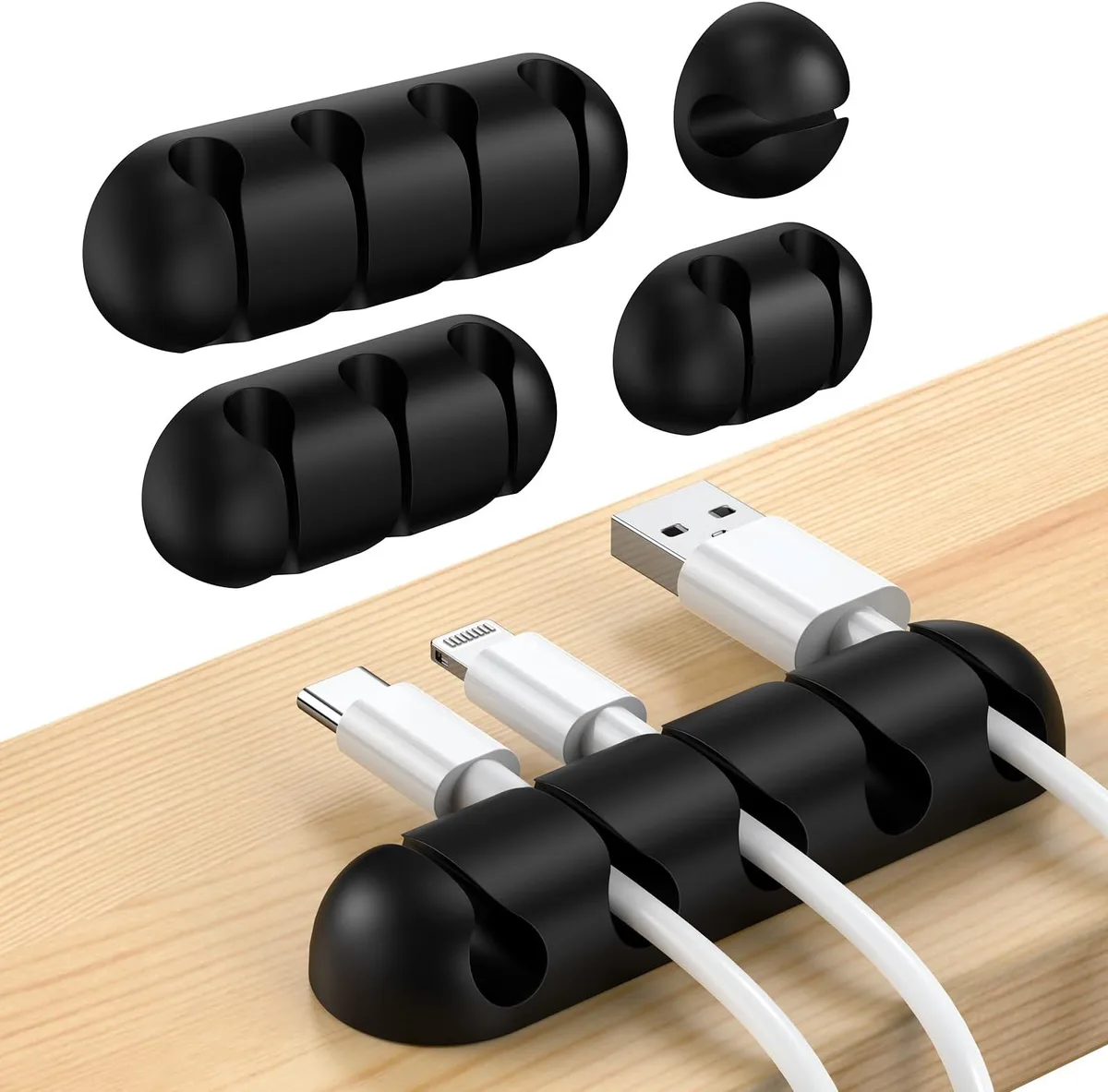
Use cable sleeves or under-desk clips to bundle your power and video lines together. This prevents cords from draping across your workspace or tangling with your mouse wire. A clean desk surface improves your focus and allows you to move your laptop stand freely.
Consider a multi-port docking station to reduce the number of cables connected to your laptop. A single connection handles your display, power, and peripherals. This makes it easy to remove your laptop when you need to leave the desk, keeping your setup modular and simple.
Maintaining Your Posture During Long Work Sessions
Change your position periodically throughout the day. Even with an ideal setup, static posture is tiring. Stretch your neck, back, and shoulders every hour to ensure you aren't locking into one position.
Check your chair height and lumbar support to ensure your feet remain flat on the floor. If you've been working for several hours, take a short break to look at objects in the distance. This resets your eye focus and prevents the visual strain associated with digital work.
Frequently Asked Questions
Can I use a monitor arm for my laptop?
Yes, many users prefer a laptop tray that attaches to a standard VESA monitor arm. This frees up significant space under the laptop and allows for infinite height and tilt adjustments. It is the most flexible way to position a laptop alongside a large ultrawide display.
Does the screen curvature affect my laptop placement?
It does. Because the monitor is curved, the edges are closer to you than the center. Place your laptop stand slightly forward to match the curve's arc.
This keeps both screens at a consistent distance from your eyes, making it easier to switch your gaze between them.
What is the best way to handle multiple displays?
Use your ultrawide monitor as your primary screen for main tasks. Use the laptop screen for secondary, static content like email or reference documents. Arrange your windows in your operating system settings so that the cursor moves naturally from the center of the ultrawide to the side screen.
How do I stop neck pain from two monitors?
Neck pain usually happens when one screen is too far to the side or at the wrong height. Bring the secondary screen closer to the main display and ensure they are at the same vertical height. Use an external keyboard to keep your hands and shoulders in a comfortable, neutral position.
Should I keep my laptop open or closed?
Keeping the laptop open allows you to use its screen as a second display. If you don't need the second screen, close the laptop and use a vertical stand to save space. A closed laptop takes up much less room and allows you to center your ultrawide monitor perfectly.

Similar Posts