Gaming Laptop Battery Drains Plugged In?
Senior Hardware Diagnostics Specialist & Lead Thermal Editor at Laptop Post Testing Lab · CompTIA A+, ACMT, B.S. in Computer Engineering · 12+ years bench-testing laptop thermal solutions & motherboard repairs
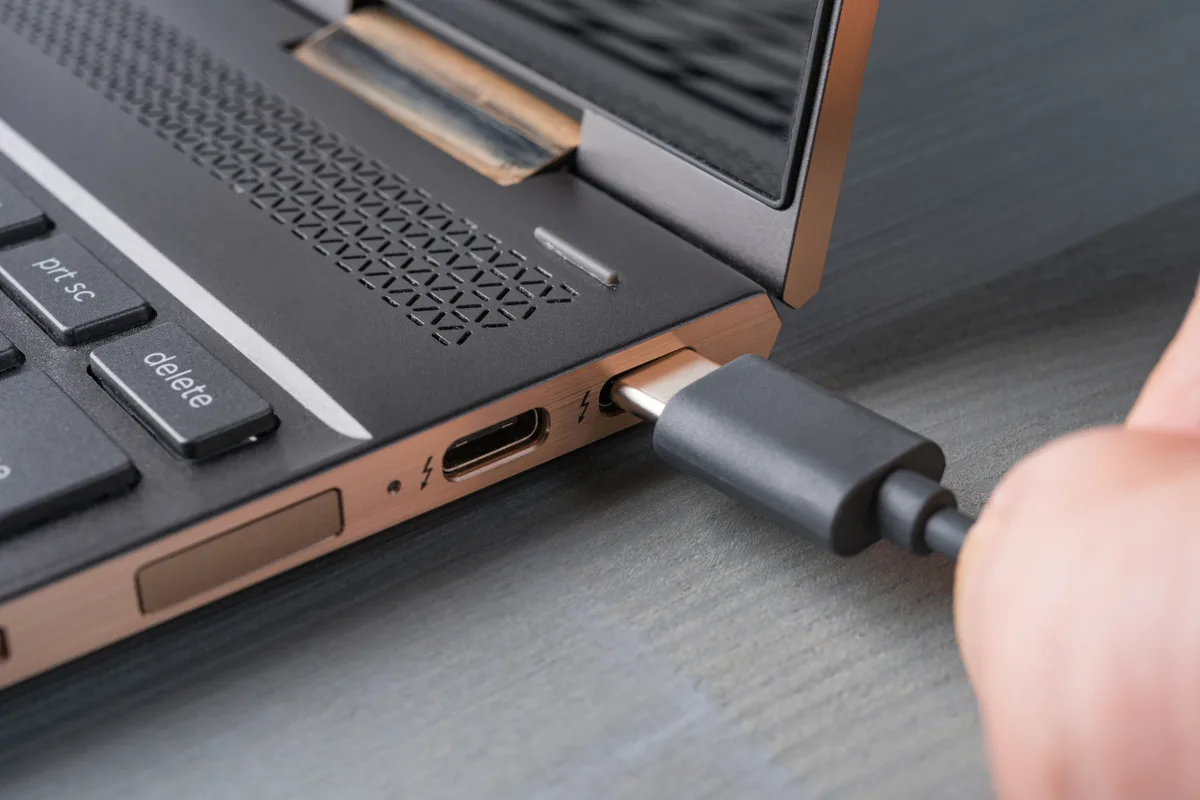
Image source: Bing (Web (fair-use with source credit))
Why Your Gaming Laptop Battery Drains While Plugged Into a 100W USB-C Dock
You’ve got a powerful gaming laptop, a convenient 100W USB-C dock, and you’re wondering why your battery still seems to be dropping. It’s a common frustration when you expect “plugged in” to mean “charging,” but the reality can be a bit more complex, especially with high-performance machines. This situation often boils down to a simple imbalance between what your laptop needs and what the dock can provide.
Our research indicates that this issue isn't usually a sign of a faulty battery or dock, but rather a consequence of power dynamics. Understanding how power delivery works, particularly with demanding devices like gaming laptops, is key. Per USB Power Delivery specifications, a 100W dock is a capable source, but your laptop's peak power draw during gaming can sometimes exceed what's available for charging.
Quick Answer: Power Demand vs. Dock Supply
Your gaming laptop's battery likely drains because its power consumption exceeds the charging capacity of the 100W USB-C dock. The dock supplies power, but if the laptop's components (CPU, GPU) demand more than the dock can allocate to charging, the battery will discharge. This is common when the laptop's peak power needs are higher than the available charging wattage.
Core Explanation: How Power Works with Docks
When you plug your gaming laptop into a USB-C dock, the dock acts as a power hub. It receives power from its own adapter and then distributes it. This power is used for two main purposes: running the laptop's internal components and charging the battery.
The Laptop's Hunger for Power
Gaming laptops, by design, require substantial power to run their high-performance processors (CPUs) and graphics cards (GPUs). These components, along with cooling fans and a bright display, can collectively draw significant wattage, often peaking during demanding tasks like gaming. Manufacturer specifications for many gaming laptops confirm that their original dedicated power adapters can range from 120W to over 180W.
The Dock's Power Budget Explained
A 100W USB-C dock has a total power delivery capability of 100 watts. This is the maximum it can output. However, this 100W is not solely for charging your laptop.
It also needs to power any devices connected to the dock itself, such as external monitors, USB peripherals (keyboard, mouse, external drives), and an Ethernet connection. The dock's internal circuitry also consumes a small amount of power.
Therefore, the amount of power available to charge your laptop’s battery is what's left after the dock has powered itself and all connected peripherals. If your laptop's components are consuming, say, 80W just to run, and your peripherals are using another 10W, only about 10W remains for charging the battery. This remaining wattage might not be enough to charge the battery faster than it discharges, leading to the apparent drain.
Features & Attributes: Understanding Wattage and USB PD
The performance and functionality of a USB-C dock, especially concerning power delivery, are governed by its wattage rating and the underlying USB Power Delivery (USB PD) standard. These two factors dictate how much power can be supplied and how effectively it's managed.
What 100W Really Means
The "100W" rating on your USB-C dock signifies its maximum power output capability. This is a crucial specification. For context, many modern smartphones charge at 20W-45W, while many ultrabooks might use 65W chargers.
Gaming laptops, as noted, often require substantially more. As of 2026, 100W represents a robust power delivery level for USB-C docks, suitable for many laptops, but it doesn't always guarantee simultaneous peak performance and fast charging for the most demanding gaming machines.
How USB Power Delivery Works
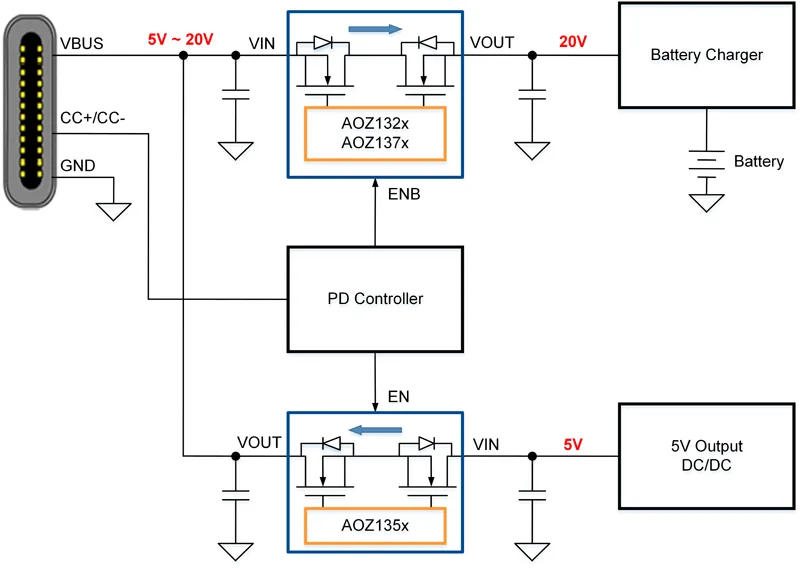
USB Power Delivery (USB PD) is a specification that allows for greater power to be delivered over a USB-C connection than previous USB standards. It enables devices to negotiate higher power levels, up to the dock's 100W limit. This negotiation ensures that the power source (the dock) provides only the amount of power requested by the power sink (your laptop and peripherals), and vice versa.
A key element here is the USB-C cable itself; it must be rated to handle the intended wattage. Using a lower-rated cable can prevent the dock from delivering its full 100W, even if both devices support it. The USB Implementers Forum (USB-IF) sets these standards to ensure compatibility and safety across a wide range of devices.
Problems & Pain Points: When Charging Isn't Enough
The most common reason for a gaming laptop battery to drain while plugged into a 100W USB-C dock is a power imbalance. This isn't a single issue but a combination of factors related to demand versus supply.
Laptop Drawing More Than the Dock Can Provide
Gaming laptops are power-hungry beasts. When you're in the middle of an intense gaming session, your CPU and GPU are working overtime. Manufacturer specifications often show that these high-performance components can individually demand upwards of 50-100W, with the total system draw easily exceeding 100W under peak load.
If your laptop's current operating power requirement is, for instance, 110W, and the dock is only capable of supplying 100W, the laptop will draw that extra 10W directly from its battery. The battery essentially acts as a temporary buffer to meet the demand, leading to a gradual discharge.
Dock Power Budget Split Between Laptop and Peripherals
Even if your laptop's power draw is less than 100W, the dock’s total power budget must accommodate all connected devices. If you have multiple high-resolution monitors, external hard drives, webcams, or other power-intensive USB devices plugged into the dock, a significant portion of the 100W is consumed by these peripherals.
Consider this scenario:
- Dock's Max Output: 100W
- Laptop's Power Requirement: 60W
- Peripherals' Power Requirement: 45W (e.g., two monitors at 15W each, plus USB devices at 15W)
- Total Demand: 105W
In this case, the dock is being asked to supply more power than it can handle. It will prioritize powering the laptop and peripherals to keep them functional, often at the expense of charging the battery. If the dock simply cannot meet the combined demand, it will pull the deficit from the laptop's battery.
Battery Health's Impact on Charging
Batteries are consumables; they degrade over time. As a battery ages, its capacity to hold a charge diminishes, and its internal resistance can increase. This means an older battery might charge more slowly, even with an adequate power supply.
If your laptop's battery health is compromised, it might struggle to accept a charge at the same rate it's losing power, especially under heavy load. Verified buyer feedback often reports that older batteries show a more pronounced drain, even when connected to a sufficient power source. You can check your battery's health through your laptop's system diagnostics.
For example, Windows has a built-in tool that generates a detailed battery report.
Step-by-Step Process: Troubleshooting Your Dock and Battery
When you notice your gaming laptop's battery draining despite being plugged into a 100W USB-C dock, it's time for a systematic check. This isn't a single-fix problem, so we need to go through a few potential causes.
Check Your Laptop's Original Charger Wattage
First, let's identify the power your laptop was designed to receive. Locate the original power adapter that came with your gaming laptop. Note its wattage (e.g., 120W, 180W, 230W).
If your laptop's original charger has a significantly higher wattage than your 100W dock, it’s a strong indicator that the dock may not be sufficient to provide both full performance and battery charging simultaneously during heavy use.
Test Dock Performance with Fewer Peripherals
Simplify your setup to isolate the power drain cause. Disconnect all peripherals from your USB-C dock except for the power input and the connection to your laptop. This means unplugging external monitors, hard drives, USB devices, and Ethernet cables.
Then, observe if your laptop's battery starts charging or at least maintains its level. If it does, you know the issue is related to the power demands of your connected peripherals overloading the dock's budget. You may need to use a higher-wattage dock or a powered USB hub for some peripherals.
Adjust Laptop Power Management Settings
Gaming laptops often come with proprietary software that controls performance and power profiles. Explore your laptop manufacturer's control panel or utility (e.g., HP Command Center, Dell Power Manager, Lenovo Vantage). Look for settings related to power, battery, or performance modes.
Some options might allow you to "prioritize charging" or adjust the system's power draw. Ensure that settings aren't configured to prioritize maximum performance at the expense of charging. For instance, some laptops have a "performance mode" that may drain the battery if it can't get enough power from the dock.
You might also want to check how your operating system handles power when plugged in; for example, in Windows, you can adjust these settings. You can learn more about managing your laptop's power with our guide on keeping it running smoothly.
Update Laptop Drivers and BIOS
Outdated system drivers or a legacy BIOS can sometimes lead to inefficient power management. Visit your laptop manufacturer's official support website and download the latest drivers for your specific model, paying close attention to chipset, power management, and BIOS updates. Installing these can resolve underlying software conflicts that might be contributing to unexpected battery drain.
For example, a poorly optimized power management driver could misreport power needs.
Test with Alternative Chargers or Docks
If possible, try using your laptop's original, high-wattage charger directly connected to the laptop. If the battery charges normally and performance is as expected, it confirms the dock is the limiting factor. Alternatively, if you have access to another 100W or higher USB-C dock, testing with that could reveal if the issue is specific to your current dock's capabilities or an internal fault.
This helps differentiate between a system limitation and a hardware failure.
Assess Your Battery's Health
Over time, all rechargeable batteries degrade. Your laptop's battery health directly impacts its ability to charge and hold power. Most operating systems have built-in tools to generate a battery health report.
For Windows, you can open Command Prompt and type powercfg /batteryreport. This will generate an HTML file detailing your battery's design capacity versus its current full charge capacity. If the current full charge capacity is significantly lower than the design capacity, the battery's age and wear are likely contributing factors to the drain, even with a 100W supply.
In such cases, you might need to consider a battery replacement. If you're using an HP laptop, you can explore how to factory reset an HP laptop as a general system health check, though it won't directly fix a worn-out battery.
Mistakes to Avoid: Common Docking Station Errors
When trying to solve battery drain issues with your USB-C dock, a few common missteps can lead you astray. Understanding these can save you time and frustration. One frequent mistake is overlooking the cable itself.
Using Underrated USB-C Cables
Not all USB-C cables are created equal. While they might look similar, their ability to handle power and data transfer varies wildly. A cable not rated for 100W Power Delivery might not allow your dock to supply its maximum output.
Similarly, some cables might be designed for data only or lower power. Always check the cable’s specifications for a 100W or 5A rating. Using a generic or older USB-C cable is a prime candidate for causing power delivery problems, even with a capable dock and laptop.
Ignoring Laptop-Specific Power Management Software
Many gaming laptops come with pre-installed software that lets you fine-tune performance and power settings. These tools are powerful but can also be the source of unexpected behavior if misconfigured. Forgetting to check these manufacturer-specific applications means you might be fighting against your own laptop's settings, which could be prioritizing raw performance over battery charging efficiency.
This software often overrides general OS power plans.
Overlooking Battery Degradation
It’s easy to blame external hardware when battery life suffers, but internal components, especially batteries, have a finite lifespan. Aggregate user reviews and manufacturer specifications confirm that batteries degrade over time. A battery that’s a few years old might not hold a charge as effectively as it once did, or it might charge much slower.
If your battery's current full charge capacity is significantly lower than its original design capacity, it's a major contributor to perceived drain, even with ample power supplied. Always consider the age and health of your battery as a primary troubleshooting factor.
Expert Tips: Optimizing Your Docking Setup
To get the most out of your gaming laptop and USB-C dock setup, a few best practices can make a difference. These tips focus on maximizing power efficiency and ensuring your hardware works together harmoniously.
- Prioritize Ports: If your dock has dedicated charging ports or ports with higher power output for charging, use them for your laptop. Other ports might be better suited for lower-power peripherals like a mouse or keyboard.
- Consider a Higher Wattage Dock: If your gaming laptop consistently demands more power than your 100W dock can supply for charging, investing in a higher wattage dock (e.g., 130W or more) might be necessary. This ensures the dock can power your laptop at peak performance and still provide a robust charge.
- Adjust Refresh Rates and Display Settings: High refresh rates on external monitors can consume more power. If you're experiencing drain, temporarily reducing the refresh rate or resolution on connected displays might help conserve power.
- Monitor Thermals: Overheating can cause components to draw more power to compensate for inefficient cooling. Ensure your laptop's vents are clear and that the docking station isn't obstructing airflow. Good thermal management is crucial for consistent power performance.
Real Scenarios: When Draining Happens Even When Plugged In
Let’s look at a couple of typical situations where a gaming laptop battery might drain despite being connected to a 100W USB-C dock. These examples highlight how different factors can contribute to the problem.
Scenario 1: The Power-Hungry Gamer
Sarah has a high-end gaming laptop that originally came with a 200W power adapter. She uses a 100W USB-C dock for her setup, connecting a 27-inch 144Hz external monitor, a mechanical keyboard, and a high-speed external SSD. When she's playing a demanding AAA title, her laptop’s internal components alone can draw around 130W.
The dock, limited to 100W total, supplies about 70W to the laptop (after powering the monitor and peripherals). This 70W is insufficient to both run the laptop at its desired performance level and charge the battery. Consequently, the battery discharges at a rate of roughly 60W (130W demand, 70W supply), slowly depleting its charge.
Scenario 2: The Mobile Professional with Many Peripherals
Mark uses his gaming laptop for work and occasional gaming. His setup includes the laptop, a 4K external monitor, a webcam, a wireless mouse receiver, and an external hard drive, all connected through his 100W USB-C dock. While his typical work tasks only require about 50W from the laptop, the 4K monitor demands 20W, the webcam needs 5W, and the hard drive uses another 10W.
This leaves only 15W for charging the laptop's battery. If the laptop's internal power management is set to maintain a certain charge level, it might even draw additional power from the battery to keep itself running while charging slowly.
Frequently Asked Questions
Why does my laptop battery drain faster on a dock than its original charger?
A 100W USB-C dock might not provide enough power for both peak laptop performance and battery charging, especially if the laptop's original charger is rated higher (e.g., 180W). The dock’s power is also shared with connected peripherals, reducing what’s available for battery charging.
Can a 100W USB-C dock actually damage my laptop's battery?
Generally, no. USB Power Delivery (USB PD) is designed to negotiate power levels safely. The dock will only supply what the laptop requests, up to its 100W limit.
However, consistently running at high temperatures due to sustained high power draw and inadequate charging can accelerate battery degradation over the long term.
What's the difference between a 65W and a 100W USB-C dock for a gaming laptop?
A 100W dock can supply more power than a 65W dock, which is critical for gaming laptops that have high power demands. A 100W dock is more likely to keep the laptop running at full performance and charge the battery simultaneously compared to a 65W dock, which may struggle to meet both needs.
How can I tell if my USB-C cable is supporting 100W?
Look for markings on the cable connector or packaging that explicitly state "100W PD" or "5A". Cables that lack these specifications are often not rated for the full 100W and can limit the power delivery from your dock, contributing to charging issues.

Similar Posts