How Often Should You Adjust Your Laptop Stand for
Senior Hardware Diagnostics Specialist & Lead Thermal Editor at Laptop Post Testing Lab · CompTIA A+, ACMT, B.S. in Computer Engineering · 12+ years bench-testing laptop thermal solutions & motherboard repairs
Finding the right balance for your setup is key to comfort during long workdays. Many people wonder how often should you adjust laptop stand height throughout the day to avoid physical strain.
You do not need a rigid schedule or a timer to manage your posture. Instead, focus on fluid movement and task-based adjustments to maintain ergonomic health.
Quick Answer
Adjust your laptop stand whenever you switch tasks. Change it if you feel neck or shoulder tension. Aim for at least one adjustment every two hours.
Shift your posture to avoid static muscle load. Listen to your body for signs of fatigue.
The Reality of Posture: Why Static Settings Fail
Your body is designed for motion, not for holding a single position for eight hours. When you lock your laptop stand into one height, your muscles stay under constant, static pressure. This is known as static muscle load, and it often leads to soreness by the end of the day.
Most people assume that perfect posture is a fixed state. In reality, the best posture is your next position. As of 2026, research into workspace ergonomics suggests that regular, small shifts in physical alignment significantly lower the risk of musculoskeletal fatigue.
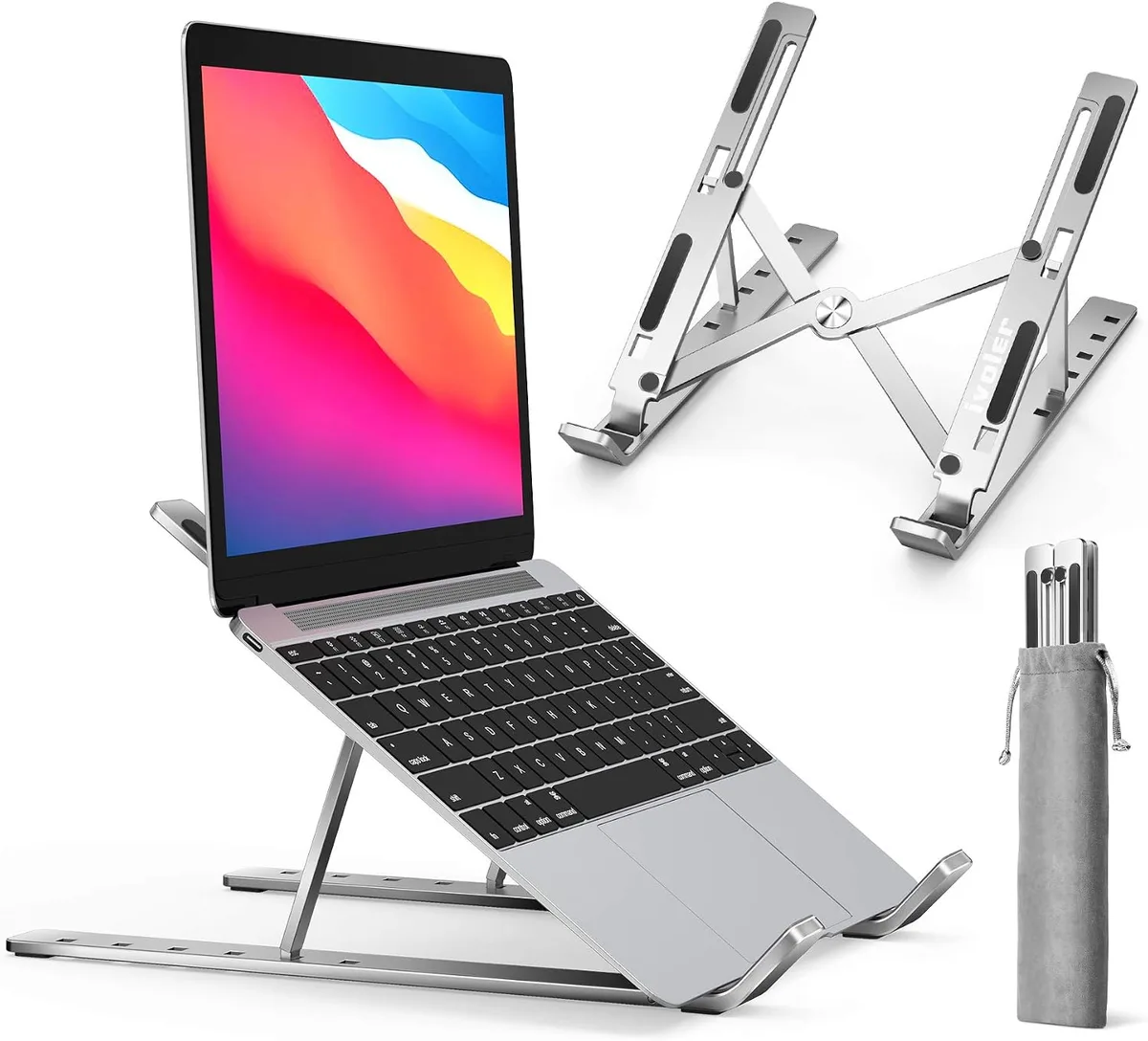
Image source: Bing (Web (fair-use with source credit))
Quick Insight: The Task-Switch Rule for Laptop Stands
The most effective way to manage your stand height is to link it to your actual work flow. You are likely moving through different types of tasks throughout the day. Your physical requirements for these tasks vary.
Use your work rhythm as a guide for movement. If you are starting a high-focus typing project, you need a different screen height than when you are scanning research papers or attending a virtual meeting. This approach turns your workstation into a dynamic environment rather than a static trap.
Why Your Body Needs Periodic Adjustment
Muscles become fatigued when they remain in a contracted state for too long. By adjusting your laptop stand, you force your body to engage different muscle groups. This prevents the buildup of tension in your trapezius and neck.
Small, frequent adjustments encourage better blood flow. It also reminds you to check your sitting stance. If you leave the screen in one spot, you tend to slowly melt into a slump.
A quick adjustment acts as a physical reset for your core and spine.
Identifying the Signs of Ergonomic Fatigue
Your body will give you clear warning signs when it needs a change in your desk setup. You should pay attention to these cues rather than checking a clock. Ignoring them leads to repetitive strain over time.
- Forward Head Projection: You are leaning your chin toward the screen to see better.
- Shoulder Shrugging: Your shoulders are creeping up toward your ears while you type.
- Eye Strain: You find yourself squinting or tilting your head to focus on small text.
- General Stiffness: You feel a dull ache in your upper back or neck area.
Assessing Your Current Workspace Calibration
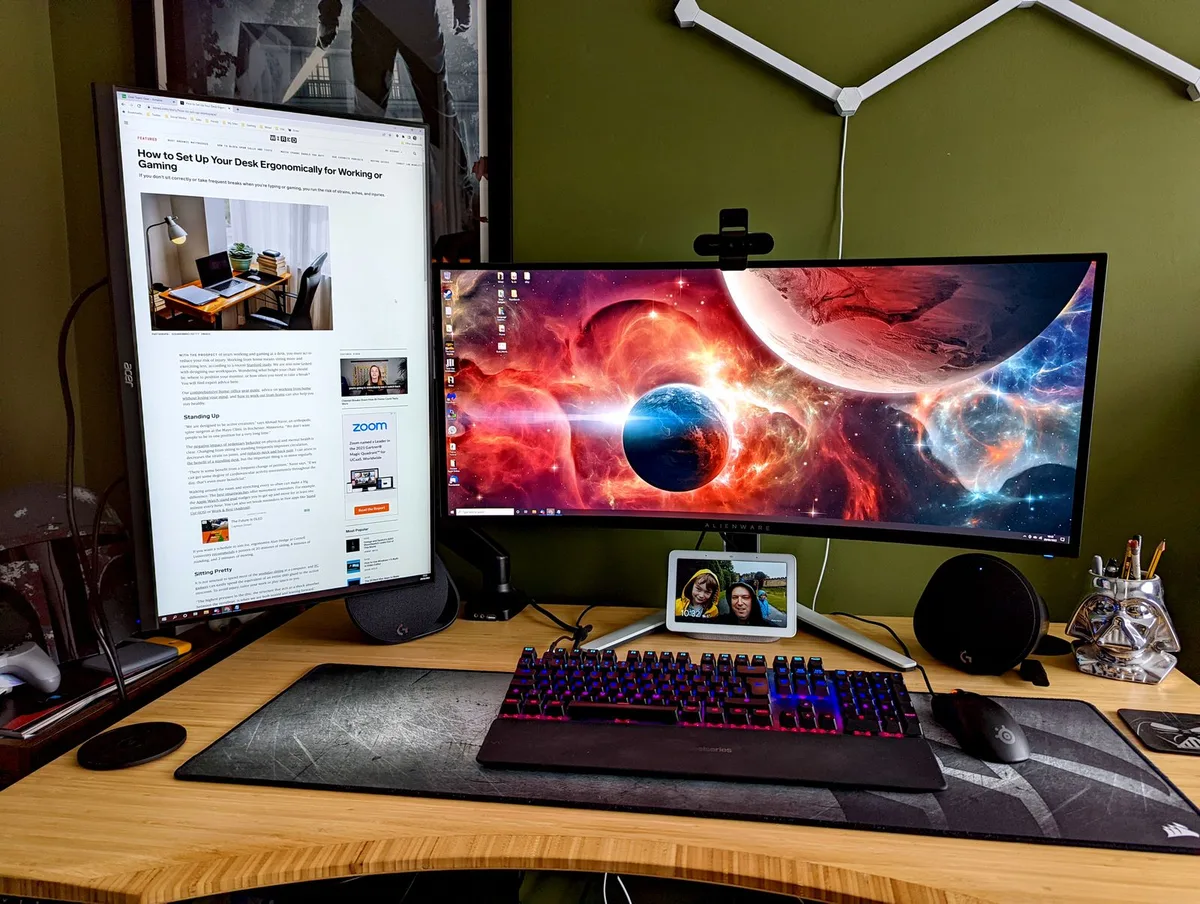
Before you decide when to adjust, you must ensure your baseline is correct. Proper calibration follows the standards provided by the OSHA Computer Workstations eTool. Your goal is to keep your joints in a neutral position, which minimizes effort for your muscles.
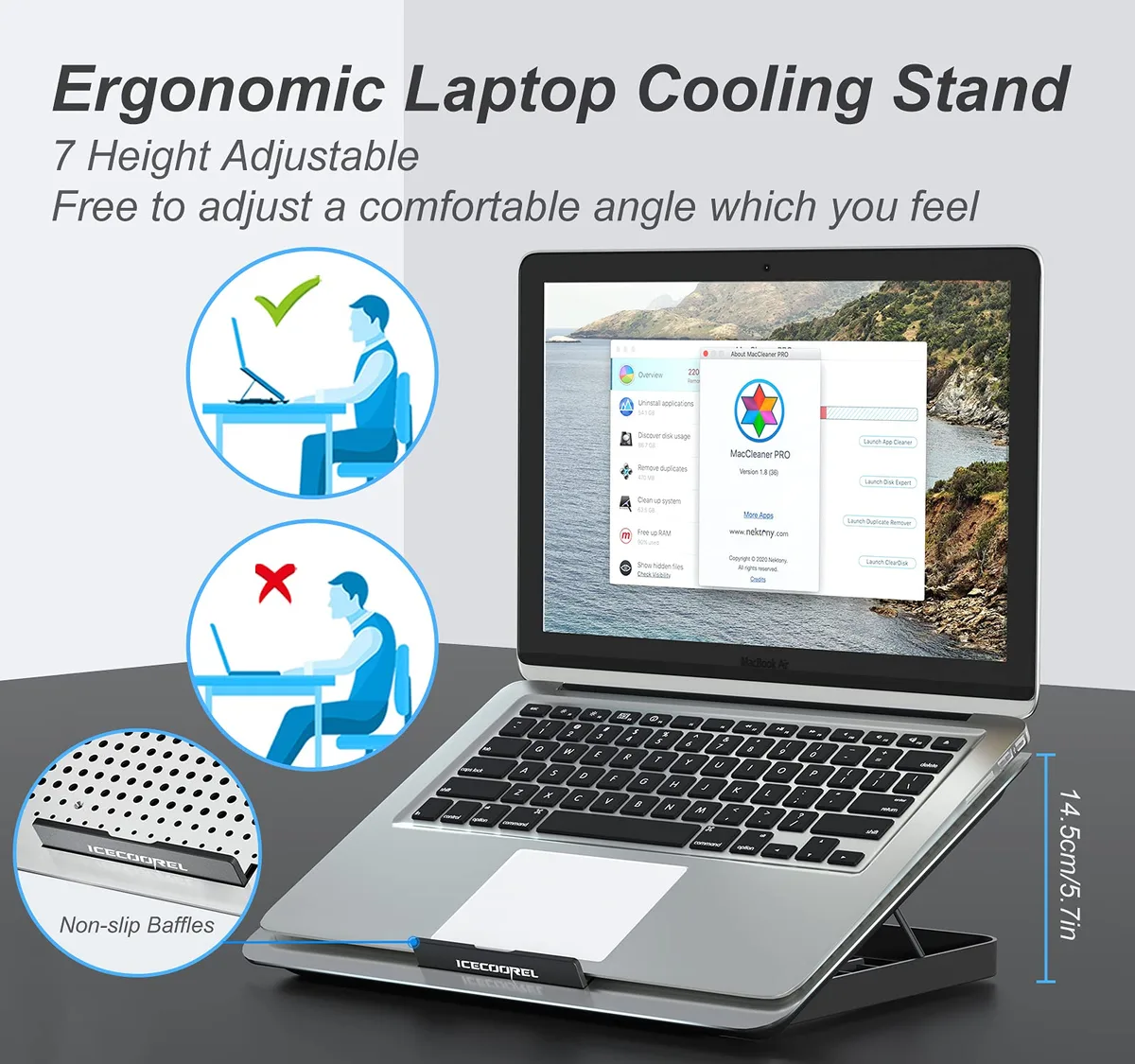
Visual cues are helpful here. When you sit upright, your gaze should naturally land on the top third of your screen. If you have to tilt your head down to see, your laptop is too low.
If you have to look up, it is too high.
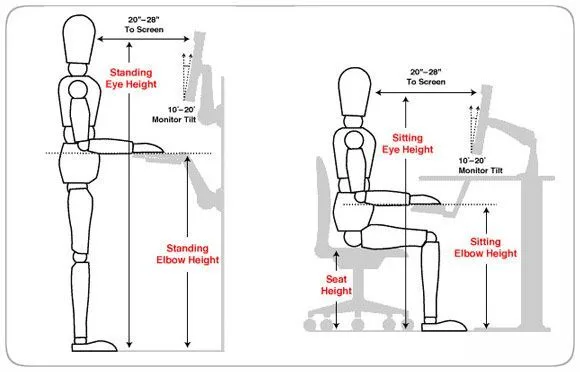
Image source: Bing (Web (fair-use with source credit))
Workflow Strategy: When to Adjust Your Stand
You should shift your stand height whenever the primary focus of your visual attention changes. Consider your desk a workspace that adapts to the task, not a fixed environment that you must conform to.
If you are typing a long report, move your screen lower. This allows your neck to remain in a neutral, downward-inclined position that keeps your upper traps relaxed. If you shift to reading or proofing, raise the screen so your eyes meet the text head-on.
This prevents the forward-leaning habit that causes tension in the base of your skull.
Setting Up for Typing vs. Video Meetings
Typing requires a lower screen angle to prevent your shoulders from elevating toward your ears. When your screen is too high, you instinctively shrug to reach the keyboard, which leads to immediate muscular fatigue. Aim for a setup where the keyboard remains at elbow height, allowing your shoulders to hang loosely.
Video meetings require an entirely different configuration. You want the camera at your eye level to maintain a natural, engaging connection with others. If your laptop camera sits below your chin, you appear to be looking down at your colleagues, which often looks distorted.
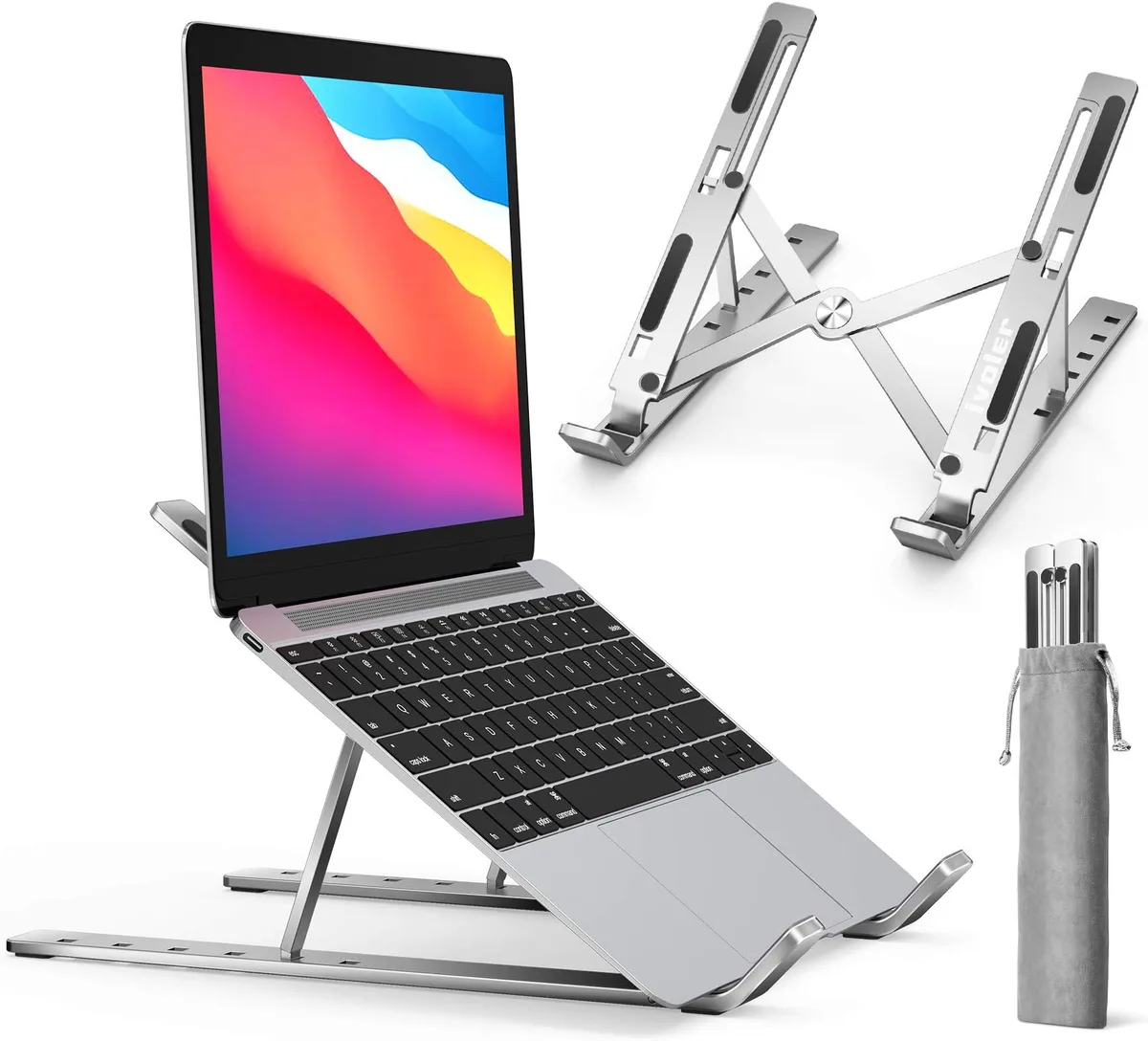
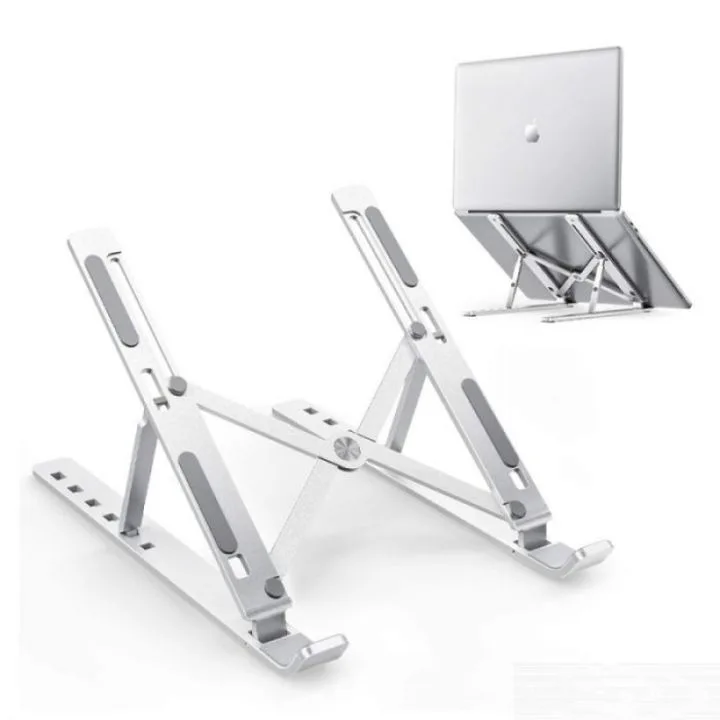
Use a height-adjustable stand to lift the laptop, but be sure to use an external keyboard so your hands stay at desk level while your eyes meet the screen.
The Crucial Role of External Peripherals
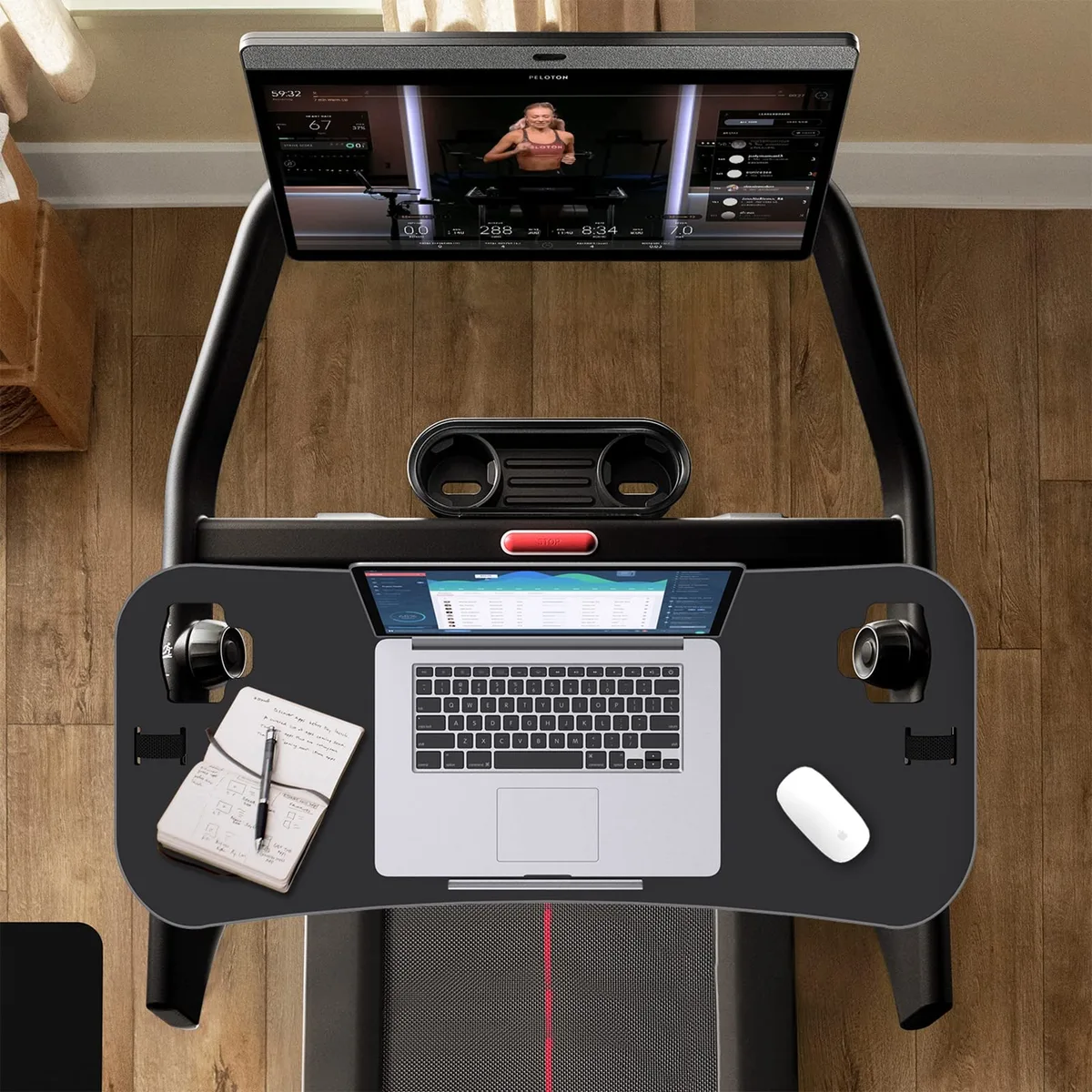
You cannot create a truly ergonomic setup using only a laptop keyboard and trackpad. Integrating an external keyboard and mouse is the single most important upgrade for anyone using a laptop stand. This hardware allows you to separate the screen height from your input height.
Once you have a separate keyboard, your hands can rest in a flat, neutral position on your desk surface. This eliminates wrist extension, which is a common source of forearm pain. You gain the freedom to position the laptop screen exactly where your eyes need it, regardless of where your hands are placed.
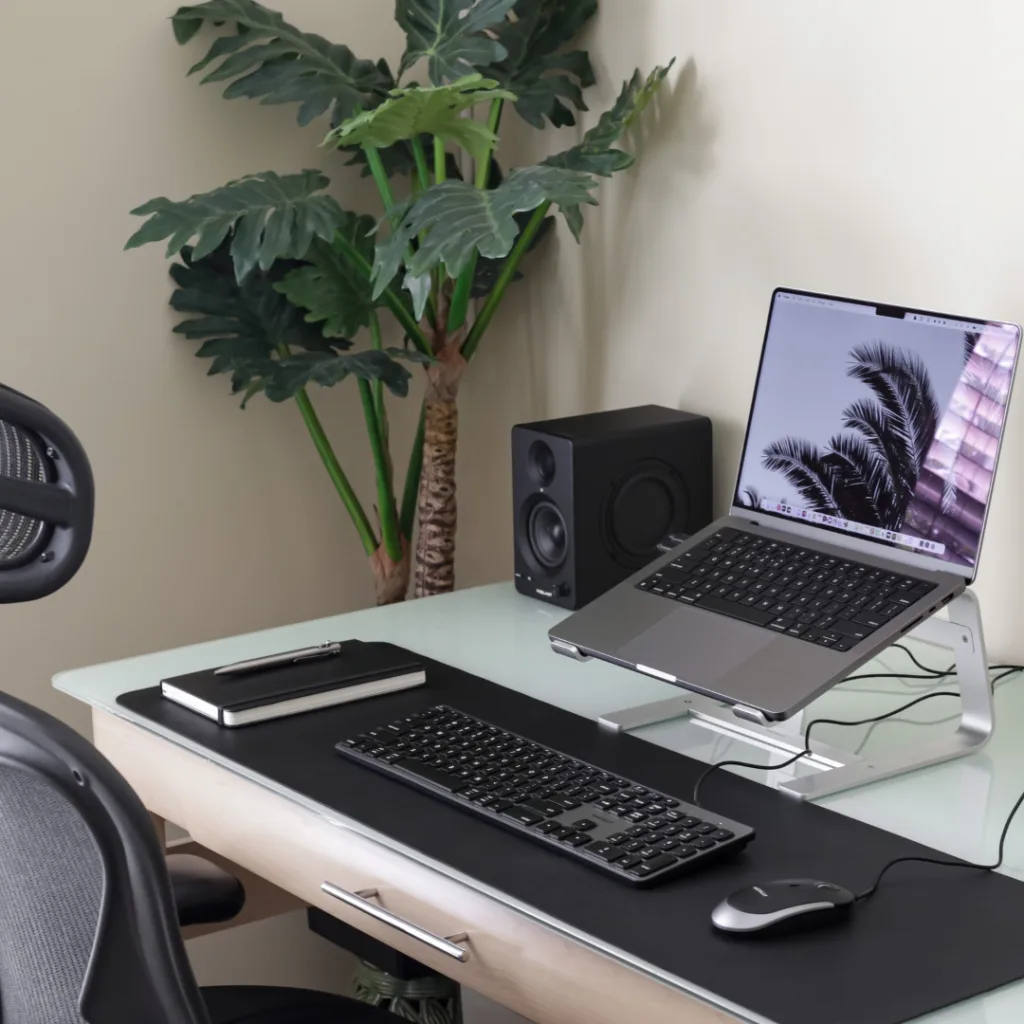
Image source: Bing (Web (fair-use with source credit))
Common Postural Mistakes to Avoid
The most frequent mistake users make is trying to force their eyes to match a fixed monitor height while ignoring their arm position. If you raise your laptop high enough to save your neck, you might end up with your wrists forced into an upward angle to reach the keys. This simply trades neck pain for wrist tendonitis.
Another error is failing to adjust for chair height. Always set your chair so your feet are supported on the floor and your hips are slightly above your knees. Your laptop stand should only be adjusted after your chair and desk height are dialed in.
If you adjust the stand first, you will likely set it to the wrong height because your body is already misaligned.
Balancing Screen Height and Wrist Neutrality
Achieving balance requires prioritizing your neutral wrist position above all else. Your wrists should never be bent upward or downward to reach your keys. Keep your wrists straight, your elbows at a 90-degree angle, and your shoulders relaxed.
Once your input position is locked, adjust your laptop stand height to match your natural eye level. If your laptop stand does not provide enough height to reach your eyes, use a stack of books or a more robust riser. If you cannot reach both goals simultaneously, prioritize your wrist neutral position first, then move the screen as high as your stand allows.
Guidelines for Long-Term Musculoskeletal Health
Maintaining your musculoskeletal health requires a preventative rather than a reactive strategy. You should focus on keeping your spine in its neutral, natural curvature throughout your workday.
The illustration of proper cervical spine alignment shows how your ears should stay directly over your shoulders. When you lean your head forward, you increase the effective weight of your head on your neck muscles by several pounds. This tension is cumulative and results in chronic neck pain if left unmanaged.

Image source: Bing (Web (fair-use with source credit))
When to Re-evaluate Your Desk Setup
You should audit your workstation whenever you experience persistent discomfort at the end of the day. If your current stand no longer feels supportive or if you have changed your primary monitor or chair, it is time for a new assessment. A quick audit once a month is enough to catch bad habits before they harden into pain.
Pay attention to your equipment as well. If your stand is beginning to slip or has developed a wobble, it is no longer providing stable support. A loose stand forces your muscles to compensate for the instability, which is a major contributor to micro-trauma in the shoulders.
Final Decision Guide: How to Build Your Own Adjustment Routine
Building an adjustment routine is simple when you focus on your personal sensory cues. Start by observing your posture at the beginning of each major project. If you are starting a new task, take five seconds to reset your seat height and laptop stand position.
Keep a checklist of these three conditions to help you make decisions in real time:
- Eye Level: Can you see the top of your screen without tilting your head?
- Wrist Neutrality: Are your forearms parallel to the floor with flat, unbent wrists?
- Shoulder Tension: Are your traps relaxed or are they elevated toward your ears?
If the answer to any of these is no, adjust the stand immediately. Over time, these small adjustments will become second nature, and you will find yourself moving through positions without even thinking about it.
Frequently Asked Questions
Is it better to have the laptop screen high or low?
The ideal position is high enough to keep your neck neutral but low enough to maintain a comfortable arm angle. Most users find that placing the top of the screen at eye level is best for the neck. Just ensure your wrists remain flat while you type.
Does a laptop stand actually prevent back pain?
Yes, provided you pair the stand with an external keyboard. A stand prevents you from hunching forward to see the screen, which is the primary driver of upper back and neck strain. If you do not have an external keyboard, the stand may actually worsen your wrist and shoulder pain.
Should I stand up while working?
Standing is a great way to introduce movement, but it is not a cure-all for poor posture. If you choose to stand, your screen needs to be raised significantly higher than it would be if you were sitting. Ensure your elbows remain at 90 degrees even while you are standing.
How do I know if my posture is hurting me?
Listen for sharp or dull pain in your neck, shoulders, or wrists during the day. If you feel the need to pop your back or stretch your neck frequently, your current setup is likely causing strain. Adjust your equipment immediately to break the cycle of static muscle load.

Similar Posts