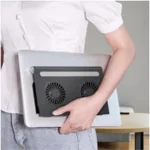
How to Pack a Roost Laptop Stand in a Compact Backpack
Senior Hardware Diagnostics Specialist & Lead Thermal Editor at Laptop Post Testing Lab · CompTIA A+, ACMT, B.S. in Computer Engineering · 12+ years bench-testing laptop thermal solutions & motherboard repairs
Learning how to pack a Roost laptop stand in a compact backpack for travel requires a strategic approach to spatial efficiency. These stands offer essential ergonomic benefits, but their unique telescoping geometry can be difficult to manage inside tight storage compartments.
Manufacturer specifications indicate that the stand must be fully collapsed to avoid mechanical stress on the primary hinges. Properly nesting the stand against your laptop or within a protective sleeve ensures the device survives the rigors of transit as of 2026.
Quick Answer
Pack your Roost stand in its fully collapsed travel position. Slide the folded stand into a flat, padded laptop sleeve. Place the stand against your laptop screen to maximize space.
Keep the stand away from heavy, loose items in your bag. Use a protective microfiber pouch to prevent scratches during your commute.
Why Packing Geometry Matters for Your Laptop Stand
Your packing method directly dictates the long-term reliability of your ergonomic hardware. The Roost laptop stand uses a series of high-tension joints and telescoping legs that are susceptible to impact damage if stored improperly. When you jam the stand into a crowded bag without a plan, the hinges face localized pressure from other objects like power bricks or hard-cover notebooks.
Research into mechanical fatigue suggests that plastic and aluminum components suffer when stored under constant side-load pressure. By prioritizing a flat, vertical orientation, you distribute weight evenly across the stand structure. This simple shift in logic protects the integrity of the hinge system, ensuring it snaps securely into place every time you set up your workstation.
Understanding the Roost Stand’s Unique Telescoping Shape
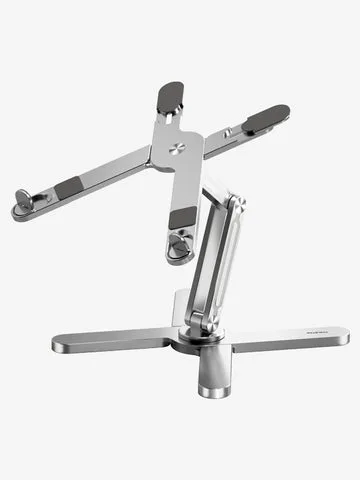
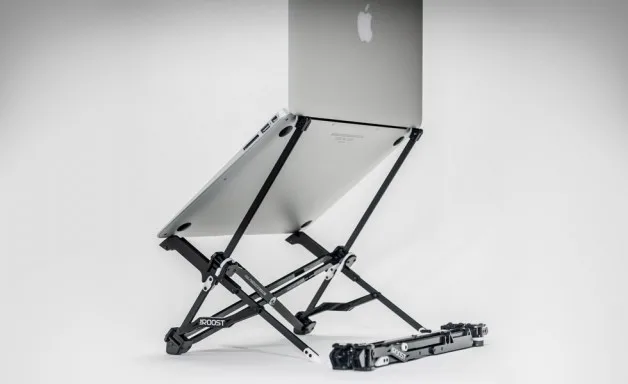
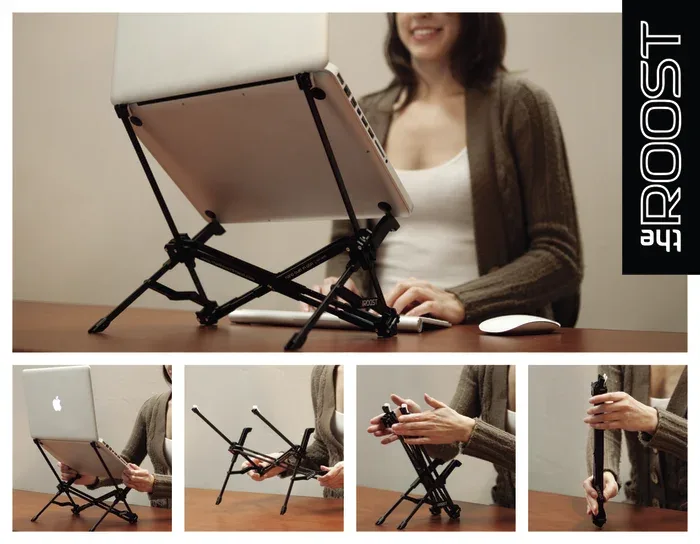
The Roost laptop stand is designed to transform from a compact rod into a full-size ergonomic riser. Understanding this movement is critical for storage. The telescoping action relies on several pivoting legs that lock into specific grooves when fully extended.
When collapsed, these legs pull together into a single, narrow footprint.
If you attempt to pack the stand while it is even slightly extended, you expose the small hinge pins to shearing forces. Always check that the legs are flush against the central spine before inserting the unit into your bag. A properly collapsed stand should feel like a solid, smooth rod with no rattling parts.
Benefits of Proper Nesting Over Random Packing
Nesting involves pairing the stand with another flat object, such as your laptop or a rigid tablet. This technique creates a slim profile that takes up significantly less volume than storing items separately. By pairing the stand with your laptop, you effectively turn two distinct items into a single, manageable slab of gear.
| Benefit | Impact on Travel |
|---|---|
| Volume Reduction | Prevents bag bulges in compact packs. |
| Hinge Protection | Eliminates movement during transit. |
| Deployment Speed | Keeps core desk gear bundled together. |
This process also eliminates the bulky appearance often caused by throwing loose items into a main compartment. You’ll save time during TSA screenings at airports, as you can extract your main electronics and stand in one single motion.
Step-by-Step: The Flat-Layering Technique for Compact Bags
Start by ensuring your laptop or tablet is inside its protective sleeve. If you don't use a sleeve, place the laptop against the back wall of your backpack’s primary compartment. The back wall offers the most structural support and keeps the heaviest weight close to your spine.
Slide the collapsed Roost stand into the gap between your laptop and the outer pocket wall. If the gap is too tight, place the stand on the outside of the laptop sleeve, directly facing the bag’s interior lining. Ensure the stand is oriented with the hinges facing away from your device screen.
This alignment prevents any accidental pressure marks or scratches on your high-resolution display.
Choosing the Right Storage Pocket in Your Backpack
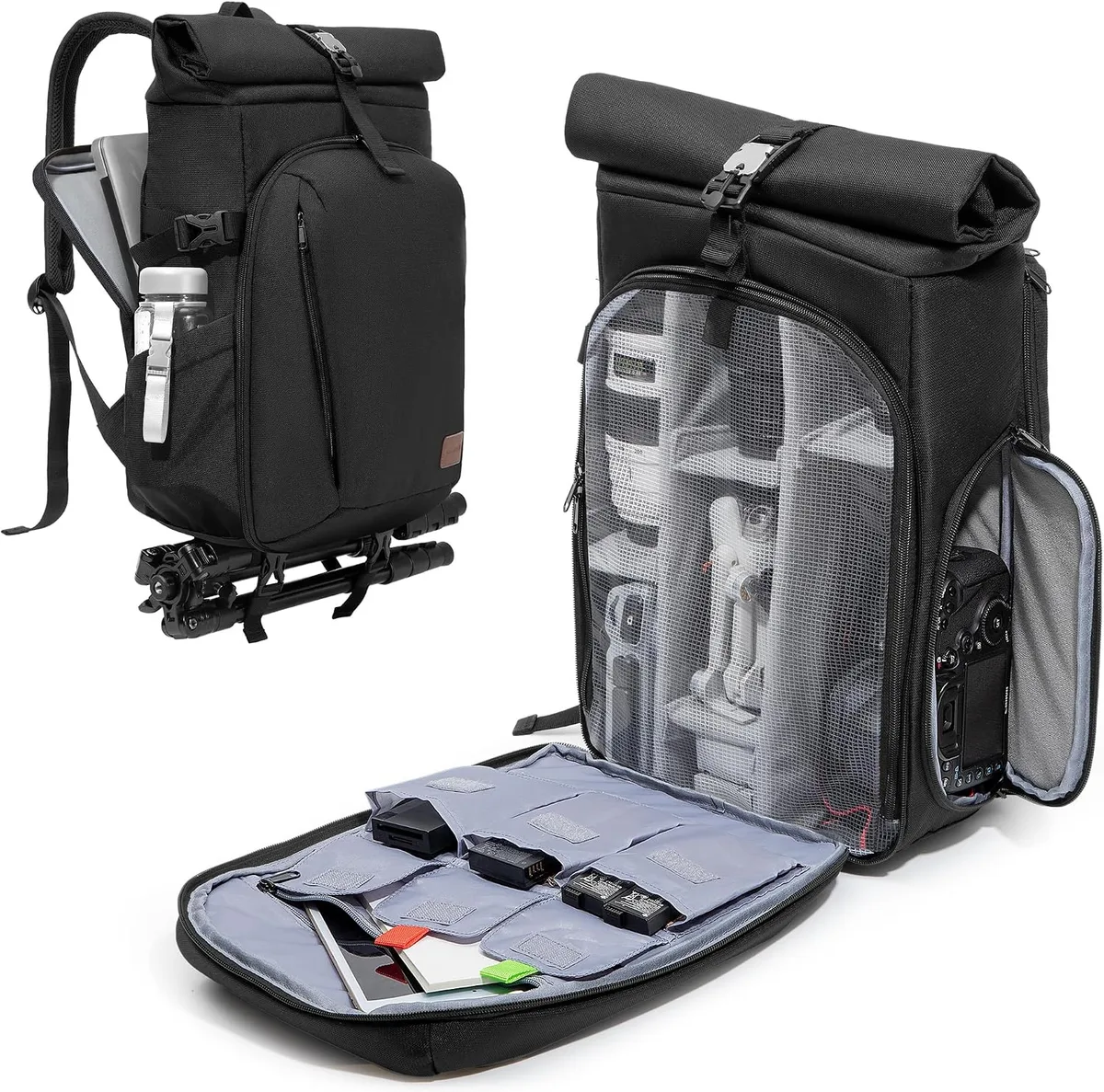
The ideal storage pocket is one that provides a dedicated, flat space without interfering with your bag’s main capacity. Many modern technical backpacks include an admin panel or a secondary thin compartment designed for tablets. This is usually the best location for your Roost stand.
Avoid using the deep, cavernous bottom of your main compartment. When you set your bag down, the bottom section absorbs the most impact. If your stand is resting at the base, it will likely suffer a sharp shock from the floor.
Always aim for a pocket that suspends your gear at least two inches above the base of the bag.
How to Protect Your Laptop Screen from Stand Pressure Points
Preventing screen damage begins with managing the physical interface between the stand and your laptop. The Roost stand features hard, non-slip rubberized contact points that can exert significant pressure on a laptop lid when compressed inside a tightly packed backpack. If the stand is pressed directly against the center of the display, you risk creating pressure marks or even pixel damage on sensitive thin-film transistor screens.
Always place the stand with the contact points facing toward the internal wall of your backpack rather than toward your laptop. If your backpack does not have a stiff plastic insert or a dedicated, reinforced laptop sleeve, add a thin foam sheet or a spare microfiber cleaning cloth between the two items. This extra layer acts as a shock absorber that disperses localized pressure across the entire surface of the screen.
Mistakes to Avoid: Snapping Hinges and Tangled Cables
The most common error users make involves forcing the stand into a narrow pocket that is already full. Hinge fatigue happens when the stand is compressed at an awkward angle, often caused by trying to close a backpack that lacks enough vertical clearance. You should feel zero resistance when sliding your gear into its designated slot.
Avoid the temptation to bundle loose charging cables in the same pocket as your ergonomic stand. The spindly design of the Roost legs creates an ideal trap for braided cable sheathing, which often results in frayed wires or a stuck stand hinge. Keep your cables in a separate, dedicated compartment or a cable tie organizer to ensure they remain isolated from your stand's mechanical parts.
The Tech Pouch Strategy for Organizing Your Workspace Gear
Using a dedicated tech pouch transforms your mobile setup from a loose collection of parts into a cohesive, portable kit. A high-quality accessory organizer provides a home for your stand, mouse, dongles, and charging cables. By centralizing these items, you prevent your gear from shifting around inside your main bag during travel.
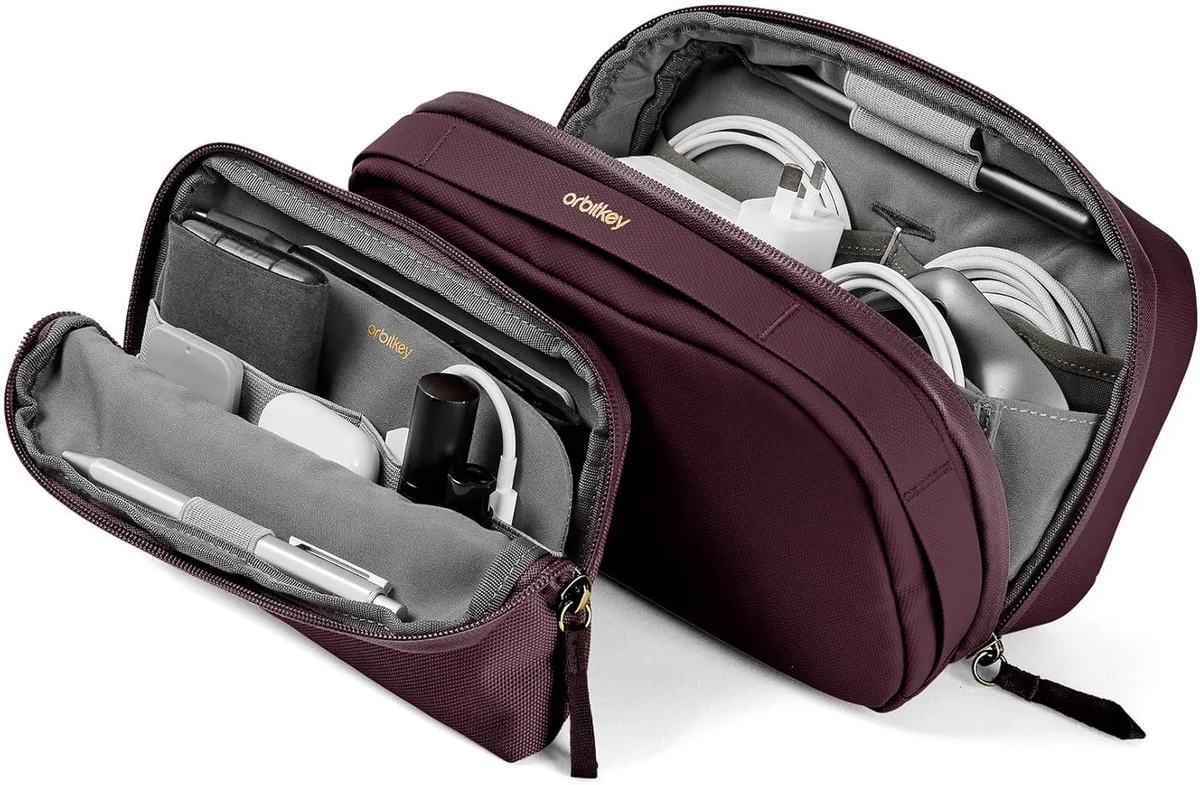
Select a pouch that matches the slim dimensions of your stand. When your gear is bundled in a single, rigid, or semi-rigid pouch, the entire kit gains structural support. This setup also makes it significantly faster to unpack at a coffee shop or airport desk, as you have everything required for an ergonomic workspace in one reach.
Maintenance Tips for Long-Term Structural Integrity
Regular maintenance ensures the telescoping hinge mechanism continues to glide smoothly over years of use. If you notice the legs becoming stiff or difficult to deploy, the hinges may have accumulated dust or debris from your backpack interior. A quick wipe down with a dry, lint-free cloth is usually sufficient to clear out the mechanism.
Avoid using liquid lubricants on the joints unless the manufacturer explicitly approves them for the materials used. Most Roost stands utilize high-strength reinforced polymers that can be degraded by chemical-heavy cleaners or oil-based lubricants. Simply keeping the unit free of grit and lint is the most effective way to prevent mechanical failure.
Assessing Your Backpack’s Protective Capacity
Not all backpacks are built to support the same level of equipment safety. When assessing your bag, look for internal suspension systems or padded bases that keep electronics away from the hard surfaces of a floor. If your bag relies on a simple fabric layer at the bottom, consider upgrading to a padded sleeve that adds impact protection for your stand and laptop.
Check your bag’s internal dimensions against the collapsed measurements of your stand as of 2026. A pack that is too small for your gear forces you to compromise on placement, which frequently leads to the mistakes mentioned above. If your bag regularly feels overstuffed, your equipment is at a higher risk of bending or internal component failure during transit.
Frequently Asked Questions
Does the Roost stand fit in all laptop backpacks?
Most standard laptop backpacks accommodate the Roost stand when it is in its fully collapsed travel position. You need roughly 13 inches of vertical clearance to house the device comfortably. Check your backpack’s specific dimensions to ensure it doesn't force the stand into a cramped or angled position.
Can I pack the stand in a checked suitcase?
You can pack the stand in a checked suitcase if you provide adequate padding. Place it between layers of clothing to shield the hinge mechanism from direct impacts. Always keep the stand in its protective sleeve to prevent other contents from snagging on the spindly legs or delicate adjustment points.
What should I do if the stand feels stuck in my bag?
If your stand feels wedged inside a pocket, stop pushing immediately to avoid bending the hinge assembly. Wiggle the stand gently to dislodge it from any surrounding cables or fabric liners. If resistance persists, remove other items from the bag to create more clearance before pulling the stand out slowly.
Should I remove the rubber feet before packing?
You do not need to remove the rubber feet, as they are designed to stay attached during transport. These feet are essential for stability once the stand is deployed on a desk. Regularly check that they remain securely seated to ensure your laptop doesn't slide during use.
Is it safe to carry the stand in an exterior water bottle pocket?
Carrying the stand in an exterior pocket is generally discouraged because it exposes the hardware to moisture and physical impact. An exterior pocket offers no protection if you brush against a wall or set your bag down on concrete. Stick to internal storage for maximum hardware longevity.
How do I prevent the legs from unfolding inside my bag?
Most Roost models include a specific locking point or a provided silicone band to keep the legs bundled during transit. If you've lost these, a simple heavy-duty rubber band works well to keep the structure unified. This prevents the legs from catching on the interior lining of your backpack while you pull it out.

Similar Posts