Can You Use a Laptop Stand in Bed Safely? Avoiding Overheat
Senior Hardware Diagnostics Specialist & Lead Thermal Editor at Laptop Post Testing Lab · CompTIA A+, ACMT, B.S. in Computer Engineering · 12+ years bench-testing laptop thermal solutions & motherboard repairs
You can use a laptop stand on a bed without blocking air intake if you choose the right design. Most modern laptops pull cool air from the underside to manage heat. Placing them on soft fabric creates an immediate thermal hazard.
Using a rigid stand restores the necessary airflow gap for cooling.
Standard manufacturing specifications for most consumer electronics indicate that internal components like the CPU and GPU rely on consistent airflow to avoid thermal throttling. As of 2026, many high-performance machines utilize active fan systems that require several centimeters of clearance to operate efficiently. Proper support prevents heat buildup that can degrade internal hardware over time.
Quick Answer
You can safely use a laptop stand in bed. Choose an open frame or mesh design. This keeps the intake vents clear.
Ensure the stand sits on a flat, stable surface. Avoid letting fabric block the bottom of the stand.
The Hidden Risks of Bed-Based Computing
Using a laptop on a bed without a stand creates a heat trap. Fabric covers or blankets act like insulation, preventing heat from escaping your machine's chassis. This causes internal temperatures to rise rapidly during routine tasks.
Modern laptops often reach high temperatures under load. When vents are blocked, the device compensates by slowing down the processor to protect itself. This performance loss is known as thermal throttling.
Extended exposure to these temperatures may damage sensitive components over time.
Why Airflow Is Your Laptop’s Best Friend
Computers require a constant supply of cool air to move heat away from the processor. If your laptop has bottom vents, it draws air in from underneath. A flat surface like a desk works well because it creates a consistent channel for air.
Beds are the opposite of a desk surface. They are soft and uneven, which leads to the vents being pressed shut by the mattress material. Even a short period of use on a bed can cause a significant jump in fan speed as the system struggles to cool itself.
Providing a clear path for air circulation is vital for hardware longevity.
Identifying Your Laptop's Ventilation Signature
Every laptop model features a unique ventilation layout. Some machines pull air from the bottom and exhaust it out the back near the hinge. Others use side vents for both intake and exhaust.
You must identify where your specific model draws its air before choosing a setup.
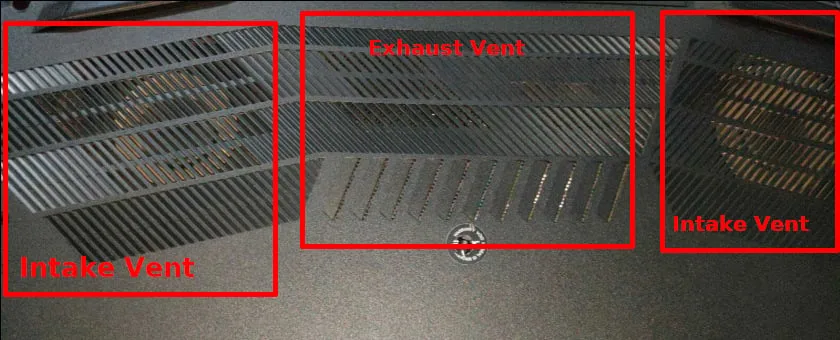
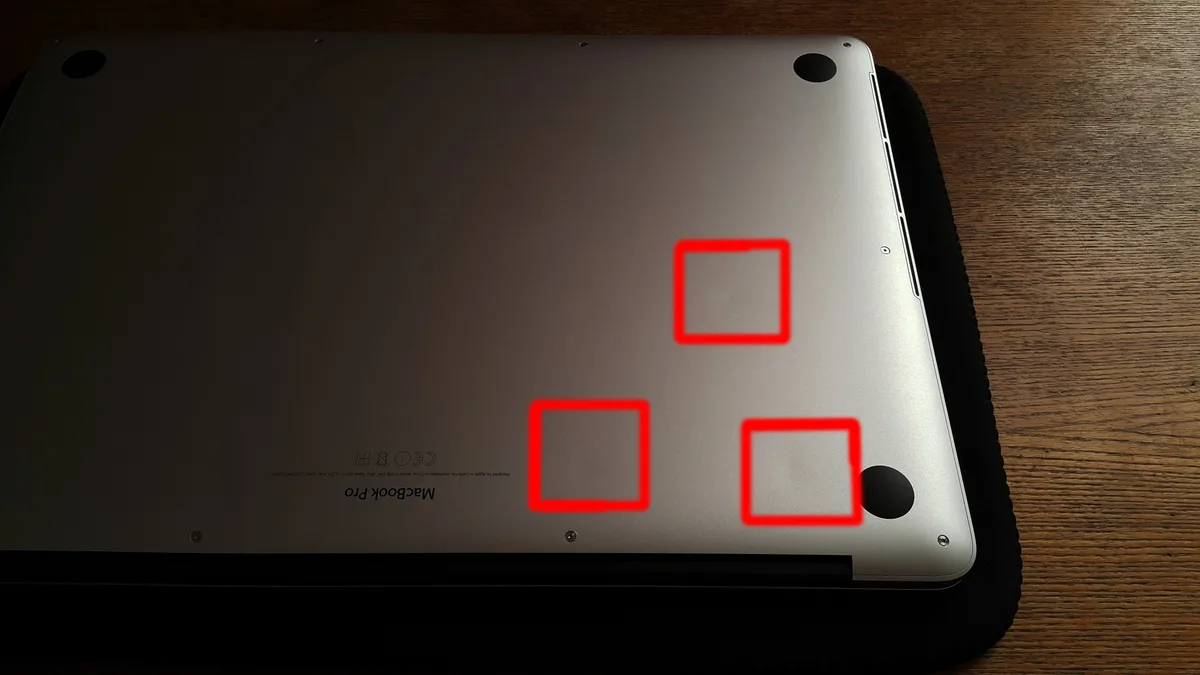
Image source: Bing (Web (fair-use with source credit))
Flip your laptop over to inspect the bottom cover. If you see grids, slits, or perforations, your laptop uses bottom intake. You must select a stand that keeps these areas completely unobstructed.
If the bottom is smooth and solid, your laptop likely vents through the keyboard or rear hinge, but you should still use a stand to keep the metal chassis cool.
How to Evaluate Your Current Bed Setup
Assessing your current setup starts with checking for stability. If your stand wobbles, the laptop may slide or tip during use. A stand with a wide footprint or four legs offers better balance on soft, uneven mattress surfaces.
Look at the space between your mattress and the laptop base. The goal is to maximize the distance between the intake vents and the bedding material. If you can fit your hand under the stand without touching the laptop, you have achieved a safe clearance.
| Feature | Insecure Setup | Secure Setup |
|---|---|---|
| Surface | Soft duvet | Rigid bed tray |
| Base | Single central leg | Wide four-point base |
| Clearance | Zero inches | 2+ inches |
| Airflow | Trapped/Hot | Free-flowing |
Choosing the Right Stand for Soft Surfaces
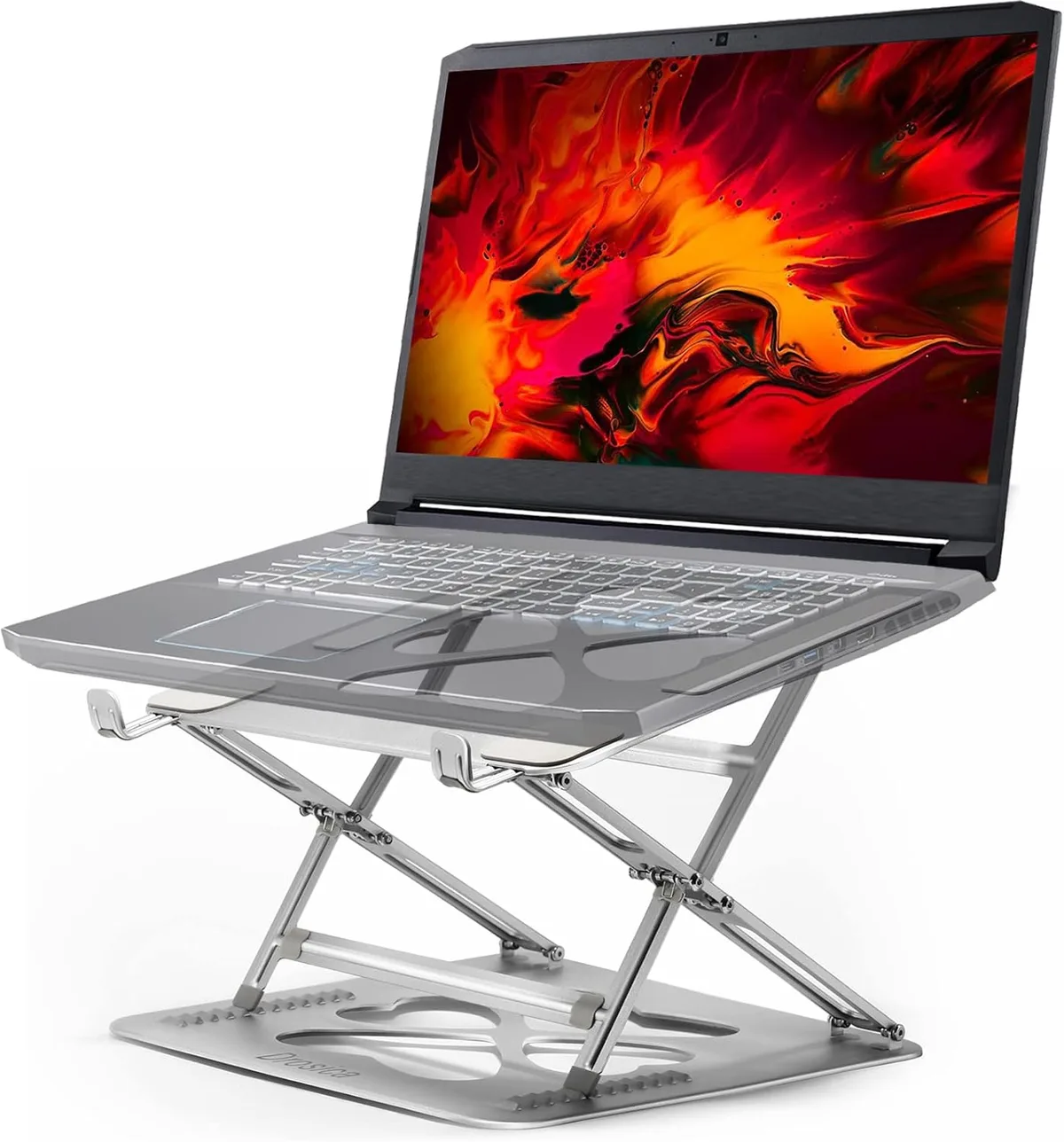
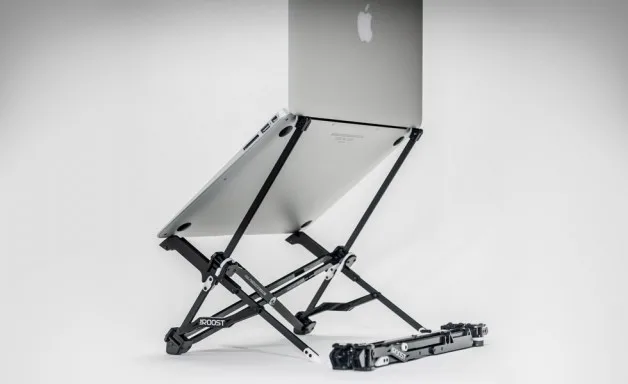
When selecting a stand for bed use, prioritize materials that offer rigidity and breathability. A plastic stand might flex under pressure, while aluminum or steel options maintain their structure. Mesh platforms are excellent because they allow air to pass through the entire base.
Avoid lap desks that feature soft foam cushions if the laptop base sits flush against the surface. These cushions may provide comfort for your legs, but they often restrict airflow just as much as a pillow. Consult ISO/IEC standards regarding thermal safety if you are concerned about specific temperature limits for your device.
Step-by-Step: Visualizing Air Intake and Obstruction
Understanding how air moves is the key to protecting your hardware. When a laptop sits on a table, air enters through the bottom, flows over the heat sinks, and exits through the rear. A stand acts as a bridge that keeps this loop open.
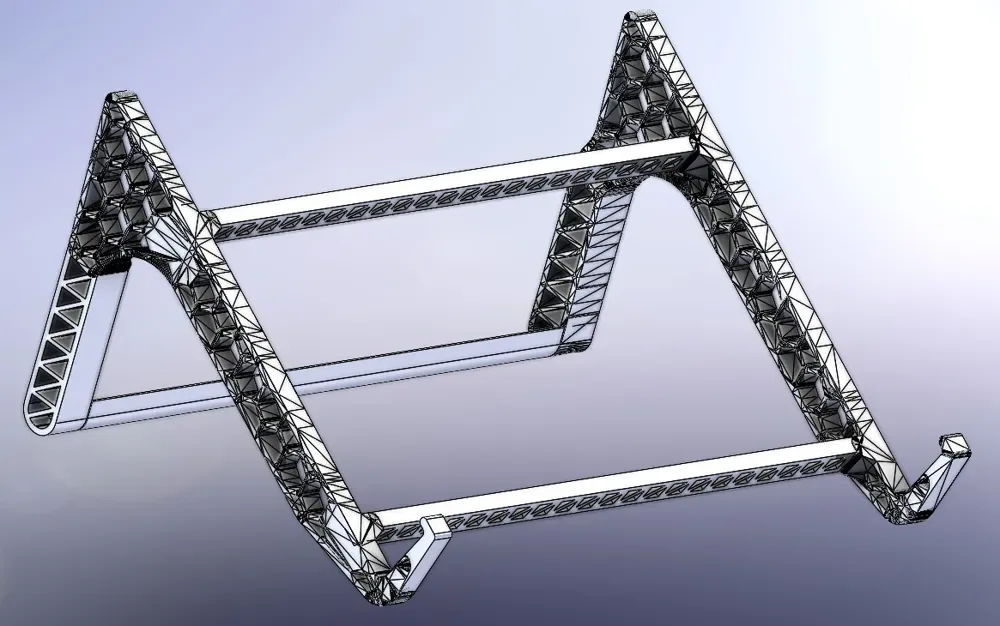
Image source: Bing (Web (fair-use with source credit))
Follow these steps to ensure your airflow remains clear:
- Inspect the bottom vents to identify the primary intake zones.
- Place the stand on a hard piece of cardboard if the bed is too soft.
- Check the gaps between the stand and your mattress.
- Listen to your laptop fans after ten minutes of use.
- Adjust the tilt to ensure no fabric bunches up near the rear exhaust.
Comparing Stand Alternatives: Bed Trays vs. Mesh vs. Cooling Pads
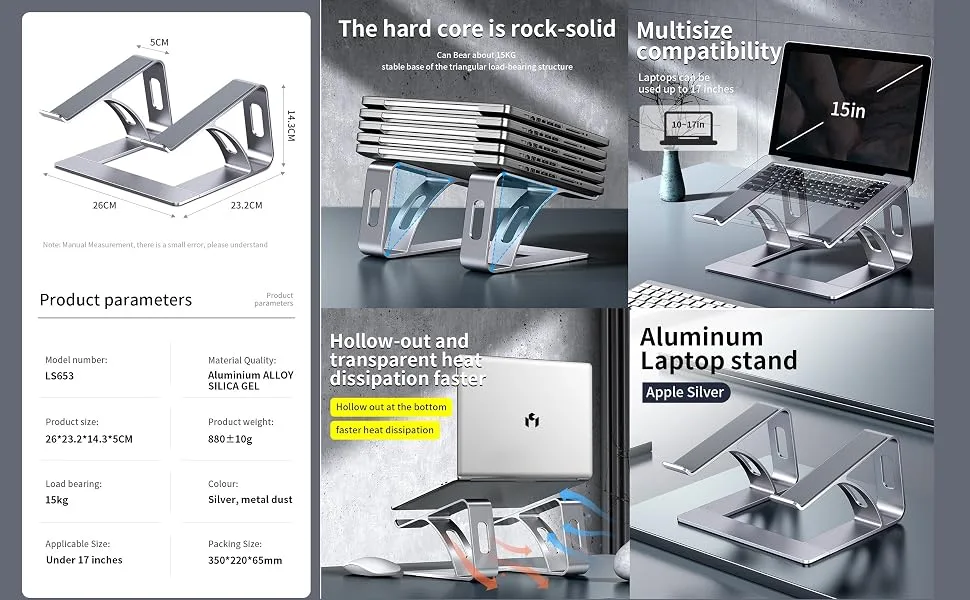
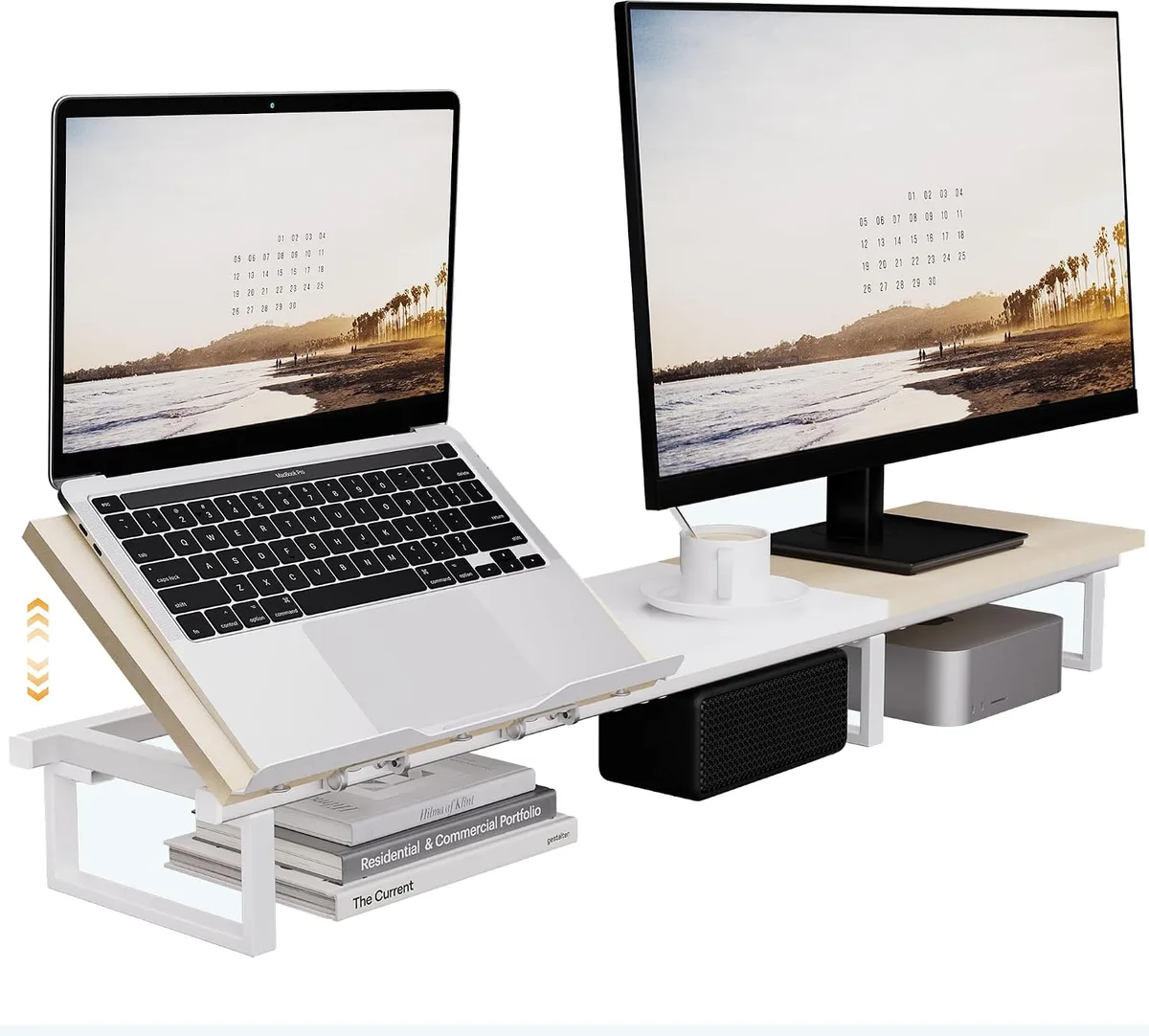
A bed tray provides the most stable surface, effectively turning your bed into a mobile desk. It separates the laptop from the bedding completely, which is the safest option for long sessions.

Image source: Bing (Web (fair-use with source credit))
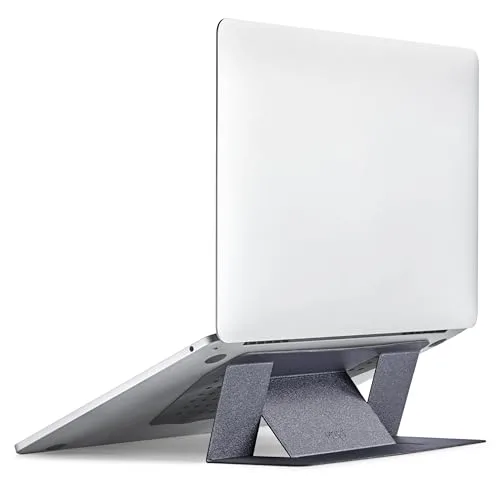
Mesh stands are lighter and more portable. They work well for casual web browsing but might struggle with stability on very soft mattresses. Active cooling pads use built-in fans to push extra air, but they require a power source and aren't strictly necessary if your stand already provides sufficient passive clearance.
Common Mistakes That Kill Laptop Performance
The most frequent mistake involves using a soft surface, such as a folded blanket, as a base for your computer. These materials compress easily and conform to the bottom of the device, sealing off intake vents completely. If your laptop fans are running at high RPM constantly, check if you have inadvertently buried the air intake in soft fabric.
Another common error is placing a stand on top of a thin pillow that shifts during use. If the stand tilts, the weight distribution shifts, potentially causing the laptop to slide or putting uneven pressure on the hinge. Always aim for a flat, solid foundation that remains stationary when you type or shift your position in bed.
When Your Setup Is Failing: Signs of Thermal Throttling
Thermal throttling occurs when your laptop's internal sensors detect temperatures exceeding safe limits. Your computer will automatically reduce its clock speed to generate less heat, which directly impacts your performance. You might notice your applications stutter, video playback lags, or system inputs feel sluggish compared to desk use.
Listen to your cooling fans to gauge if your thermal management is failing. If the fans sound like they are working at maximum capacity while you are only performing light tasks like browsing, the airflow is likely restricted. If the chassis feels hot to the touch near the keyboard or hinge, the heat is not dissipating effectively.
Move the device to a hard, elevated surface immediately to allow the internal fans to normalize the system temperature.
Expert Tips for Maintaining Hardware Health in Bed
Cleaning your laptop vents regularly is the best way to prevent heat-related failures. Over time, fabric fibers from blankets and bedding get pulled into the cooling system, clogging the heat sinks. You can use a can of compressed air to blow out dust from the vents every few months to keep the air path clear.
Maintain a consistent, elevated position for your laptop to encourage natural heat convection. We recommend keeping the device at a slight angle to allow hot air to rise away from the chassis. If you spend significant time working in bed, invest in a dedicated bed tray that provides a rigid, elevated platform.
This setup reduces the mechanical stress on your components and prevents the long-term degradation associated with constant thermal cycling.
Safety Warnings for Lithium-Ion Batteries and Heat
Excessive heat is the primary enemy of lithium-ion batteries found in most portable computers. When these batteries reach high temperatures, the chemical stability inside the cell decreases. Prolonged exposure to heat can cause the battery to swell, lose capacity, or permanently fail.
Always avoid charging your laptop while it is sitting on a soft surface. Charging generates its own internal heat, and when combined with a blocked ventilation system, this creates a significant safety risk. If your laptop casing appears warped or the battery pack bulges, stop using the device immediately.
Contact the manufacturer to seek professional inspection or repair services before you attempt to charge it again.
Final Decision Guide: Selecting the Safest Configuration
Choosing the safest configuration depends on your primary use case and your mattress type. If you have a soft, deep-pocket mattress, a bed tray with independent folding legs is the superior choice. It creates a complete physical barrier between the laptop and the bed, ensuring no fabric can ever obstruct the vents.
For those with firmer mattresses, a portable mesh stand may be sufficient. Ensure the stand has non-slip silicone feet that grip the sheets to keep the device from moving. If you perform resource-intensive tasks, always use a hard, elevated platform to maximize airflow.
A stable, clear path for air intake is the most effective way to ensure your hardware remains cool and performs reliably.
Comparison: Active vs Passive Cooling Stands
Passive stands rely entirely on gravity and airflow geometry to keep your device cool. They are generally lighter, more durable, and require zero power to operate. Most users find that a well-designed passive mesh stand provides all the thermal relief needed for web browsing and office applications.
Active cooling stands feature powered fans that push extra air into your laptop's intake vents. These are useful if you run high-demand software or play games that push your GPU to its limits. Keep in mind that active stands create their own noise and draw power from your laptop's USB ports.
Choose an active model only if your device suffers from consistent overheating despite using a passive stand.
Optimizing Ergonomics for Bed-Based Work
Ergonomics in bed is often overlooked, but it significantly impacts your comfort and posture. Placing a laptop on your lap requires you to hunch your neck downward, which strains your upper back and shoulders. A height-adjustable stand raises the screen closer to eye level.
This alignment allows you to maintain a neutral spine position while working. Ensure your bed tray or stand height is set so your gaze meets the screen without you having to dip your chin. Using an external wireless keyboard and mouse allows you to keep your arms at a comfortable, natural angle while the screen remains elevated.
Managing Cabling and Connectivity in Bed
Loose cables are a common frustration when working from a bed. When you move or shift your blankets, cables can snag or pull on your ports, potentially causing damage to the jacks. Use cable ties or velcro straps to bundle your power cord and peripheral cables neatly along the leg of your bed tray.
This cable management keeps the workspace clear and reduces the risk of the laptop tipping over if a cord gets caught. If you use a USB-C hub, tape or secure it to the side of your tray. This creates a dedicated docking station that stays organized even if you have to quickly pack up your gear.
Troubleshooting Common Setup Frustrations
If your stand feels wobbly, the issue is often uneven mattress padding. Try placing a large, thin cutting board or a rigid placemat under the stand feet to distribute the weight. This simple modification turns a soft, sinking surface into a firm base for your gear.
If your laptop fan makes a rattling noise while on the stand, check for vibration. Some aluminum stands can resonate with high-speed fans. Apply a small adhesive felt pad or a thin piece of fabric between the laptop base and the stand to dampen these vibrations.
This simple fix protects your hardware from unnecessary mechanical stress and makes your workspace much quieter.
Long-Term Maintenance and Device Care
Consistency in your maintenance routine extends the life of your mobile hardware. Every month, take a few minutes to inspect your stand for any debris or lint buildup that could migrate into your laptop's intake. If you notice any signs of wear on the rubber feet of your stand, replace them immediately to maintain stability.
We recommend a biannual internal cleaning of your laptop's cooling fans using canned air or a specialized electronic vacuum. This prevents dust clogs that eventually render even the best cooling stand ineffective. By combining a good physical support system with routine cleaning, you ensure your laptop remains a reliable tool for years to come.
Frequently Asked Questions
Can I use a pillow instead of a laptop stand?
No, using a pillow is dangerous. It traps heat and blocks all intake vents. It also poses a fire risk if the laptop overheats.
Always use a rigid stand to ensure airflow.
Does a stand with built-in fans help on a bed?
Yes, they help by forcing air into the laptop intake. However, the stand itself must be stable. If the fans are blocked by bedding, they will fail to cool the device.
Always keep the intake area clear.
How do I know if my laptop is overheating?
Listen to the internal fans. If they spin at max speed, your laptop is struggling to stay cool. Check if the bottom of the device feels excessively hot.
If the system slows down suddenly, it is likely thermal throttling.
Will a stand damage my sheets or bedding?
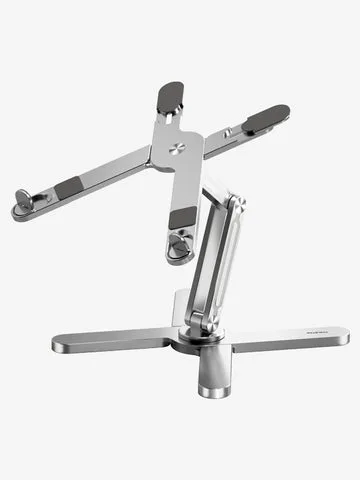
Most stands have rubber feet or pads to protect surfaces. Ensure your stand has these protective tips. Rough metal legs may snag delicate fabrics.
A bed tray with wide legs is the safest choice for bedding.

Image source: Bing (Web (fair-use with source credit))

Similar Posts