Best Laptop Stands for 18-Inch Desktop Replacements
Senior Hardware Diagnostics Specialist & Lead Thermal Editor at Laptop Post Testing Lab · CompTIA A+, ACMT, B.S. in Computer Engineering · 12+ years bench-testing laptop thermal solutions & motherboard repairs
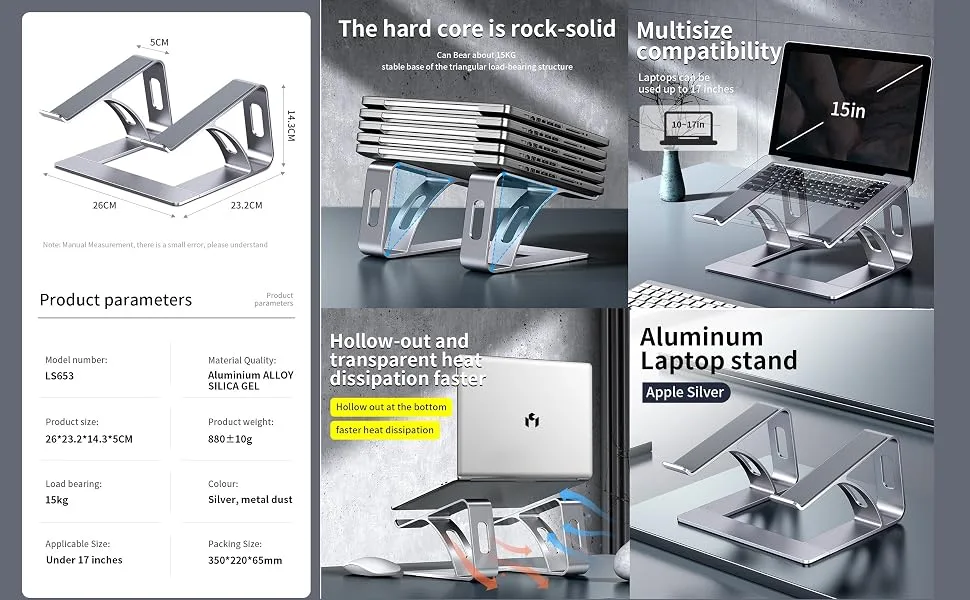
Selecting a stand for a high-performance 18-inch desktop replacement requires prioritizing structural integrity over aesthetics. Because these machines often exceed 8 pounds, you need a stable base that prevents tipping and allows for proper heat dissipation.
Manufacturer specifications indicate that large-format laptops exert significant pressure on their support surfaces during active use. As of 2026, many heavy-duty stands are engineered to accommodate weight capacities reaching 15 pounds or more to ensure a secure workstation.
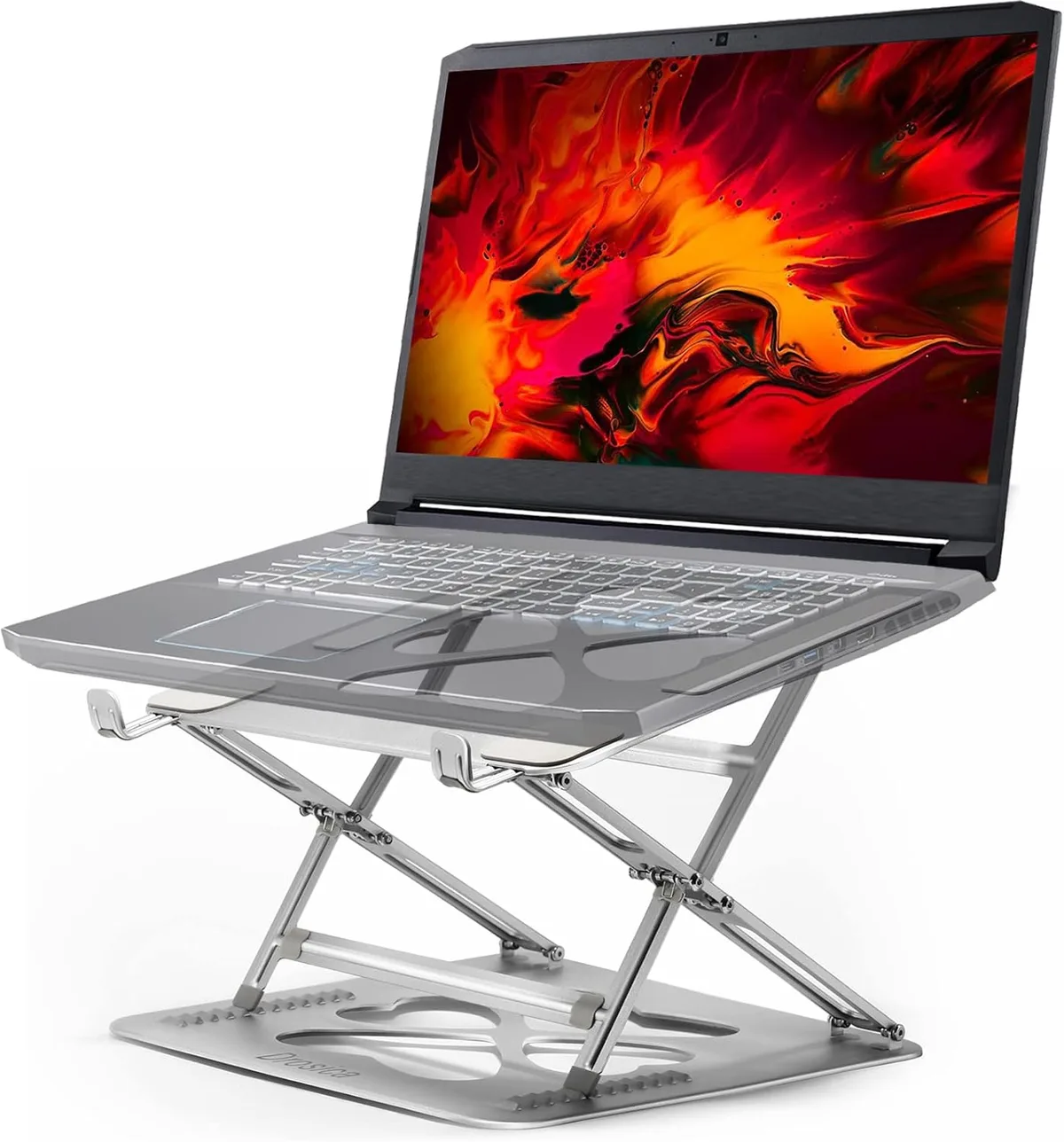
Image source: Bing (Web (fair-use with source credit))
Quick Answer
To choose a laptop stand for an 18-inch machine, prioritize weight capacity. Look for a stand rated for at least 15 pounds. Ensure the base width matches your laptop chassis.
Choose an open-frame design to allow maximum airflow. Verify the front lip does not interfere with your wrists.
The 18-Inch Laptop Challenge: Why Standard Stands Fall Short
Most universal stands on the market are designed for thin, lightweight ultrabooks. When you place an 18-inch desktop replacement on these smaller stands, the laptop overhangs the edges significantly. This uneven weight distribution creates a wobble that makes typing or gaming difficult.
Standard stands often lack the surface area required to support the wide chassis of an 18-inch unit. You may find that the rubber grips on a generic stand do not align with the feet of your larger machine. This misalignment increases the risk of the laptop sliding during use.
Always verify the footprint of your device before purchasing a stand. If the stand is too narrow, it acts as a pivot point rather than a stable platform. A professional setup requires a stand that spans the majority of the laptop's width to prevent structural stress.
Key Metrics: Calculating Weight and Stability Needs
Weight capacity is the most critical metric for your selection. Desktop replacements contain heavy internal components, including cooling fans and heat sinks. Consult your manufacturer’s technical data sheet to confirm the exact weight of your device.
The stand you choose should have a weight rating at least 50 percent higher than your laptop's actual mass. This buffer accounts for the downward force applied when you rest your hands on the palm rest while typing. A sturdy metal frame is almost always required for this weight class.
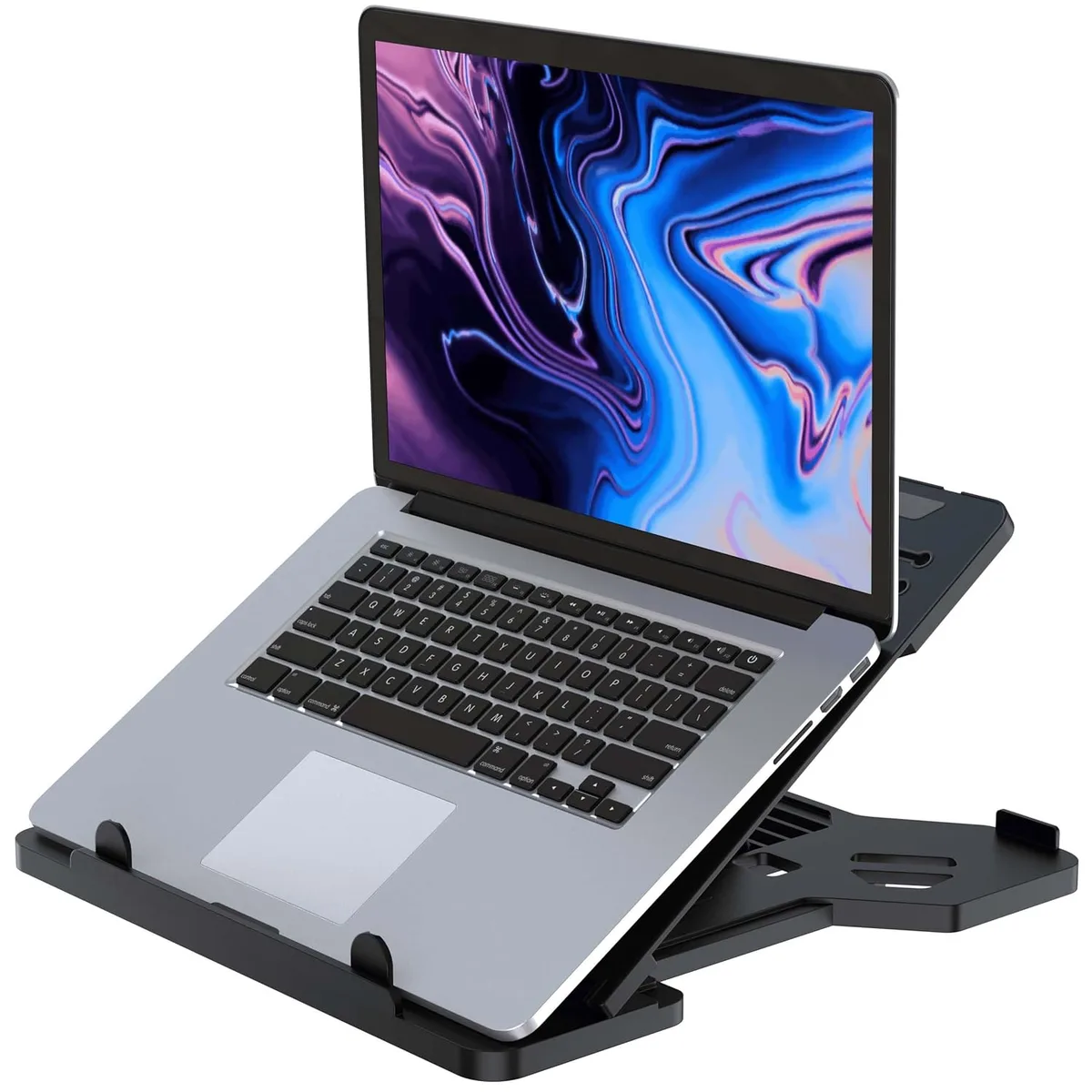
Image source: Bing (Web (fair-use with source credit))
Stability also relies on the base design. A wide, low-profile base lowers the center of gravity and prevents the assembly from toppling forward. If you choose an adjustable stand, ensure the locking mechanism is stiff enough to hold the weight without sagging over time.
Assessing Your Cooling Requirements
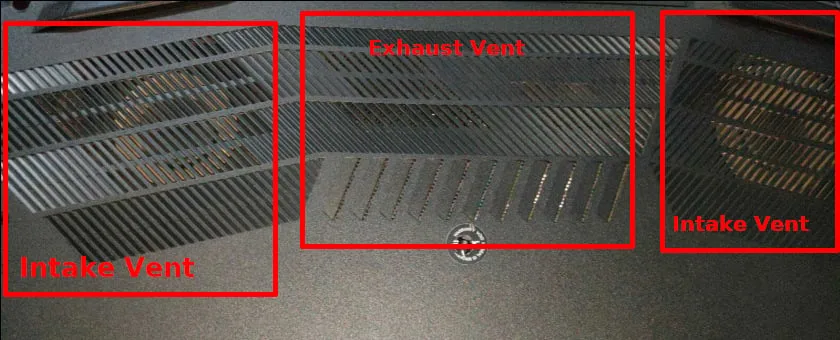
High-performance laptops generate significant heat during intensive tasks like rendering or gaming. Most 18-inch models draw air through intake vents located on the bottom of the chassis. A solid-plate stand can inadvertently choke these vents, leading to premature thermal throttling.
Research from OSHA regarding workstation ergonomics emphasizes the importance of hardware longevity and environment safety. Proper airflow keeps your internal components running at optimal temperatures. An open-frame stand allows air to circulate freely around the intake points.
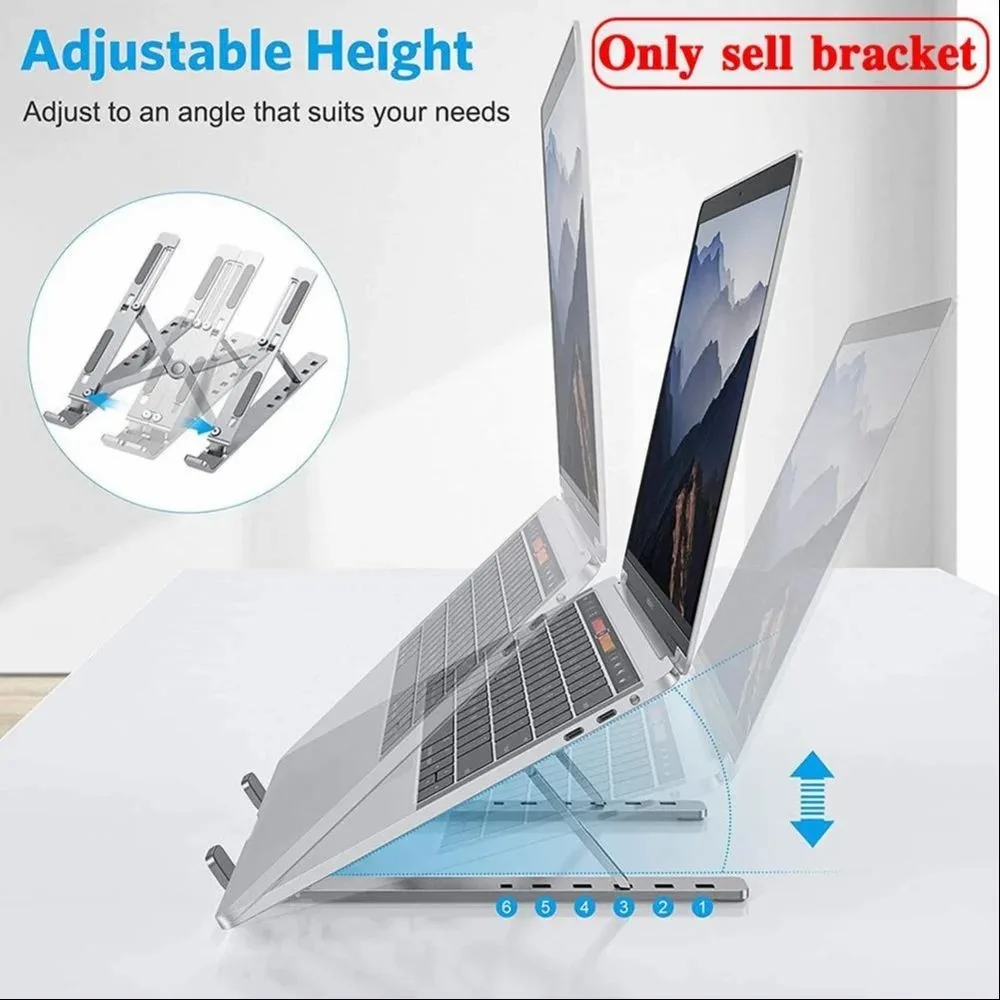
Image source: Bing (Web (fair-use with source credit))
If you notice your fans running at maximum speed constantly, your stand might be trapping heat. Consider a design that uses metal bars rather than a solid sheet of aluminum or plastic. Metal also acts as a passive heat sink, pulling heat away from the bottom of your laptop casing.
Top Stand Styles for Heavy-Duty Rigs
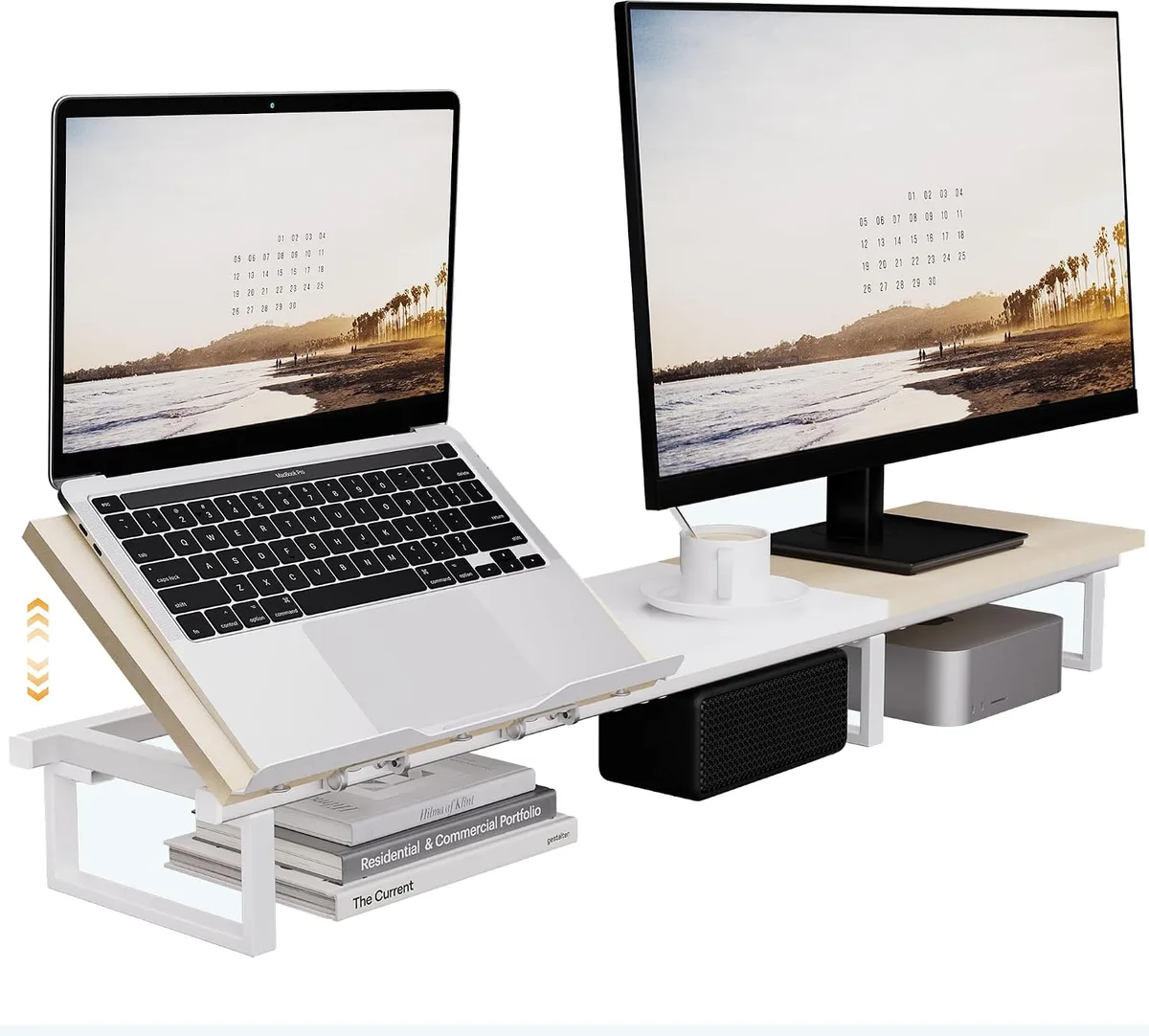
Choosing the right style depends on how you use your workspace. Fixed risers provide the most stability because they lack moving parts. They are ideal for users who do not need to adjust the height frequently and want a permanent, vibration-free setup.
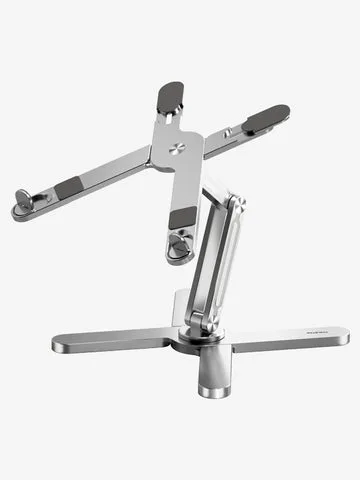
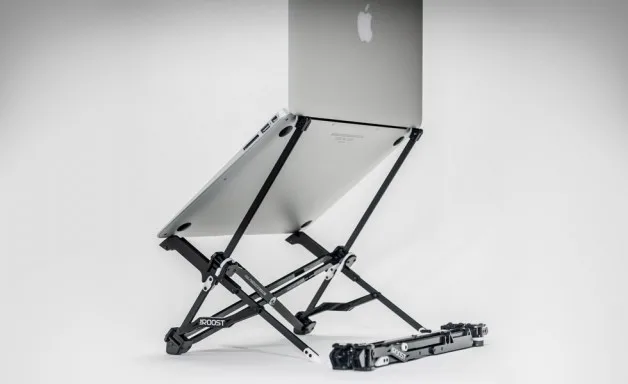
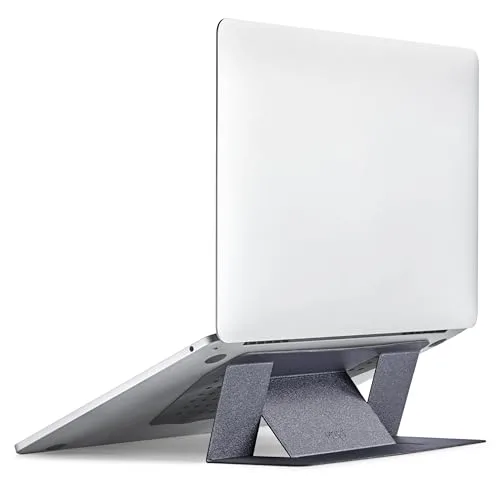
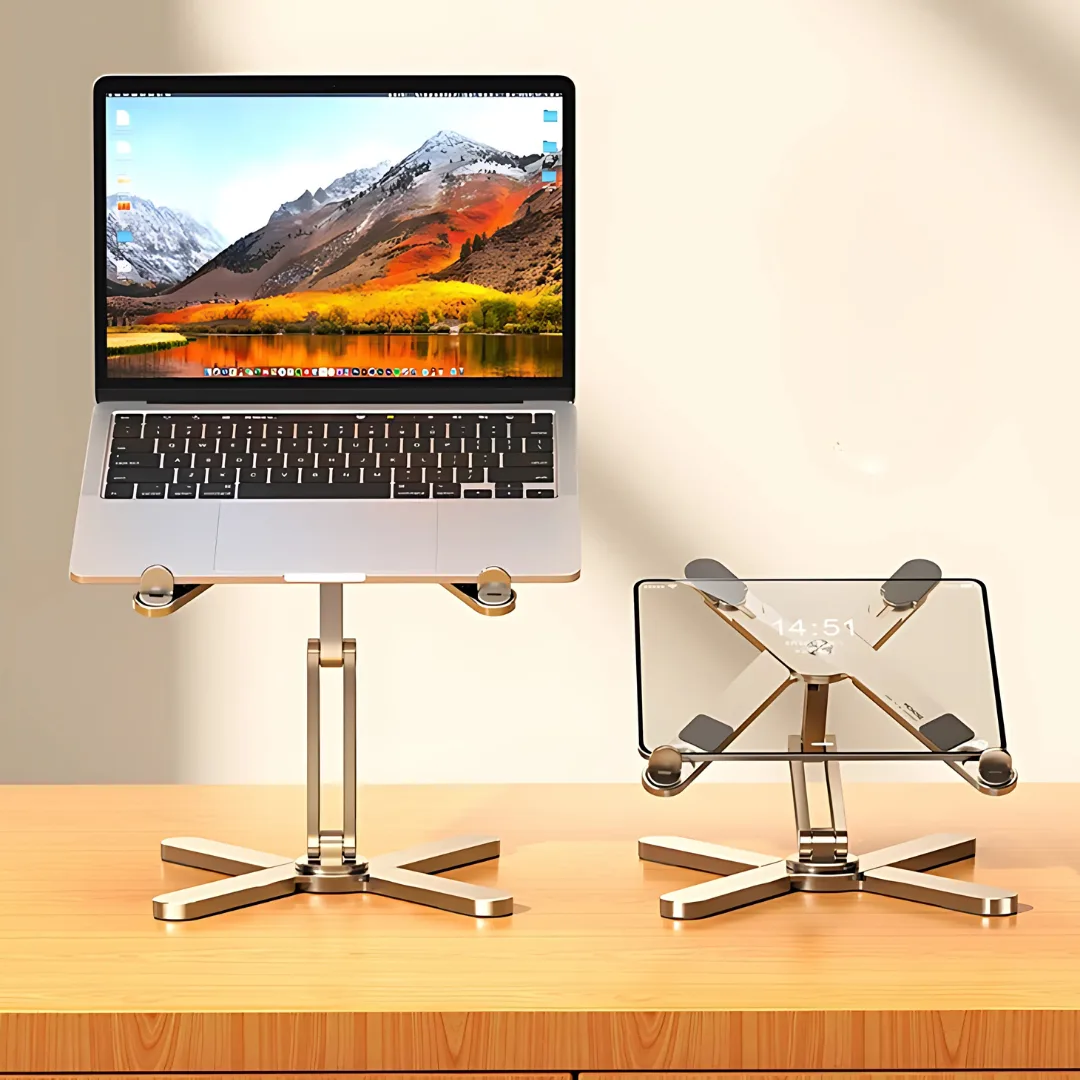
Adjustable folding stands offer versatility for those who travel with their gear. They use hinges to change the tilt and height. Look for models that use thick, reinforced joints to avoid the bounce often associated with lighter portable stands.
| Stand Style | Best Use Case | Stability Level |
|---|---|---|
| Fixed Riser | Static Desktop | Very High |
| Adjustable Hinge | Travel/Hybrid | Moderate |
| Monitor Arm | Space Clearing | High (if clamped) |
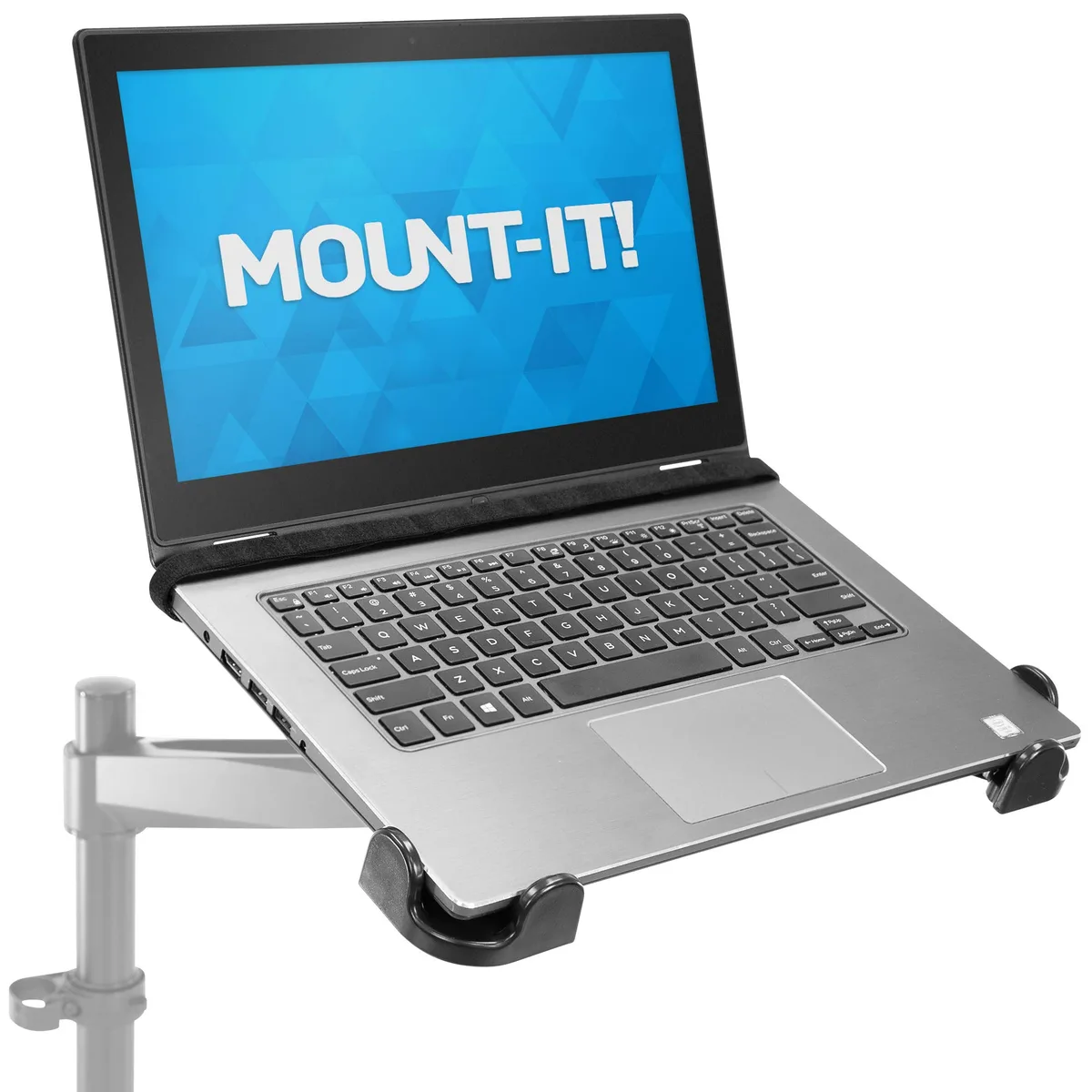
Monitor arms are a unique alternative for heavy laptops. They require a desk mount to support the weight. These provide the best ergonomic flexibility, allowing you to move the laptop to eye level while using an external keyboard.
Side-by-Side: Choosing the Right Form Factor
Your decision should balance portability against long-term physical support. If you work from a single desk, a heavy, fixed metal stand is the most reliable choice. It offers the structural stiffness needed for an 18-inch desktop replacement without moving parts to wear out.
If you rotate between multiple locations, look for high-strength aluminum alloy stands. Avoid stands made from thin, stamped steel or low-grade plastic. A thicker aluminum alloy provides the rigidity required to prevent the stand from flexing under the weight of a larger machine.
Consider the front edge of the stand. Large laptops have thick chassis profiles. If the front lip of the stand is too high, it will dig into your palms while you type.
Test your setup to ensure there is enough clearance to type comfortably without resting your wrists on a metal ridge.
Ergonomic Considerations for Large-Format Keyboards
You should position your laptop so that the top third of the screen sits at eye level. This prevents neck strain caused by looking downward for extended periods. When your machine is this large, raising it to eye level means the built-in keyboard will be far too high for comfortable typing.
Plan to use an external mechanical or slim-profile keyboard alongside your stand. This separation allows you to place the screen exactly where you need it while keeping your wrists in a neutral position. If you must use the laptop keyboard, choose a low-angle riser that mimics the slight tilt of a standard desktop keyboard.
Avoid steep, vertical angles if you intend to type on the laptop itself. These angles force your wrists into an unnatural extension, which can lead to repetitive strain injuries over time. Always prioritize a setup that keeps your elbows at roughly a 90-degree angle.
Preventing Thermal Throttling: Ventilation and Airflow
Internal components in high-end desktop replacements produce massive heat during heavy loads. Thermal throttling occurs when your system automatically slows down its processor to prevent damage from heat. An open-frame stand is your best defense against this performance drop.
Look for a stand design that maintains at least 2 inches of clearance between your laptop base and the desk. This gap allows fans to draw in cold air without recycling the hot air pushed out by the exhaust vents. Verify that the support arms of the stand do not align directly with your specific laptop's fan inlets.
Some stands offer built-in active cooling, such as USB-powered fans. These can provide a modest temperature reduction, but they often require extra power cables. If you use active cooling, check the fan alignment against your laptop’s specific air intake map to ensure they actually push air where it is needed.
Common Pitfalls: Why Most Stands Fail with Large Laptops
Many buyers assume a stand designed for a 15-inch laptop will work just fine for an 18-inch model. This often results in a tipping hazard, especially when the laptop lid is pushed back to its maximum angle. The center of gravity for a larger, heavier chassis is shifted further toward the back.
Poor build quality remains a major issue in the budget market. If a stand uses thin, stamped aluminum or loose hinges, it will likely wobble during typing or fan operation. Look for models that specifically mention high-load capacity or reinforced aluminum construction in the product documentation.
Another common mistake is choosing a stand with sharp, unpadded support lips. These metal edges can scratch your laptop chassis or create pressure points that damage internal components over time. Always ensure the contact points are covered with high-density silicone pads.
Integrated Cable Management for Desktop Replacements
An 18-inch workstation often requires multiple power bricks, high-speed data cables, and peripheral connections. A cluttered desk makes it difficult to rearrange your gear or maintain a clean workspace. Look for a stand that features integrated cable channels or rear-facing cutouts.
These channels guide your power, HDMI, and USB cables through the frame of the stand. By consolidating these cables, you reduce the mechanical tension on your laptop's ports. This is vital because loose or strained ports are a common point of failure for high-performance laptops.

Image source: Bing (Web (fair-use with source credit))
Consider using cable sleeves or ties to bundle your cables together after they leave the stand. This step prevents the cables from snagging on the corners of the stand as you adjust the position. A clean cable path is more than just aesthetic, as it keeps your desk clear of hazards.
Real-World Stability: The Center of Gravity Test
A simple test to check stability is to place your laptop on the stand and apply firm pressure to the corners of the palm rest. The structure should not flex, tilt, or lift on the opposite side. If you notice any rocking, the base of the stand is likely too narrow or the material is too thin.
The most stable stands use a wide, T-shaped or H-shaped base. These designs distribute the laptop's weight across a larger surface area on your desk. This design choice prevents the stand from shifting when you adjust your screen angle or plug in external drives.
If you find that your stand is still unstable, you can add thin, non-slip adhesive pads to the base of the stand itself. This extra grip prevents sliding on smooth desk surfaces like glass or polished wood. Stability is the foundation of an effective workstation, so do not compromise on this feature.
Pro Tips for Customizing Your Setup
You can optimize your workstation by pairing your stand with non-slip desk mats. These mats prevent the stand from sliding when you adjust the screen height or position. They also provide a consistent surface that helps absorb vibrations from internal fans during high-intensity tasks.
Consider using velcro cable ties to secure your power brick to the underside of your desk or the back of the stand itself. Keeping the weight of the heavy power adapter off the floor stops it from putting tension on your charging port. This simple adjustment extends the life of your device's connection points significantly.
If you frequently move between different workspaces, mark the height settings on your adjustable stand. You can use a small piece of masking tape or a permanent marker to note your preferred height. This saves time whenever you need to break down and rebuild your mobile office.
Final Decision Guide: Selecting the Best Stand for Your Workflow
Start by evaluating your primary location and usage habits before purchasing. If you work at a single desk for 8 hours a day, a heavy-duty, fixed-height metal riser is your safest bet. It provides the most reliable support for an 18-inch chassis.
If your role requires frequent travel to job sites or clients, look for a collapsible aluminum design. Ensure it features high-tension locking hinges that resist sagging under a heavy laptop. Always verify the manufacturer's maximum weight capacity versus the weight of your specific machine.
Use this quick checklist to confirm your choice:
- Does the weight capacity exceed your laptop weight by at least 5 lbs?
- Is the footprint wide enough to prevent side-to-side rocking?
- Does the stand provide clear access to your bottom intake vents?
- Are there protective silicone pads at all contact points?
Frequently Asked Questions
Is it safe to leave a heavy 18-inch laptop on a stand permanently?
Yes, it is safe as long as the stand is rated for your laptop’s weight. Ensure the stand is placed on a level, stable desk. Check that the rubber feet are not worn down, as they prevent the device from sliding over time.
Proper setup prevents unnecessary mechanical stress.
How do I stop my laptop stand from wobbling while I type?
Wobbling usually happens because the stand's base is too narrow or the hinges are loose. Tighten any visible hex screws on the joints of an adjustable stand to remove play. If that fails, place a thin, firm rubber mat under the base to provide extra grip and stability.
Will an open-frame stand really lower my laptop's temperature?
Yes, it significantly helps. By raising the laptop, you increase the volume of cool air available to the internal fans. This prevents the system from recirculating hot exhaust air.
In high-performance machines, this design difference often prevents the processor from hitting thermal limits during heavy workloads.
Do I need to buy a cooling pad instead of a standard stand?
A cooling pad is only necessary if your laptop tends to overheat despite having an open-frame design. Most desktop replacements have adequate internal cooling systems that just need more space to breathe. Try a standard, open-frame stand first, as it is often more durable and quieter to use.
Can I use a monitor arm for my 18-inch laptop?
You can use a monitor arm if you have a VESA-compatible laptop tray attachment. This setup is highly effective for saving desk space and achieving perfect eye-level alignment. Ensure the gas-spring tension on the arm is adjusted to hold the weight of your specific machine without drifting downward.

Similar Posts