How to Adjust Your 360 Swivel Laptop Stand Smoothly
Senior Hardware Diagnostics Specialist & Lead Thermal Editor at Laptop Post Testing Lab · CompTIA A+, ACMT, B.S. in Computer Engineering · 12+ years bench-testing laptop thermal solutions & motherboard repairs
If you’ve ever felt frustrated by a jerky or stiff rotation, knowing how to adjust 360 rotating swivel base laptop stand smoothly will transform your workstation. These stands often ship with default settings that don’t account for your specific laptop weight.
Optimizing this motion keeps your screen movement stable while preventing mechanical wear. As of 2026, ergonomic guidelines from the Human Factors and Ergonomics Society suggest that adjustable hardware should move with minimal force. This guide covers how to calibrate your gear for effortless operation.
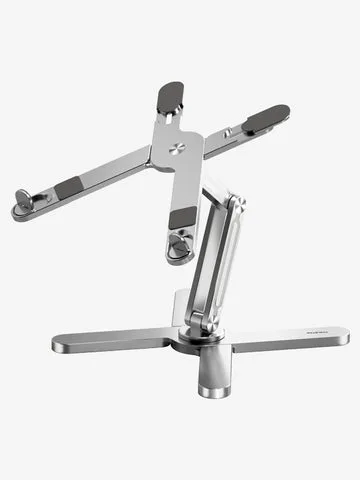
Image source: Bing (Web (fair-use with source credit))
Quick Answer
You adjust a swivel stand by modifying its central tension bolt. Use a hex key or screwdriver to turn the screw clockwise. Tightening adds resistance for stability.
Loosening makes the base spin more freely. Ensure your laptop remains centered to prevent uneven friction. Clean debris from the track for silent movement.
Why Your Laptop Stand Feels Notchy or Stiff
A notchy sensation happens when the internal ball-bearing race is unevenly loaded. Your laptop stand likely uses a series of small ball bearings captured in a circular track. If the weight isn't distributed evenly, those bearings drag against the housing.
You might also feel resistance if the central pivot point is misaligned. When the weight pushes harder on one side, it forces the top plate to tilt slightly. This tilt increases friction, preventing the smooth 360-degree rotation you expect.
The Anatomy of a 360-Degree Swivel Base
Most rotating stands rely on a simple assembly consisting of a top plate and a base plate. These are separated by a friction washer or a ring of ball bearings. A central nut or bolt acts as the axle that holds both pieces together.
The tension-control system works by compressing these internal components. When you tighten the bolt, you squeeze the friction washer or force the bearings into tighter contact with the race. This creates the resistance that prevents your laptop from spinning uncontrollably while you type.
| Component | Function | Maintenance Need |
|---|---|---|
| Pivot Bolt | Sets base resistance | Occasional tightening |
| Friction Washer | Controls spin smoothness | Keep clean/dry |
| Ball Bearings | Facilitates 360 rotation | Remove dust/debris |
| Rubber Feet | Prevents base sliding | Wipe with alcohol |
Identifying Your Stand’s Tension Mechanism
To find your adjustment point, look at the underside of the stand. Most manufacturers place a hex nut or a Phillips-head screw directly in the center of the swivel circle. If you don't see one, some stands hide the adjustment screw behind a removable rubber cap.
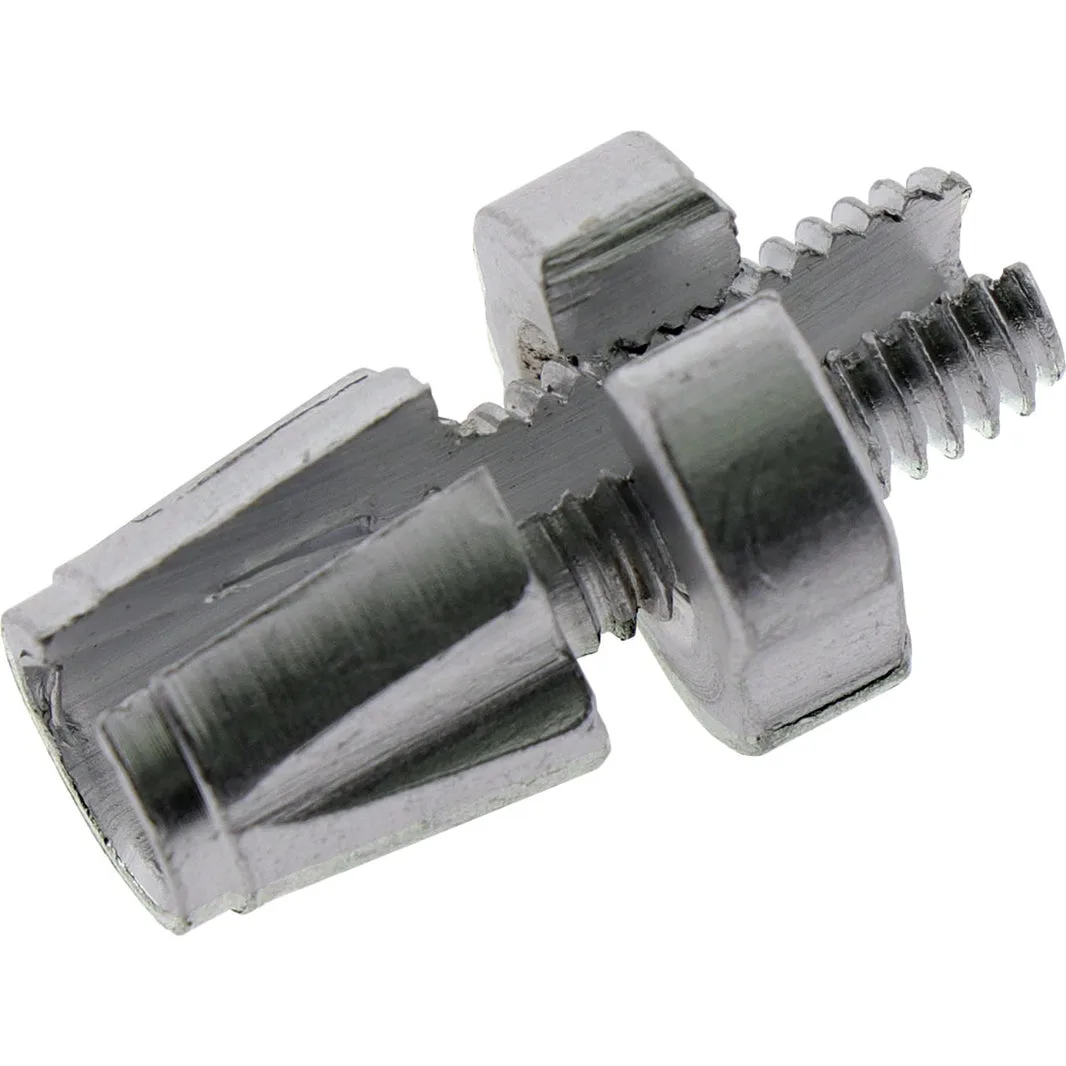
Image source: Bing (Web (fair-use with source credit))
Check if your stand has a tension-ring system instead of a bolt. These rings are often located around the perimeter of the base. If you can’t find an obvious screw, consult your specific model manual on the manufacturer's website to ensure you don't void any existing warranty.
Balancing Your Laptop’s Center of Gravity
Even a perfectly calibrated stand will feel stiff if your laptop isn't centered. Because the pivot point is usually exactly in the middle of the base, placing your laptop too far forward or backward creates torque. This torque tilts the plate and causes uneven wear on the swivel track.

Image source: Bing (Web (fair-use with source credit))
Slide your laptop until it sits balanced over the center of the stand. You’ll know it’s correct when the stand rotates with equal resistance in every direction. If it feels smooth at the front but drags at the back, your laptop is likely positioned too far off-center.
Step-by-Step: Adjusting Your Tension for a Smooth Glide
Start by placing your laptop on the stand in your preferred working position. Test the current rotation to see if it is too loose or too stiff. If it spins too fast, you need to tighten the central bolt using a matching tool.
- Locate the central adjustment bolt on the underside of the base.
- Turn the bolt clockwise in 1/8 turn increments to increase resistance.
- Rotate the stand 360 degrees to check for consistency.
- Repeat until the rotation feels smooth but firm enough to hold steady.
If the stand feels gritty, the bolt might be too tight, causing the washers to bind. Loosen the screw counter-clockwise until the movement is fluid. Aim for a weighted feel, where the stand moves only when you intentionally push it, but stays put while you work.
Cleaning the Swivel Track for Silent Movement
Gritty, grinding noises when you rotate your stand usually point to trapped debris. Over time, hair, dust, and microscopic crumbs settle into the swivel track. This contamination turns your smooth movement into a noisy, friction-heavy experience.
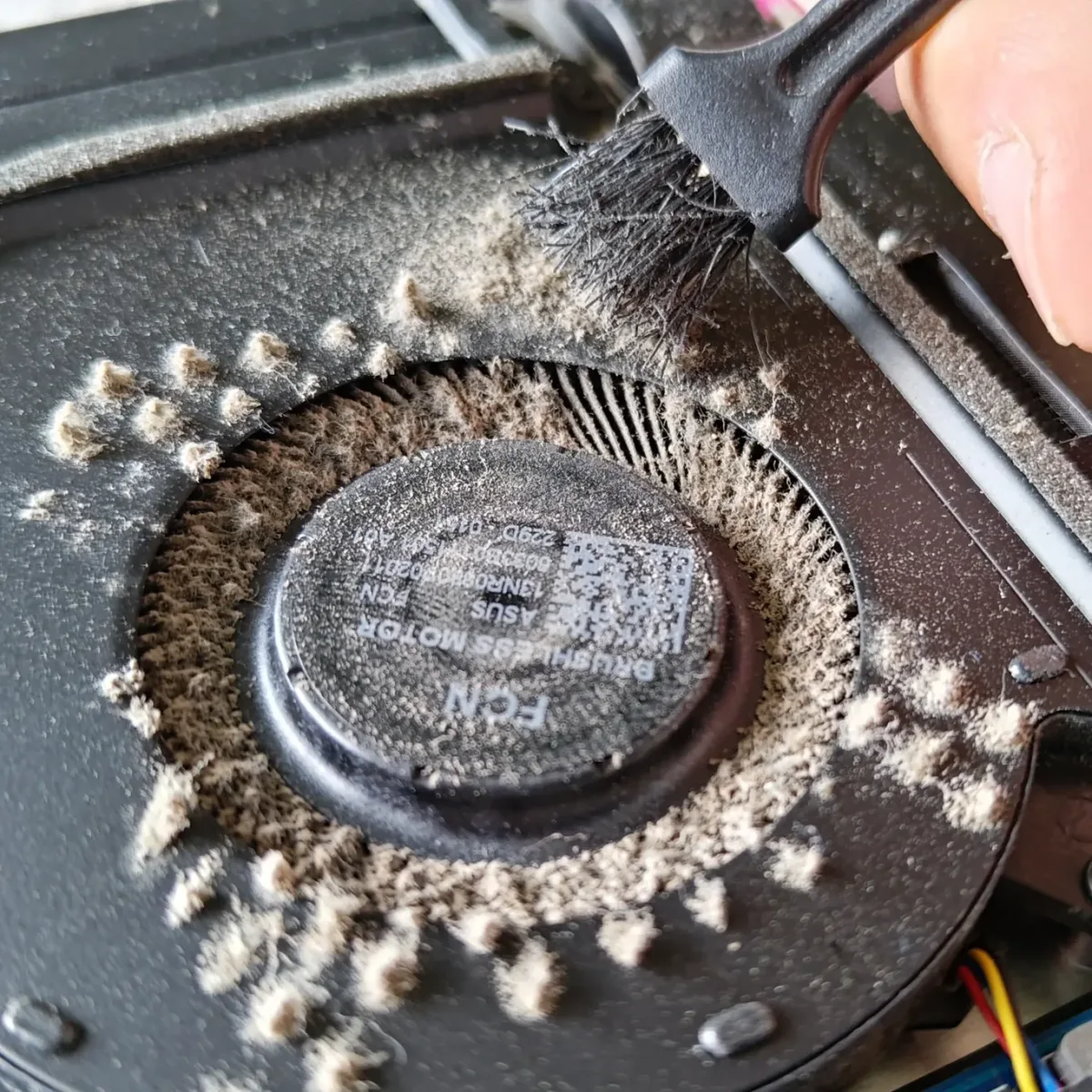
Image source: Bing (Web (fair-use with source credit))
Compressed air is the most effective tool for this job. Direct the nozzle into the gap between the top and bottom plates while rotating the stand slowly. This clears the track without needing to disassemble the entire unit.
Avoid using liquid lubricants or sprays like silicone oil unless the manufacturer explicitly suggests them. Most stands rely on dry plastic or nylon washers. Adding oil creates a sticky trap that actually attracts more dust, eventually worsening the problem.
Troubleshooting Surface Grip and Desk Stability
If the stand slides across your desk while the plate remains stationary, the issue is your desk surface. Slick surfaces like glass or polished wood offer little traction for the rubber pads on the bottom of the stand. This makes it impossible to spin the top plate without moving the entire base.
First, wipe the rubber feet on the bottom of the stand with a damp, lint-free cloth. Dust buildup reduces the coefficient of friction, rendering the anti-slip pads ineffective. A quick clean with isopropyl alcohol can restore the natural tackiness of the rubber material.
If your desk is the primary problem, place a thin neoprene mousepad or a desk mat underneath the stand. The extra grip from the fabric surface will anchor the base plate firmly. You can then rotate your laptop freely without fighting against the base creeping across your workspace.
Common Mistakes That Cause Binding and Grinding
The most common mistake is overtightening the central bolt. People often assume that a tighter bolt equals a sturdier stand, but this actually crushes the internal friction washers. You’ll find the stand becomes difficult to move and produces a harsh, grinding sound as the materials struggle against one another.
Another frequent error is ignoring the orientation of the laptop on the stand. If you mount a heavy laptop with an off-center weight distribution, you create uneven pressure on the bearings. This leads to binding, where the stand gets stuck at specific angles because the load is pushing the plates out of alignment.
Finally, avoid using tools that don't fit the bolt head perfectly. Stripping the head of an adjustment screw makes future maintenance impossible. Always use the correct size hex key or screwdriver to preserve the hardware integrity of your device.
When to Replace vs. Repair Your Swivel Base
Sometimes the mechanical wear on the swivel race exceeds what a simple adjustment can fix. If you feel deep notches or dead spots even when the stand is clean and properly balanced, the internal ball-bearing race is likely deformed. This usually happens after years of heavy use or if the stand has been dropped.
Repairing a deformed metal race is rarely possible for the average user. If the stand is made of lightweight aluminum, the race housing may have warped. Attempting to bend it back usually leads to more binding rather than a fix.
Check the manufacturer warranty before replacing the unit. Many high-end stand manufacturers offer multi-year coverage for mechanical failures. If the unit is out of warranty, it is often more cost-effective to upgrade to a newer model with a sealed, maintenance-free bearing system.
Long-Term Maintenance for Consistent Performance
Consistency is the secret to a high-performing rotating stand. A quick monthly check ensures that the tension remains set to your preference. If you notice the rotation becoming looser, simply check the tension bolt for movement caused by vibrations from your typing.
Keep a dedicated hex key or screwdriver near your workstation for these minor adjustments. You’ll avoid the frustration of hunting for tools when you need to make a quick change. A stable, smooth-operating stand reduces physical strain by allowing you to shift your screen angle with one hand.
Don't let dust accumulate for months at a time. A quick blast of air once a month takes seconds and prevents the gritty buildup that ruins the swivel mechanism. Maintaining the base keeps the overall setup ergonomic and ensures the longevity of your hardware.
Frequently Asked Questions
Can I use WD-40 to fix a stiff swivel base?
Avoid using standard petroleum-based lubricants on these stands. These products often attract dust and debris, which turns into a thick, gummy paste inside the bearing race. Use only dry silicone sprays or keep the mechanism clean and dry to ensure the best performance.
Why does my stand wobble when I rotate it?
Wobbling usually indicates an uneven desk surface or a loose base mount. Check that all four rubber feet are firmly in contact with your desk. If the stand is level and still wobbles, the internal central bolt may need a slight tightening to reduce vertical play.
How often should I perform maintenance on my stand?
Monthly inspections are ideal for maintaining smooth rotation. Use a can of compressed air to clear out dust once every few weeks. If you notice any increased resistance while spinning the laptop, check the tension bolt immediately to prevent unnecessary mechanical wear.
Will adjusting the tension affect the height of the stand?
Tension adjustments usually do not change the height of the stand. The tension bolt specifically controls the lateral friction of the swivel race. However, if your stand uses a different height-adjustment mechanism, ensure you don't confuse the two sets of hardware when making your tweaks.
What is the best way to clean the base without disassembling it?
Use a soft, dry microfiber cloth to wipe down the exterior and the visible gaps in the swivel base. For deeper cleaning, use compressed air to blow out particles from the internal track. If the stand has a sticky residue, a lightly dampened cloth with mild soapy water works well on the exterior surfaces.

Similar Posts