How to Align Your Laptop Screen with an External Monitor
Senior Hardware Diagnostics Specialist & Lead Thermal Editor at Laptop Post Testing Lab · CompTIA A+, ACMT, B.S. in Computer Engineering · 12+ years bench-testing laptop thermal solutions & motherboard repairs
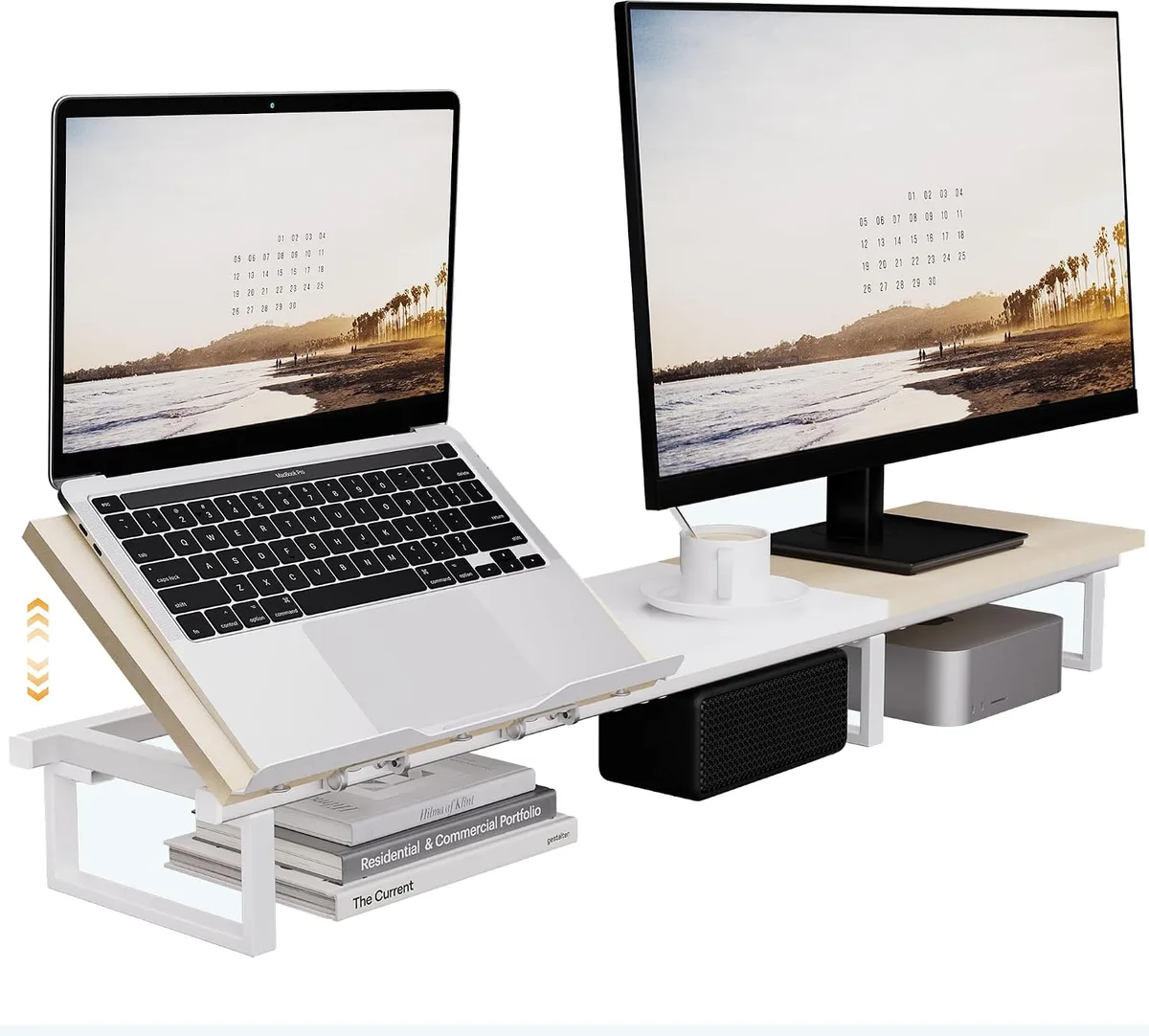
Image source: Bing (Web (fair-use with source credit))
Learning how to align laptop screen height with second external monitor helps you maintain a seamless workspace. Without this adjustment, your mouse often gets trapped at the screen edges, and your neck bears the burden of awkward viewing angles.
Ergonomic standards, such as those maintained by the Occupational Safety and Health Administration, suggest that screen alignment is critical for long-term health. When your displays match up correctly, you stop craning your neck or shifting your posture to follow moving windows.
Quick Answer
You align your screens through your computer’s primary display settings menu. Open the settings display tab to map your monitors visually. Drag the screen icons to match their physical desk positions.
Ensure the top edges or center points align horizontally. Save these changes to fix your mouse tracking issues.
The Cursor Trap: Why Your Screen Alignment Feels Off
The cursor trap happens when your computer thinks your monitors are aligned differently than they are in real life. If you move your mouse from the laptop to your monitor, it might hit an invisible wall or jump unexpectedly to a different height. This occurs because the operating system uses a virtual map to track your mouse movement.
If that virtual map does not match your physical desk, the cursor will get stuck on the bezel of one screen. Most users experience this when one display is physically higher than the other. Windows and macOS assume a perfectly flat baseline by default.
You have to manually adjust the virtual alignment to account for your specific hardware heights.
The Ergonomic Cost of Uneven Monitors
Your neck is designed to look forward, not up or down, for long periods. When your laptop screen is too low, you naturally tilt your head downward. This posture, often called text neck, puts extra strain on your cervical spine.
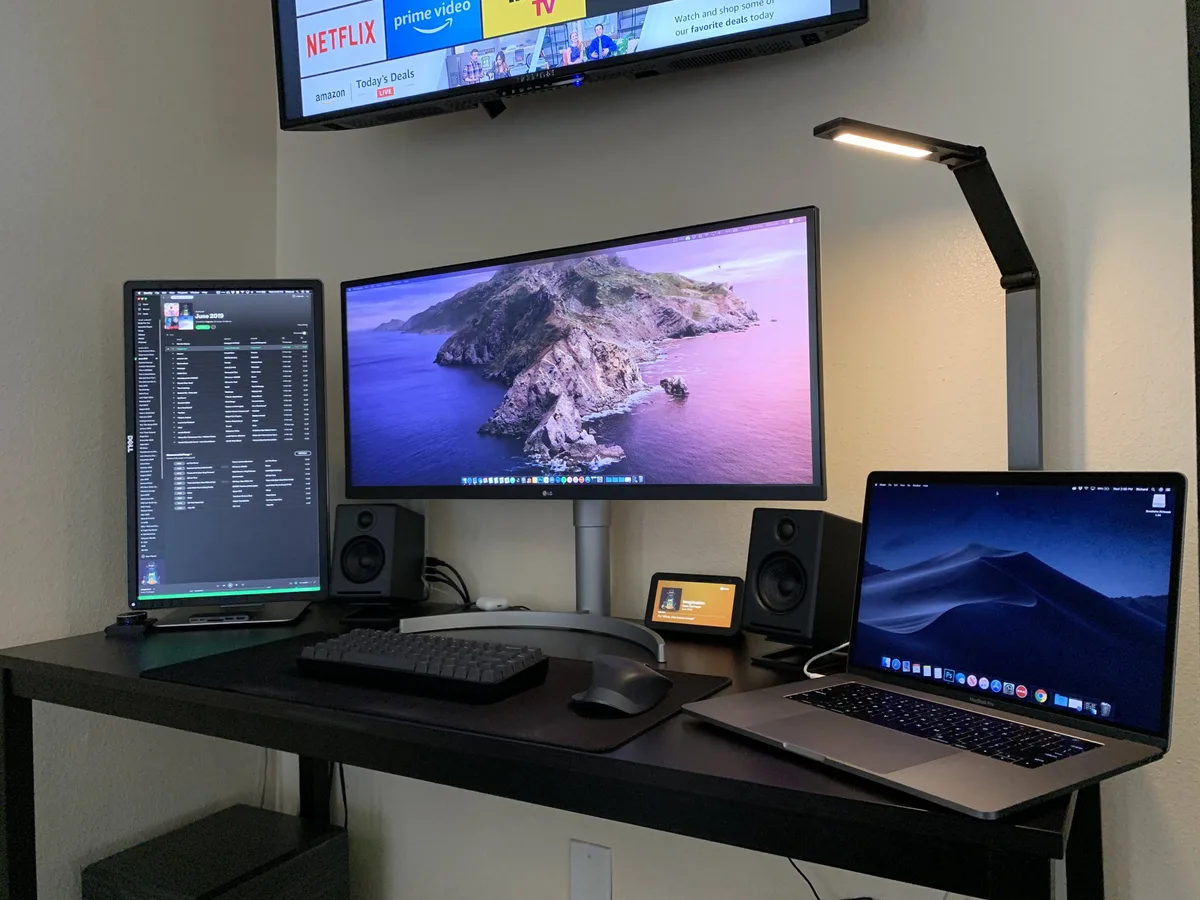
Image source: Bing (Web (fair-use with source credit))
Research into human-system interaction, documented in ISO 9241 standards, highlights that maintaining a neutral head position is vital. An uneven dual monitor setup forces your eyes to constantly refocus as you switch between screens. This leads to eye fatigue, headaches, and shoulder tension.
By elevating your laptop, you bring the top third of the screen to eye level. This simple adjustment prevents you from slouching throughout the workday.
Assessing Your Desk: Physical Setup vs. Virtual Mapping
Before you change any software settings, you must arrange your hardware. A good setup minimizes the distance between the two screens. You want the screens to feel like one continuous surface rather than two separate islands.
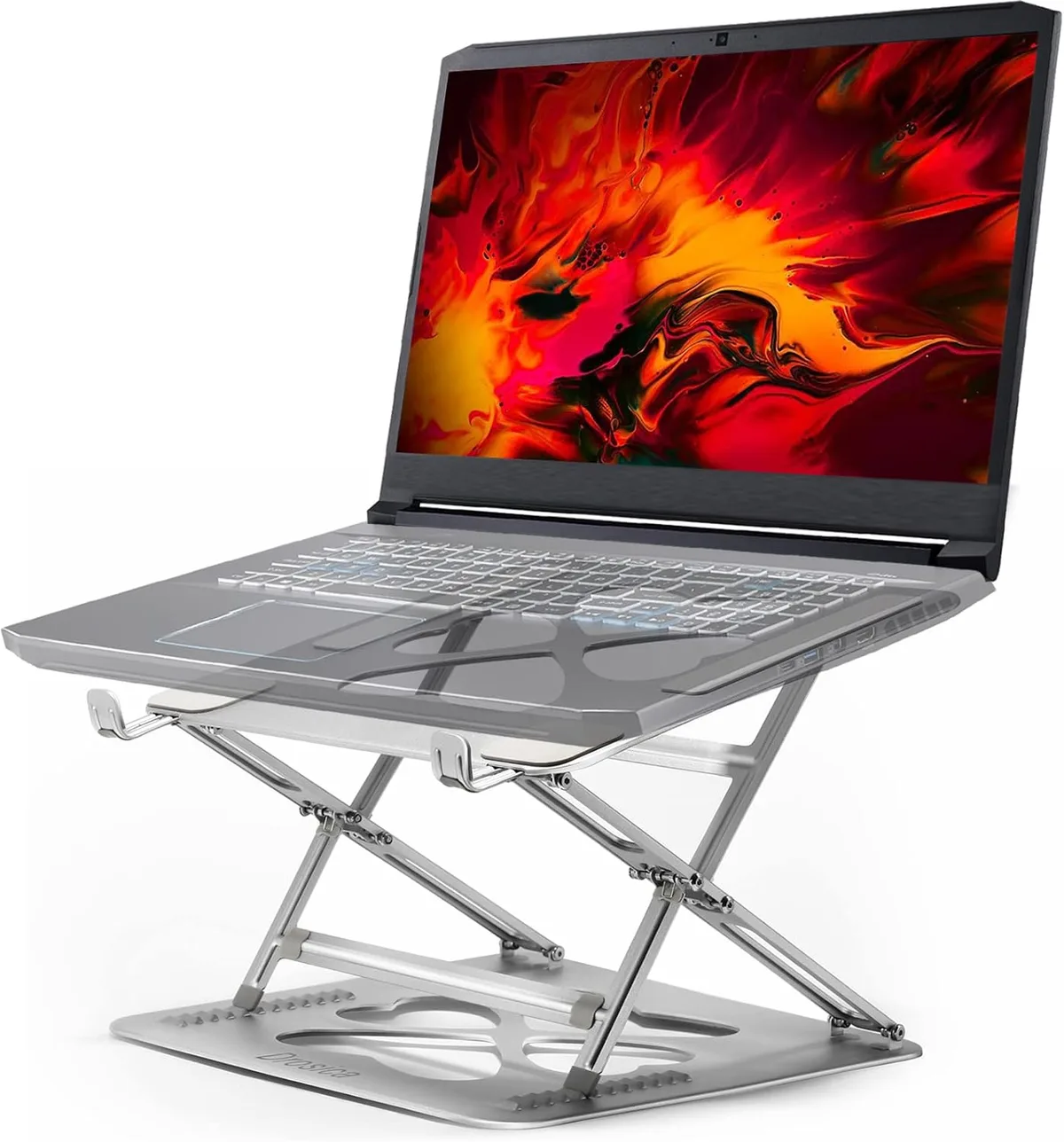
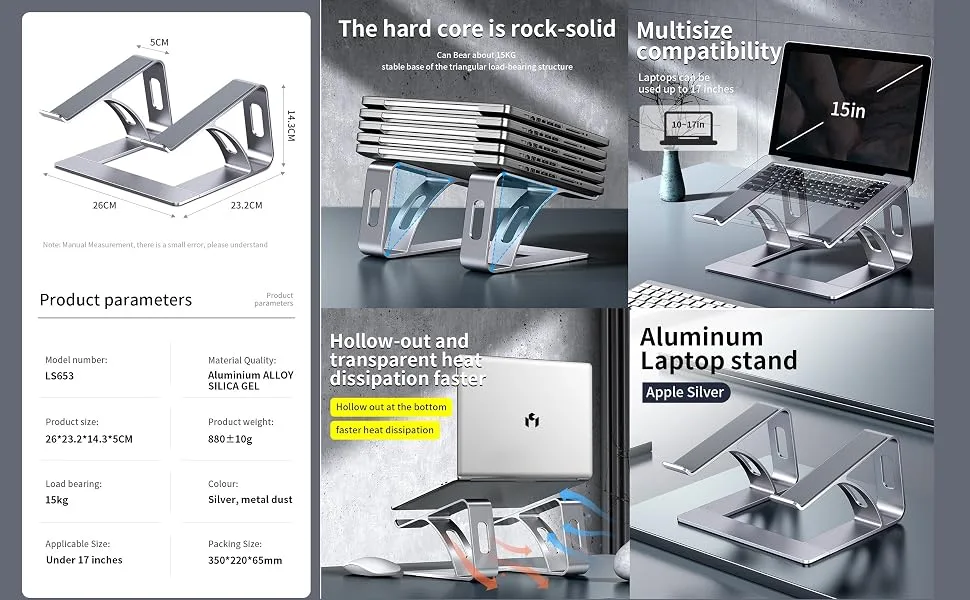
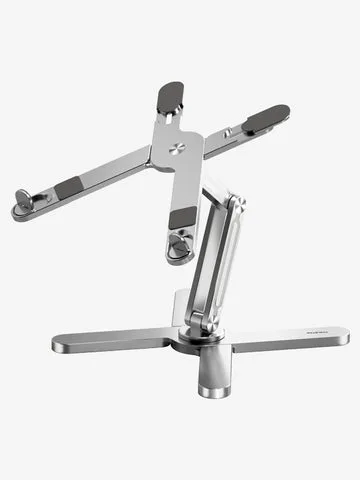
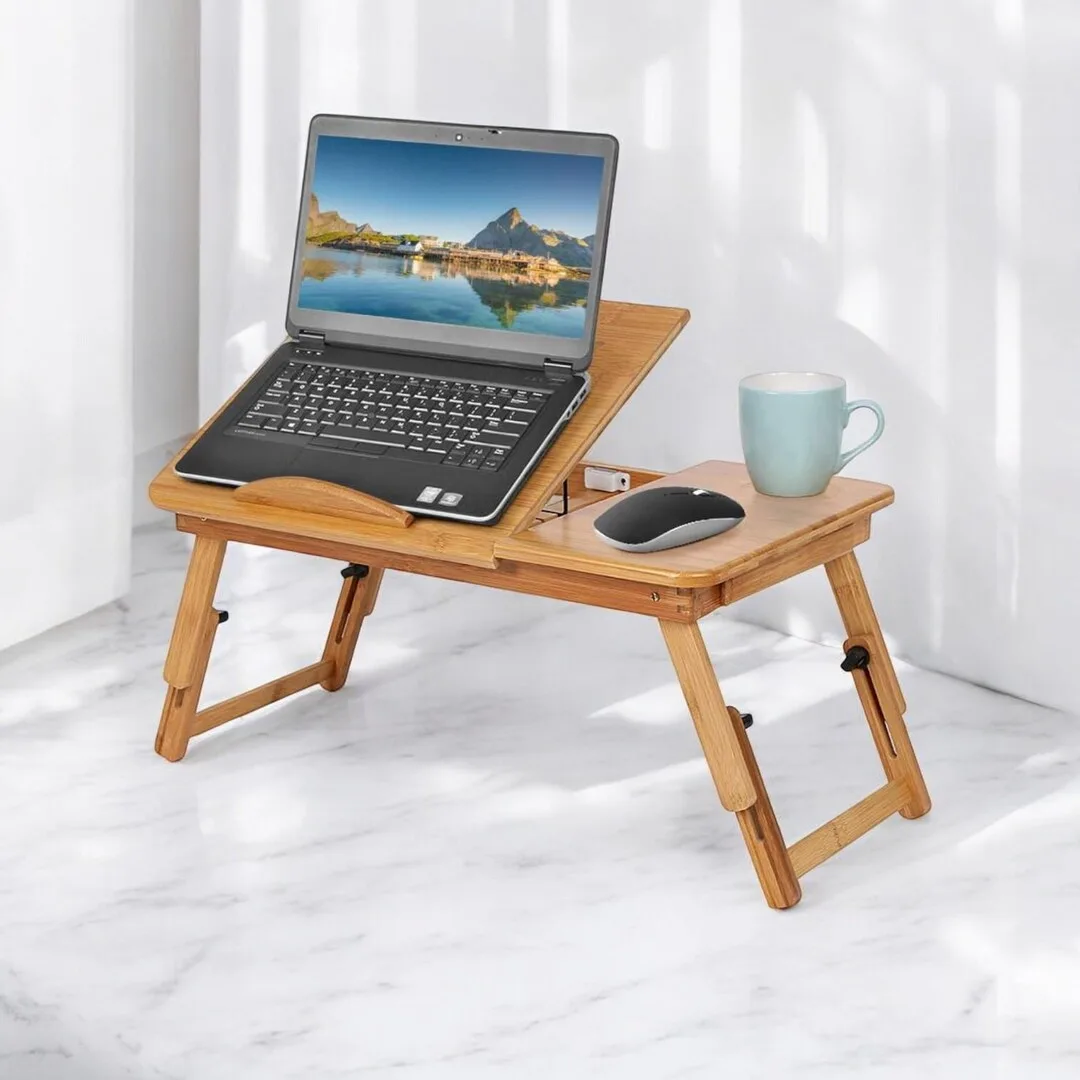
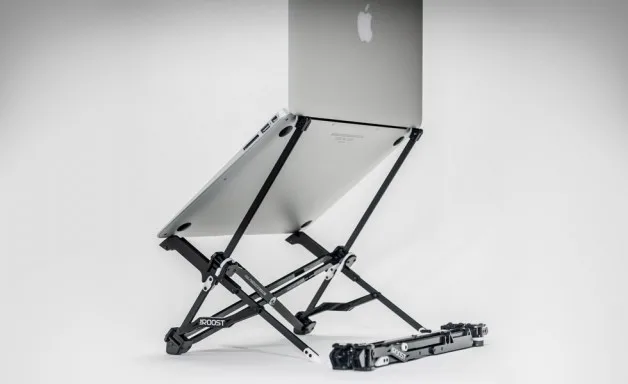
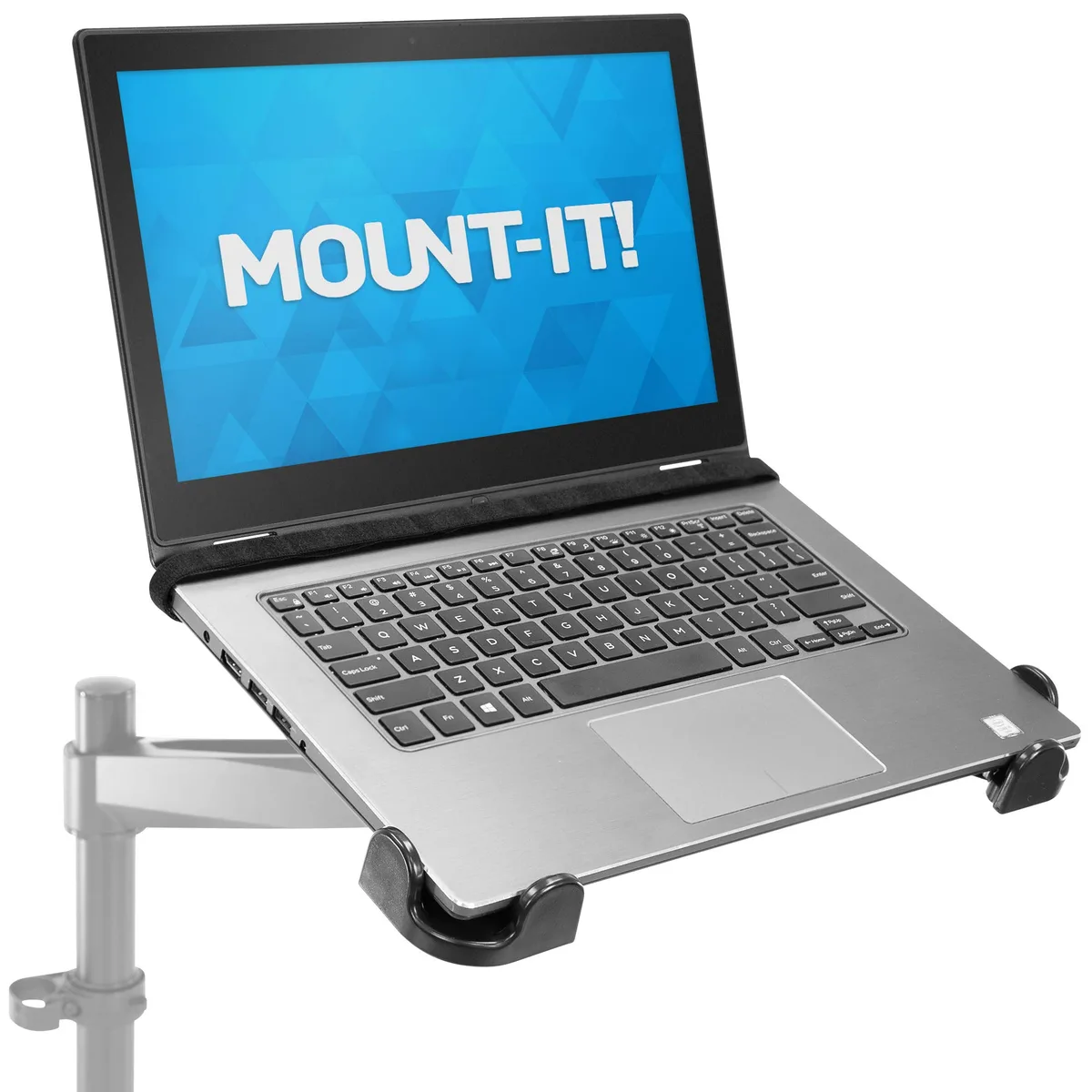
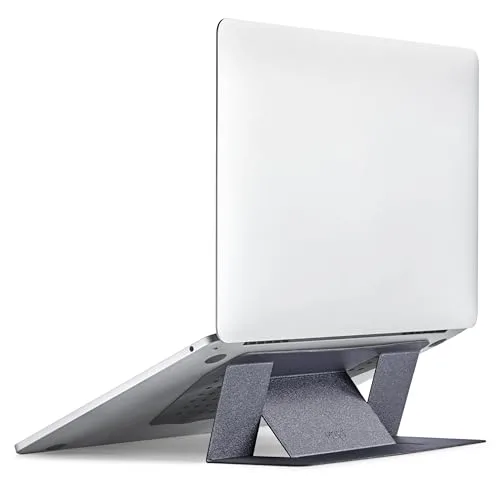
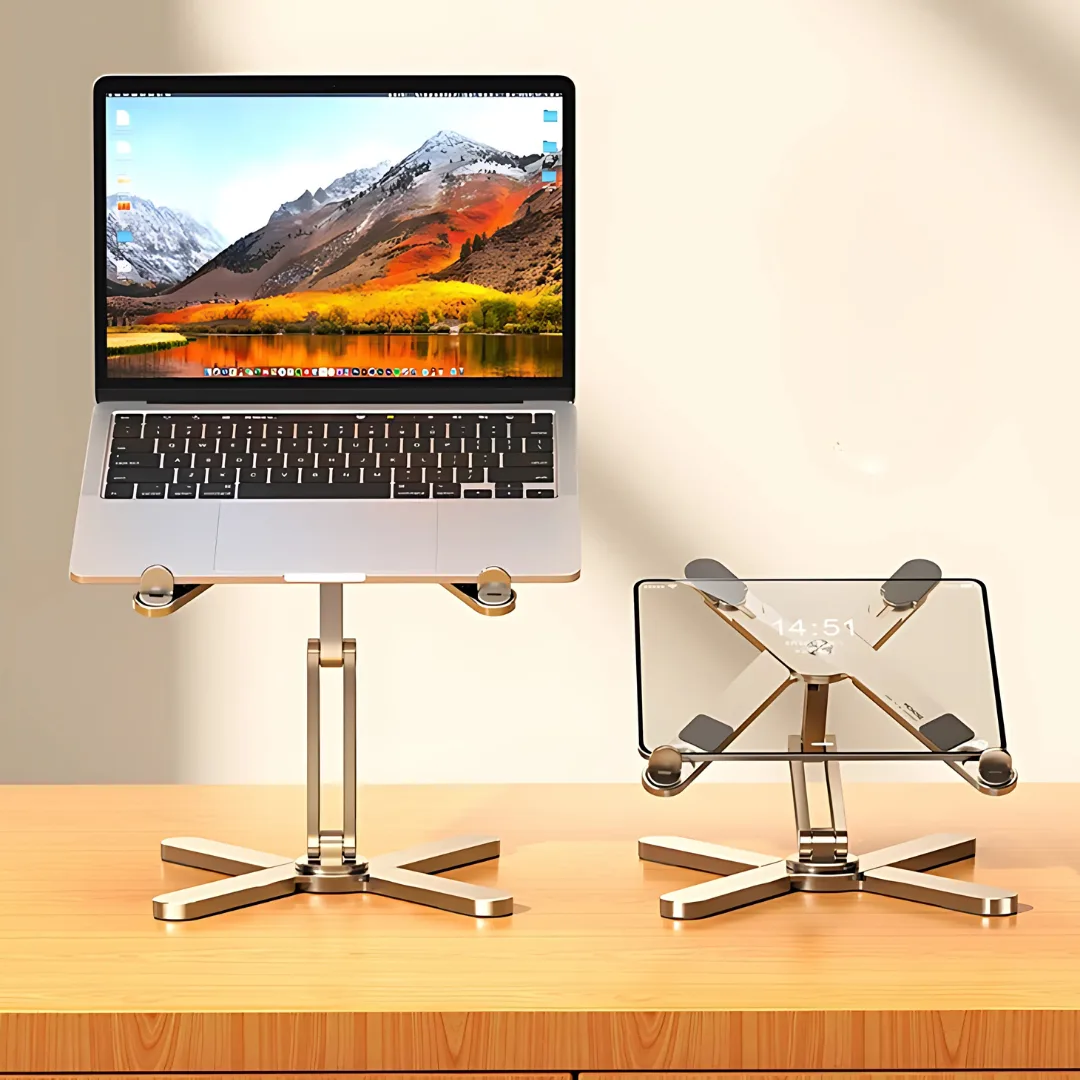
- Use a sturdy laptop stand or arm to elevate your laptop.
- Place the external monitor directly next to the laptop.
- Measure the physical height difference from the desk surface to the bottom of the active display area.
- Keep your primary monitor directly in front of you.
You should never prioritize aesthetics over ergonomics. If your laptop has a smaller screen, it is usually better to keep it to the side. Use the larger, external monitor as your main focal point to reduce the amount of time you spend looking at the smaller, lower-positioned display.
Step-by-Step: Calibrating Screen Heights in Your OS
Once your monitors are physically stable, you must update the virtual map. This tells the computer exactly where the seam between the screens exists.
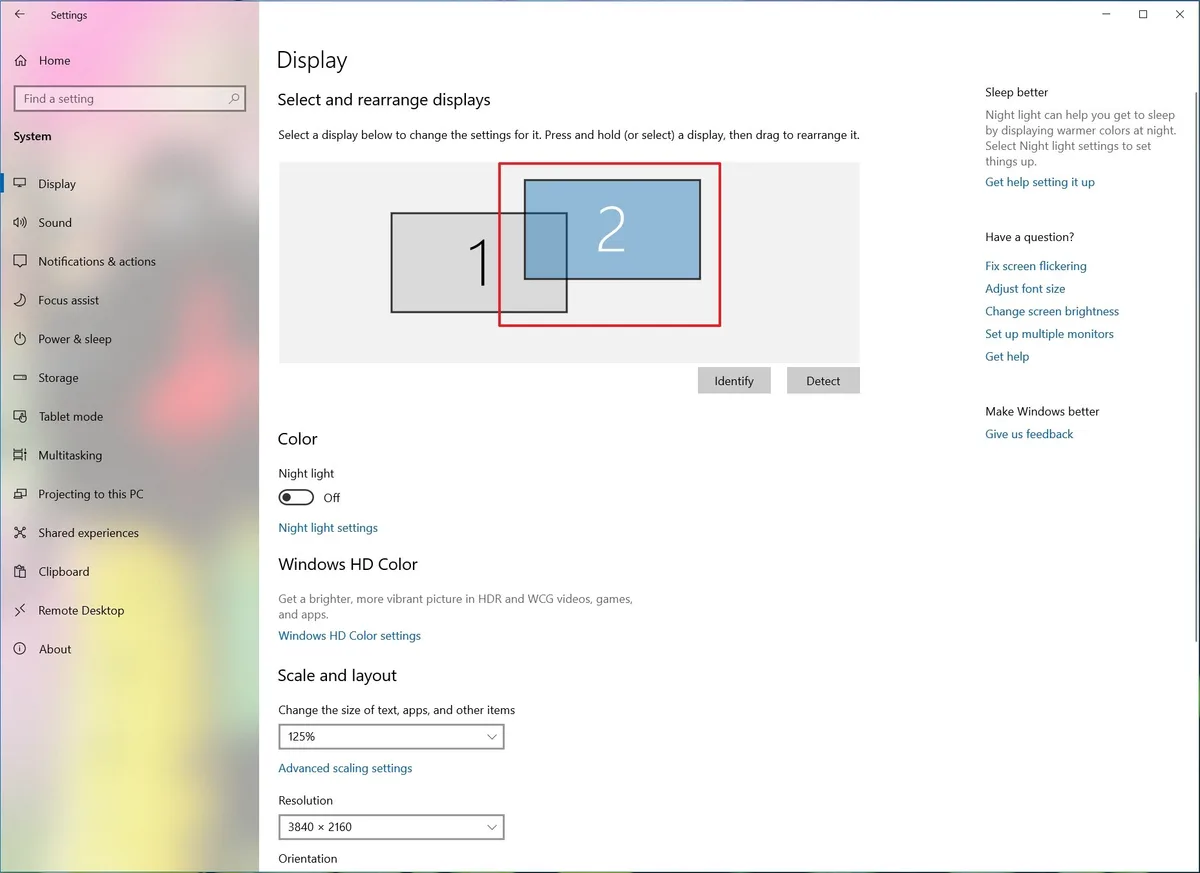
Image source: Bing (Web (fair-use with source credit))
Follow these steps for Windows or macOS:
| System | Menu Path | Action |
|---|---|---|
| Windows | Settings > System > Display | Drag the numbered boxes to match your screen heights. |
| macOS | System Settings > Displays > Arrange | Click and drag the white bar to align the monitor positions. |
When you drag the boxes in the settings menu, look for the snap feature. Windows will often try to snap the edges together for you. If your screens aren't the same size, align the centers so your mouse moves fluidly across the middle.
Matching Resolutions: Solving the Scaling Jump
Even when the screens are aligned, windows might look like they shrink or grow when moved. This is caused by different pixel densities, often called DPI scaling. A 4K monitor has many more pixels than a standard 1080p laptop screen.
- Open your Display settings again.
- Select the external monitor.
- Look for Scaling or Layout options.
- Increase the percentage, usually to 125% or 150%, until the text looks similar on both screens.
If you don't adjust this, a window will physically jump in size every time you cross the border. It might be huge on the laptop and tiny on the monitor. Scaling balances this difference and makes the transition feel invisible to your eyes.
Eliminating Dead Zones: The Bezel Alignment Trick
A dead zone occurs when your monitors are spaced apart, creating a physical gap where your cursor disappears. To fix this, you need to minimize the distance between the bezels, which are the plastic frames surrounding your screens. The goal is to bring the edges as close as possible without overlapping the active display areas.
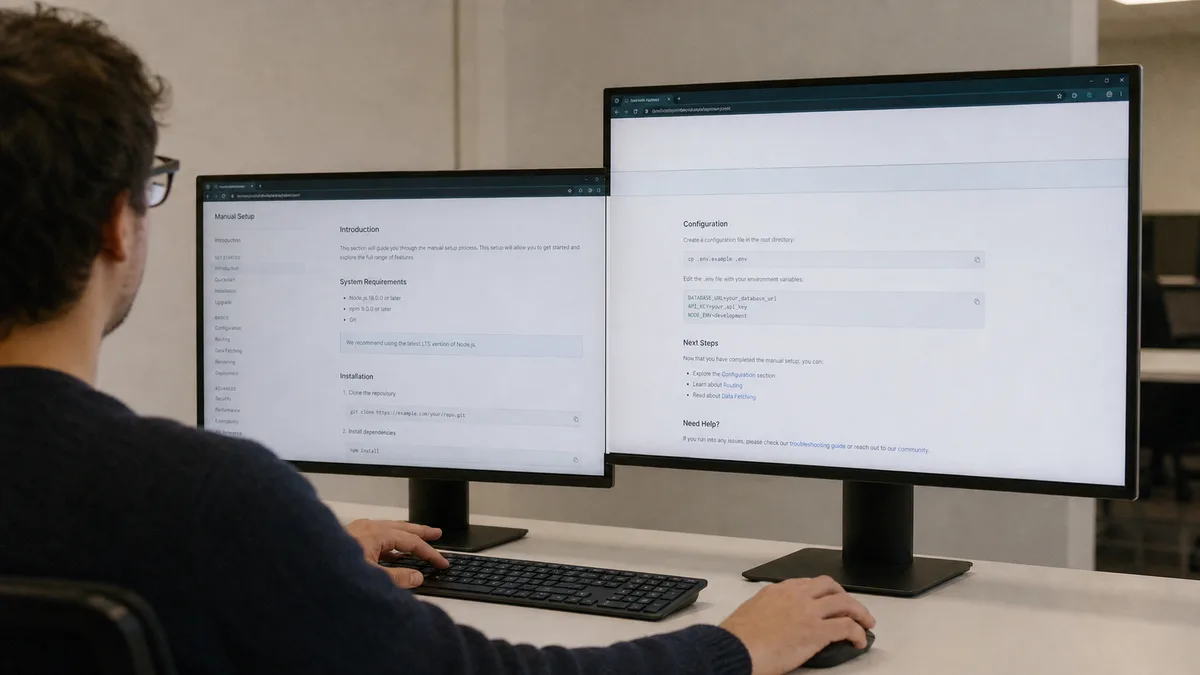
Image source: Bing (Web (fair-use with source credit))
When using a dual monitor arm, you can tighten the tension to force the screens together. If you are using individual stands, you might need to place a heavy book or a specialized bridge connector underneath to ensure they don't slide apart. A tight seam allows your eyes to transition naturally from one screen to the other.
Configuring Your Primary Display for Maximum Efficiency
Your primary display is the monitor where the taskbar and system tray reside. Most software defaults to the built-in laptop screen, which is often not the best choice for productivity. You should designate your largest or highest-resolution monitor as the primary display to gain more workspace.
- Open your system display settings.
- Select the monitor icon you want to be primary.
- Check the box labeled "Make this my main display."
- Ensure the application windows open on your chosen screen by default.
When you switch your primary display, the system will shift your taskbar and desktop icons to the new screen. This change helps you stay focused on your main monitor during deep work. It also prevents important notifications from appearing on your laptop screen when you aren't looking at it.
Common Mistakes That Cause Neck and Eye Strain
Most neck pain arises from ignoring the relationship between your chair height and monitor elevation. If your seat is too low, you’ll constantly look upward, putting pressure on the back of your neck. Conversely, placing monitors too far to the side requires frequent, repetitive neck rotation that leads to stiffness.
Another frequent error is mismatched brightness levels between screens. When one screen is significantly brighter than the other, your pupils constantly dilate and contract as you switch focus. This causes rapid eye fatigue.
Manually calibrate your monitors to the same brightness levels for a more consistent visual experience.
When to Use Monitor Arms Versus Static Risers
Monitor arms offer the most flexibility for a professional workspace. They attach to the edge of your desk and provide full range of motion. You can rotate, tilt, or change the height of your screens instantly if you need to share your display or shift your posture.
Static risers are better for fixed, budget-friendly setups. They offer a stable platform but lack height adjustment once set. Compare your needs before choosing:
| Feature | Monitor Arm | Static Riser |
|---|---|---|
| Adjustability | High (Full motion) | Low (Fixed) |
| Desk Space | High (Clear surface) | Low (Footprint needed) |
| Installation | Medium (Clamping) | Low (Plug-and-play) |
Choose an arm if you have a deep desk and need to move your screen frequently. Use a riser if you have a small desk or need to store your laptop keyboard underneath the display to save space.
Expert Tips for a Seamless Multiscreen Experience
The secret to a great setup is keeping the seam at a height that matches your natural eye scan line. Most people scan horizontally across the middle of their monitors. By aligning the horizontal center line of both screens, you reduce the vertical movement your eyes have to make when moving between them.
Additionally, use software to help manage your windows across different screens. Many modern operating systems include snap features that automatically resize windows to half or a quarter of your screen. Utilizing these shortcuts saves time and keeps your desktop from becoming a cluttered mess.
Keep your cables organized with ties to prevent them from pulling on your monitors, which can shift their alignment over time.
Maintaining Your Workspace: Routine Adjustments
Your monitor alignment isn't a permanent setup. Desk vibrations or slight bumps can shift your screens over time, leading to that familiar trapped cursor feeling. Check your physical alignment once a month to ensure the bezels haven't drifted apart.
Consistency is key for long-term comfort. If you notice your neck feeling stiff, reassess your height settings immediately. You might need to raise your primary monitor by a half-inch or adjust your chair height to compensate for natural settling in your floor or desk frame.
Frequently Asked Questions About Dual Monitor Setups
How do I stop my mouse from getting stuck on the corner?
The mouse gets stuck because the OS thinks there is a barrier where your screens don't perfectly touch. Open your display settings and nudge the monitor icon up or down until the cursor moves across the boundary without hitting an edge. A small amount of trial and error is often required to find the perfect pixel-perfect transition point.
Does it matter which side I put my laptop on?
The best side for your laptop is the one that minimizes neck rotation for your most frequent tasks. If you use your laptop as a secondary screen for Slack or email, place it on the side you naturally turn to first. Just ensure the virtual screen mapping in your system settings matches the side you choose.
Why do windows look larger on one screen than the other?
Windows change size when moved because of different resolution and scaling settings. You can fix this by matching the display scaling percentage for both screens in your OS settings. Adjust the percentage on your higher-resolution screen until the text and icons appear to be roughly the same size as those on your laptop.
Can I align monitors if they have different sizes?
Yes, you can align monitors of different sizes by focusing on the bottom or center alignment lines. If you align by the bottom edge, your cursor will move smoothly across the lower section of the screens. If your monitors have very different dimensions, centering them vertically in the display settings is usually the most effective approach for standard workflows.
Is there a specific type of cable that helps with alignment?
While cables don't physically change alignment, using high-quality DisplayPort or HDMI cables ensures you don't face flickering or resolution drops. Unstable signals can sometimes cause the system to reset your monitor arrangement settings unexpectedly. Use secured cables to avoid accidental disconnections that could disrupt your carefully calibrated display map.

Similar Posts