Can One GaN Charger Power Your Laptop and Dock?
Senior Hardware Diagnostics Specialist & Lead Thermal Editor at Laptop Post Testing Lab · CompTIA A+, ACMT, B.S. in Computer Engineering · 12+ years bench-testing laptop thermal solutions & motherboard repairs
You can power a laptop dock and charge your laptop with one GaN brick, but success depends entirely on managing your total power budget. Because a docking station consumes a portion of the incoming power to run its own ports and controllers, you must ensure the charger provides enough remaining wattage to satisfy your laptop’s specific requirements.
As of 2026, most modern USB-C Power Delivery (USB-PD) standards allow for efficient power sharing across peripherals and host devices. Using a single high-capacity power adapter simplifies your workspace setup, yet it requires careful calculation of your hardware's peak consumption.
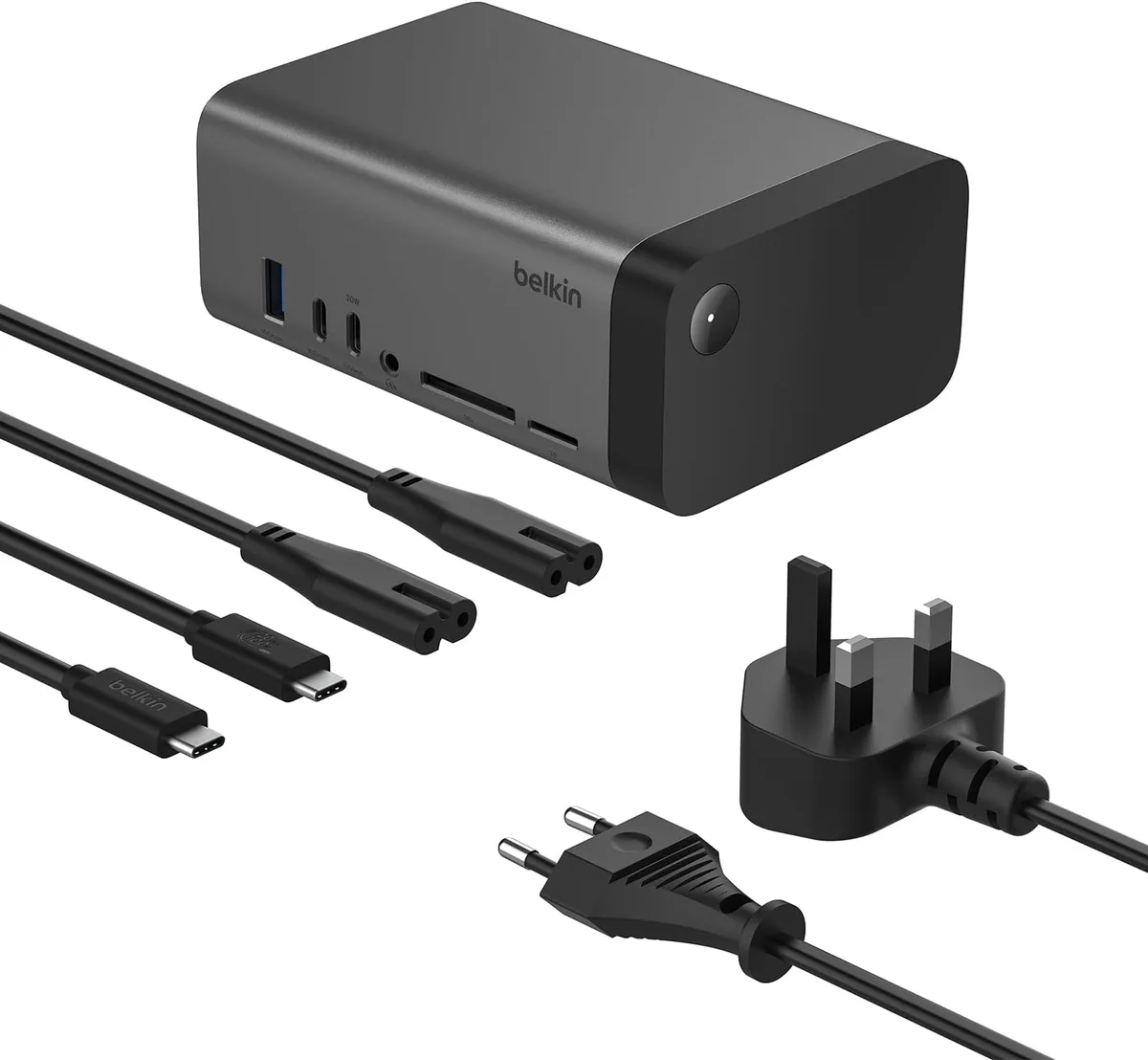
Image source: Bing (Web (fair-use with source credit))
Quick Answer
You can power a laptop dock and charge your laptop using one GaN brick. You must match the charger's total wattage to your devices. The dock reserves power for its own ports.
The laptop requires the remaining available electricity to charge. Calculate the total draw before connecting your hardware.
The Reality of One-Cable Charging for Docks and Laptops
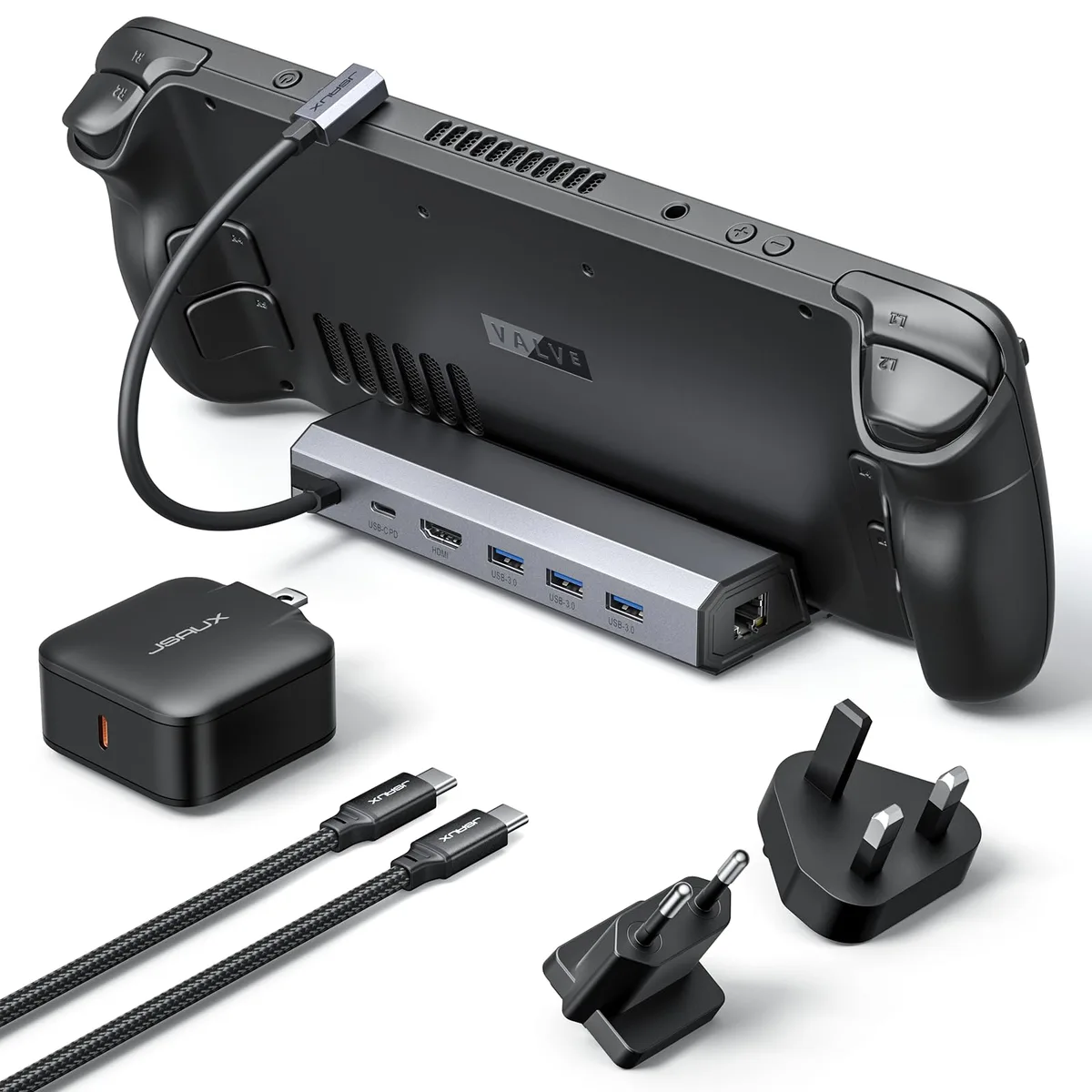
The dream of a one-cable setup involves plugging a single USB-C cord into your laptop, which then handles display signals, data transfer, and power. This setup uses a docking station as the primary hub for your peripherals. By using a single GaN charger to feed the dock, you reduce the number of power bricks cluttering your desk.
This configuration works through the USB-PD protocol. This protocol allows a host device like a dock to negotiate power distribution with the GaN brick. The brick acts as the source, while the dock acts as an intermediary.
The challenge is ensuring the passthrough power reaching your laptop is enough to keep it running.
Research into hardware behavior shows that laptops often throttle performance if they detect an insufficient power source. If your dock steals too much wattage for external drives or high-resolution monitors, the laptop might refuse to charge. Understanding this relationship is vital for a stable, functional workspace.
Why Your Power Budget Is the Secret to Success
Your power budget is the sum of all power drawn by your connected hardware. When you plug a GaN charger into a dock, the dock immediately claims a slice of that power. This is the overhead required to manage the electronics inside the dock, such as HDMI controllers or Ethernet ports.
If your GaN charger provides 100W of total output, you should not assume your laptop will receive 100W. Most docks consume between 15W and 20W for their internal operations. This leaves roughly 80W to 85W for your laptop.
If your laptop requires 96W to operate at full speed, you will encounter performance warnings or slow charging.
You can verify the specific power requirements of your devices by checking the labels on your original power bricks. Manufacturer documentation often clarifies how much power is reserved for the dock itself. Being aware of these numbers helps you avoid hardware instability during heavy usage.
Core Components: The Relationship Between GaN Bricks, Docks, and Laptops
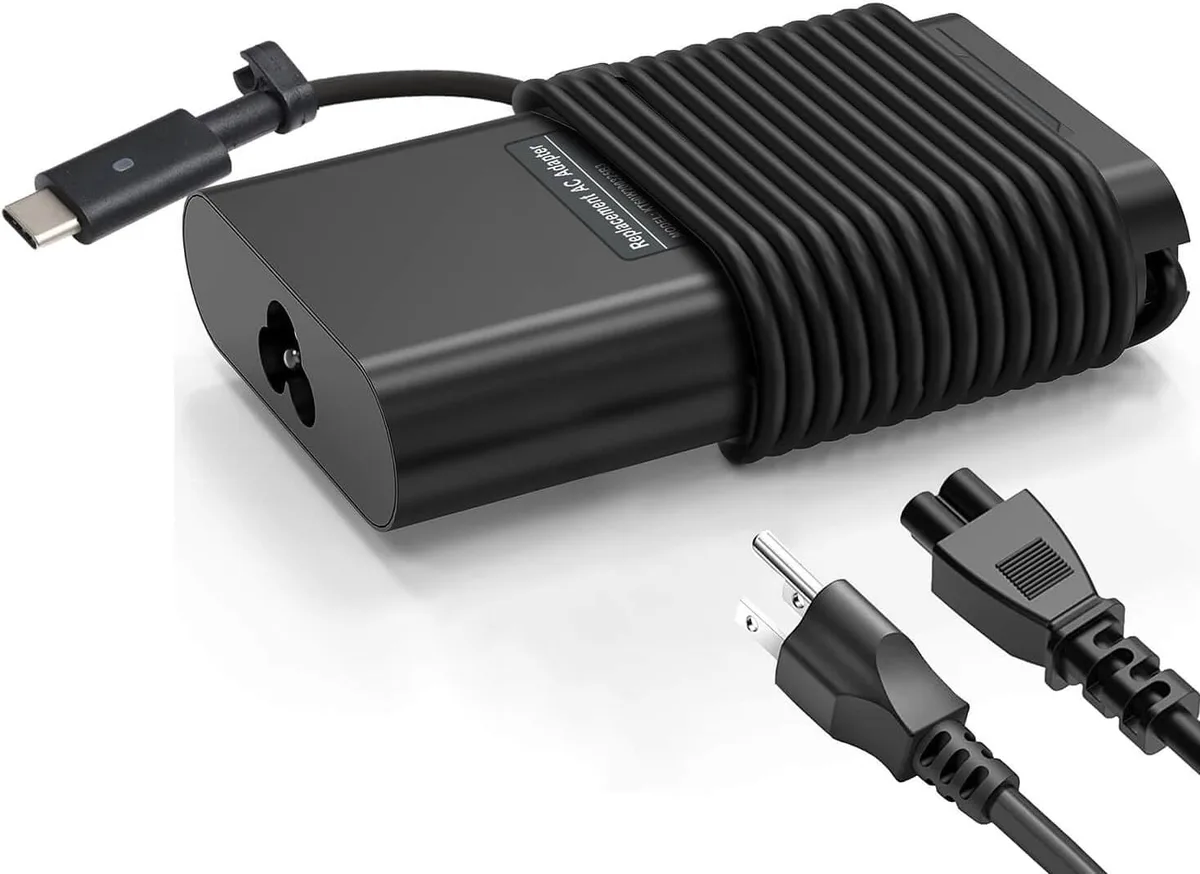
GaN chargers utilize Gallium Nitride semiconductors instead of traditional silicon. This allows them to handle higher voltages and heat levels in a significantly smaller physical form factor. These chargers are the backbone of modern, portable power solutions for mobile professionals.
The docking station serves as the central bridge for your setup. It translates the power provided by the GaN brick into a usable format for the laptop. It also manages the data flow from keyboards, mice, and external storage drives.
The laptop serves as the final host in this chain. It requests specific power profiles from the dock, which are then fulfilled by the GaN brick. Ensuring all three components speak the same USB-PD language is critical.
| Component | Role in the Chain | Key Specification |
|---|---|---|
| GaN Brick | Primary Energy Source | Total Wattage (W) |
| USB-C Dock | Power/Data Manager | Power Delivery (PD) Pass-through |
| Laptop | Host Device | Minimum Required Input (W) |
The Decision Workflow: Calculating Your Required Wattage
To determine if your gear will work together, you must subtract the dock's power consumption from the total capacity of your charger. Most manufacturers provide these specifications on the bottom of the device. If the information is missing, assume a standard 15W overhead for most multi-port docks to be safe.
Visit the USB Implementers Forum to learn more about how power delivery profiles function in modern devices. This organization establishes the standards that keep your hardware protected during the power negotiation process. Understanding these profiles prevents you from buying a charger that lacks the necessary output for your specific laptop model.
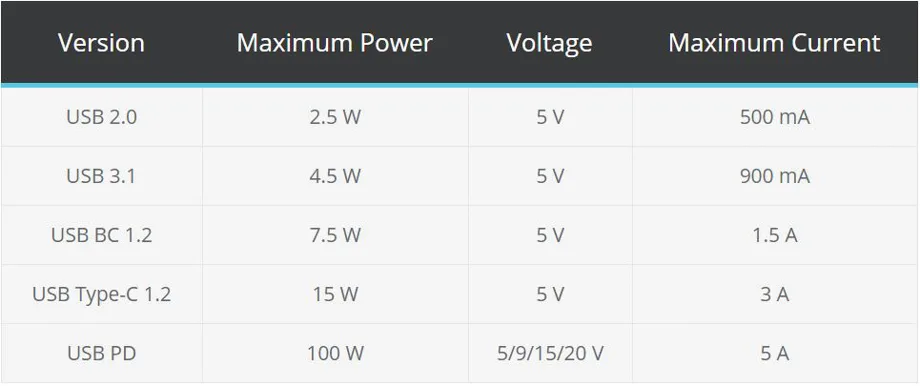
Image source: Bing (Web (fair-use with source credit))
Follow this logical workflow to confirm compatibility:
- Identify the maximum power input required by your laptop.
- Subtract 15W to 20W from your GaN charger’s total wattage.
- Compare the remaining wattage to your laptop's requirement.
- If the result is equal to or higher than the laptop's requirement, the setup is viable.
Step-by-Step: Testing If Your Setup Will Hold Up
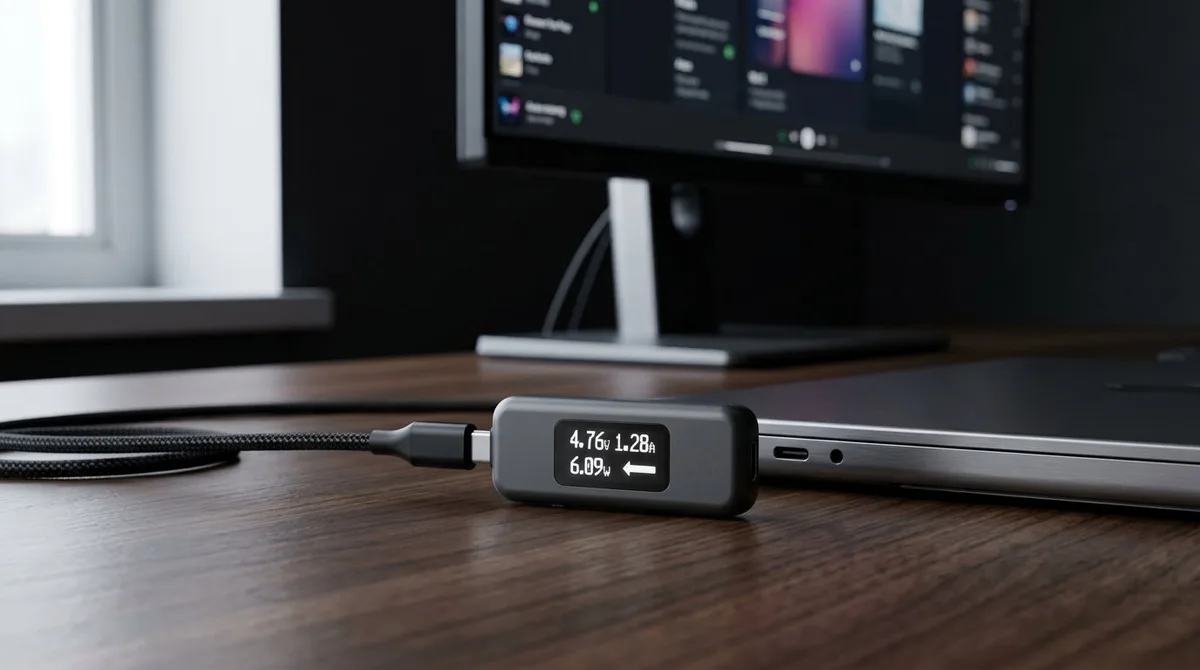
Once you have performed the calculations, verify the setup in a real-world scenario. Connect the dock and the GaN charger to see if the system negotiates a stable power profile. Listen for any warning sounds from your operating system, as many modern laptops will alert you immediately if the incoming power is insufficient.
Next, connect your peripherals one by one. Start with a keyboard or mouse, then move to external monitors and high-speed storage drives. If the system remains stable, you are likely within a safe power range.
If your monitor flickers or drives disconnect, you are hitting the limit of your power budget.
Always test your system under load. Open your most demanding applications to ensure the laptop does not start pulling power from its internal battery to compensate for the lack of external wattage. If you notice your battery percentage dropping while the charger is plugged in, the charger is not providing enough consistent power for your workflow.
Pros and Cons of Moving to a Single GaN Charger
Moving to a single GaN brick offers significant advantages for desk organization, but it does come with trade-offs. The main benefit is the sheer reduction in cable clutter and the ability to carry a lighter bag when you travel. Since GaN components are smaller, you can easily slide a high-wattage brick into a laptop sleeve without the bulk of a traditional power adapter.
However, the primary drawback is the risk of peripheral instability if you under-calculate your power needs. A single point of failure means if that one brick stops working, you lose your dock, your charging, and your desk connectivity all at once. Relying on one source requires you to be confident in the build quality and reliability of your hardware.
- Pros: Minimal desk footprint, portability, reduced cable count, efficient power management.
- Cons: Higher upfront cost for high-wattage bricks, potential for power starvation, single point of failure.
Common Mistakes That Lead to Peripheral Disconnects
The most common mistake is using a low-wattage GaN charger intended for phones to power a dock. These chargers often lack the high-voltage profiles needed to support a dock, leading to power cycling where devices constantly disconnect and reconnect. Check the label on your charger to ensure it supports Power Delivery (PD) at the required voltage levels.
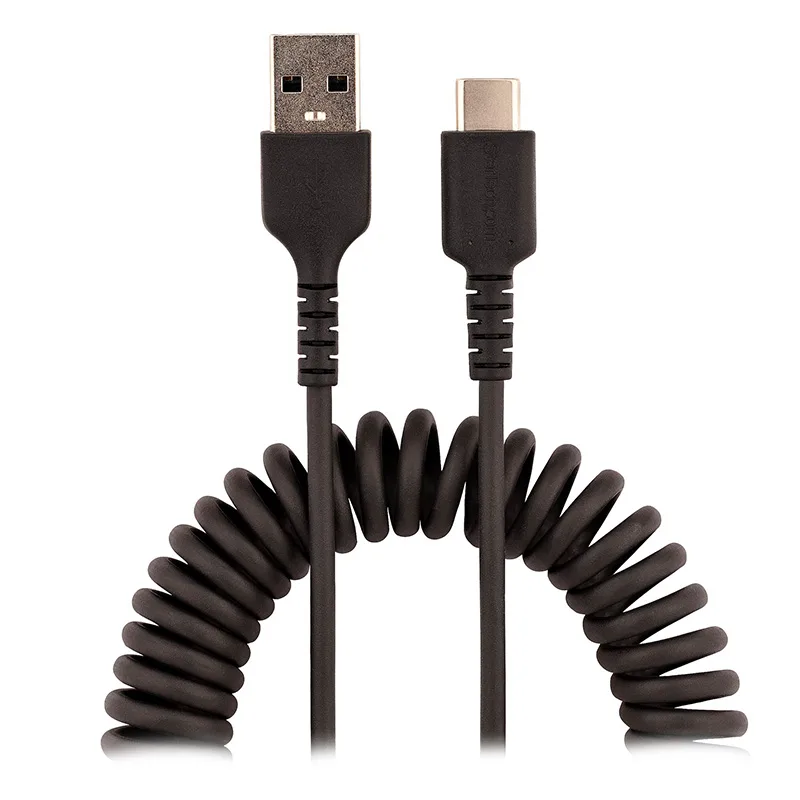
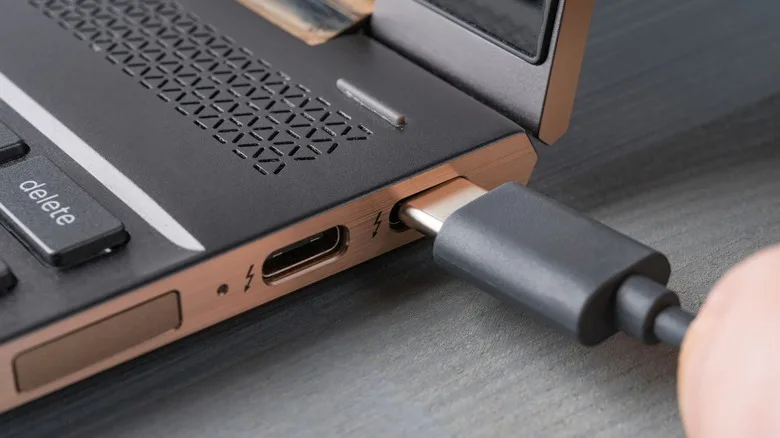
Another frequent error involves using low-quality USB-C cables. Not all cables can handle high power throughput, and using a standard data cable to carry 100W of power can lead to overheating or damaged pins. You must ensure your cable is rated for the wattage you intend to push through it.
Avoid daisy-chaining multiple hubs together. Each additional hub adds its own overhead and increases the resistance in the connection, which complicates the power negotiation process. Plug the dock directly into the GaN brick to minimize these losses.
Safety Guidelines: Understanding USB-IF Certification and Protection
Safety is paramount when dealing with high-wattage electrical equipment. You should always look for products that carry the USB-IF certification mark. This organization ensures that devices and cables meet specific safety and performance standards, reducing the risk of fire or hardware damage.
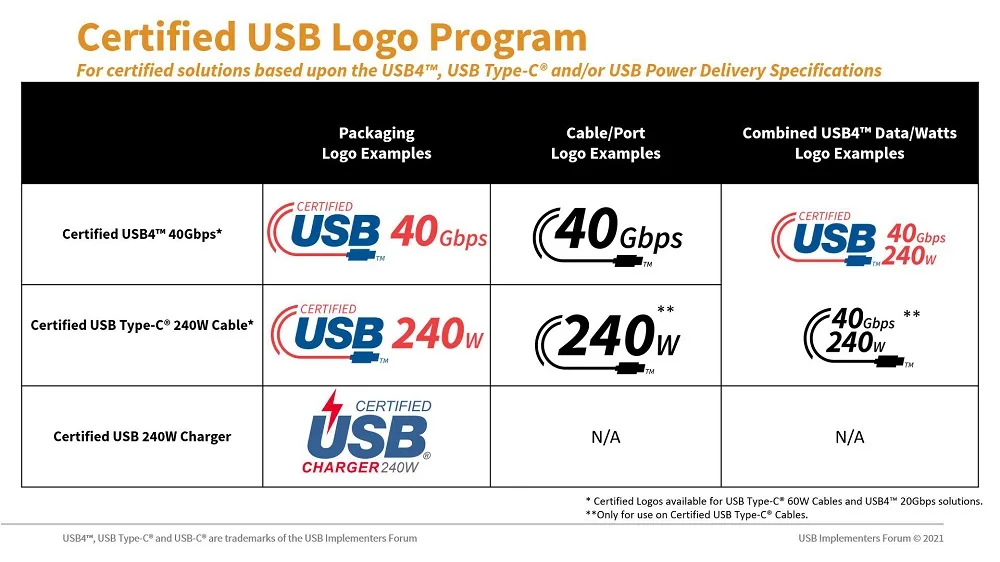
Image source: Bing (Web (fair-use with source credit))
Modern GaN chargers include built-in protections for over-voltage and over-current. These features act as an automatic circuit breaker if the connection becomes unstable or a short occurs. Never attempt to use damaged cables, as the heat generated by a frayed wire can melt plastic connectors or trigger safety shutdowns.
If you are concerned about the longevity of your hardware, ensure the charging area has proper ventilation. GaN chargers get warm during operation, which is normal, but they should never feel scalding to the touch. If your charger gets excessively hot, remove it from the outlet immediately and check the connection.
When a Single GaN Brick Isn't Enough
Sometimes, the technical requirements of your hardware simply exceed what a single consumer-grade GaN charger can provide. If you are using a high-performance workstation laptop that requires 140W or more, finding a reliable GaN brick that also powers a dock can be difficult and expensive. In these cases, it is safer to use the dedicated power brick that came with your laptop.
There are also instances where a dock's proprietary power requirement creates a bottleneck that cannot be overcome by a generic charger. Some manufacturers design their docks to only operate at full capacity with their own matching power supplies. If you find your equipment behaving erratically despite using a high-wattage charger, sticking with the manufacturer’s recommended power setup is the most reliable path.
If your workspace includes multiple high-draw peripherals like daisy-chained monitors or external graphics cards, separate power sources are often required. Prioritize the stability of your data and hardware over the aesthetic benefits of a single-cable setup.
Pro Advice on Selecting the Right GaN Charger Capacity
When selecting a GaN charger, always aim for higher capacity than you think you need. A 140W charger provides a comfortable safety margin for most high-end laptops and complex dock setups. This extra headroom ensures that your devices never struggle for power, even during peak usage.
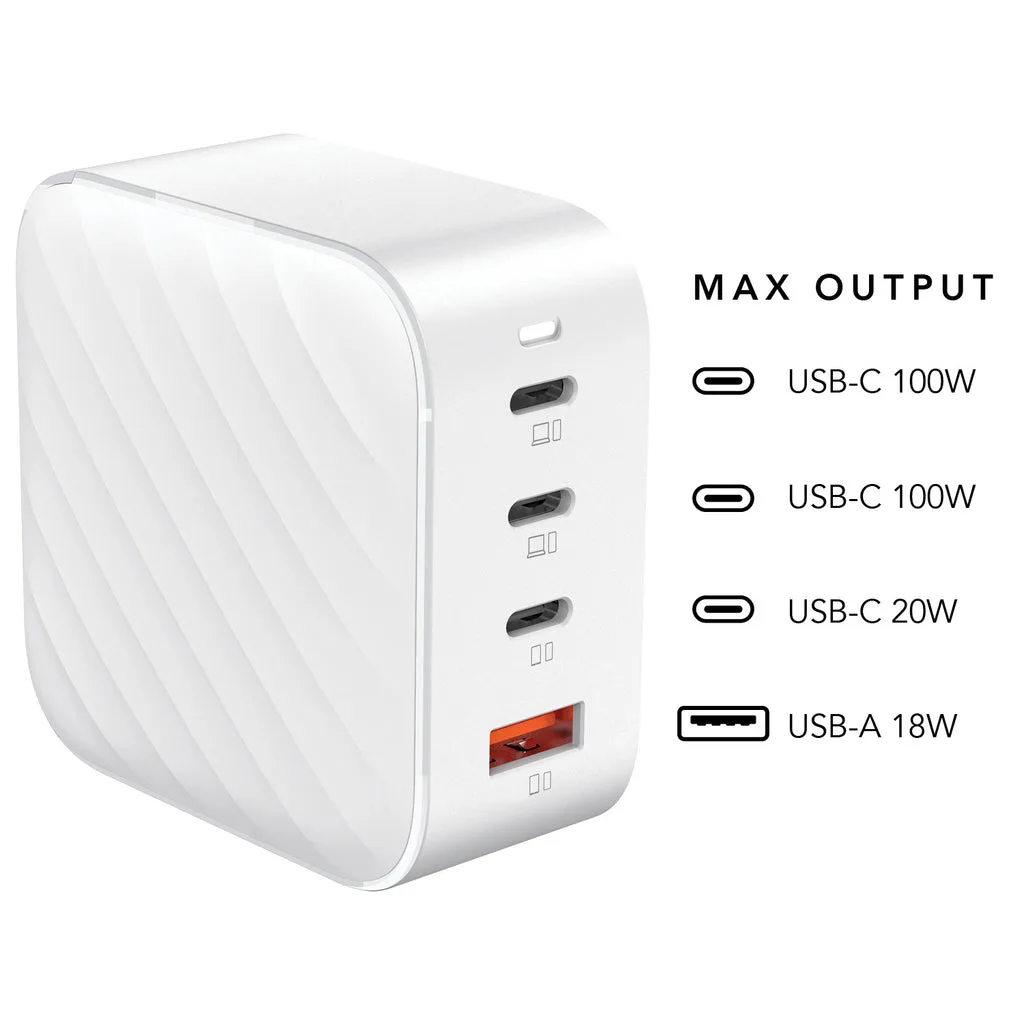
Image source: Bing (Web (fair-use with source credit))
Research indicates that running a charger at 60% to 80% of its maximum capacity often results in better heat management and longer product life. Do not aim for a charger that will be running at 100% capacity all day. Look for reputable brands that provide clear specifications regarding their Power Delivery output for each port.
If you plan to use the brick for other devices, such as a phone or tablet, ensure the charger supports dynamic power allocation. Modern smart-chargers will adjust the output wattage on the fly as devices are added or removed. This prevents damage to smaller devices while keeping the laptop sufficiently powered.
Maintenance and Long-Term Optimization
Keep your power setup reliable by checking cable connections for wear. GaN chargers need airflow to function efficiently. Keep the brick clear of clutter to prevent heat buildup and premature failure.
Update your dock firmware when manufacturers release patches. Updates often fix power delivery handshake issues with newer laptops. Check support pages every six months for performance tweaks.
Clean the USB-C ports on your laptop and dock with a blast of compressed air occasionally. Dust and lint accumulation inside these ports increase electrical resistance. A clean port ensures the pins maintain a solid contact for stable power flow.
Real Scenarios and Case Examples
Hot-desking environments benefit from a single 140W GaN charger paired with a compatible dock. This setup acts as a universal station for different employee laptops. It removes the need for individual power bricks at every desk.
Content creators often use 100W GaN bricks to charge a laptop and a tablet simultaneously. Smart power distribution automatically balances the load between devices. This creates an efficient, travel-friendly mobile studio.
Users running high-end graphics workstations often find that a single GaN brick cannot maintain their peak performance needs. These users typically revert to using the factory-supplied charger for the laptop, while using the GaN brick exclusively for peripherals. Success comes down to recognizing when you have exceeded the capacity of universal charging hardware.
Frequently Asked Questions
What happens if I use a lower wattage charger?
Your laptop will charge very slowly or not at all during active use. The system may pull power from its battery to compensate. Look for a "slow charger connected" notification.
Can I leave my GaN charger plugged in constantly?
Yes, you can keep GaN chargers connected safely. They contain internal safety circuits to monitor for spikes. Unplugging them is a choice, not a safety requirement.
Do all USB-C cables support 100W charging?
No, most cables only support 60W. You must ensure your cable is rated for 100W or 240W delivery. Weak cables will restrict your charging speed.
Why is my charger getting very hot?
GaN bricks have less surface area than silicon, so they run warm. If it becomes painful to touch, it is overloaded. Reduce the device count or upgrade your capacity.
The Final Verdict: Is One-Cable Power Right for Your Workflow?
Choose a one-cable setup if you value a clean, portable desk. It removes cable clutter and simplifies your daily routine. If you manage the math correctly, the performance is identical to using stock bricks.
High-draw workstations might require a dedicated power solution for the laptop. Most users find the convenience of a one-cable system far outweighs the minor setup effort. It is the modern standard for an organized workspace.

Similar Posts