How to View Laptop Charging Wattage in Windows 11 Taskbar
Senior Hardware Diagnostics Specialist & Lead Thermal Editor at Laptop Post Testing Lab · CompTIA A+, ACMT, B.S. in Computer Engineering · 12+ years bench-testing laptop thermal solutions & motherboard repairs
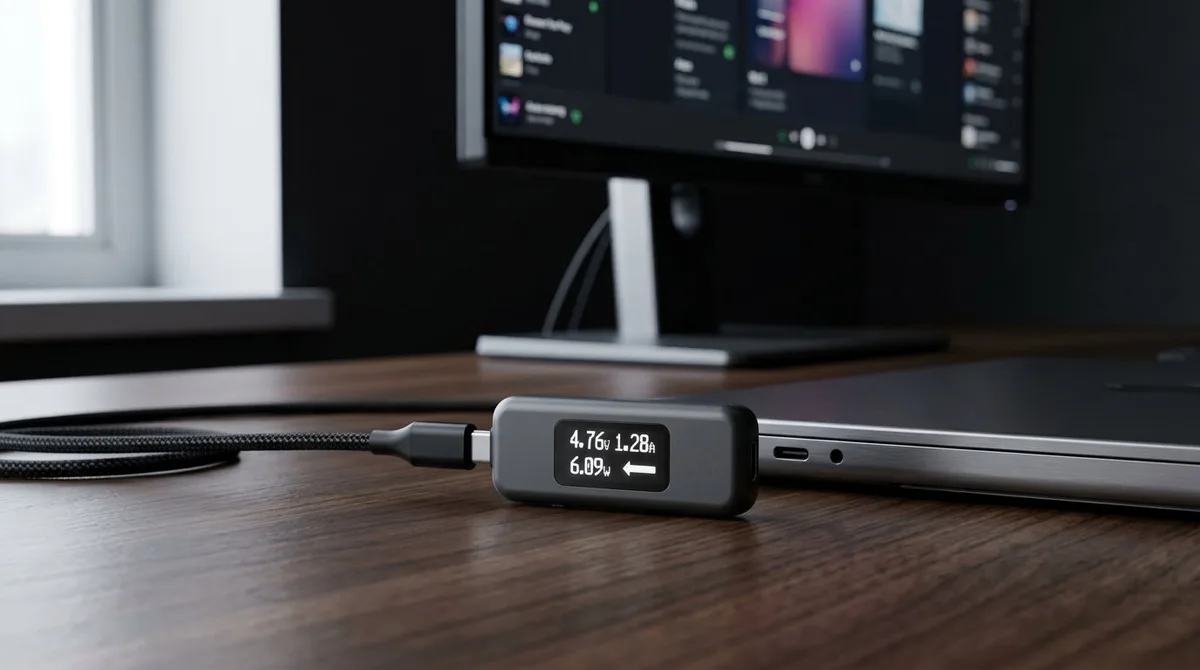
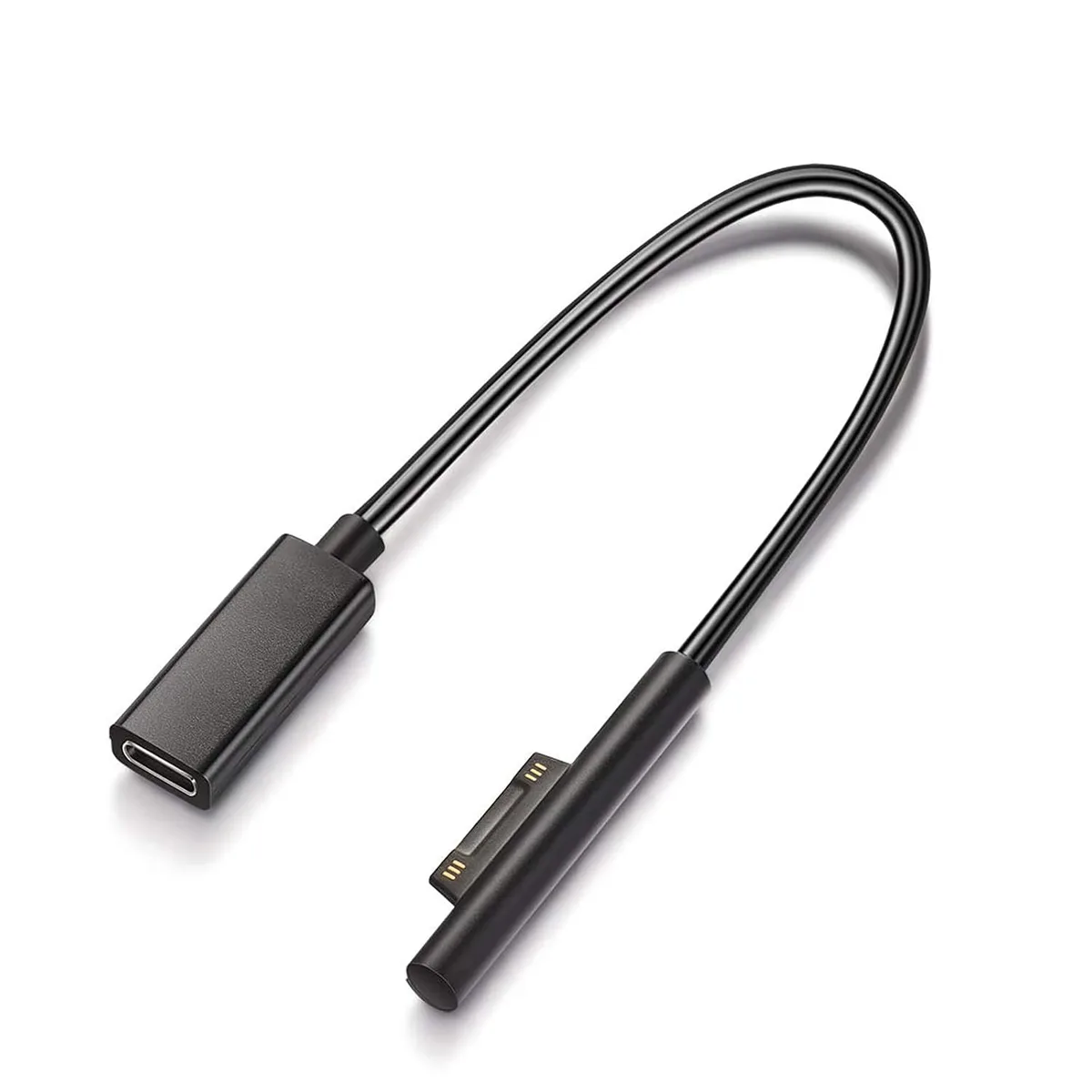
Image source: Bing (Web (fair-use with source credit))
Knowing how to check laptop charging wattage live in windows 11 taskbar is a frequent challenge for users who want to verify their charger's performance. Microsoft does not include a real-time power meter in the standard taskbar interface. You only see basic status icons that indicate if a device is connected to AC power or running on battery.
Most modern thin-and-light laptops use the USB-C Power Delivery (PD) specification to manage energy intake. This protocol allows the charger and the laptop to negotiate an optimal wattage for safe operation. As of 2026, understanding these specific power negotiations requires either system-level diagnostic logs or external hardware monitoring.
Quick Answer
Windows 11 lacks a built-in, real-time wattage monitor in the taskbar. You can generate a power report using the PowerCfg command. This tool shows historical charging rates from previous sessions.
Physical USB-C power meters provide instant, accurate wattage data. These devices plug directly between the charger and the laptop port.
Why Windows Doesn't Show Charging Wattage by Default
Windows 11 treats power management as a background system process rather than a user-facing metric. The operating system monitors charge state to protect the battery from heat and overvoltage issues. Reporting raw milliwatts to the user interface could lead to confusion if the laptop throttles intake based on temperature.
The taskbar icon provides binary status information, such as "Plugged In" or "On Battery." It does not account for the complex handshake between the charger and the internal charging controller. This negotiation follows USB Implementers Forum standards, which ensure the power supply matches the device's hardware limitations.
Relying on software to show live data is difficult because the OS prioritizes system stability over constant polling. Frequent power telemetry requests can impact system performance and battery reporting accuracy. If you need consistent, millisecond-level data, you must move beyond the standard Windows interface.
The Truth About Software-Based Power Monitoring
Software monitoring often relies on polling the embedded controller inside the laptop. This chip tracks charging cycles, voltage, and current flow to manage battery health. However, these tools often average out the data over several seconds or even minutes.
You might see a reading that looks steady, but it does not account for instantaneous spikes or dips in power draw. These fluctuations are normal during intense tasks like video rendering or gaming. Most software-based monitors, including those available in the Windows Performance Toolkit, require administrative access to pull data directly from the system bus.
If you attempt to use third-party battery monitor apps, check their background impact on your CPU. Many of these programs are unoptimized and can drain battery life just by trying to measure it. Stick to built-in Microsoft diagnostics when you need to audit your power profile, as these tools have the lowest overhead.
Quick Fix: Generating a Battery Power Report in Windows 11
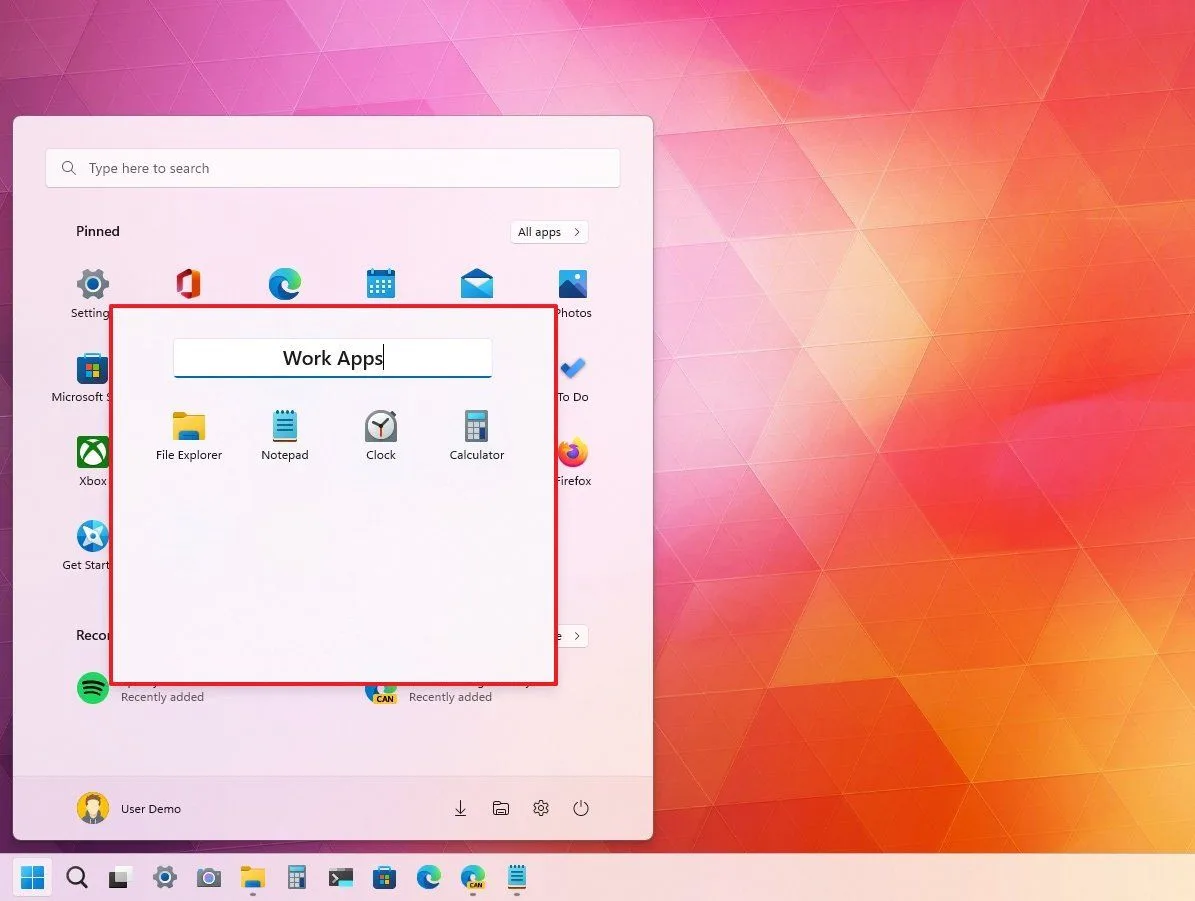
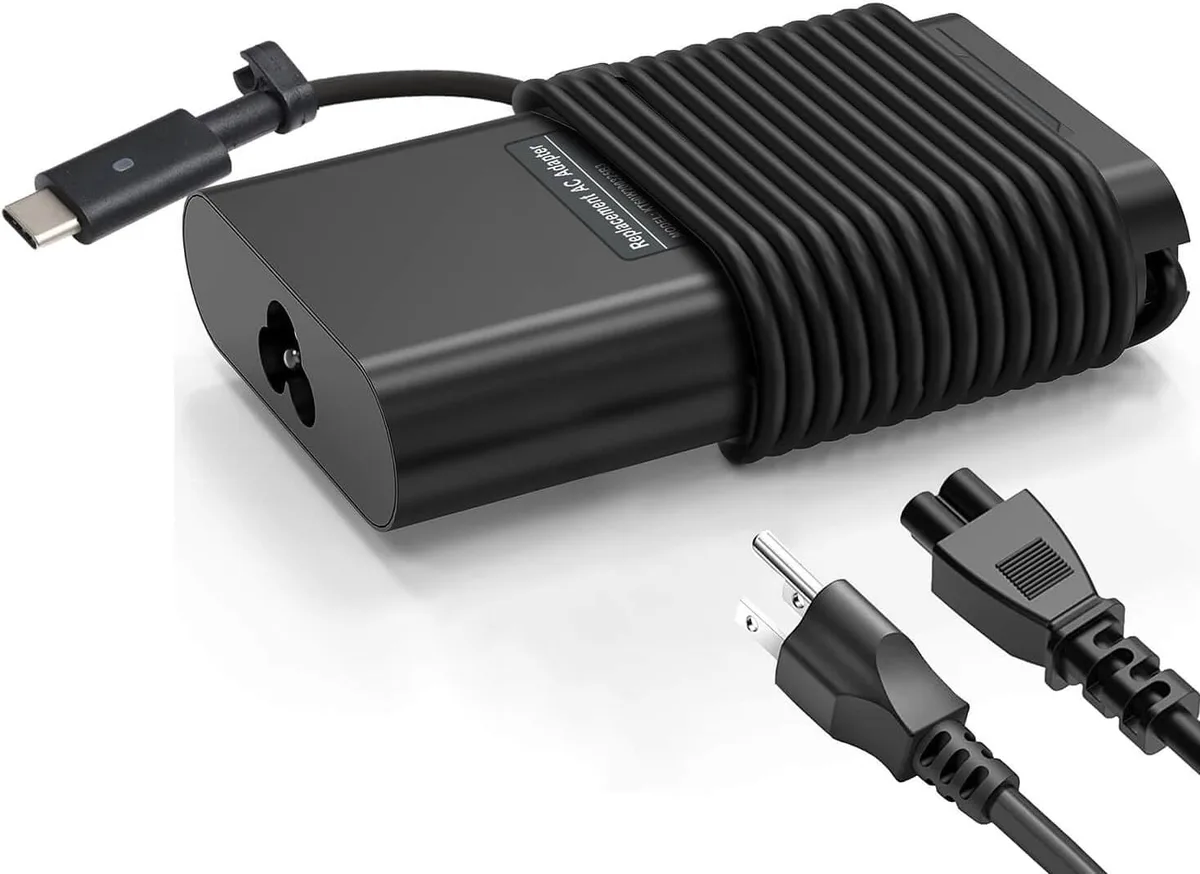
Image source: Web (Bing) / windowscentral.com (Web image (fair-use with source credit))
The PowerCfg command is the most reliable way to extract power data without installing extra software. It generates an HTML document that highlights your battery's recent charging performance. Follow these steps to generate your own report.
- Right-click the Start button and select Terminal (Admin).
- Type
powercfg /batteryreportand press Enter. - The system will generate a file path, usually located in
C:\Windows\System32. - Copy this file to your desktop and open it in any web browser.
The report breaks down your usage by time, showing exactly how many milliwatts were drawn during specific charging sessions. You will see values for both Full Charge Capacity and Design Capacity. Use this to see if your current charger is effectively hitting the expected charging rate for your hardware.
Pro-Level Diagnostics: Using the Windows Performance Toolkit
The Windows Performance Toolkit is part of the Windows Assessment and Deployment Kit. It provides granular telemetry on every component in your system, including power states. IT professionals use this when a laptop fails to charge at its rated capacity.
This process involves capturing a trace file while the laptop is under load. You then load this trace into the Windows Performance Analyzer to view the power events. It is a powerful tool, but it is not intended for casual, day-to-day power checking.
If your laptop charging is inconsistent, this tool will tell you if the system is limiting the wattage due to thermal throttling or driver-level power policies. It is the gold standard for troubleshooting hardware-software conflicts. Most average users will find this level of detail overwhelming, but it is highly effective for identifying deep-seated power management issues.
Hardware Monitoring: Why a Physical Power Meter Wins
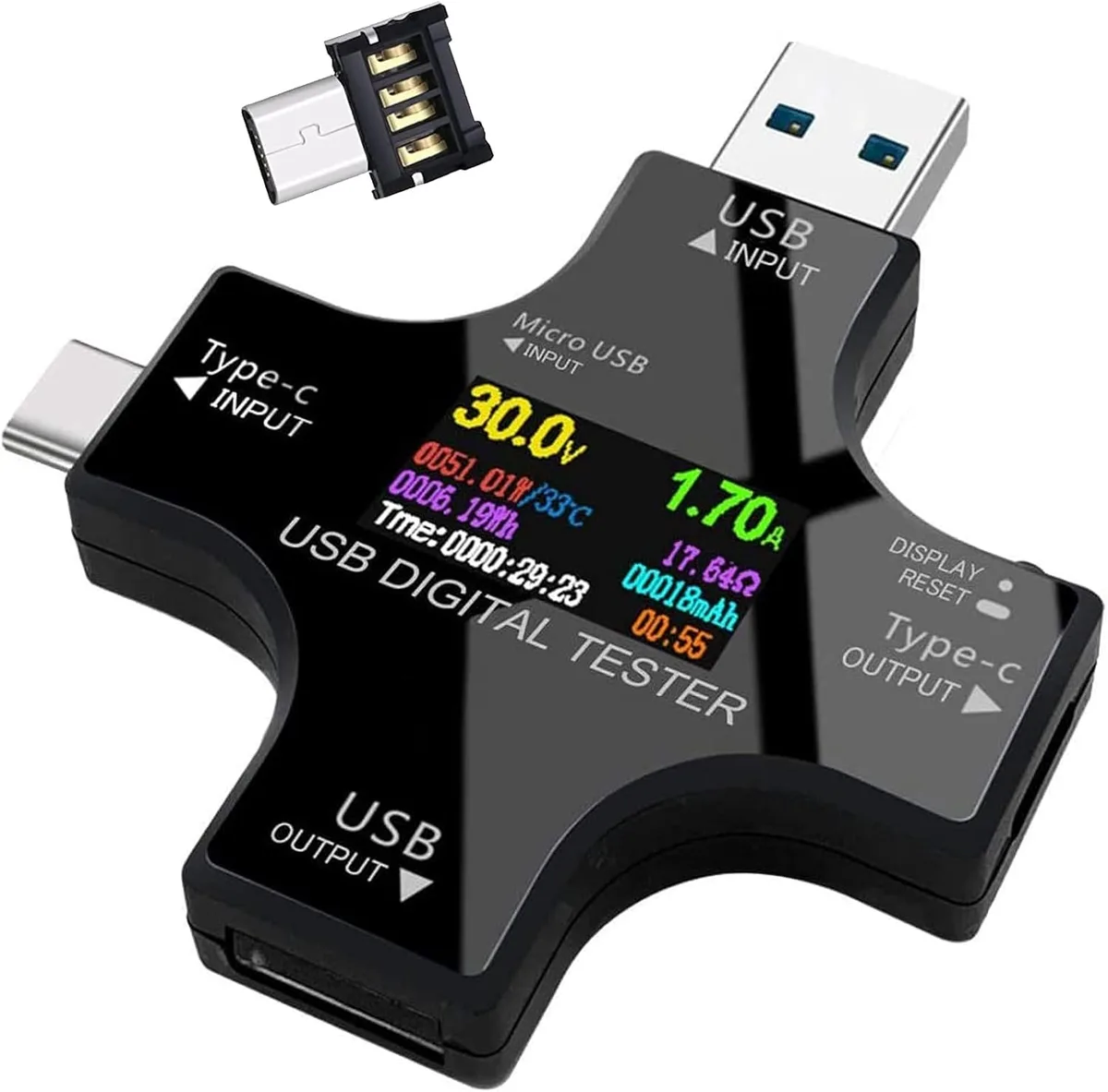
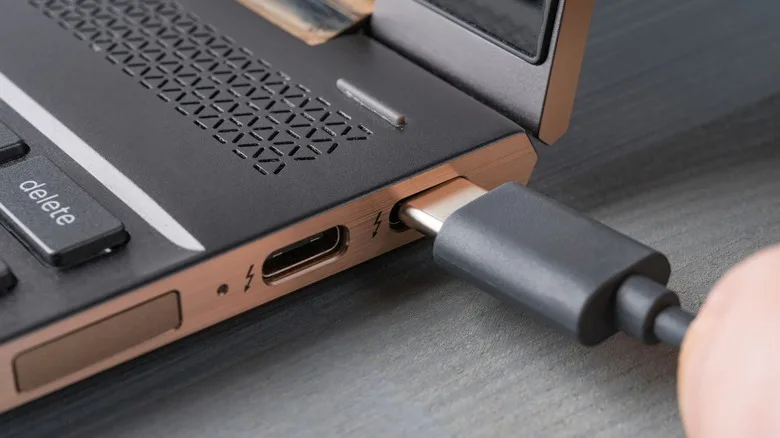
Image source: Bing (Web (fair-use with source credit))
A physical power meter acts as an intermediary between your wall charger and your laptop. It bypasses all operating system limitations and software reporting errors. You get an instantaneous, LCD-based readout of the actual voltage, current, and wattage flowing through the cable.
Using a meter eliminates the guessing game. If the meter displays 0 watts, you immediately know the cable is faulty or the charger is dead. If it displays 45W but your laptop is capable of 100W, you have identified a bottleneck in the charger or the PD negotiation process.
Physical meters are also useful for checking cable quality. Not all USB-C cables support high-wattage charging, even if they look identical. A quick test with a power meter will confirm if a cable is limited to 60W or if it supports the full 100W+ capacity required for high-performance laptops.
Identifying Your Charger’s Power Profile Negotiation
When you plug in a USB-C charger, a process called power delivery negotiation happens in milliseconds. The laptop and the charger communicate to determine the highest voltage and amperage they both support. This handshake ensures the device receives power without overloading the internal charging circuitry.
You can observe this negotiation indirectly by checking the power brick’s fine print. Manufacturers typically print a list of supported power profiles, such as 5V/3A, 9V/3A, or 20V/5A. If your laptop requires 65W but the charger only lists a maximum of 45W for a certain profile, you will never see the full charging speed.
If you suspect your charger is failing to negotiate correctly, try a different port or a shorter, high-quality cable. Cables also contain tiny E-marker chips that tell the laptop what current they can safely handle. A damaged cable often defaults to a slow 5W or 10W charging state to remain within safety margins.
Common Reasons Your Laptop Isn't Charging at Full Speed
Laptops often throttle their charging intake to preserve battery health and prevent overheating. If you have been using your computer for several hours, the battery temperature might be high. Charging software slows down the input to prevent heat buildup, which is a standard safety feature.
Another common culprit is the power settings within Windows. If you are running the system in a Battery Saver mode, it may limit the power intake to prioritize longevity over speed. Check these settings if your laptop consistently charges slower than you expect.
Finally, consider the total power draw of your system. If your CPU and GPU are under heavy load, the system reserves a large portion of the power supply for operational needs. The remaining wattage goes to the battery, which makes it look like your charger is providing less power than it actually is.
Mistakes to Avoid When Testing Power Draw
Do not rely on the percentage change over time to calculate wattage. Many users attempt to guess the charging speed by timing how long it takes to charge from 10% to 20%. This method is inherently inaccurate because modern batteries charge faster at low percentages and trickle charge once they exceed 80%.
Avoid using unbranded, cheap charging hubs or docks. These devices often share power across multiple ports, which dynamically reduces the amount available for your laptop. A dock might be rated for 100W, but if it is running an external monitor and a hard drive, your laptop might only receive 60W or less.
Do not restart your computer while performing diagnostics if you want to see how the system behaves under load. A cold boot often resets the power negotiation logic, which can mask issues that only appear after the system has been running for a while. Always observe the power draw during your normal daily workflows.
Interpreting Battery Charge Rates and System Metrics
Battery charge rate is reported in milliwatts in your system logs. A positive number indicates the battery is charging, while a negative number shows the battery is discharging to power the laptop. If you see a fluctuating rate, it is usually because the system is balancing power between the components and the battery cell.
You should compare the Design Capacity to the Full Charge Capacity in your power report. As batteries age, they store less energy, which can change how the system manages the final stages of the charging process. A healthy battery should generally be within 90% of its original design capacity.
| Metric | Meaning | Expected Behavior |
|---|---|---|
| Positive mW | Charging | Stable increase during AC use |
| Negative mW | Discharging | Varies based on CPU/GPU load |
| Design Capacity | Original limit | Fixed value from manufacturer |
| Full Charge Cap | Current limit | Decreases slowly over years |
Safety and Compliance: Understanding USB-IF Standards
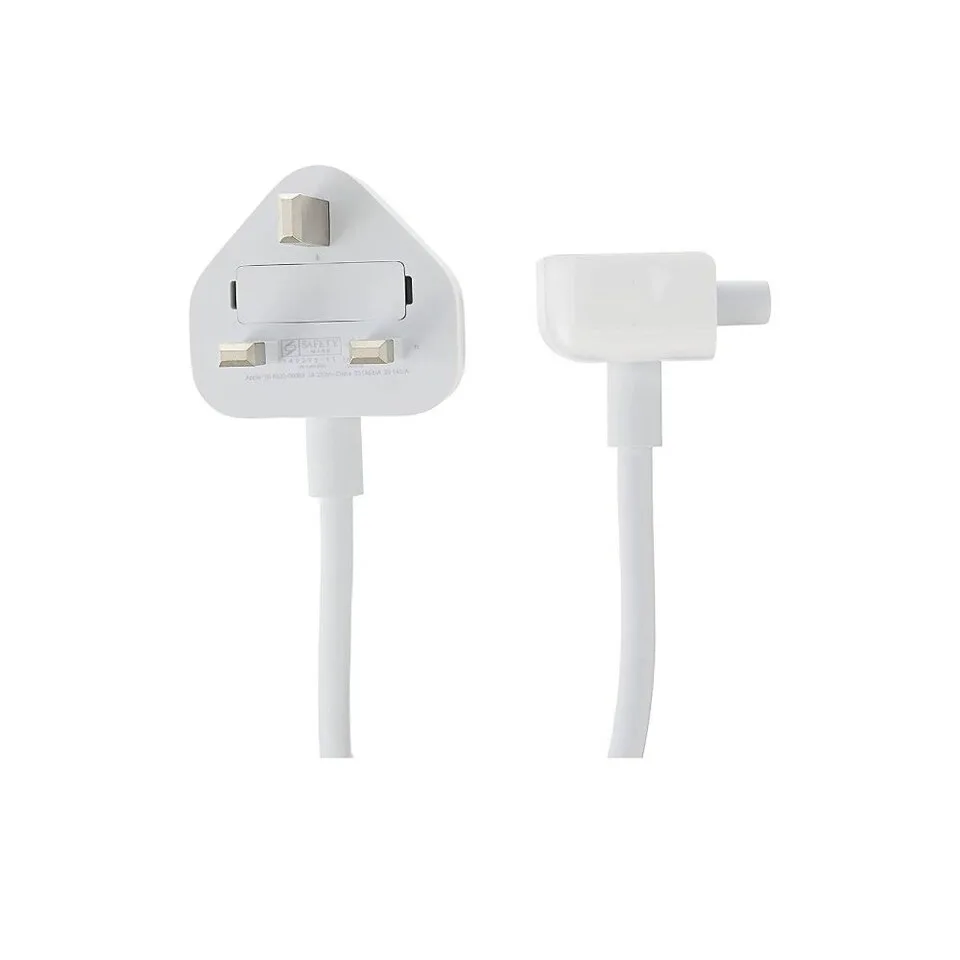
Image source: Web (Bing) / simple.wikipedia.org (Web image (fair-use with source credit))
Compliance with USB Implementers Forum standards is the most important factor for safe charging. These standards dictate how cables and chargers must behave to prevent electrical shorts or fires. Always look for the official USB-IF certification logo on your power accessories.
Non-compliant chargers often fail to properly communicate their current limits. This can cause a laptop to pull more power than a cable is rated for, which creates excess heat at the connector. If you feel your charger or cable getting unusually hot, stop using it immediately.
Official certifications ensure that the hardware has undergone rigorous testing for thermal safety and data integrity. Using hardware that lacks these certifications is the most common cause of premature port failure in high-end laptops. Prioritize safety and reliability over low-cost, third-party alternatives when purchasing charging equipment.
When to Seek Help for Power Delivery Failures
You should consult a professional or contact your laptop manufacturer if your device consistently reports "Plugged in, not charging" despite trying multiple verified power sources. This error often points to a failed internal charging controller rather than a simple cable or adapter issue.
Persistent charging failures may also indicate a degraded battery cell that can no longer safely accept a charge. If your system diagnostics report a cycle count that exceeds the manufacturer's rated limit, the battery has likely reached the end of its functional life.
Do not attempt to open your laptop chassis to inspect the power port unless you have the proper tools and technical experience. Modern laptop internals are densely packed, and accidental contact with the battery or motherboard components can lead to short circuits or permanent hardware damage.
Frequently Asked Questions
Can I monitor wattage using a third-party app?
Yes, several third-party utilities exist, but they vary significantly in reliability. Most apps simply poll the same internal telemetry data as Windows, which is often not real-time. Only use reputable software that explicitly states it reads directly from the embedded controller to ensure the data is accurate.
Why does my charger feel hot to the touch?
Chargers naturally generate heat when converting AC wall power to DC for your laptop. This heat becomes concerning if you cannot hold the brick comfortably for more than a few seconds. If the surface is hot to the touch, disconnect it immediately and check for signs of damage.
Does a higher wattage charger charge my laptop faster?
No, your laptop will only draw the maximum wattage it is designed to handle. A 100W charger will charge a 65W laptop at the same speed as a 65W charger. The laptop dictates the power intake, not the charger itself.
Can a damaged cable ruin my laptop port?
A damaged cable can cause intermittent connections that stress the internal components of your charging port. Arcing from a frayed wire or bent pin can permanently damage the sensitive electronics inside the USB-C port. Always replace frayed or deformed cables immediately to protect your hardware.
Is it safe to leave my laptop plugged in constantly?
Modern laptops use smart power management that stops charging once the battery reaches 100%. The system will then switch to running directly off the wall power until the battery naturally drops below a certain threshold. It is generally safe to keep a modern device plugged in for extended periods.
Final Verdict: Choose the Right Diagnostic Tool for Your Needs
Selecting the correct tool depends entirely on your goal. Use the built-in power reporting tools if you just want to verify if your battery is healthy and operating within its design capacity. This method is free, safe, and requires no extra hardware.
Invest in a hardware power meter if you need to troubleshoot specific charging issues or verify the performance of third-party chargers. A physical meter provides the only true, unadulterated look at your power delivery chain. It removes all ambiguity regarding whether software is correctly reporting the data.
Regardless of the method you choose, prioritize safety by sticking to certified accessories. Matching your hardware with the correct power profile is the best way to extend the lifespan of your laptop and its battery. Understanding these metrics empowers you to solve charging problems with confidence and precision.

Similar Posts