How to Fix HP Smart AC Adapter Power Warning on Boot Easily
Senior Hardware Diagnostics Specialist & Lead Thermal Editor at Laptop Post Testing Lab · CompTIA A+, ACMT, B.S. in Computer Engineering · 12+ years bench-testing laptop thermal solutions & motherboard repairs
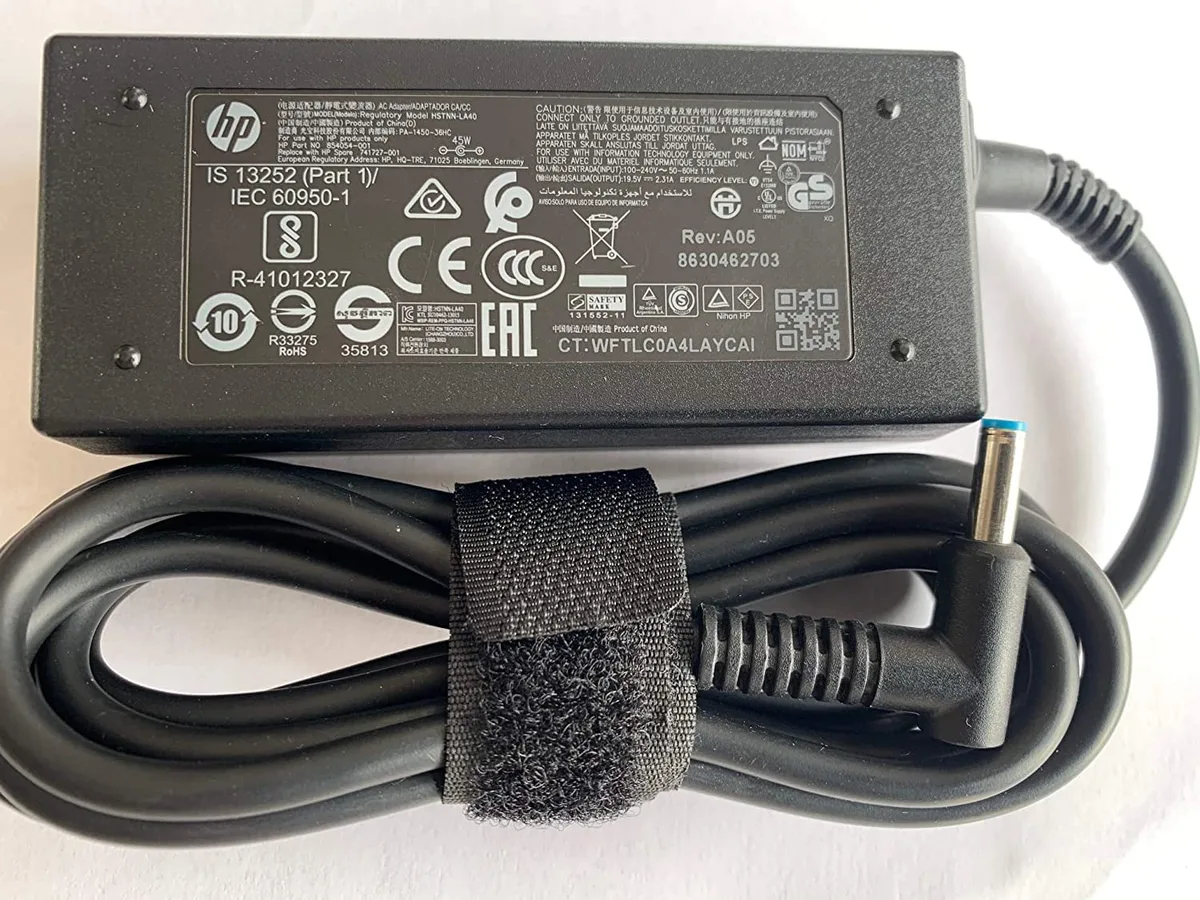
The short answer to how to fix hp smart ac adapter power warning on boot is simple. Check the adapter wattage first. HP laptops use a smart pin signal to identify the charger.
If the laptop cannot read that signal, it may limit charging or performance.
Many HP barrel adapters output 19.5V and use a center pin for identification. As of 2026, common HP ratings include 45W, 65W, 90W, and 120W. Those numbers matter because the laptop decides whether the charger is safe and strong enough.
Quick Answer
how to fix hp smart ac adapter power warning on boot: check wattage. Use a genuine HP adapter. Match the wattage rating.
Inspect the barrel center pin. Update BIOS if HP lists one.
Why the HP Smart AC Adapter Warning Shows Up at Boot
The warning appears during the HP BIOS/UEFI power check. The system reads the adapter identity and rated power. It does this before Windows loads.
That is why the message shows at startup.
HP Support describes these startup power messages as adapter detection checks. You can find model-specific guidance through HP Support. The goal is to protect the laptop from unknown or underpowered chargers.
What HP’s Smart Adapter Detection Is Checking
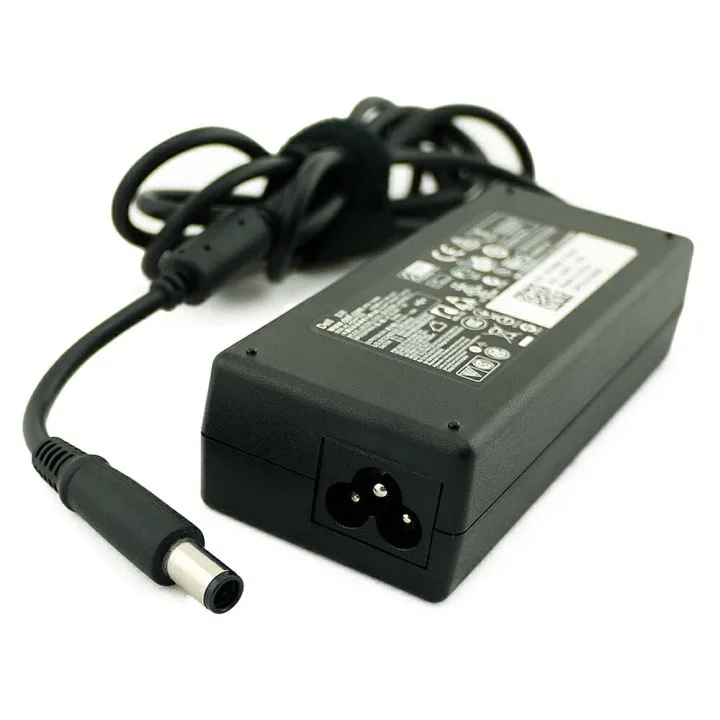
HP smart adapters use a center pin or identification line. The laptop uses that signal to recognize the charger. It checks voltage, wattage, and adapter type.
If the signal is missing, the laptop may treat the charger as unknown.
The main items HP checks are:
- Smart pin identity signal
- Adapter wattage rating
- Output voltage
- Charging and thermal limits
- Embedded Controller power behavior
The Embedded Controller manages charging, battery communication, and power states. If it cannot validate the adapter, it may disable charging or reduce performance.
When the Warning Is a Nuisance and When It Means a Real Charging Problem
Not every warning has the same urgency. Use these conditions to judge the next step.
- If the battery charges normally and performance is full, the warning may be a detection glitch.
- If the battery does not charge, treat it as a real power fault.
- If the laptop runs but slows down, the adapter may be too weak or not recognized.
- If the message says AC adapter type cannot be determined, focus on the smart pin and adapter authenticity.
- If the laptop only runs while plugged in, check battery health next.
If charging works normally, you can continue with basic checks. If charging is blocked, stop and inspect the adapter, port, and battery before buying parts.
Fast Checks Before You Buy a Replacement Charger
Do these checks first. They take only a few minutes. They also prevent you from buying the wrong part.
The most common fix is matching the correct HP wattage. The second most common fix is replacing a damaged smart pin or barrel tip.
- Read the exact boot message. Write it down.
- Check the adapter label. Look for HP spare part number, output voltage, and wattage.
- Compare the adapter wattage with the laptop’s required rating.
- Try a direct wall outlet. Skip docks, power strips, and travel adapters.
- Power off, unplug, and hold the power button for 15 seconds. This clears temporary power state.
- Test with another known-good HP adapter if possible.
- Open HP PC Hardware Diagnostics UEFI by pressing F2 at startup.
- Check battery health and AC adapter status.
If diagnostics show an unknown adapter, the problem is usually identification. If the adapter is recognized but the battery fails, the battery or charging circuit needs attention.
Identify Which HP Power Warning You’re Seeing
The message tells you where to start. Different warnings point to different causes.
| Boot warning | Most likely cause | First check |
|---|---|---|
| AC adapter type cannot be determined | Smart pin or non-HP adapter | Adapter authenticity and center pin |
| Low wattage or slow charger | Adapter too weak for the laptop | Wattage rating |
| Battery not charging | Charging path or battery fault | Battery health in diagnostics |
AC Adapter Type Cannot Be Determined
This usually means the laptop cannot identify the adapter. The smart pin may be bent, dirty, or missing. A third-party adapter may also fail HP’s identification check.
The laptop may still run, but it may not charge the battery. It may also limit CPU speed. Use a genuine HP adapter or an HP authorized spare when this message appears.
Low Wattage or Slow Charger Warning
This means the laptop sees a charger but thinks it is too small. A 45W adapter on a 90W laptop is a common example. The laptop may run, but it may charge slowly or throttle performance.
Check the adapter label and compare it with the laptop requirement. A higher-wattage genuine HP adapter is usually accepted. The laptop draws the power it needs.
Voltage and connector type still must match.
Battery Not Charging but Laptop Still Runs
This means AC power is reaching the laptop, but charging is blocked. The adapter may be recognized enough to run the system, but not enough to charge safely. The battery, Embedded Controller, BIOS, or charging circuit may be involved.
Check battery health and cycle count in HP diagnostics. If the battery is swollen, very hot, or physically damaged, stop using the laptop. That is a safety issue, not just a warning message.
Inspect the HP Adapter, Smart Pin, and DC Power Jack
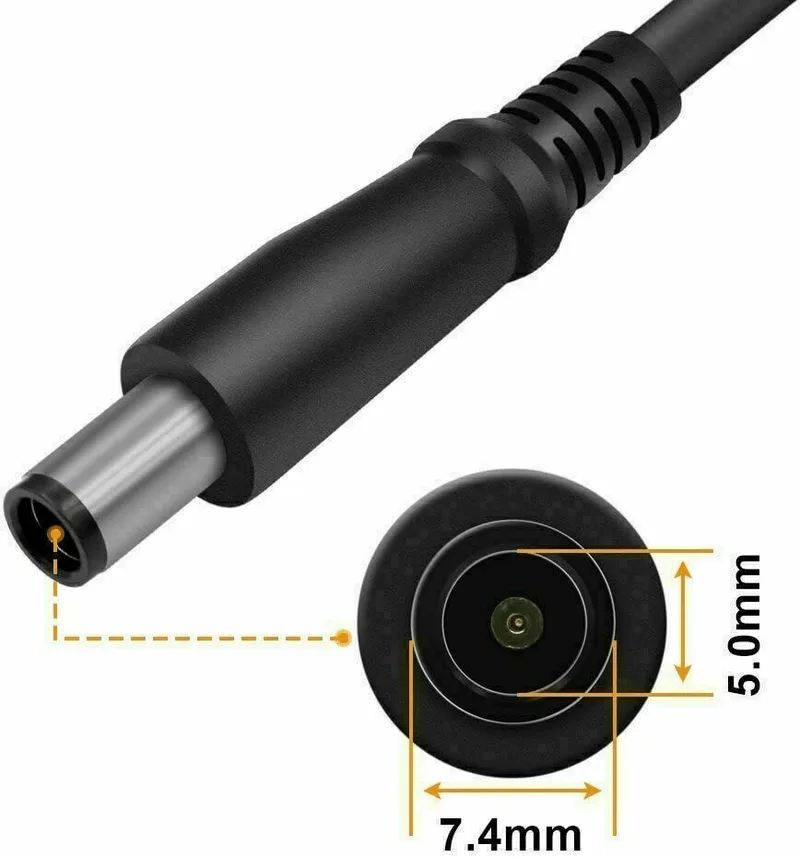
Physical damage is a common cause. The smart pin is tiny and easy to bend. A bent center pin is a common cause of unknown adapter errors.
Unplug the adapter before inspecting anything. Then check these points:
- Look at the barrel tip. The center pin should be straight and centered.
- Check the cable for cuts, kinks, or exposed wires.
- Check the laptop DC jack for looseness or debris.
- Do not force the plug. A loose fit can break the pin.
- If the tip wiggles, the jack may be worn.
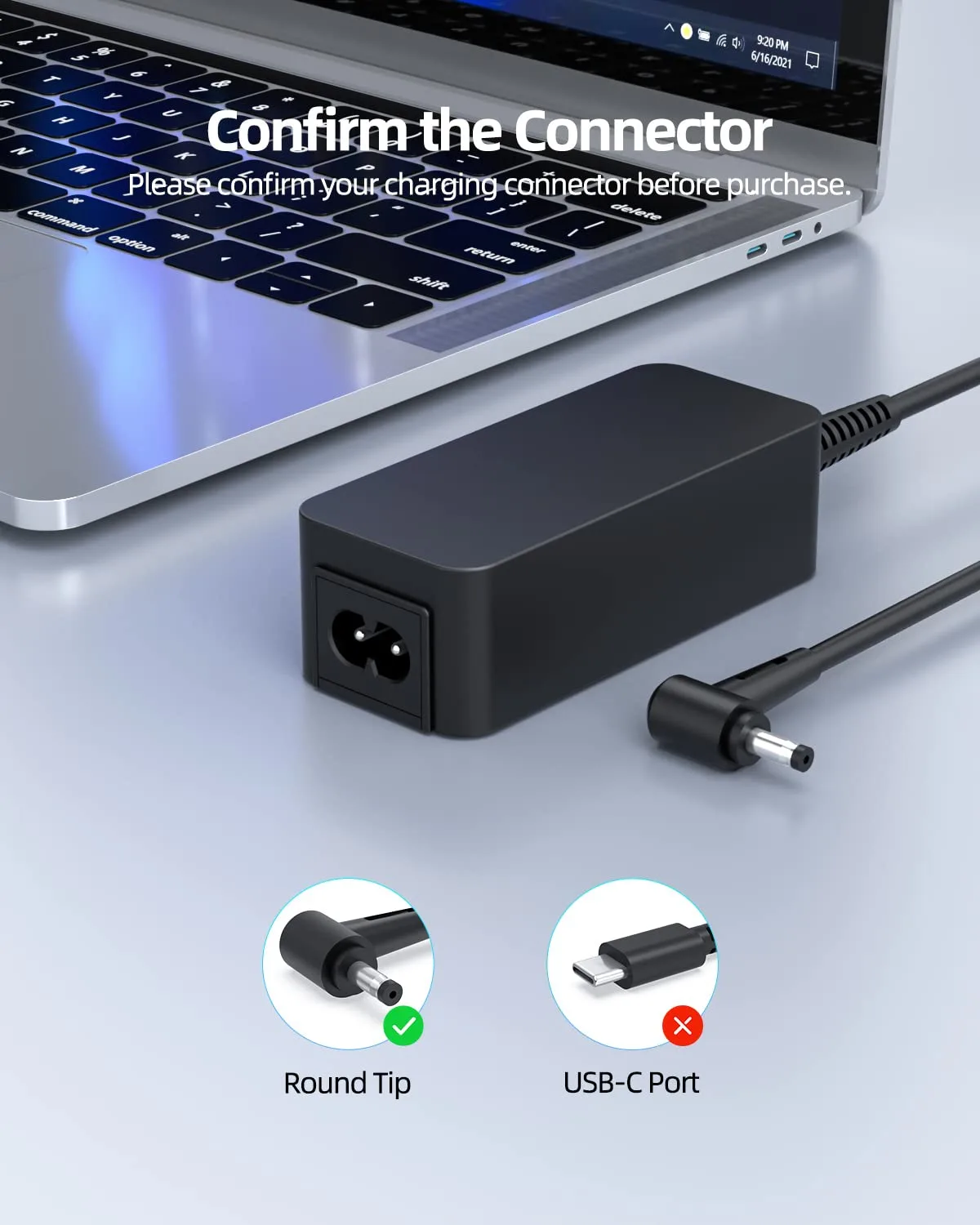
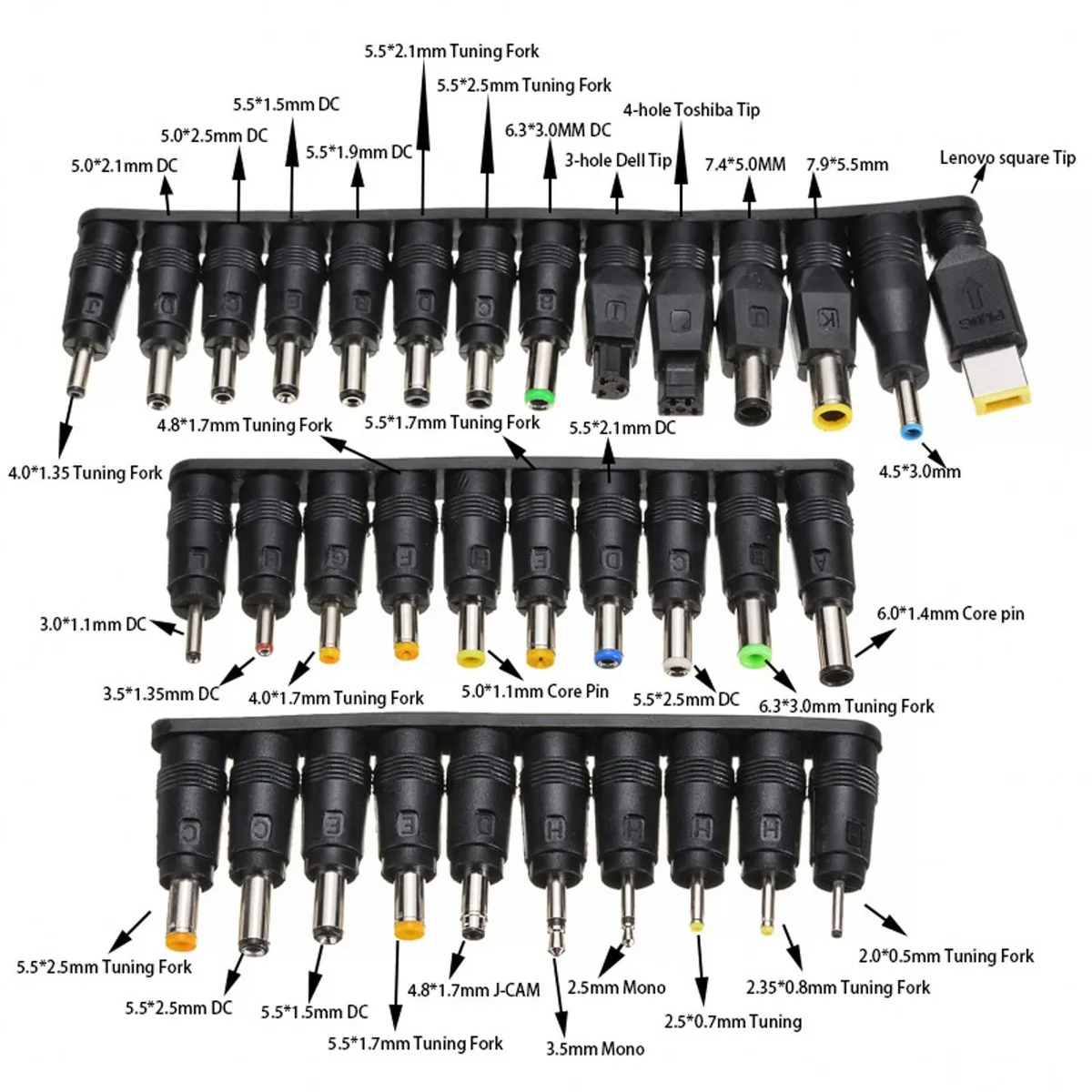
HP uses common barrel sizes such as 4.5mm blue tip and 7.4mm barrel with center pin. The wrong physical fit can cause poor contact. It can also damage the jack over time.
If the adapter tip looks damaged, replace the adapter. If the laptop jack feels loose, the laptop may need a port repair. A damaged cable is not worth risking.
Confirm the Adapter Wattage Matches Your HP Laptop’s Requirement
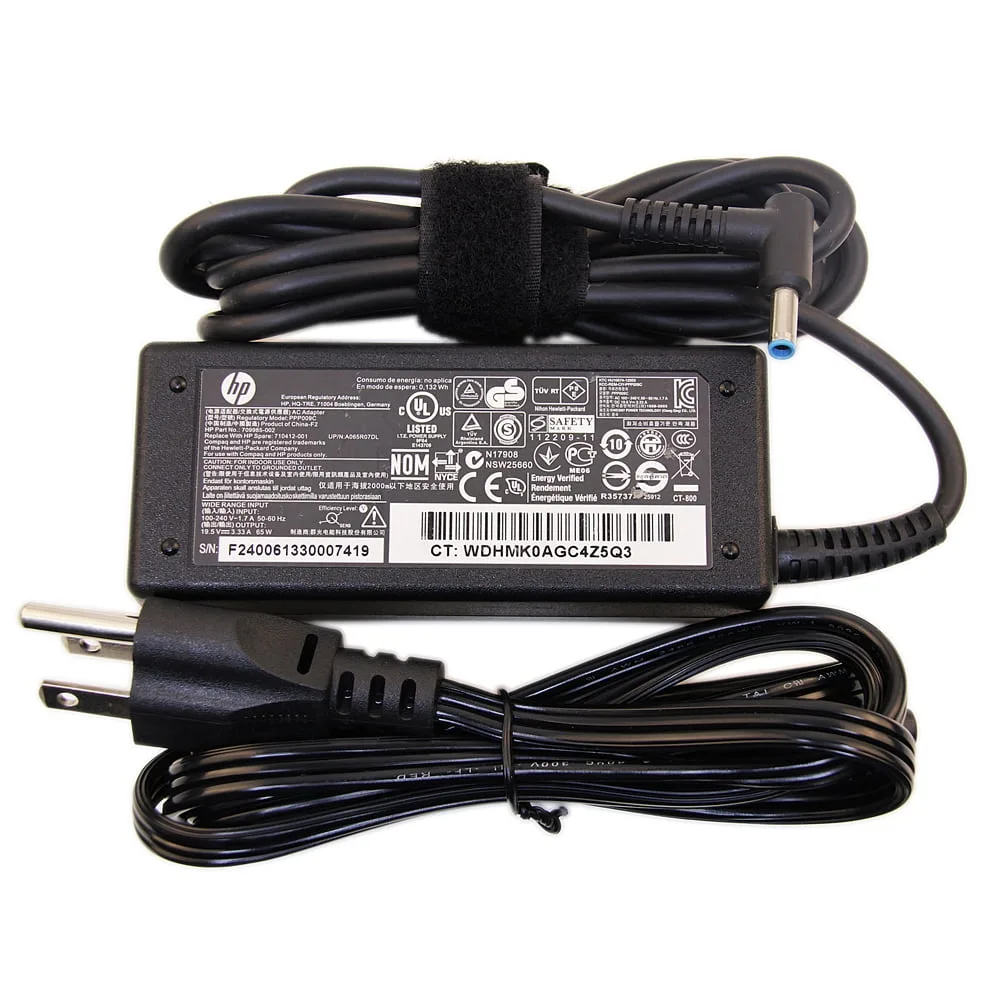
Wattage is the most common mismatch. The laptop needs enough power for the CPU, GPU, display, and battery charging. If the adapter is too small, the warning is expected.
| HP adapter rating | Typical use |
|---|---|
| 45W | Small Pavilion, ProBook, or travel models |
| 65W | Many Envy, ProBook, and EliteBook models |
| 90W | Performance laptops and some workstations |
| 120W and above | Omen, ZBook, and high-performance systems |
Manufacturer specifications indicate the required rating on the laptop label or HP support page. You can confirm the correct part number through HP support. Do not guess based on plug shape alone.
Use these rules:
- A lower-wattage adapter can trigger the warning.
- A higher-wattage genuine HP adapter is usually accepted.
- Voltage must match. Many HP barrel adapters use 19.5V.
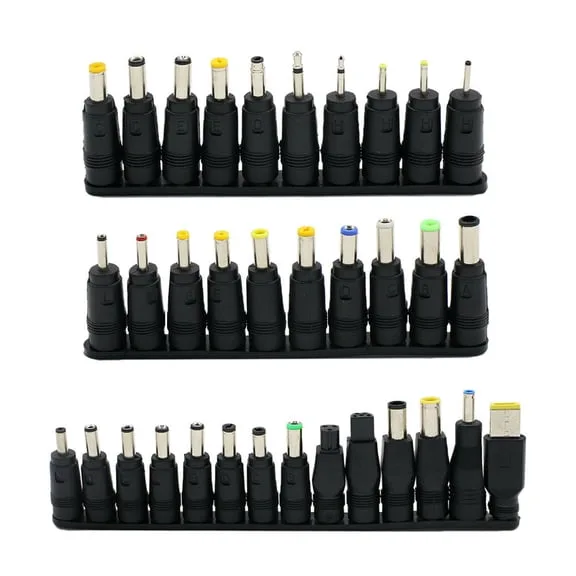
- Do not rely on a universal adapter unless it lists your exact HP spare part number.
What if your HP laptop charges over USB-C?
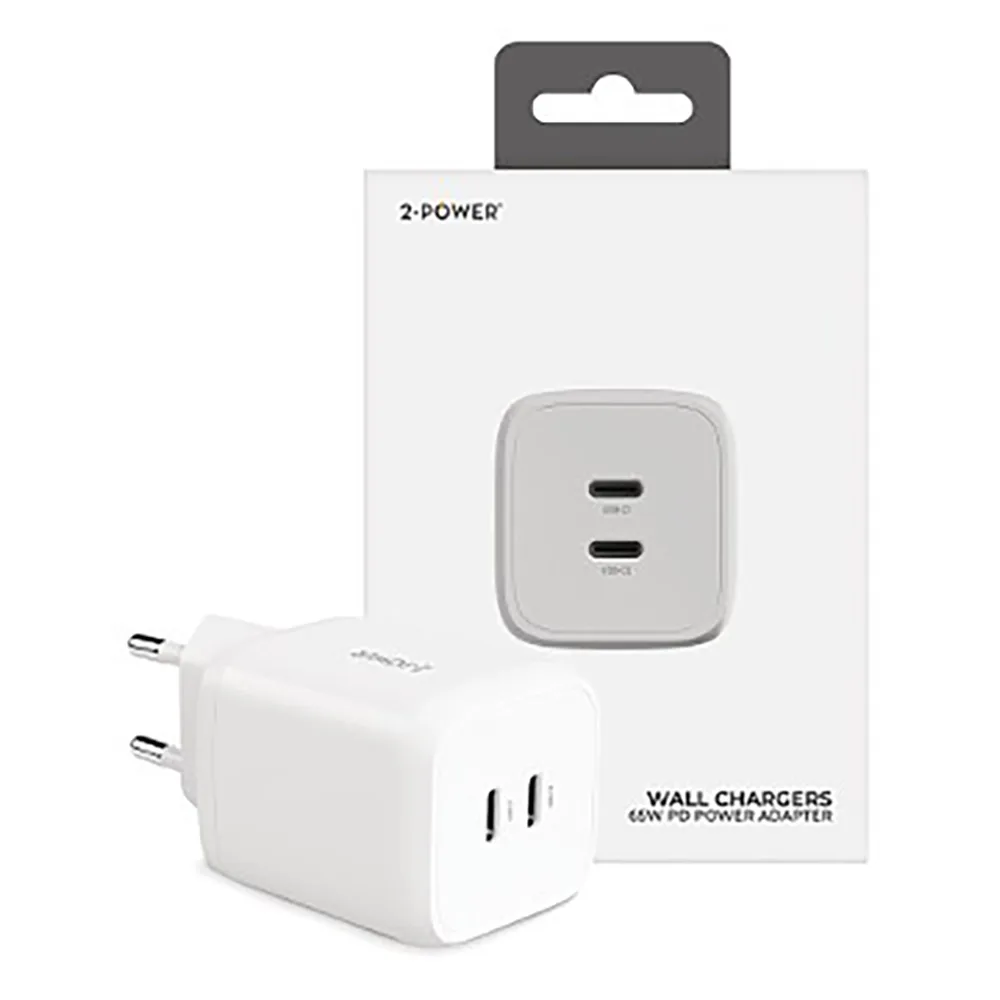
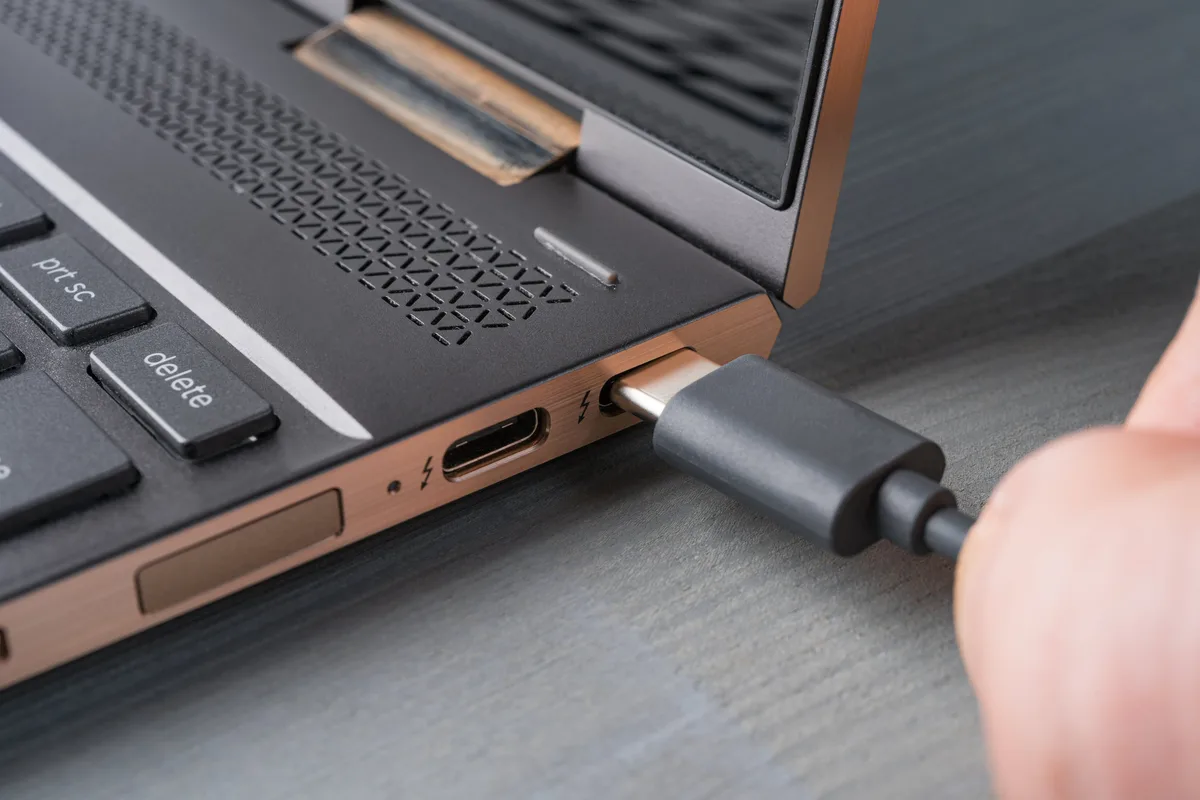
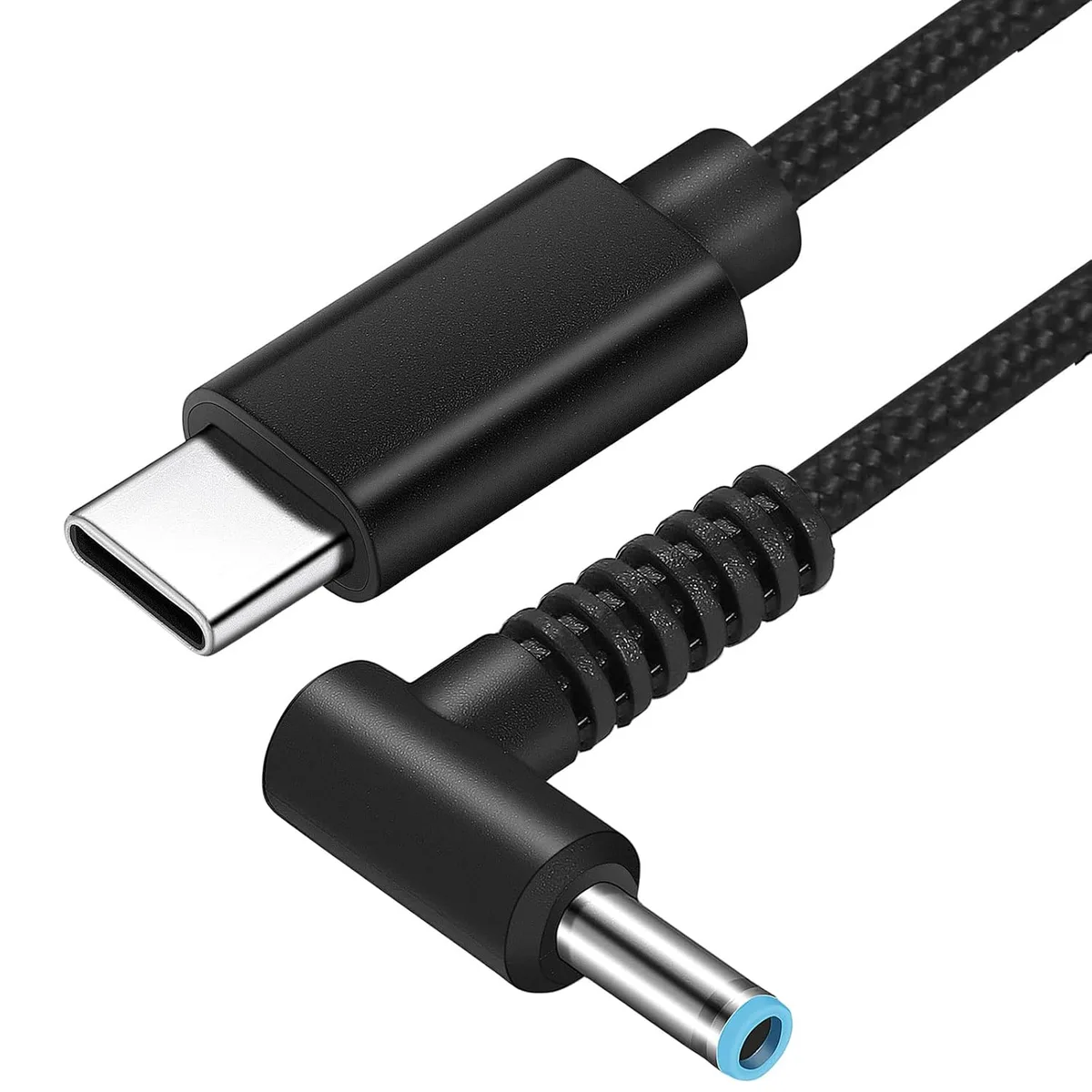
If your model supports USB-C charging, check USB Power Delivery wattage. The USB Implementers Forum defines the USB Power Delivery standard. A phone charger may supply power but not enough wattage.
Use a USB-C PD charger rated for your laptop. If the laptop came with a barrel adapter, USB-C charging may still be limited on some models. Check the laptop specifications before relying on a dock or monitor for power.
Rule Out Outlets, Power Strips, Docks, and USB-C Power Delivery
Power problems often start before the laptop. A bad outlet, overloaded strip, or weak dock can make a good adapter look faulty. Plug the HP AC adapter directly into a wall outlet you know works.
Then restart the laptop.
If the warning disappears, the power strip or dock caused it. If the warning stays, try another outlet. Avoid extension cords and travel adapters during testing.
They can add resistance and unstable contact.
For USB-C charging, the charger must support USB Power Delivery at the right wattage. A compact phone charger may supply power but not enough power. A 65W USB-C charger may be fine for one HP laptop and too weak for another.
Use this quick path:
- If the laptop normally uses a barrel adapter, test that adapter first.
- If you use a USB-C dock, check its rated charging wattage.
- If the dock supplies 60W but the laptop needs 90W, expect a warning.
- If a monitor provides USB-C power, confirm its Power Delivery rating.
- If the laptop only warns on battery but not AC, focus on battery health.
A dock or monitor can also limit charging while the laptop is under load. The system may run, but the battery may drain slowly. That is a power budget issue, not a broken laptop.
Use HP BIOS, F2 Diagnostics, and HP Support Assistant to Confirm the Cause
HP gives you three useful tools. They help separate adapter, battery, and firmware issues. Use them before replacing parts.
| Tool | How to open it | What to check |
|---|---|---|
| HP BIOS/UEFI | Press F10 at startup | Adapter wattage, unknown adapter status, BIOS version |
| HP PC Hardware Diagnostics UEFI | Press F2 at startup | Battery health, AC adapter test, charging status |
| HP Support Assistant | Open in Windows | BIOS updates, driver updates, support alerts |
In BIOS, look for power or adapter information. If it shows 65W or 90W, the laptop recognizes the adapter. If it says unknown or 0W, the smart pin signal is likely missing.
If it shows a lower wattage than expected, the adapter may be weak or mismatched.
HP PC Hardware Diagnostics UEFI is useful when the battery is involved. Run the battery test and note the result. A failed battery can block charging even when the adapter is recognized.
A passing battery test points you back to the adapter or port.
HP Support Assistant can check for BIOS and Embedded Controller updates. The Embedded Controller handles charging behavior. A BIOS update may include power management fixes for your exact model.
Install updates only with the AC adapter connected and the battery charged enough to avoid interruption.
What if the tools disagree?
Trust the BIOS and UEFI diagnostics over Windows status. Windows can show a charging icon while the firmware limits charging. If BIOS says unknown adapter, treat identification as the first problem.
If diagnostics say battery failed, replace the battery before chasing the charger.
Fix the Warning Based on the Cause
Once you know the cause, the fix becomes simpler. Do not replace parts in random order. Use the branch that matches your symptoms.
Wrong, Weak, or Non-HP Adapter
If the adapter wattage is too low, replace it with the correct HP rating. A 45W charger on a 90W laptop will often trigger a low wattage warning. The laptop may run, but it may charge slowly or reduce performance.
If the adapter is third-party, check whether it lists your HP spare part number. Many universal adapters fit the barrel but fail the smart pin check. A genuine HP adapter or HP authorized spare is the safest fix.
A higher-wattage genuine HP adapter is usually fine. The laptop draws what it needs. The connector size, voltage, and smart pin signal still must match.
Do not force a different barrel size into the DC jack.
Damaged Charger Tip, Cable, or DC Jack
If the center pin is bent or missing, replace the adapter. The laptop needs that pin to identify the charger. A bent pin can also damage the DC jack.
If the cable is frayed, cracked, or exposed, stop using it. Damaged power cables can overheat and create a safety risk. Replace the adapter rather than repairing the cable with tape.
If the adapter tip feels loose inside the laptop, inspect the DC power jack. A worn jack can cause intermittent detection. It may work at one angle and fail when the cable moves.
A loose or broken jack usually needs repair by a technician.
Outdated BIOS or Embedded Controller Firmware
If the adapter is correct and the port is clean, check firmware. HP may release BIOS updates that improve power detection. The update may also include Embedded Controller firmware.
Before updating, connect the AC adapter and keep it connected. Do not shut down the laptop during the update. Follow the HP update instructions for your exact model.
If the update fails or the laptop loses power during it, the system may need service.
If the warning started after a BIOS update, check HP support for a newer version or recovery guidance. Do not roll back firmware unless HP provides that option for your model.
Battery, Power Circuit, or Motherboard Charging Fault
If a known-good adapter still shows unknown or fails to charge, the fault may be inside the laptop. The DC jack, charging circuit, or motherboard power path may be damaged. This is more likely if the laptop has been dropped, exposed to liquid, or used with a forced connector.
If the battery test fails, replace the battery. A failing battery can prevent normal charging and trigger power warnings. If the battery is swollen, do not keep using the laptop.
Power it down and seek service.
If battery, adapter, and port checks pass but charging still fails, contact HP support or a qualified repair shop. At that point, the issue is likely a board-level charging fault.
Clear the Boot Warning Without Ignoring Power Protection
The warning should disappear after the laptop recognizes a valid adapter. If it remains, confirm the fix first. Do not silence a warning that is trying to tell you the charger is unsafe.
Use this order:
- Confirm the adapter is genuine or HP authorized.
- Confirm the wattage matches or exceeds the laptop requirement.
- Confirm the BIOS shows the correct adapter wattage.
- Run HP diagnostics and confirm battery health.
- Perform a hard reset with the laptop unplugged.
- Restart and check whether the boot message returns.
Some HP systems may offer an adapter warning setting in BIOS. If your model has one, use it only after the power system checks out. Disabling the warning does not fix a weak charger, bad pin, or failing battery.
It only hides the alert.
If the warning appears only once after a fix, restart twice and recheck. Firmware changes can take one full power cycle to settle. If the message returns every boot, the root cause is still present.
Mistakes That Make HP Smart Adapter Errors Worse
Most repeat warnings come from small shortcuts. Avoid these common errors:
- Buying a charger by plug shape alone. Wattage and smart pin support matter.
- Using a lower-wattage adapter and expecting full performance.
- Forcing a barrel plug into the wrong DC jack size.
- Ignoring a bent center pin until it breaks inside the port.
- Continuing to use a frayed or hot adapter.
- Testing through a dock, monitor, or power strip first.
- Updating BIOS without the AC adapter connected.
- Replacing the battery before confirming adapter detection.
- Assuming Windows charging status overrides BIOS warnings.
- Disabling the boot warning before fixing the power fault.
If the adapter gets unusually hot, smells burnt, or the laptop shuts off under load, stop testing. Those are safety signals. Use a known-good HP adapter and seek service if the problem continues.
When to Replace the Adapter, Port, Battery, or Contact HP Support
Replace the adapter if BIOS shows unknown wattage or the center pin is bent. Replace the battery if HP diagnostics report failure or swelling. Contact HP support if a known-good adapter still fails and the DC jack feels loose.
If the laptop has liquid damage, a forced connector, or repeated shutdowns under load, skip further DIY checks. A board-level charging fault needs trained repair.
Related Guide: Explore our detailed guide on How to Fix: Dell AC Power Adapter Type Cannot Be Determined.
Frequently Asked Questions
Can I keep using the laptop with the warning?
You can if the battery charges normally, the laptop stays cool, and performance looks normal. If charging stops, the battery drains while plugged in, or the system slows down, treat the warning as a real fault and fix it before relying on the laptop.
Will a higher-wattage HP adapter hurt my laptop?
No. A genuine higher-wattage HP adapter is usually safe because the laptop draws the power it needs. The connector size, voltage, and smart pin signal still must match.
Do not force the wrong barrel size or use an uncertified adapter.
Why does the warning appear only sometimes?
Intermittent warnings usually point to a loose connection. Check the DC jack, adapter tip, power strip, and wall outlet. If the warning appears only when the cable moves, suspect the adapter cable or laptop port.
If it appears only on a dock, check dock wattage.
Can a USB-C dock cause this warning?
Yes. A dock can cause the warning if its USB Power Delivery rating is below what the laptop needs. A 60W dock may trigger a warning on a laptop that needs 90W.
Check the dock specifications and use the original HP adapter for testing.
Do I need to disable the warning in BIOS?
No. Disabling the warning should not be the first fix. It only hides the alert and does not repair a weak adapter, bad smart pin, failing battery, or damaged port.
Use that option only after BIOS and diagnostics confirm the power system is working correctly.
Decision Guide: What to Check First and What to Fix Next
Start with the adapter label and BIOS wattage. If the adapter is unknown, inspect the smart pin. If wattage is low, replace the adapter.
If charging still fails, test the battery. If both pass, seek port or motherboard service.
| Symptom | First move | Next move |
|---|---|---|
| Unknown adapter | Check smart pin and try genuine HP adapter | Inspect DC jack |
| Low wattage | Match adapter wattage | Use correct HP adapter |
| No charge | Run battery test | Replace battery or seek service |

Similar Posts