Universal Laptop Charger Safety: Avoid a Fried Motherboard
Senior Hardware Diagnostics Specialist & Lead Thermal Editor at Laptop Post Testing Lab · CompTIA A+, ACMT, B.S. in Computer Engineering · 12+ years bench-testing laptop thermal solutions & motherboard repairs
If you’re asking can you use a universal laptop charger safely without frying motherboard, the answer is yes, but only after checking four things. Those are voltage, polarity, wattage, and connector fit. A charger that looks similar can still send the wrong power into a fragile DC-in circuit.
Most laptop power adapters output around 19V, 19.5V, or 20V. USB Power Delivery chargers negotiate 5V, 9V, 15V, or 20V before full power flows. That negotiation is a big reason USB-C can be safer than a fixed barrel tip.
The next step is knowing what can go wrong before you plug in.
Quick Answer
Can you use a universal laptop charger safely without frying motherboard? Yes, if voltage and polarity match. Wattage should meet or exceed laptop requirements.
The connector must fit without force. USB-C PD reduces risk when both devices support the profile.
Why the Wrong Universal Charger Can Damage a Laptop Motherboard
A laptop motherboard runs on tightly controlled power rails. The charging port feeds a DC-in jack, protection components, and the power management IC. If the input voltage is too high, those parts can see stress beyond their ratings.
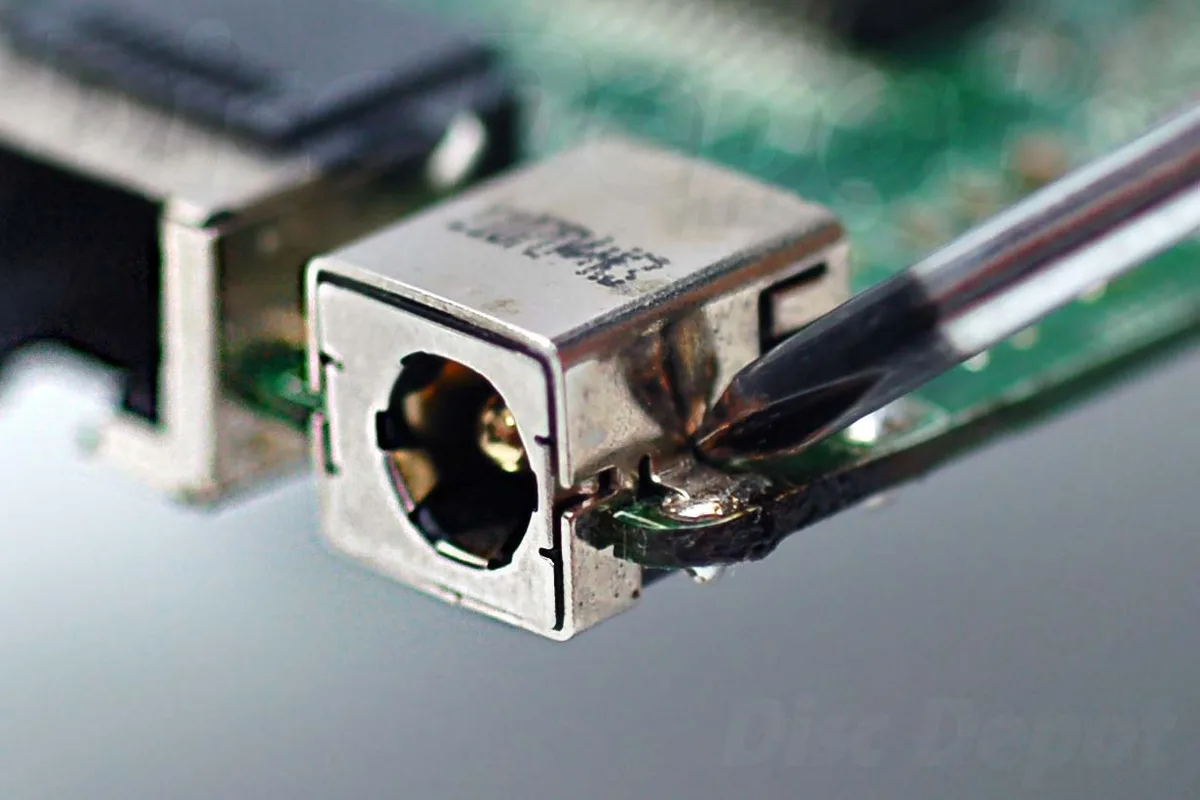
If polarity is reversed, current can flow through the wrong path. If the tip is loose, it can arc, heat up, and burn the jack. Damage may be instant, or it may show up later as charging failure.
In our research, the most common failures involve overvoltage, reversed polarity, and poor tip contact. A cheap universal charger can also lack basic protection circuits. That is where the real motherboard risk comes from.
A wrong charger can cause:
- A dead DC-in jack from arcing or heat
- A failed charging MOSFET from overvoltage
- Power rail damage from poor voltage regulation
- Battery not charging due to an unrecognized adapter
- Intermittent shutdowns from a loose connection
The charger does not need to look damaged to be dangerous. If the specs are wrong, the problem starts the moment it connects.
The Four Safety Gates: Voltage, Polarity, Wattage, and Connector Fit
These four checks decide whether a universal laptop charger is safe. If one fails, stop. Do not plug it in and hope.
| Safety gate | Safe condition | Do not use if |
|---|---|---|
| Voltage | Matches label or stays within about 5% | Voltage is higher than the laptop rating |
| Polarity | Same center-positive or center-negative orientation | Opposite polarity symbol |
| Wattage | Equal to or above the laptop requirement | Charger is far below the required wattage |
| Connector fit | Snug, stable, and easy to insert | Loose, forced, bent, or sparking |
A recognized safety mark matters too. A certified adapter from a recognized lab, such as UL Solutions, is a stronger buy than an unlabeled brick.
Voltage must be close, not sort of close
Voltage is the first gate. Check the laptop label for input voltage. Common values are 19V, 19.5V, and 20V.
Many laptops tolerate about a 5% difference, but the label is the final authority. A 20V charger on a 19V laptop is a risk. Do not rely on the charger fitting as proof of compatibility.
If the laptop uses USB Power Delivery, voltage is negotiated. If it uses a barrel jack, the voltage is fixed. That difference changes the whole safety check.
Polarity must match exactly
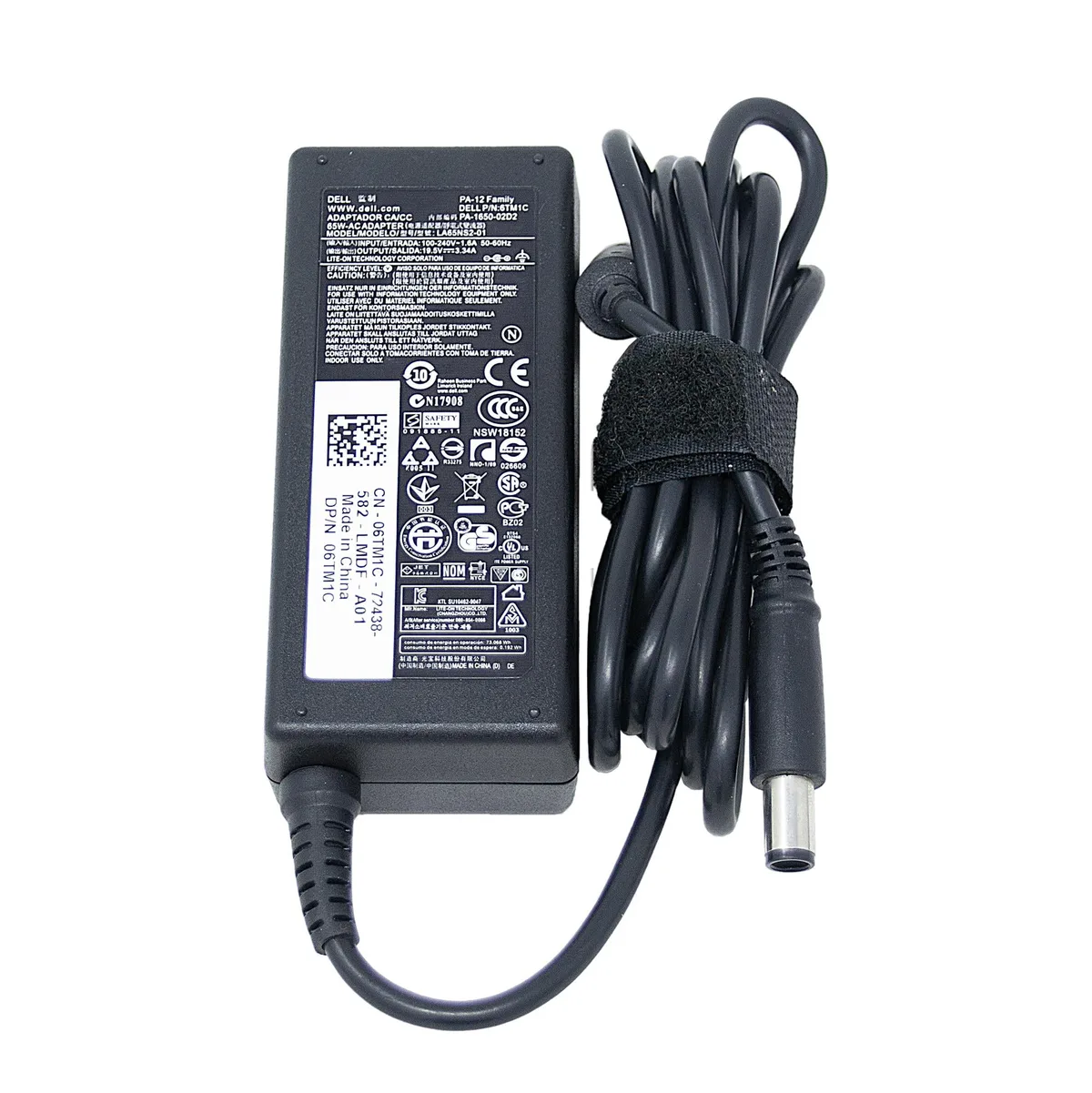
Polarity must match exactly. Most barrel-tip laptops use center-positive polarity. The symbol shows a plus sign connected to the center pin.
If the symbol shows center-negative, do not use a center-positive adapter. Reversed polarity can damage input protection before the laptop even powers on. This is one of the fastest ways to hurt a motherboard.
Wattage can be higher, but not too low
Wattage can be higher, but it should not be too low. The laptop draws current. The charger does not push watts into it.
A 65W laptop can work with a 90W adapter if voltage and polarity match. A 45W adapter may charge slowly, throttle the CPU, or drain the battery under load. For gaming laptops, check the full load requirement.
Many need 180W or more, and a universal USB-C charger may not keep up.
The tip must fit without force
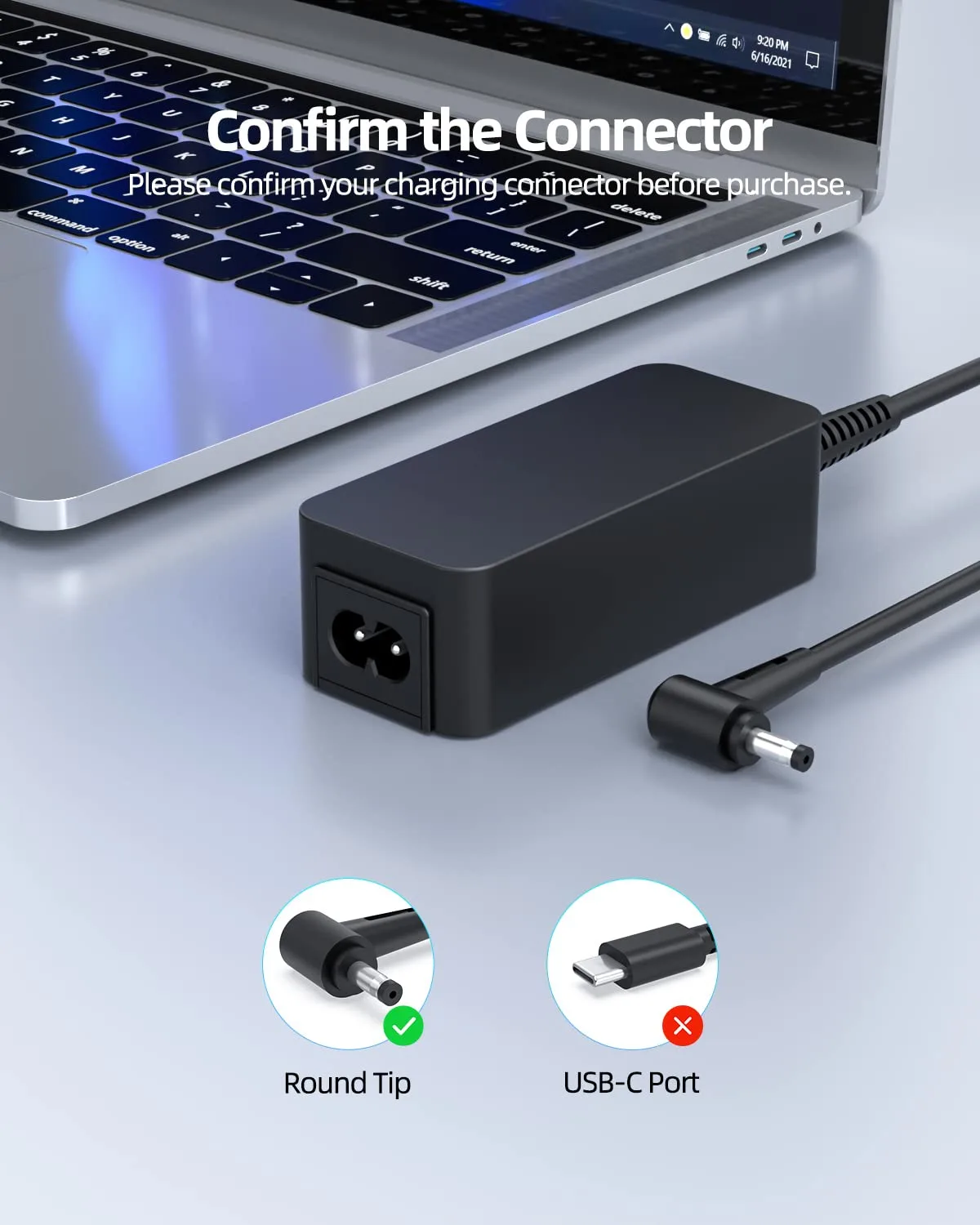
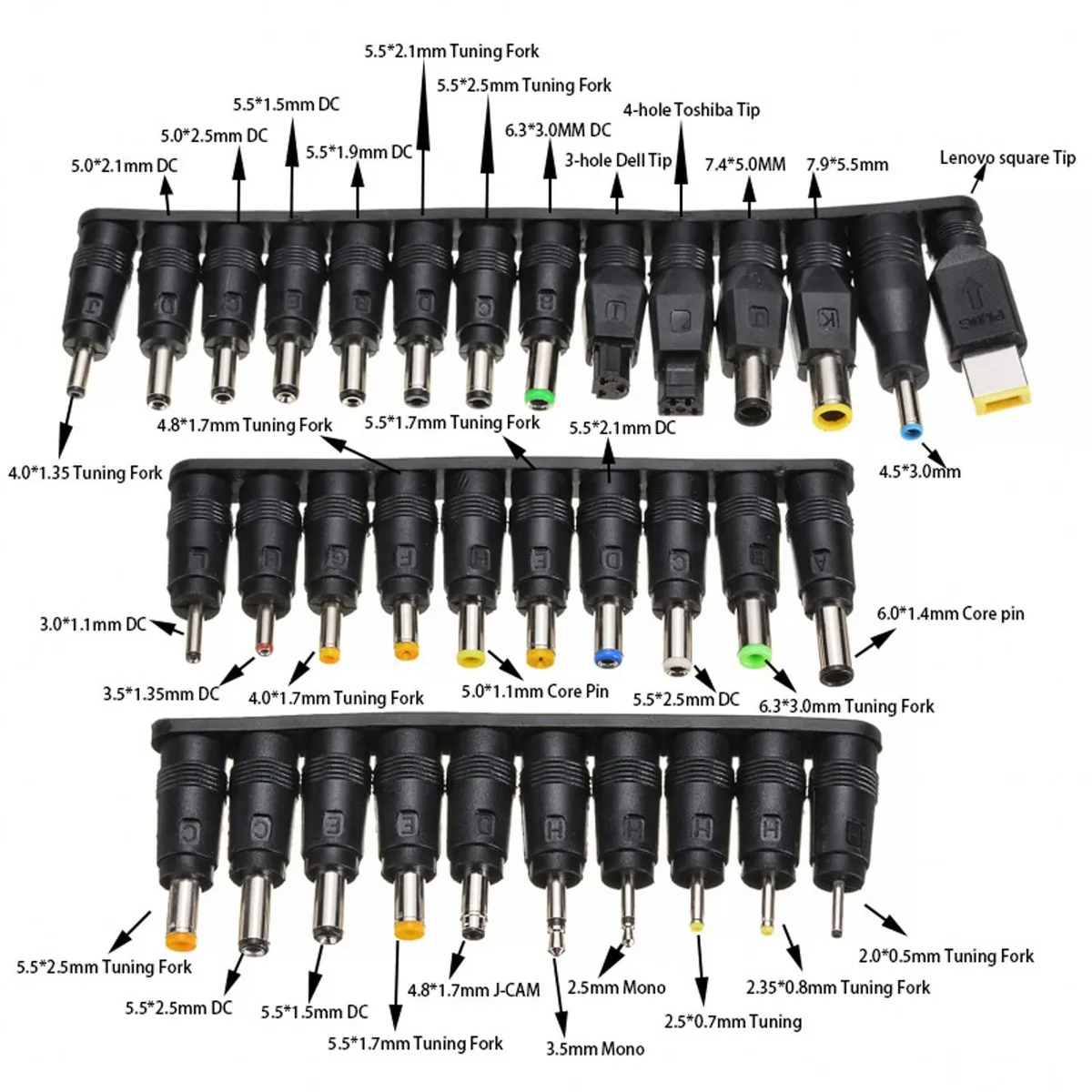
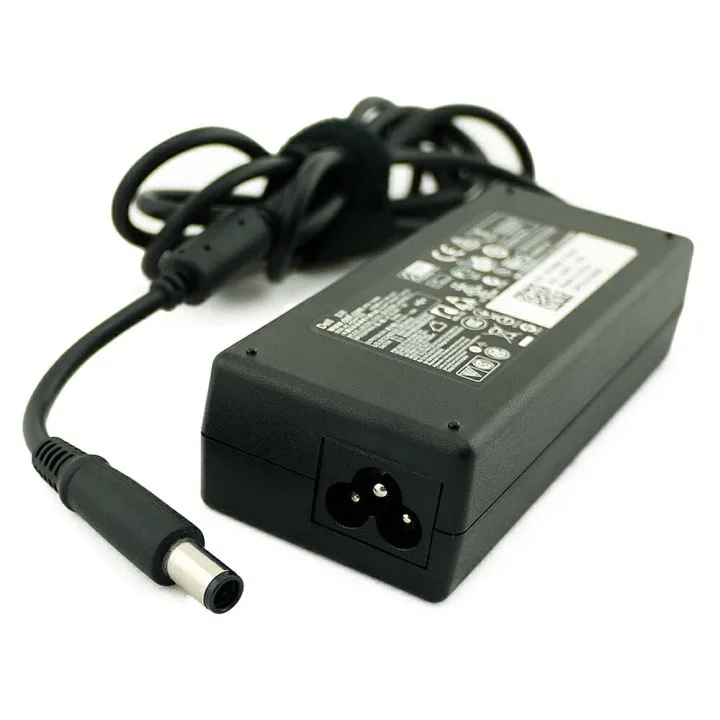
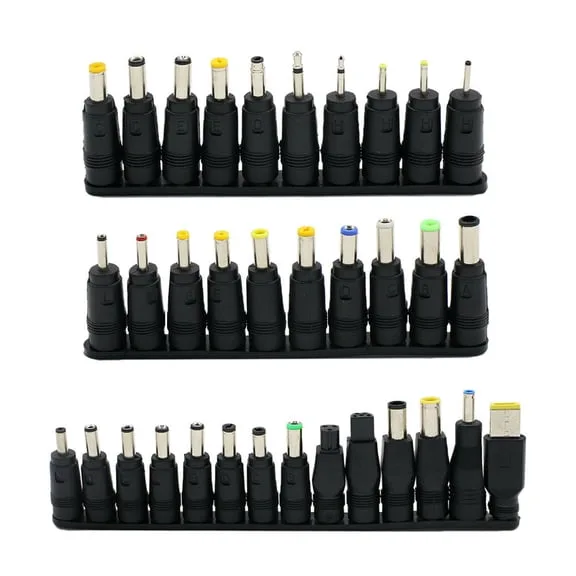
The tip must fit without force. Common barrel sizes include 5.5 x 2.5 mm and 4.5 x 3.0 mm. Some Dell and HP chargers use a 7.4 x 5.0 mm tip with a center pin.
Lenovo often uses a rectangular slim tip.
If the tip wiggles, sparks, or feels tight, stop. A loose tip can create heat. A forced tip can crack the DC-in jack.
USB-C PD vs Barrel-Tip Universal Chargers: Different Safety Rules
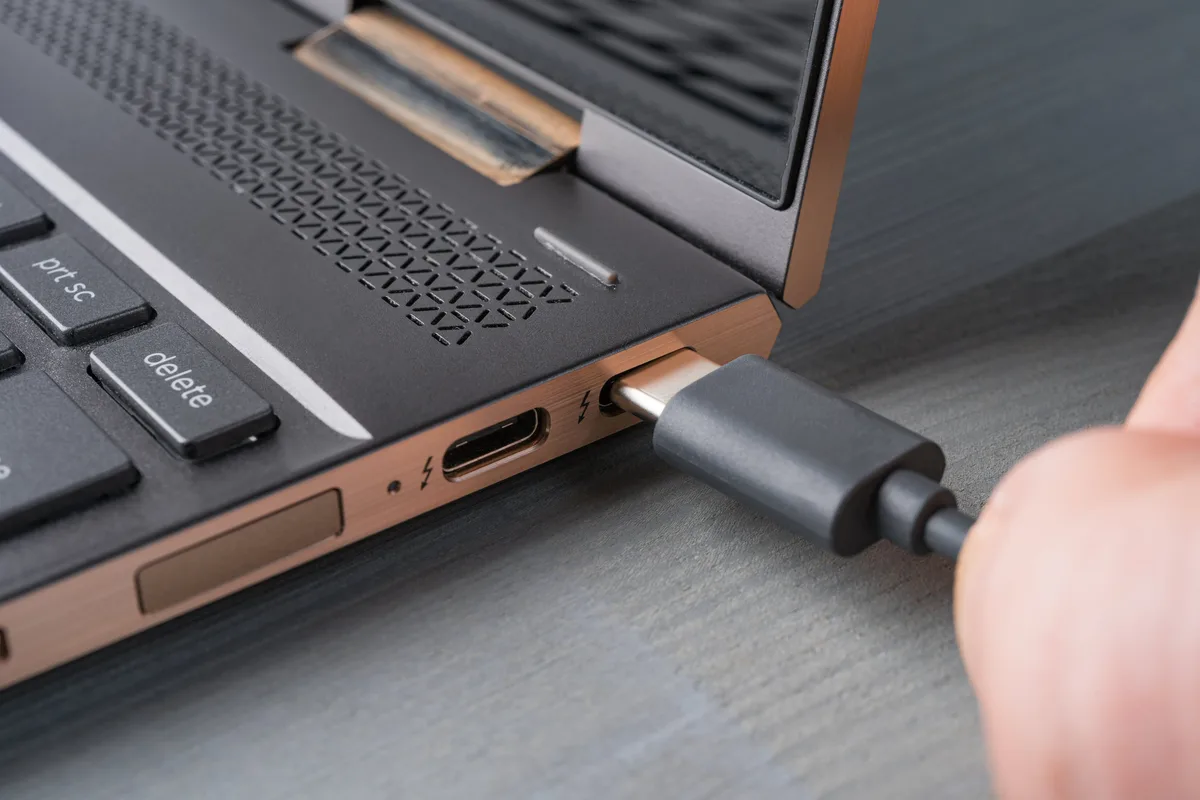
USB-C Power Delivery changes the risk. With USB-PD, the charger and laptop negotiate a voltage profile before full power flows. Common profiles are 5V, 9V, 15V, and 20V.
That reduces the chance of a fixed 20V adapter hitting a 5V device. The USB Implementers Forum publishes the USB Power Delivery specifications. That is the standard behind this negotiation.
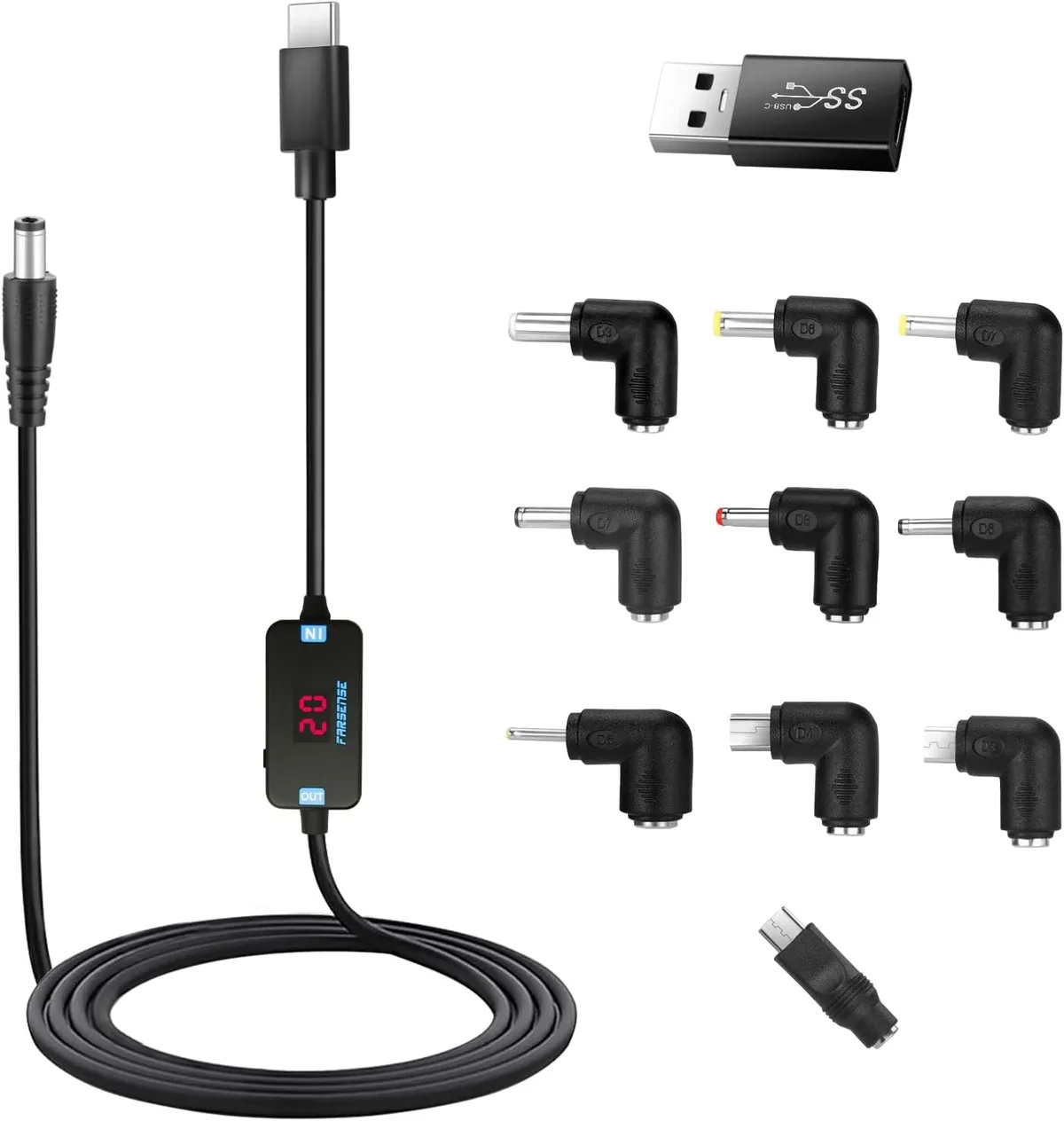
But USB-C does not guarantee charging. Some ports handle data only. Some laptops require a 100W or 140W PD contract under load.
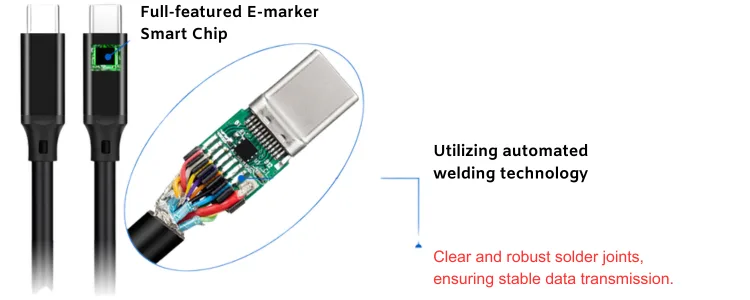
Use an E-marker cable for 5A or 100W charging.
As of 2026, many new laptops charge through USB-C, but many gaming laptops still use high-wattage barrel connectors. That is why the charger type matters so much.
| Charger type | Main safety advantage | Main risk |
|---|---|---|
| USB-C PD | Negotiates voltage | Wrong cable or low-wattage charger |
| Barrel-tip universal | Works with older laptops | Manual voltage and polarity errors |
USB-C Power Delivery negotiates the voltage
USB-C PD is safer when both devices support it. The laptop requests the voltage it needs. The charger then supplies that profile.
If the laptop needs 20V, it asks for 20V. If it only needs 5V, it should not accept 20V. This is why a good USB-C PD charger is usually safer than a random barrel adapter.
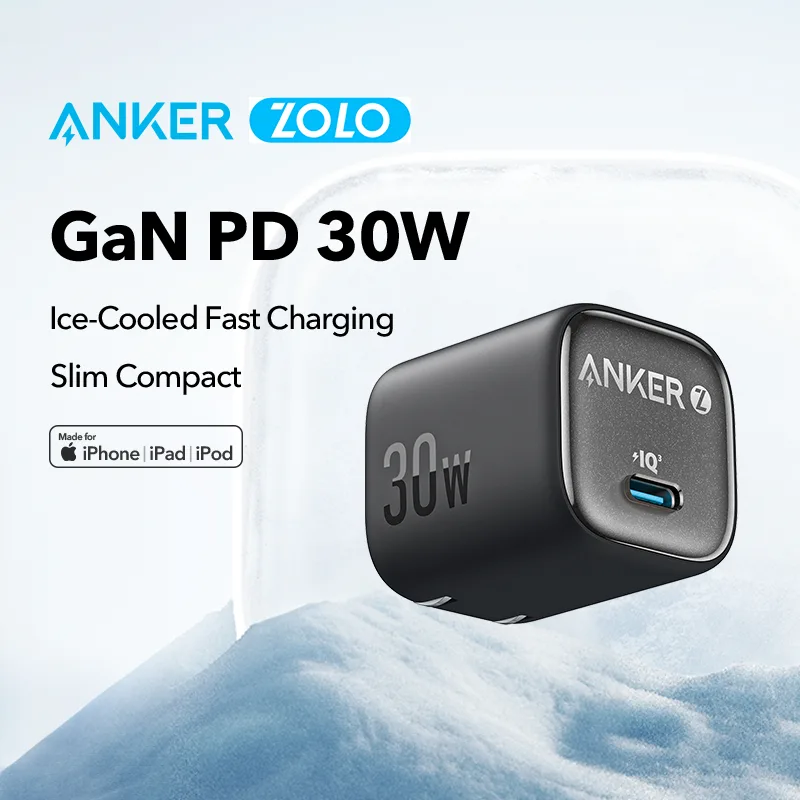
Still, wattage matters. A 30W phone charger may not power a 65W laptop. It may trickle charge, or it may not charge at all.
Barrel-tip chargers require manual verification
Barrel-tip universal chargers are less automatic. You must set voltage, match polarity, and choose the exact tip. Manual voltage switches are a common failure point.
If the switch is set wrong, the laptop can receive the wrong voltage before you notice. Some Dell and HP laptops also check an ID pin. If the pin is missing, the laptop may refuse to charge or limit power.
That does not always mean damage. It does mean the charger is not a proper match.
How to Read the Laptop and Charger Labels Before Plugging In
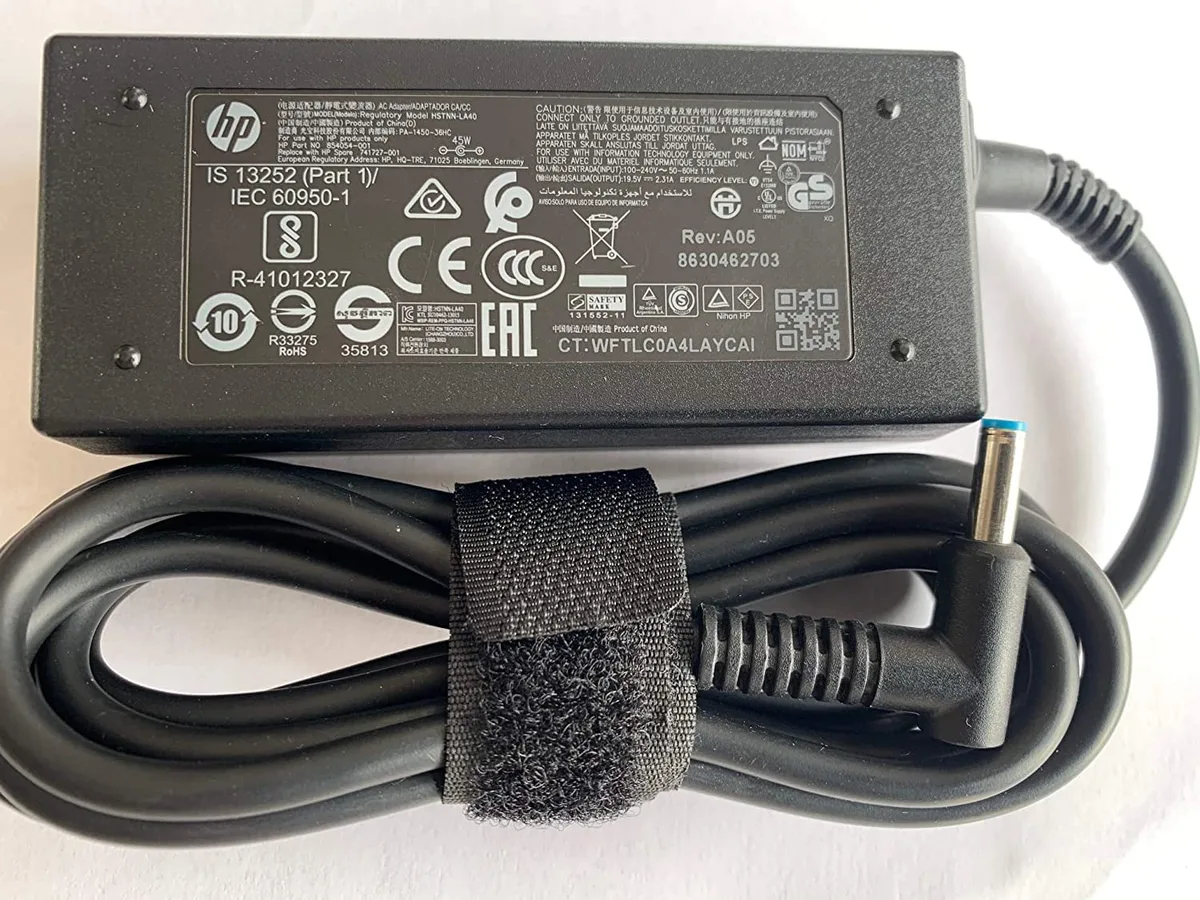
Read the laptop bottom label first. Look for input voltage and current, not the battery voltage. If the label says 19.5V and 3.33A, the target is about 65W.
Then read the charger output label. Confirm the exact DC output, polarity symbol, and tip size. If the label is worn, use the laptop model number and manufacturer support page before trusting the adapter.
Step-by-Step Check Before Using a Universal Laptop Charger
Use this checklist before connecting anything. It takes a few minutes. It can save a motherboard.
Find the laptop input rating.
Look on the bottom label, in the service manual, or on the original charger.Match voltage first.
If the label says 19.5V, choose 19.5V. If it uses USB-PD, confirm the 20V profile.Confirm polarity.
For barrel connectors, check the center-positive or center-negative symbol.Check wattage.
Use watts = volts x amps. If the laptop needs 65W, use a 65W or higher charger.Choose the correct tip.
It should seat fully without pressure.Set any manual voltage switch while unplugged.
Check it twice.Inspect the port and cable.
Stop if you see a bent pin, cracked barrel, frayed cable, or burn marks.Plug the charger into the wall first.
Then connect it to the laptop.Watch the first few minutes.
Check the charging icon, battery status, and temperature.
If the laptop gets hot near the charging port, stop immediately. If you see sparks or smell burning, do not try again. That is not a compatibility quirk.
That is a failure in progress.
Decision Branches: What to Do Based on Your Charger and Laptop
The safe choice depends on the port, charger type, and power demand. Use the branch that matches your setup.
If Your Laptop Charges Over USB-C PD
Use a USB-C PD charger if the laptop supports USB Power Delivery. Check the required wattage. A 65W ultrabook may need a 65W or 100W charger under load.
If the charger only offers 30W or 45W, it may charge while asleep. It may not keep up during use. If the laptop shows a slow charger warning, use a higher wattage PD charger.
Use a proper USB-C cable too. For 100W charging, use a 5A E-marker cable. A thin phone cable can limit current and create heat.
If Your Laptop Uses a Barrel Jack
Use a barrel-tip universal charger only if voltage, polarity, and tip size all match. Do not rely on the tip alone. Many barrel tips look close but differ slightly.
If the laptop label says 19.5V, set the charger to 19.5V. If it says center-positive, use center-positive. If the original Dell or HP charger had a center pin, confirm the replacement supports that ID signal.
If the laptop rejects the charger or says unknown adapter, stop. It may run on AC, but it may not charge the battery. That is a compatibility failure, not a safe fix.
If the Universal Charger Has a Manual Voltage Switch
Set the voltage switch before connecting the laptop. Check it twice. A switch left on 24V can damage a 19V laptop.
If the switch feels loose or the markings are hard to read, do not use it. A loose switch can change voltage under load.
Prefer auto-sensing USB-PD chargers when possible. They remove the manual voltage step.
If You Have a Gaming Laptop or Mobile Workstation
Check the full power requirement first. Many gaming laptops need 180W, 230W, or more. A universal USB-C charger usually cannot replace that under heavy load.
If the laptop supports USB-C charging, it may only support low-power charging. It may work for light tasks. It may throttle the CPU and GPU during gaming.
For high-performance machines, use the OEM adapter or a manufacturer-approved replacement. Treat a universal charger as emergency power only.
Universal Charger vs OEM Charger: When Each Is the Better Choice
An OEM charger is the safest default. It matches the exact voltage, polarity, tip, and firmware expectations. Manufacturer specs confirm this is the lowest-risk option.
A universal charger can be a good spare. It works well when you need one adapter for several older laptops. It can also help when the original charger is discontinued.
| Option | Best for | Main limitation |
|---|---|---|
| OEM charger | Daily use, warranty protection, high-power laptops | Higher cost, less flexibility |
| Quality universal charger | Spare, travel, mixed older laptops | Manual checks and tip fit |
| USB-C PD charger | Modern laptops, docks, monitors, travel | Must match wattage and cable rating |
Choose OEM if the laptop is under warranty or needs high wattage. Choose a certified universal charger if you need a backup and can verify the specs. Choose USB-C PD if both devices support the needed profile.
Warning Signs That Mean Stop Charging Immediately
Stop charging if anything feels hot, loose, or unstable. Some signs start small. They can still point to a failing DC-in circuit.
Unplug the charger if you notice:
- Sparks at the charging port
- A burning smell from the brick, cable, or port
- The DC jack becomes hot to the touch
- The tip falls out or wiggles easily
- The laptop only charges at a certain cable angle
- The battery icon flickers between charging and not charging
- The charger makes a loud buzzing or clicking sound
- The laptop shuts down randomly while plugged in
If the laptop shows a swollen battery, stop using it right away. Do not keep charging it. Swollen batteries can rupture or create a fire risk.
If the charger has no output label, do not use it. You cannot verify voltage or polarity. That makes it unsafe for any laptop.
Common Mistakes That Lead to Fried Motherboards
Most damage comes from small assumptions. The charger looks close enough, so people plug it in. That is where the risk starts.
Common mistakes include:
- Assuming higher wattage fixes a voltage mismatch
- Setting a manual voltage switch while the charger is plugged in
- Forcing a barrel tip that is almost the right size
- Ignoring reversed polarity symbols
- Using a phone charger for a laptop that needs 65W
- Using a cheap USB-C cable for high-current charging
- Borrowing a charger without checking the label
- Continuing to use a charger after it sparks
- Using a damaged DC-in jack and blaming the charger
Another common error is confusing input and output. The laptop label shows input. The charger label shows output.
Those two must match.
How to Choose a Safe Universal Laptop Charger
Look for clear specs, safety protection, and the right connector system. A safe charger gives you enough information to verify the match.
Use this buying checklist:
- Output voltage matches the laptop input voltage
- Output current is equal to or higher than the laptop rating
- Wattage meets or exceeds the laptop requirement
- Polarity matches for barrel-tip models
- Correct tip is included and fits snugly
- Overvoltage, overcurrent, and short-circuit protection are listed
- The charger has a recognized safety certification
- The label includes manufacturer name and model
For USB-C, choose a charger with the right PD wattage. A 65W PD charger suits many ultrabooks. A 100W or 140W charger is better for higher-power USB-C laptops.
For barrel-tip universal chargers, prefer fixed-voltage models or clear voltage selection. Avoid chargers with vague labels. If the packaging does not list voltage, current, and polarity, leave it on the shelf.
A good universal charger should make the safety check easy. If it does not, it is not a good replacement.
Real Scenarios: Lost Charger, Travel, Spare Charger, and Older Laptops
Lost charger: use the laptop model to find the required voltage and tip. Buy a certified replacement rather than a no-name brick.
Travel: a USB-C PD charger and a rated cable can cover many modern laptops. Carry the correct plug head for US, UK, or EU outlets.
Spare charger: keep one fixed-voltage adapter matched to the main laptop. Label it with the laptop model.
Older laptop: barrel-tip adapters need polarity and tip checks every time. If the port feels loose, inspect the DC-in jack before charging.
Long-Term Care: Keeping the Charger, Port, and Battery Healthy
Inspect the cable and tip monthly. Look for fraying, exposed wires, bent pins, or heat marks near the connector.
Keep the power brick ventilated. Do not cover it with paper or fabric while charging.
Store the cable loosely coiled. Sharp bends can break internal wires. If the charging port becomes loose or hot, stop using the charger and have the jack checked.
FAQs About Universal Laptop Charger Safety
Can a higher wattage charger damage my laptop?
No, not if voltage and polarity match. Higher wattage only adds available current. The laptop draws the current it needs.
A 90W charger can replace a 65W charger when the voltage is correct. Wrong voltage is the real danger.
Can I use a phone USB-C charger for a laptop?
Sometimes, but only for slow or sleep charging. Many laptops need 45W, 65W, or more. A phone charger may not negotiate the required 20V profile.
If the laptop warns about slow charging, use a proper laptop charger before relying on it.
What happens if polarity is reversed?
Reversed polarity can damage input protection components very quickly. The laptop may not power on, or the battery may stop charging. In severe cases, the motherboard power rail can fail.
Do not use a charger with the wrong polarity symbol.
Is a universal charger safe for gaming laptops?
Usually only as emergency power. Many gaming laptops need 180W or more. USB-C PD may charge slowly or throttle performance.
Use the OEM adapter or a manufacturer-approved high-wattage replacement for daily gaming under full load.
Final Decision Guide: Safe to Use, Use With Caution, or Do Not Plug In
Safe to use: voltage matches, polarity matches, wattage is equal or higher, tip fits snugly, and the charger has clear safety markings.
Use with caution: the charger is slightly underpowered, the laptop shows an unknown adapter warning, or the tip is snug but loose at times. Monitor heat and charging status.
Do not plug in: voltage is higher than the laptop rating, polarity is reversed, the tip must be forced, the charger sparks, or the label is missing. At that point, the risk is not inconvenience. It is motherboard damage.

Similar Posts