How to Choose Charger Tip Size for an Old Laptop Barrel Jack
Senior Hardware Diagnostics Specialist & Lead Thermal Editor at Laptop Post Testing Lab · CompTIA A+, ACMT, B.S. in Computer Engineering · 12+ years bench-testing laptop thermal solutions & motherboard repairs
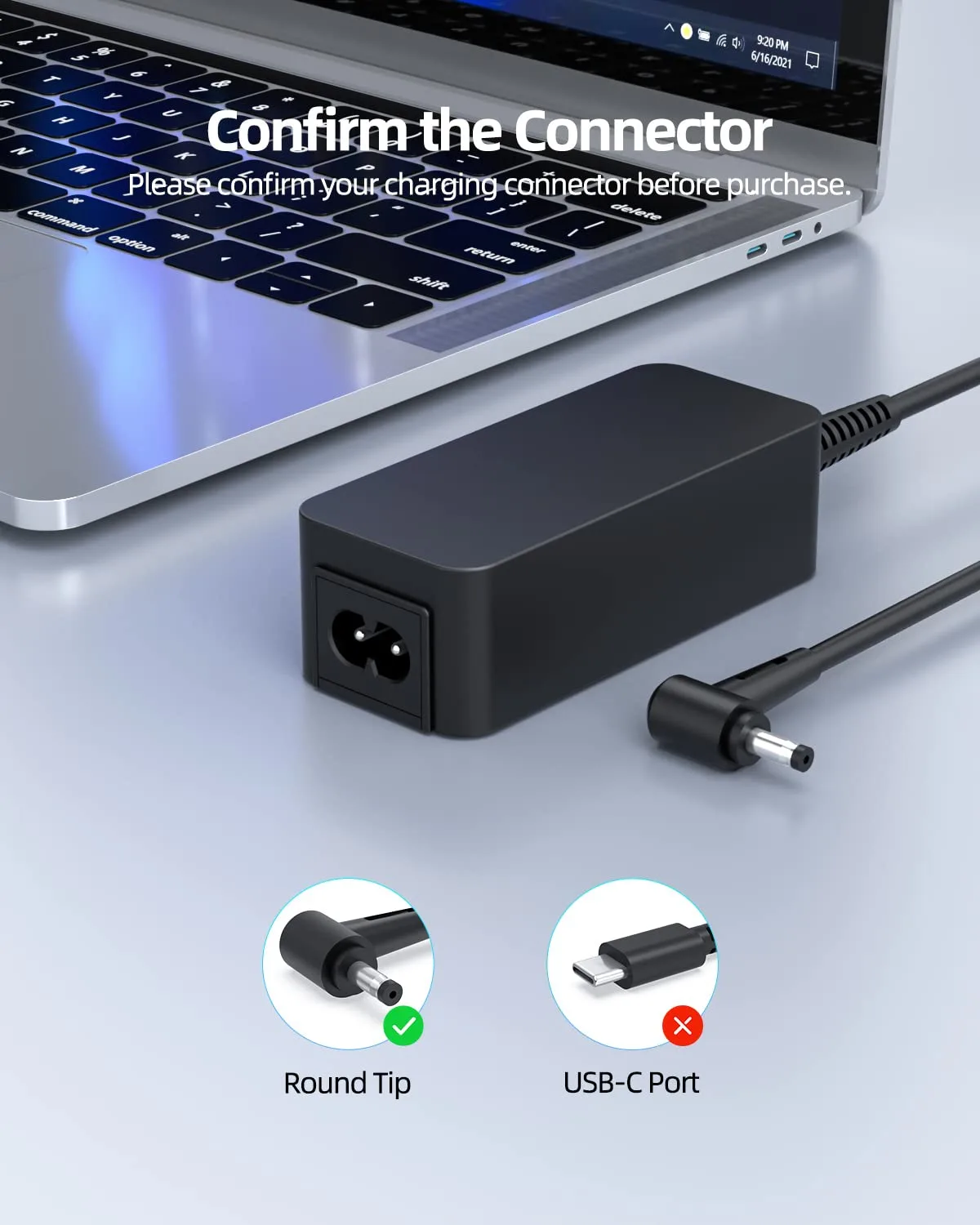
Figuring out how to choose replacement charger tip size for old laptop barrel jack starts with the plug, not the brick. Old laptops often use round DC barrel connectors that look similar but fit differently. A tip can feel loose, sit proud, or charge only when the cable bends.
That is why guessing by eye fails so often.
Most common laptop barrel tips are measured in millimeters, such as 5.5 x 2.5 mm and 5.5 x 2.1 mm. Those two share the same outer diameter, but the inner hole differs enough to cause poor contact. Before you buy anything, you need a simple fit and power check.
Quick Answer
How to choose replacement charger tip size for old laptop barrel jack matters. Match the barrel outer diameter exactly. Match the barrel inner diameter too.
Confirm the charger voltage and polarity. Confirm wattage, smart pin support, and snug fit.
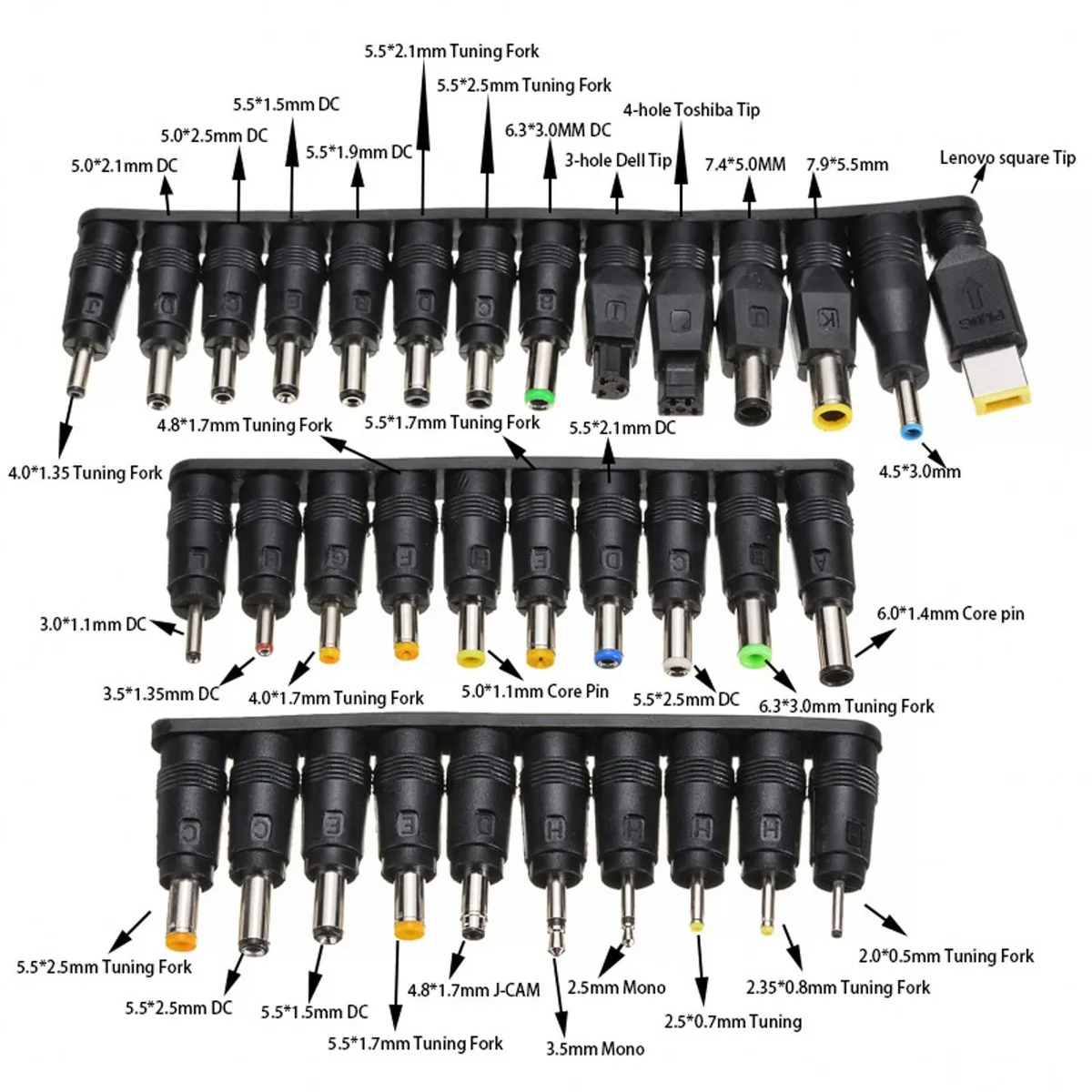
Why the Wrong Barrel Tip Feels Like a Charger Problem
A barrel tip that almost fits can create confusing symptoms. The laptop may show charging, then stop when you move the cable. It may work when cold but fail after a few minutes.
Those signs often point to the connector, not the charger circuit.
If the tip is too small, it may not reach the internal contacts. If it is too large, it can spread the jack contacts or crack the socket. Repair notes commonly point to forced plugs as a cause of cracked DC jacks.
Common symptoms include:
- Charger light turns on, but the battery does not charge.
- The laptop powers on only at a certain cable angle.
- The plug feels loose, hot, or gritty.
The Three Things That Must Match Before You Buy a Replacement Tip
Mechanical Fit: Outer Diameter, Inner Diameter, and Barrel Length
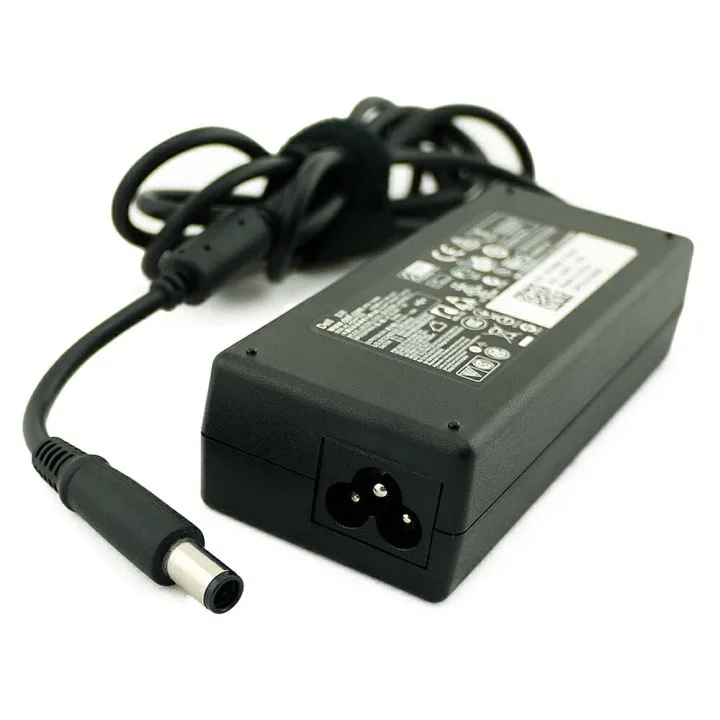
The barrel plug is the male round connector on the charger. The laptop DC jack is the female socket on the laptop. The plug has an outer diameter, an inner diameter, and a barrel length.
Outer diameter must clear the jack opening. Inner diameter must fit over the center contact. Barrel length must reach the internal contact without bottoming out.
A 5.5 x 2.5 mm plug and a 5.5 x 2.1 mm plug are the classic trap. The outer size is the same. The inner hole is different, so one may wobble or fail to grip the center pin.
If the plug wobbles, the inner diameter is likely too large. If you have to push hard, the outer diameter or barrel length is likely wrong. Do not force it.
Electrical Match: Voltage, Current, Wattage, and Polarity
Mechanical fit is only half the job. The charger output must match the laptop DC input. Manufacturer specifications usually list this on the laptop bottom label or original adapter.
Voltage should match the laptop requirement. Current rating should be equal to or higher than the laptop requirement. Wattage follows the formula watts equals volts times amps.
Polarity matters just as much. Many older laptops use center-positive polarity, but some models differ. The polarity symbol near the DC jack or on the adapter label tells you which contact is positive.
For safety design context, modern IT power equipment is covered by IEC 62368-1 through the International Electrotechnical Commission. Older equipment may reference IEC 60950-1. Use a charger that meets the laptop’s rated input and has proper protection.
Safe rules:
- Voltage: match the laptop input.
- Current: equal or higher.
- Wattage: equal or higher.
- Polarity: match the symbol.
If the voltage is wrong, stop. If the wattage is too low, the laptop may still run but fail under load. That can look like a bad battery when the charger is the real issue.
Smart-Pin or ID Signal: When Fit Alone Is Not Enough
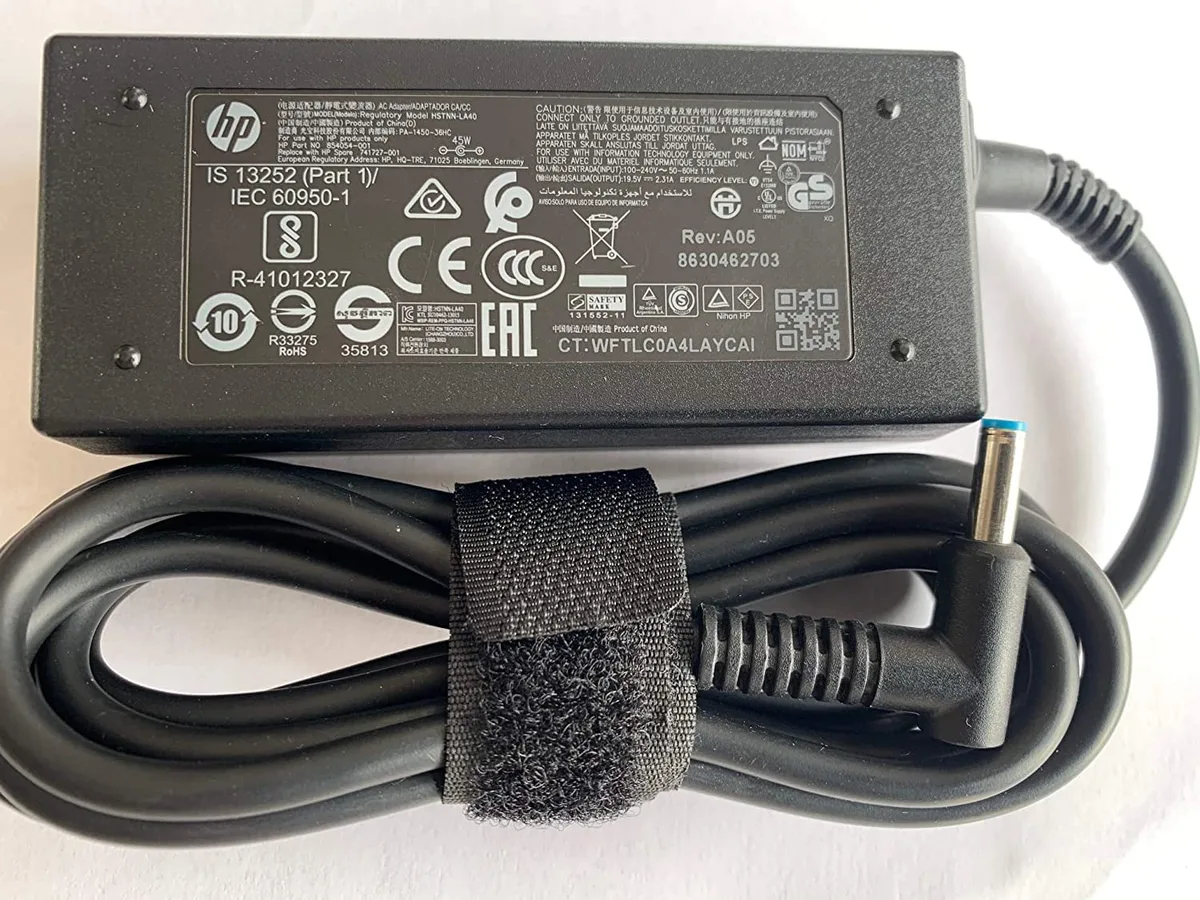
Some Dell, HP, and Lenovo chargers use a center pin or smart pin. That pin can carry charger identification. If the laptop does not recognize the adapter, it may run but not charge.
Manufacturer support pages, such as Dell support, often list the required adapter type by model. This is the fastest way to confirm whether a simple barrel plug is enough.
If the original charger has a center pin, do not replace it with a plain barrel tip. If the laptop says unknown adapter or plugged in not charging, suspect the ID signal first.
Smart-pin systems can be picky. A tip can fit perfectly and still fail the handshake. Brand and model compatibility matters more than the round plug alone.
Start Here: What You Can Check in Five Minutes
Start with the laptop, not the charger. Power down the machine and unplug any AC adapter. Look at the DC jack, the bottom label, and any original adapter you still have.
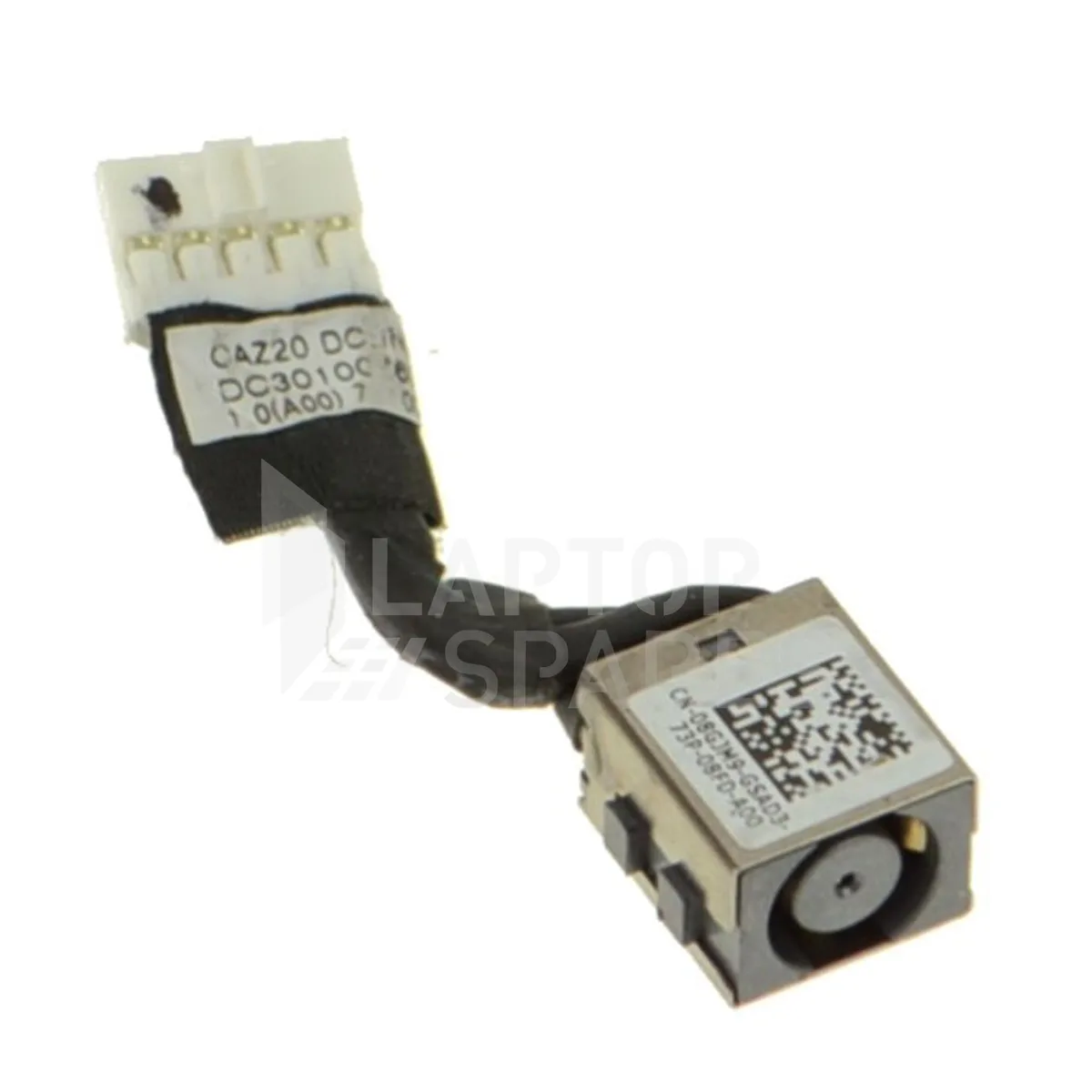
Use this quick checklist:
- Find the laptop model number.
- Read the DC input rating near the jack or on the bottom label.
- Check whether the jack feels loose or cracked.
- Look for a center pin inside the jack.
- Note the original adapter part number if available.
If the jack wiggles in the chassis, stop. The problem may be a damaged DC jack, not the tip. A loose socket can make a correct tip feel wrong.
Also look for heat marks. Dark plastic, a burnt smell, or a melted plug edge means the connection was arcing or overloaded. Do not keep testing with that charger.
Decision Branch 1: You Still Have the Original Charger
If the original charger is available, you have the easiest path. The adapter label gives you voltage, current, wattage, and often polarity. The plug gives you the physical size.
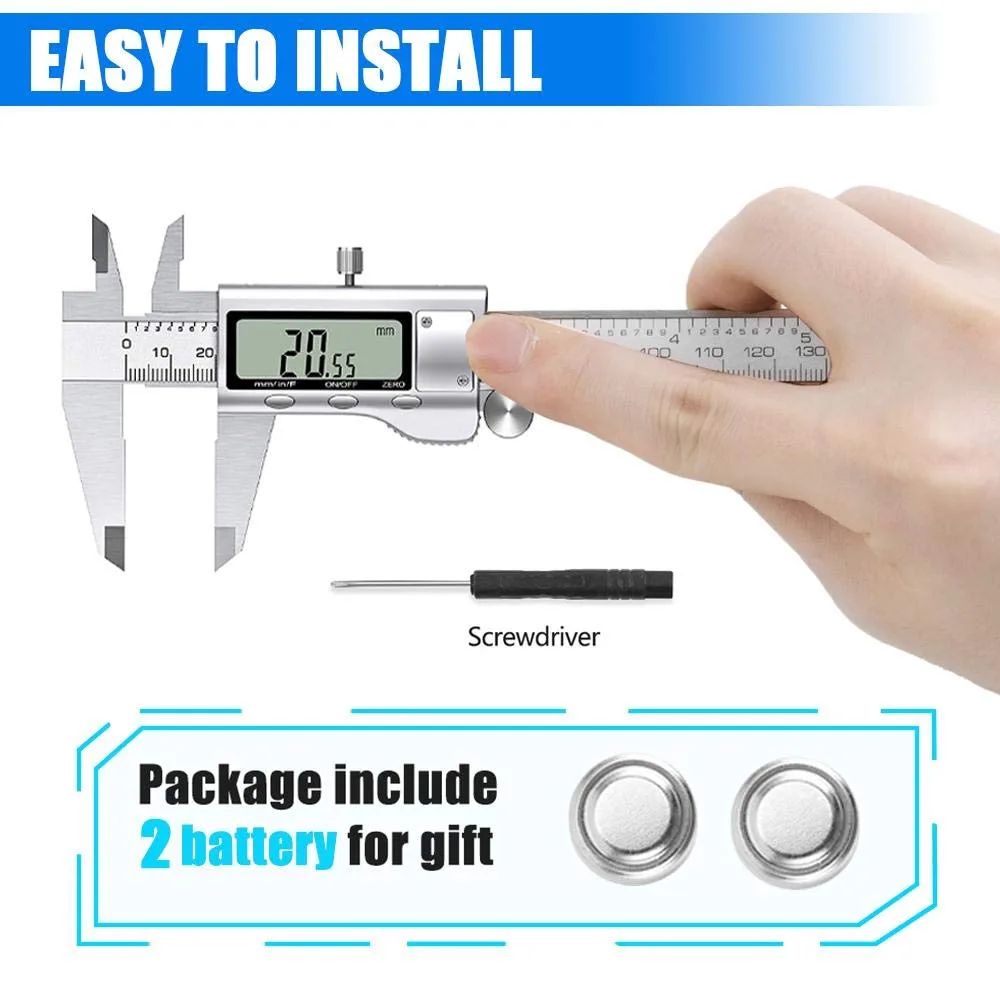
A digital caliper is the best tool for this. A ruler usually cannot resolve the difference between 2.1 mm and 2.5 mm. That small gap is enough to cause a bad connection.
Follow these steps:
- Read the output line on the adapter label.
- Confirm the voltage matches the laptop DC input.
- Confirm the current or wattage meets the laptop requirement.
- Measure the barrel plug outer diameter.
- Measure the inner diameter.
- Check for a center pin or smart pin.
- Compare the replacement tip against the original plug.
If the original plug has a center pin, the replacement tip must have the same pin. If the original plug is plain, a plain tip may work. If the original tip is worn but the label is clear, replace the tip or charger with the same size and rating.
Use these quick branches:
- If the original tip is loose, measure the plug, not the jack.
- If the original tip gets hot, stop using it.
- If the adapter wattage is too low, choose equal or higher wattage.
Manufacturer specifications indicate that the charger output should meet the laptop’s rated input. A correct tip cannot fix an underpowered or failing adapter.
Decision Branch 2: The Original Charger Is Missing
This is where most old laptops become tricky. As of 2026, many original chargers for older barrel-jack laptops are discontinued. You may need a service manual, a quality universal tip kit, or a refurbished OEM adapter.
Follow this path:
- Find the exact laptop model number.
- Check manufacturer support for the DC input and adapter specs.
- Inspect the laptop jack with power disconnected.
- Measure the jack opening carefully if you have the right tools.
- Compare the model against known barrel sizes.
Do not probe a powered jack with metal tools. If you need to inspect the socket, use a flashlight and a non-conductive tool. The goal is to identify the shape, not to force anything.
If the laptop uses a smart pin, narrow your search to chargers that state compatibility with that brand and model. If it uses a plain barrel jack, focus on the common size table and voltage match.
Use these decision cues:
- If the jack has a fine center pin, expect a smart-pin charger.
- If the jack has a simple round opening, expect a plain barrel tip.
- If the laptop is a business model, OEM documentation is often easier to find.
Decision Branch 3: The Laptop DC Jack Is Loose, Damaged, or Intermittent
If the laptop DC jack moves when you touch the plug, the tip is not the first problem. A loose socket usually means the jack is worn, cracked, or detached from the motherboard. A perfect replacement tip will still feel sloppy in a damaged jack.
Watch for these signs:
- The plug wiggles even when the tip is the correct size.
- The laptop charges only at one cable angle.
- The jack feels recessed, tilted, or crunchy.
- The laptop shuts off when the cable is bumped.
If the jack is loose, stop testing random tips. Repeated insertion can make the damage worse. The repair path is usually DC jack replacement or a motherboard-level repair.
If the jack feels firm but charging is intermittent, try a known-good charger with the correct tip first. If the correct charger still fails, the jack is the likely suspect. If you see heat marks, smell burnt plastic, or notice sparking, disconnect the charger immediately.
Decision Branch 4: Dell, HP, Lenovo, and Other Smart-Pin Laptops
A smart-pin laptop needs more than a round plug that fits. Many Dell and HP chargers use a center pin or ID signal to tell the laptop what wattage is connected. If that signal is missing, the laptop may run but refuse to charge the battery.
Use this logic:
- If the laptop says unknown adapter, suspect the smart pin or ID signal.
- If the original charger has a center pin, replace it with a compatible center-pin tip.
- If a universal tip fits but the battery will not charge, the ID signal may be missing.
- If the BIOS shows a lower wattage than expected, the adapter may not be recognized correctly.
Manufacturer support pages are the safest place to confirm the adapter type. Enter the exact model or serial number. That tells you whether the machine needs a plain barrel plug, a center-pin adapter, or a proprietary connector.
Some universal chargers claim broad compatibility, but smart-pin systems can be picky. For these machines, an OEM or OEM-compatible adapter is usually the safer choice.
Common Laptop Barrel Tip Sizes and What They Usually Fit
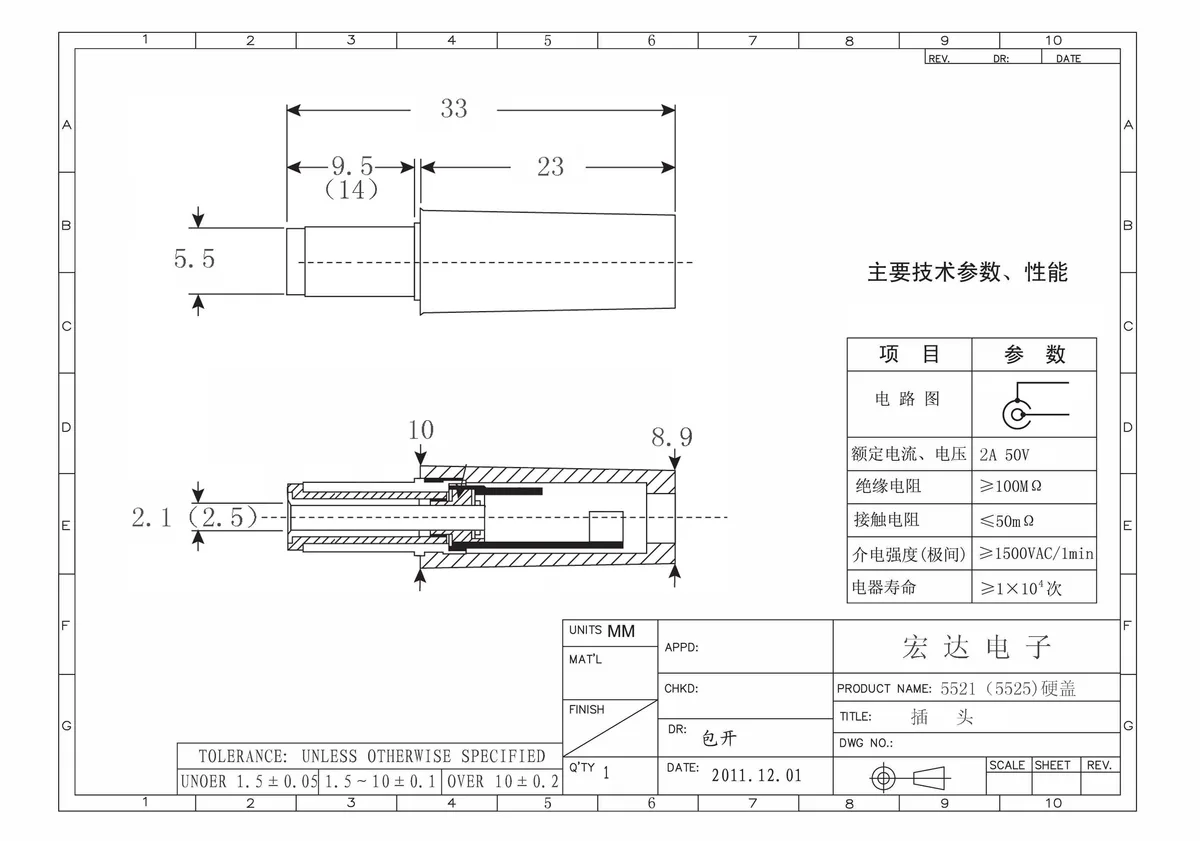
These sizes are common patterns, not a substitute for the exact model specification. Always confirm voltage, wattage, and polarity before use.
| Barrel tip size | Where it often appears | Fit note |
|---|---|---|
| 7.9 x 5.5 mm | Older IBM and Lenovo ThinkPad-style round connectors | Large round plug, easy to identify |
| 7.4 x 5.0 mm with center pin | Older Dell and HP smart round connectors | Requires center pin recognition |
| 5.5 x 2.5 mm | Many 19V laptop barrel chargers | Very common plain barrel size |
| 5.5 x 2.1 mm | Smaller barrel chargers and some compact laptops | Often confused with 5.5 x 2.5 mm |
| 4.8 x 1.7 mm | Older HP, Compaq, and compact systems | Small plug, easy to misread |
| 4.5 x 3.0 mm with center pin | Some later compact Dell and HP systems | Smart-pin style in a smaller barrel |
The most common mistake is confusing 5.5 x 2.5 mm with 5.5 x 2.1 mm. The outer diameter is the same. The inner hole is different.
A 2.5 mm plug on a 2.1 mm center contact can feel loose and cause intermittent charging.
If the laptop uses a center pin, the inner diameter alone is not enough. You also need the correct pin diameter and pin length. A tip that fits the outer barrel can still miss the center contact.
When in doubt, match by laptop model first and tip size second. A size chart helps narrow the field, but it should not replace the model check.
How to Test a Replacement Tip Without Damaging the Jack
Test the tip with the laptop powered off and the charger unplugged from the wall. The goal is to confirm fit before applying power. A bad tip can damage the jack before the laptop ever shows a charging error.
Use this sequence:
- Compare the replacement tip to the original plug or laptop specification.
- Hold the plug straight and insert it gently.
- Stop if you feel resistance.
- Check that the plug seats fully without forcing it.
- Wiggle the cable lightly. The plug should not disconnect or feel sloppy.
- Connect power and check the charging indicator.
The plug should feel snug, not tight. If you have to push hard, the tip is wrong or the jack is damaged. If the plug falls out easily, the tip is also wrong.
If the laptop powers on but does not charge, check the adapter wattage and smart-pin status. A correct mechanical fit does not guarantee charging. Some laptops will run on AC power but disable battery charging when the adapter is not recognized.
If the connector becomes hot, disconnect the charger and stop. A warm plug can be a sign of poor contact, low wattage, or excessive resistance.
Mistakes That Burn Out Jacks, Batteries, or Motherboards
Most charger-tip damage comes from small assumptions. The plug looks close, so people force it. The laptop powers on, so people assume the charger is safe.
Those assumptions are where expensive failures start.
Avoid these mistakes:
- Forcing a tip that is almost the right size.
- Confusing 5.5 x 2.1 mm with 5.5 x 2.5 mm.
- Ignoring the polarity symbol.
- Using a charger with the wrong voltage.
- Using a charger with too little wattage.
- Replacing a smart-pin charger with a plain barrel tip.
- Testing a loose or cracked jack with multiple tips.
Wrong polarity is one of the fastest ways to damage a laptop. The plug may fit, but the electrical direction is wrong. That can harm the motherboard before the laptop even finishes booting.
Low wattage can also cause trouble. The laptop may run at idle but shut down under load. It can also charge slowly, overheat the adapter, or throttle performance.
A higher-wattage adapter with the correct voltage is usually safer than an underpowered one.
OEM, Universal, and DIY Charger Options Compared
OEM chargers are the safest bet for smart-pin laptops and high-wattage machines. They match the original connector, ID signal, and output profile. The downside is availability.
Older OEM chargers can be scarce or overpriced.
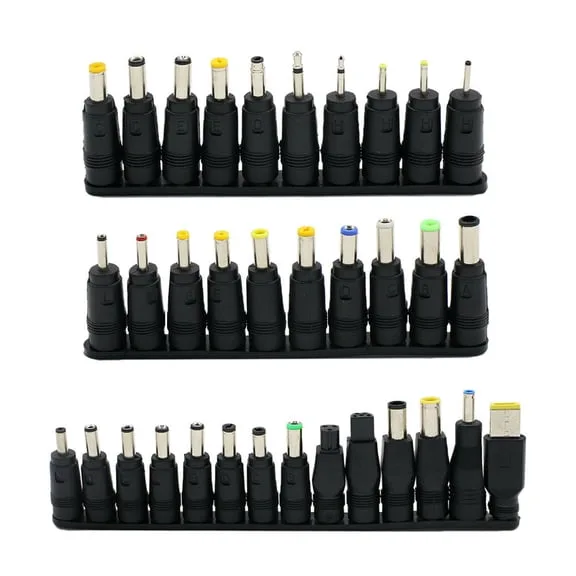
Universal chargers work best for plain barrel-jack laptops with stable voltage needs. They give you multiple tips and selectable output. The risk is sloppy tip fit, weak labeling, or missing smart-pin support.
DIY repairs can work for experienced technicians who can verify output with a multimeter. They are not a good first option for most users. A wiring mistake can destroy the laptop or create a shock risk.
| Option | Best for | Main risk |
|---|---|---|
| OEM charger | Smart-pin laptops and exact fit | Hard to find for old models |
| Universal charger | Plain barrel jacks and spare setups | Loose tips or missing ID support |
| DIY repair | Bench repair with verified parts | Wrong polarity or unsafe wiring |
If the laptop is old but valuable to you, a refurbished OEM adapter can be a practical middle ground. Check the output label and connector condition before buying.
Safety Checks, Certifications, and Warning Signs
A replacement charger should have a clear output label and a recognized safety mark for your market. Look for UL, CE, UKCA, or FCC marking where applicable. The label should state voltage, current, wattage, and polarity.
Stop using the charger if you notice any of these:
- Sparking at the plug.
- A burnt smell or discolored plastic.
- A plug that becomes hot to the touch.
- Random shutdowns when the cable moves.
Modern power adapters are evaluated under safety standards such as IEC 62368-1. Older adapters may reference IEC 60950-1. These standards do not replace model compatibility, but they help you avoid unsafe no-name chargers.
If the laptop has a damaged jack, fix the jack before trusting any charger. A poor connection creates resistance, heat, and intermittent power. That can stress the battery and motherboard.
Quick Decision Guide: Which Replacement Tip Should You Choose?
Use this order to make the call.
- If you have the original charger, copy its tip size and output ratings.
- If the original charger is missing, identify the laptop model and DC input rating.
- If the laptop uses a smart pin, choose an OEM-compatible adapter first.
- If the laptop uses a plain barrel jack, choose a tip that seats snugly.
- If the jack is loose, repair the jack before judging the tip.
- If the voltage does not match, do not use the charger.
- If the wattage is too low, choose a higher-wattage option with the same voltage.
The best replacement tip is the one that fits without force and meets the laptop’s electrical requirements. Size alone is not enough. Fit, voltage, wattage, polarity, and ID signal all matter.
FAQs About Old Laptop Barrel Charger Tips
Can I use a barrel tip that feels a little loose?
No. A loose tip can cause intermittent charging and heat. The inner diameter is likely too large for the center contact.
That can lead to arcing, poor power delivery, or a damaged jack. Choose a snug tip before regular use.
Is a higher-wattage charger safe for my laptop?
Usually, yes if the voltage matches. The laptop draws the current it needs. A higher-wattage adapter can run cooler than an underpowered one.
Do not use a lower-wattage adapter unless the manufacturer says it is acceptable for your exact model.
Why does my laptop say unknown adapter?
The laptop likely cannot read the charger ID signal. This is common on Dell, HP, and some Lenovo systems. The laptop may run but not charge.
Use an OEM-compatible charger or a smart-pin adapter made for that model to restore charging.
Can I measure the laptop jack instead of the charger plug?
Yes, but it is harder. The jack opening can be difficult to measure without damaging the contacts. A digital caliper or pin gauge helps.
If the jack is loose or damaged, repair it before relying on any measurement or tip choice.

Similar Posts