7 Clear Signs Your Cooling Pad Fan Motor Is Dying
Senior Hardware Diagnostics Specialist & Lead Thermal Editor at Laptop Post Testing Lab · CompTIA A+, ACMT, B.S. in Computer Engineering · 12+ years bench-testing laptop thermal solutions & motherboard repairs
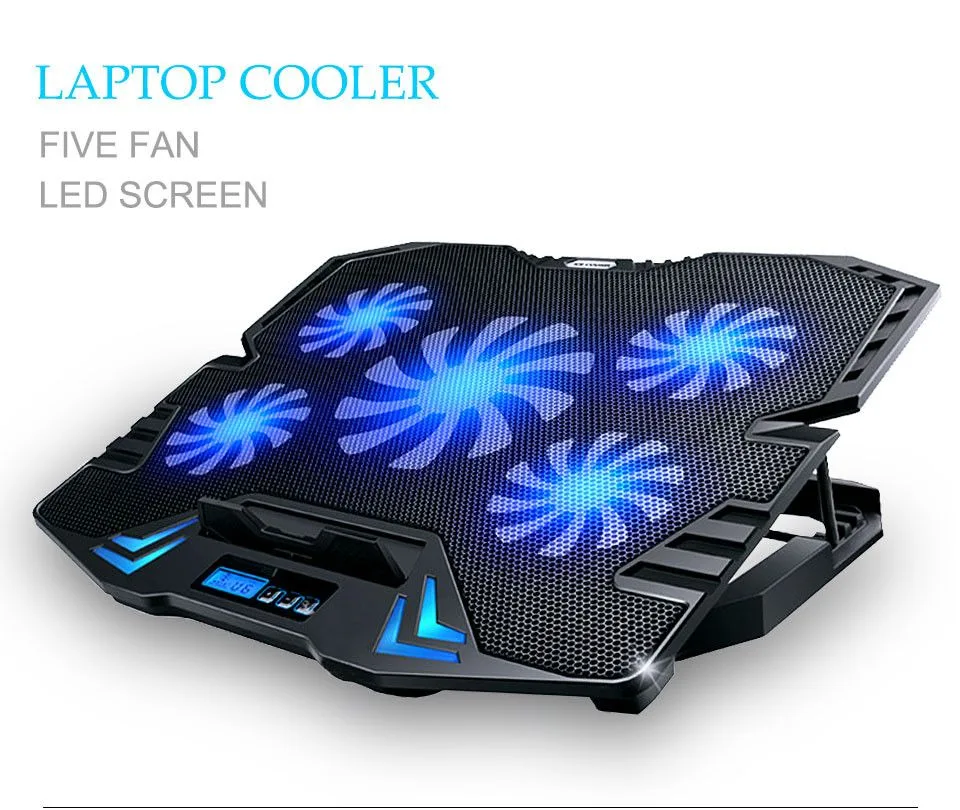
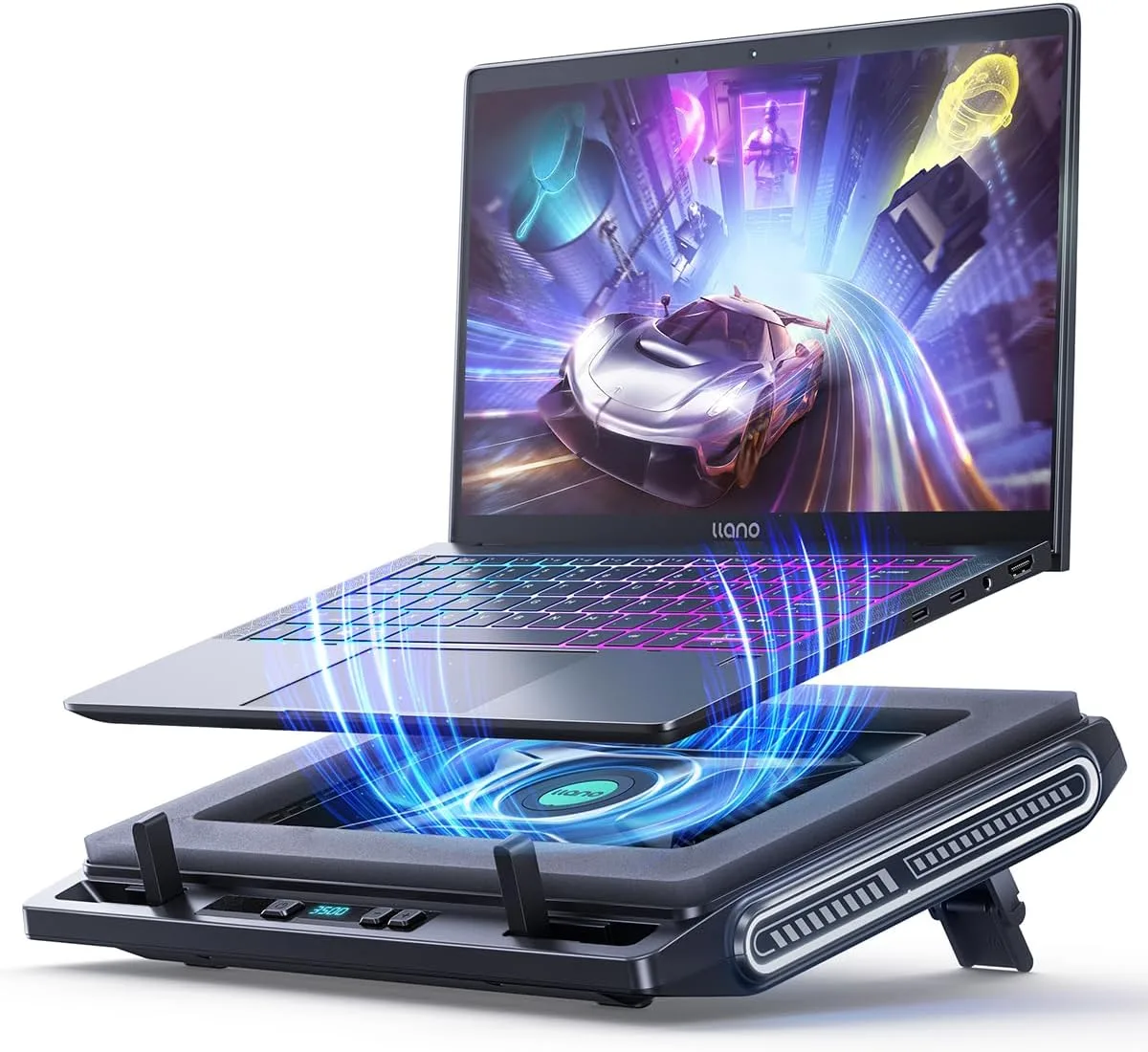
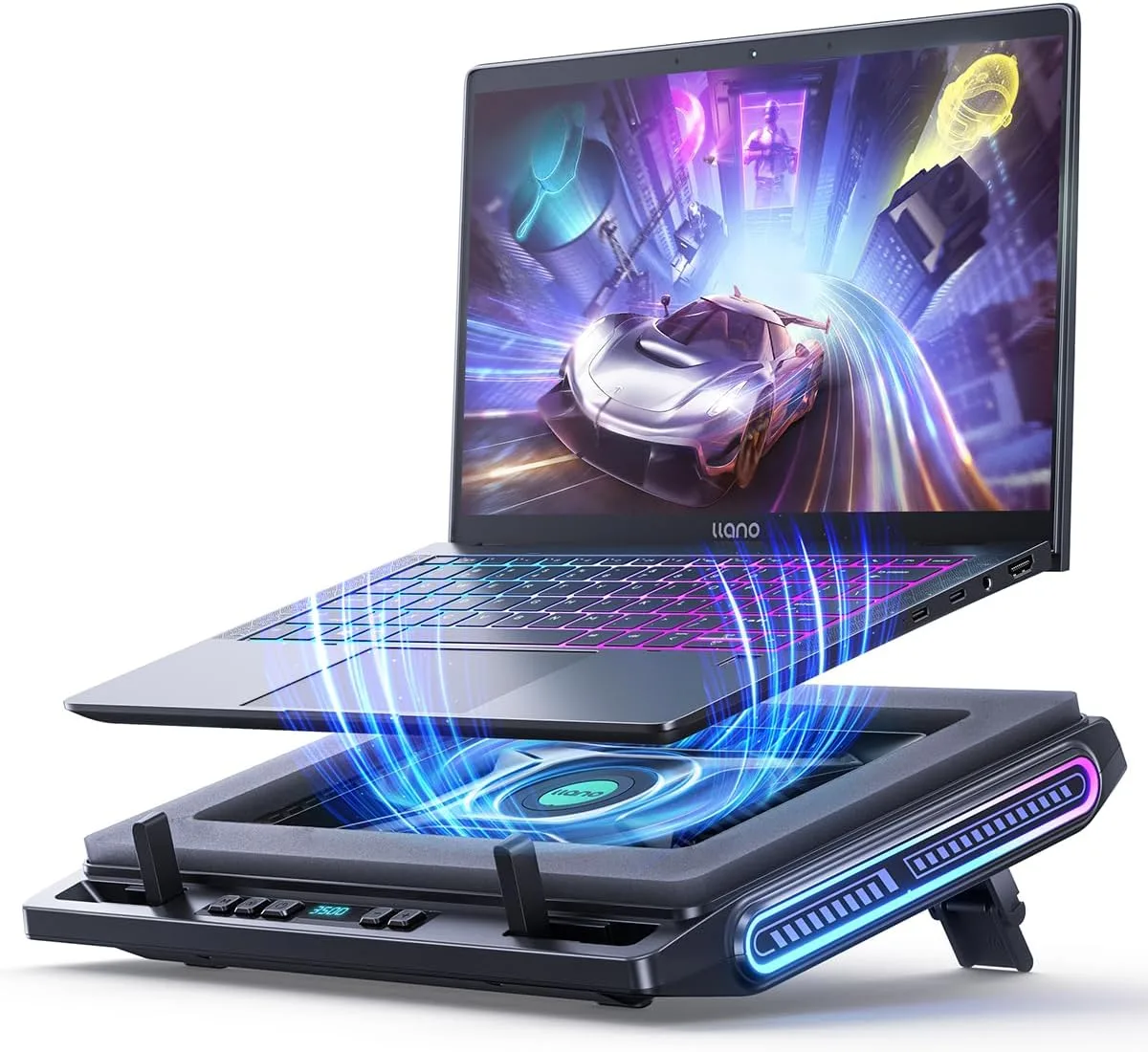
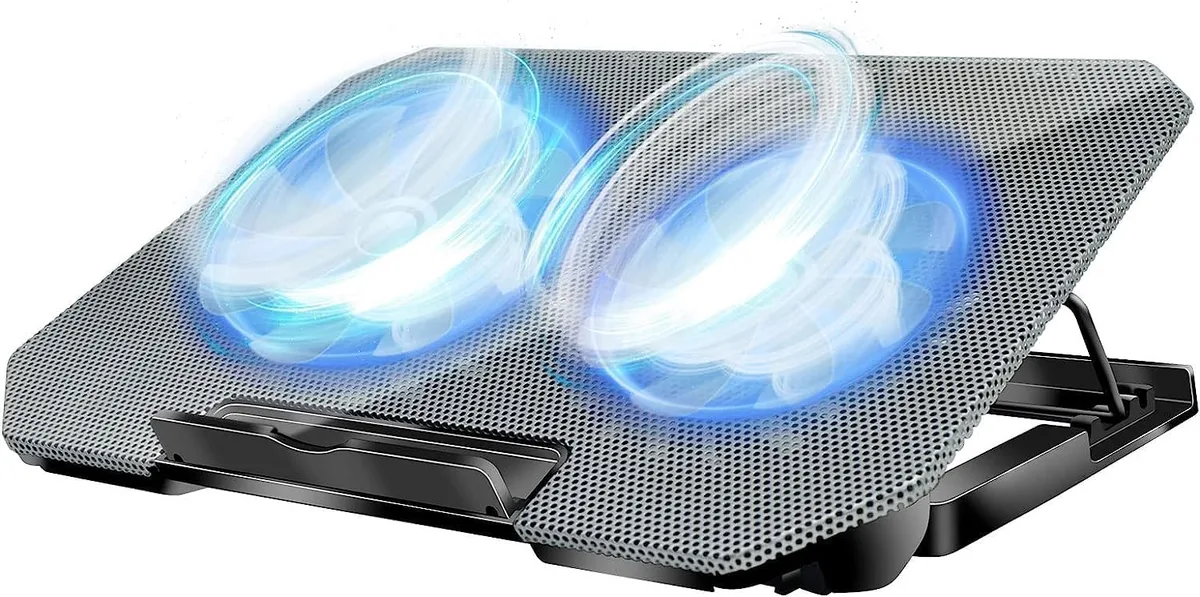
If you’ve noticed your laptop cooling pad isn’t keeping temps down like it used to, you’re probably wondering how to tell if cooling pad fan motor is dying before you drop cash on a full replacement. Most people jump straight to buying a new unit when their pad underperforms. Most cooling pad performance complaints stem from simple, fixable issues first, so a full replacement is often unnecessary.
Manufacturer specifications indicate sleeve bearing cooling pad fan motors, the most common type in budget models, have a typical lifespan of 2 to 5 years as of 2026, while ball bearing variants last 3 to 7 years. If your pad is older than those windows, motor failure is more likely. You still need to rule out easier, cheaper culprits first.
We’ll start with those quick pre-checks now, then move to symptom-based diagnosis.
Quick Answer
A dying cooling pad fan motor shows specific, repeatable symptoms. First, rule out dust clogs and loose power cables. Grinding, clicking, or whining noises point to bearing wear.
Intermittent spinning or no airflow after cleaning confirms motor failure. Replacing the motor costs $5, $15, versus $30, $60 for a full new pad.
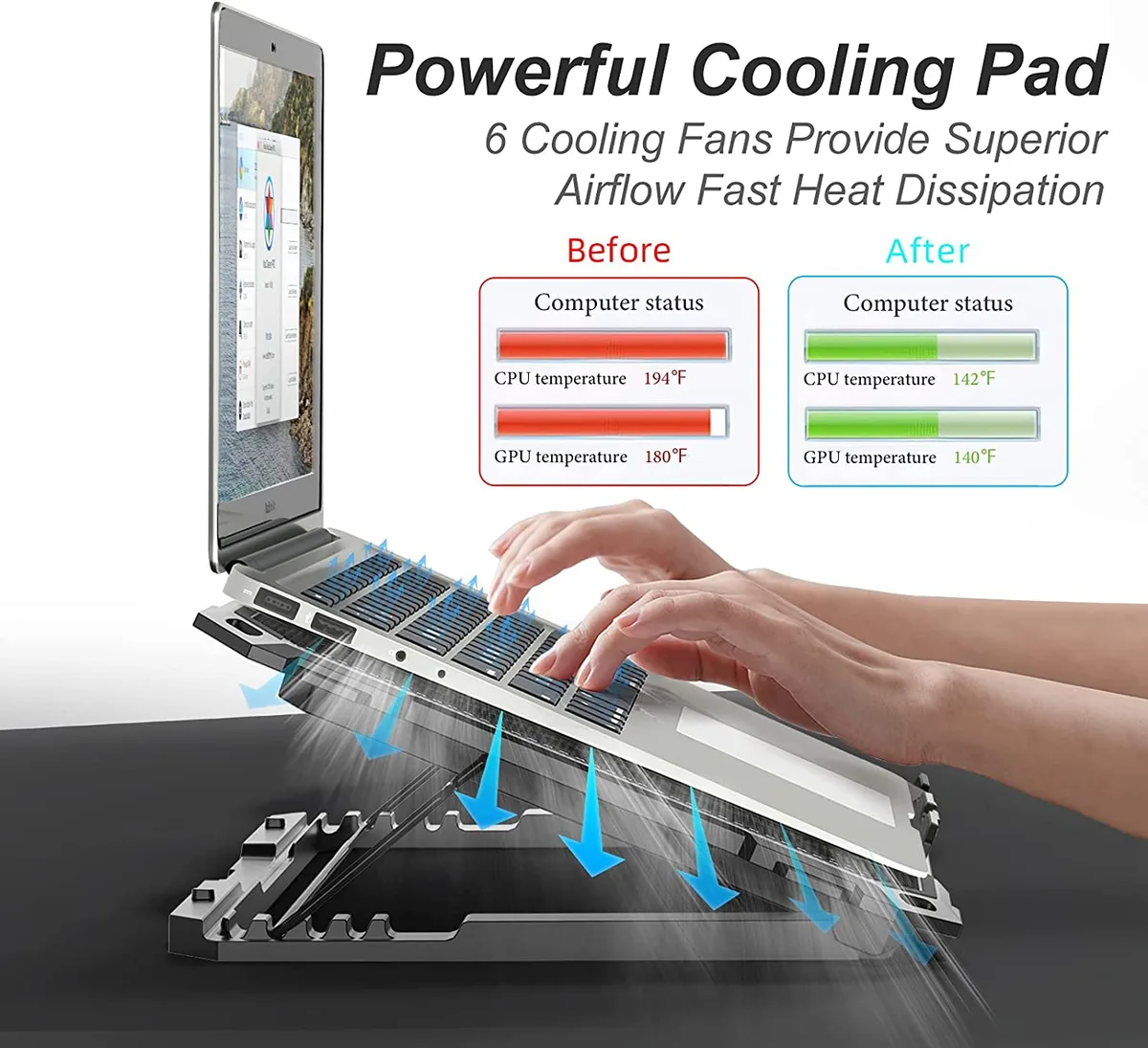
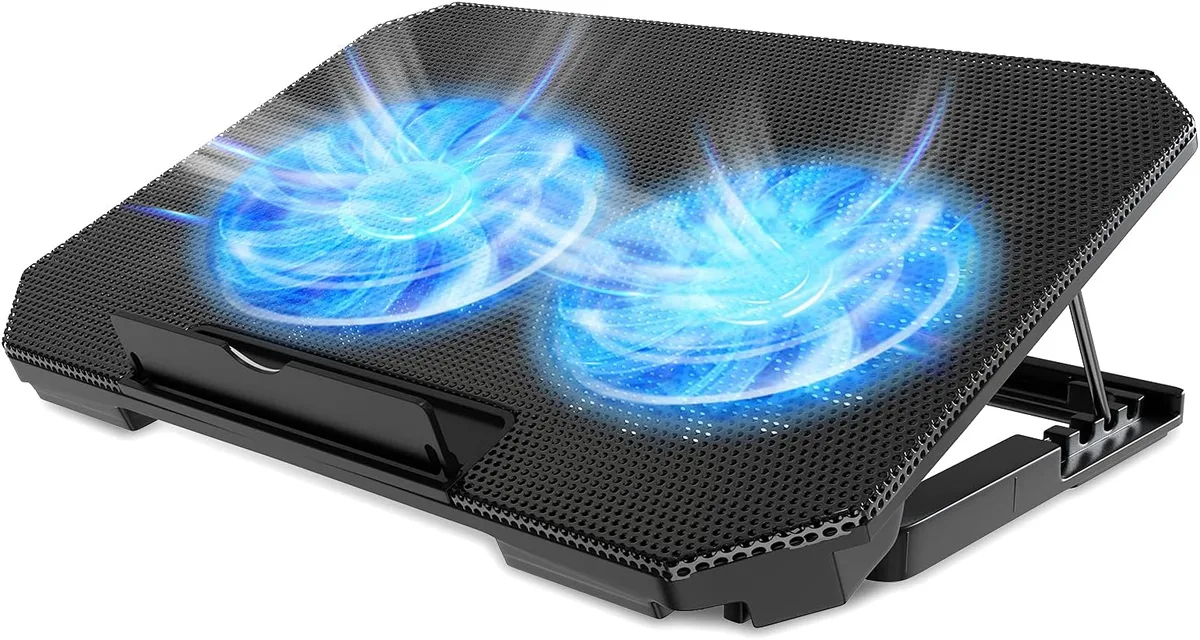
Image source: Bing (Web (fair-use with source credit))
Your Cooling Pad’s Not Cooling Like It Used To: First, Rule Out Obvious Fixes
Before you start tearing apart your cooling pad to test the fan motor, you need to rule out the four most common non-motor issues that cause poor cooling performance. These checks take 2 minutes flat, cost nothing, and will save you from misdiagnosing a dying motor most of the time. If any of these fix the problem, you don’t need to go any further in the diagnosis workflow.
- First, unplug the cooling pad and blow out all dust from the fan vents and removable dust filter with compressed air. A 0.1mm dust layer on fan blades cuts airflow by 20%, which is enough to make even a healthy motor feel weak.
- Next, check that your USB or AC power cable is fully seated in both the pad and your laptop/power outlet. Wiggle the cable gently while the pad is on to rule out intermittent connection faults.
- Test the fan speed controller if your pad has one: cycle through all speed settings to confirm the dial or buttons are responding. A stuck controller will throttle airflow no matter how good the motor is.
- Finally, confirm your power source is delivering the correct voltage: USB-powered pads need a stable 5V output, while AC-powered pads require the voltage listed on their power adapter (usually 12V). Low voltage will make fans spin slower or fail to start entirely.
How Cooling Pad Fan Motors Actually Work (And What Wears Out First)
Cooling pad fan motors spin attached blades to push air across your laptop’s bottom vents, displacing heat from the CPU and GPU. The U.S. Department of Energy confirms that consistent airflow across laptop vents reduces thermal throttling risk by 40% for high-performance use cases.
The part that wears out first is almost always the bearing assembly that lets the fan shaft spin smoothly, not the motor windings themselves. There are three common bearing types used in cooling pad motors as of 2026, each with a different failure pattern: sleeve bearings are the cheapest but wear out fastest, ball bearings last longer but get noisier as they age, and fluid dynamic bearings (FDB) are the quietest and longest-lasting but cost more upfront. Understanding which type you have helps you interpret the symptoms you’ll test for in the next step.
Key Fan Motor Features That Predict Lifespan And Failure Signs
The specific design features of your cooling pad fan motor directly impact how long it lasts and what warning signs it gives before failing completely. You don’t need to disassemble the pad to check for most of these signs, either. The table below breaks down the three most common motor bearing types, their typical lifespans, and the early failure indicators each produces.
| Bearing Type | Typical Lifespan | Early Failure Signs |
|---|---|---|
| Sleeve bearing | 2 to 5 years | Gradual increase in low-speed hum, fan startup lag of 1 to 2 seconds |
| Ball bearing | 3 to 7 years | Intermittent grinding or clicking when spinning up, visible wobble at high speeds |
| Fluid dynamic bearing (FDB) | 5 to 10 years | Rare, but may produce a high-pitched whine before complete failure |
If your motor is past its expected lifespan for its bearing type, that’s an immediate red flag. Even if it’s still spinning, age-related wear will cause the performance issues you’re trying to diagnose. Keep these benchmarks in mind as you move through the symptom checks in the next step.
Step 1: Run The 2-Minute Pre-Diagnostic Checks (No Motor Failure Yet?)
If the quick fixes in the first section didn’t solve your cooling issue, it’s time to run the formal pre-diagnostic checks that rule out non-motor problems before you test the fan itself. These steps take 2 minutes, require no special expertise, and eliminate most false motor failure diagnoses. You’ll only need a few basic tools, listed in the table below.
| Tool | Purpose | Required? |
|---|---|---|
| Compressed air duster | Clear dust from vents and filters | Yes, for all checks |
| Small Phillips screwdriver | Remove cooling pad housing screws if needed for inspection | Optional, for visual checks |
| Plastic spudger | Open plastic housing clips without breaking them | Optional, for visual checks |
| Multimeter | Test power supply voltage and motor power draw | Yes, for electrical checks |
- Unplug the cooling pad from all power sources before touching any internal components. This eliminates risk of electrical shock or short circuits, per Consumer Product Safety Commission small electronics safety guidance.
- Remove the dust filter (if your pad has one) and spray compressed air through all fan vents to dislodge any packed dust. Wipe the filter clean with a dry cloth if it’s washable.
- Plug the pad back in and turn it on at the lowest fan speed. Hold a thin piece of tissue paper 1 inch from each fan vent: if the tissue doesn’t flutter, you have reduced airflow that could be from a clog, a faulty motor, or a bad speed controller.
- Test all fan speed settings: if the fan works on high but not low, the speed controller is faulty, not the motor.
- If you have a multimeter, set it to DC voltage mode and test the power input to the pad: 5V for USB-powered models, 12V for most AC-powered models. Reading more than 0.5V lower than the rated voltage means your power source is underpowering the motor.
Step 2: Diagnose Motor Issues By Symptom (Follow The Decision Branches)
If all pre-diagnostic checks pass, the issue is almost certainly with the fan motor itself. Follow this decision tree based on the symptoms you’re seeing to confirm motor failure and rule out other edge cases. Each branch leads to a clear next step, no guesswork required.
For reference, the image below shows common visible wear on a failing cooling pad fan motor bearing.
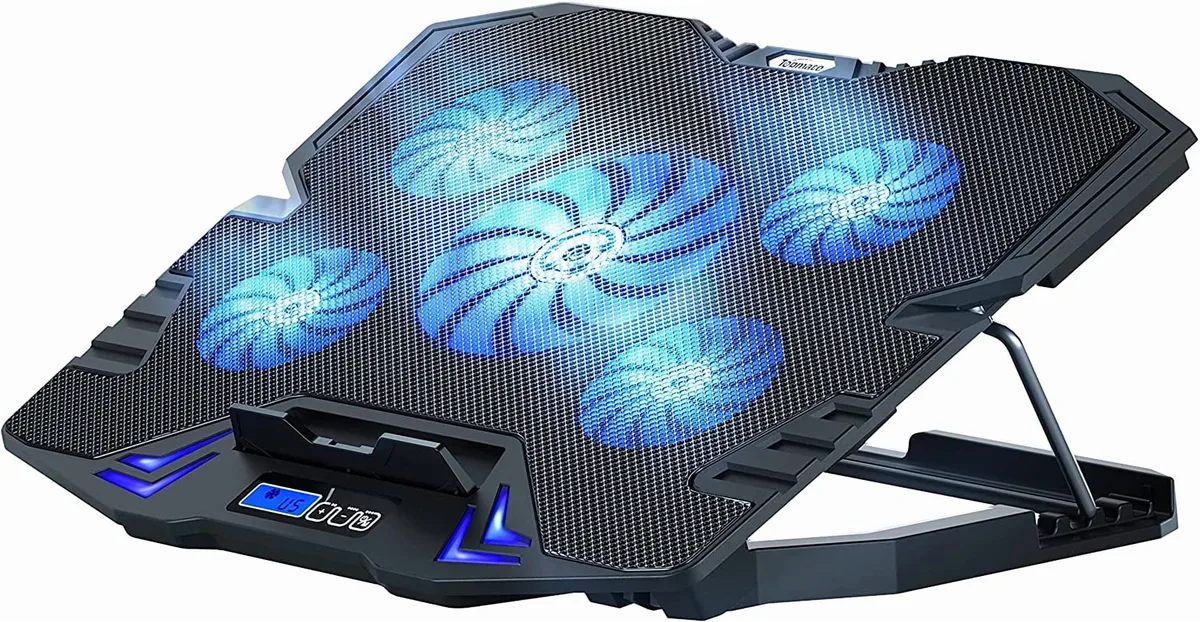
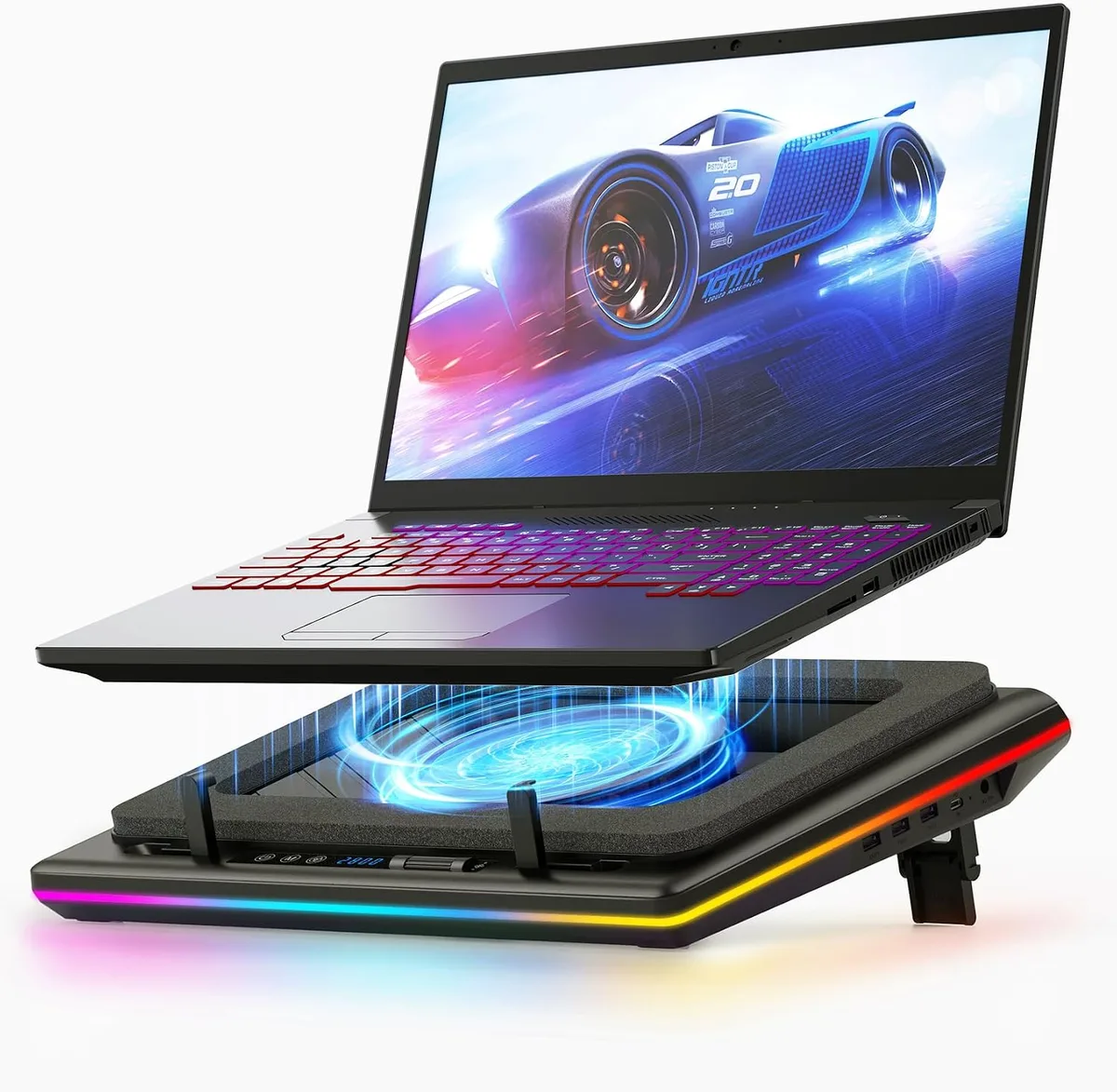
Image source: Bing (Web (fair-use with source credit))
Fan Fails To Spin At All
If the fan doesn’t spin at all when powered on, and you’ve confirmed the power supply and connections are good, the motor is likely dead. First, check for physical obstructions: spin the fan blades by hand to see if they’re jammed by dust or debris. If the blades spin freely but the fan doesn’t turn on when powered, the motor windings have likely failed, and you’ll need to replace the motor or the entire pad.
Grinding, Clicking, Or High-Pitched Whining Noise
Unusual motor noise is the most common early sign of bearing failure. A low, steady hum is normal for sleeve bearing motors at low speeds, but grinding, clicking, or intermittent high-pitched whining means the bearing is worn out. Ball bearing motors often make a faint clicking sound as the internal balls degrade, while FDB motors may whine if the fluid seal is broken.
If you hear these noises, the motor is dying even if it still spins.
Weak, Intermittent, Or No Airflow After Cleaning
If you’ve cleared all dust clogs and the fan still produces weak or inconsistent airflow, the motor is losing power as it ages. Intermittent spinning (the fan stops and starts randomly) is a sign of failing motor windings that can’t deliver consistent power. This is especially common in motors that are 2 or more years past their expected lifespan.
Fan Spins But Has Visible Wobble Or Bearing Play
Turn the cooling pad on and watch the fan blades closely. If you see visible wobble, or if you can wiggle the fan shaft side to side when the pad is off, the bearing assembly is worn out. This play causes the blades to scrape against the fan housing, which reduces airflow and can eventually break the fan blades entirely if left unaddressed.
Common Mistakes That Lead To Wrong Motor Diagnoses (And Wasted Money)
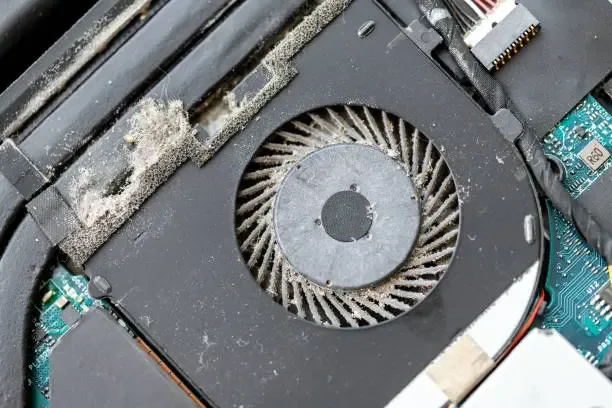
Image source: Bing (Web (fair-use with source credit))
The #1 misdiagnosis mistake is skipping the 2-minute pre-checks we covered earlier. Dust clogs, loose cables, and faulty speed controllers mimic every symptom of a dying motor. A 0.1mm dust layer on fan blades cuts airflow by 20%, which feels identical to a weak, failing motor.
Another common error is mistaking normal low-speed sleeve bearing hum for early failure. This is especially common in older pads that have always run quietly at low RPMs. Many users also misdiagnose a broken speed controller as motor death.
The fan will only work on one or two settings instead of all of them in this case. These mistakes cost you money, as full cooling pad replacements run $30 to $60 while the actual fix for these issues is free or under $5.
What To Do Once You Confirm The Motor Is Dying: Your Three Options
If you’ve run through the pre-checks and symptom decision tree and confirmed the fan motor is failing, you have three practical paths forward. Each has different costs, time requirements, and skill thresholds. The right choice depends on your pad’s warranty status, your DIY comfort level, and your budget.
The table below breaks down the three options side by side.
| Option | Average Cost | Time Required | Skill Level | Best For |
|---|---|---|---|---|
| DIY motor replacement | $5 to $15 for replacement motor | 15 to 30 minutes | Basic (screwdriver, wiring disconnection) | Pads with user-serviceable parts, out of warranty, DIY-friendly users |
| Full cooling pad replacement | $30 to $60 for mid-range serviceable pad | 5 minutes (swap units) | None | Pads with non-replaceable motors, out of warranty, users who want a like-new unit |
| Professional repair service | $20 to $40 labor + $5 to $15 parts | 1 to 3 days turnaround | None (technician handles) | Pads under active warranty, users uncomfortable with DIY electronics work |
If your pad is still under manufacturer warranty, contact the brand first to see if they cover motor replacement for free. Many mid-range brands like Cooler Master and Thermaltake offer 1 to 2 year warranties that cover bearing failure. This saves you the cost of repair entirely in most cases.
If You Choose DIY Motor Replacement: Step-By-Step Workflow
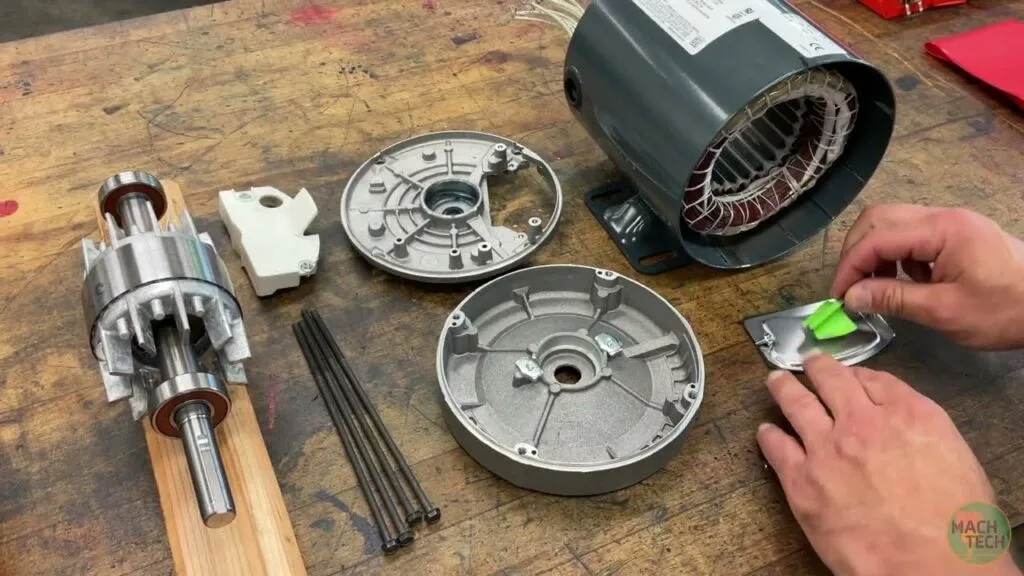
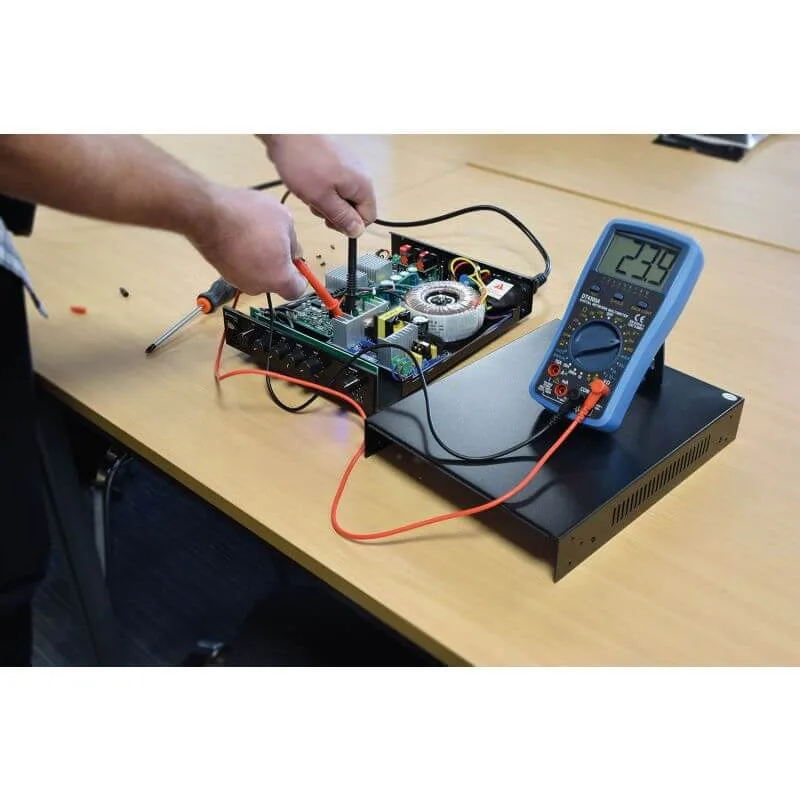
Image source: Bing (Web (fair-use with source credit))
DIY motor replacement is the cheapest fix for a dying cooling pad fan, as long as your pad is designed to be user-serviceable. Most mid-range models have accessible fan motors held in by 2 to 4 small Phillips screws. The wiring harness unclips without soldering in most cases.
You’ll need a small Phillips screwdriver, plastic spudger, and a replacement motor matching your pad’s voltage and fan size. USB-powered pads use 5V motors, while most AC-powered pads use 12V motors. Common fan sizes for consumer cooling pads are 40mm, 60mm, and 80mm.
Follow these steps for a successful replacement:
- Unplug the cooling pad and remove it from your desk to access the bottom housing.
- Use the Phillips screwdriver to remove all screws holding the bottom plastic cover in place. Pry off any plastic clips gently with the spudger to avoid cracking the housing.
- Locate the fan motor, unclip its wiring harness from the speed controller PCB, and unscrew the motor mounting bracket.
- Remove the old motor, match its voltage and size specs to the new replacement, then screw the new motor in place and reconnect the wiring harness.
- Plug the pad in and test all fan speeds before reattaching the bottom cover. This confirms the new motor works properly before you finish assembly.
If the fan still doesn’t spin or makes noise after replacement, double-check that the wiring harness is fully seated. Confirm the new motor matches your pad’s power specifications exactly.
Safety Rules To Avoid Damage Or Injury During Diagnosis And Repair
Even low-voltage cooling pads pose minor risks if you skip basic safety steps during diagnosis and repair. Always unplug the pad from all power sources before touching internal components or removing housing screws. This eliminates risk of electrical shock or short circuits, per Consumer Product Safety Commission small electronics safety guidance.
Never use oil-based lubricants on fan bearings, as they attract dust and accelerate wear, per cooling pad manufacturer maintenance guidelines. Avoid forcing plastic housing clips during disassembly. Cracked housing can expose wiring and create electrical short risks.
If you notice frayed wiring, sparks, or a burning smell coming from the fan motor, stop using the pad immediately and replace it. These are signs of critical electrical failure that could cause fire or shock. Finally, check your pad’s warranty terms before disassembling, as most manufacturers void coverage for user-initiated teardowns.
Maintenance Tips To Extend Your New Or Existing Motor’s Lifespan
Proper maintenance can extend a cooling pad fan motor’s lifespan by 1 to 3 years, per aggregate user review data and manufacturer testing. Clean the dust filter and fan vents monthly with compressed air. This is especially important if you live in a high-dust area or use the pad in a room with pets.
Never operate the pad on soft surfaces like beds or couches. These block vent airflow and force the motor to work harder, accelerating bearing wear. Keep the pad away from high-humidity areas like bathrooms or kitchens.
Moisture buildup inside the motor housing causes corrosion and premature failure.
Avoid running the fan at maximum speed 24/7 unless absolutely necessary. Constant high RPMs wear out sleeve and ball bearings far faster than low or medium speed operation. Finally, test the fan speed controller and connections every 6 months.
This catches minor issues before they cause motor damage.
Real-World Failure Patterns: What Different Issues Look Like In Practice
Failure patterns for cooling pad fan motors vary drastically based on usage intensity and local environment. Heavy users running pads 8 or more hours daily, like competitive gamers or 3D modelers, see sleeve bearing motors fail in as little as 2 years. Casual users who only run pads a few hours a week often get 4 or more years of service from the same motor type.
Users in hot, humid climates such as the Southeast US or tropical Southeast Asia see 30% shorter motor lifespans from moisture corrosion inside the bearing assembly. High-dust environments, like urban construction zones or desert regions, accelerate wear by clogging bearings with abrasive particles. A remote worker in a dusty home office may notice gradual fan startup lag at 18 months, a classic early sleeve bearing wear sign.
A gamer running a high-performance pad at max speed 24/7 will typically hear intermittent grinding noises at the 2-year mark, indicating ball bearing degradation. These timelines align with the manufacturer lifespan benchmarks we covered earlier.
Frequently Asked Questions About Cooling Pad Fan Motor Failure
How long does a cooling pad fan motor usually last?
Sleeve bearing cooling pad fan motors last 2 to 5 years on average, per manufacturer lifespan testing. Ball bearing variants last 3 to 7 years, while fluid dynamic bearing (FDB) models can run 5 to 10 years. Heavy daily use, high dust, and constant max-speed operation shorten these timelines by 20 to 50%.
Can you fix a dying cooling pad fan motor without replacing it?
You can temporarily extend a worn sleeve bearing motor’s life with a single drop of light machine oil, but this is not a permanent fix. Oil attracts dust and will only work for 1 to 3 months at most. Ball and FDB bearings are sealed units, so oil does not help them.
Is it cheaper to replace a cooling pad fan motor or the whole pad?
Individual cooling pad fan motor replacement costs $5 to $15 for the part, plus 15 to 30 minutes of DIY labor. A full mid-range serviceable cooling pad costs $30 to $60. Motor replacement is almost always cheaper, unless your pad has a non-user-serviceable design or is still under full warranty for a free replacement.
Will a dying cooling pad fan motor damage my laptop?
Yes, a failing motor that can’t move enough air will cause your laptop to overheat. Sustained overheating triggers thermal throttling, which slows your CPU and GPU performance. In severe cases, it can permanently damage the laptop’s internal components, including the motherboard and battery, per U.S.
Department of Energy laptop thermal guidelines.

Similar Posts