How to Fix: Dell AC Power Adapter Type Cannot Be Determined
Senior Hardware Diagnostics Specialist & Lead Thermal Editor at Laptop Post Testing Lab · CompTIA A+, ACMT, B.S. in Computer Engineering · 12+ years bench-testing laptop thermal solutions & motherboard repairs
If you need to know how to fix dell the ac power adapter type cannot be determined, start with the charger and BIOS adapter ID check. The warning usually means the laptop cannot read the charger identity or wattage. That can stop normal charging and reduce performance.
As of 2026, many Dell barrel chargers still use 19.5V output and a center identification pin. Dell BIOS screens can show the adapter type as Unknown when that signal fails. The first job is finding where detection breaks.
How to Fix: Dell AC Power Adapter Type Cannot Be Determined
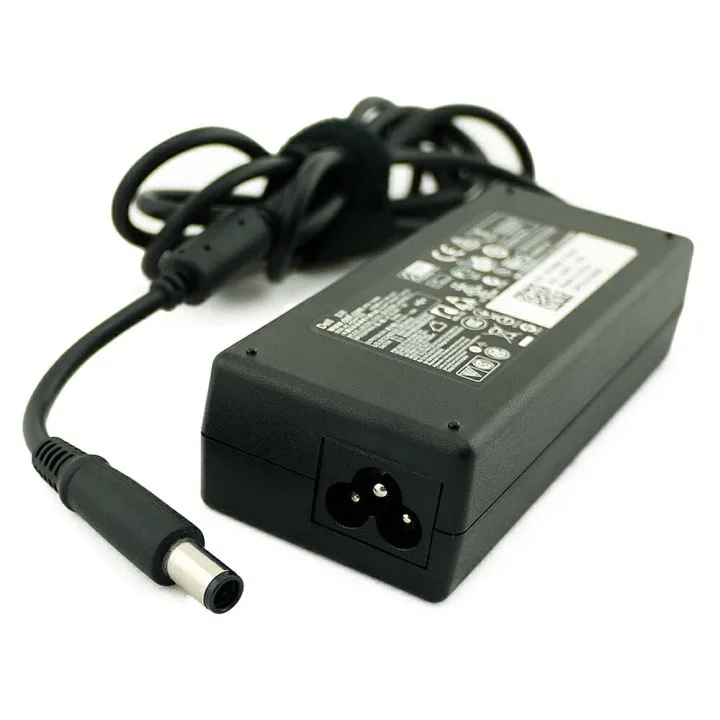
Quick Answer
how to fix dell the ac power adapter type cannot be determined. First check the BIOS AC adapter type entry. Use a known good Dell power adapter.
Inspect the barrel charger center pin. Then update the Dell BIOS firmware carefully.
What “The AC Power Adapter Type Cannot Be Determined” Actually Means on a Dell Laptop
Dell laptops do not just draw power from the charger. They also check the charger identity. On barrel chargers, that signal usually runs through the small center pin.
On USB-C charging, the laptop and charger negotiate a USB Power Delivery contract.
If the laptop cannot identify the adapter, it may protect itself. It can limit CPU speed, disable battery charging, or show a boot alert. In our research, the most common triggers are a failing charger, wrong wattage, damaged center pin, loose DC jack, or outdated BIOS.
Manufacturer specifications indicate Dell systems often expect specific wattage ranges. These include 45W, 65W, 90W, 130W, 180W, and 240W. A charger that supplies power but cannot identify itself may still run the laptop, but it may not charge the battery properly.
First Look: Where the Error Shows Up and What That Tells You
The location of the error narrows the problem fast. Write down exactly where you see it before replacing anything.
| Where you see it | Likely meaning | First move |
|---|---|---|
| BIOS only | Adapter ID signal or BIOS detection issue | Check BIOS AC Adapter Type |
| Windows only | Driver, battery setting, or power app issue | Check Device Manager and Dell Power Manager |
| Boot alert but normal charging | Warning setting or marginal adapter detection | Confirm wattage and reseat connector |
| Plugged in but not charging | Charger, port, battery, or power circuit | Test known good adapter |
If the error appears only in Windows, do not rush to buy a charger. If it appears in BIOS before Windows loads, the issue is lower level. That usually points to the charger, port, firmware, or power hardware.
Decision Branch 1: BIOS Shows Unknown Adapter vs Windows Says Plugged In, Not Charging
This branch separates firmware detection from Windows charging behavior. Restart the laptop and press F2 repeatedly to enter BIOS or UEFI. Look for AC Adapter Type under Battery Info or a similar power section.
If BIOS says Unknown, treat it as a hardware identification problem. The laptop sees power but cannot confirm wattage. Try a known good Dell adapter with the correct rating.
If BIOS still says Unknown, inspect the DC jack and center pin next.
If BIOS shows 65W, 90W, or another correct value, but Windows says plugged in, not charging, the adapter is probably being recognized. The issue may be in Windows battery drivers, Dell Power Manager, Dell Optimizer, or the battery itself. Open Device Manager and check Batteries for Microsoft AC Adapter and Microsoft ACPI-Compliant Control Method Battery.
You can uninstall and restart to let Windows reload them.
Decision Branch 2: Barrel Charger, USB-C Charger, or Dell Dock
The connector type changes the troubleshooting path. Do not mix them up.
Barrel charger
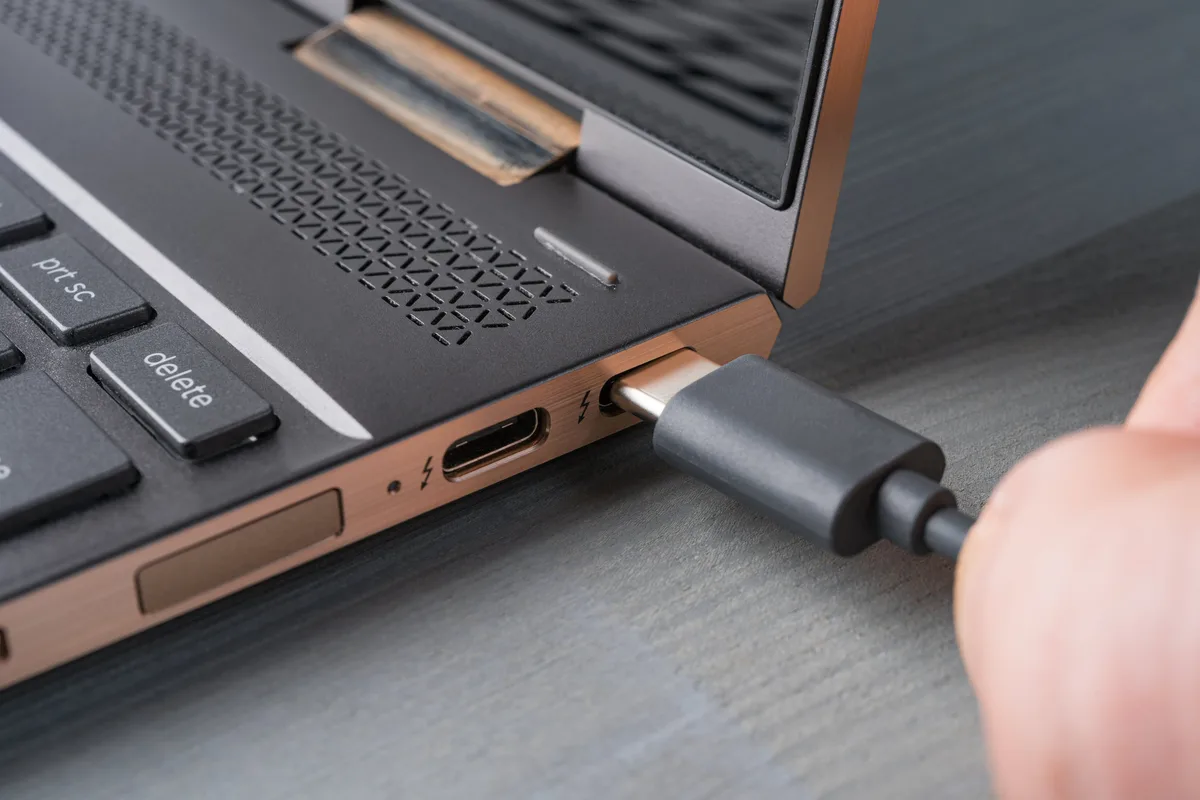
If your Dell uses a round barrel plug, check the center pin and the laptop jack. The small pin carries adapter identity. If it is bent, broken, or missing, BIOS may show Unknown.
USB-C charger
If you charge through USB-C, the charger must support the right USB Power Delivery profile. The USB Implementers Forum maintains the USB Power Delivery specifications. A phone charger may power the laptop slowly or not at all.
Use a USB-C charger rated for your Dell model, often 65W or higher.
Dell dock
If the laptop sits in a Dell dock, bypass the dock for one test. Plug a Dell wall adapter directly into the laptop. If direct charging works, update dock firmware and check the dock power rating.
Some docks deliver less power than a standalone adapter.
Decision Branch 3: Charger Wattage, Center Pin, and Dell Adapter ID Signal
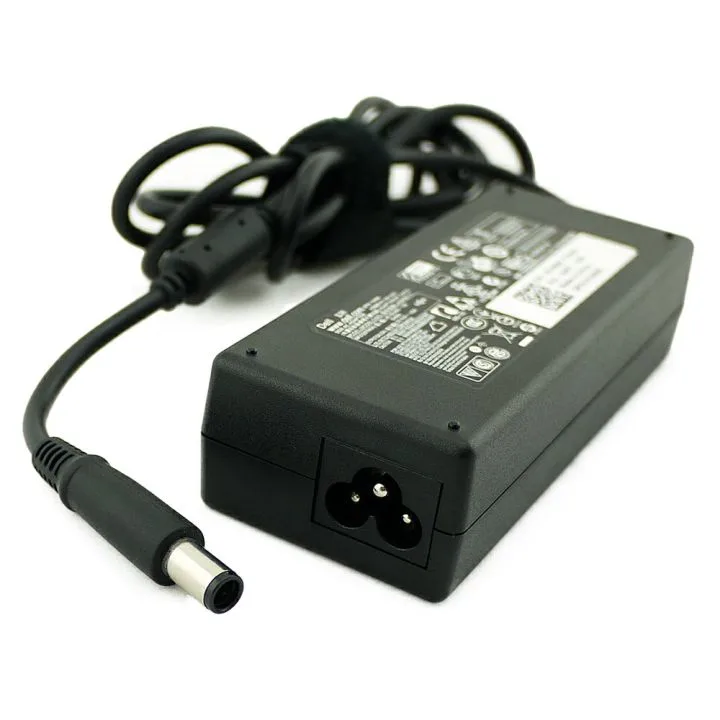
Wattage is the first spec to verify. A Dell Latitude may need 65W, while a Precision or Alienware model may need 180W or 240W. If the adapter is too weak, the laptop may detect it poorly or refuse to charge under load.
Look at the charger label. Check output wattage, voltage, and current. Many Dell barrel adapters list 19.5V and a current rating such as 3.34A, 4.62A, 6.7A, or 9.23A.
The center pin should be straight and not recessed. If the pin looks damaged, stop using that charger.
Third-party chargers can cause this exact error. Some supply voltage but fail to return the Dell adapter ID signal. If you already suspect the charger, test a genuine or verified compatible Dell adapter before buying parts.
Dell’s official Dell support site can help you confirm the correct adapter by Service Tag.
Safe Step-by-Step Troubleshooting Workflow
Use one controlled test at a time. That keeps each result clear.
- Shut down Windows and unplug the charger.
- Remove the dock, USB devices, and memory cards.
- Connect the Dell charger directly to a wall outlet.
- Power on and press F2 before the Dell logo passes.
- Read the AC Adapter Type entry.
If BIOS shows the correct wattage, the charger and port are communicating. Then look at Windows drivers and battery health. If BIOS shows Unknown, keep the test at the hardware level.
| Test result | Next branch |
|---|---|
| Correct wattage in BIOS | Check Windows power settings |
| Unknown in BIOS | Test another correct Dell adapter |
| Correct wattage but no charge | Check battery health |
| Works only at an angle | Inspect DC jack and cable |
Do not change two variables at once. If you swap the charger and update BIOS in the same session, you will not know which step fixed the error.
How to Confirm the Correct Dell Adapter Wattage and Connector
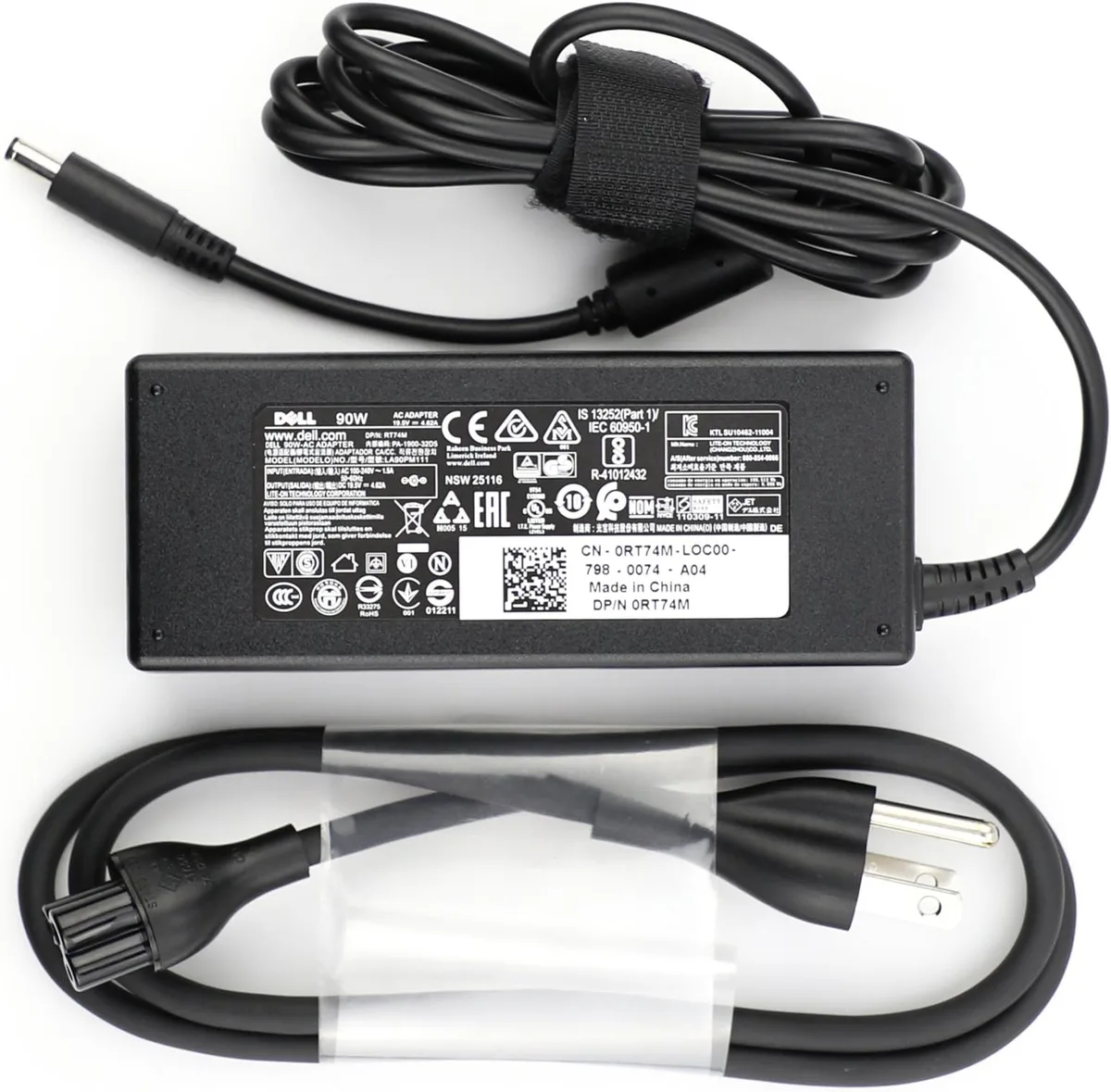
Start with the laptop Service Tag. Dell support can list the original configuration. That is safer than matching the plug by eye.
Common Dell wattage groups are 45W, 65W, 90W, 130W, 180W, and 240W. Thin Latitude and XPS systems often use 45W or 65W. Higher performance Precision and Alienware systems often need 130W or more.
| Dell system type | Typical adapter range | Watch for |
|---|---|---|
| Latitude, Inspiron, Vostro | 45W to 90W | 4.5mm or 7.4mm barrel |
| XPS thin models | 45W to 90W | USB-C or small barrel |
| Precision mobile workstations | 90W to 240W | High current draw |
| Alienware gaming laptops | 180W to 240W | Large barrel connector |
Check the output line on the adapter label. A 19.5V 4.62A charger is about 90W. A 19.5V 6.7A charger is about 130W.
If the label is worn, use the Dell Service Tag instead.
For USB-C charging, look for USB Power Delivery support. A 65W USB-C charger may work for one model but fail on a workstation class Dell. The laptop still needs enough power to run and charge at the same time.
BIOS, Dell Command | Update, and SupportAssist Checks
BIOS is the cleanest place to confirm adapter detection. It reads the charger before Windows loads. If BIOS shows Unknown, Windows settings cannot fix the root cause.
Use Dell Command | Update or Dell SupportAssist to scan for BIOS updates. Keep the charger connected during the update. Do not force a shutdown while BIOS is flashing.
Should you reset BIOS defaults?
Yes, if the adapter type is wrong after a settings change. Load defaults in BIOS, save, and restart. This clears custom power warnings and bad profiles.
If the laptop is managed by a company, BIOS updates may be controlled by IT. In that case, ask before changing firmware. A managed Dell Latitude or Precision may already have update policies installed.
Run SupportAssist battery and power diagnostics when the adapter is recognized but charging is unstable. A failing battery can look like a charger problem. The diagnostic result gives you a better branch to follow.
Hardware Failure Paths: DC Jack, Battery, and Motherboard Charging Circuit
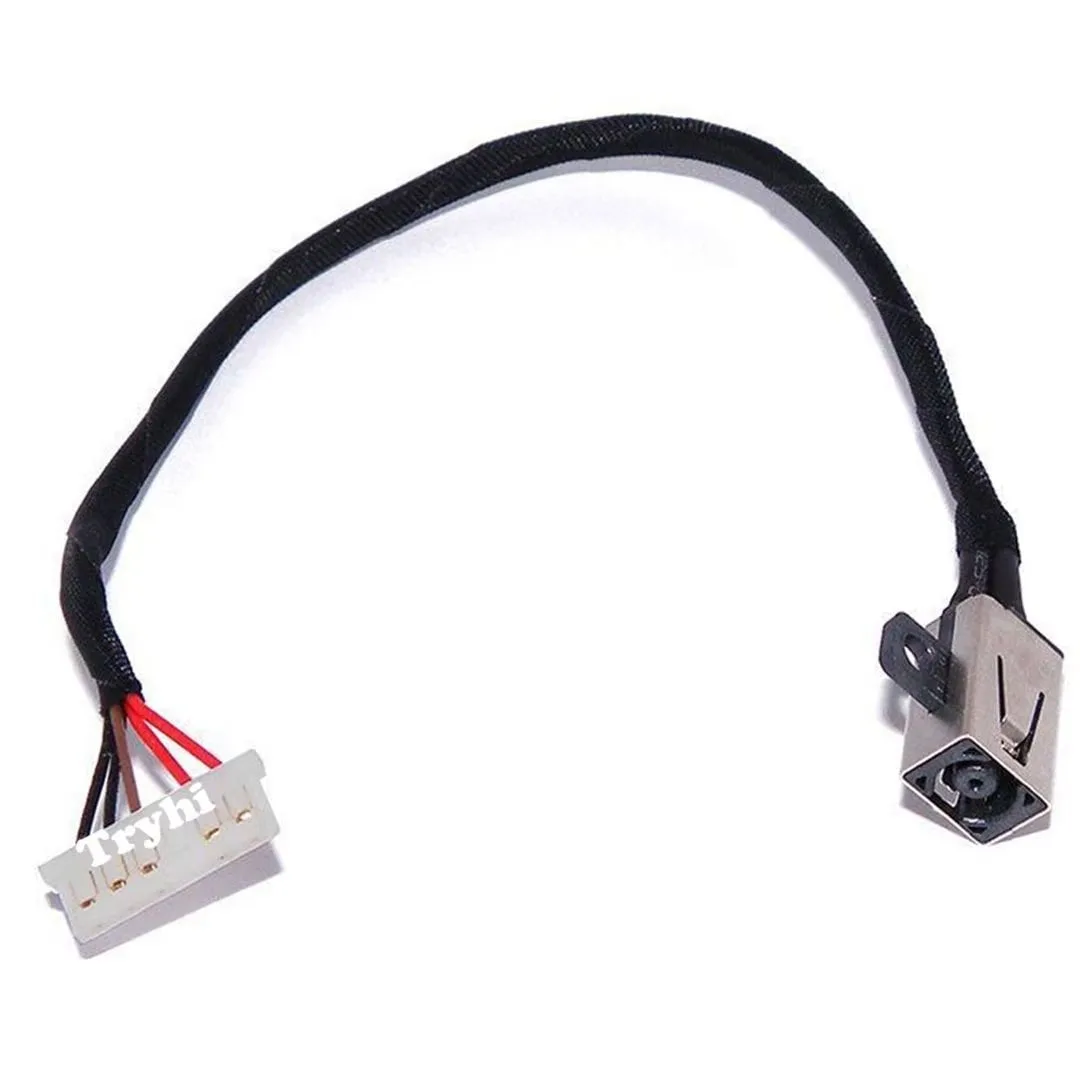
Hardware faults follow a pattern. The port, battery, and motherboard each leave different clues.
| Symptom | Likely part | Best action |
|---|---|---|
| Charger wiggles in the port | DC jack | Inspect and replace jack or cable |
| Charges only when bent | DC jack or adapter barrel | Test known good adapter first |
| BIOS reads adapter but battery drains | Battery | Check battery health |
| Known good adapter still Unknown | Motherboard charging circuit | Get professional diagnosis |
A loose DC jack is common on laptops that are moved often. Some Dell models use a small DC jack cable. Others solder the jack to the motherboard.
The cable style is usually cheaper to repair.
Battery problems can hide behind adapter warnings. Look for swelling, a bulging case, or a touchpad that lifts. If battery health reads poor, replace the battery before blaming the motherboard.
Motherboard charging faults are the last branch. They are more likely after liquid contact, a power surge, or a burnt smell. If the laptop is old and repair cost is high, replacement may make more sense.
Common Mistakes and Wrong Replacement Parts to Avoid
The most common mistake is buying a charger by plug shape alone. Dell has used several barrel sizes and USB-C power profiles. The connector can fit while the wattage or ID signal is wrong.
Avoid these errors:
- Choosing a lower wattage adapter to save money.
- Using a phone USB-C charger on a Dell laptop.
- Assuming a dock can replace the original wall charger.
- Replacing the battery before confirming BIOS adapter detection.
- Ignoring a bent center pin in a barrel charger.
- Updating BIOS without stable AC power.
Another mistake is treating the warning as cosmetic. Some users press F1 and keep working. That can be fine for a short time, but it may hide a failing port or underpowered charger.
If the laptop is under warranty, check Dell service options before opening the case. A DIY repair can void coverage. If the system is out of warranty, compare the repair estimate with the value of the laptop.
Safety Checks for Frayed Chargers, Hot Ports, and Swollen Batteries
Stop using the charger if you see exposed wires, heat, or battery swelling. Disconnect power and arrange service. Do not open the power brick.
Internal capacitors can hold charge even when unplugged.
If the charging port feels hot, smells burnt, or shows discoloration, disconnect power and get it checked. A swollen battery is a safety issue. If the touchpad lifts or the case bulges, stop charging and arrange replacement.
Dispose of damaged chargers and batteries through local e-waste rules. Use certified replacement chargers where possible, such as UL listed units. Correct voltage and wattage matter just as much as plug fit.
Repair or Replace Decision Guide
Use the test results to choose the next move. This keeps repair spending rational.
| Symptom after testing | Best next step |
|---|---|
| BIOS reads correct wattage with another charger | Replace the original charger |
| BIOS still Unknown with known good charger | Inspect or replace DC jack |
| Adapter recognized but battery not charging | Check battery health and drivers |
| Port is loose, hot, or damaged | Professional repair |
| Dock fails but wall charger works | Update or replace dock |
| Laptop under warranty | Contact Dell service first |
If the laptop is under warranty, check service options before opening it. If it is out of warranty, compare repair cost with laptop value. A DC jack repair is often reasonable.
Motherboard charging repairs may not be worth it on older systems.
Dell Adapter Error FAQs
Why does my Dell laptop say the AC power adapter type cannot be determined?
Dell shows this alert when it cannot read charger wattage or identity. The usual causes are a weak adapter, damaged center pin, loose DC jack, or BIOS detection problem. Check BIOS AC Adapter Type first.
Then test a known good Dell charger with the correct wattage.
Can a 65W Dell charger cause the unknown adapter warning?
Yes, if the laptop expects more power or the adapter ID signal fails. A 65W Dell adapter may still run some systems. BIOS may still show Unknown.
That can limit charging and performance. Match the wattage listed for your exact Dell model before buying a replacement.
Will a third-party Dell replacement charger fix the error?
Sometimes. Many third-party chargers supply voltage but miss the Dell adapter ID signal. If BIOS still shows Unknown with a known good Dell charger, the original charger may not be the cause.
Use the correct Dell wattage and connector. Avoid vague universal chargers.
Does the error mean my battery is bad?
Not usually. The warning points to adapter detection first. A bad battery can cause charging errors, but BIOS adapter status gives a cleaner clue.
If BIOS reads the adapter correctly and Windows still says plugged in, not charging, check battery health and Windows battery drivers next.
Is it safe to keep using the laptop with the adapter warning?
If the laptop charges normally and the charger is genuine, short term use may be safe. Still, fix it soon. Unknown adapter detection can reduce performance and may hide a failing charger, loose port, or overheating issue.
Stop if the port feels hot or smells burnt.

Similar Posts