Laptop Charger Tip Wobbly and Disconnecting? Causes & Fixes
Senior Hardware Diagnostics Specialist & Lead Thermal Editor at Laptop Post Testing Lab · CompTIA A+, ACMT, B.S. in Computer Engineering · 12+ years bench-testing laptop thermal solutions & motherboard repairs
If you are asking why is my laptop charger tip wobbly and disconnecting, the answer is usually mechanical. The charger tip, laptop DC jack, or cable strain relief has worn enough to break contact. That break can happen with a slight bump.
It can also create heat if the connection arcs.
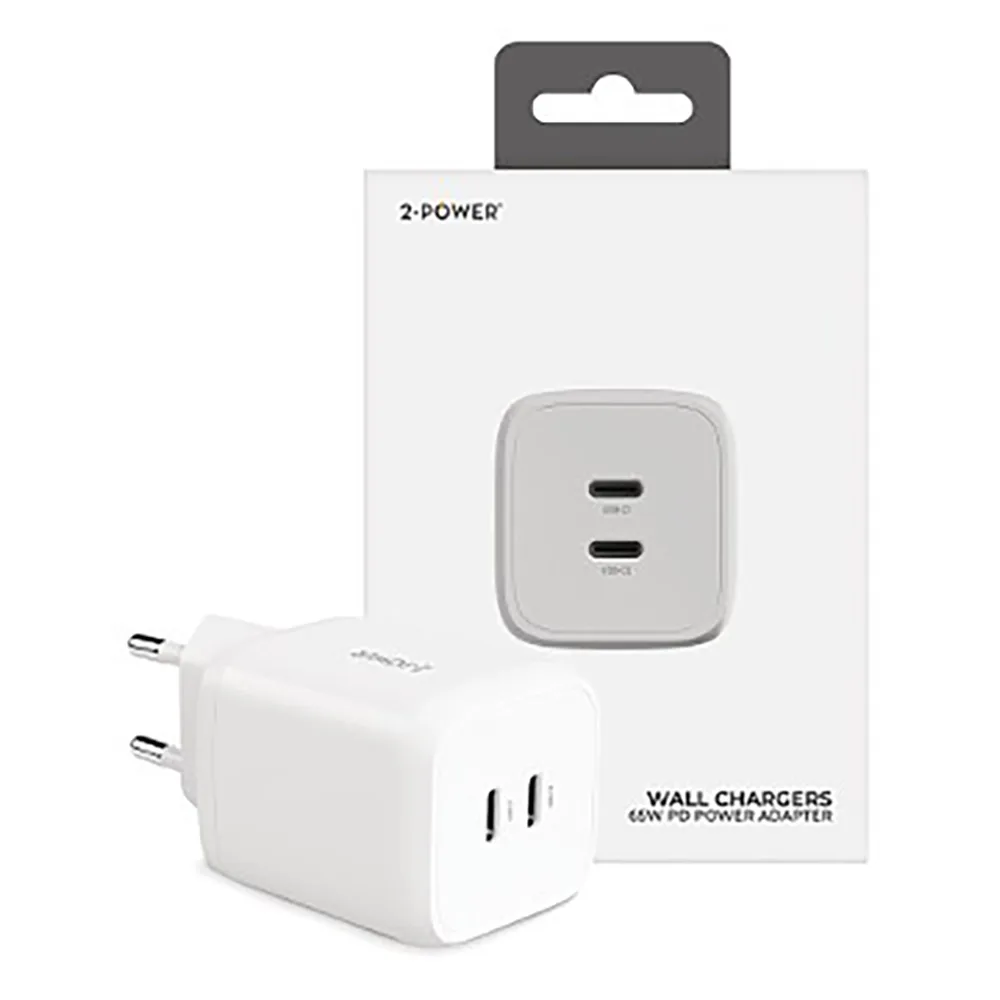
Most barrel chargers use common sizes like 4.0 x 1.7 mm or 5.5 x 2.5 mm. USB Power Delivery from the USB Implementers Forum also sets voltage and current rules for USB-C laptops. As of 2026, many laptops still fail because the connector no longer matches those specs.
The next step is finding which part is actually loose.
Laptop Charger Tip Wobbly and Disconnecting? Causes & Fixes
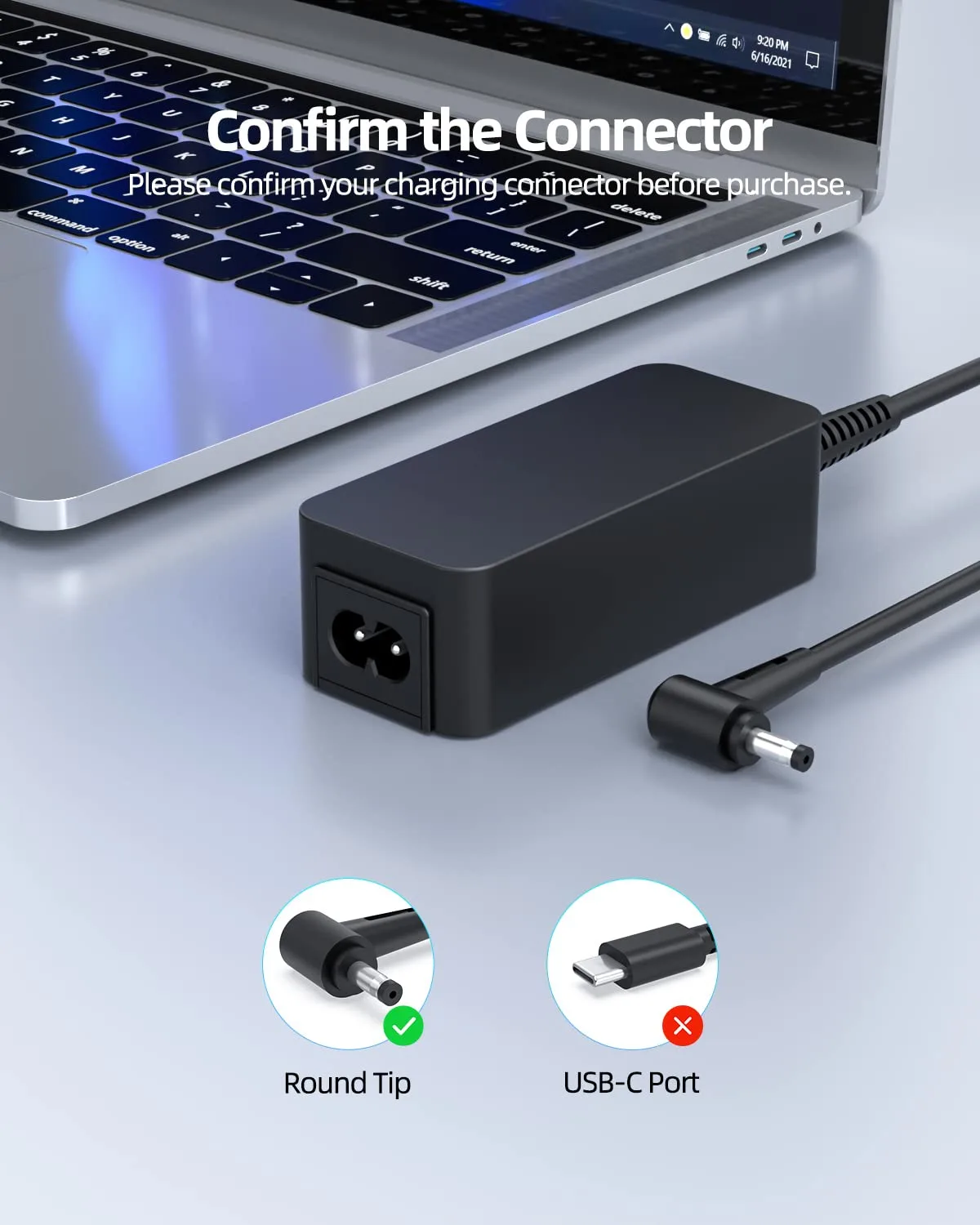
Image source: Bing (Web (fair-use with source credit))
Quick Answer
Why is my laptop charger tip wobbly and disconnecting? It usually comes from a worn barrel plug. A loose laptop DC jack can also cause it.
Wrong tip size or low wattage can trigger disconnects. Check the tip, port, cable, and adapter specs.
How a Laptop Charging Connection Is Supposed to Fit and Conduct Power
A stable charging connection needs three things. It needs the right physical fit. It needs clean metal contact.
It needs the correct electrical rating.
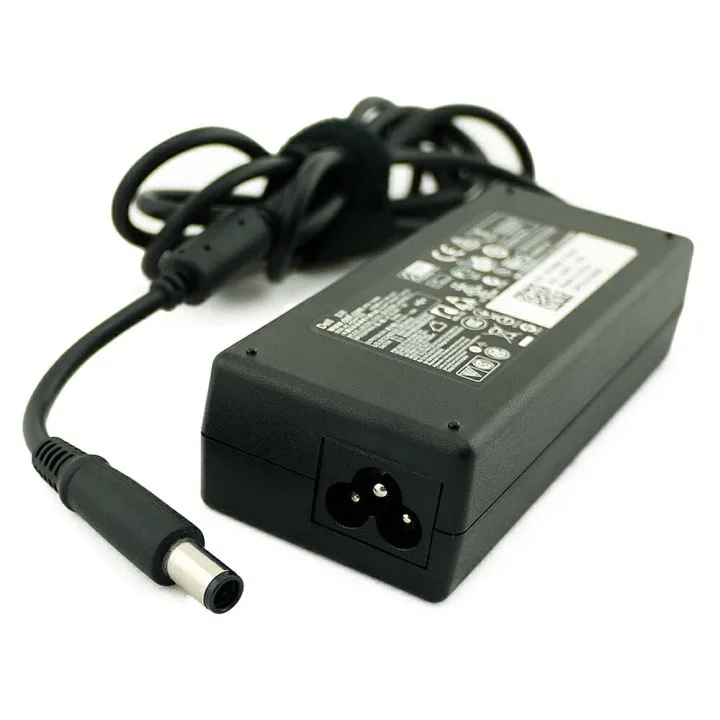
A barrel plug is the cylindrical charger connector that inserts into the laptop. A DC power jack is the socket inside the laptop that receives that plug. On many older laptops, the barrel plug has an outer metal sleeve and an inner center pin.
Most barrel plugs use center-positive polarity. That means the center pin carries positive voltage, while the outer sleeve carries the return path.
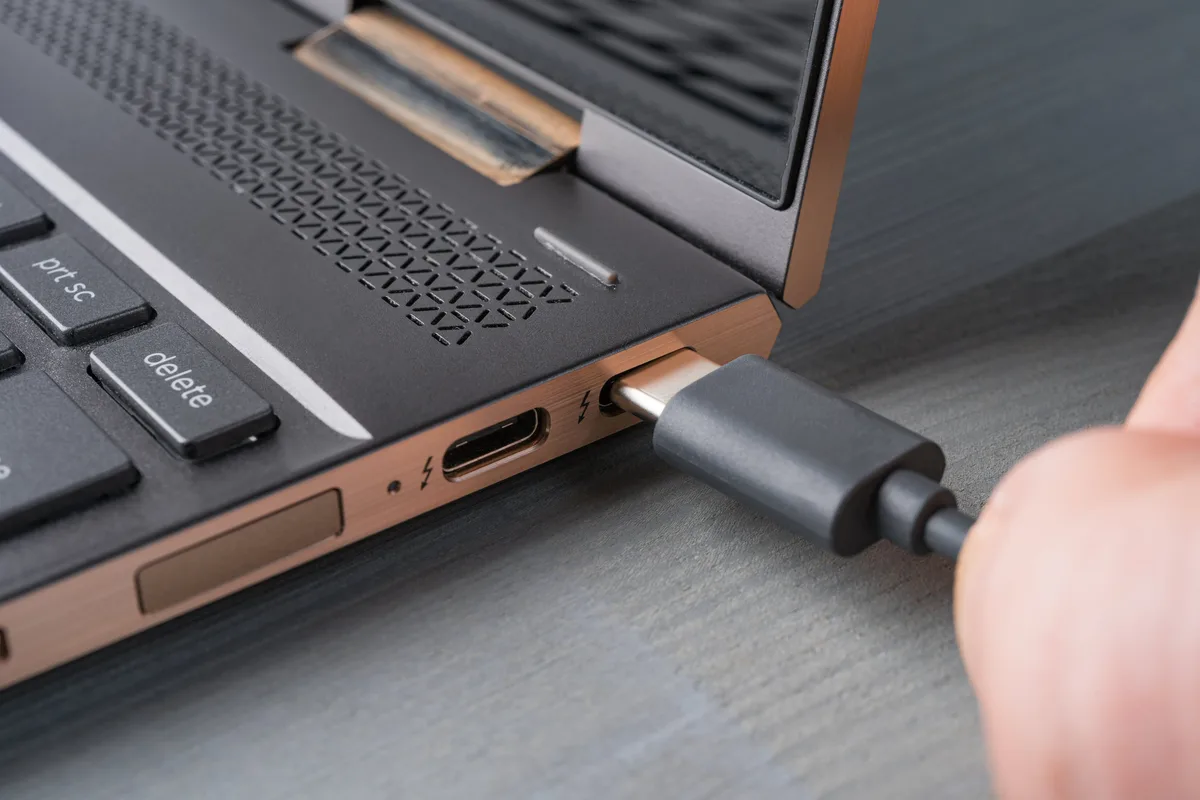
USB-C charging works differently. The connector is smaller, and the laptop negotiates power through USB Power Delivery. The USB Implementers Forum publishes those rules.
They control voltage, current, and connector behavior. If the USB-C plug is loose, dirty, or underpowered, the laptop may connect and disconnect repeatedly.
| Connection part | What it does | Failure sign |
|---|---|---|
| Laptop charger tip | Carries DC power into the port | Visible bend, loose fit |
| DC power jack | Holds the plug and passes power to the laptop | Port rocks under light pressure |
| Center pin | Aligns the plug and may carry a sensing signal | Bent pin, no charger detection |
| Strain relief | Protects the cable where it meets the plug | Cuts out when the cable bends |
A good connection should feel snug. A tiny amount of movement can be normal. But the laptop should not stop charging when you lightly touch the cable.
If it does, one part of the connection is failing.
The 4 Main Causes to Check First
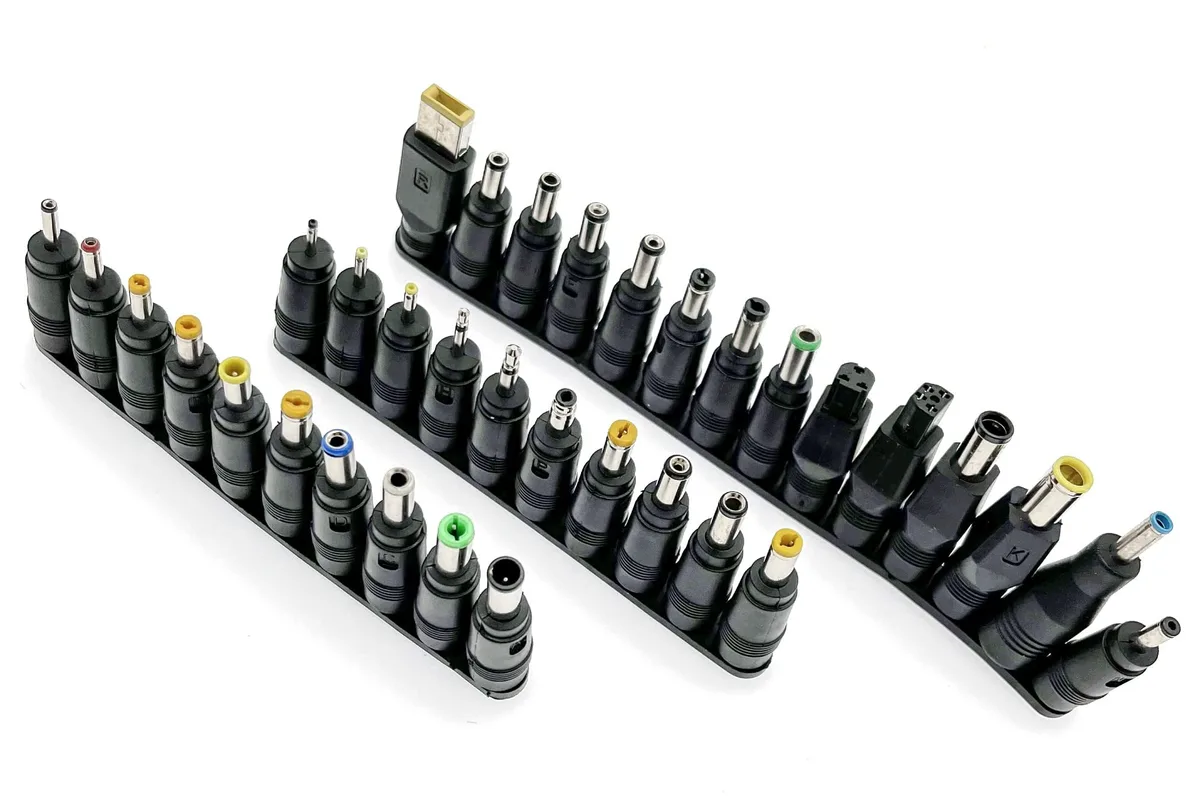
Image source: Bing (Web (fair-use with source credit))
The fastest way to diagnose this is to isolate the fault. You are looking for the part that moves, heats up, or breaks contact. Don’t guess.
Test one variable at a time.
Is the charger tip or barrel plug worn?
Yes, if the barrel plug rocks in the port, the charger tip may be worn. Look at the plug under good light. Check for a bent sleeve, a crooked tip, or a loose center pin.
If the plug looks oval instead of round, it has likely worn down.
Try this simple test. Plug the charger into the laptop. Gently move the plug up, down, left, and right.
If the charging status changes while only the plug moves, the charger tip is suspect. If the plug feels loose in more than one laptop, replace the charger.
Is the laptop DC jack loose?
If the port itself moves inside the laptop, the DC power jack is likely the problem. Watch the laptop body around the charging port. If the whole port shifts when you move the plug, the jack may have broken solder joints.
It may also have a cracked mounting point.
This is common on laptops where the DC jack is soldered directly to the motherboard. It is also common when someone trips over the cable. The force pulls the jack sideways.
Over time, the internal contacts lose retention.
Is the cable or strain relief causing the disconnect?
If charging cuts out when you bend the cable, the fault may be in the cable or strain relief. The strain relief is the flexible section where the cable meets the charger brick or plug. It protects the tiny wires inside from bending too sharply.
Check for cracks, kinks, or exposed wires. Move the cable near the plug while the laptop is charging. If the disconnect happens only when the cable bends near the tip, the cable is likely failing.
If the cable is damaged, stop using it. Damaged power cables can overheat.
Is the connector size or wattage wrong?
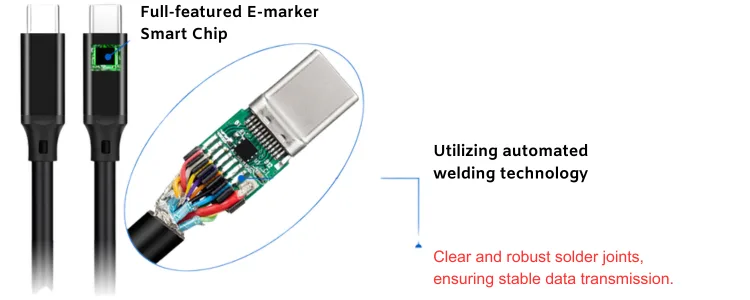
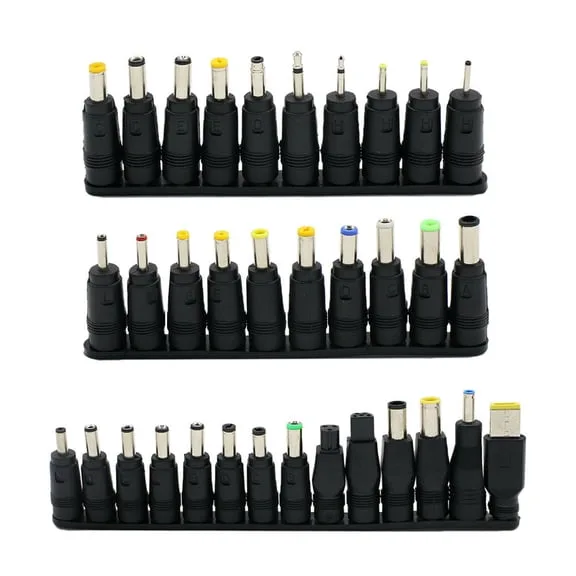
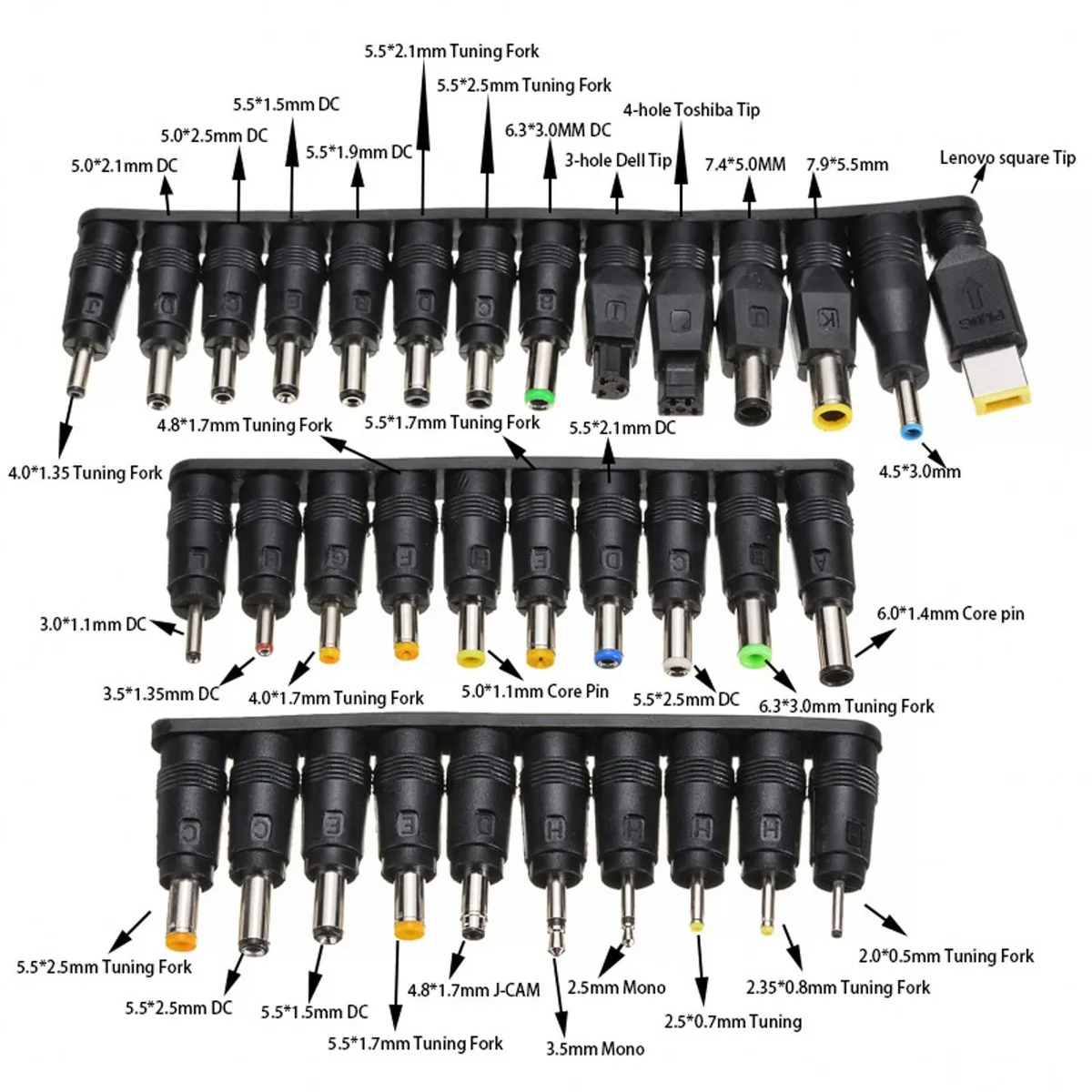
A wrong tip size can feel loose even when the charger is new. Common barrel sizes include 4.0 x 1.7 mm, 4.5 x 3.0 mm, and 5.5 x 2.5 mm. Some Dell chargers use a 7.4 x 5.0 mm barrel with a center pin.
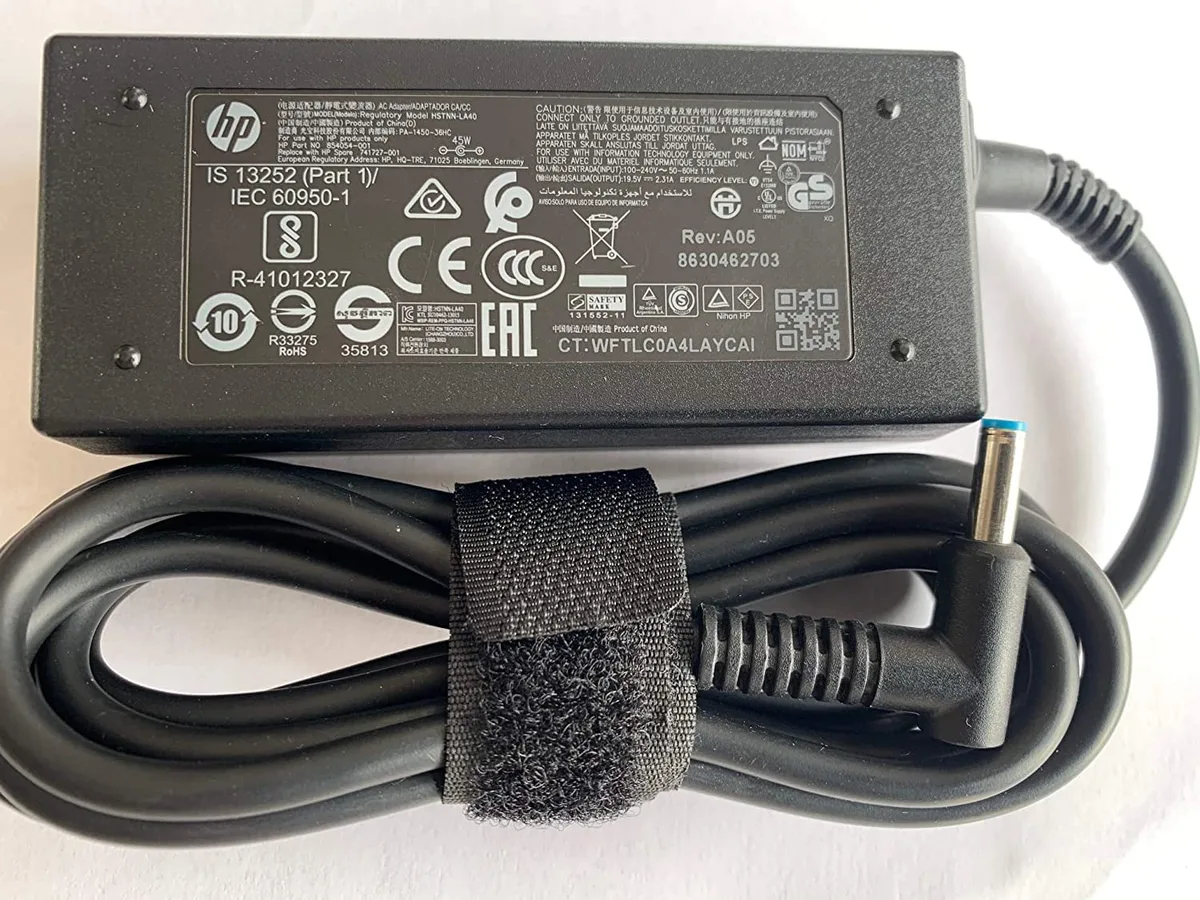
Some HP chargers use a 4.5 x 3.0 mm blue-tip barrel with a center pin.
Wattage matters too. If the adapter is rated below what the laptop needs, the laptop may disconnect under load. A 65W laptop may not charge reliably on a 45W adapter.
Manufacturer specifications indicate the exact voltage and wattage on the laptop label or support page. Check both before buying a replacement.
Decision Branch 1: Replace the Charger if the Tip Is Loose, Bent, or Overheating
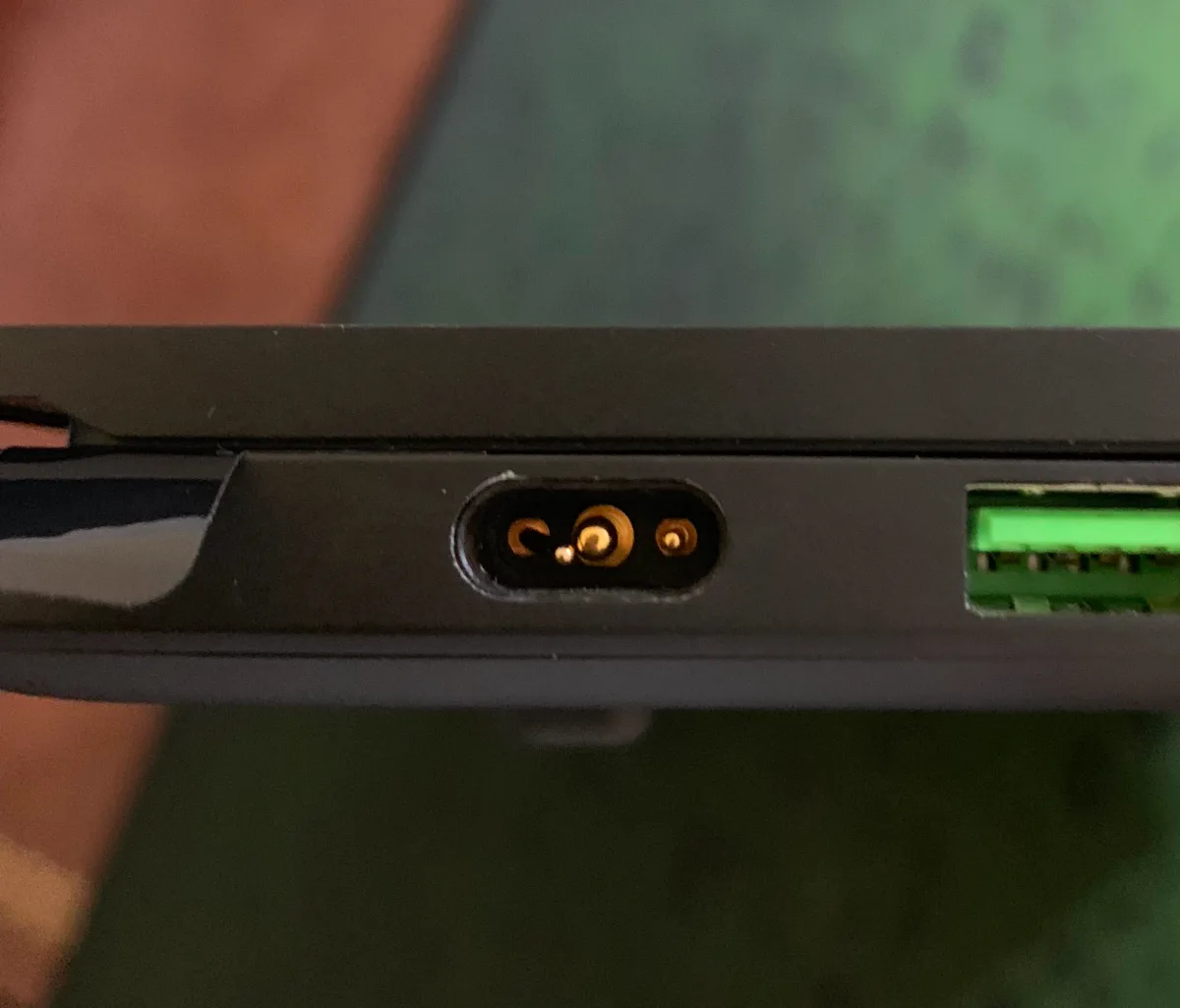
Image source: Bing (Web (fair-use with source credit))
Replace the charger if the fault follows the adapter. That means the problem appears on multiple compatible laptops. It also means the barrel plug is bent, loose, cracked, or overheating.
Use this branch if any of these are true:
- The charger tip wobbles in more than one laptop.
- The center pin is bent, recessed, or missing.
- The barrel plug feels loose even when fully inserted.
- The charger only works when held at an angle.
- The tip becomes hot during normal charging.
- You see discoloration, melting, or a burning smell.
If the tip is hot, unplug it. A loose connection creates electrical resistance. Resistance creates heat.
Heat can damage the port and the charger.
The U.S. Consumer Product Safety Commission handles safety alerts and recalls for damaged chargers. If your adapter shows damage, don’t keep using it.
When replacing the charger, match these specs:
- Output voltage
- Output wattage
- Barrel size
- Center pin style
- Polarity
- Smart pin or ID pin requirement
Don’t choose a charger only by plug shape. A plug can fit and still be wrong. If your laptop needs 19.5V and 90W, a 19V 65W adapter may charge slowly or disconnect under load.
If your laptop uses a center pin for adapter identification, a generic adapter may not be recognized.
If you are choosing between an OEM charger and a third-party adapter, OEM is usually the safer route. Some third-party adapters work well, but many lack stable smart pin signaling. That can cause false disconnects, charging limits, or error messages.
Decision Branch 2: Repair or Replace the DC Jack if the Port Moves Inside the Laptop
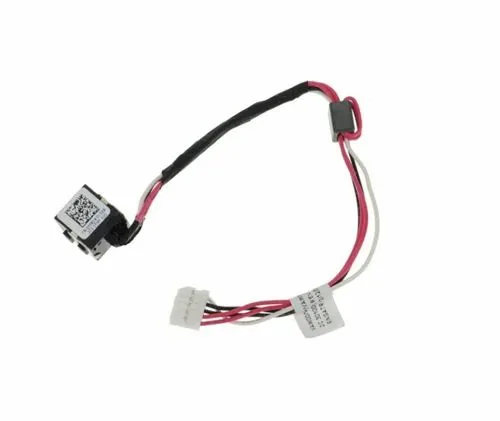
Image source: Bing (Web (fair-use with source credit))
Repair the laptop side if the port moves inside the chassis. That’s the key sign. If the charger tip feels snug in another laptop, but the port on your laptop rocks, the DC jack is the likely fault.
Use this branch if any of these are true:
- The charging port shifts when you touch the plug.
- The laptop charges only when the plug is lifted slightly.
- The port looks recessed or misaligned.
- The charger works in another compatible laptop.
- The laptop shuts off when the cable is nudged.
- You see charging errors even with a known-good adapter.
There are two common DC jack designs. Some are soldered directly to the motherboard. Others use a short cable between the jack and the motherboard.
A cable-mounted jack is often easier to replace. A soldered jack usually needs more careful repair.
If the jack is soldered, the repair may involve desoldering the old jack and installing a new one. If the motherboard pads are damaged, the repair can become more complex. This is not a job to force.
Broken solder joints can turn into cracked traces. That can make the laptop unusable.
If the jack is cable-mounted, the repair is often simpler. The technician opens the laptop, disconnects the jack cable, and replaces the jack assembly. Manufacturer service manuals often show the exact part and removal steps.
If you plan to do this yourself, use ESD precautions. Disconnect the battery before working near the motherboard.
If the laptop uses USB-C charging, the port may be part of the motherboard or a small daughterboard. A loose USB-C port can also cause disconnecting. In that case, the repair path depends on the laptop model.
Some USB-C ports are replaceable. Others require board-level repair.
Don’t keep wiggling a loose port to make it charge. That can worsen the damage. If the port moves, the laptop needs inspection.
The sooner you address it, the lower the chance of heat damage or complete charging failure.
Decision Branch 3: Fix Cable Strain Issues if Charging Cuts Out When You Move the Cord
If the plug stays snug but charging drops when the cord bends, suspect the cable. Check the strain relief for cracks, kinks, or exposed wires.
If the cable is detachable, swap it with a matching one. If it is fixed, replace the whole charger. Don’t tape a damaged power cord.
It can overheat.
Decision Branch 4: Check Compatibility if the Laptop Charges Intermittently or Rejects the Adapter
If the tip fits but the laptop rejects the adapter, check compatibility. Match voltage, wattage, polarity, and smart pin requirements.
For USB-C, confirm USB Power Delivery support. A 65W laptop may disconnect on a 45W adapter under load. Check the laptop label or manufacturer support page.
Safe Testing Steps Before You Buy a Replacement Charger or Repair
We recommend testing one variable at a time. This keeps the diagnosis simple and avoids unnecessary parts.
- Shut down the laptop and unplug the charger.
- Inspect the barrel plug for bends, cracks, or debris.
- Inspect the laptop port with a flashlight.
- Clean the port gently with compressed air or a dry non-conductive brush.
- Test the charger on another compatible laptop.
- Test a known-good charger on your laptop.
- Check the adapter output rating against the laptop label.
- Watch for heat, sparks, or burning smell during a short test.
If the fault follows the adapter, replace it. If it stays with the laptop, inspect the port. Stop if you see heat or sparks.
Mistakes to Avoid When Dealing With a Wobbly Charger Tip
- Don’t wiggle the plug to keep charging going.
- Don’t use a tip that is slightly too small or too large.
- Don’t ignore a warm connector.
- Don’t clean the port with a needle or paper clip.
- Don’t buy a charger by plug shape alone.
- Don’t use an underpowered adapter for gaming or workstation loads.
- Don’t pull the cable instead of the plug.
- Don’t wrap the cable tightly around the power brick.
Charger Replacement vs DC Jack Repair vs USB-C Charging: Which Option Makes Sense?
| Option | Best when | Main risk |
|---|---|---|
| Replace charger | Tip is bent, loose, or hot | Wrong specs if bought cheap |
| DC jack repair | Port moves inside laptop | Board repair if pads are damaged |
| USB-C charging | Laptop supports USB Power Delivery | Low-power adapter may disconnect |
| Professional service | Heat, sparks, or repeated failure | Cost may approach laptop value |
Typical Costs, Barrel Sizes, and Wattage Specs to Verify
Typical costs vary by model. A basic OEM barrel charger often costs $30 to $90. A third-party adapter may cost less, but smart pin support can be inconsistent.
A DC jack part may cost $10 to $40. Professional repair often runs $60 to $180 depending on labor.
| Spec to verify | Common values | Why it matters |
|---|---|---|
| Output voltage | 19V, 19.5V, 20V | Wrong voltage can prevent charging |
| Output wattage | 45W, 65W, 90W, 130W | Low wattage can disconnect under load |
| Barrel size | 4.0 x 1.7 mm, 4.5 x 3.0 mm, 5.5 x 2.5 mm | Wrong size causes looseness |
| Center pin | Required on many Dell and HP adapters | Adapter identification |
| USB Power Delivery | 45W, 65W, 100W, or higher | USB-C laptops need the right profile |
If the laptop needs 90W, a 65W adapter may keep the battery from charging under load.
How to Keep Your Laptop Charger Tip From Loosening Again
- Unplug by gripping the connector, not the cable.
- Avoid charging on beds or couches where the cable bends.
- Keep the port clean and dry.
- Use the correct wattage adapter.
- Route the cable so it cannot catch on the desk edge.
- Store the charger with a loose loop, not a tight wrap.
- Stop using the charger if the tip becomes warm.
FAQs: Loose Charger Tips, Port Cleaning, and Intermittent Charging
Can a loose charger tip damage my laptop?
Yes. A loose tip can create resistance, heat, and small electrical arcs. That can wear the DC power jack, damage the charger barrel plug, or harm motherboard contacts.
If the connector feels hot, smells burnt, or disconnects during use, stop charging and replace the faulty part.
Should I clean the laptop charging port myself?
You can if the laptop is off and unplugged. Use compressed air or a dry non-conductive brush. Don’t use needles or paper clips.
If the port still feels loose after cleaning, the problem is likely mechanical, not debris, and the DC jack may need repair.
Is it safe to use a charger with a slightly loose tip?
Not for long. A slightly loose tip may still charge, but it can overheat and cause intermittent charging. It can also damage the laptop charging port.
Replace the charger or repair the port before the connection becomes unstable, especially if the tip gets warm.
Can a wrong wattage charger cause disconnecting?
Yes. An underpowered adapter may connect but drop out when the laptop needs more power. A 65W laptop may not charge reliably on a 45W adapter during updates, gaming, or heavy work.
Check the laptop label or manufacturer support page for the required voltage and wattage.
Why does my laptop say plugged in but not charging?
That message can come from a weak adapter, wrong smart pin, battery fault, or charging port issue. If the tip is wobbly, start with the charger and port. Test a known-good adapter.
If the message remains, the laptop may need battery or motherboard service.
Final Decision Guide: Replace, Repair, or Get Professional Help
Choose the simplest branch that matches your test results. Replace the charger if the tip is loose, bent, hot, or faulty on another laptop. Repair the DC jack or USB-C port if the port moves or the laptop fails with a known-good charger.
Get professional help if you see sparks, burning smell, battery swelling, or repeated shutdowns. Don’t keep using an intermittent connection just because it still charges sometimes. A small wobble can become a dead port or a heat-damaged motherboard.

Similar Posts