How to Test Laptop Charger Voltage With a Digital Multimeter
Senior Hardware Diagnostics Specialist & Lead Thermal Editor at Laptop Post Testing Lab · CompTIA A+, ACMT, B.S. in Computer Engineering · 12+ years bench-testing laptop thermal solutions & motherboard repairs
A laptop that will not charge can feel like a major failure. Learning how to test laptop charger voltage output with a digital multimeter helps you isolate the fault. The laptop may still be okay.
The charger is often the weak link.
Most barrel plug adapters list 19V, 19.5V, or 20V output. USB Power Delivery chargers can start at 5V before negotiation, per USB-IF specifications. As of 2026, that mix makes charger identification the first real step.
The next section gives you a fast and clear baseline.
Quick Answer
Here is how to test laptop charger voltage output with a digital multimeter. Set the meter to DC volts. Connect the black lead to COM.
Touch the red lead carefully and read the DC output. Compare that stable reading with the charger label.
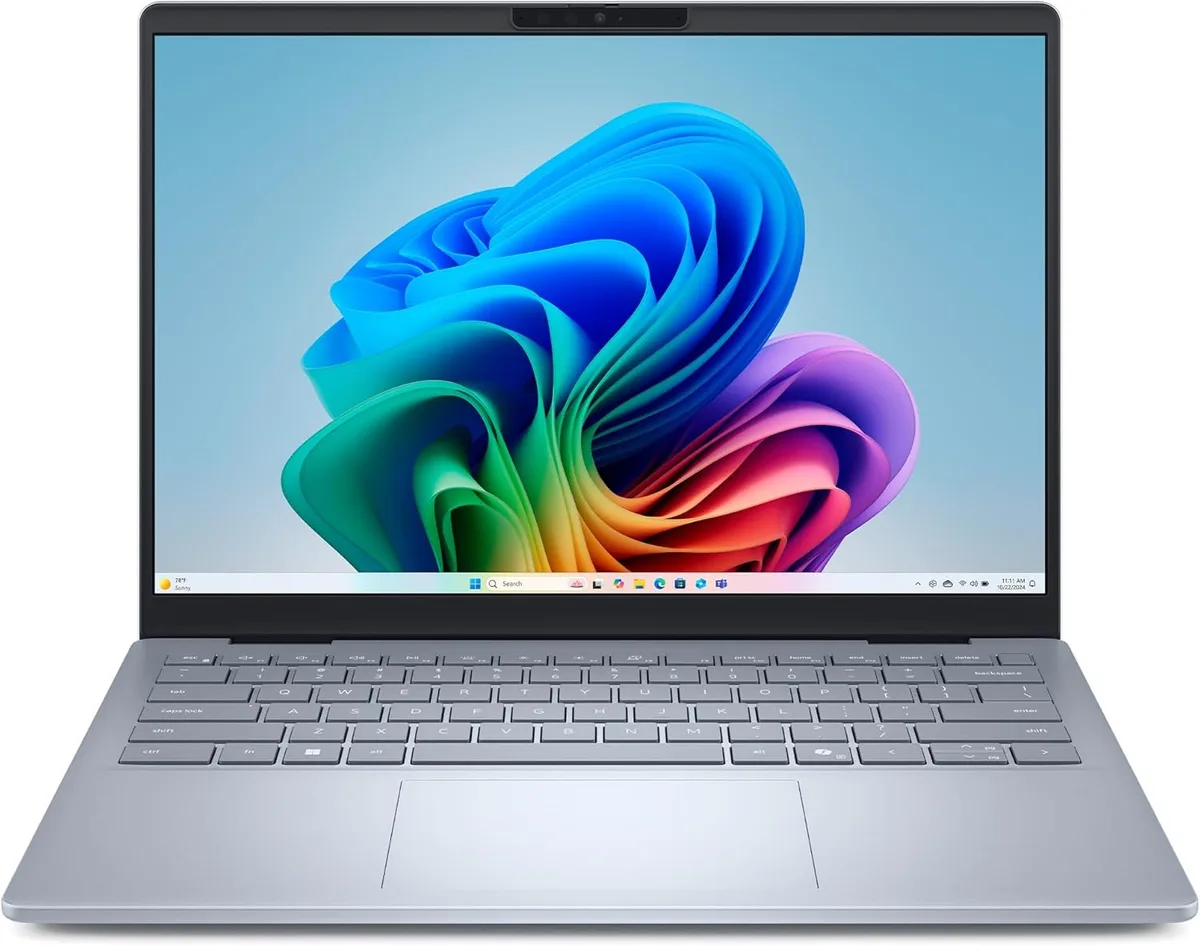
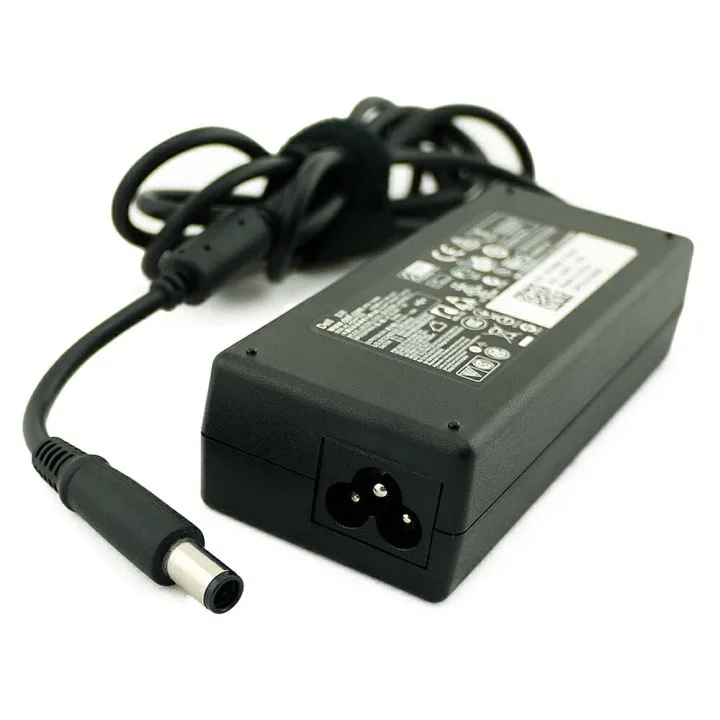
Image source: Web (Bing) / amazon.ae (Web image (fair-use with source credit))
The Real Problem: Is the Charger Dead or Is the Laptop at Fault?
A charger test is a branching problem. You’re not just looking for a number. You’re looking for a stable number under the right conditions.
DC output voltage is the steady voltage the adapter sends to the laptop.
Use these early branches:
- If the charger has no output, then check the wall outlet, AC cord, and charger brick.
- If the output matches the label, then the charger output is probably okay.
- If the output jumps when you move the cable, then suspect a broken wire or connector.
- If the output is correct but the laptop still refuses to charge, then check the laptop side next.
This matters because a correct open circuit voltage does not prove the charger can sustain load. Manufacturer specifications indicate that some adapters can show a voltage reading and still fail under demand. In our research, the most common false pass is a reading that looks stable until the cable moves.
That is why cable movement and stability matter as much as the number itself.
Safety Checks Before You Put Probes Near the Charger
Do the safety pass before the electrical pass. Laptop chargers contain mains circuits and stored energy. Even unplugged bricks can hold charge inside.
Follow these rules:
- Don’t open the charger brick.
- Don’t probe the AC input pins or IEC socket.
- Stop if the case is cracked, melted, very hot, or smells burnt.
- Keep the DC tip away from keys, coins, and metal tools.
- Use insulated multimeter leads and dry hands.
OSHA’s electrical safety guidance recommends safe work practices around energized equipment. You can follow that idea by keeping the test area dry and the charger unplugged until you are ready. Modern adapters are often built around IEC 62368-1.
A damaged unit is still not safe. If the charger shows physical damage, replace it instead of testing it further.
Condition Check 1: Identify the Charger Type and Output Label
Barrel Plug, USB-C, MagSafe, and Proprietary Chargers Need Different Tests
The connector decides the test method. A barrel plug exposes two DC contacts. A USB-C charger hides voltage negotiation inside the cable and port.
That changes the tools you need.
For a barrel plug laptop charger, the meter probes touch the center contact and outer sleeve. Most models are center positive, but the polarity symbol on the label is the final check. If the meter shows a negative voltage, the probes are reversed or the polarity is opposite.
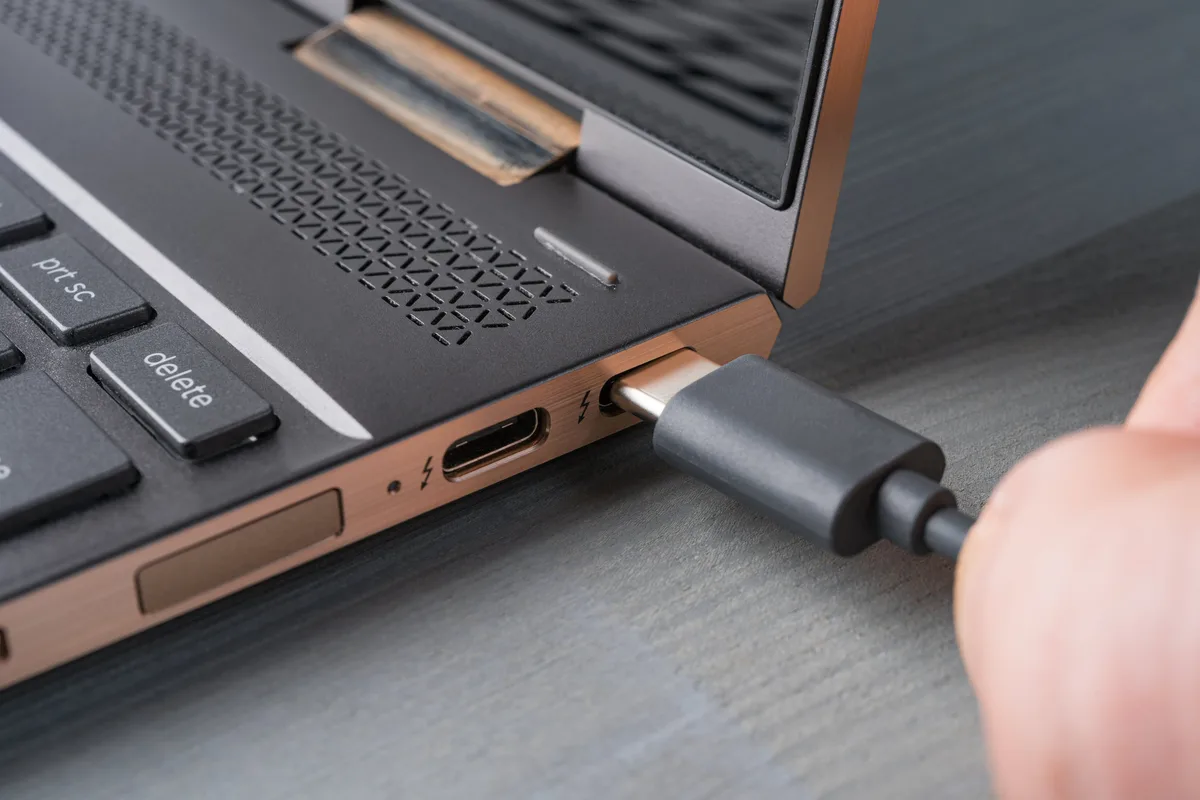
For a USB-C laptop charger, a plain multimeter is often not enough. The USB Power Delivery specification from USB-IF allows several voltage profiles. A charger may stay at 5V until a device asks for 9V, 15V, or 20V.
A USB-C PD tester or trigger makes that negotiation visible.
MagSafe and proprietary chargers add another layer. Apple MagSafe chargers use pins and adapter identification. Dell and HP chargers often use a center ID or sense pin.
Manufacturer specifications indicate that the main output can look normal. The laptop may still reject the charger if that pin is missing or damaged.
Find the Expected Voltage, Current, and Wattage
Read the output line on the charger label. Look for DC output, not AC input. The label usually gives volts and amps.
Watts are often listed too. Volts times amps equals watts.
| Charger type | Common output | Test implication |
|---|---|---|
| Barrel plug laptop charger | 19V, 19.5V, 20V | Measure tip and sleeve |
| USB-C PD charger | 5V, 9V, 15V, 20V | Negotiation may be required |
| MagSafe charger | 14.5V, 16.5V, 20V | Check pins and ID behavior |
| Proprietary workstation charger | 19.5V, 20V, 24V | Sense pin may matter |
If the label is worn, use the laptop model number and official support page. Don’t guess from the plug size alone. A physically similar plug can have different voltage or polarity.
Condition Check 2: Get Your Digital Multimeter Ready for DC Voltage
Your multimeter needs the right mode and the right leads. A wrong setting can give a useless reading. It can also create a short.

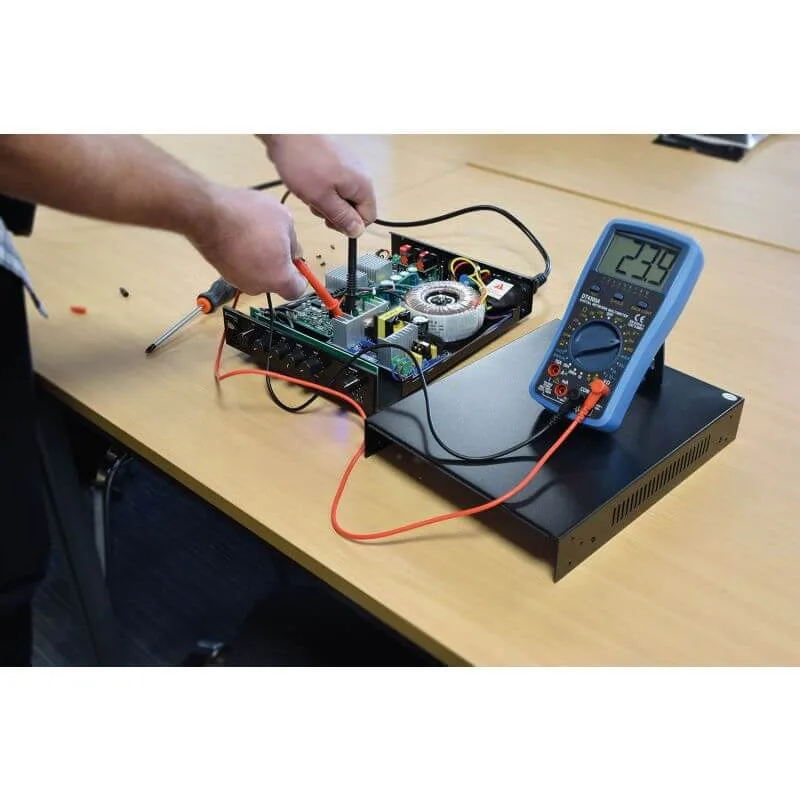
Image source: Bing (Web (fair-use with source credit))
Set the Meter to DC Voltage and Choose the Correct Range
Set the dial to DC voltage. Many meters label this DCV or V with a straight line. If the meter is auto ranging, it will pick the range.
If it’s manual ranging, choose a range above the expected output. For a 19V charger, the 200V range is a safe starting point.
Use this setup:
- Plug the black lead into COM.
- Plug the red lead into the voltage jack.
- Keep the red lead out of the current or amps jack.
- Select DC voltage.
- Confirm the display is stable before touching the charger.
Don’t use resistance mode on a powered charger. Don’t use current mode to check voltage. Those settings place the meter in a different circuit path.
Check Probe Ports, Lead Condition, and a Known Voltage Source
Inspect the leads before you trust them. The insulation should be intact. The probe tips should be clean and secure.
A damaged lead can cause intermittent readings.
Check the meter on a known low voltage source. A fresh AA battery should read about 1.5V. A 9V battery should read near 9V.
If the meter reads zero or jumps wildly, fix the leads or meter first.
This quick check also confirms probe polarity. The red probe should make the reading positive when it touches the positive contact. If it shows negative, swap the probes or recheck the connector polarity.
Workflow 1: Test a Barrel Plug Laptop Charger Without Shorting the Tip
Keep the laptop disconnected for the first test. Plug the charger into a known good wall outlet. Place the brick on a dry, nonconductive surface.
This gives you an open circuit voltage reading.
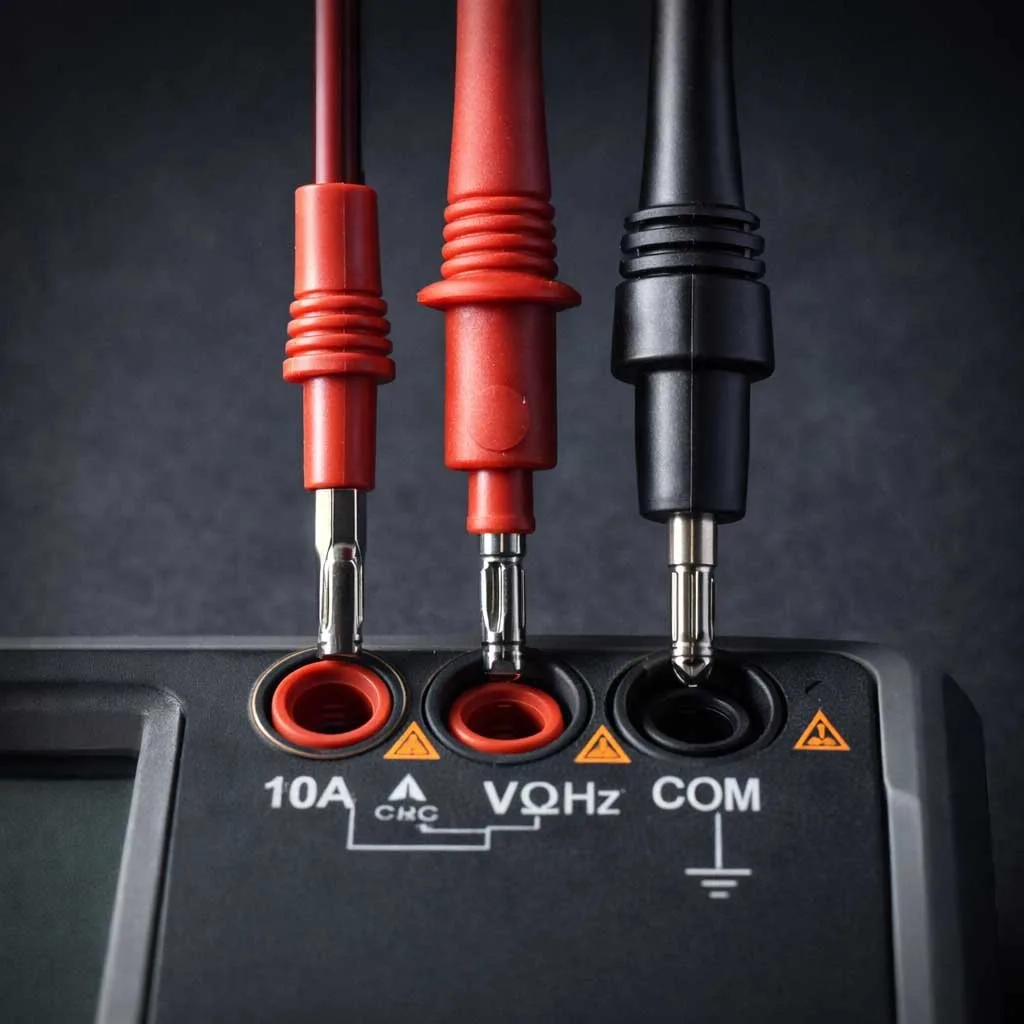
Image source: Bing (Web (fair-use with source credit))
Probe the Center Pin and Outer Sleeve Correctly
Touch the red probe to the center contact. Touch the black probe to the outer metal sleeve. Keep the two probe tips apart.
Do not let them slide together.
Many barrel plugs use a center positive design. The label usually shows a polarity symbol. If the display shows a minus sign, the probes are reversed or the polarity is opposite.
A 19V adapter may read slightly above 19V with no load. Manufacturer specs often allow a small tolerance. A stable reading near the label is the key point.
Watch for Polarity, Stability, and Cable Wiggle Changes
Watch the display while you gently move the cable near the strain relief. If the voltage flickers, drops, or cuts out, suspect the cable or connector. A steady number that jumps only when you bend the wire is a strong clue.
If the reading is correct at rest but falls when you move the plug, the charger may still fail in real use. That is a common intermittent charging fault. Replace the charger or repair the cable only if you have the right skills.
Workflow 2: Test a USB-C or USB PD Laptop Charger
A USB-C charger needs a different workflow. The USB Power Delivery standard keeps the output at a safe default until the device asks for more voltage. A plain multimeter often cannot show the full picture.

Image source: Bing (Web (fair-use with source credit))
Why USB-C Often Starts at 5V Before Negotiation
USB-C PD chargers usually begin at 5V. That protects devices that are not ready for a higher voltage. The charger then moves to 9V, 15V, or 20V after negotiation.
If you see only 5V, do not call the charger dead yet. Check the label for supported profiles. A 65W USB-C charger may list 5V, 9V, 15V, and 20V.
Use a USB PD Meter or Trigger to Request 9V, 15V, or 20V
Connect the charger to a USB-C PD tester or PD trigger. Request the voltage listed on the charger label. The tester should show the negotiated voltage.
If the charger stays at 5V, try a different USB-C cable. Use a cable rated for the charger current. If it still fails to negotiate, the charger or port is suspect.
If the tester shows 20V but the laptop still will not charge, the problem may be the cable, laptop port, or PD negotiation on the laptop side. The charger output is only one branch of the decision tree.
Workflow 3: Test MagSafe, Dell, HP, Lenovo, and Other Sense Pin Chargers
Some laptop chargers use more than power pins. They also send adapter identity or sense signals. The laptop may ignore a charger that cannot identify itself.
When the ID or Sense Pin Matters More Than the Main Voltage
Dell and HP barrel chargers often use a center ID pin. MagSafe chargers use multiple pins and adapter identification. Manufacturer support documentation can require the laptop to recognize the adapter before charging starts.
If the main voltage looks correct but the laptop refuses to charge, check the ID or sense path. Look for a bent center pin, dirty contacts, or a damaged MagSafe pin. Do not force a probe into a tiny center pin hole.
For Lenovo rectangular plug chargers, the issue can involve the charging circuit or firmware handshake. A known good OEM charger is often the safest next test. If the OEM charger works, the original adapter or its compatibility is likely the problem.
Decision Branches: What Your Meter Reading Actually Means
Use the reading as a branch point. Do not stop at one number.
| Meter result | Likely meaning | Next move |
|---|---|---|
| Matches label and stays stable | Charger output is likely okay | Test laptop jack, battery, or charging circuit |
| Zero volts | No DC output | Check outlet, AC cord, switch, and brick |
| Much lower than label | Failing adapter or protection mode | Try known good charger |
| Much higher than label | Regulation fault | Stop using the charger |
| Unstable or flickering | Cable, connector, or internal fault | Wiggle test and replace if needed |
Reading Matches the Label
A stable reading near the label means the charger is producing the expected DC voltage. It does not prove full load performance. If the laptop still does not charge, move to the laptop side.
Reading Is Zero or Very Low
Zero volts means the charger is not producing output. First check the wall outlet with another device. Then check the AC input cord and any power switch.
If the outlet and cord are good, the adapter is likely faulty. Very low voltage can also point to a failing regulator or protection shutdown. Do not keep testing a charger that gets hot or smells burnt.
Reading Is High, Low, or Unstable
A reading far above the label is a red flag. It can damage the laptop. Stop using the charger.
A reading that moves without cable movement can point to poor probe contact or a failing adapter. Repeat the test with steady probe pressure. If it remains unstable, treat the charger as suspect.
Reading Is Correct but the Laptop Still Does Not Charge
This is a laptop side branch. The charger may be okay. Check the DC jack, battery health, firmware settings, and charging circuit.
Try a known good charger if possible. If the laptop charges with another adapter, the original charger or cable is still suspect. If it does not, the laptop needs deeper diagnosis.
Common Mistakes That Give False Pass or False Fail Results
Most bad results come from setup errors. A few habits prevent them.
Using AC Mode, Amps Mode, or the Wrong Probe Jacks
Set the meter to DC voltage. AC mode will not give the correct DC output reading. The amps jack is for current tests, not voltage tests.
If the red lead is in the current jack, you can create a short. That can blow a meter fuse or damage the charger. Check the lead positions before every test.
Ignoring Load, USB-C Negotiation, and Cable Movement
An open circuit voltage can look good while the charger fails under load. A correct number with no load is only a first pass. Cable movement tests help reveal breaks near the plug.
USB-C chargers need negotiation. A 5V reading is not automatically a failure. Request the higher profile before judging the charger.
What to Do Next: Replace the Charger, Cable, DC Jack, or Test the Laptop
If the meter shows no output, very low output, or unstable output, replace the charger. Match the output label closely. Voltage and polarity must match.
Current and wattage should meet or exceed the laptop requirement.
For barrel plug adapters, a 19V laptop usually needs a 19V or 19.5V adapter with the same polarity. A higher current rating is usually acceptable. A lower current rating is not a good idea.
For USB-C, choose a charger that supports the laptop’s PD profile. A 65W laptop may need 20V at 3.25A. A phone charger may show 5V or 9V but still lack the 20V profile.
If the voltage is correct but the laptop only charges when you hold the plug at an angle, suspect the DC jack or connector. A loose jack can cause intermittent charging. A repair shop can often replace a DC jack more cheaply than a motherboard repair.
If another known good charger works, the original charger is still the likely fault. If the laptop still does not charge, check battery health, charging thresholds, firmware settings, and the charging port. Manufacturer diagnostic tools can help separate battery faults from charger faults.
Frequently Asked Questions
Can I Test the Charger Without Connecting It to the Laptop?
Yes. A barrel plug charger can be tested unplugged from the laptop. This open circuit test shows whether DC output is present.
It does not fully prove the charger can sustain load. USB-C chargers often need a PD tester to show higher voltages.
Is a 19V Charger Reading 19.8V or 20.2V Okay?
Usually, yes. A small increase can appear with no load. A stable reading close to the label is acceptable.
A large rise, falling voltage, or flickering display is not. Stop using the charger if the voltage drifts far from the label.
Why Does My USB-C Charger Only Show 5V?
That is normal before USB Power Delivery negotiation. The charger starts at a safe default voltage. Use a USB PD meter or trigger to request 9V, 15V, or 20V.
If it will not negotiate, check the cable, port, and charger.
Should I Test a Charger That Smells Burnt or Feels Hot?
No. Stop using it. Heat, burning smell, or melted plastic points to an internal fault.
Probing it can create a short or expose you to unsafe components. Do not rely on a meter reading to judge its safety. Replace the charger and recycle it properly.
Final Decision Guide: Pass, Fail, Suspect, or Move to Laptop Diagnosis
Use this simple verdict table.
| Result | Verdict | Best next step |
|---|---|---|
| Stable voltage near label | Pass | Move to laptop diagnosis if charging still fails |
| Zero or very low voltage | Fail | Check outlet and cord, then replace charger |
| Voltage drops when cable moves | Suspect | Replace charger or cable assembly |
| USB-C stuck at 5V | Inconclusive | Test with PD meter, cable, and port |
| Correct voltage but no charge | Laptop side | Check DC jack, battery, firmware, or service |
A correct voltage reading is useful, but it is not the whole story. The charger must also stay stable and be recognized by the laptop. When the result is unclear, a known good OEM charger is the safest comparison.
If the laptop still fails with a known good charger, the fault is likely inside the laptop.

Similar Posts