How to Charge a Laptop on a Plane Without Tripping Breakers
Senior Hardware Diagnostics Specialist & Lead Thermal Editor at Laptop Post Testing Lab · CompTIA A+, ACMT, B.S. in Computer Engineering · 12+ years bench-testing laptop thermal solutions & motherboard repairs
Figuring out how to charge laptop on airplane seat power outlet without tripping breaker starts with one awkward moment. You plug in, the seat light dies, and your work session ends. Most trips happen because the charger asks for more power than the seat circuit can give.
The fix is matching the outlet, charger, and laptop before you fly.
Many airline AC seat outlets are rated at 75W, 100W, or 150W, while laptop chargers can ask for 65W to 240W. USB Power Delivery from the USB Implementers Forum also matters because it sets how USB-C chargers negotiate voltage and current. Once you know those limits, the right charging setup becomes much easier.
Quick Answer
How to charge laptop on airplane seat power outlet without tripping breaker? Match charger wattage to the seat outlet limit. Keep total draw below that rated limit.
Use USB-C PD when the laptop supports it. Charge with the laptop asleep when possible.

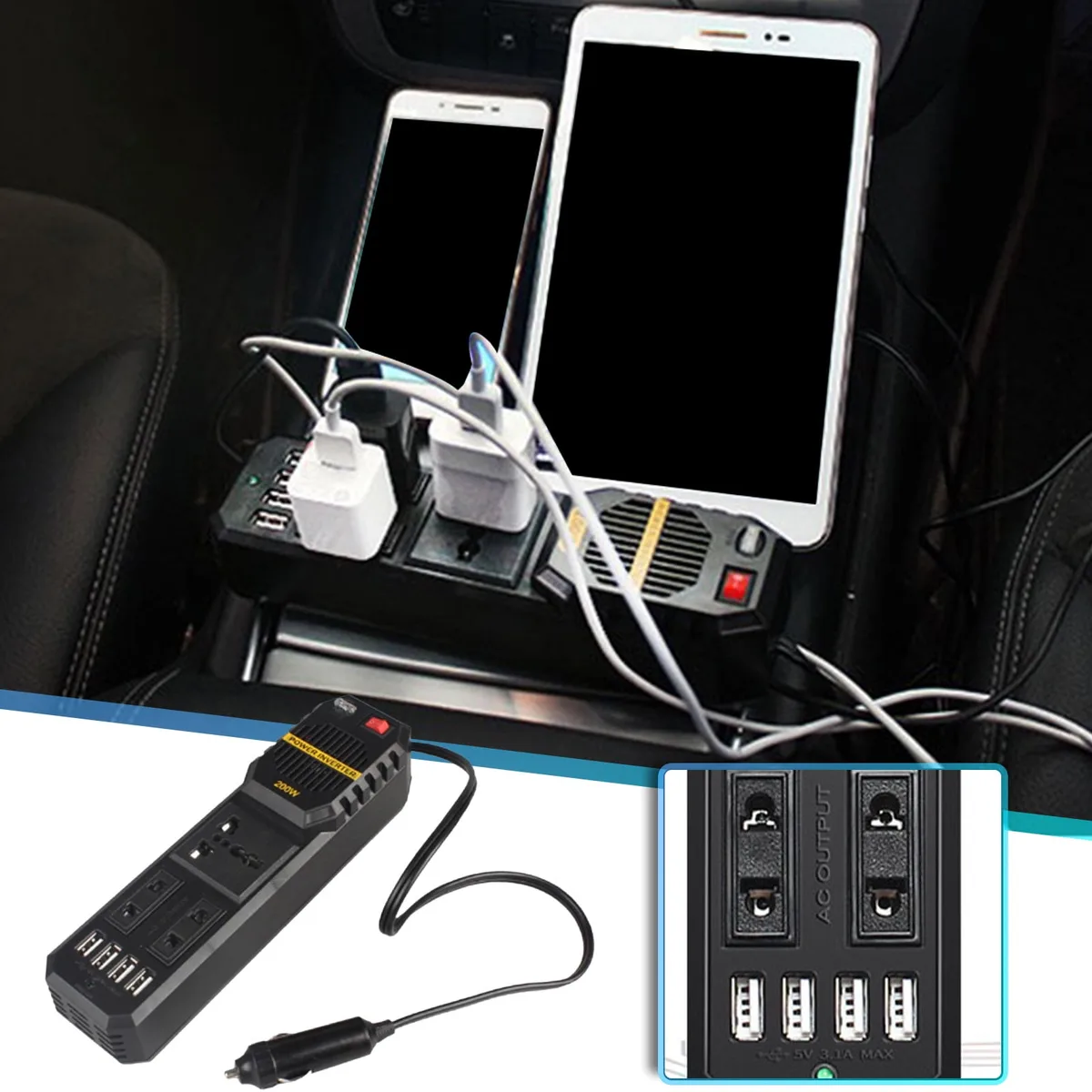
Image source: Web (Bing) / appsmanager.in (Web image (fair-use with source credit))
Why Airplane Seat Outlets Trip When You Plug In a Laptop Charger
Seat outlets trip because they have small current limits and protective electronics. An airplane seat AC outlet is not a wall socket. It usually feeds one seat or a pair of seats through a power control unit.
That unit watches current, heat, and faults.
If it sees too much draw, it cuts power. Some outlets auto reset after a delay. Others need a crew reset.
Many aircraft outlets use electronic current limiters rather than a small household breaker.
The most common trigger is inrush current. That is the brief surge a charger draws when it connects. A 100W charger may not run at 100W all flight, but its first surge can still look like an overload.
A second trigger is shared load. If you and a seatmate plug laptops, phones, or a multi-port charger into one circuit, the total draw can exceed the rating. Heavy laptop work makes it worse.
Video calls, exports, and gaming raise power demand while the battery charges.
The FAA oversees portable electronic device rules, but airlines set seat power behavior. In our research, shared outlets fail most often when two chargers run together. The safest plan is to reduce total load, not just replace the charger.
What Type of Seat Power Do You Actually Have?

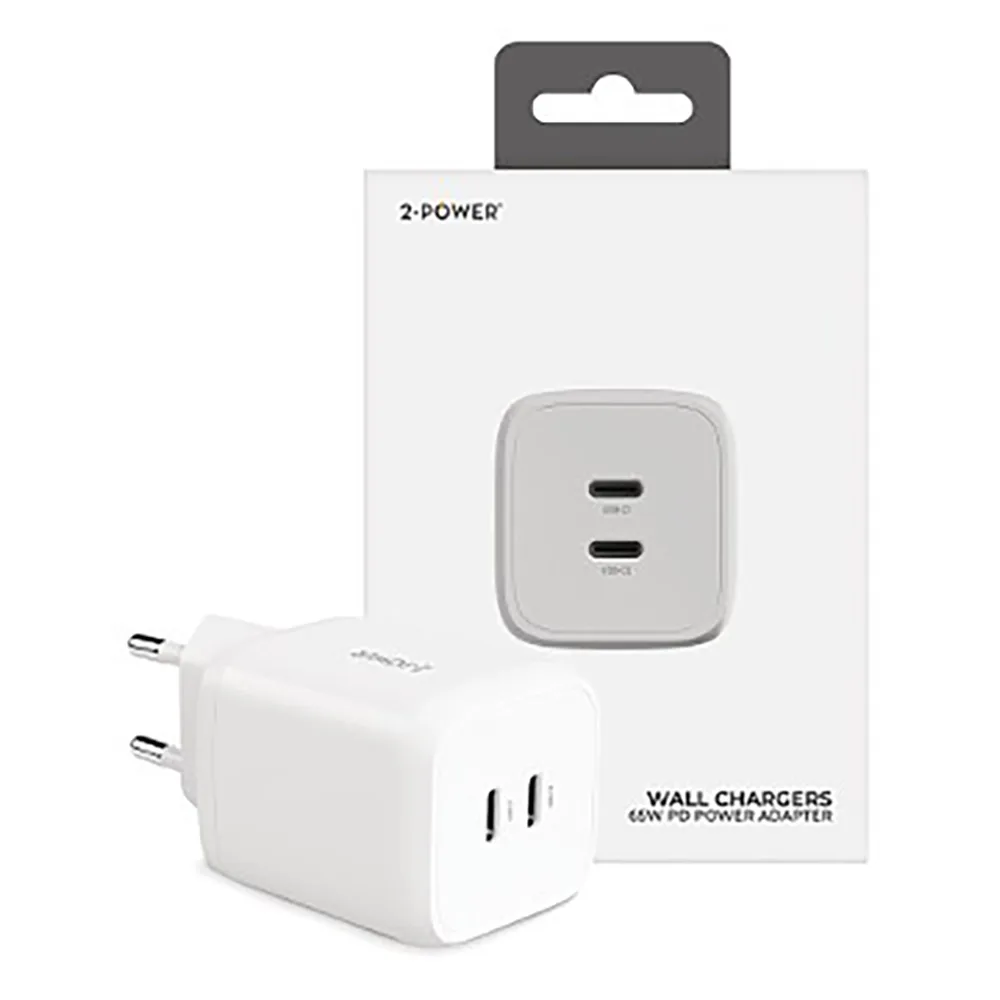
Image source: Web (Bing) / rawpixel.com (Web image (fair-use with source credit))
You may have three kinds of seat power. Each behaves differently.
- AC outlet: This is the small wall-style socket. It usually accepts two-prong plugs. It is the best option for laptop chargers if the wattage limit is high enough.
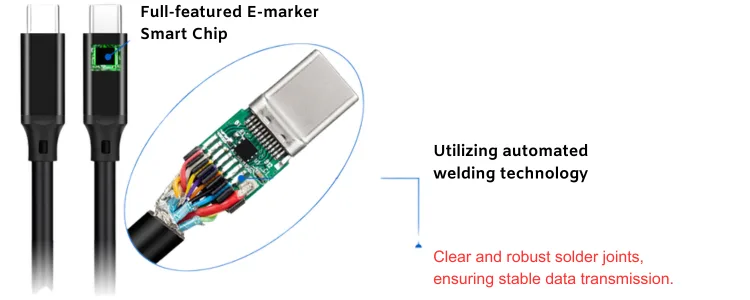
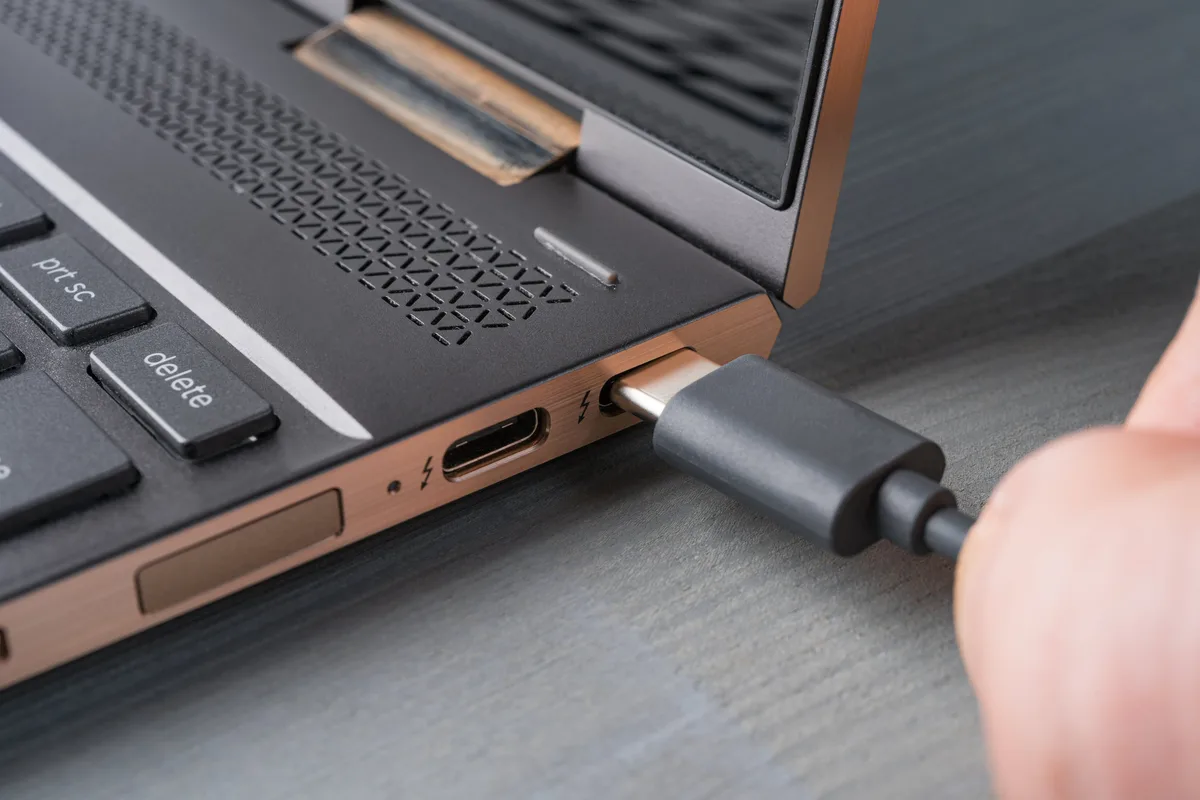
- USB-C PD port: This port can charge many modern laptops if it supports USB Power Delivery. It may deliver 27W, 45W, 60W, or more. The laptop must accept USB-C charging.
- USB-A port: This is mainly for phones and tablets. It rarely supplies enough power for a laptop.
Some seats have both AC and USB-C. In that case, AC with a proper charger is usually the stronger option. USB-C is convenient but may cap at 27W or 45W.
The other variable is circuit sharing. A dedicated outlet serves one seat. A shared outlet may serve two seats or a row.
If the outlet is shared, your charger is not the only load.
If the seat map says AC power, check whether it says per seat, per pair, or per row. As of 2026, many airline seat maps use icons for AC, USB-A, and USB-C, but the wording varies. If the outlet label says 75W, treat that as the total budget for everything plugged into that socket.
Check the Three Numbers Before You Plug In

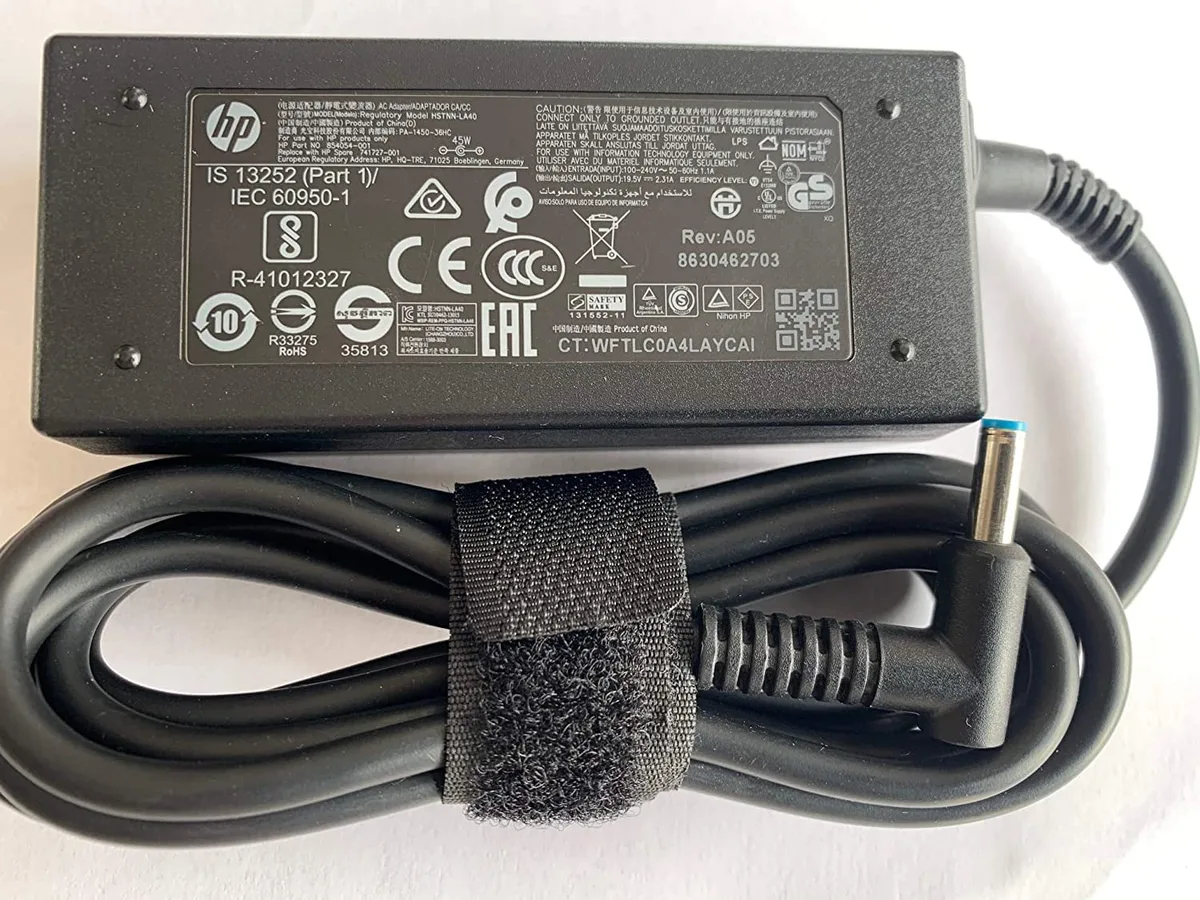
Image source: Bing (Web (fair-use with source credit))
You need three numbers before you decide. They are the outlet limit, the charger rating, and the laptop requirement.
Outlet wattage limit. Look for a label near the socket. It may say 75W, 100W, or 150W. If you cannot find a label, check the airline fleet page.
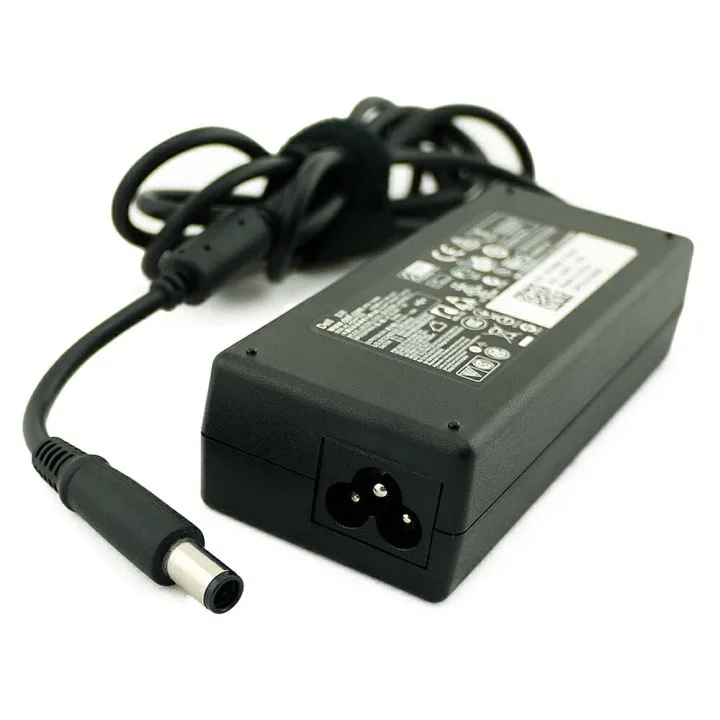
Charger wattage rating. Read the output line on the power adapter. A USB-C charger may list 5V, 9V, 15V, and 20V profiles. The highest profile matters most for laptops.
Laptop minimum charging requirement. Manufacturer specifications indicate the minimum wattage needed for stable charging. A laptop may run on 45W but charge slowly, or it may refuse to charge below 65W.
The input line matters too. Most laptop chargers accept 100V to 240V, so aircraft AC voltage is usually compatible. The output line tells you what the charger can give the laptop.
USB Power Delivery, defined by the USB Implementers Forum, helps compatible chargers and laptops negotiate safe voltage and current. It does not guarantee enough power. A 20V, 5A contract can provide 100W, but a 20V, 3A contract provides only 60W.
| Check | Where to look | What to confirm |
|---|---|---|
| Outlet limit | Seat label or airline fleet page | Total watts allowed at that seat |
| Charger rating | Adapter label | Maximum output wattage |
| Laptop need | Manufacturer support page | Minimum watts for charging |
If the charger rating is higher than the outlet limit, do not assume it will trip instantly. Some chargers limit their own draw. Others surge first and trip the outlet before the laptop wakes.
Decision Tree: Can You Charge Without Tripping the Outlet?
Use this before you plug in. The goal is to pick the safest charging path.
If the seat outlet is rated at 75W, 100W, or 150W
If the outlet is 75W, use only a low-draw setup. A 45W or 65W USB-C charger is usually safer than a large brick. If the outlet is 100W, a 65W charger is usually comfortable.
A 96W or 100W charger may work if nothing else is plugged in.
If the outlet is 150W, most 100W USB-C setups are fine. Gaming bricks above 180W are still risky. They may exceed the circuit budget during startup or heavy load.
If you cannot find an outlet rating, assume it is conservative. Start with a 45W or 65W USB-C charger. Avoid multi-port chargers with several devices attached.
If you have a 65W, 100W, 140W, or gaming laptop charger
If your laptop supports USB-C charging, swap the big brick for a lower-wattage GaN charger when possible. If the laptop needs 140W to charge while working, expect slow charging or battery drain on a 75W outlet. If it is a gaming laptop, the AC adapter may exceed the seat limit even at idle.
In that case, use a power bank or charge before boarding.
A 65W charger is the easiest travel compromise. It supports many ultrabooks and some business laptops. It also keeps startup draw easier to manage on shared circuits.
If the outlet is shared with a seatmate
If the outlet is shared, treat it as one budget. Do not run two laptop chargers at once if the total is near the limit. If one person must charge, ask the seatmate to pause their charger.
If both need power, charge one device at a time.
A power bank can act as a buffer for the second person. If the outlet trips, unplug everything first. Then wait.
Some systems auto reset after a short delay.
If power does not return, ask a flight attendant. Do not try to access aircraft electrical panels.
Best Charging Setup by Laptop Type
The right setup depends on how your laptop accepts power. A thin USB-C laptop and a gaming laptop do not make the same demand.
USB-C Ultrabooks and MacBook Air or MacBook Pro
Use a 45W or 65W USB-C Power Delivery charger for most thin laptops. Manufacturer specs confirm many ultrabooks can charge at 45W or 65W, even if their bundled charger is higher.
For MacBook Air and MacBook Pro models, USB-C charging is usually the simplest plane setup. If you use a MagSafe cable, the charger still needs enough USB-C PD output. A 65W charger is a practical middle ground.
If the seat outlet is shared, charge the laptop alone first. Add a phone only after the laptop shows steady charging. If the laptop is under heavy load, it may still drain slowly on a 45W circuit.
Gaming Laptops and High-Performance Workstations
Gaming laptops are the hardest case. Their original chargers often rate at 180W, 240W, or more. That is usually too much for a 75W or 100W seat circuit.
If the laptop supports USB-C charging, use a 100W USB-C PD charger for light work. Expect slower charging or battery drain during gaming, rendering, or heavy exports. If it does not support USB-C charging, seat power may not be a reliable option.
For these machines, charge fully before boarding. Use airplane power only as a top-up if the outlet rating is clear. If the outlet is shared, avoid plugging in the large AC brick at all.
Laptops That Require Proprietary Barrel Chargers
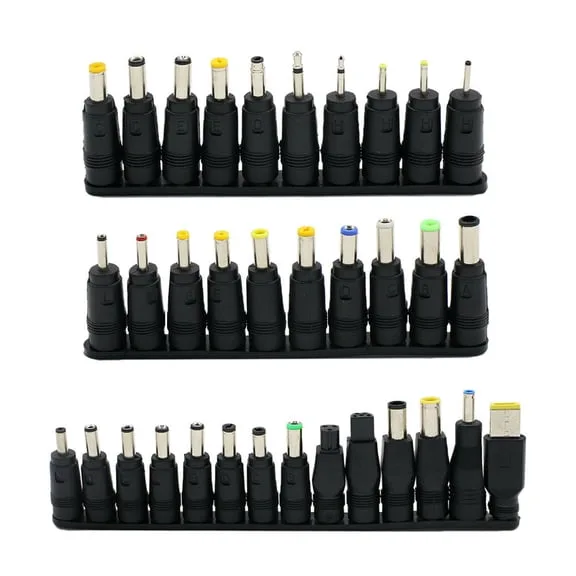
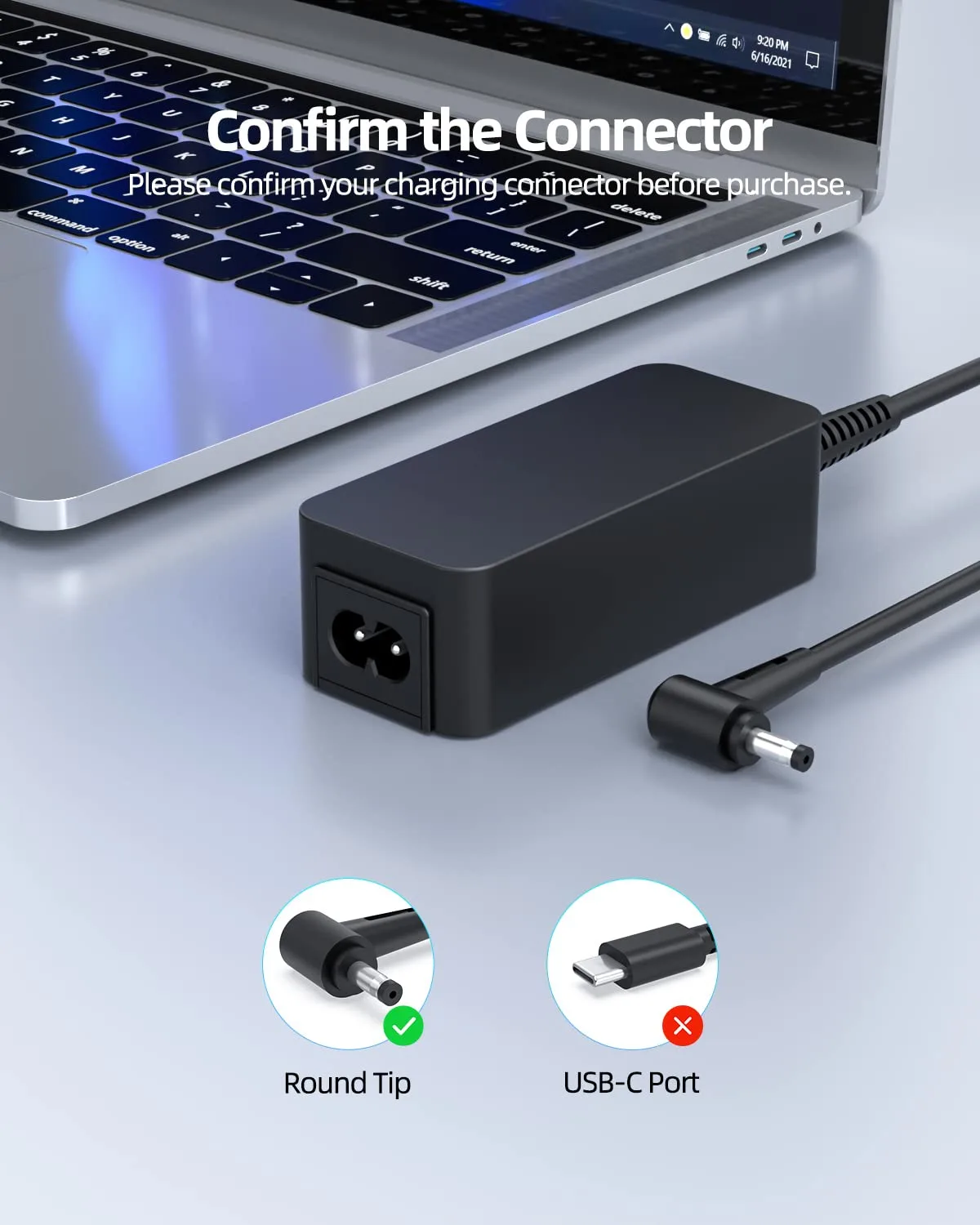
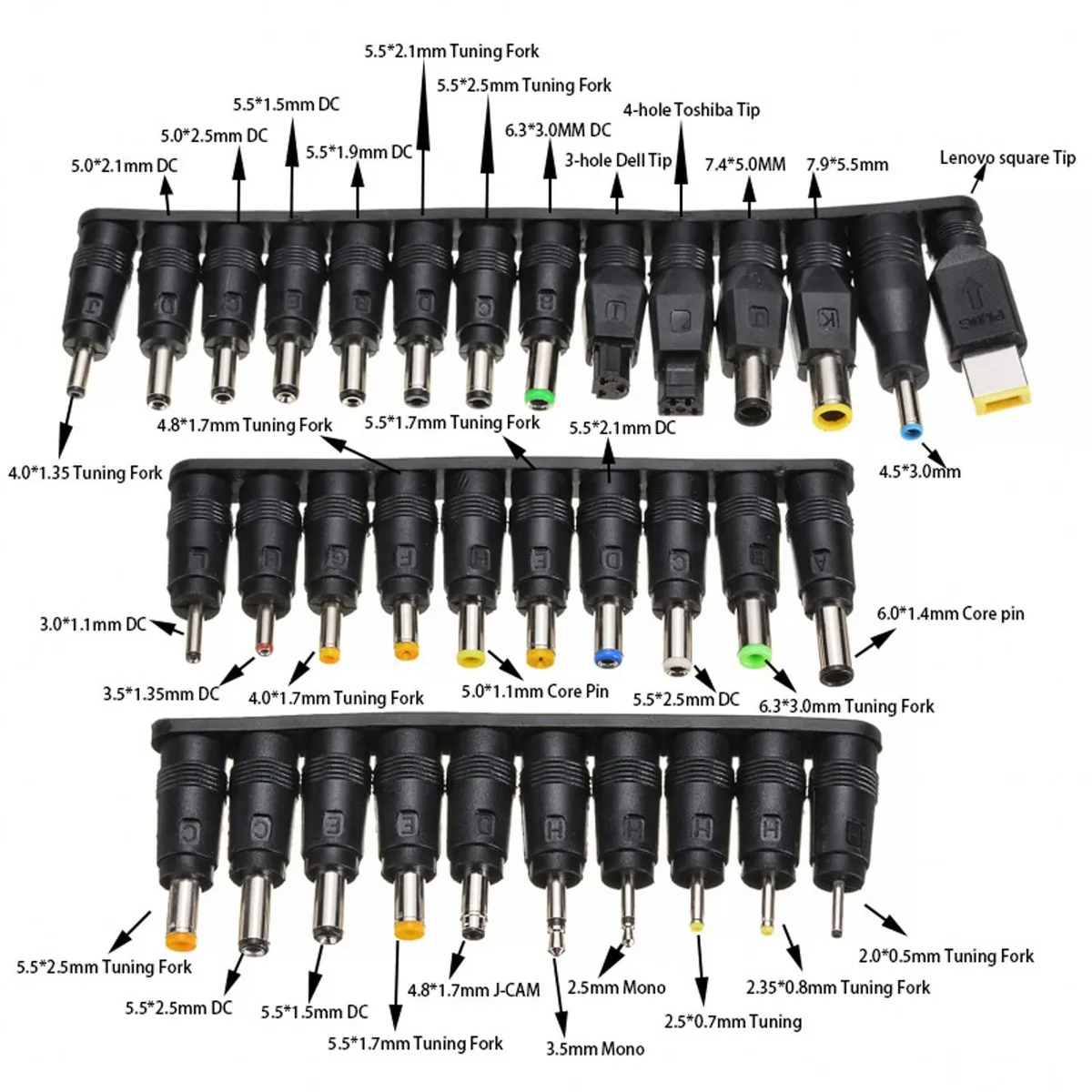
Some laptops still use a barrel connector and do not accept USB-C power. In that case, the OEM charger is the only direct charging path. Check its output wattage before the flight.
If the barrel charger is 90W or less, it may work on a 100W or 150W outlet. If it is 130W or more, treat it as high risk on shared seat power. A power bank or pre-flight charge becomes the safer plan.
Step-by-Step Process for Charging a Laptop on Airplane Seat Power

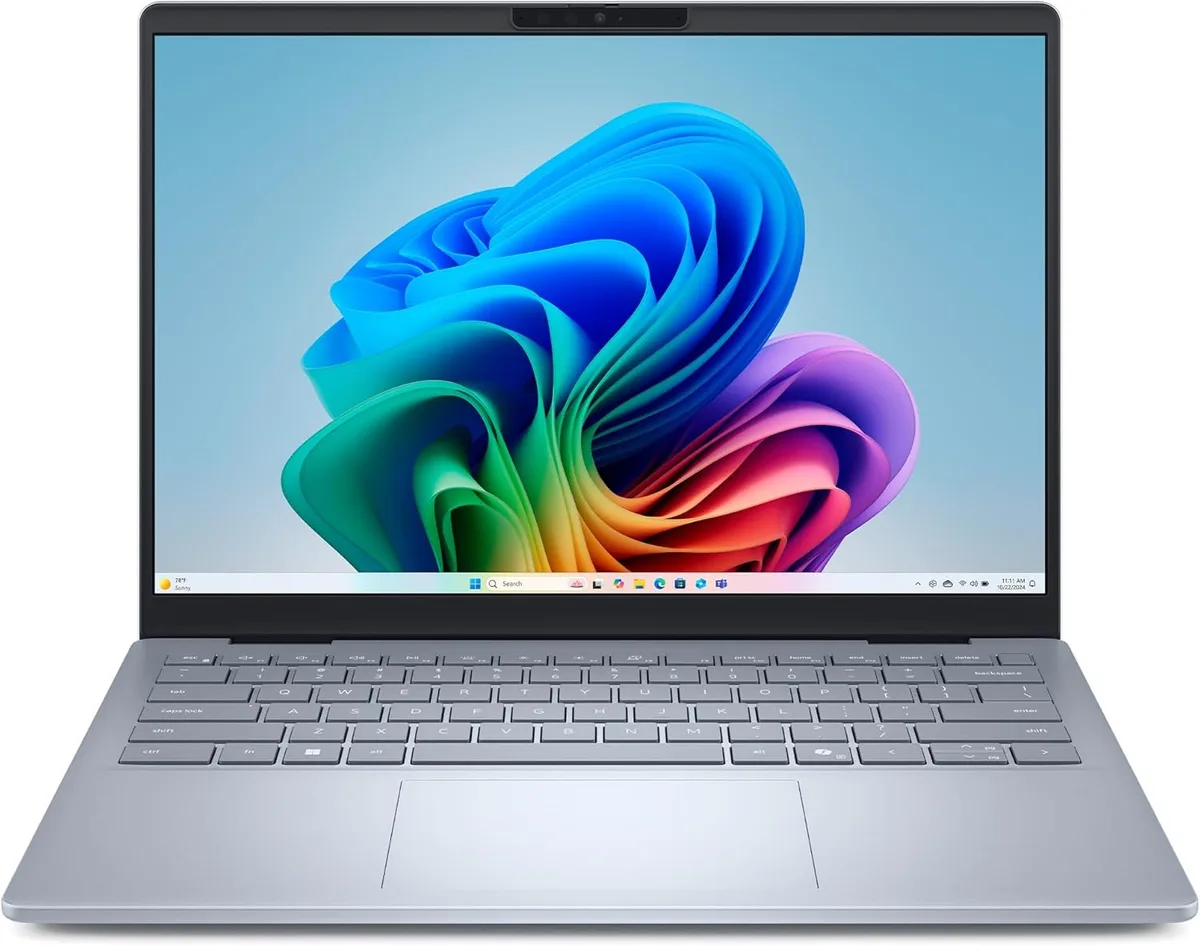
Image source: Bing (Web (fair-use with source credit))
Use this order to reduce startup load. It works best with AC outlets and USB-C PD ports.
- Find the outlet and read its label. Check whether it is AC, USB-C, or USB-A.
- Confirm seat power is active. Some outlets stay off until cruise or until the crew enables them.
- Plug the charger into the outlet first. Then connect the laptop if the charger has a separate cable.
- Keep the laptop asleep or powered off for the first few minutes. This reduces startup load.
- Watch the charging indicator. If it flickers, disconnect and try a lower-wattage charger.
- Avoid adding a phone or tablet until the laptop is charging steadily.
- If the outlet shuts off, unplug everything and wait. Ask the crew if it does not return.
What to Do If the Outlet Shuts Off, Trips, or Needs a Crew Reset
If the outlet shuts off, unplug your charger first. Then wait about 30 seconds. Many aircraft power systems use electronic protection and may restore power after a short delay.
If power returns, plug in only one device. Avoid adding a phone or tablet right away. If the outlet stays off, ask a flight attendant for help.
Do not try to open panels or reset aircraft electrical equipment yourself.
| Symptom | Likely cause | Best response |
|---|---|---|
| Outlet light goes off after plugging in | Overload or inrush surge | Unplug, wait, then use a lower-wattage charger |
| Both seats lose power | Shared circuit limit | Coordinate with seatmate and charge one device at a time |
| Outlet works but laptop does not charge | Charger, cable, or laptop power setting | Try another cable or charger if available |
| Outlet feels hot or smells burnt | Fault or overheating | Stop using it and tell the crew immediately |
If a crew member resets the outlet, do not plug everything back in at once. Start with the laptop only. If it trips again, switch to a power bank.
Repeated trips are a signal. The outlet is not faulty in the way a home breaker might be. It is telling you the load is too high for that seat circuit.
Safer Alternatives When Seat Power Is Weak or Unreliable
Use a Lower-Wattage USB-C GaN Charger
A lower-wattage GaN USB-C charger is often the easiest fix. GaN chargers are smaller and can run cooler than large laptop bricks. They also reduce the chance of a startup surge overwhelming a weak seat circuit.
If your laptop can charge at 45W or 65W, choose that instead of a 100W or 140W charger. You may charge slower, but you are less likely to trip the outlet. This works best when the laptop is asleep or doing light tasks.
Do not use a multi-port charger if the total load is close to the outlet limit. A charger running a laptop, phone, and tablet can exceed the seat rating even when each device seems small.
Use a Power Bank as a Backup or Buffer
A USB-C PD power bank can save a long flight. Look for one with enough output for your laptop. Many laptops need at least 45W, and some need 65W or more.
Battery capacity matters. Power banks under 100Wh are usually easier to carry. Packs between 100Wh and 160Wh may need airline approval.
Spare lithium batteries should stay protected from short circuits and remain in carry-on baggage.
Use the power bank directly when seat power fails. If you want to use it as a buffer, charge the power bank before boarding rather than relying on pass-through charging. Pass-through charging can add heat and is not supported by every bank.
Charge the Laptop Before Boarding
The simplest backup is a full battery. Charge the laptop at the gate or in the lounge before you board. Then use seat power only to maintain the charge.
This also reduces load during the flight. A laptop at 80% or 100% needs less power than one at 20%. If the outlet trips, you still have time to keep working.
Lower screen brightness and close heavy apps. These steps do not replace power, but they stretch the battery when the seat outlet is unavailable.
Mistakes That Cause Outlet Trips, Heat, or Unnecessary Crew Resets
Most trips come from avoidable setup mistakes. The biggest one is assuming every seat outlet can handle a full-size laptop brick.
Avoid these errors:
- Using a power strip or surge protector unless the airline clearly allows it.
- Plugging a multi-port charger into a shared outlet and loading it with several devices.
- Forcing a grounded plug into a two-prong aircraft socket.
- Repeatedly unplugging and replugging after a trip instead of reducing load.
- Using a damaged charger, frayed cable, or loose plug.
- Covering the charger with a jacket, bag, or seat cushion.
- Trying to reset aircraft electrical panels yourself.
- Expecting a USB-A port to charge a laptop.
- Ignoring heat, flickering charge lights, or a burning smell.
- Assuming two seats have separate circuits when the outlet is shared.
If a charger becomes hot enough to be uncomfortable to touch, stop using it. Heat can point to an overloaded circuit, a failing adapter, or poor airflow.
Also avoid treating the seat outlet like a wall socket at home. Aircraft seat power is limited by design. The goal is to stay under the rated load, not to test the limit.
Airline, Cabin, and Flight-Phase Rules That Affect Seat Power
Seat power is controlled by the airline and the aircraft system. The outlet may not be available the whole flight. Some outlets stay off during boarding, taxi, takeoff, or landing.
As of 2026, many airline seat maps show power type by aircraft. Look for AC, USB-A, or USB-C symbols. Still check the fleet page because the same airline can operate different configurations.
Cabin class changes the odds. Premium cabins often have dedicated outlets and higher power budgets. Economy seats are more likely to share one outlet between two passengers.
Regional jets and older aircraft may have no AC power at all.
Flight attendant instructions override your charging plan. If the crew asks you to unplug during a phase of flight, do it. This is also true if an outlet shows fault signs.
Power banks have their own rules. Keep them in your carry-on, not checked baggage. Damaged or swollen batteries should not be used on the aircraft.
If your power bank is above 100Wh, check airline approval before travel.
The safest approach is to treat seat power as helpful but not guaranteed. Plan around the lowest likely power level, and your laptop will stay usable without putting stress on the seat circuit.
Fast Decision Guide: What to Do Before, During, and After the Flight
Use these quick calls when you are already at the seat.
- If the outlet is 75W or unknown, use a 45W or 65W USB-C charger.
- If the outlet is 100W, a 65W charger is usually the safest laptop option.
- If the outlet is 150W, a 100W USB-C setup is usually fine for one laptop.
- If the outlet is shared, charge one device at a time.
- If you have a gaming laptop, charge before boarding and use a power bank as backup.
- If the outlet is hot, sparking, or smells burnt, stop and tell the crew.
Before the flight, check the seat map and pack the right charger. During the flight, keep the load low. After a trip, reduce the load before trying again.
FAQs About Charging a Laptop on an Airplane Seat Outlet
Can a 65W charger trip a plane outlet?
Yes. A 65W charger can trip a weak or shared outlet if startup surge is high. It is safer when the outlet is rated at 75W or more and no other device is plugged in.
If the outlet cuts out, try charging with the laptop asleep or use a power bank.
Is USB-C better than the AC seat outlet?
Usually, if the laptop supports USB-C Power Delivery and the port provides enough wattage. USB-C can avoid large AC bricks and reduce overload risk. The AC outlet is better when the laptop needs more power than the USB-C port can supply or the laptop does not support USB-C charging.
Can I use a power strip on a plane?
Usually no. Power strips can overload shared seat circuits and create a cable hazard. Many airlines restrict them.
Use a single approved charger instead. If you need more devices, charge them one at a time or use a power bank that is rated for your laptop.
What if the outlet needs a reset?
Unplug everything first. Wait about 30 seconds because some aircraft outlets auto reset. If power does not return, ask a flight attendant.
Do not open aircraft panels. After reset, plug in only the laptop and avoid adding other devices until charging is stable.

Similar Posts