How to Check Ubuntu Linux Battery Health with Upower Command
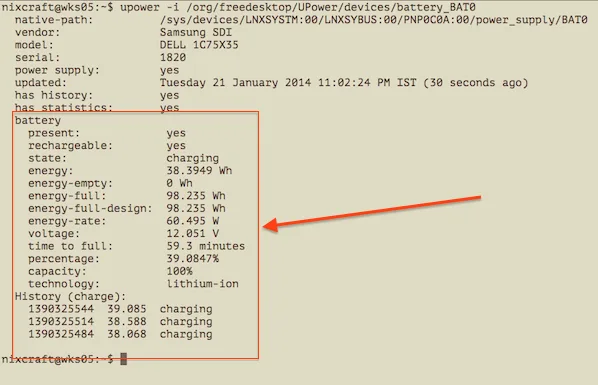
If you’re trying to figure out how to check battery health on linux ubuntu with upower command, you’re probably dealing with random shutdowns or a battery that dies far faster than it used to. Most default Ubuntu desktop installs don’t have a clear, built-in GUI tool for detailed battery wear data, especially on minimal or headless server setups. Upower is a lightweight, preinstalled (or easily added) command-line utility that pulls raw battery metrics straight from your Linux kernel.
It’s the fastest way to get accurate wear percentages and cycle counts without extra software.
Per IEEE 1625 standards for rechargeable lithium-ion cells, most consumer laptop batteries retain 80% of their original capacity after 300 to 500 full charge cycles. If your Ubuntu laptop is shutting down unexpectedly or holding a charge for far less time than it did new, running a quick battery health check will tell you if the cell is degraded or if there’s a software issue. Let’s start with the fast, no-fuss answer before walking through the full conditional workflow.
Image source: Web (Bing) / cyberciti.biz (Web image (fair-use with source credit))
Quick Answer
Run upower –enumerate to list all detected power supply devices. Identify your battery device path, usually labeled BAT0 or BAT1. Run upower –info
Compare full charge capacity to design capacity to calculate total battery wear. Most users complete this check in under 2 minutes with no extra permissions.
Problem: When You Need to Check Ubuntu Laptop Battery Health With Upower
You’ll need this workflow if your Ubuntu laptop shuts down unexpectedly at 30% or 40% charge. It’s also useful for system administrators tracking battery longevity across fleets of Ubuntu devices. Even with proper charging habits, lithium-ion laptop batteries degrade gradually over time.
Periodic health checks are a necessary part of Ubuntu system maintenance.
Most default GNOME System Monitor power tabs only show rough charge percentages. They don’t display raw wear data or cycle counts. Headless Ubuntu servers or minimal installs have no GUI power tools at all.
This makes upower the only built-in option for these setups.
This workflow also works for verifying third-party replacement battery performance. Many cheap cells don’t report accurate data to the default power manager. If you dual-boot Ubuntu and Windows, tweaking Windows power settings can extend overall battery life.
Reducing unnecessary battery drain when on the go is a good first step.
Core Explanation: What Upower Is and How It Pulls Battery Data On Ubuntu
Upower is a free, open-source system daemon that manages power events and metrics on Linux systems. It pulls raw battery data directly from the Linux kernel’s power supply subsystem, which reads values from the /sys/class/power_supply/ directory. Unlike GUI power tools, upower outputs unfiltered, raw metrics including design capacity, full charge capacity, cycle count, and voltage.
All metrics pulled by upower are read directly from the kernel, so they are not filtered or altered by desktop environment power managers, which often hide detailed wear data from users.
It requires no background GUI processes to run, so it works on headless servers and minimal installs with no desktop environment. As of 2026, upower is preinstalled on all default Ubuntu desktop releases, but not on minimal or server editions. For full technical details on how upower interfaces with the kernel, see the official UPower project documentation.
If you also use Windows for work or gaming, optimizing your Windows power plan can complement these Ubuntu battery checks for dual-boot users. Ubuntu’s official community documentation also confirms upower is the recommended CLI tool for battery metrics on minimal installs, per Ubuntu Community Help Wiki.
Pre-Flight Check: Confirm Upower Is Installed On Your Ubuntu System
First, open your Ubuntu terminal (GNOME Terminal, Konsole, or xterm all work). Run the command upower –version to check if the utility is already installed. If upower –version returns a version number (as of 2026, the latest stable version is 0.99.11), you can skip the install step and move directly to listing your power supply devices.
If you get a "command not found" error, you’ll need to install it via the apt package manager.

Image source: Web (Bing) / linuxways.net (Web image (fair-use with source credit))
Run sudo apt update && sudo apt install upower -y to add the utility to your system. This step only takes a few seconds on most internet connections. Upower is part of the official Ubuntu repositories, so you won’t need to add third-party sources to install it.
Once installed, the upower daemon will start automatically in the background. You won’t need to run any extra commands to activate it. If you’re on a headless system accessed via SSH, this step works exactly the same as on a local desktop install.
Decision Branch 1: Does Your Ubuntu System Have a Detectable Internal Battery?
Not all Ubuntu systems have an internal battery that upower can detect. Desktops, servers, and embedded devices often have no internal power cell, only a power supply unit. To confirm, run upower –enumerate to list all detected power supply devices.
If you see entries for line power (AC) but no battery devices (BAT0, BAT1, etc.), your system has no detectable internal battery.
If your system has no detectable battery, upower will not return any battery health data, and this workflow will not apply to your use case. If you have a connected UPS, you can modify this workflow to pull UPS battery metrics, but that requires separate configuration. If you do see a battery device listed, proceed to the next step to identify its correct device path and pull health metrics.
For users managing multiple dual-boot devices, pairing these checks with centralized power monitoring can help track battery health across your entire fleet.
Step 1: Identify Your Correct Battery Device Path
Most Ubuntu laptops label their internal battery as BAT0 by default. Some models, especially those with dual battery bays or custom firmware, use BAT1 instead. Upower won’t pull metrics unless you use the exact device path for your system’s battery.
Run upower –enumerate to list every power supply device your kernel detects.
The output will show full device paths starting with /org/freedesktop/UPower/devices/. Look for entries that start with battery_ followed by BAT0, BAT1, or another manufacturer-specific label. Copy the full path for the battery entry, not the line_power AC entry.
If you see two battery entries, your system has two removable or internal batteries. Use the path that matches the physical battery you want to check. If no battery entries appear, your system has no detectable internal battery, and this workflow won’t return health data.
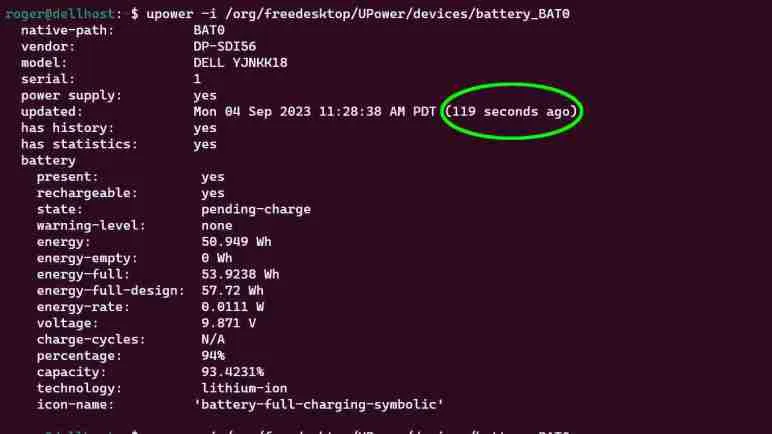
Image source: Web (Bing) / newscrewdriver.com (Web image (fair-use with source credit))
Decision Branch 2: Is Your Ubuntu Kernel Version 5.4 or Newer?
Your Ubuntu kernel version determines what battery metrics upower can access. Older kernels don’t expose cycle count or full wear data to the upower daemon, even if your battery supports those metrics. Run uname -r in your terminal to print your current kernel version.
If the version number starts with 5.4 or higher (as of 2026, all actively supported Ubuntu LTS releases run 5.4 or newer), you’ll get full battery health data including cycle count, wear percentage, and health status. If your kernel is older than 5.4, upower will only return basic metrics like current charge percentage and charging state, no wear or cycle data. For systems running older kernels, you can read raw metrics directly from the /sys/class/power_supply/ directory, but that requires manual calculation of wear percentages.
If you’re on a supported Ubuntu LTS release, you can update your kernel via apt to get full upower metric support.
Step 2: Pull and Interpret Core Battery Health Metrics From Upower
Once you have your battery device path and confirm your kernel supports full metrics, run upower –info
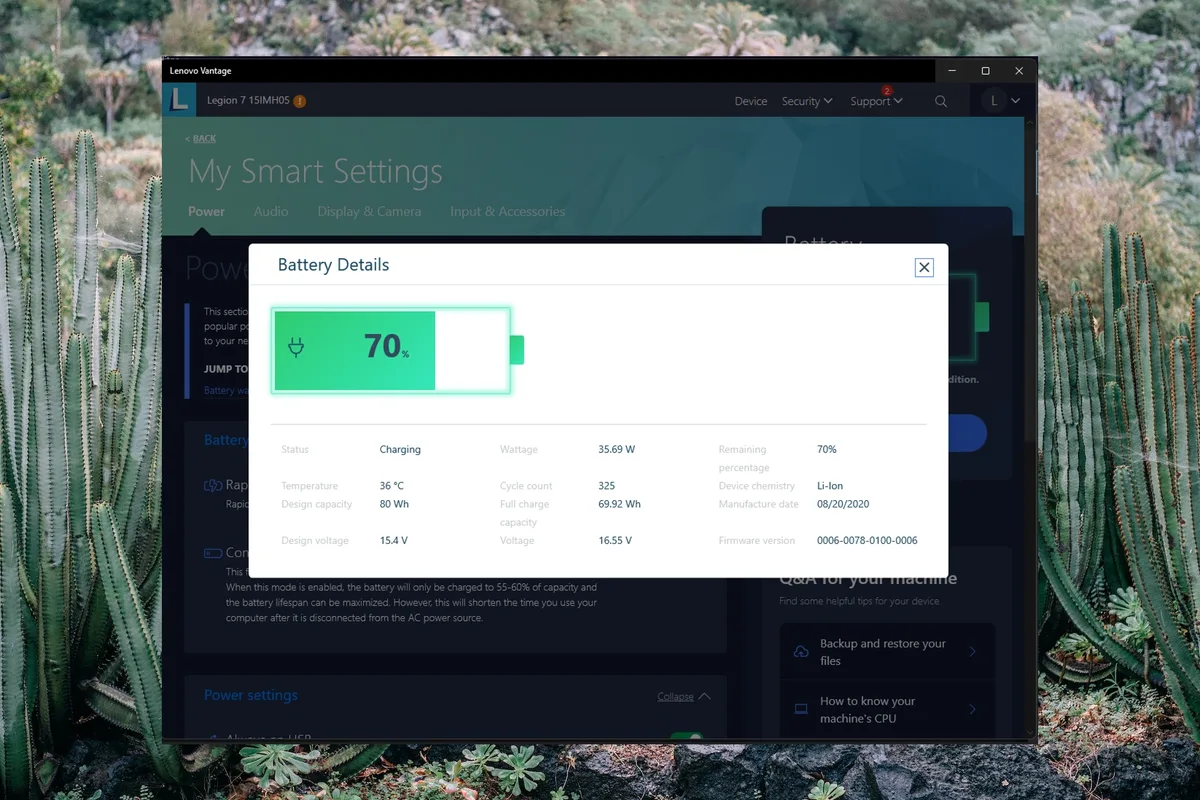
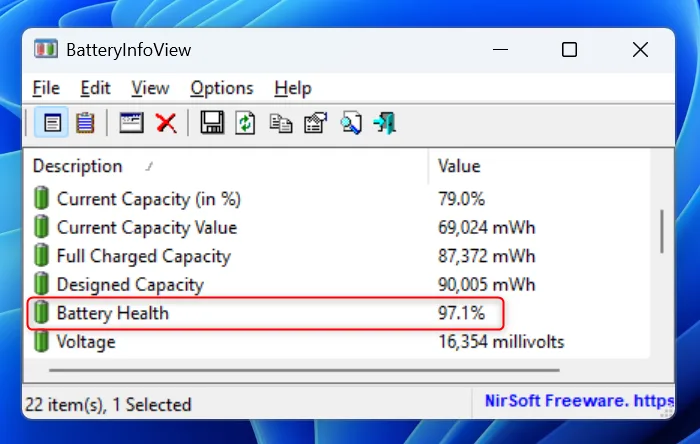
To calculate total wear, subtract energy-full from energy-full-design, divide the result by energy-full-design, then multiply by 100. For example, a battery with a 50 Wh design capacity and 38 Wh full charge capacity has 24% wear. The health field will show "good" for wear under 20%, "degraded" for wear over 20%, and "unknown" for batteries that don’t report wear data to the kernel, common with low-cost third-party replacements.
Per IEEE 1625 standards for rechargeable lithium-ion cells, most consumer laptop batteries are considered end-of-life when wear exceeds 80%, or around 500 to 1000 charge cycles for average daily use.
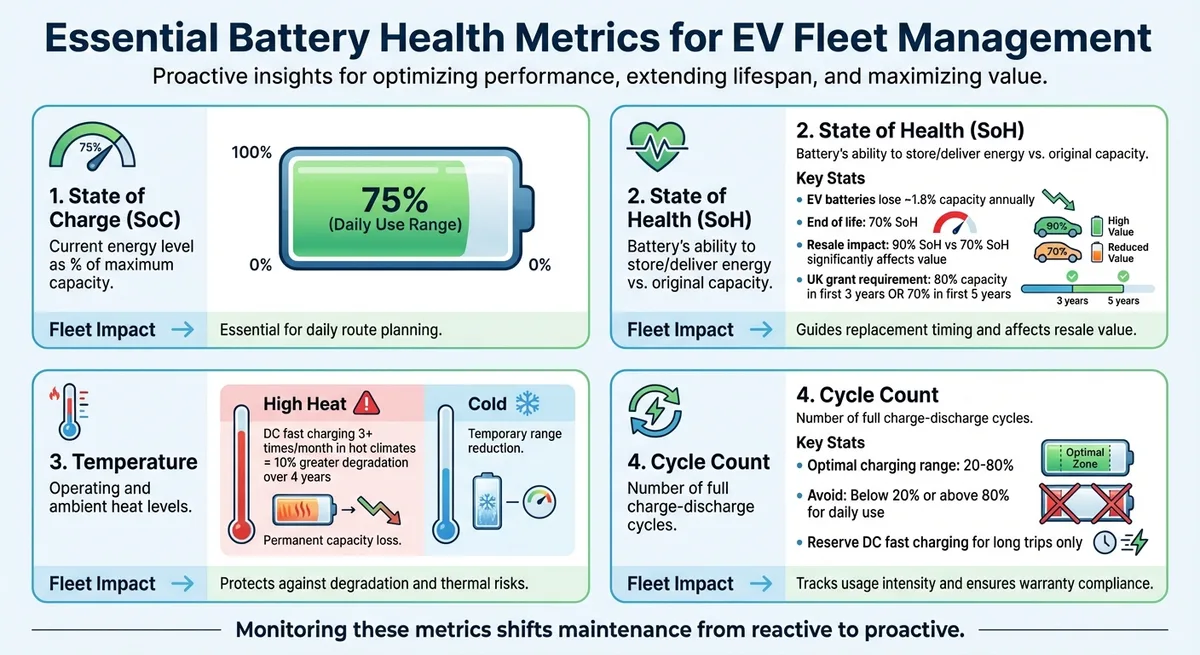
Image source: Web (Bing) / grs-fleet-telematics.ghost.io (Web image (fair-use with source credit))
Alternate Workflow: Check Battery Health On Ubuntu Kernels Older Than 5.4
If your kernel is older than 5.4, upower won’t return cycle count or wear percentage data. You can still pull raw battery metrics directly from the kernel’s power supply subsystem. Navigate to /sys/class/power_supply/ and find your battery directory, usually named BAT0 or BAT1.
Open the charge_full and charge_full_design files to get current and original capacity values. Subtract charge_full from charge_full_design, divide by charge_full_design, then multiply by 100 to calculate wear percentage. You can also check the cycle_count file if your battery supports reporting it, though many older kernels don’t expose this value.
This method requires no extra software, but you’ll need to do the wear calculation manually. If you use this workflow regularly, consider updating your kernel to a supported version to get full upower metric support.
Troubleshooting Branch: Upower Isn’t Detecting Your Battery?
First, confirm your system has a physical internal battery. Desktops and servers won’t have a detectable battery for upower. Next, run sudo systemctl status upower to check if the upower daemon is running.
If it’s inactive, run sudo systemctl start upower to activate it. If the daemon is running but no battery appears in upower –enumerate, check your BIOS settings to ensure the battery is not disabled. Some laptops have a BIOS option to disable battery detection for shipping or testing modes.
If you recently replaced your battery, power cycle your laptop fully to clear stale cached metrics from the kernel. Low-quality third-party batteries sometimes don’t expose wear data to the kernel, resulting in an "unknown" health status even if the battery is functional. If none of these steps work, your battery may be physically damaged or not properly connected to the motherboard.
How to Read Upower Battery Health Results: Good vs. Degraded Thresholds
Upower outputs raw metrics, but you need to interpret them correctly to judge health. The two key values are energy-full-design and energy-full. energy-full-design is the battery’s original factory capacity, set by the manufacturer. energy-full is the maximum charge your battery can hold right now, after wear. Subtract energy-full from energy-full-design, divide the result by energy-full-design, then multiply by 100 to get your total wear percentage.
A wear percentage under 20% is considered "good" for most consumer lithium-ion batteries. This aligns with the industry standard for battery end-of-life, which is 80% of original capacity. The cycle-count field shows total full charge cycles completed.
Most consumer laptop batteries are rated for 500 to 1000 cycles before hitting 80% wear. If your cycle count is under 300 and wear is over 20%, your battery may be defective or exposed to extreme heat.
The health field in upower output shows "good" for wear under 20%, "degraded" for wear over 20%, and "unknown" for batteries that don’t report wear data to the kernel. An "unknown" status doesn’t always mean your battery is failing. Many third-party replacement batteries don’t expose wear metrics to the kernel.
Calculate wear manually using energy-full and energy-full-design values to get an accurate reading in this case.
Comparison: When to Use Upower vs. Other Ubuntu Battery Check Tools
Upower is not the only way to check battery health on Ubuntu. Several other tools exist, each with different strengths. The right choice depends on your system setup and what metrics you need.
For most users, upower is the fastest built-in option for raw, unfiltered battery data.
| Tool | Best For | Pros | Cons |
|---|---|---|---|
| Upower | All Ubuntu systems, headless/remote setups | Preinstalled on desktops, no GUI needed, raw kernel data | No cycle count on kernels older than 5.4 |
| acpi | Quick one-line checks | Preinstalled on most spins, very fast | Limited metrics, no wear calculation |
| GNOME Power Manager | Desktop users who prefer GUI | Visual charts, easy to read | Hides detailed wear data, no headless support |
| tlp | Advanced power management | Optimizes charging to extend battery life | Requires configuration, not for quick checks |
| Raw /sys reads | Kernels older than 5.4 | No extra software needed, full raw data | Manual calculation required, less user-friendly |
If you just need a quick charge percentage, acpi works fine. If you want to optimize charging to extend battery lifespan, tlp is a better long-term choice. For quick, accurate health checks on any Ubuntu system, upower is the most reliable built-in option.
If you dual-boot with Windows, adjusting your Windows power settings can reduce unnecessary drain across both operating systems.
Mistakes to Avoid When Using Upower For Battery Health Checks
Wrong battery device paths are the most common error users make when running upower. If you use the default BAT0 path on a system that uses BAT1, upower will return no data or data for the wrong power device. Always run upower –enumerate first to confirm the correct path for your system.
Another common mistake is assuming an "unknown" health status means your battery is failing. Many third-party replacement batteries don’t report wear data to the kernel, so upower can’t calculate health automatically. Calculate wear manually using energy-full and energy-full-design values to get an accurate reading.
Don’t rely on upower metrics taken immediately after a battery replacement. The kernel caches old battery data for a few power cycles. Fully discharge and recharge your battery once after replacement to get accurate new metrics.
Avoid checking battery health while the laptop is plugged into AC power, as this can return inconsistent voltage and charge rate readings. Always run upower –info on a battery that’s been discharging for at least 5 minutes for the most accurate results. If you’re on a desktop system with no internal battery, upower will not return any battery data, so this workflow will not apply to your setup.
Ideal Use Cases For This Upower Battery Check Workflow
This upower workflow is ideal for Ubuntu laptop owners experiencing unexpected shutdowns or reduced charge time. It’s also the best option for system administrators managing fleets of Ubuntu laptops, as it works over SSH with no GUI required. Headless Ubuntu server users with attached uninterruptible power supply (UPS) units can modify this workflow to check UPS battery health by adjusting the device path.
The workflow is also useful for users who have installed third-party replacement batteries. Many cheap aftermarket batteries don’t report accurate wear data to the default GNOME power manager, but upower pulls raw data directly from the kernel, so you get unfiltered metrics. It’s also helpful for users tracking battery degradation over time to plan for replacement.
If you dual-boot Ubuntu with another operating system, pairing regular upower checks with power optimization tweaks can extend overall battery lifespan across all your installed systems.
Expert Tips For Tracking Ubuntu Battery Health Over Time With Upower
Log your upower output to a plain text file to track degradation trends over months or years. Run upower –info
For best results, always run the check when the battery is at 50% charge or lower, and not plugged into AC power.
If you want to extend your battery’s lifespan, pair upower checks with tlp battery charge thresholds. Tlp can limit charging to 80% to reduce long-term wear, which is ideal for users who keep their laptops plugged in most of the time. You can also set up a simple cron job to run upower checks automatically and alert you if wear exceeds 20%.
Cross-check upower metrics with raw values from /sys/class/power_supply/ if you suspect inaccurate readings, as some buggy BIOS versions report incorrect capacity values to the kernel.
Safety / Legal / Compliance / Warnings
Swollen or damaged lithium-ion batteries pose fire and burn risks. Never puncture a faulty cell. Dispose of end-of-life batteries via certified e-waste programs to comply with local regulations, including the EU WEEE Directive.
Keep upower check logs for warranty claims, as manufacturers often require diagnostic proof of degradation.
Decision Guide: When To Replace Your Ubuntu Laptop Battery Based On Upower Data
Replace your battery if upower wear exceeds 20% or cycle count is over 800. Replace immediately if wear exceeds 40% or you get sudden shutdowns below 50% charge. Use manufacturer-approved replacements to avoid kernel reporting errors.
Frequently Asked Questions
How often should I check my Ubuntu laptop battery health with upower?
Check every 3 to 6 months for daily use, or monthly for intensive tasks like gaming or video editing.
Can upower detect battery health on Ubuntu desktops?
No, desktops have no internal battery, so upower only returns AC line power metrics, no battery health data.
What does an "unknown" upower health status mean?
It means your battery doesn’t report wear data to the kernel, common with third-party replacements. Calculate wear manually using energy-full and energy-full-design values for an accurate reading.
Does upower work on Ubuntu Server editions?
Yes, but install it via apt first, as minimal server installs don’t include it by default.
Why is my upower cycle count showing 0?
This usually means your kernel is older than 5.4, or your battery doesn’t expose cycle count data to the kernel. Try reading raw values from /sys/class/power_supply/ or update your kernel to a supported version.

Similar Posts