Are Metal Laptop Stands Safe for Magnetic Hard Drives?
Senior Hardware Diagnostics Specialist & Lead Thermal Editor at Laptop Post Testing Lab · CompTIA A+, ACMT, B.S. in Computer Engineering · 12+ years bench-testing laptop thermal solutions & motherboard repairs
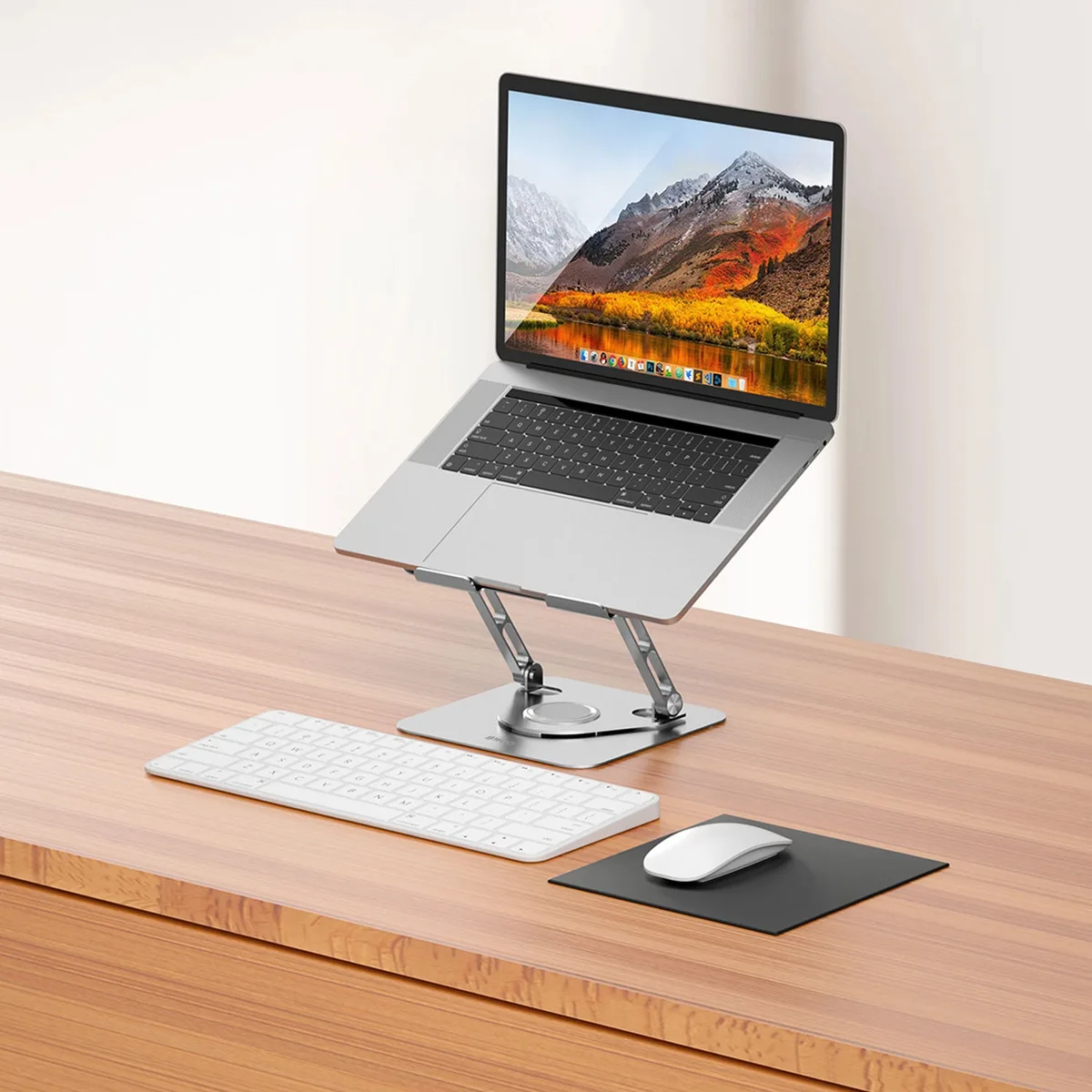
If you have been wondering whether you can use an iron metal laptop stand around magnetic hard drives, the answer is yes. Many desk users worry that the metal in their workspace might interfere with their data storage, but most laptop stands are perfectly safe.
We have looked at how these materials function, and as of 2026, standard office equipment does not generate the fields required to damage your hardware. Proper setup ensures your storage remains secure while you enjoy a cleaner, more ergonomic workspace.
Quick Answer
You can safely use iron metal laptop stands near hard drives. Iron stands do not create magnetic fields. They are inert and will not corrupt your data.
Only active magnets pose a threat to your storage. Keep all drives away from speakers and magnetic mounts.
The Reality of Desk Magnets and Your Data
It is common to feel cautious about your digital files. External drives house delicate components that rely on magnetic alignment to hold your information. When we see a sturdy, metal laptop stand on our desk, our first instinct is to check for compatibility.
The good news is that standard furniture grade steel and iron are passive materials. They have the potential to be attracted to magnets, but they do not produce magnetic force themselves. You can safely place your laptop on an iron stand without any risk to nearby storage devices.
Why Accuracy Matters for Hardware Safety
Data loss is a serious concern for any professional or student. If you operate on incorrect assumptions about magnetic interference, you might waste time, money, or effort reorganizing your desk unnecessarily. Precision matters when we discuss the physical limits of our hardware.
According to research from the National Institute of Standards and Technology, magnetic fields are measured in specific units of flux density. Your laptop stand produces zero flux density. Understanding this distinction prevents you from falling for common myths regarding office hardware.
Decoding Ferromagnetic Materials vs. Magnetic Fields
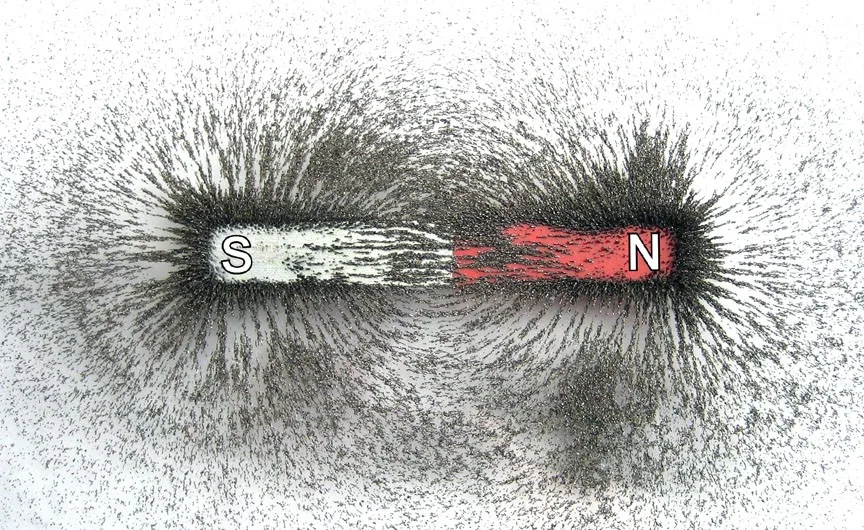
To clear up the confusion, we need to separate materials that react to magnets from materials that are magnets. Ferromagnetic materials include iron, nickel, and cobalt. These items are excellent at concentrating magnetic fields, which is why they cling to fridge magnets.
However, being magnetic in a physical sense just means the material reacts to an external field. It does not mean the object emits one. If your laptop stand does not have a magnet attached to it, it is essentially a paperweight.
It cannot reach out and erase the data on your drive.
The Mechanics of Your Hard Disk Drive (HDD)
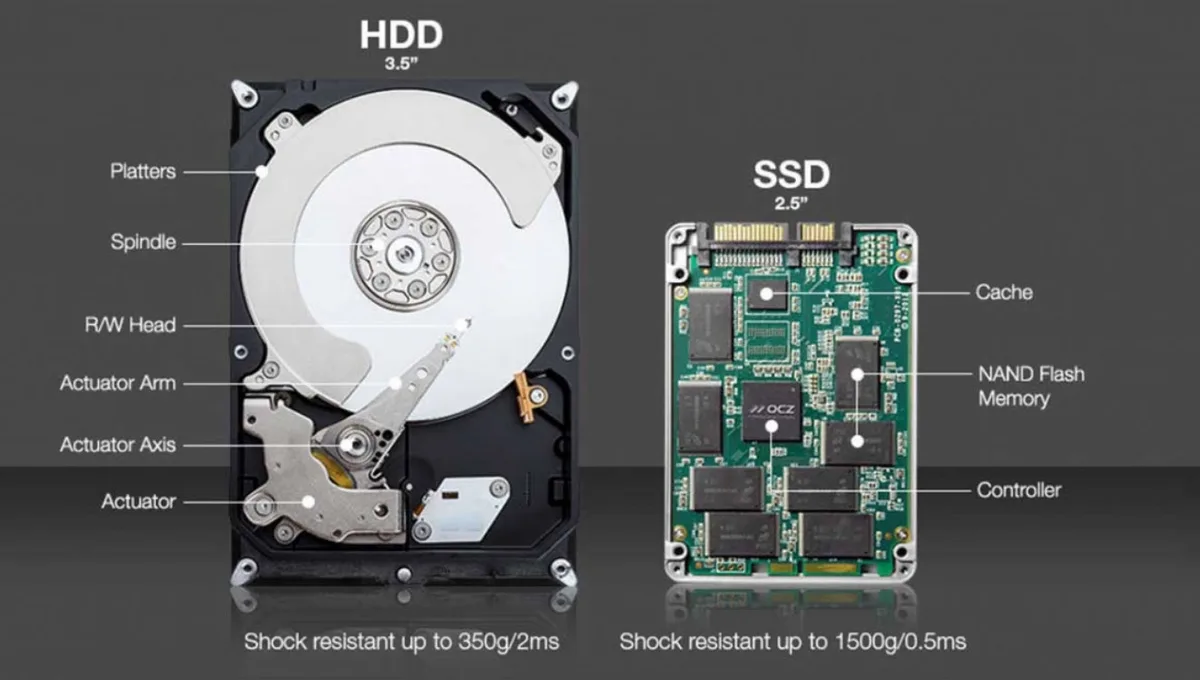
A traditional Hard Disk Drive uses a spinning platter to store bits of information. A tiny read/write head floats just above this surface. It changes the magnetic polarity of the platter to save your files.
This mechanism is sensitive to outside interference.
If you bring a powerful magnet near this head, you can corrupt the data or cause a physical crash. Because of this, Seagate and other drive manufacturers emphasize keeping strong magnets, like those found in industrial equipment or heavy-duty speakers, away from the drive chassis. Your iron stand simply does not fall into this danger category.

Distinguishing Between Magnetic Hazards and Inert Metal
Not all items on your desk are as harmless as your laptop stand. Some office accessories contain hidden magnets that can cause real trouble. Magnetic phone mounts, in particular, use high-strength neodymium magnets to keep your device in place.
Common Magnetic Hazards
- Magnetic phone or tablet mounts
- Speakers with exposed drivers
- Magnetic paperclip dispensers
- Heavy-duty cable organizers with magnets
When organizing your desk, treat your iron stand like a neutral object. Instead, focus your concern on anything that is designed to stick to something else. If it holds itself up with a magnet, keep it at least six inches away from your hard drives.
Common Desk Setup Mistakes That Actually Risk Your Data
Many users inadvertently create hazards by placing drives in high-traffic or high-vibration areas. While your iron stand is safe, the surface underneath matters just as much as what sits near it. Mechanical hard drives contain spinning platters that can skip if your desk isn't stable.
Avoid keeping drives on surfaces where people often bump the furniture. Vibration is a leading cause of premature failure in mechanical drives. If your stand is made of metal, do not set the drive directly onto it if the stand is prone to wobbling or resonating when you type.
How to Position Your Storage for Maximum Protection
You should always keep mechanical drives on a flat, stable, and vibration-free surface. Dedicated drive enclosures should rest directly on your desk rather than being elevated on an open-frame stand. This protects them from accidental drops and minimizes the impact of desk-level shocks.
Aim for a buffer zone of at least four inches between your storage and any electronic hardware. This includes speakers, external power bricks, or high-draw USB hubs. These devices often contain transformers or coils that can emit minor electromagnetic interference during operation.
| Component | Optimal Placement | Why? |
|---|---|---|
| Mechanical HDD | Flat, stable desk surface | Avoids vibration/head crashes |
| SSD Storage | Anywhere on desk | Immune to magnetic interference |
| Laptop Stand | Elevated on flat desk | Provides necessary ventilation |
| Power Bricks | Under desk or tray | Separates EMI from data cables |
SSDs vs. HDDs: Why Magnetic Interference Varies
Solid State Drives, or SSDs, operate on a completely different principle than mechanical HDDs. They use flash memory cells to store data as electrical charges. Because they have no moving parts and no magnetic platters, they are physically immune to magnetic fields.
If you frequently move your storage between different workstations, switching to an SSD is a smart move. You won't have to worry about magnets, speakers, or metal stands anywhere near your files. You can safely store these drives in any orientation or location.
Expert Pro-Tips for Ergonomic Desk Organization
Professional setups prioritize both device health and user comfort. If your laptop stand helps you achieve better posture, keep using it, but organize your peripheral cables to prevent strain on your ports. Excess cable weight can cause a drive to slide or tip during a minor desk nudge.
Group your power cables separately from your data cables. High-current power lines can sometimes create small amounts of electromagnetic noise that might impact signal quality on poorly shielded USB cables. A simple cable tie or sleeve can keep your data paths clean and your desk looking professional.
Safety Guidelines for High-Field Equipment
While office hardware is usually benign, specialized equipment requires strict adherence to safety protocols. If you work with industrial-grade equipment, audio recording gear, or high-output speakers, keep them well away from your storage systems. These devices create flux densities that exceed standard consumer safety levels.
Always consult your drive manufacturer documentation for specific shielding requirements if you work in an environment with high-energy electrical systems. Most consumer drives include basic shielding to handle everyday office conditions. However, avoiding direct contact with heavy-duty magnets remains the industry-wide gold standard for ensuring data retention.
Frequently Asked Questions
Do I need to shield my hard drives?
You do not need to add extra shielding for standard home or office use. Modern external drive enclosures are designed to protect the internal components from normal environmental interference. Unless you are working near heavy machinery or high-powered magnets, your drive's factory casing is sufficient.
Can static electricity damage my hard drive?
Static electricity is a much larger threat to your drives than any iron laptop stand. Always discharge yourself by touching a grounded metal object before handling sensitive electronic equipment. This prevents electrostatic discharge that could damage the circuit board on your external drive.
Will placing a phone next to a hard drive cause data loss?
Modern smartphones contain magnets for accessories like wireless chargers and cases, which can be risky if placed in direct contact with an HDD. Keep your phone at least a few inches away from your drive. A small amount of distance effectively dissipates any potential magnetic influence.
Does the material of my desk affect drive safety?
The material of your desk surface does not matter for data safety as long as it is sturdy and stable. Whether your desk is wood, glass, or steel, it will not generate magnetic fields that could interfere with your storage. Focus on vibration control rather than material composition.
Is it safe to stack multiple external hard drives?
Stacking hard drives is generally discouraged because it traps heat and restricts airflow. Drives generate heat during operation, and trapping that heat can shorten their lifespan. Arrange your drives side by side on a flat surface to keep them cool and reliable over the long term.
Final Verdict: Is Your Setup Safe?
Your current workspace setup is almost certainly safe and compliant with industry standards. Iron and steel laptop stands are inert, non-magnetic tools that do not present a risk to your mechanical or solid-state storage. By following simple best practices, such as maintaining distance from active magnets and ensuring a stable, vibration-free surface, you protect your data far more effectively than by worrying about the metal of your stand.
Trust your equipment, but remain mindful of your immediate environment. Keep your workstation clean, manage your cables, and store your drives away from high-output electronic components. When you prioritize stability and space, you create a professional, efficient, and worry-free computing environment that lasts for years.

Similar Posts