Best Laptop Stands to Cool Your 14th Gen Intel Processor
Senior Hardware Diagnostics Specialist & Lead Thermal Editor at Laptop Post Testing Lab · CompTIA A+, ACMT, B.S. in Computer Engineering · 12+ years bench-testing laptop thermal solutions & motherboard repairs
When you are looking for how to choose laptop stand for high heat intel 14th gen laptops, focus on structural airflow rather than gimmicky fan accessories. These processors generate significant heat, so your priority must be creating a clear, unobstructed path for your machine’s internal cooling system to function.
Most 14th Gen mobile chips are designed for high-performance workloads that naturally push hardware to thermal limits. Per standard performance specifications from Intel, these chips manage heat through active fan curves that require consistent access to cool ambient air. A proper stand acts as a physical bridge to keep your intake vents away from heat-trapping desk surfaces.
Quick Answer
To choose a stand, prioritize rigid, open-frame aluminum designs. Ensure the stand provides at least two inches of clearance. Avoid pads with small, low-pressure fans.
Confirm the frame arms do not block bottom intake vents. A raised, open structure supports better passive heat dissipation for high-heat hardware.
Why 14th Gen Intel Laptops Need Better Cooling
High-performance Intel 14th Gen processors operate with high power density, which translates into rapid heat accumulation. When a laptop sits flat on a desk, the intake vents are often starved of air. This creates a hot microclimate around the base, forcing internal fans to work harder and increasing overall system noise.
If your laptop cannot move that heat away, the system engages thermal throttling. Throttling is a safety mechanism where the processor intentionally slows its clock speed to prevent physical damage. Choosing the right stand ensures that your hardware reaches its peak potential without hitting those artificial performance ceilings.
The Thermal Reality: Why Fans Alone Often Fail
It is common to assume that more fans equal better cooling. Unfortunately, many entry-level cooling pads marketed for high-heat laptops offer minimal real-world performance gains. These units often feature small, underpowered fans that fail to generate the necessary static pressure to force air into your laptop's specific intake geometry.
Research into thermal management confirms that total volume of airflow is less important than the ability to move air directly through the internal heat sink assembly. If a fan pad covers your intake vents or creates turbulence, it can actually impede the cooling design the manufacturer built into your machine. Focus on the stand's ability to create a consistent, clear gap for natural convection.
Open-Frame Stands vs. Active Cooling Pads: The Verdict
Choosing between stand styles comes down to your primary use case and the way your laptop manages heat. We can categorize these options based on their physical impact on system thermals.
| Feature | Open-Frame Stands | Active Cooling Pads |
|---|---|---|
| Cooling Method | Passive (Airflow) | Active (Forced air) |
| Noise Levels | Silent | Variable (Can be loud) |
| Airflow Path | Unobstructed | Often restricted |
| Portability | High | Low |
Open-frame stands are ideal for almost all 14th Gen users. They remove physical barriers without introducing noisy, unreliable mechanical parts. Active pads are generally only useful if you are working in environments with high ambient temperatures, where forced air might offer a marginal advantage.
Essential Features to Look For in a Laptop Stand
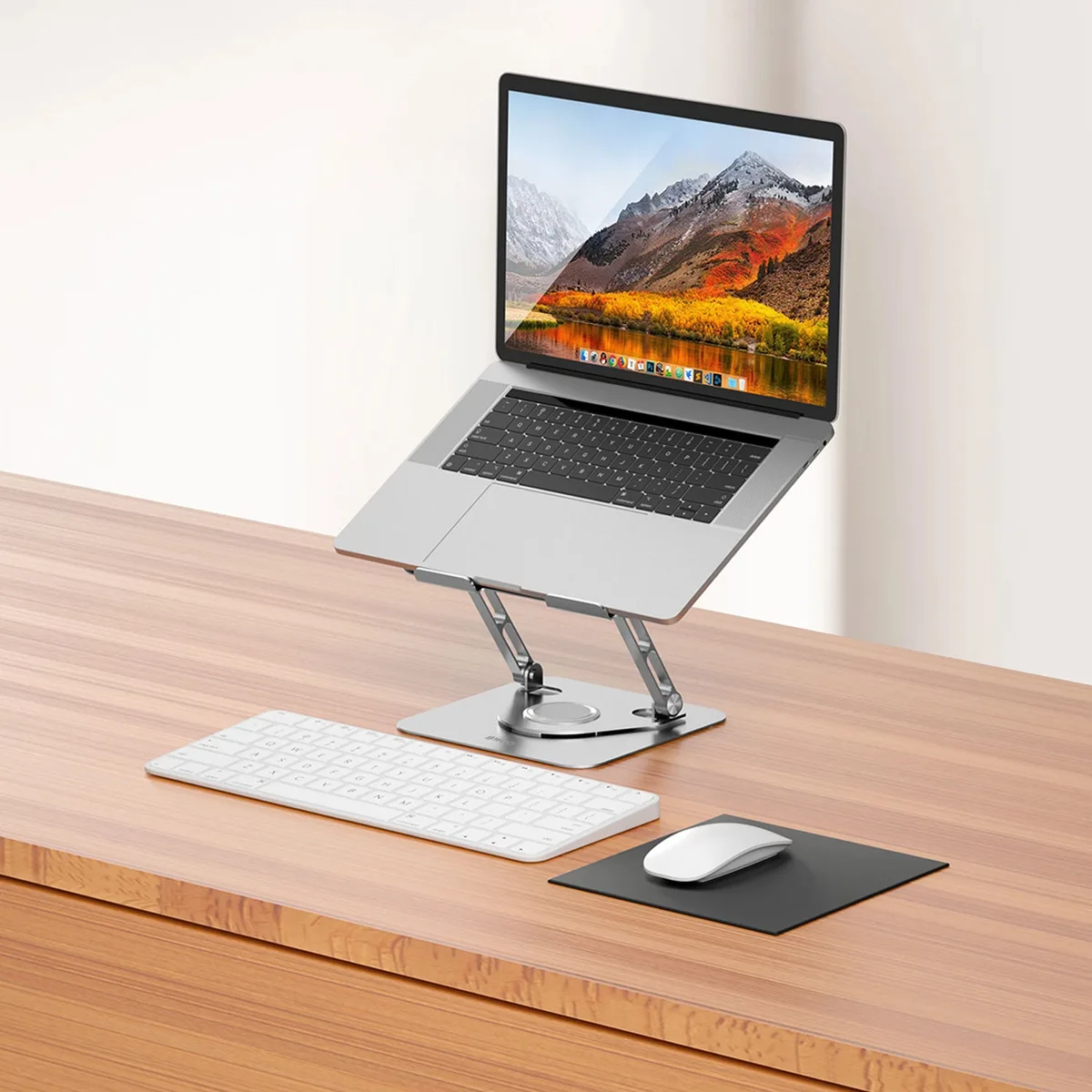
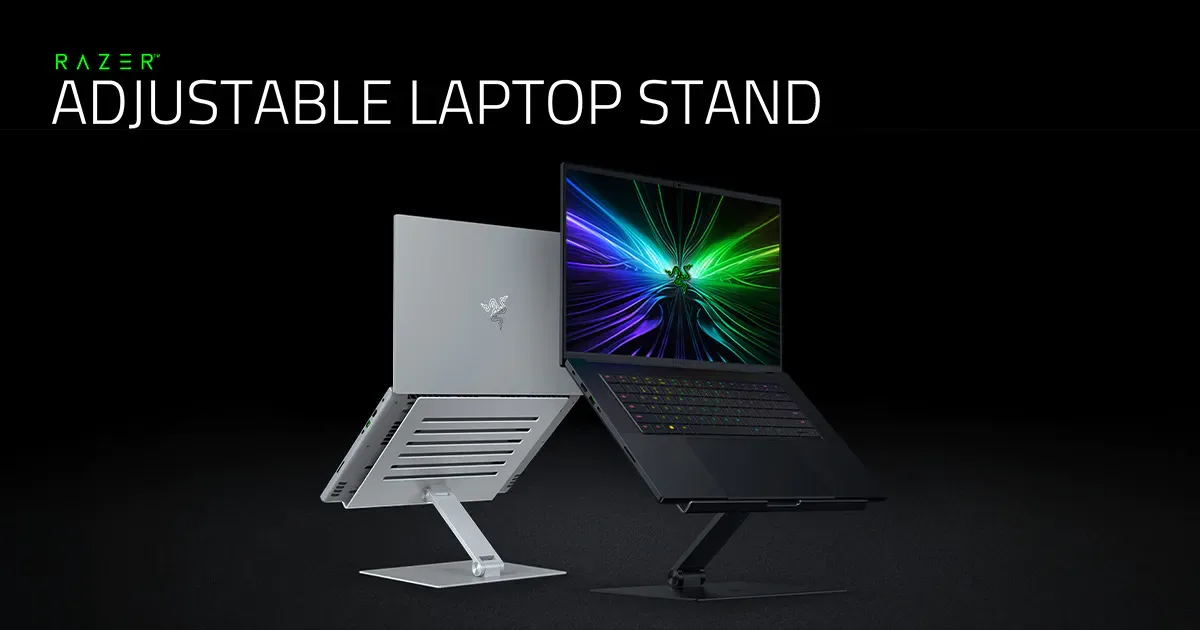
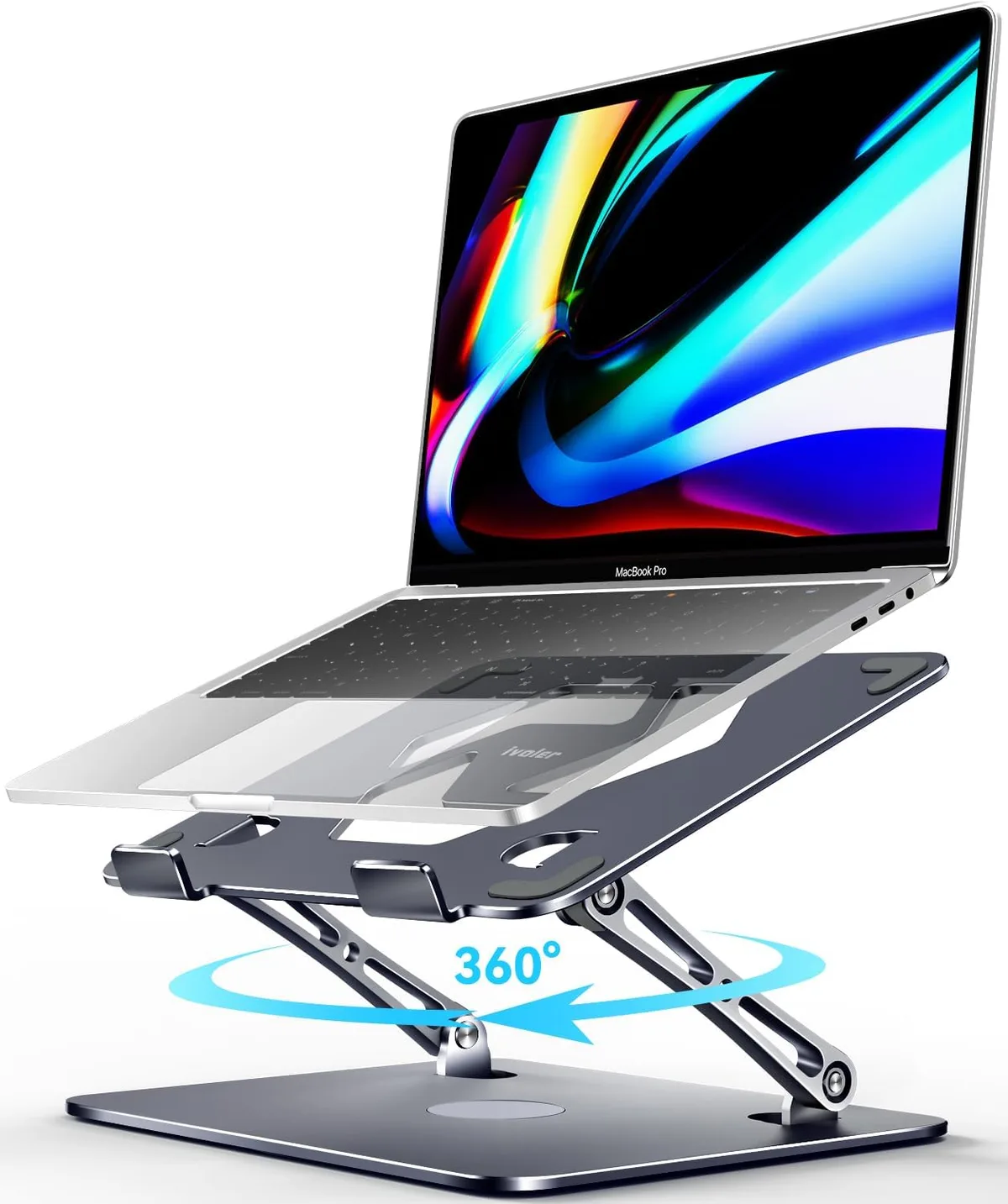
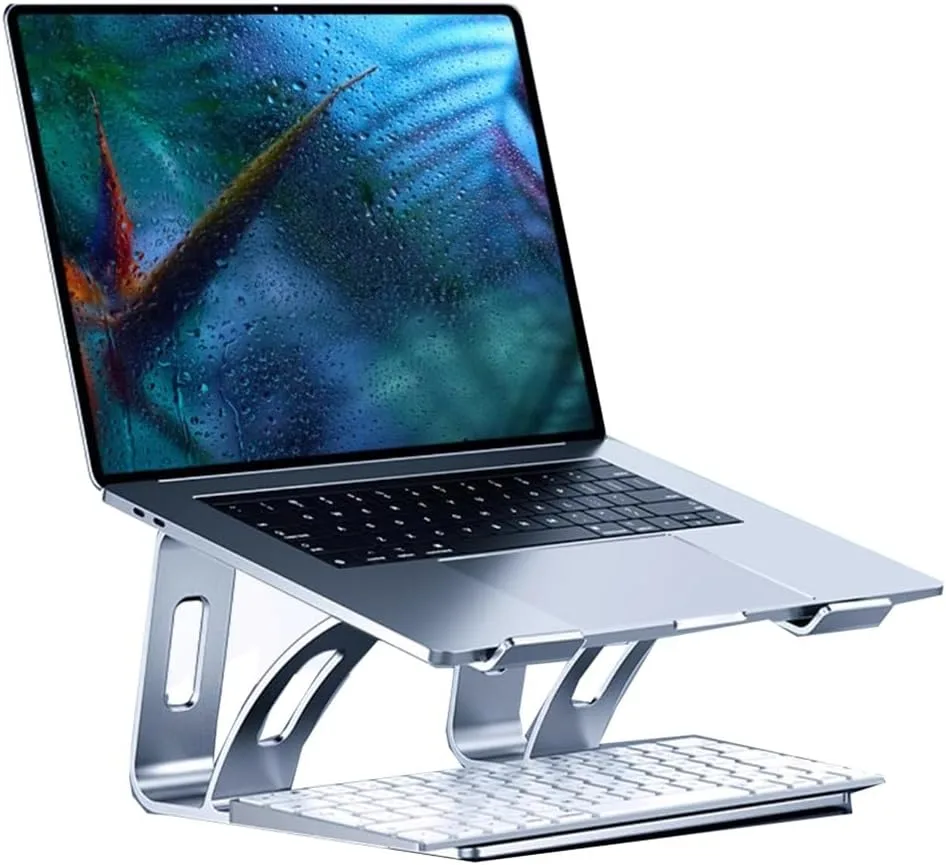
When you select a stand, look for design choices that prioritize long-term stability and thermal clearance. The most effective stands use a skeleton-like structure that holds the laptop at the edges. This keeps the center of the chassis, where most heat-generating components reside, completely open to the room.
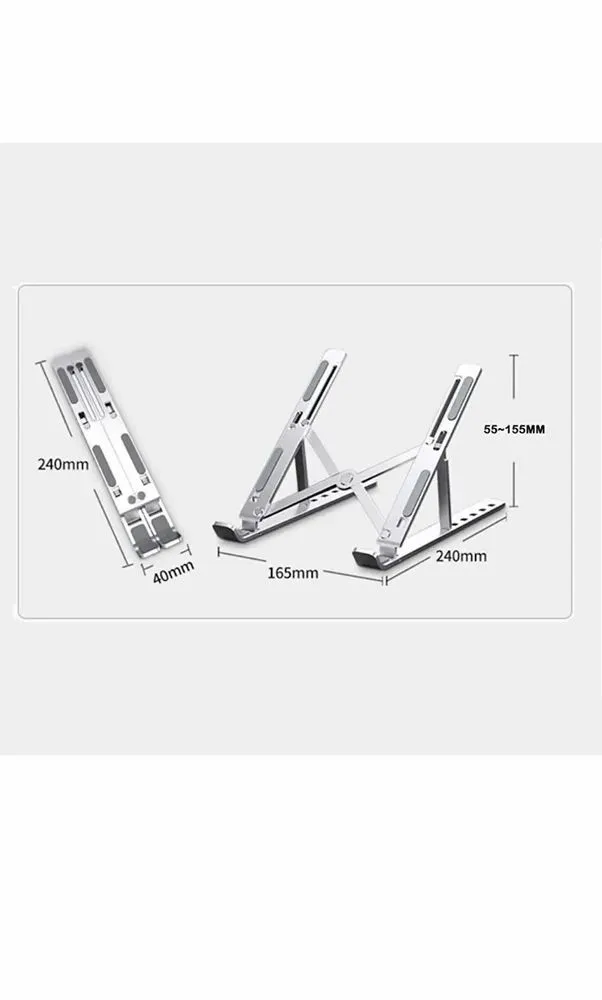
Check for adjustable height settings that allow you to lift the rear of the laptop significantly higher than the front. This incline also provides a slight ergonomic benefit, reducing neck strain during extended work sessions. Always prioritize models with high-quality silicone grips, as these prevent your expensive hardware from sliding when the stand is set to an aggressive angle.
Why Aluminum is Superior for Thermal Dissipation
Aluminum is a highly conductive material, meaning it effectively absorbs and spreads heat away from your laptop's chassis. While a laptop stand is not a radiator, the physical metal frame acts as a passive heat sink. It draws a portion of the heat out of the laptop's underside through conduction, which adds a layer of cooling efficiency that plastic stands simply cannot provide.
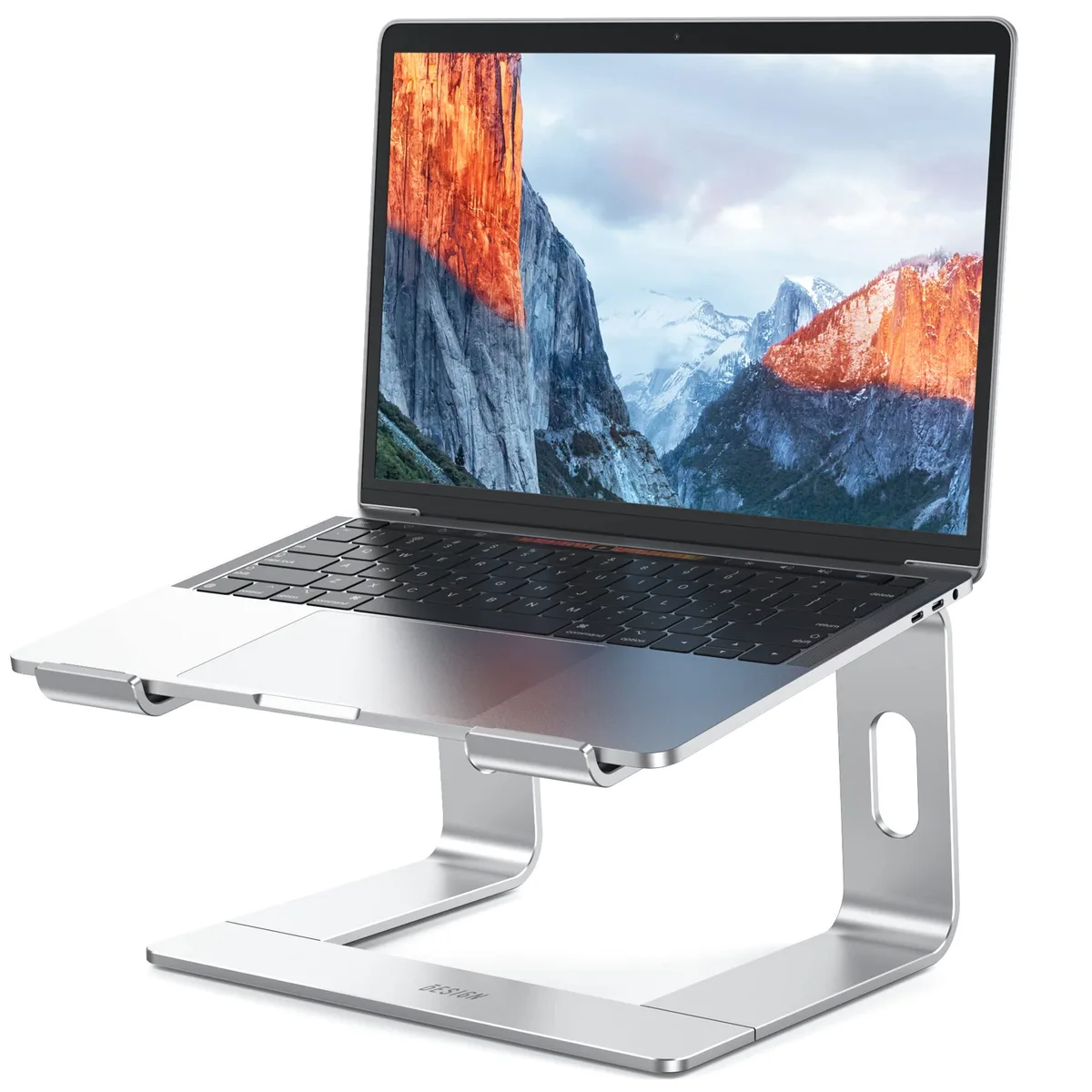
This thermal conductivity is a massive advantage during sustained, high-load tasks like rendering or gaming. A metal stand stays cool to the touch, effectively wicking heat away from the surface of the laptop. Plastic stands are insulators, which can trap heat in the very area you are trying to keep cool, potentially worsening your thermal performance over long sessions.
Avoiding the Intake Obstruction Trap
You can accidentally ruin your cooling strategy by picking a stand that covers your intake vents. Most modern high-performance laptops pull air from the bottom, so any crossbar or solid plate that lines up with those openings creates a thermal bottleneck.
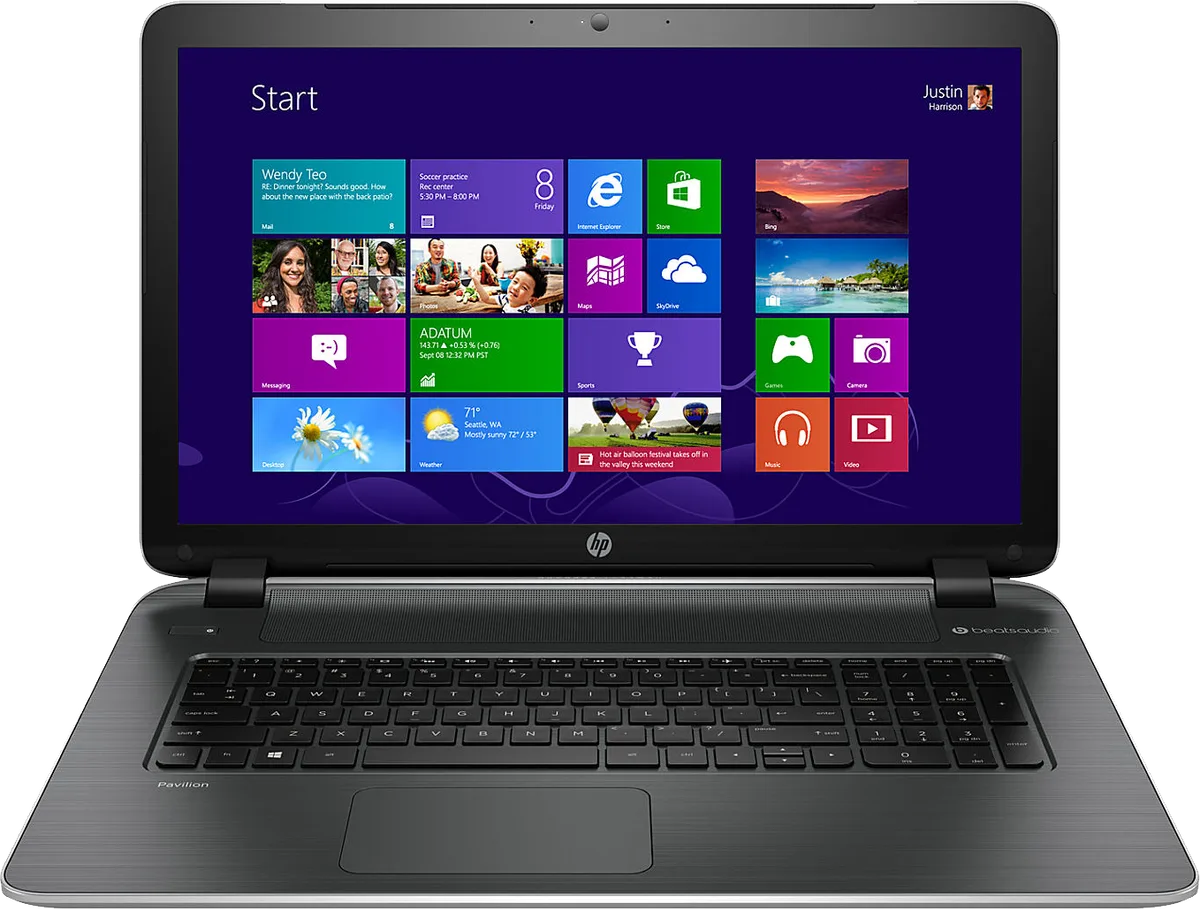
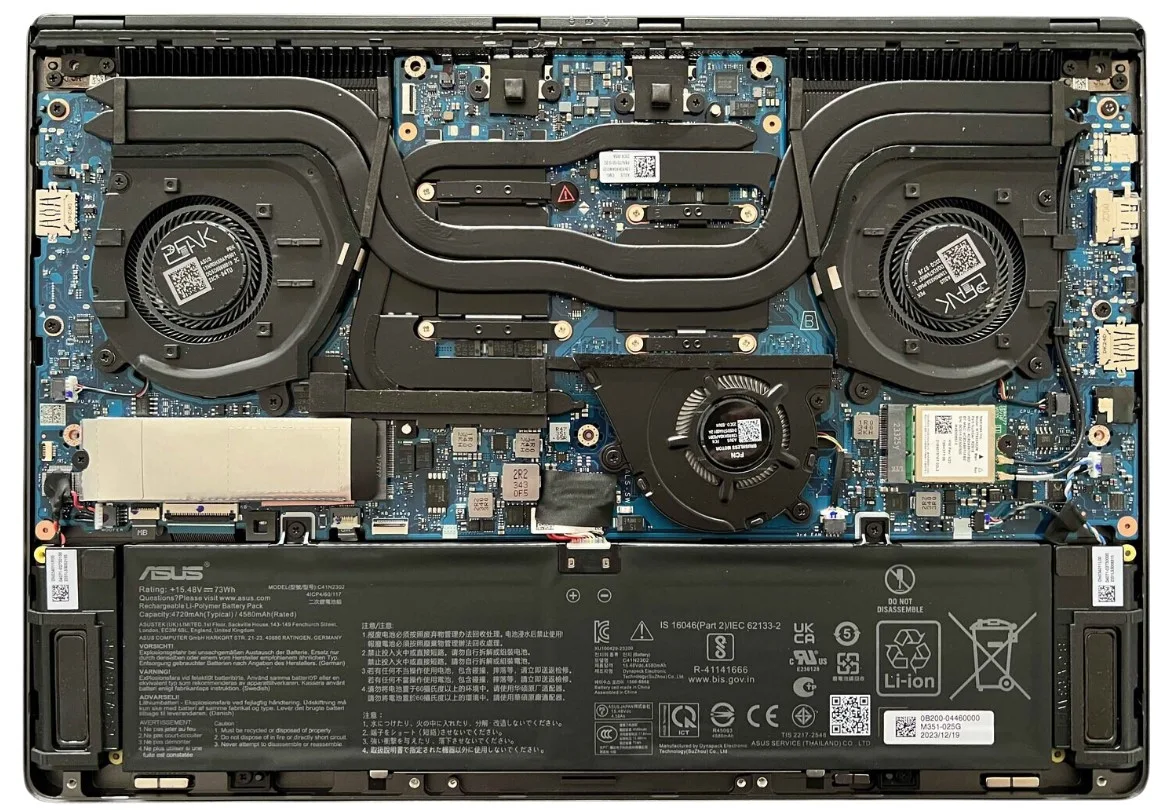
Before selecting a stand, flip your laptop over and examine the intake pattern. If the fans are located at the rear or the sides, choose a stand with thin, minimalist arms that offer plenty of open space. Avoid plate-style stands that are essentially solid sheets of metal or plastic.
These effectively seal the laptop against a flat surface, which is exactly what you are trying to prevent.
How to Position Your Stand for Maximum Airflow
The most effective way to use a laptop stand involves positioning it well away from walls or other desk accessories. Your laptop needs a constant supply of fresh, room-temperature air to push heat out of the exhaust ports. If you crowd the rear of the stand against a wall, the hot exhaust air can cycle back into the intake, leading to rapidly rising core temperatures.
Try to keep at least six inches of clear space behind your laptop. This creates a buffer zone that prevents heat recirculation. If you use a desk mat, ensure it is not bunched up directly beneath the intake vents.
The goal is to maximize the volume of air that can flow underneath and through the chassis.
Balancing Ergonomics with Cooling Performance
Raising your laptop for cooling also provides a significant ergonomic win. By bringing the screen to eye level, you keep your neck in a neutral, healthy position. However, keep the stand angle within a range that remains stable.
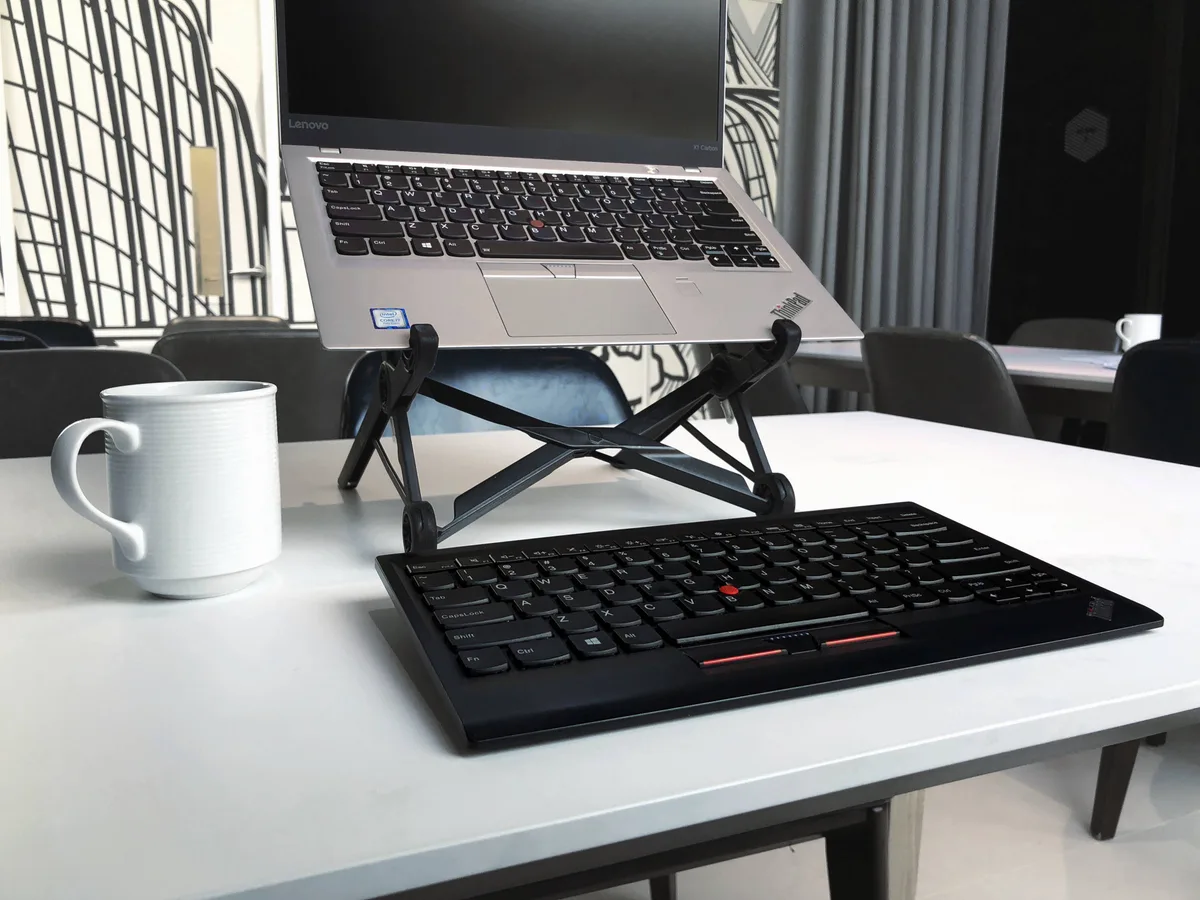
If you tilt the laptop too steeply, you may find that the keyboard becomes uncomfortable to use. In this case, pair your stand with an external keyboard and mouse. This setup is the standard for high-performance computing, as it allows you to optimize the stand strictly for airflow and viewing height without compromising your typing comfort.
Pro-Tips for Sustained Performance Under Heavy Loads
When you are performing intensive tasks like video rendering or heavy compilation, system temperatures will inevitably climb. You can manage this by creating a profile that favors cooling over quiet operation. Adjust your laptop's fan curves in your manufacturer's control software to trigger max fan speeds slightly earlier.
This proactive adjustment works best when paired with an open-frame stand. Because the stand provides an uninhibited air supply, the fans will reach their maximum cooling efficiency faster. Keep your power cables and peripheral wires organized to the sides of the stand.
This reduces clutter and ensures that no stray cables are dangling into the intake path.
When to Upgrade from a Stand to Additional Cooling Methods
A high-quality open-frame stand is sufficient for most scenarios, but some professional workloads demand extra help. If you notice consistent thermal throttling even with a perfectly positioned open-frame stand, you may have reached the physical limits of your laptop's integrated cooling system.
At this point, look into specialized vacuum coolers that attach to the exhaust vents. These devices pull air through the laptop more aggressively than the internal fans can do alone. They are significantly more effective than standard desktop cooling pads.
Use these only if your specific laptop model supports them, and monitor your temperatures closely to ensure they don't force dust buildup inside the chassis.
Simple Maintenance to Keep Your Thermals in Check
Even the best hardware configuration struggles if the internal cooling fins are choked with dust. Over time, fans pull in environmental debris that creates a physical blanket over the heat sinks, preventing efficient air discharge.
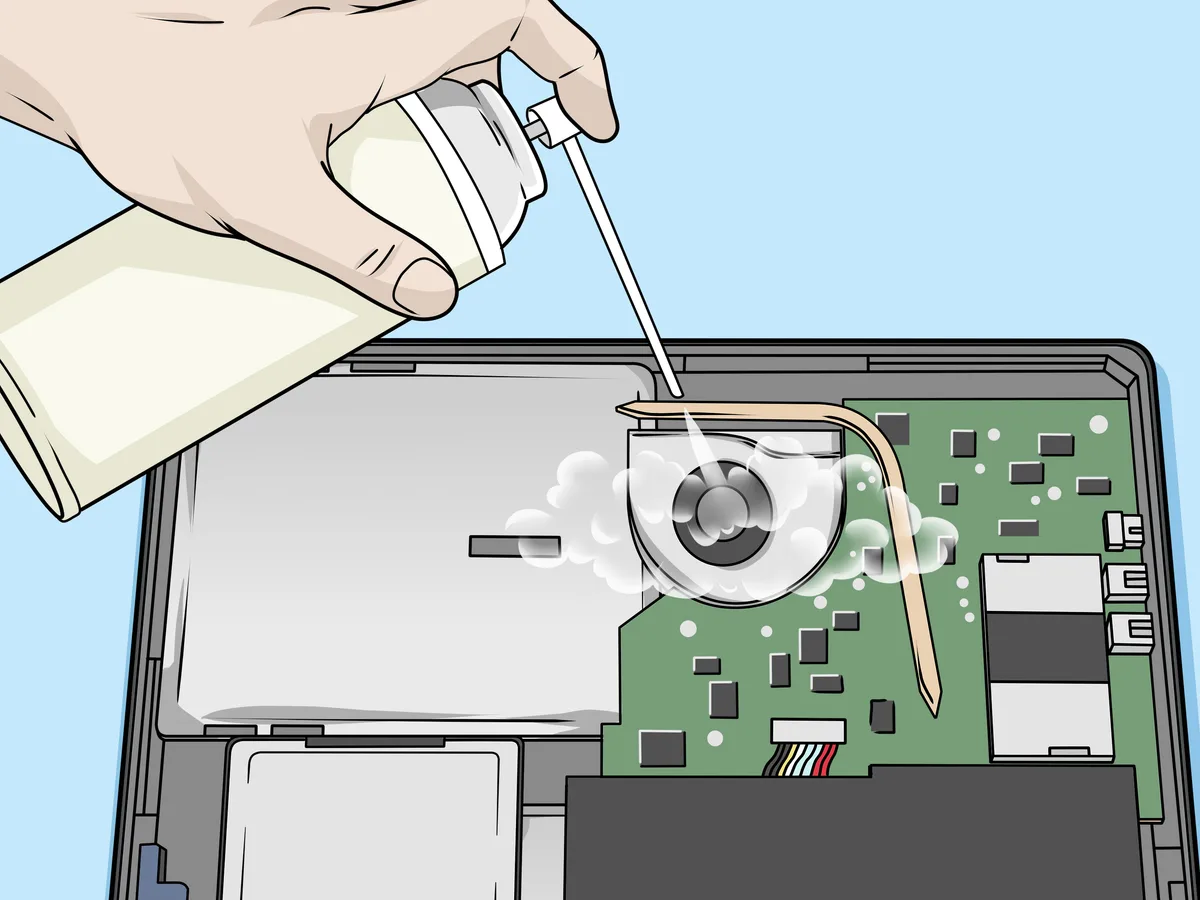
Establish a recurring maintenance schedule to combat this buildup. Every two to three months, power down your laptop and use a can of compressed air to clear the exhaust and intake vents. Hold the nozzle a few inches away to avoid damaging the delicate fan blades.
Final Decision Guide: Choosing Based on Your Workload
Your choice of stand should reflect how much time you spend on high-intensity tasks versus standard office work. If you are a casual user, a simple, non-adjustable aluminum riser is often all you need. The added height alone provides the passive airflow necessary for general productivity.
If you are a power user who frequently runs sustained loads, choose a stand with adjustable height and tilt. This ensures you can fine-tune the clearance for maximum convection. Always double-check your laptop’s bottom vent layout before settling on a specific model, as clearance is the single most important metric for thermal success.
Frequently Asked Questions
Is it safe to leave my laptop on a stand permanently?
Yes, leaving your laptop on a stand is generally recommended. It maintains better airflow than placing it directly on a desk or fabric surface. Just ensure the stand is placed on a stable, flat surface to prevent accidental tipping or vibration during use.
Does the material of the stand really affect cooling?
Yes, metal stands perform better than plastic ones. Aluminum acts as a passive heat sink, pulling heat away from the chassis through contact. Plastic is an insulator and will not contribute to cooling, whereas metal helps dissipate heat across a larger surface area, aiding your laptop's internal thermal management.
How much space do I need under my laptop?
Aim for at least two inches of clearance between your desk and the laptop's intake vents. This space creates a sufficient reservoir of cool air for the intake fans. If your stand provides less than one inch, the improvement in thermal performance will likely be negligible for high-heat gaming laptops.
Should I worry about the laptop sliding off the stand?
Most high-quality aluminum stands include silicone or rubber grips on the arms. These materials provide enough friction to keep your laptop securely in place, even at steeper angles. Verify that your chosen stand has these non-slip features to ensure your expensive gear stays stable during intense typing sessions.
Can a stand stop my laptop from overheating entirely?
No, a stand is only one part of your thermal strategy. If your system is overheating at idle or during light tasks, you may have deeper issues like failing thermal paste or a blocked fan. A stand improves cooling efficiency, but it cannot fix hardware defects or internal mechanical failures.

Similar Posts