How Often Should You Replace Your Laptop Charger?
Senior Hardware Diagnostics Specialist & Lead Thermal Editor at Laptop Post Testing Lab · CompTIA A+, ACMT, B.S. in Computer Engineering · 12+ years bench-testing laptop thermal solutions & motherboard repairs
You’ve probably noticed your laptop charger looking a bit tired after years of daily use. While we often overlook these power bricks, knowing how often you should replace an aging laptop charger brick is vital for keeping your gear safe.
Most manufacturers design these adapters to last for several years, but internal components inevitably wear down. As of 2026, electrical safety experts, including organizations like UL Solutions, suggest that consistent power delivery is essential for both your battery health and your fire safety.
Quick Answer
You should replace a laptop charger when you notice any physical damage. Replace it immediately if the cable insulation shows frayed or exposed metal wires. Swap the brick if it makes a buzzing noise or feels excessively hot.
Most adapters show signs of fatigue after three to five years. Do not wait for a complete power failure to upgrade your hardware.
Why Laptop Power Adapters Aren't Built to Last Forever
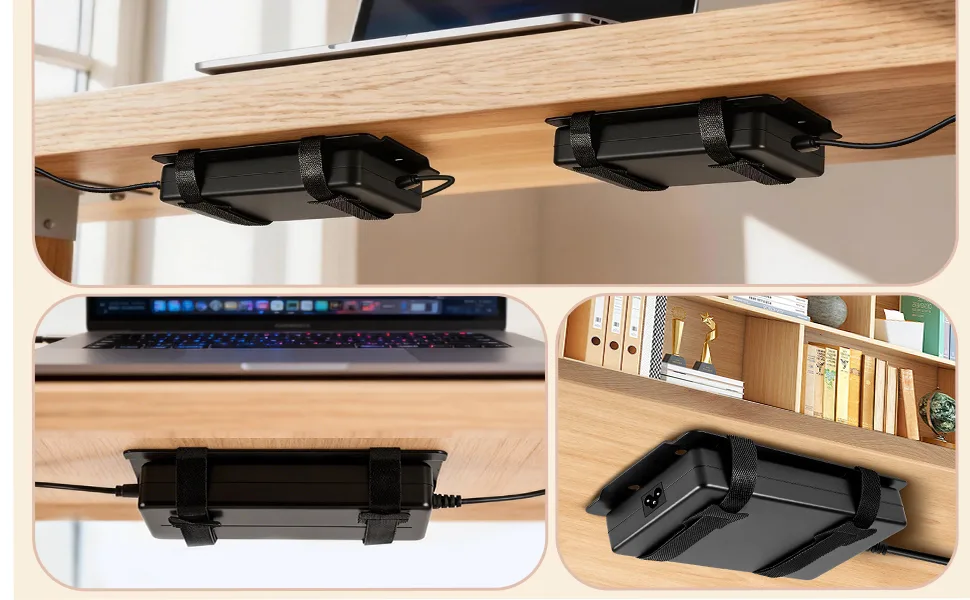
Laptop power adapters, often called AC adapters, are complex electrical transformers. They convert high-voltage alternating current from your wall outlet into the lower-voltage direct current your laptop requires. This process generates heat, which is the primary enemy of the internal components.
Over time, capacitors and transformers inside the brick degrade from repeated thermal cycles. As these parts age, their ability to regulate voltage drops, leading to potential power inconsistencies. While the exterior plastic might look pristine, the internal circuitry is constantly working to filter electrical noise and stabilize output.
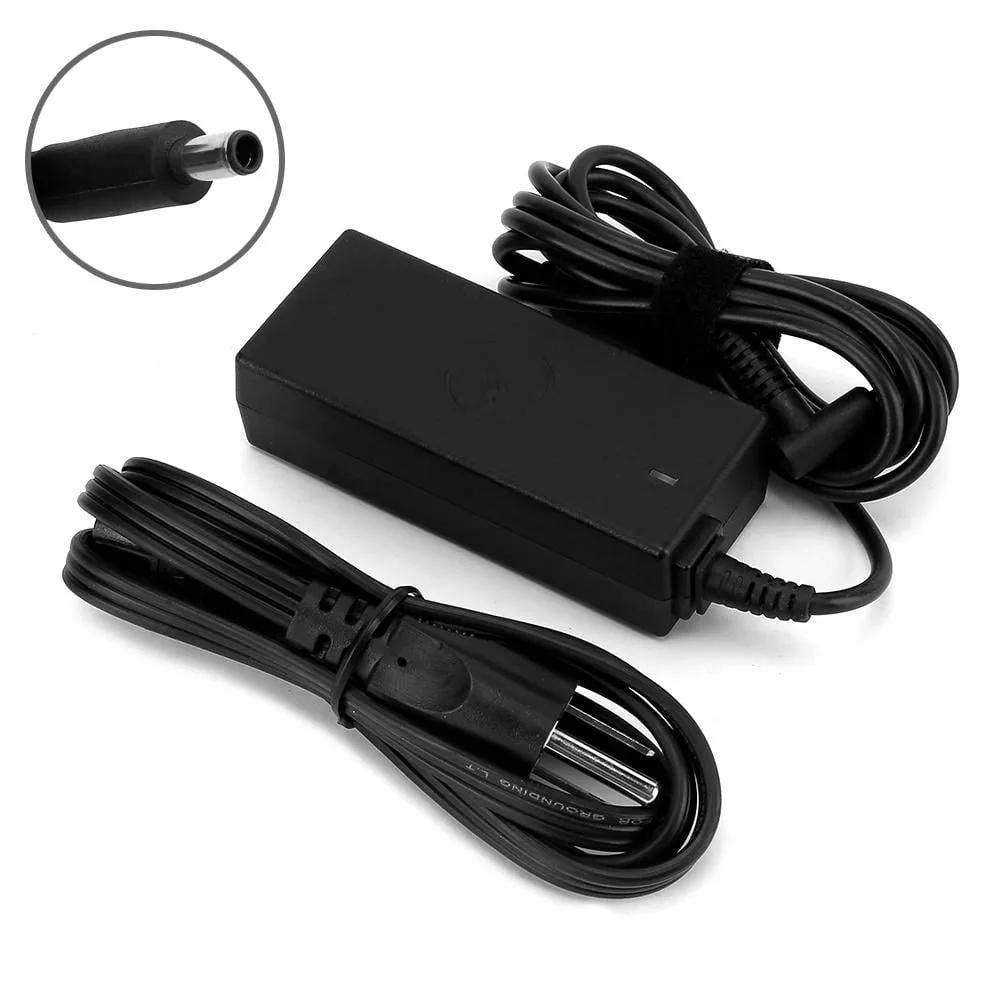
Image source: Bing (Web (fair-use with source credit))
When these internal components eventually lose their efficiency, they often draw more power than necessary or fail to provide a steady charge. This creates unnecessary stress on your laptop’s power management system. Regularly inspecting your power setup helps catch these hidden failures before they cause lasting damage to your computer.
Identifying the Physical Signs of a Failing Power Brick
Your first line of defense is a simple visual inspection of the entire assembly. You don't need special tools to find the most common signs of a dying charger. Check the rubber casing on both the cord and the brick itself.
Look specifically for:
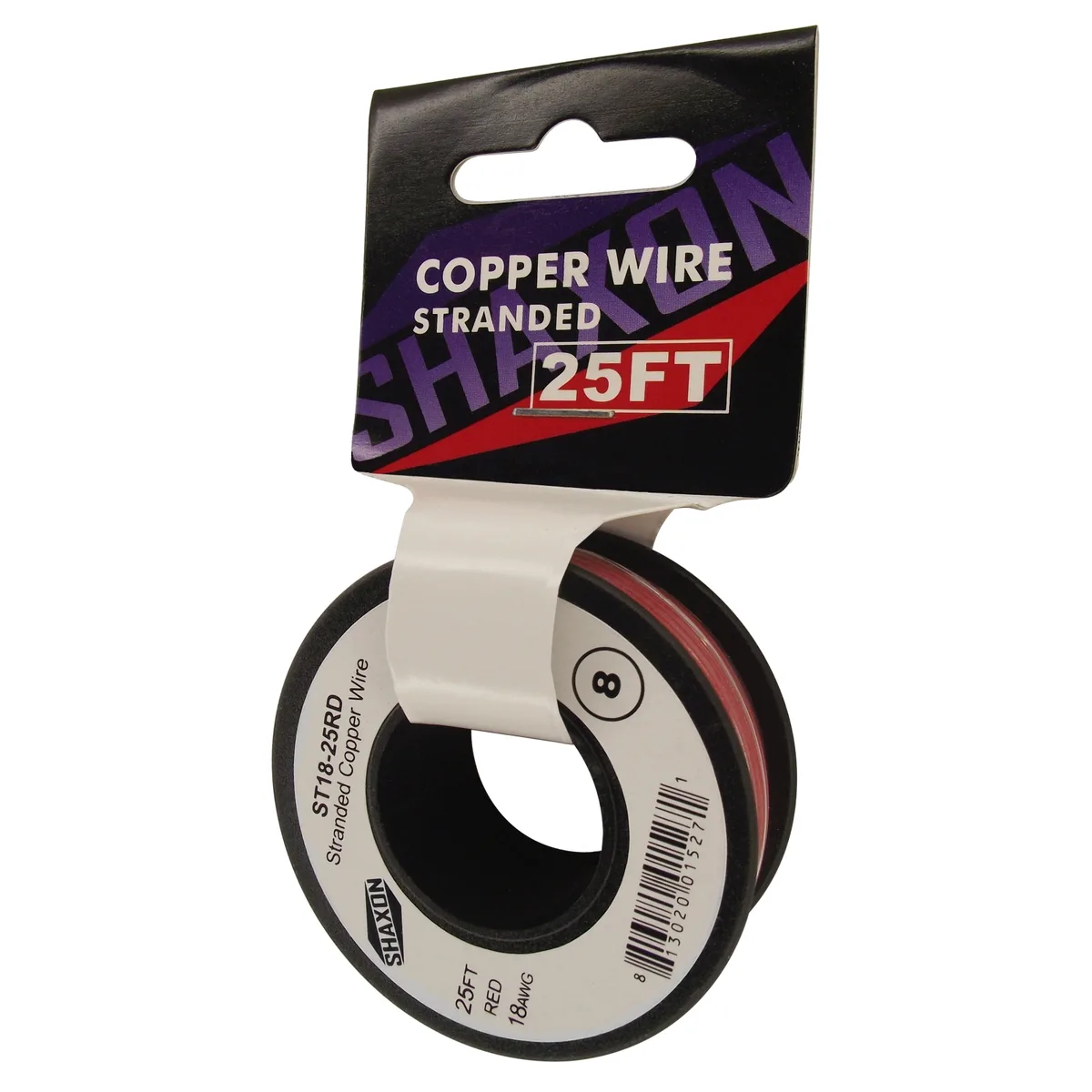
- Frayed insulation: This is the most common sign of failure, where the outer rubber sheath has split to reveal inner copper strands.
- Deep kinks: Sharp, permanent bends in the cord indicate that the internal wiring has been crushed or snapped.
- Discoloration: Yellowing or brownish spots on the plastic shell indicate localized overheating from within.
- Warped housing: A brick that no longer sits flat or shows signs of melting plastic is a major fire hazard that requires immediate replacement.
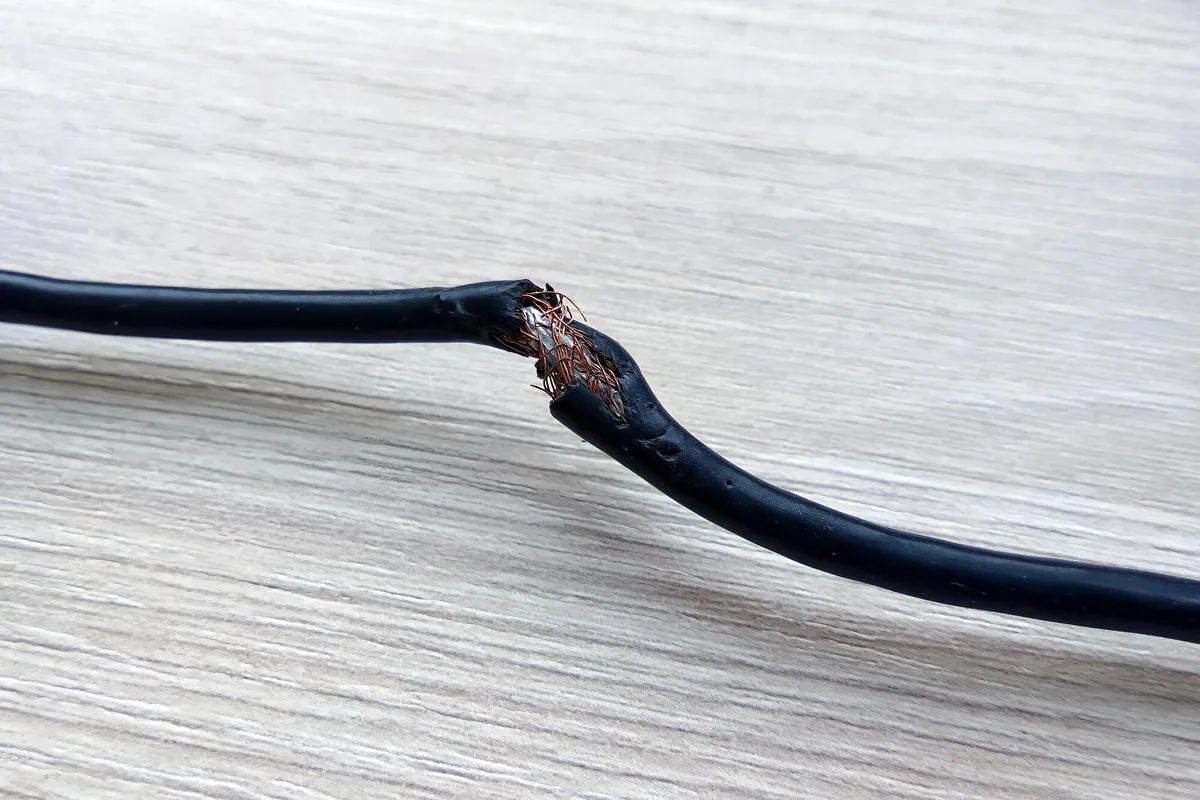
Image source: Bing (Web (fair-use with source credit))
If you find exposed wiring, stop using the charger immediately. Taping over these areas with electrical tape is only a temporary, risky patch. Exposed wires can spark or cause short circuits, which pose a direct threat to your home and your laptop.
Internal Failure: When the Electronics Die Before the Cable
Sometimes, a charger looks perfect on the outside but fails to deliver the right amount of power. This usually happens when the internal electronic components, like capacitors or the switching regulator, reach the end of their design life. These failures are silent and invisible until your laptop starts acting up.
Watch for these warning signs of internal electronic decay:
- Audible noise: A healthy charger should be silent, so a high-pitched whine, buzzing, or crackling sound indicates failing components.
- Excessive heat: While adapters naturally get warm, a charger that is painful to touch while the laptop is in an idle state is struggling.
- Inconsistent charging: If your laptop flickers between "plugged in" and "on battery" without you moving the cord, the internal transformer is likely failing.
| Performance Symptom | Probable Cause |
|---|---|
| Laptop won't charge at all | Complete internal circuit failure |
| Charger is burning hot | Capacitor breakdown or internal short |
| Intermittent power connection | Loose internal soldering or pin failure |
| High-pitched buzzing | Transformer coil vibration or failure |
Performance Clues: What Plugged In, Not Charging Actually Means
The "plugged in, not charging" notification is a classic symptom of a mismatched or failing power brick. Your laptop’s power management controller performs a digital handshake with the charger to verify its wattage. If the charger can no longer output the required power, the laptop will often intentionally refuse to charge the battery to prevent damage.
This can happen if you are using an aging brick that has lost its peak wattage capability. It also occurs frequently with third-party knock-offs that don't communicate with your laptop correctly. Always ensure your replacement brick matches the voltage and amperage specifications printed on the label of your original unit.
If you consistently ignore these warnings, you risk damaging the charging port of your laptop. A faulty brick that provides unstable voltage can fry the delicate power circuitry on the motherboard. When the laptop identifies a power mismatch, it is acting as a protective barrier to save the more expensive internal components.
Assessing Risk: The Dangers of Continued Use
Using a failing charger is a risk that extends beyond just the potential for a dead laptop battery. Faulty power adapters have the potential to cause electrical fires or damaging power surges. As components degrade, the risk of a short circuit increases significantly.
The National Institute of Standards and Technology emphasizes that maintaining high-quality electrical pathways is critical for safety. When insulation is compromised, the electrical current can arc to unintended surfaces. If that happens, the risk of fire or injury becomes very real.
Never leave a charger with known defects plugged into a wall outlet unattended. The convenience of keeping an old charger in service rarely outweighs the cost of a potential electrical incident. If your charger shows any of the symptoms mentioned, prioritize its replacement as an essential maintenance task.
The 5-Year Threshold: When to Replace Proactively
Most electronic components have a predictable decay rate. While high-end chargers can function for a decade, efficiency usually dips significantly after five years of daily use. Capacitors, the small parts that store and release energy inside the brick, dry out over time and eventually fail to regulate voltage.
If your charger is over five years old, it is smart to consider a replacement even if it seems to work. An aging charger can become less efficient at handling power surges. This puts your laptop’s battery at risk of gradual degradation from uneven power delivery.
Replacing a charger before it fails completely saves you from a sudden loss of productivity. It also prevents the risk of the old unit failing while you are away from home. Treat the five-year mark as a helpful benchmark for retirement.
Why Cheap Universal Chargers Are a Safety Gamble
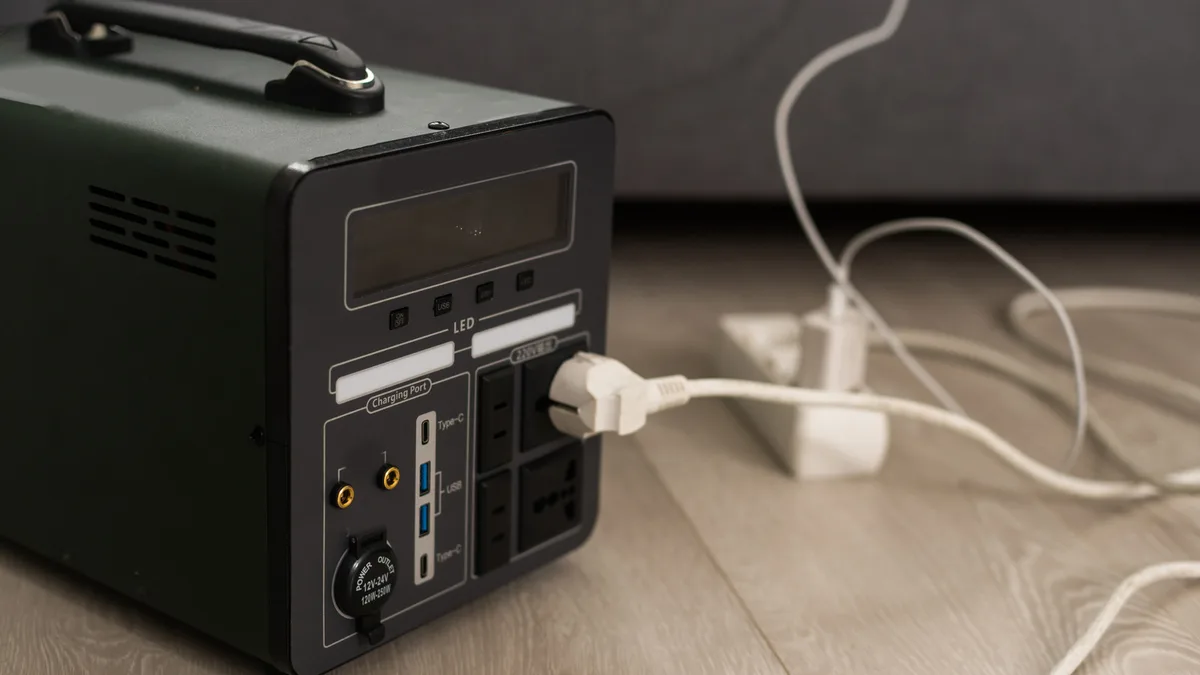
It is tempting to grab the cheapest replacement you find on an online marketplace. These units often prioritize low production costs over critical safety features like thermal cutoff switches. Without these safety mechanisms, a power surge can travel straight from the wall into your laptop's sensitive motherboard.
Cheap chargers also frequently fail to meet basic electromagnetic compatibility standards. This results in "noisy" power that can cause trackpad interference or erratic screen behavior. You are essentially paying to introduce instability into your laptop's power chain.
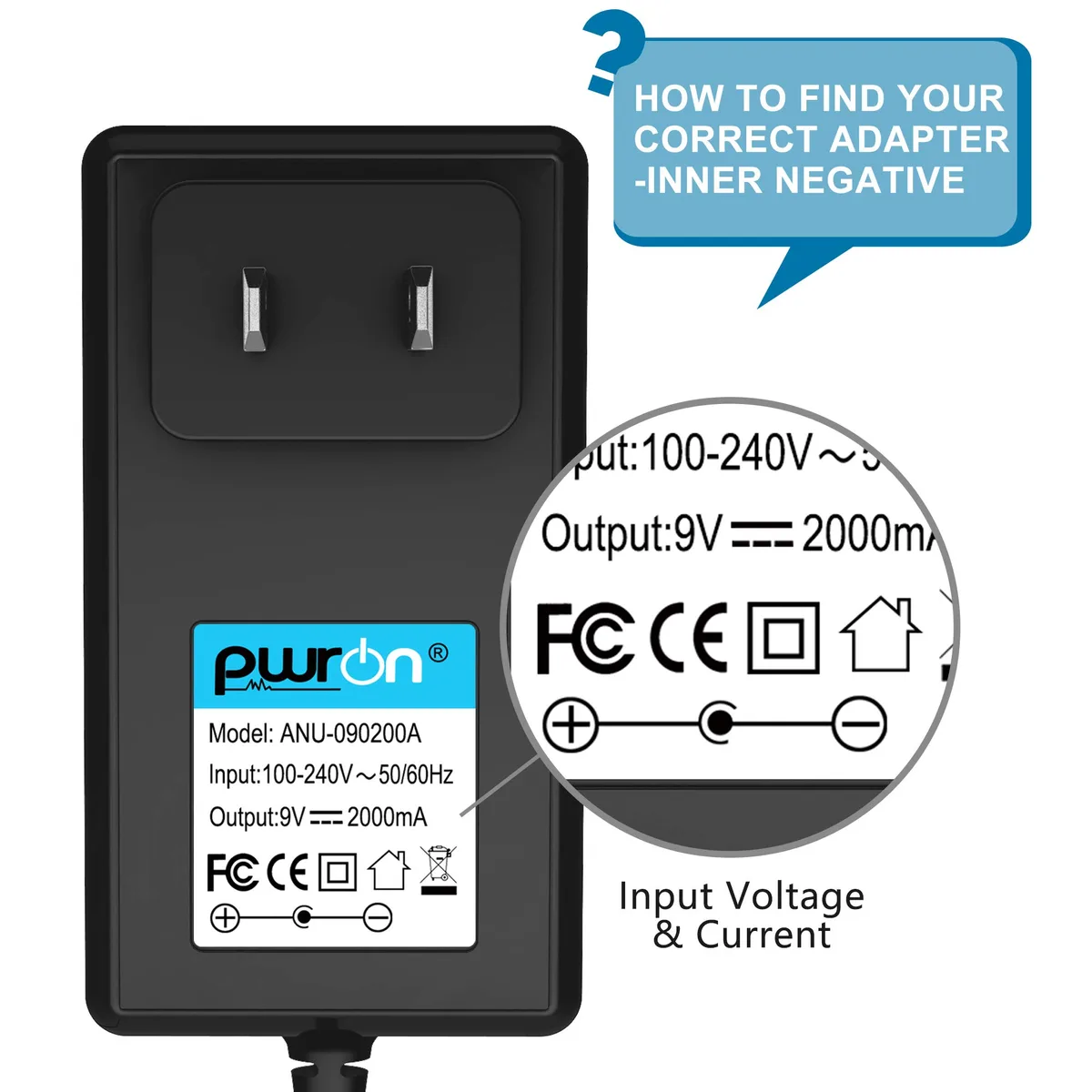
Image source: Bing (Web (fair-use with source credit))
Authentic chargers from your manufacturer are tested for heat management and voltage accuracy. If you must use a third-party option, ensure it is from a brand that publicly publishes their safety testing results. Look for units that clearly state they meet the requirements of your specific laptop model.
Essential Safety Certifications to Look For (UL, CE, and Beyond)
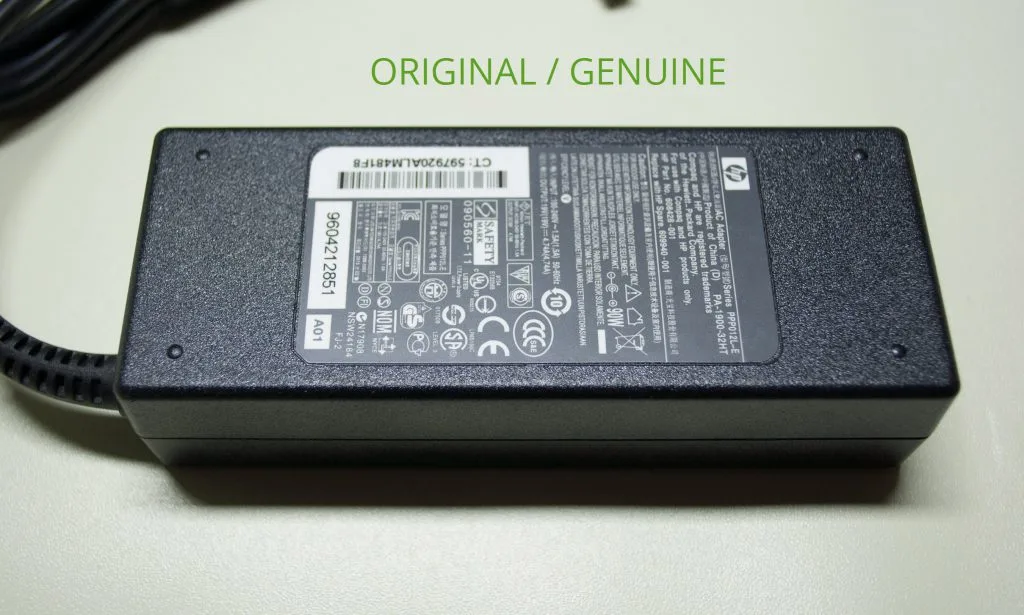
Always check the label on your power brick for recognized safety symbols. These marks indicate that a third-party organization has verified the unit against established electrical safety standards. Common certifications include UL, CE, and GS.
The UL mark from UL Solutions is one of the most respected standards in the industry. It confirms the brick has passed rigorous testing for short-circuit protection and fire resistance. A device lacking these marks might not have been tested for basic hazards.
Check for these details before finalizing any purchase:
- Manufacturer logo: Ensure it matches your computer brand.
- Safety marks: Look for the UL or CE logo on the underside of the brick.
- Input and output specs: Verify that the voltage and amperage exactly match your original adapter.
If the label is missing these certifications or looks poorly printed, skip it. Never trust an uncertified power supply with a device as expensive as a modern laptop. Safety certifications are not just suggestions, they are your best protection against electrical failure.
Proper Cable Handling to Extend Your Charger’s Lifespan
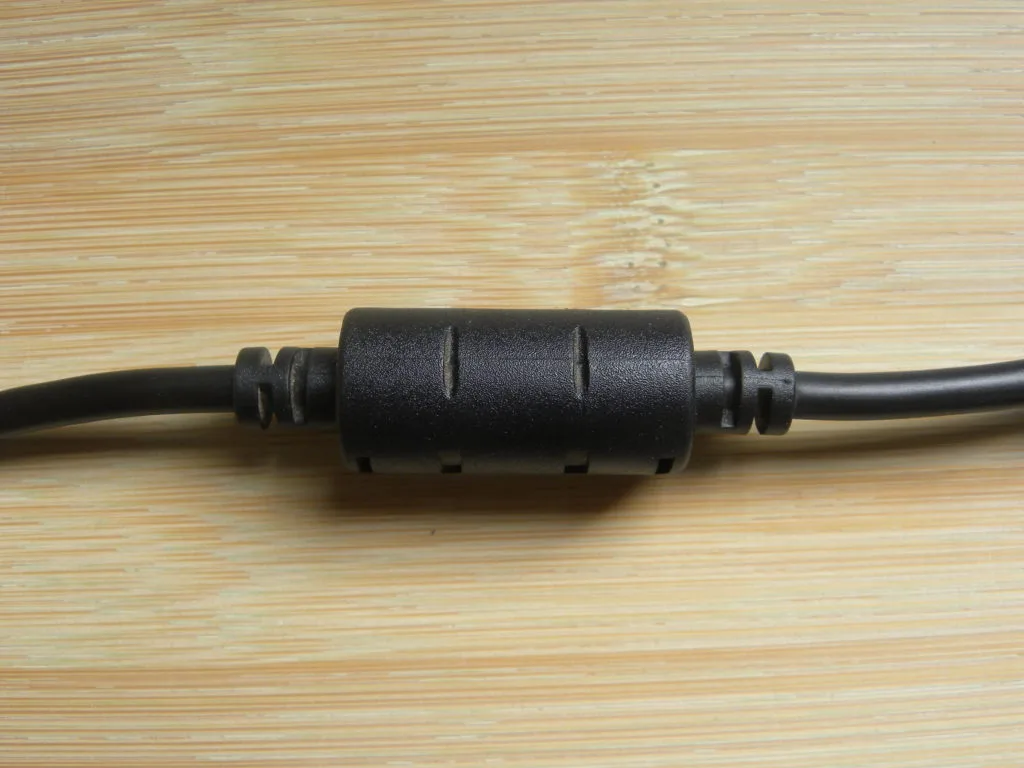
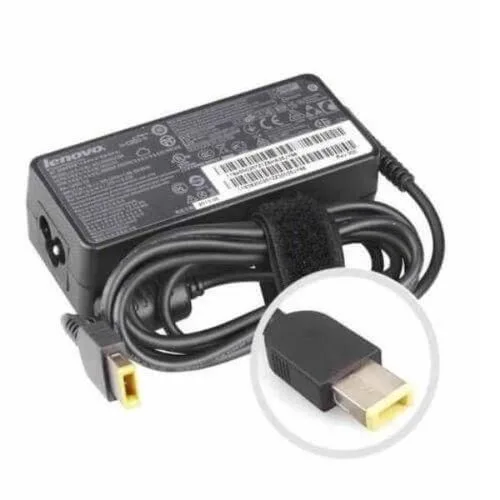
The physical destruction of a charger almost always happens at the cable connection points. Most users inadvertently cause internal wire breakage by winding the cord too tightly around the brick. This creates extreme tension where the cord meets the adapter housing.
Try to leave a small amount of slack near the connector points when you coil the cable. A gentle, loose loop is far less damaging than a tight, constrained wrap. If your charger has a detachable AC cable, disconnect it during storage to reduce the physical bulk and stress.
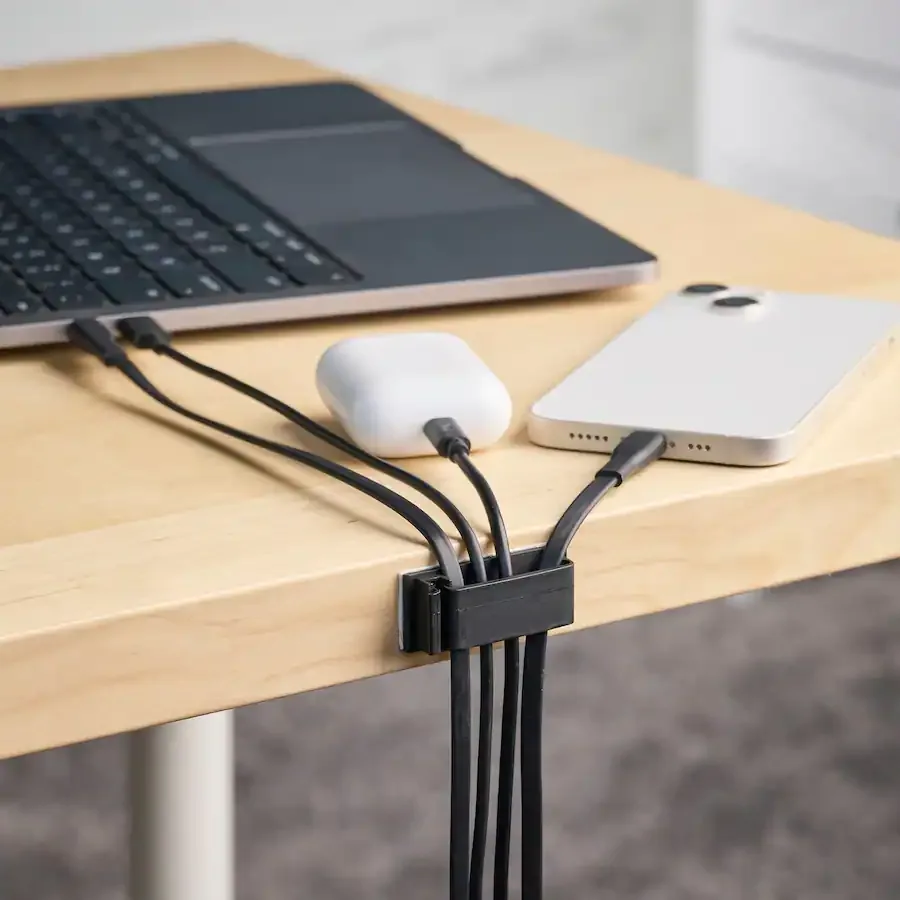
Image source: Bing (Web (fair-use with source credit))
Keep your charger away from sharp edges or heavy objects that could pinch the cord. Even a minor crimp can damage the internal shielding over time. Treat the power cable with the same care as the laptop screen, as both are essential components that suffer from rough handling.
How to Perform a Safe DIY Visual Inspection
You should make it a habit to check your power equipment at least once a month. Start by disconnecting both ends of the charger from the wall and the laptop. This is the only way to ensure you are working in a safe, de-energized state.
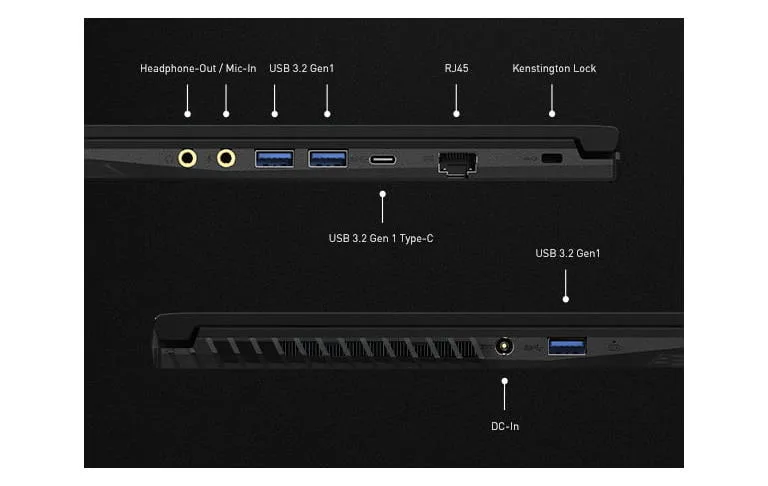
Run your fingers gently along the length of the cable to feel for internal lumps or brittle spots. Check the connector tip for debris or signs of melting. If the tip is loose or wobbly, the internal pins are likely damaged.
Clean the brick casing with a dry cloth to remove any dust buildup. A clean surface allows the brick to dissipate heat more effectively during operation. If you notice any deep cuts or exposed metal at any point during this process, set the unit aside for immediate disposal.
What to Do When You Notice Heat or Unusual Noises
If your power brick feels dangerously hot to the touch or emits a high-pitched whine, unplug it immediately. Heat is a byproduct of resistance, and excessive warmth suggests that internal components are failing to move electricity efficiently. A struggling transformer is likely working overtime to compensate for degraded capacitors.
Do not attempt to cool the device by placing it in a freezer or near a fan. If a component has reached the point of overheating, the damage is already permanent. Move the adapter to a non-flammable surface, like a stone floor or a metal tray, until it cools down completely.
Once cooled, inspect the casing for any signs of melting or warping. If the plastic is discolored, the internal circuit board has likely suffered heat damage. Dispose of this unit at an authorized e-waste recycling center.
Never try to disassemble the brick, as internal capacitors can retain a dangerous electrical charge even after you unplug the device.
Navigating the Decision: Repairing vs. Replacing
You should almost always choose replacement over repair for a failing laptop charger. The housing of these units is typically sealed with industrial adhesives to prevent moisture ingress and tampering. Attempting to pry one open often breaks the structural integrity of the case.
Even if you successfully open the brick, repairing the internal circuitry requires professional-grade soldering skills. Most DIY repairs lack the precision necessary to maintain the original factory safety standards. You risk creating a fire hazard if your solder joints aren't perfect or if you use mismatched replacement components.
Consider the cost of your time versus the price of a certified unit. A new charger is a relatively low-cost item compared to the price of a modern laptop. Prioritize the safety of your hardware and home by starting fresh with a new, tested adapter.
Final Verdict: When to Stop Using Your Aging Charger
Stop using your charger the moment it shows signs of physical or operational distress. If you find yourself having to wiggle the cord to maintain a connection, you have already entered the danger zone. Loose connections cause micro-arcing, which eventually degrades the metal contacts inside your laptop's charging port.
If your charger is over five years old, look for any of the subtle warning signs we've discussed today. A silent, cool, and physically intact charger is a safe tool. A warm, buzzing, or frayed unit is a ticking clock.
Don't wait for your laptop to display a charging error or for the power to cut out entirely. Replacing your power adapter is a simple, proactive step that keeps your machine running smoothly. It is the most effective way to ensure your battery stays healthy for the long haul.
Frequently Asked Questions
Can I use a charger with higher wattage than my original?
Yes, using a higher-wattage charger is generally safe as long as the voltage matches your laptop's requirements. Your computer will only draw the amount of power it needs. Avoid using lower-wattage chargers, as these can cause performance issues or trigger protective shutdowns to prevent damage to your battery.
Does a yellowing power brick mean it is unsafe?
Yellowing usually indicates that the plastic housing has been subjected to repeated thermal stress over a long period. While slight color changes happen with age, significant yellowing or brittleness is a strong signal that the plastic is degrading. If the brick feels brittle or shows dark brown spots, replace it immediately.
Are universal chargers safe for long-term use?
Universal chargers are often less reliable than OEM hardware due to inconsistent manufacturing standards. If you choose a universal model, ensure it is specifically rated for your laptop's exact voltage and tip size. Only buy from reputable brands that provide clear safety certification documentation to avoid motherboard damage.
Should I leave my charger plugged in all the time?
Leaving a high-quality charger plugged in is generally safe because they are designed to handle idle states. However, unplugging the charger when not in use reduces the risk of damage from power surges. It also prevents the brick from drawing small amounts of power constantly, which can help extend its operational life.

Similar Posts