How to Charge Your Laptop Using a Portable Solar Generator
Senior Hardware Diagnostics Specialist & Lead Thermal Editor at Laptop Post Testing Lab · CompTIA A+, ACMT, B.S. in Computer Engineering · 12+ years bench-testing laptop thermal solutions & motherboard repairs
When you’re off-grid, learning how to charge laptop using an external portable solar generator is essential for staying powered up. Whether you’re working from a remote cabin or prepping for a blackout, understanding how to connect your device without wasting energy is key.
Portable power stations now feature advanced energy management systems that improve efficiency compared to older models. As of 2026, most mid-range units utilize USB-C Power Delivery (PD) technology to move energy directly between battery systems. This process reduces the thermal loss typically associated with traditional AC conversion methods.
Quick Answer
You can charge a laptop using a portable solar generator via three methods. Use the USB-C PD port for the highest energy efficiency. Connect a DC car charger as an effective secondary option.
Use the AC wall outlet only as a final, less efficient backup. Always verify your laptop's required wattage before connecting. Monitor the generator display to ensure stable power output.
The Laptop Charging Problem: Why Efficiency Matters
Charging a laptop from a battery bank involves energy conversion. Every time electricity changes form, some power is lost as heat. Standard solar generators hold electricity as direct current (DC).
If you use a wall outlet, the generator uses an internal inverter to change that DC into alternating current (AC).
Your laptop’s power brick then converts that AC back into DC. Each conversion step burns off 10% to 20% of your available capacity. If you have a small portable generator, these losses cut into your total runtime.
Selecting a direct connection method keeps your energy usage low and extends your battery life.
Quick Insight: The Three Ways to Connect
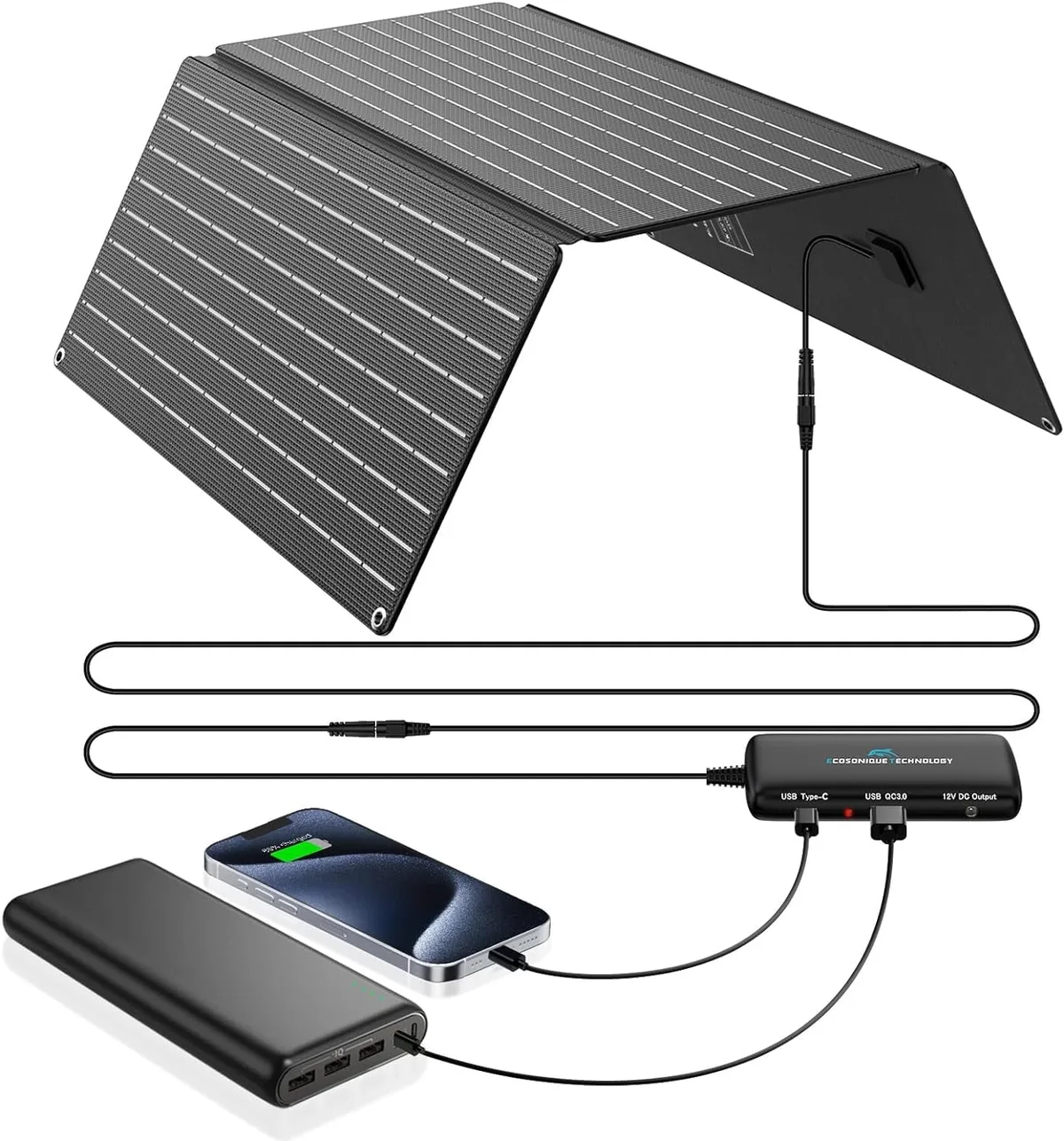
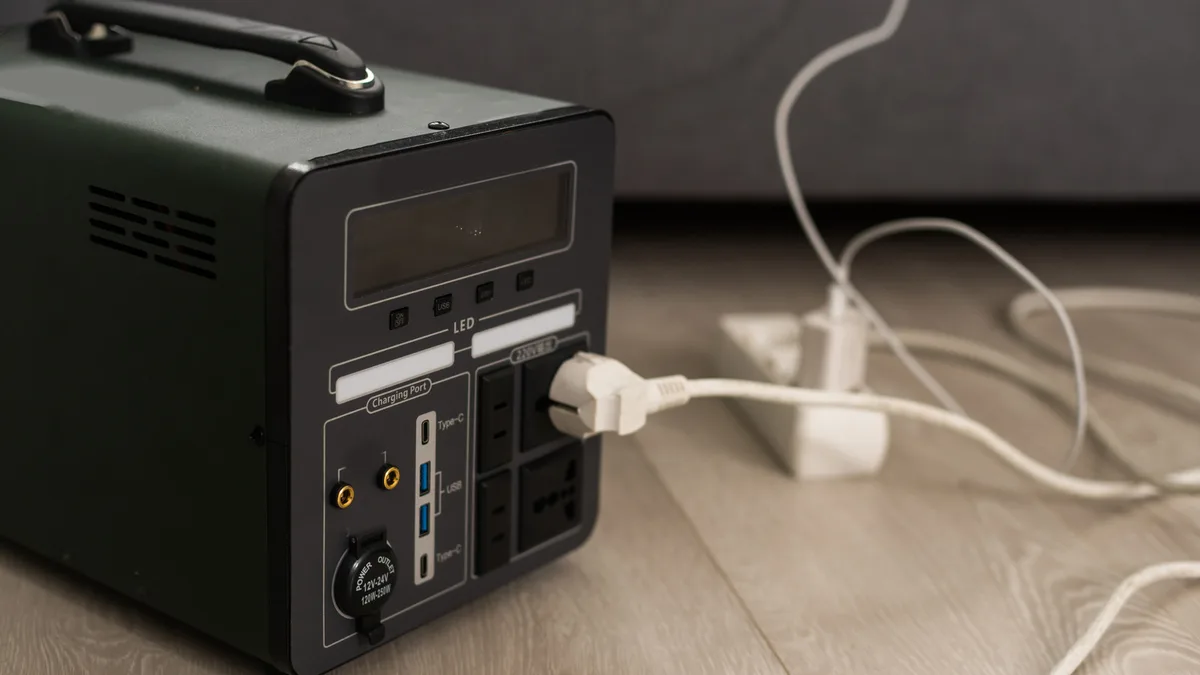
Portable solar generators provide three distinct interfaces for power output. Each interface interacts with your laptop differently depending on its input requirements. Understanding these physical connections is the first step toward a successful charge.
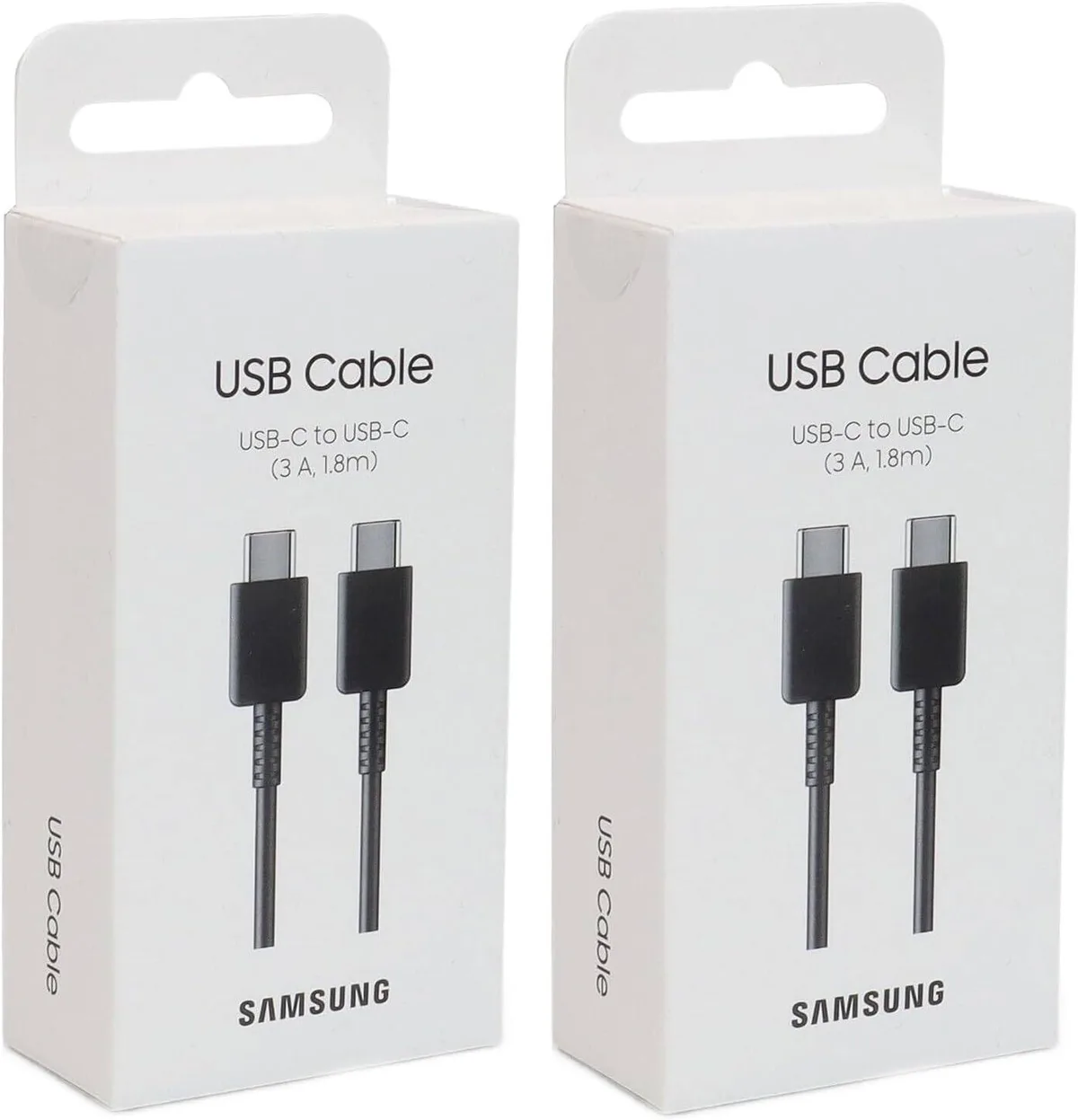
- USB-C Power Delivery (PD): A digital interface that carries power directly to the laptop's battery management system.
- 12V DC Port: A standard cigarette lighter socket that supplies raw battery voltage.
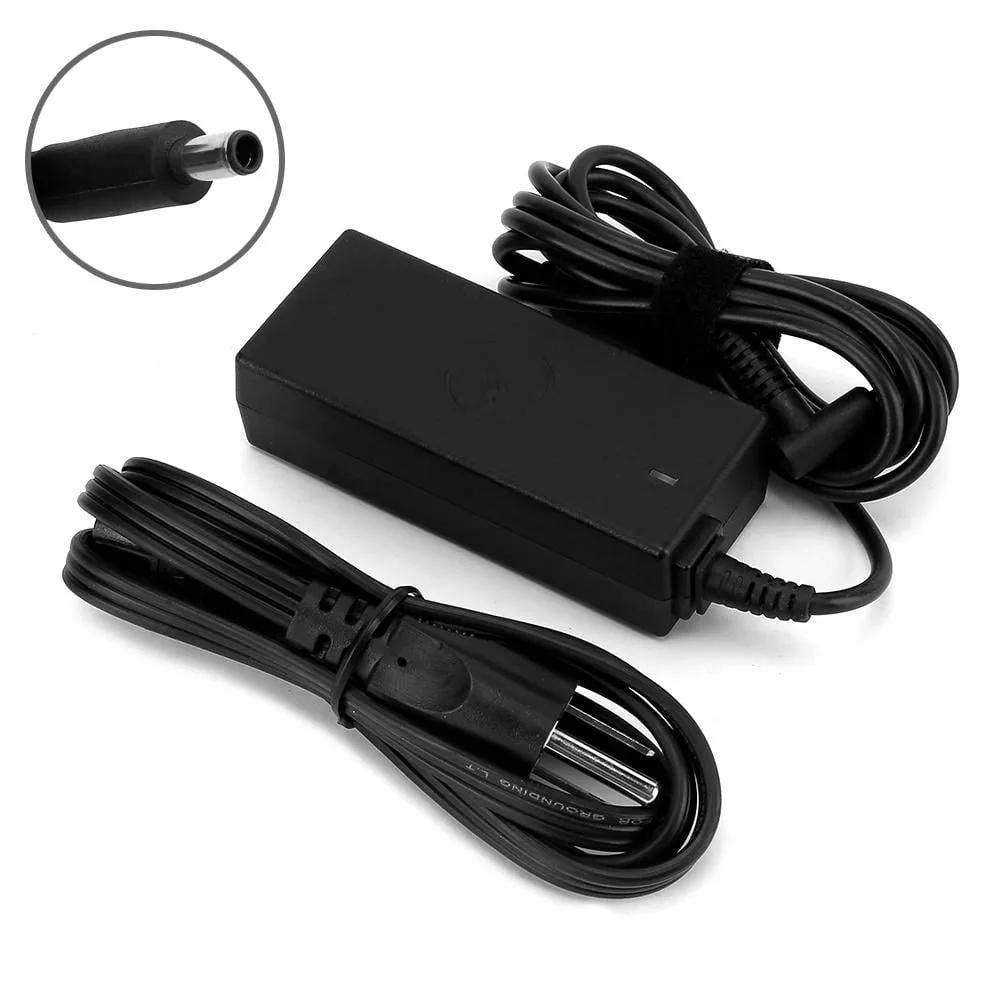
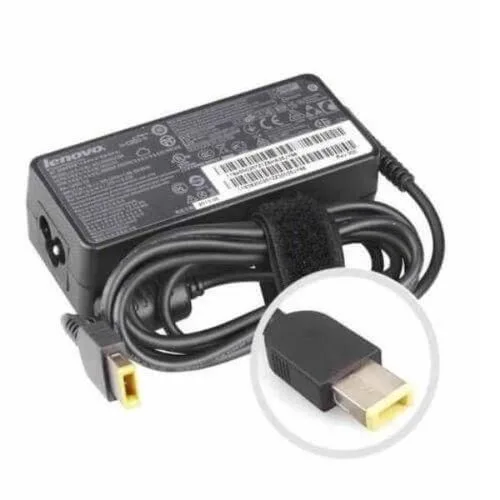
- AC Inverter Outlet: A household socket that requires your laptop's original AC power adapter.
Understanding Your Power Ports: USB-C, DC, and AC
Your generator’s interface determines your efficiency. The USB-C PD port is usually the best choice for modern hardware. It uses the protocol established by the USB Implementers Forum to negotiate the exact voltage and amperage your laptop needs.
This prevents overcharging and maintains a steady power flow.
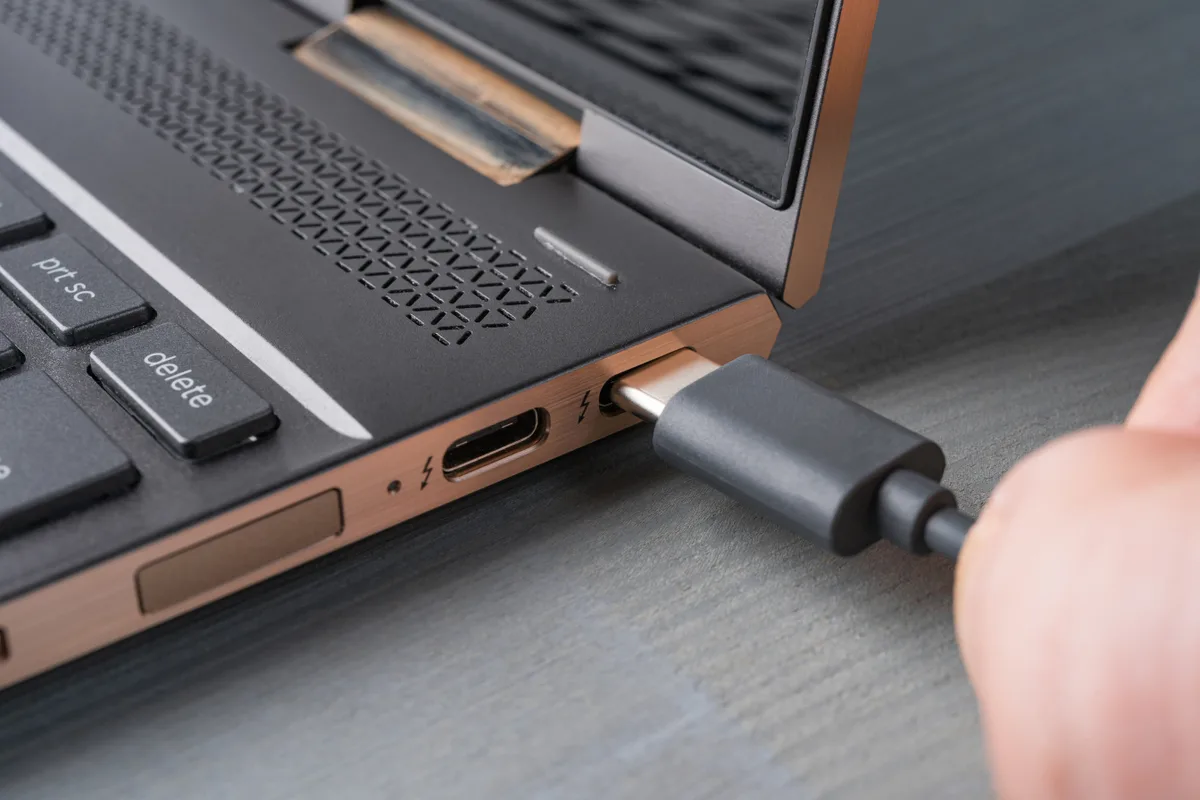
The 12V DC port remains a reliable, if slightly less sophisticated, option. It bypasses the inverter entirely, making it nearly as efficient as USB-C. However, you must use a dedicated DC-to-DC laptop adapter designed for your specific machine.
Never attempt to wire a proprietary plug directly to the port without the proper voltage-regulating adapter.
The AC outlet acts as a universal bridge for older devices or laptops lacking USB-C charging. It is the most flexible port but also the most wasteful. The generator must run its internal cooling fans more aggressively to handle the heat generated by the inverter.
Only use this port if your other options are unavailable.
Step-by-Step: Choosing the Right Charging Path
Start by checking your laptop’s bottom label or power brick for its voltage requirements. If your laptop supports USB-C PD, connect a USB-IF certified cable to the generator’s PD output port. Most modern generators automatically detect the device and begin charging once you press the "DC Output" button.
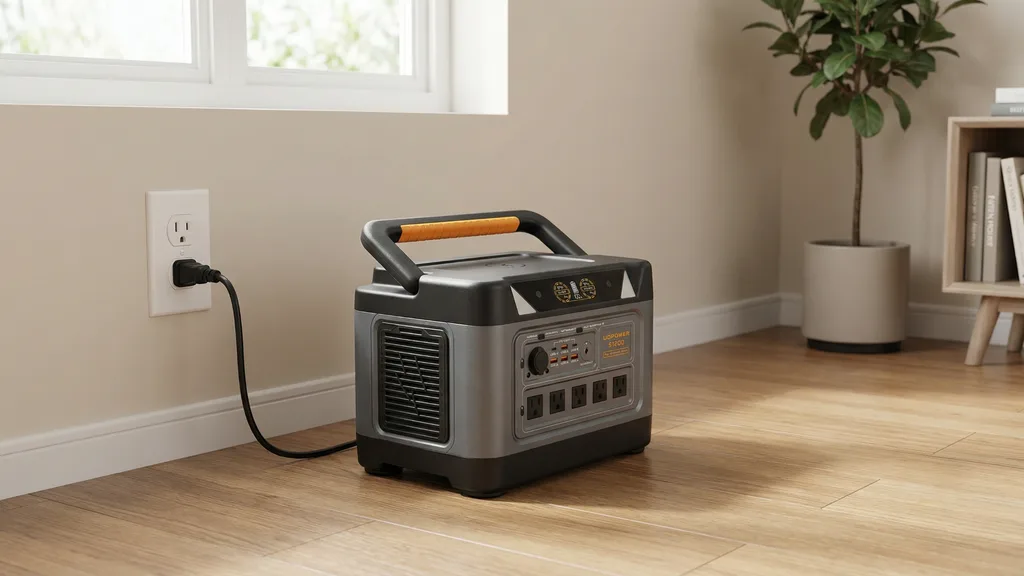
If you use the AC inverter path, plug your laptop’s original power brick into the generator’s AC socket. Ensure you press the "AC" button on the generator front panel. Watch the generator screen for the "Output" indicator to confirm the connection is live.
Always unplug the laptop brick when not in use to avoid phantom power drain.
Why Direct DC Charging Beats the AC Inverter
Direct DC charging maintains the highest energy density because it avoids the double-conversion cycle. In an AC setup, power travels from the generator battery to the inverter, then to the brick, and finally to your laptop. Each stage creates heat, which represents wasted energy that would otherwise extend your work time.
Tests on portable power systems show that DC-to-DC charging can improve overall efficiency by up to 15% compared to using an AC wall brick. This is vital when you are relying on solar panels to replenish your generator during the day. By choosing a DC path, you reduce the strain on your generator's battery bank.
How to Manage Your Solar Generator's Power Budget
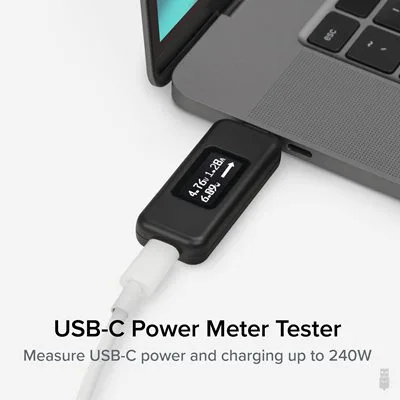
Managing your power budget requires monitoring the generator's real-time output display. Most stations show "Output Watts" clearly on their front-facing LCD or LED panel. If you see this number fluctuating, check the tightness of your cables.
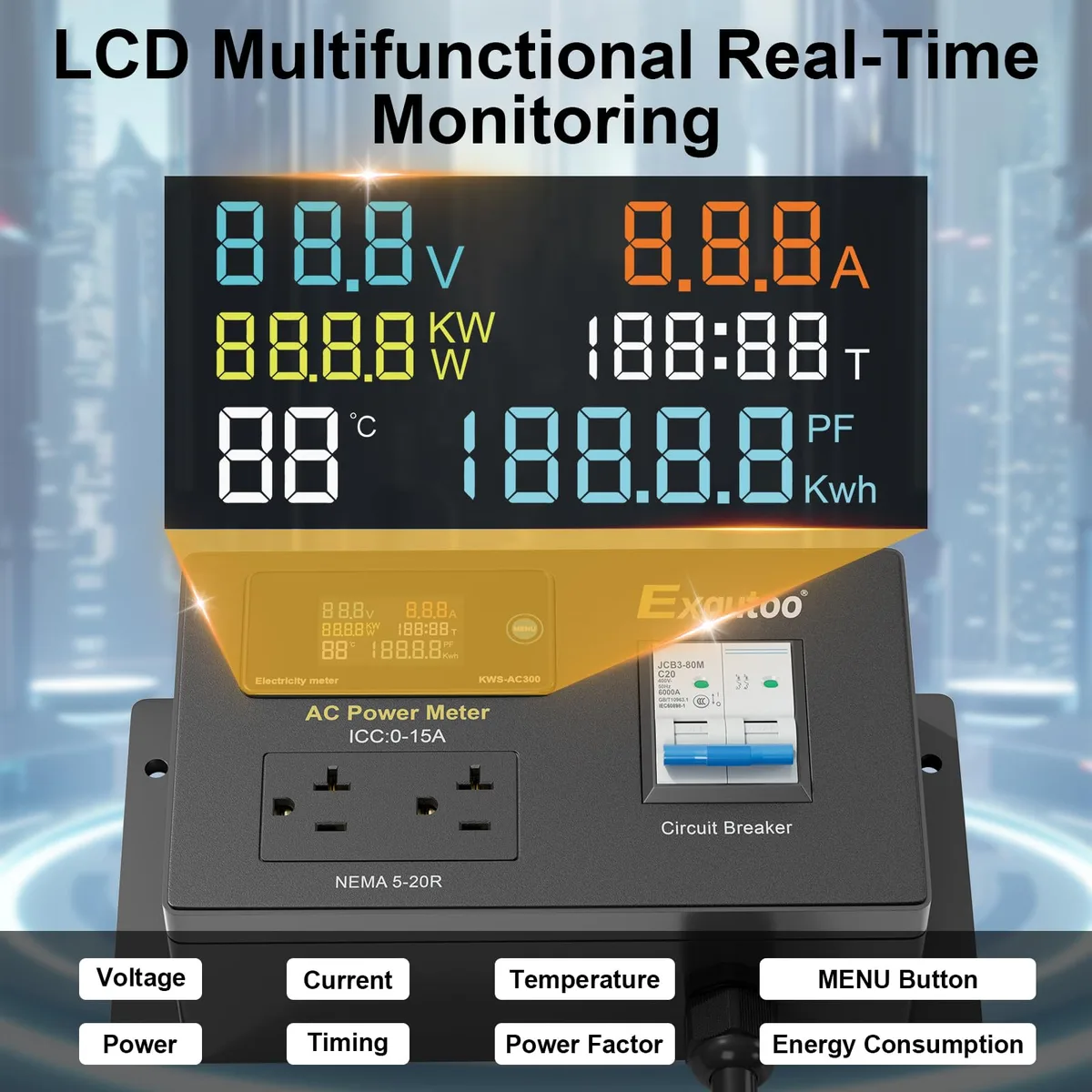
Keep a close eye on the "Remaining Runtime" indicator if your generator provides one. This metric is a calculation based on your current load. If your laptop is performing high-intensity tasks like video rendering, your power draw will increase.
You may need to close background apps to maintain a longer, more stable charging duration.
Common Mistakes That Kill Your Charging Efficiency
Many users accidentally leave the inverter on when they only intended to charge a small mobile device. Even without a load, the inverter consumes power to maintain its circuitry. This silent drain can deplete your battery overnight.
Another common error involves daisy-chaining multiple power adapters through a cheap extension cord. This adds resistance, lowers voltage, and forces your laptop to work harder. Always plug the laptop charger directly into the generator or a high-quality, short power strip.
Ignoring temperature warnings can damage your lithium-ion cells. If your generator feels hot, it is likely throttling power output to protect its internal chemistry. Keep the unit in a shaded, well-ventilated spot to maintain optimal charging speeds.
Essential Safety Tips for Laptop Power Delivery
You should only use cables certified by the USB Implementers Forum to ensure proper power delivery. Cheap, uncertified cables often lack the internal shielding to handle high wattage. They can melt or cause intermittent charging failures.
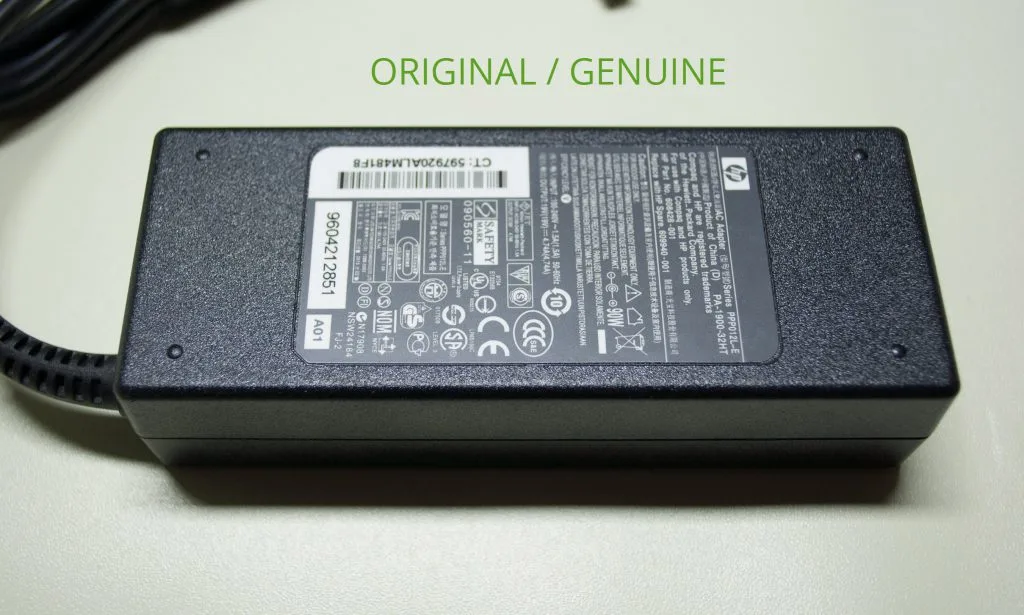
Never mix and match power adapters from different electronics, even if the connectors appear identical. Check the output voltage (V) and amperage (A) on the device label against the adapter's specs. A mismatch can blow internal fuses or permanently fry your laptop's motherboard.
Store your gear in a dry, climate-controlled environment when not in use. Moisture leads to corrosion on the contact pins of your ports. A little bit of dust can also cause a poor connection, so clean your ports periodically with compressed air.
Troubleshooting: When Your Laptop Won't Charge
Start by verifying that the solar generator is actually turned on. Many units feature separate buttons for DC and AC power. If you plugged into the AC outlet but didn't activate the AC inverter, you will get zero current.
Double-check your buttons first.
If the generator is on but the laptop shows no activity, check for a loose connection at the port. Sometimes, protective cases on laptops prevent the plug from seating fully. Remove the case and try the connection again to confirm it isn't a mechanical blockage.
If the issue persists, the generator might have tripped its internal over-current protection. This happens when the laptop requests more power than the specific port can safely supply. Unplug everything, wait 30 seconds for the internal breakers to reset, and restart the process with only the laptop connected.
Best Practices for Long-Term Battery Health
Lithium-ion batteries perform best when they stay between 20% and 80% charge. Regularly letting your solar generator drop to 0% can reduce its overall lifespan over several years. Try to keep it topped up whenever sunlight is available.
Avoid leaving your laptop plugged in 24/7 if you aren't using it. Once the battery reaches 100%, constant trickle-charging generates unnecessary heat. Unplug the device once it hits capacity to maintain the health of both the laptop's battery and the generator.
Follow the storage guidelines provided by the National Institute of Standards and Technology regarding battery safety. Storing batteries in extreme heat or freezing temperatures accelerates capacity loss. Keep your power station at room temperature whenever possible to extend its useful service life.
Final Decision Guide: Your Charging Workflow Flowchart
Use this workflow whenever you need to decide which charging path is right for your current situation. Start by checking your laptop for a USB-C input port. If it has one, that is your primary path.
- Does your laptop have a USB-C port?
- Yes: Use a USB-C PD cable for maximum efficiency.
- No: Proceed to check for a 12V DC adapter.
- Do you have a dedicated 12V DC car charger for your laptop?
- Yes: Plug it into the 12V cigarette port for high efficiency.
- No: You must use the AC inverter path.
- Are you using the AC inverter path?
- Yes: Keep the generator in a cool, ventilated area and turn off the AC button as soon as you finish charging.
Following this path minimizes energy loss and protects your hardware from unnecessary wear. Every time you skip the inverter, you save enough energy to power your laptop for several extra minutes. This adds up significantly over a long day of off-grid work.
Frequently Asked Questions
Can I charge my laptop and the generator at the same time?
Yes, most modern portable solar generators support pass-through charging. This means you can keep the generator plugged into solar panels while simultaneously powering your laptop. Check your manual to confirm your specific model supports this feature, as it is standard in the industry but not universal.
Will a small solar generator damage my laptop battery?
No, modern laptops and solar generators contain smart controllers that negotiate power flow. They handshake to ensure the laptop only draws what it can safely handle. As long as you use the provided charging cable and reputable ports, your laptop battery will remain safe from over-voltage.
How do I know if my solar generator is powerful enough?
Check your laptop’s power brick for a "watts" or "W" rating. If your laptop needs 60W, your generator must provide at least 60W of continuous power. Ensure the generator’s port can match or exceed that wattage, or the laptop may fail to charge or charge extremely slowly.
How long does a full charge take?
Charging time depends on the generator's capacity and your laptop's current battery level. A 300Wh generator can usually charge a standard laptop battery three to four times from empty to full. Expect a full charge to take between two and four hours, depending on the wattage your laptop pulls.
Should I use the AC port or DC port if both are available?
Always choose the DC port or USB-C port over the AC port. The AC port requires an extra conversion step, which wastes power as heat. Using a DC connection ensures you lose less energy during the transfer, keeping your generator running longer on a single solar charge cycle.

Similar Posts