What Gauge Wire Do You Need for a 100W Laptop DC Cable?
Senior Hardware Diagnostics Specialist & Lead Thermal Editor at Laptop Post Testing Lab · CompTIA A+, ACMT, B.S. in Computer Engineering · 12+ years bench-testing laptop thermal solutions & motherboard repairs
If you are trying to figure out what gauge wire is needed for 100w 20v laptop dc power cable repairs, you aren't alone. Many people encounter frayed cables or broken barrel jacks that require a quick fix to keep their machine running. Using the correct wire gauge is the difference between a reliable charging setup and a potential fire hazard.
We base our recommendations on the standard American Wire Gauge (AWG) sizing system. A 100W laptop running at 20V pulls 5 Amps of current, which requires specific conductor thickness to prevent overheating. We'll show you how to choose the right cable to ensure your hardware stays safe.
Quick Answer
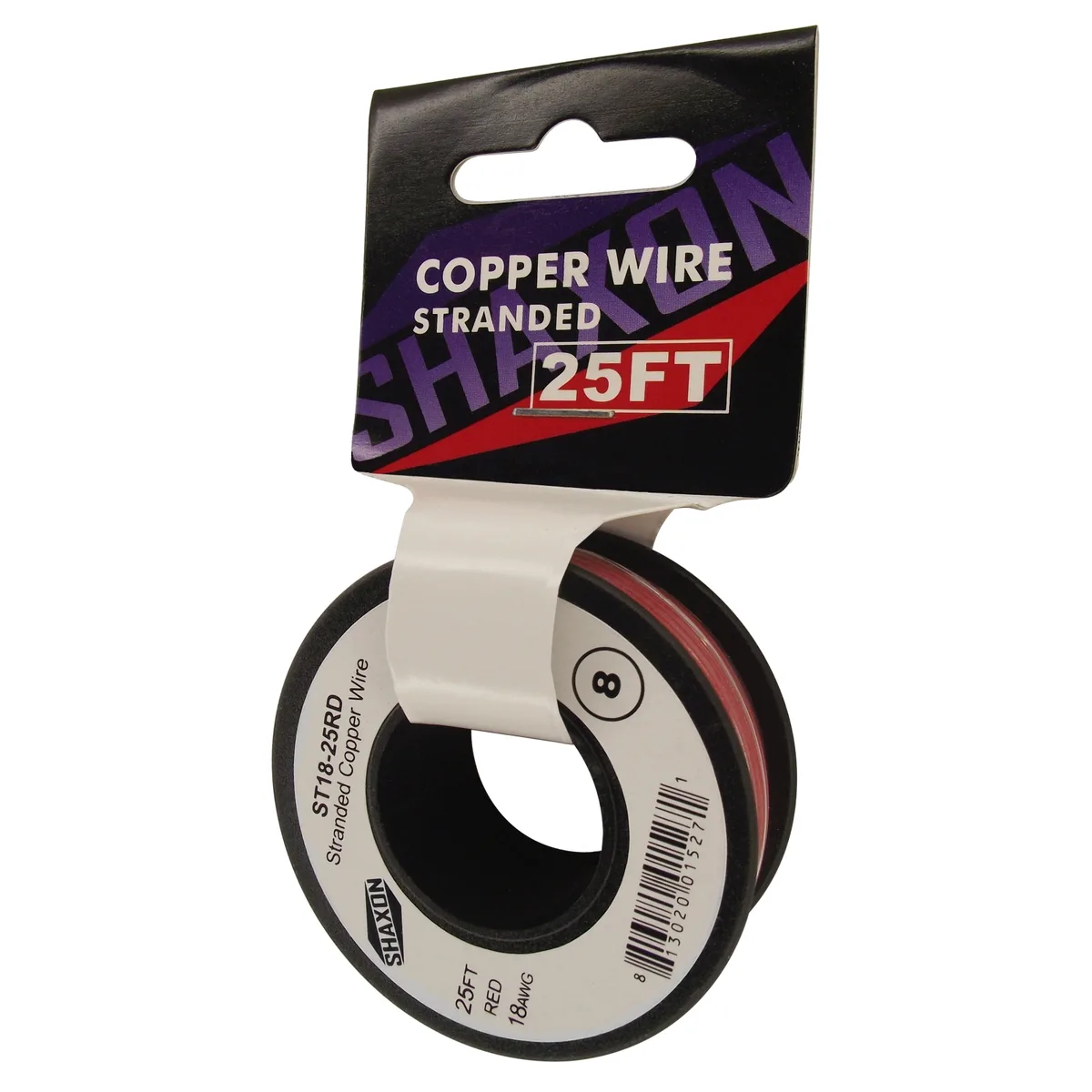
The best gauge for a 100W 20V cable is 18 AWG. This wire size safely carries 5 Amps without excessive heat. You may use 16 AWG for extra safety margin.
Avoid 22 AWG wire to prevent fire risks. Always use high-quality stranded copper for your replacement cable.
The Risks of Undersized Wiring in Laptop Power Cables
When you use a wire that is too thin for the job, you create resistance. This resistance forces the electricity to turn into heat rather than power for your laptop. An undersized cable will feel warm or even hot to the touch while you are charging.
If the wire gets hot enough, the insulation can melt. This can lead to a short circuit inside the cord. A short circuit poses a genuine fire risk to your desk or your home.
Even if it doesn't cause a fire, the voltage drop from a thin wire prevents your laptop from charging properly.
Why 100W at 20V Demands Specific Gauge Selection
To understand the power requirements, we look at the basic physics of electricity. Watts equals Volts multiplied by Amps. For a 100W, 20V laptop, your power supply delivers 5 Amps.
Wires have a maximum ampacity, which is the current they can carry before they reach their temperature rating. For internal and short-run DC power, 18 AWG is the standard recommendation. It supports 5 Amps with plenty of room to spare.
You can review National Electrical Code documentation for detailed ampacity tables if you want to verify these load limits. These standards exist to keep electrical systems stable. Using the correct gauge ensures your system follows these safety principles.
Calculating Your Needs: The Physics of 5 Amps
Every wire has an internal resistance that depends on its diameter. A smaller wire has a smaller diameter and higher resistance. When 5 Amps of current flows through a high-resistance wire, you lose energy.
The power loss is calculated as current squared multiplied by resistance. This lost energy escapes as heat. If the wire is too small, that heat builds up faster than it can escape.
Choosing a larger wire like 16 AWG lowers the resistance. It keeps the cable cooler and delivers more of the power brick's output directly to your laptop battery. This efficiency helps your power brick run cooler, too.
Essential Wire Specifications: AWG and Current Capacity
The AWG system works in reverse. A higher number means a thinner wire. An 18 AWG wire is thicker than a 22 AWG wire, and it has more copper to carry the load.
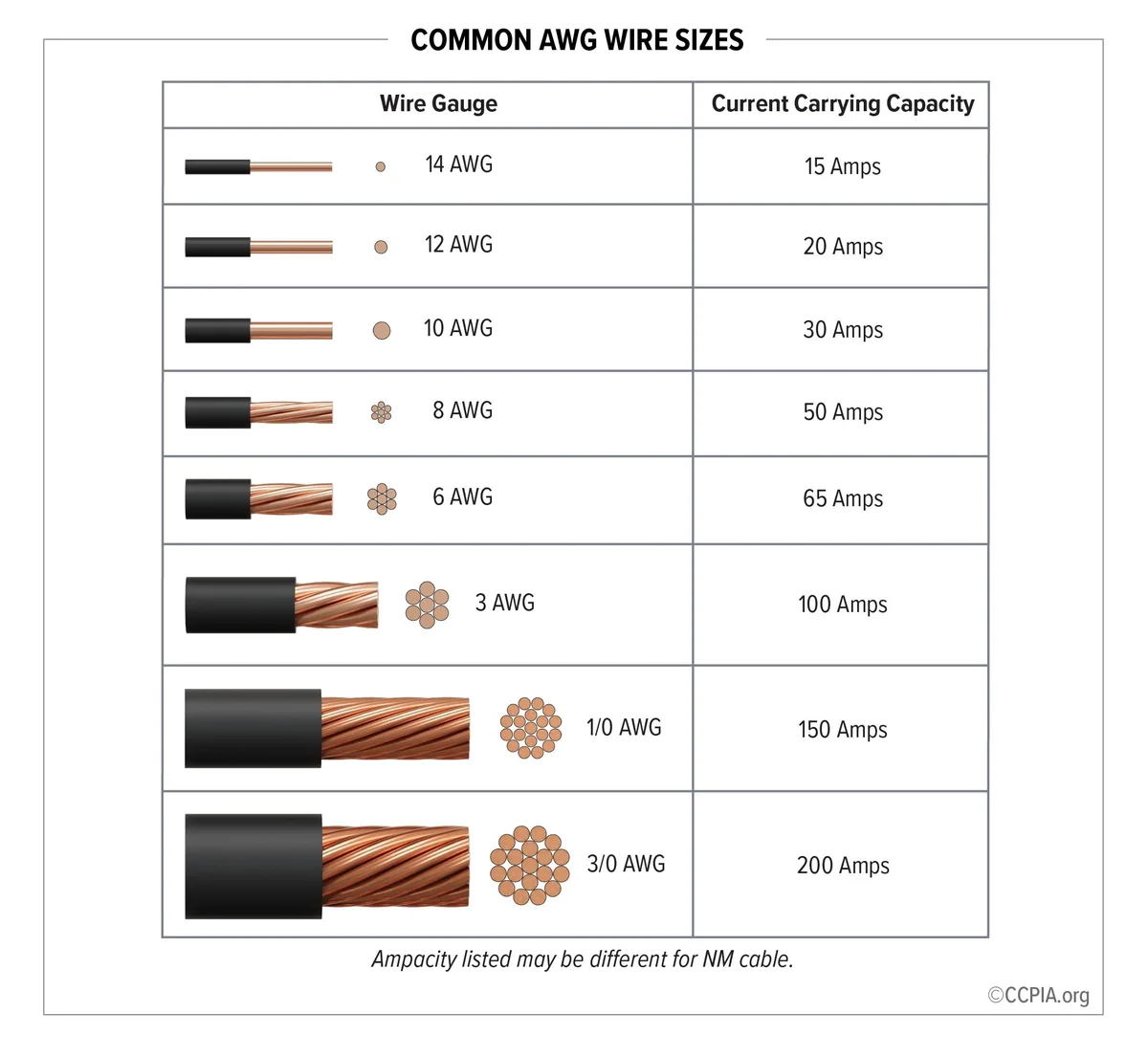
For a 100W, 20V setup, we suggest using 18 AWG wire. This size is stiff enough to be durable but flexible enough for daily use. See the table below for a quick summary of how these gauges perform.
| Wire Gauge | Current Rating | Performance for 100W |
|---|---|---|
| 16 AWG | 10A – 13A | Overkill, very stable |
| 18 AWG | 7A – 10A | Ideal, industry standard |
| 20 AWG | 5A | Borderline, use with caution |
| 22 AWG | 3A | Too thin, fire hazard |
Why Stranded Conductors Are Mandatory for Mobile Electronics
Laptop power cables face constant bending and tension. If you use solid core wire, the copper will develop metal fatigue. It will eventually snap under the insulation where you cannot see the break.
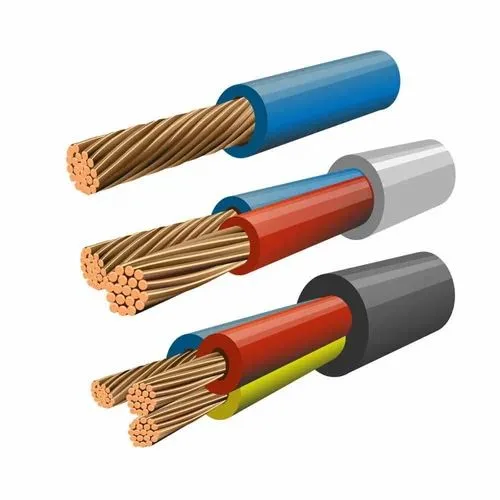
Stranded wire consists of many thin copper filaments twisted together. This design makes the cable flexible and resistant to breaking. When you source wire for your repair, always check the packaging for "stranded" or "multi-strand" labels.
Using stranded wire also provides a better surface area for current flow. High-frequency power delivery can suffer from the skin effect, where electricity travels on the surface of the conductor. Stranded wires have more surface area than solid wires of the same gauge.
The Danger of Voltage Drop and Resistive Heating
Voltage drop is the hidden performance killer in many DIY cable builds. Even if your wire doesn't melt, a high-resistance cable can starve your laptop of the necessary 20V. Your laptop controller might detect this drop and refuse to charge the battery to protect the internal circuitry.
If you are extending a cable, the problem becomes worse with every extra foot. You should aim to keep your total cable length as short as possible. If you must use a longer run, always choose 16 AWG wire to compensate for the distance.
This provides enough copper mass to keep the voltage drop within the acceptable threshold for your hardware.
Safety Benchmarks for Cable Insulation and Heat Tolerance
The outer jacket of your cable is just as important as the copper inside. Most standard cables use PVC or TPE insulation rated for specific temperatures. You want a cable marked with a rating of at least 80°C or 105°C.
Check the markings printed directly on the cable jacket. These codes indicate the voltage and temperature limits verified by safety organizations. Never use generic wire meant for low-power hobby projects, as it may not be flame-retardant.
A quality cable will hold its shape even when it gets warm from daily use.
Step-by-Step Selection: Choosing Between 18 AWG and 16 AWG
You have two main choices when building your power lead. Most users will find 18 AWG is the most practical option. It fits easily into standard barrel jacks and remains flexible inside your gear bag.
Use 16 AWG only if you need a longer cord than the original factory length. Keep in mind that 16 AWG is thicker and more difficult to solder into tight connector housings. If the housing feels cramped, do not force it, as you might cause a short against the metal shield.
Common Mistakes: Why 22 AWG and Thin Cables Fail
The most frequent error is using hook-up wire from a hobby kit. These thin wires are designed for sensors or logic signals, not power delivery. They have extremely high resistance for a 5 Amp load.
Using 22 AWG or thinner leads to rapid overheating and potential insulation failure. Many users mistake working for safe. Just because the laptop shows a charging light does not mean the cable is safe for long-term use.
If the cable feels hot to the touch after ten minutes, you must replace it immediately with a thicker gauge.
Best Practices for Soldering and Crimping Laptop Connectors
A weak solder joint adds resistance, which creates a hot spot right at the connector. You need a clean, shiny connection to ensure the current passes through without heat buildup. Always use a high-quality rosin-core solder designed for electronics.
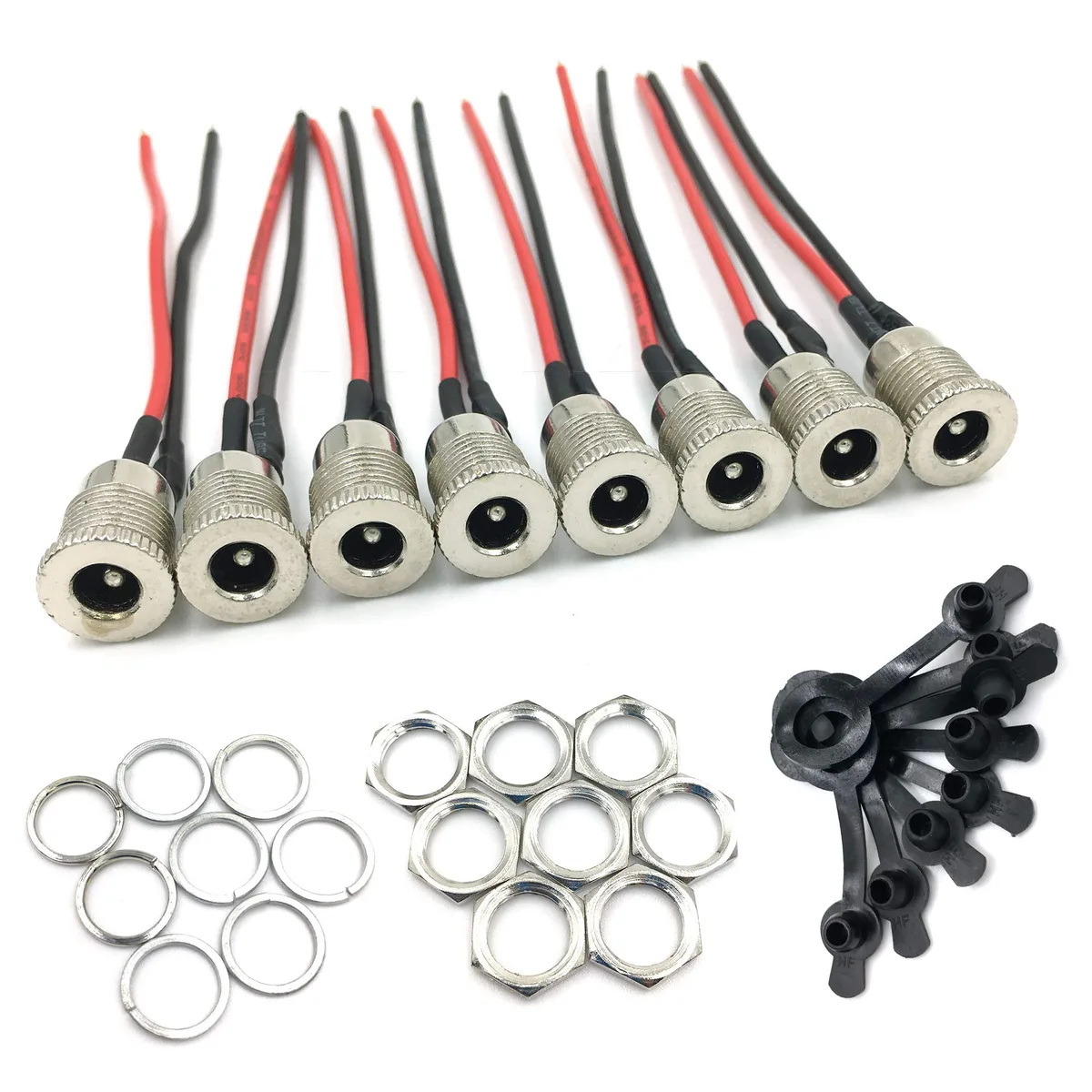
Clean your wire ends and the connector terminals with isopropyl alcohol before you start. Use a helping-hand tool to hold the pieces steady while you work. If you use a crimp connector, ensure you use the correct die for the terminal size to create a gas-tight seal.
Verifying Your Build: Testing for Voltage Consistency
Before you plug your repair into a laptop, check the output with a digital multimeter. Set your meter to measure DC voltage and probe the barrel jack pins. You should see a steady reading close to 20V.
If the voltage fluctuates when you wiggle the cable, you have a loose joint. A loose connection will arc internally, which creates carbon buildup and eventually destroys the connector. Re-solder any joints that feel unstable or show flickering voltage on your meter.
Safety Warnings: Identifying Signs of Thermal Damage
Thermal damage often happens slowly. Check your cable periodically for signs of softening or discoloration. If the insulation looks shiny or feels gummy, it has been exposed to excessive heat.
Look for signs of deformation near the barrel jack. This is the most common stress point for daily wear and tear. If you see any black marks or smell a faint plastic odor, discard the cable immediately.
It is not worth the risk of damaging your laptop port or starting a fire.
Final Verdict: The Recommended Build for 100W Stability
For a 100W, 20V laptop power cable, 18 AWG stranded copper is your gold standard. It provides the best balance of safety, flexibility, and availability for a reliable fix. If you want an extra safety cushion for longer cables, 16 AWG is the only appropriate step up.
Avoid the temptation to use what you have on hand if it is thinner than 18 AWG. Your laptop's charging circuitry is expensive to replace, and your safety is not worth the cost of a few feet of wire. Stick to these standards to keep your hardware running cool and consistent.
Comparison of Wire Types for DC Power Delivery
Not all copper wire is created equal when it comes to power delivery. You will primarily choose between tinned copper and bare copper conductors. Tinned copper is our top recommendation because it resists oxidation in humid environments.
Bare copper is cheaper, but it tarnishes over time. Once it tarnishes, you get increased resistance at your connections. That is why high-quality, pre-assembled laptop power cables usually feature tinned strands to keep the connection clean for years.
Use Cases for Custom Power Solutions
You might need a custom cable for a specialized desk setup or a mobile docking station. When you build these, remember that the power brick’s capacity dictates the gauge. A 100W brick needs the same 18 AWG standard whether you use it for a standard laptop or a high-power charging hub.
Always match the connector type to your laptop’s proprietary port. Many brands use custom tips to prevent you from using the wrong power source. Buying a high-quality barrel jack adapter is often more reliable than trying to harvest one from a dead cable.
Maintenance and Long-Term Optimization
Your cable needs a little care to survive a long life in your backpack. Avoid wrapping the cord tightly around the power brick. Tight bends create localized stress on the internal copper strands, which eventually leads to hidden breaks.
Use cable ties to organize your workspace rather than kinking the cord. If you notice the cable starting to fray near the connector, apply a piece of heat-shrink tubing before the damage reaches the copper. This simple preventative step extends the life of your repair significantly.
Real Scenarios and Troubleshooting
Common issues often stem from hidden damage within the cable jacket. If your laptop suddenly stops charging, try gently bending the cable near the connector while watching the charging status. If the light flickers, you have a broken strand inside the wire.
We’ve seen cases where the power brick itself fails, leading users to blame the cable. Always test the voltage output of your power adapter before you start cutting and splicing. Use a multimeter at the end of the brick's cable to verify that the power supply is actually working correctly.
Compliance and Safety Standards
Reputable manufacturers follow strict guidelines for power cord construction. The National Institute of Standards and Technology provides technical references regarding electrical properties that inform modern safety codes. These standards ensure that your hardware remains safe under various conditions.
Never ignore safety labels on your equipment. If your laptop requires 100W, your cable must be rated for at least that load. Using non-compliant, unrated components is a gamble with your expensive hardware and the safety of your home.
Always prioritize cables with recognized safety certifications when possible.
Environmental Factors and Cable Durability
Extreme temperatures significantly impact how your wire performs. High ambient heat reduces the amount of current your cable can carry safely. If you regularly use your laptop in warm environments, the insulation degrades faster than expected.
Avoid leaving your power cable in direct sunlight or enclosed in hot, unventilated spaces. Ultraviolet radiation makes the outer jacket brittle over time. A brittle jacket cracks easily, exposing the conductive strands to moisture and dirt.
Proper Storage and Handling Techniques
How you store your cable determines its lifespan more than the actual charge cycles. Avoid wrapping the cable tightly around the power brick. This creates sharp bends that fatigue the copper filaments and cause internal breaks.
Instead, use a loose coil technique with a hook-and-loop strap. This prevents the internal wires from experiencing extreme stress. Keep the connectors away from heavy objects that could crush or deform the delicate metal housings.
Identifying Authentic versus Counterfeit Cables
Counterfeit cables often use thinner wire than specified on the jacket. You might find a cable marked 18 AWG that actually contains thinner, higher-resistance strands inside. These cables rely on thicker insulation to look the part while cutting corners on expensive copper.
Check the weight of the cable if you have a known authentic one to compare. A legitimate, high-quality cable feels substantial due to the dense copper core. If a cable feels unusually light or limp, it is likely using undersized or inferior materials.
When to Consult a Professional Repair Service
Sometimes a simple cable splice is not enough to restore reliable power. If your laptop’s DC jack port is loose or damaged, replacing the cable won't solve the charging issue. This requires a teardown of the laptop to access the internal charging board.
Only attempt internal repairs if you have experience with sensitive electronics. Forcing a repair on a modern laptop can damage delicate ribbon cables or motherboard components. When in doubt, a professional repair shop provides the necessary diagnostic tools to confirm if the issue is the cable or the port.
Final Assembly and Safety Inspection
Your final assembly must be clean and fully protected from the elements. Use heat-shrink tubing over every individual connection to prevent accidental shorts. Double-check that no stray strands of copper are sticking out from the insulation.
Test the cable for continuity one last time before you plug it into your laptop. A quick check with a multimeter prevents expensive damage to your computer. Once everything tests clean, your power solution is ready for reliable, everyday use.
Frequently Asked Questions
Can I use a longer cable with 18 AWG wire?
You can, but you increase the risk of voltage drop. If you must go beyond 6 feet, upgrade to 16 AWG wire to ensure the voltage reaches your laptop at the correct level. Keeping the cable short is the best way to maintain power efficiency and reduce heat.
Does the material of the conductor matter?
Yes, copper is the industry standard for power delivery. Avoid aluminum or copper-clad steel wires, which have higher resistance and are prone to breaking under stress. Pure copper or high-quality tinned copper is required for the high current demands of a 100W power supply.
How do I know if my wire gauge is too small?
The most reliable sign is heat. If your cable feels noticeably warm after a period of charging, it is likely undersized or damaged. Other symptoms include your laptop reporting that it is plugged in but not charging, or the power supply shutting off intermittently under load.
Is it safe to repair a laptop cable myself?
It is safe if you have basic soldering skills and use the correct materials. You must ensure all connections are properly insulated with heat-shrink tubing to prevent shorts. If you are uncomfortable with soldering or do not have the right tools, it is safer to replace the cable entirely.
What should I do if the replacement cable gets hot?
Stop using it immediately. Heat indicates an unsafe level of resistance or a potential short circuit. Inspect your solder joints for cold spots or debris, and confirm you used at least 18 AWG wire.
If the gauge is correct and it still gets hot, the internal copper strands may be damaged.

Similar Posts