How to Choose the Right Replacement Charger for Samsung
Senior Hardware Diagnostics Specialist & Lead Thermal Editor at Laptop Post Testing Lab · CompTIA A+, ACMT, B.S. in Computer Engineering · 12+ years bench-testing laptop thermal solutions & motherboard repairs
Choosing the right replacement charger for Samsung Galaxy Book requires matching your laptop's specific power needs to a compatible power adapter. You cannot rely on standard phone chargers, as they lack the necessary wattage to keep your device running under load.
Samsung Galaxy Book models generally follow the USB-C Power Delivery standard. As of 2026, finding a reliable replacement involves checking the voltage requirements on your original power brick and matching that exact rating.
Quick Answer
Select a charger matching your laptop's original wattage rating. Ensure the adapter supports USB-C Power Delivery technology. Check the label on your old power brick.
Avoid using standard phone or tablet power blocks. High-quality GaN chargers often provide the safest, most efficient charging results.
Why Choosing the Right Charger for Your Galaxy Book Matters
Using an incorrect charger for your laptop creates more than just a slow charging annoyance. It can trigger battery health issues or cause the laptop to draw power from the battery while plugged in.
Manufacturers design power adapters with specific voltage and amperage thresholds. When you supply power outside these ranges, the internal battery management system may throttle performance to protect the hardware. In extreme cases, a low-quality or mismatched charger can overheat the charging port or damage the internal power delivery controller.
Decoding Your Laptop’s Power Requirements
Every laptop manufacturer prints power input requirements on the bottom chassis of the device. You should look for a small sticker or laser-etched text near the edge of the casing.
This text indicates the voltage and amperage your machine needs to operate correctly. You will typically see numbers like 19V or 20V followed by an amperage rating. By multiplying these numbers, you get the total wattage required to keep your laptop running at full speed.
Why USB-C Isn't Enough: Understanding Power Delivery (PD)
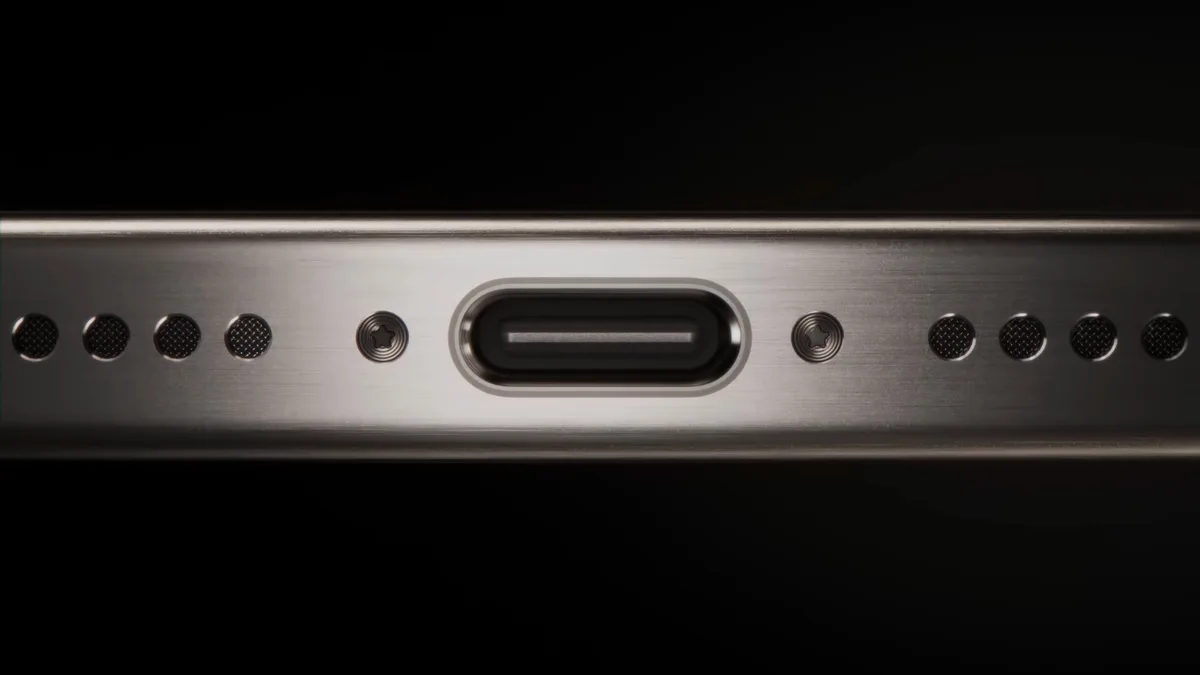
The USB-C connector shape is only the physical port. The actual ability to charge your laptop depends on a communication protocol called USB-C Power Delivery.
This protocol allows the charger and the laptop to negotiate power. The laptop sends a signal asking for a specific amount of power, and the charger confirms it can provide that amount. Without PD support, the charger may default to a very low power mode that is insufficient for a laptop.
According to the USB Implementers Forum, this handshake process prevents electrical accidents and ensures stable charging.
Step-by-Step: How to Check Your Wattage Needs
You must identify your specific wattage requirement before making a purchase. The simplest way to determine this is by looking at the "Output" section on your original Samsung power adapter. If that is unavailable, check the input specs found on the Samsung support portal.
Follow these steps to ensure accuracy:
- Locate the "Output" line on your existing power brick.
- Note the "W" or "Watts" value, which is usually 45W, 65W, or 100W for Galaxy Book models.
- Verify the voltage output, which typically matches your laptop requirements of 19V or 20V.
- Ensure your new charger meets or exceeds this wattage rating.
If your laptop originally came with a 65W adapter, buying a 45W replacement will often result in a "Slow Charging" notification. The laptop might charge while turned off, but it will likely lose battery life while you are actively using it. Always lean toward a higher wattage if you are unsure, as the laptop will safely draw only the power it requires.
Identifying Quality Charging Hardware: What to Look For
When shopping for a replacement, focus on reputable manufacturers that specialize in power electronics. Look for chargers that use Gallium Nitride (GaN) components. These modern chargers are more compact and operate at lower temperatures than older silicon-based power bricks.
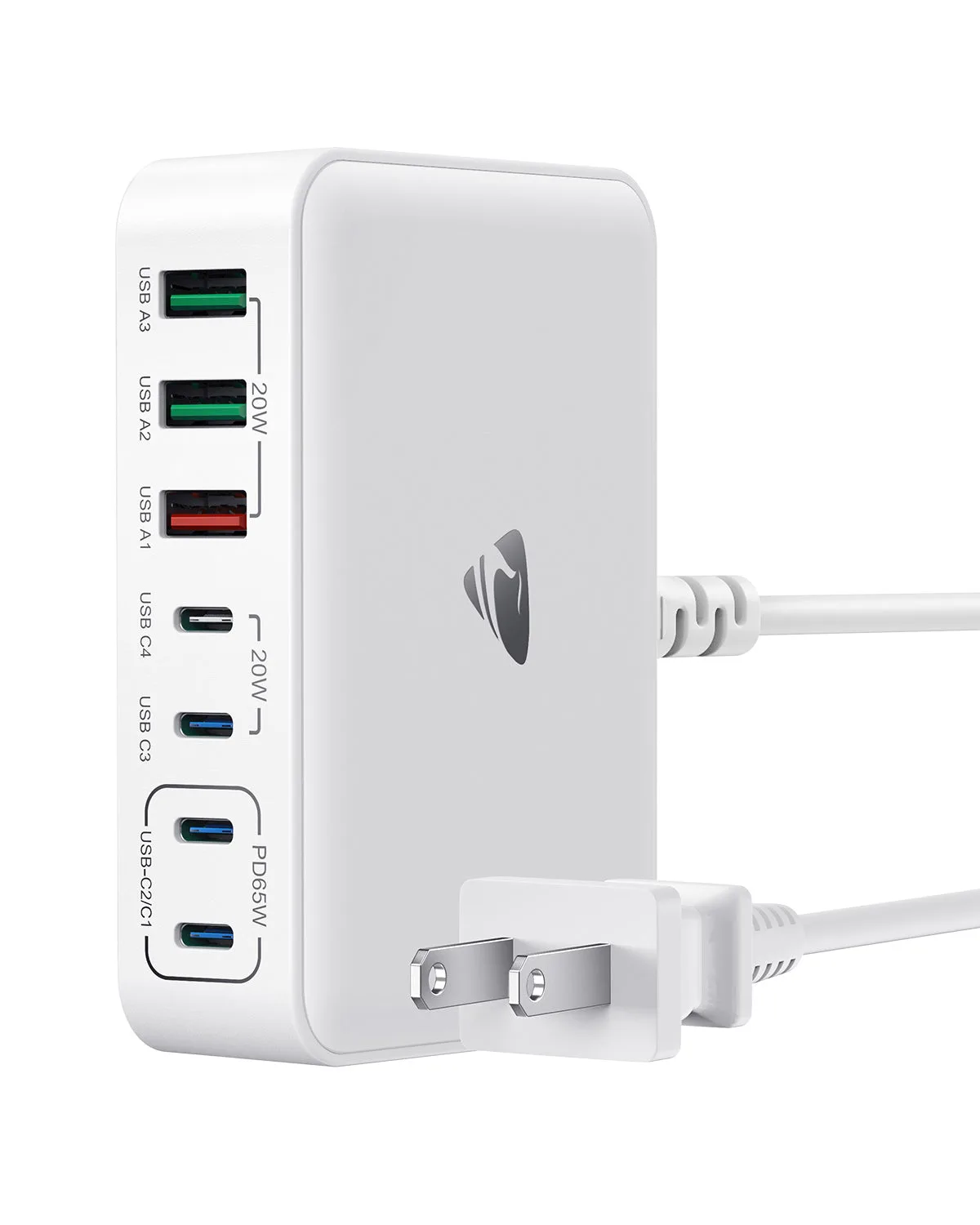
You should prioritize products that explicitly state "USB-C Power Delivery" or "USB-C PD" certification on the packaging. Avoid generic chargers that lack clear safety documentation. These markings indicate that the product has undergone third-party testing for electrical safety and heat management.
Common Mistakes That Damage Batteries or Slow Charging
The most common error is relying on a standard smartphone power block. While the plug may fit, a 15W or 20W phone charger cannot maintain the power draw of a high-performance laptop. This mismatch forces the laptop to cycle between battery and wall power, which degrades the lithium-ion cells over time.
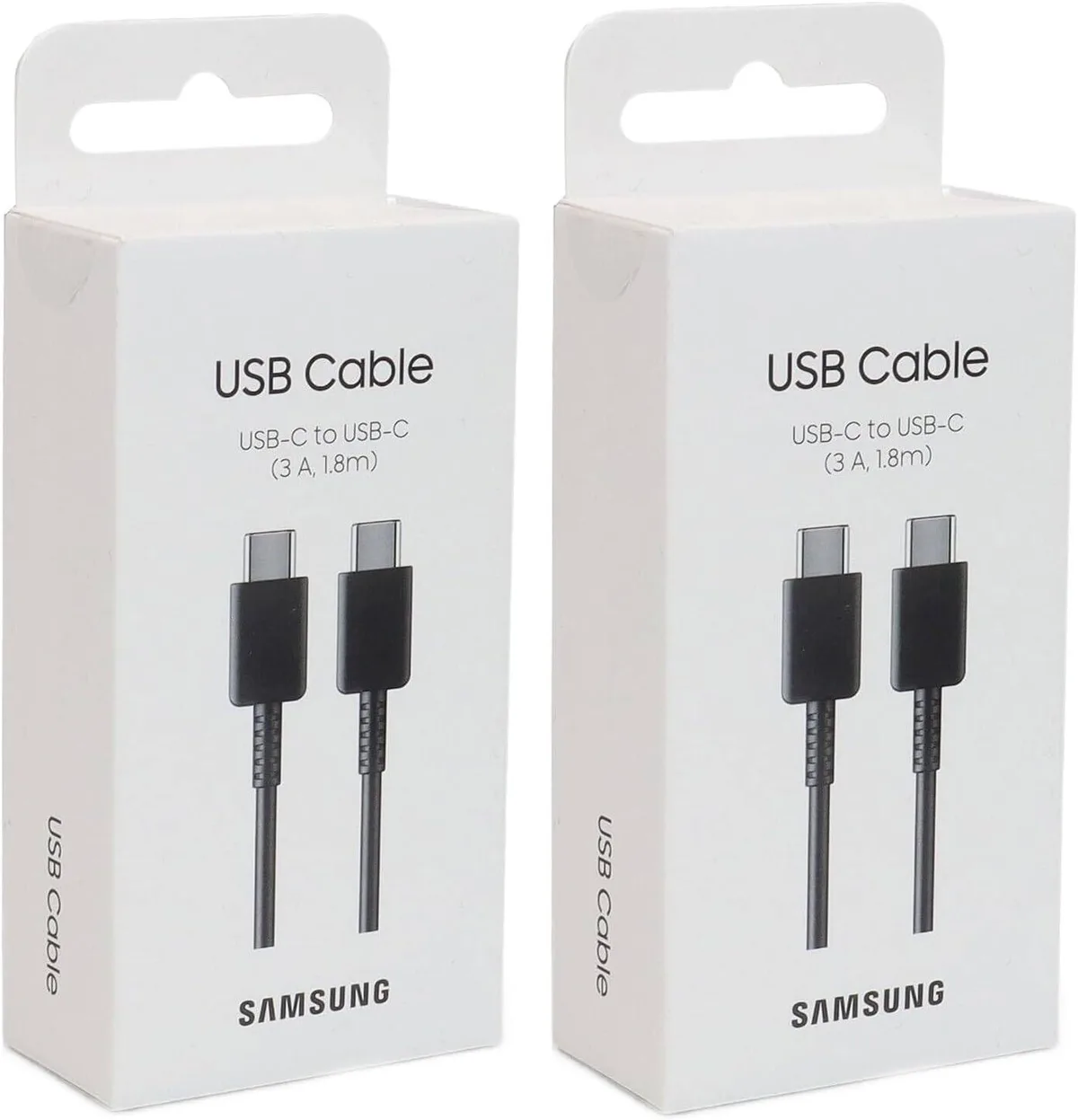
Another frequent mistake involves using cables that lack sufficient data or power transfer capabilities. Always check for the "E-marked" label on cables meant for 60W or 100W charging. These cables contain a tiny chip that signals the charger to deliver the requested high power, whereas a standard data cable will limit the charge speed.
Essential Specs: Comparing 45W, 65W, and 100W Chargers
Understanding these tiers helps you avoid buying a charger that underperforms. Most Galaxy Book Pro and standard models ship with a 65W charger, which serves as a balanced baseline for most workflows.
| Charger Wattage | Ideal Use Case | Compatibility Note |
|---|---|---|
| 45W | Lightweight browsing | May show slow charging on high-performance models |
| 65W | Standard productivity | Recommended for most Samsung Galaxy Book laptops |
| 100W | Heavy workloads | Safe for all models; provides overhead for other devices |
Choosing 100W is a smart investment if you frequently charge other devices, like tablets or phones, alongside your laptop. The laptop will only draw what its controller allows, making a higher wattage charger a versatile choice for your travel bag.
The Role of E-Marked Cables in Power Transfer
The cable acts as a highway for electrical current. If you use a thin or low-quality cable, you create a bottleneck that restricts the flow of power regardless of how powerful the wall brick is.
E-marked cables are specifically designed for high-wattage applications. The "E-mark" chip identifies the cable's current-carrying capacity to the charger, allowing it to safely negotiate high current. Without this chip, the charger will default to a safer, lower current to prevent the cable from overheating.
Always confirm the cable rating matches the output of your chosen power adapter.
Safe Practices for Third-Party Adapters
When you opt for a third-party adapter, keep your setup clean and organized. Avoid using cheap extension cords or loose power strips that might introduce electrical noise or resistance.
Ensure the connection at both the wall outlet and the laptop port remains snug. A loose connection causes arcing, which creates heat and damages the pins inside the USB-C port. If you notice the charger getting excessively hot or hear a buzzing sound, stop using it immediately.
Troubleshooting: Why Your Laptop Isn't Charging Properly
If you plug in your new charger and nothing happens, the first thing to check is the seating of the USB-C connector. It is surprisingly common for a connector to feel "in" while still failing to make a full electrical connection with the internal pins.
Listen for the subtle click of the cable seating into the port. If you use a protective shell, the edges of the case might prevent the connector from fully inserting. Try removing any accessories to verify if the physical obstruction is the culprit.
If the laptop shows a "Slow Charger Connected" warning, the issue is almost always a negotiation failure. This implies your laptop and the charger are struggling to agree on the voltage or current. Try unplugging the brick from the wall for 30 seconds to reset its internal firmware, then reconnect the cable to the laptop first, followed by the power outlet.
When to Stick With Official Samsung Hardware
There are instances where the official power adapter is the only risk-free choice. If you are operating a high-end Galaxy Book model with proprietary charging requirements that fall outside standard USB-PD specs, non-official hardware may cause stability issues.
Genuine Samsung adapters are calibrated to match the specific thermal and electrical tolerances of your device. Using these parts guarantees the laptop maintains its rated performance during heavy tasks. While these adapters might come with a higher price tag, they eliminate the variables associated with third-party components.
You should also choose official hardware if your device is still under the manufacturer's warranty. Using non-approved charging equipment can sometimes complicate warranty claims should a power-related hardware failure occur. It acts as an insurance policy for your device’s long-term health.
Maintenance and Long-Term Optimization
Keeping your power equipment in good shape extends the life of both your battery and the adapter. You should inspect your cables every few months for signs of fraying, kinks, or exposed wiring near the strain relief joints.
Do not wrap your charging cables tightly around the power brick when storing them. This constant tension creates micro-fractures in the internal copper strands, which eventually lead to intermittent power drops. Instead, use a loose coil to store your cables without putting stress on the connection points.
Keep the contact pins inside your laptop’s USB-C port free of dust and lint. Compressed air is an excellent tool for this task, as it clears debris without touching the delicate pins. A clean connection ensures that your high-wattage power transfer remains efficient and cool.
Final Decision Guide: Your Replacement Checklist
Use this checklist to finalize your choice before clicking the buy button. Verify the exact wattage output marked on the bottom of your laptop. Ensure your selected charger explicitly states USB-C Power Delivery support on the product box.
Confirm the included cable is rated for the correct wattage, ideally looking for the E-marked verification. Check the physical dimensions of the brick to make sure it fits your daily routine. If all these conditions are met, you have a safe and reliable solution.
Choosing a charger doesn't have to be complex if you stick to these core technical pillars. By filtering out substandard hardware and focusing on the PD standard, you keep your Galaxy Book running at its peak potential. This systematic approach saves you time, money, and the frustration of dealing with degraded battery life.
Frequently Asked Questions
Can I leave my laptop plugged in constantly?
Modern power management systems automatically stop drawing current once the battery reaches capacity. You don't need to worry about overcharging your battery, as the integrated circuits inside your laptop handle this cycle.
Does cable length affect charging speed?
Yes, longer cables can experience voltage drop over distance if they aren't built for high-wattage throughput. For cables longer than 6 feet, always ensure they are officially certified to maintain stable power transfer at your required wattage.
Why does my charger get hot?
Heat is a byproduct of the power conversion process, especially when your laptop battery is nearly empty. If the charger is too hot to touch, that indicates a problem with the efficiency or internal shielding.
Should I use my laptop while it is charging?
You can safely use your laptop while charging, as the adapter is designed to handle both system operations and battery replenishment. Just ensure you are using the correct wattage, or your battery may drain faster than it charges.
What is the difference between V and A on the label?
Volts represent the pressure of the electricity, while Amps represent the actual flow or current. You must match the voltage exactly to avoid damaging the device, but the amperage rating on your charger can be equal to or higher than the laptop’s requirement.
Real Scenarios: When Travel Adapters Make Sense
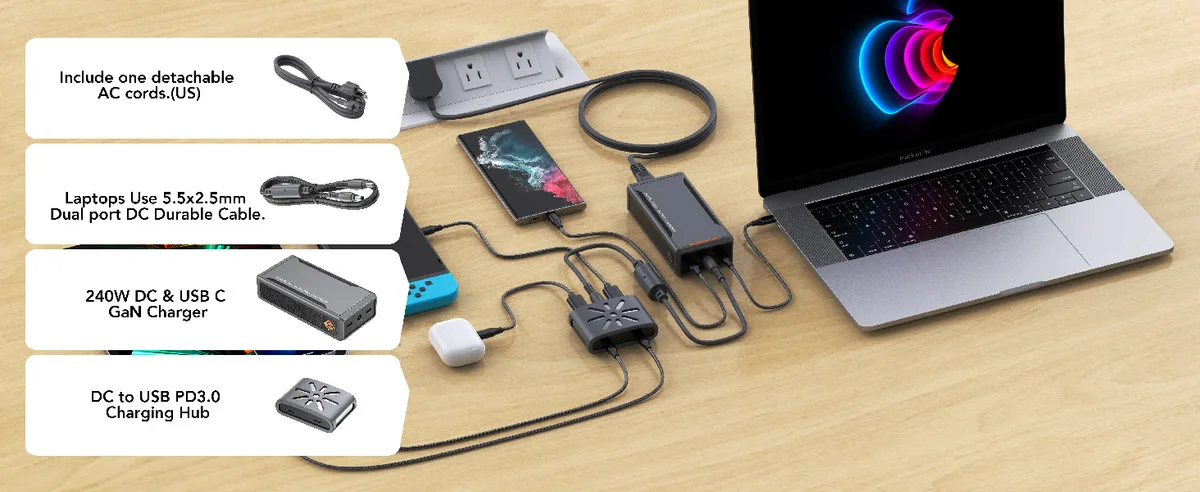
Frequent travelers often choose compact GaN adapters to reduce the weight of their carry-on bags. A single 100W multi-port charger can power your laptop, smartphone, and headphones simultaneously.
These setups work well if you select an adapter that dynamically distributes power. When you plug in multiple devices, the charger prioritizes the laptop first to ensure it maintains a steady charge while the other gadgets share the remaining capacity.

Similar Posts