Why Is My Laptop Charger Buzzing When Battery Is Full?
Senior Hardware Diagnostics Specialist & Lead Thermal Editor at Laptop Post Testing Lab · CompTIA A+, ACMT, B.S. in Computer Engineering · 12+ years bench-testing laptop thermal solutions & motherboard repairs
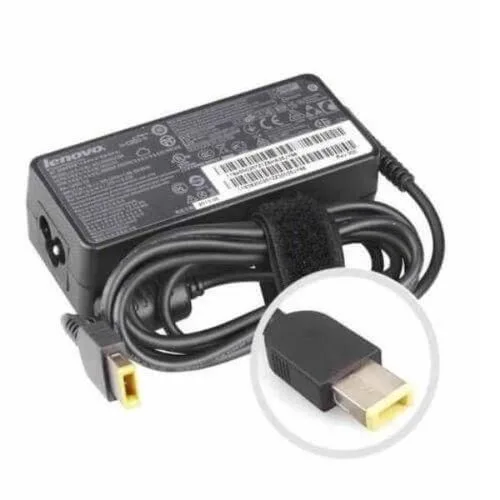
It is a common experience to notice that your laptop charger is buzzing when battery is full 100 percent. This high-pitched noise often occurs as the power adapter shifts from a high-power charging state to a low-power maintenance mode.
Modern chargers, known as switch-mode power supplies, rely on high-frequency components to regulate energy efficiency. As of 2026, most standardized power adapters follow IEEE power engineering guidelines to balance efficiency with thermal output. This adjustment process creates an audible vibration that is usually harmless, yet it requires basic monitoring to ensure safety.
Quick Answer
Your charger makes noise because of internal component vibration. This phenomenon is commonly referred to as coil whine. It happens as the power adapter switches power states.
This usually occurs when the battery stops drawing high current. The sound frequency often changes when the charge hits 100 percent. Most of the time, this noise indicates normal operation.
The Science of Coil Whine and Electromagnetic Vibration
The buzzing sound you hear originates from internal inductors and transformers. These components regulate electricity through electromagnetic fields. As current flows through these coils, they create magnetic forces that physically pull on the windings.
When the power demand is high, these coils are under constant pressure and stay silent. Once the battery hits 100 percent, the controller pulses power to maintain the charge level. This rapid switching causes the coils to vibrate against their mounting at high frequencies.
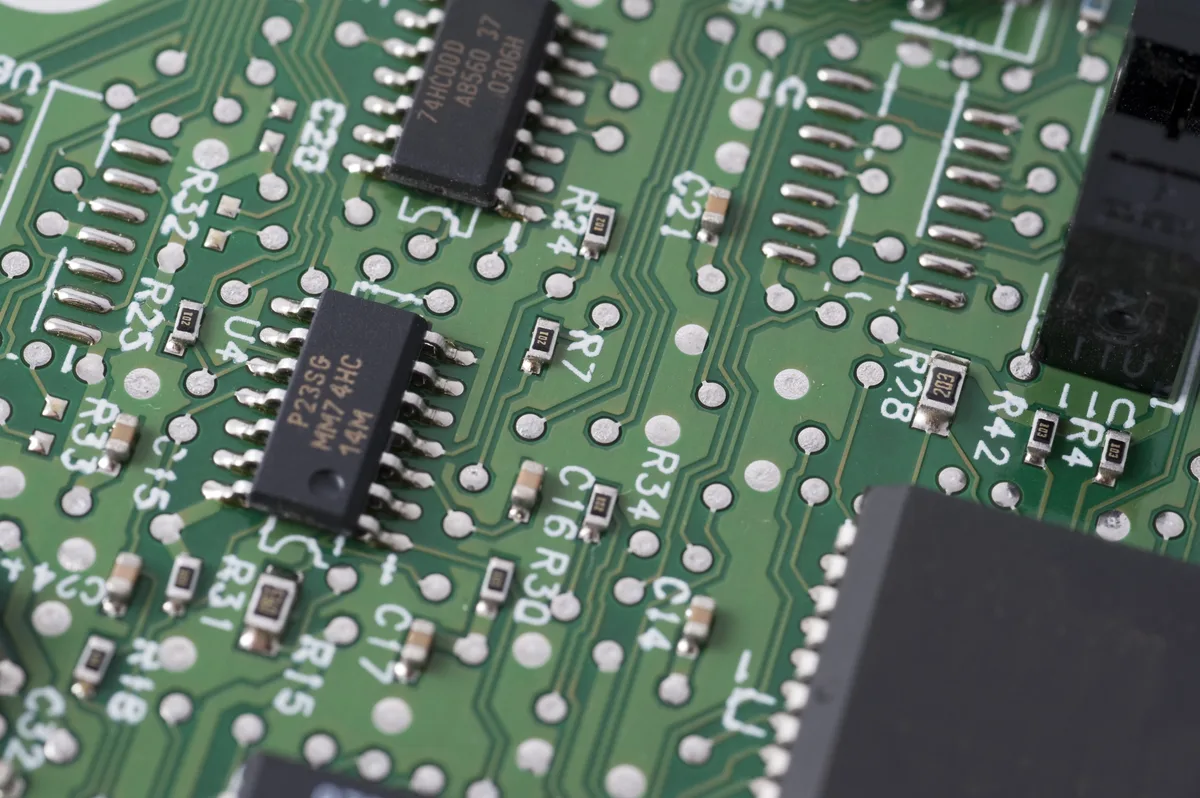
This frequency often lands within the range of human hearing. While the sound is annoying, it does not necessarily mean the device is failing. High-quality manufacturers use epoxy or varnish to dampen these coils, which minimizes the sound.
Cheaper components may lack this insulation, resulting in a more noticeable buzz.
Differentiating Normal Operation from Failing Components
It is helpful to know the difference between standard coil whine and a genuine hardware failure. Normal coil whine is consistent and sounds like a steady, thin hum. It often changes pitch slightly if you unplug the laptop or move the charger.
A failing charger often produces erratic sounds. Listen for clicking, snapping, or crackling noises that sound like frying oil. These sounds are not related to coil vibrations.
They often indicate that an internal capacitor is leaking or a connection has become loose.
| Sound Type | Potential Cause | Urgency |
|---|---|---|
| Steady thin hum | Normal coil vibration | Low |
| Intermittent clicking | Loose internal component | Medium |
| Sharp popping noise | Electrical arcing | High |
| Loud electrical buzz | Overheating transformer | High |
If the sound does not stop when you disconnect the charger from your laptop, the issue lies within the brick itself. You should disconnect the unit from the wall outlet immediately if you hear anything besides a clean, steady hum.
Safety First: Warning Signs of Electrical Arcing and Degradation
Electrical arcing occurs when current jumps across an unintended gap. This creates heat and can melt internal components rapidly. You must treat any snapping or popping sound as a potential fire hazard.
Look for physical signs of damage alongside the noise. Plastic casing that feels excessively hot or smells like burning rubber is a red flag. Discoloration or warping on the adapter shell indicates that internal temperatures are exceeding safe limits.

Inspect the cable for fraying or exposed copper shielding near the brick. Damaged insulation can cause short circuits that put additional stress on the internal transformer. If you see physical damage, do not attempt to repair the cable with electrical tape.
It is safer to replace the entire power adapter to prevent permanent damage to your computer.
Why Charging Cycles Trigger Auditory Changes
Laptop batteries follow a multi-stage charging process. Early stages focus on bulk charging, which pulls significant amperage from your wall outlet. The charger operates at maximum capacity during this time, which usually keeps coil vibrations stable or silent.
As the battery approaches 100 percent, the charging controller enters a trickle or topping-off phase. It limits the current to prevent overcharging and protects the chemistry of the lithium-ion cells. This transition requires the power supply to rapidly toggle its switching frequency.
This rapid toggling is what many users describe as the onset of the buzzing. The charger is effectively idling while trying to hold the battery at peak capacity. Because the internal circuits are no longer under a steady load, they react more sensitively to the switching pulses.
This change is entirely normal for most power adapters, provided the noise remains quiet and steady.
How to Perform a Quick Diagnostic of Your Power Brick
Start your diagnostic process by isolating the power supply. Unplug the charger from your laptop and move it to a different wall outlet in another room. If the buzzing stops, your original wall outlet may have loose contacts or poor electrical grounding.
Test the charger while your laptop is powered down versus running. If the noise disappears when the laptop is off, the issue likely relates to the demand your system places on the power supply. A quiet brick while the computer is charging, which only buzzes once the battery is full, confirms the sound is linked to the trickle-charge phase.
Check the physical connection points on both ends of the cable. A loose fit at the wall plug or the laptop port often triggers erratic electrical switching. If the charger is cool to the touch despite the noise, you are likely dealing with standard electromagnetic vibration rather than a thermal fault.
Mistakes to Avoid When Troubleshooting Charger Noise
Do not assume that all buzzing is benign. Users often make the mistake of ignoring a changing sound profile. If a steady hum evolves into a rhythmic clicking, you must stop using the device.
Avoid using third-party, unbranded replacement chargers. These budget adapters frequently skip internal noise-dampening components like heavy-duty epoxy or proper shielding. They might save money upfront but increase the risk of electrical interference or component failure within your laptop.
Never use metal tools to probe the charging port or the adapter tip. You risk shorting the internal pins, which causes permanent damage to the charger controller. Finally, do not wrap your power cord tightly around the brick for storage.
This causes internal wire fatigue and increases the likelihood of the electrical arcing we discussed earlier.
Safe Practices for Managing Your Power Adapter
Unplug your charger when you are not using it. This eliminates the risk of silent degradation and saves electricity during the trickle-charge cycle. It also prevents the charger from being subjected to power surges in your home wiring.
Store your charger in a cool, dry place away from direct sunlight. High ambient temperatures degrade the internal capacitors over time. Keep the cable coiled loosely rather than bent at sharp angles to maintain the integrity of the protective wire insulation.
If you travel frequently, use a dedicated carrying case for your charger. This prevents the heavy plastic brick from crushing the thin connector cable. Treat the adapter with the same care as your laptop, as it is the primary shield between your device and your home electrical grid.
Identifying Potential Fire Hazards and Insulation Failure
Watch for signs of localized melting on the plastic chassis. If a specific area of the brick feels significantly hotter than the rest, internal components have likely failed. A burnt, acrid smell is a definitive sign of insulation breakdown and requires immediate disposal of the unit.
Listen for erratic, sharp sounds that contrast with the steady, high-pitched hum. High-frequency buzzing is expected, but snapping or popping sounds suggest high-voltage discharge. This is dangerous and can lead to damage in your laptop motherboard or battery controller.
If you notice any of these extreme signs, disconnect the device immediately. Do not attempt to open the plastic shell of the charger to perform repairs. These units are sealed for safety and contain high-voltage capacitors that can deliver a painful shock even when the unit is unplugged.
When It’s Time to Retire Your Charger
Retire your charger as soon as the buzzing changes frequency or volume significantly. If the noise has become loud enough to be heard across a quiet room, the internal dampening has likely disintegrated. It is not worth the risk to continue using a failing electrical component.
Replace the unit if the connector tip is loose or if the cable insulation shows any signs of fraying. A faulty connection creates heat at the port, which leads to motherboard damage over time. You should also replace it if the charger frequently stops and starts the power flow, indicating a failing internal logic board.
Always prioritize safety over the convenience of a quick, cheap fix. If you find yourself questioning the safety of your power supply, the cost of a high-quality replacement is a small price to pay. Proper hardware maintenance prevents long-term damage to your laptop and keeps your workspace safe.
Best Practices for Selecting Reliable Replacements
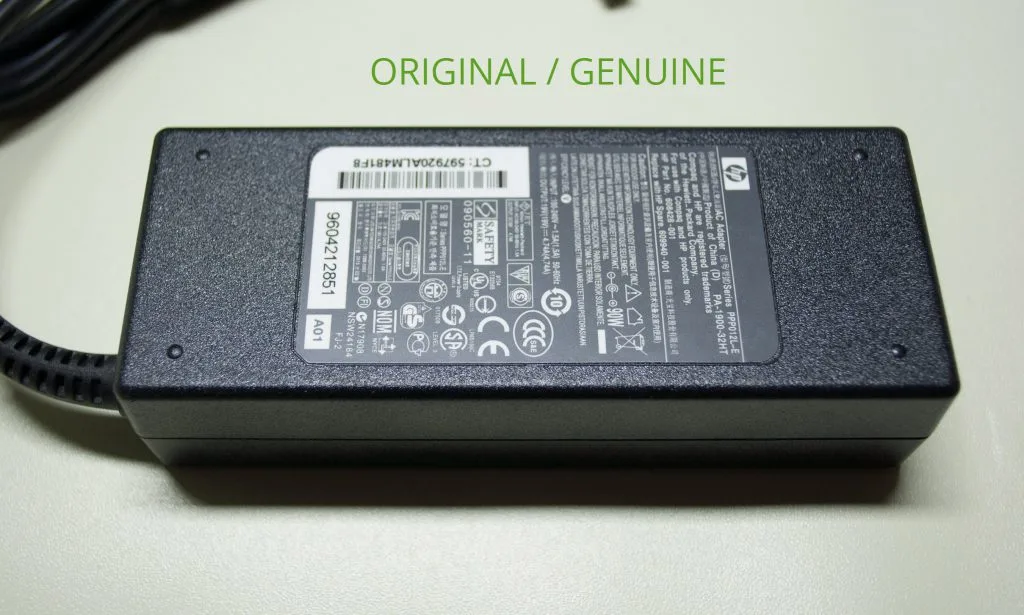
Choose a replacement power adapter that explicitly matches your laptop manufacturer’s voltage and amperage requirements. These specifications are usually printed on the bottom of the laptop or on the original power brick itself. Using a charger with the wrong output, even if the plug fits, can lead to permanent damage to your battery controller.
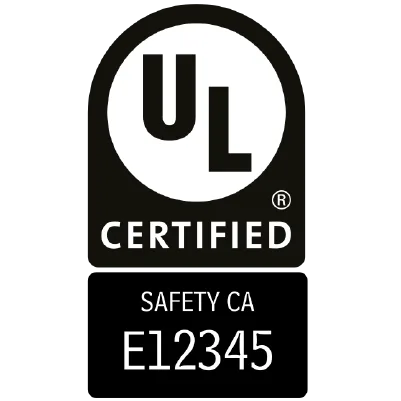
Always look for safety certifications from recognized bodies such as the Underwriters Laboratories (UL) or other national testing agencies. These marks indicate that the product has undergone rigorous electrical testing to prevent overheating and short-circuiting. Verified certification marks appear on the product label and are usually embossed or printed clearly.
Avoid generic adapters found on third-party marketplace sites that do not specify the original equipment manufacturer. These units often lack necessary safety features like over-voltage protection or thermal cut-offs. High-quality replacements ensure that the internal inductors are properly sealed, which prevents the common coil whine you experienced with your older unit.
Expert Tips for Extending Charger Lifespan
Keep your charging brick in a well-ventilated area during use. If you place it under a rug or behind a thick curtain, heat builds up rapidly. This excess heat degrades the internal adhesive that holds the coils in place, which is the primary cause of increasing coil noise over time.
Do not allow the charger to remain plugged into a wall outlet when the laptop is disconnected. Even without a load, the unit continues to pull a small amount of electricity, which stresses internal capacitors over the long term. Unplugging it completely provides a necessary break for the internal power regulation circuits.
Check the plug prongs for oxidation or debris every few months. A clean, firm connection prevents the arcing that often precedes charger failure. If the prongs feel loose when inserted into your wall outlet, the outlet itself may need replacement by an electrician, as a loose wall connection causes erratic switching and audible humming.
Frequently Asked Questions About Charger Safety
Is a buzzing laptop charger a fire risk?
Most buzzing is harmless coil vibration, but it can become a fire risk if the sound changes. If you hear snapping, popping, or smell burning plastic, stop using it immediately. These noises suggest that internal components are arcing or failing under thermal stress, which poses a genuine fire hazard.
Can I leave my charger plugged in all the time?
While it is convenient, it is not recommended to leave the charger plugged in permanently. Constant power draw puts stress on internal components even when the battery is at 100 percent. Unplugging the device when not in use extends the life of the adapter and saves a small amount of electricity.
Does coil whine mean my charger is defective?
Coil whine itself is not a defect, as it is a byproduct of high-frequency power regulation. If the charger operates correctly, stays cool, and does not exhibit erratic noises, it is functionally sound. However, if the buzz is becoming louder or more frequent, the insulation is likely degrading.
Should I wrap the cord tightly around the brick?
Do not wrap the cord tightly around the adapter because this leads to internal wire fatigue. Sharp bends near the strain relief area will eventually cause the insulation to break. This breakage is the most common cause of electrical shorts and frayed cables in laptop charging kits.
Why does the sound change when the battery is full?
The power adapter switches to a low-power mode once the battery reaches 100 percent. This mode requires the internal controller to pulse electricity to maintain the charge. This rapid pulse frequency often lands in the audible range for humans, resulting in the high-pitched humming sound you hear.

Similar Posts