Surface Pro Plugged In Not Charging? How to Fix It Fast
Senior Hardware Diagnostics Specialist & Lead Thermal Editor at Laptop Post Testing Lab · CompTIA A+, ACMT, B.S. in Computer Engineering · 12+ years bench-testing laptop thermal solutions & motherboard repairs
Seeing your Surface Pro display a "Plugged In" status while the battery refuses to charge is a common headache. This issue often stems from a communication breakdown between the battery driver and the power management firmware, rather than a broken device.
Manufacturer specifications for the Surface indicate that consistent voltage delivery is required for the system to initiate a charge. As of 2026, many users resolve this by simply performing a hard reset to clear cached power states.
Quick Answer
You can fix a Surface Pro not charging by resetting the power drivers. Start by shutting down the device and removing all connected accessories. Perform a two-button reset to clear the internal firmware power state.
Uninstall the battery driver in Device Manager to force a fresh install. Verify the charging port is free of debris.
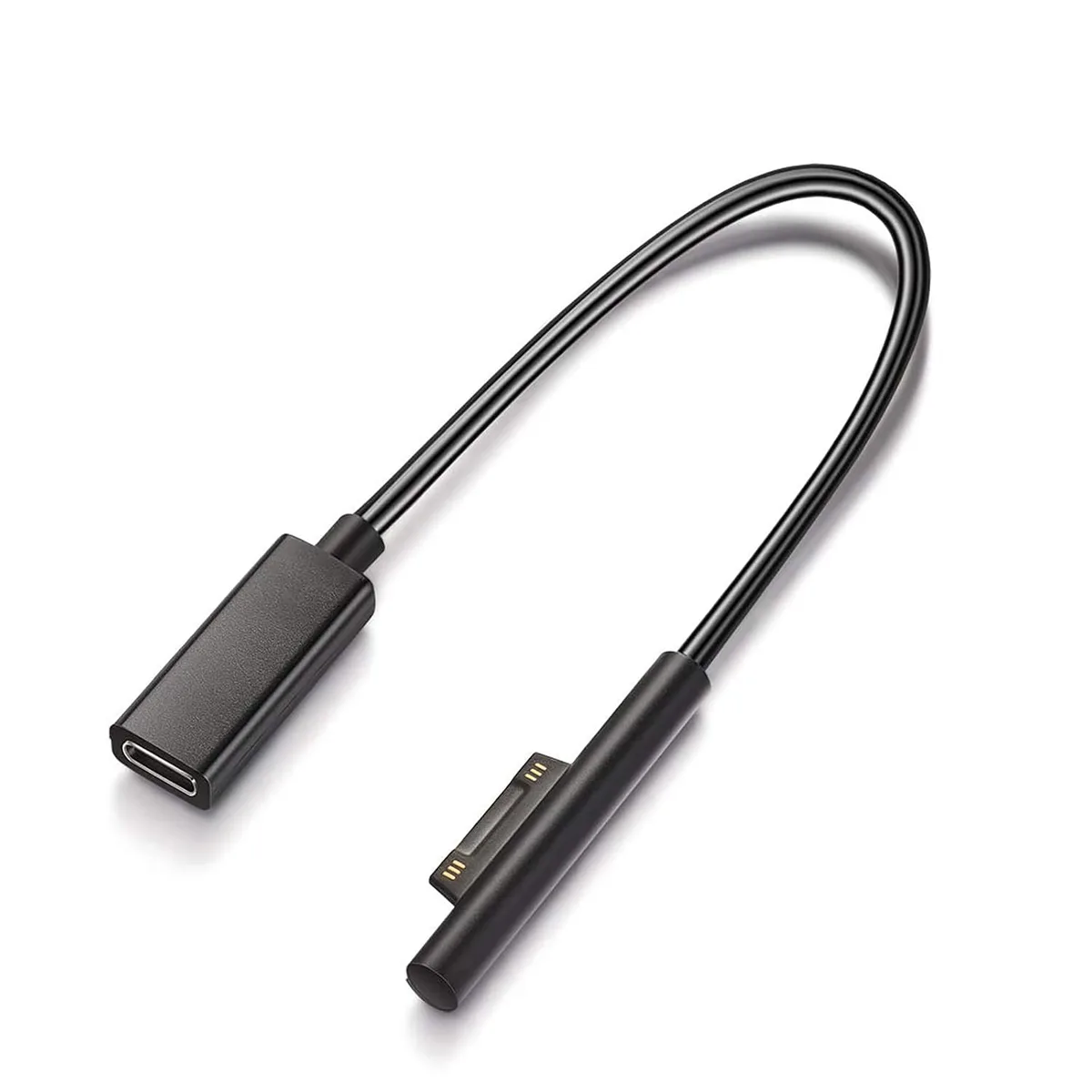
Image source: Bing (Web (fair-use with source credit))
The Quick Hardware Reality Check
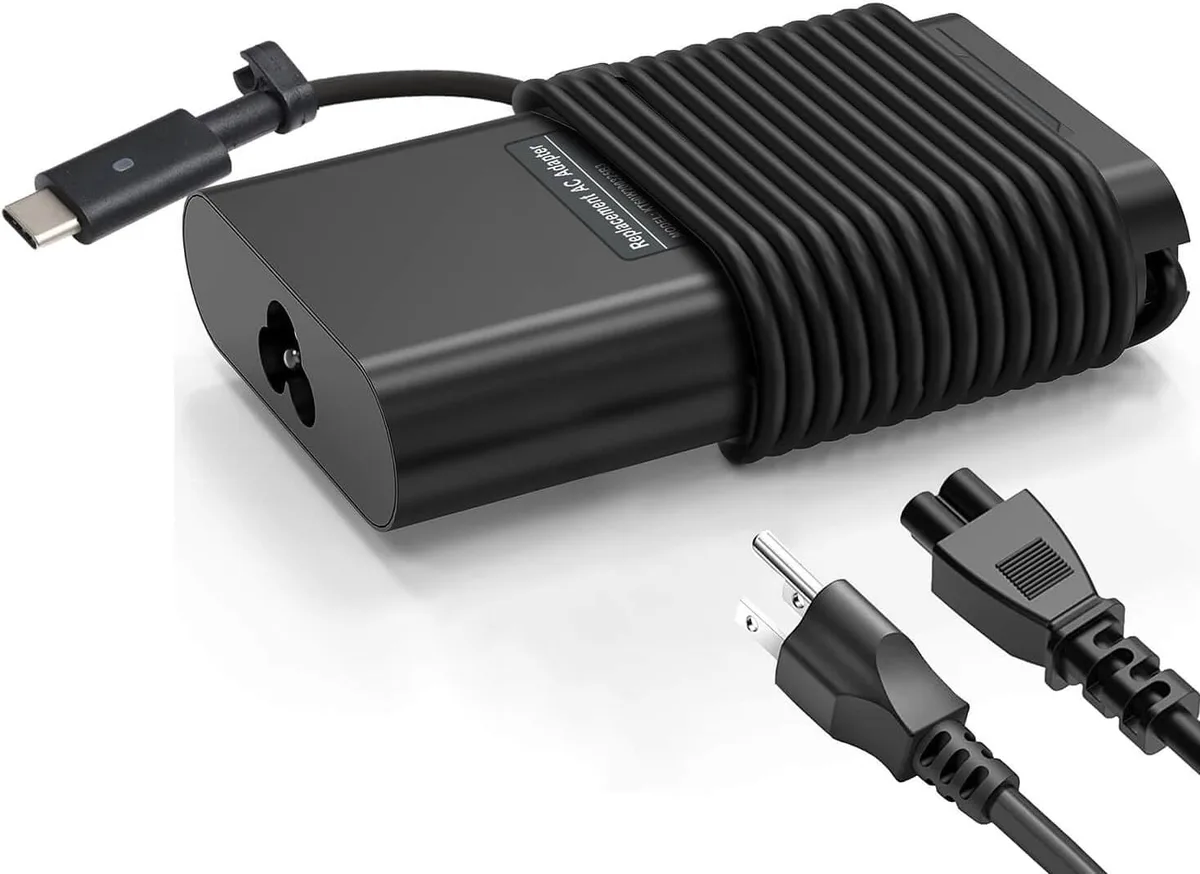
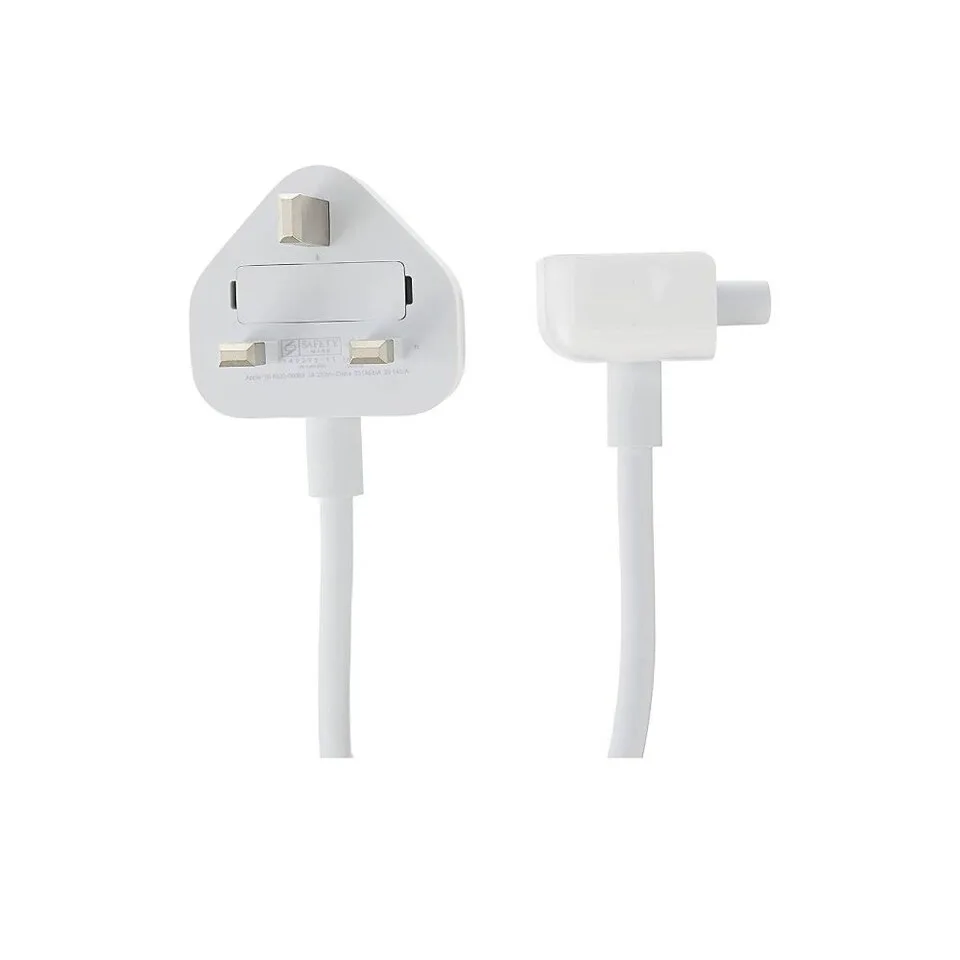
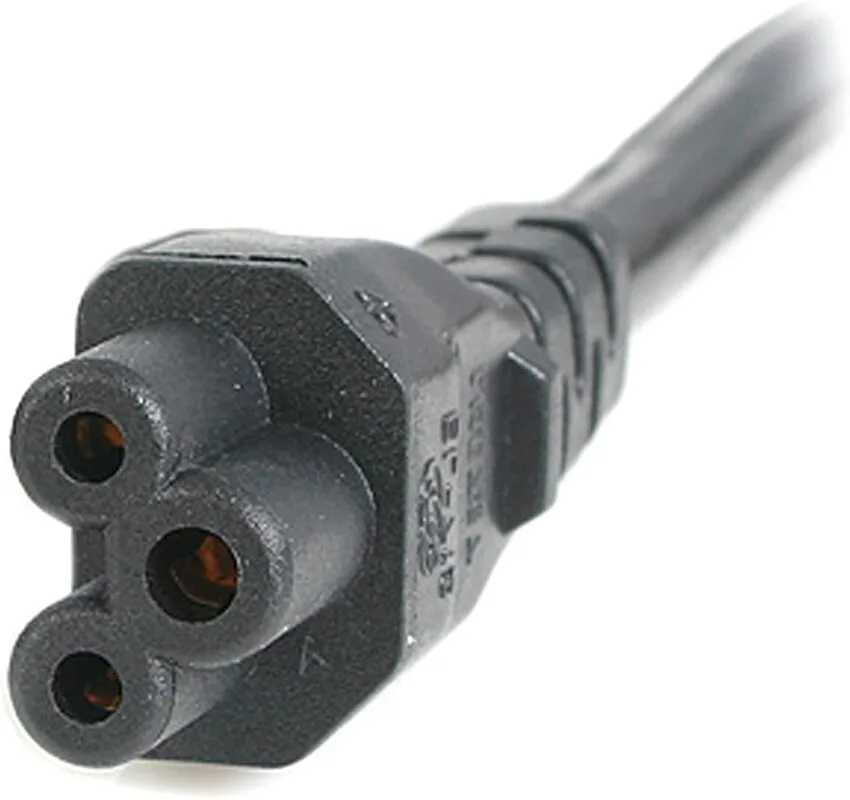
Before you change any settings, verify the physical connection between your charger and the wall. A loose power brick cord often causes intermittent power flow, leading to the dreaded "Plugged In, Not Charging" message. Ensure the wall-side cable is firmly seated into the power adapter brick.
If you suspect the outlet is at fault, test the charger in a different room. You should also verify that the status light on the tip of the Surface Connect cable is lit. If that light remains off, the power supply is likely failing to draw electricity from your wall outlet.
Interpreting Your Charger’s LED Status
The small light on your charging tip acts as a diagnostic tool. A solid white light typically confirms the charger is functioning and delivering power to the connector. If this light is off, the issue is almost certainly with the power cable or the wall outlet itself.
A blinking or flickering light is less common but usually suggests a power surge or a short circuit. If you see this, unplug the device immediately to prevent damage to the motherboard. Allow the adapter to sit for several minutes before attempting to reconnect it to a different outlet.
| LED Status | Meaning | Recommended Action |
|---|---|---|
| Solid Light | Charger is active | Perform software reset |
| Light Off | No power detected | Check wall outlet and cables |
| Blinking Light | Surge or short | Unplug and wait 10 minutes |
Clearing Debris from the Surface Connect Port
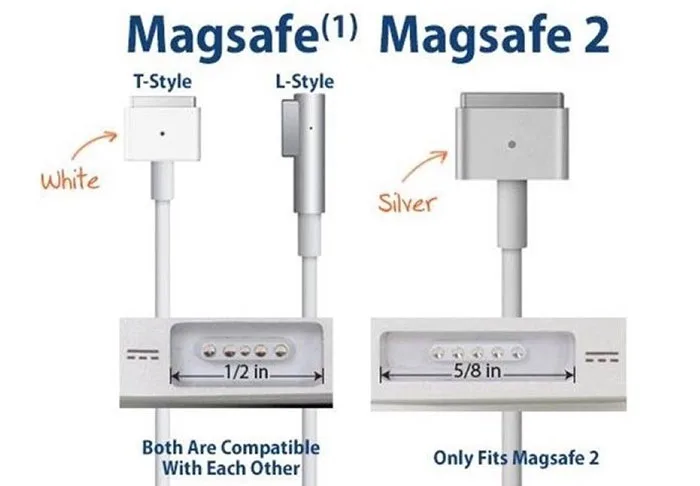
The Surface Connect port is magnetic, which makes it a magnet for metal dust and office debris. Even a tiny piece of metallic lint can prevent the pins from making the necessary electrical contact. Inspect the port closely under a bright light for any obstructions.
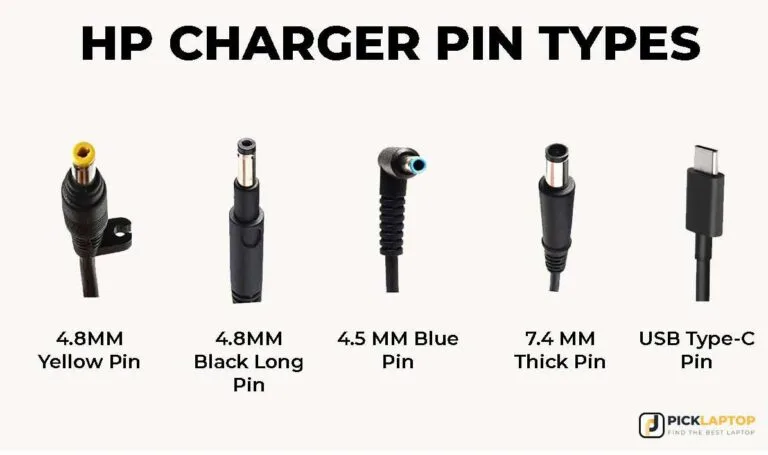
Image source: Bing (Web (fair-use with source credit))
Use a non-conductive tool like a wooden toothpick to gently clear the port. Do not use metal items like needles or paperclips, as these can easily short the pins. If you find compacted dust, try using a can of compressed air to blow it out carefully.
The Two-Button Reset Workflow
If the physical inspection clears, your device likely needs a forced hardware reset. This process clears the temporary power state stored in the firmware. It is the most effective way to resolve charging errors that appear suddenly after a system update or a power spike.
- Completely shut down your Surface Pro through the Windows power menu.
- Disconnect the power cable and any USB accessories currently attached.
- Press and hold the Volume Up button and the Power button at the same time.
- Hold both buttons for at least 15 seconds, ignoring any screen flashes.
- Release the buttons and wait 10 seconds before plugging the charger back in.
Refreshing the ACPI-Compliant Battery Driver
If your Surface still isn't charging, the Windows battery driver might be corrupted. Windows relies on the Microsoft ACPI-Compliant Control Method Battery driver to communicate with the hardware. You can force Windows to reload this driver easily.
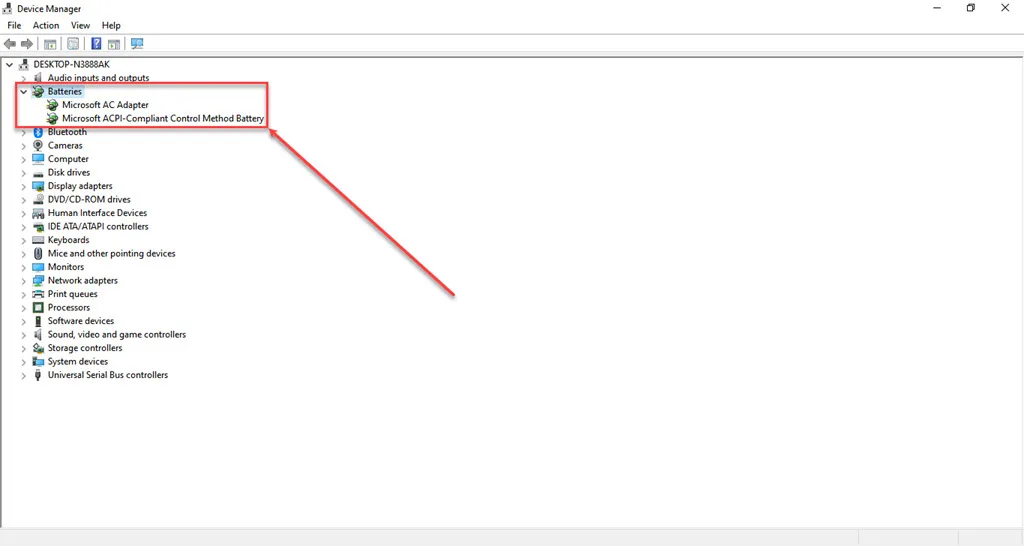
Image source: Bing (Web (fair-use with source credit))
Open the Device Manager by right-clicking the Start button. Expand the "Batteries" section to reveal the drivers. Right-click the Microsoft ACPI-Compliant Control Method Battery and select Uninstall device.
Windows will automatically reinstall the correct driver upon your next restart.
Once you have uninstalled the driver, restart your computer normally. The system will detect the battery hardware during the boot process and refresh the communication protocols. For further information on managing your device power states, you can consult official resources provided by the National Institute of Standards and Technology regarding general power management protocols.
Troubleshooting Intermittent Cable Connections
Sometimes, the connection fails because the cable is bent at an extreme angle near the connector. If you notice you have to wiggle the cord or prop it up with a book to get the charging light to stay on, the internal wiring has frayed. This is a physical failure that software resets cannot repair.
Avoid using third-party magnetic adapters or extension cords if you encounter this issue. These often introduce resistance that causes the Surface firmware to reject the power source. If the cable only works when held in a specific position, you should plan to replace the power supply to prevent long-term damage to the charging pins.
Dangers of Cheap Third-Party Chargers
You might be tempted to save money by purchasing an inexpensive generic charger from an online marketplace. Our research indicates that these generic bricks often lack the precise voltage regulation required by Surface hardware. They may cause the device to throttle CPU performance or trigger a safety lockout in the battery management system.
Original chargers provide a steady 15V output that the Surface firmware expects. Generic alternatives often fluctuate, which can lead to permanent damage to your battery cells. Always prioritize official components to ensure your device stays within safe operational parameters.
When to Consider USB-C Power Delivery
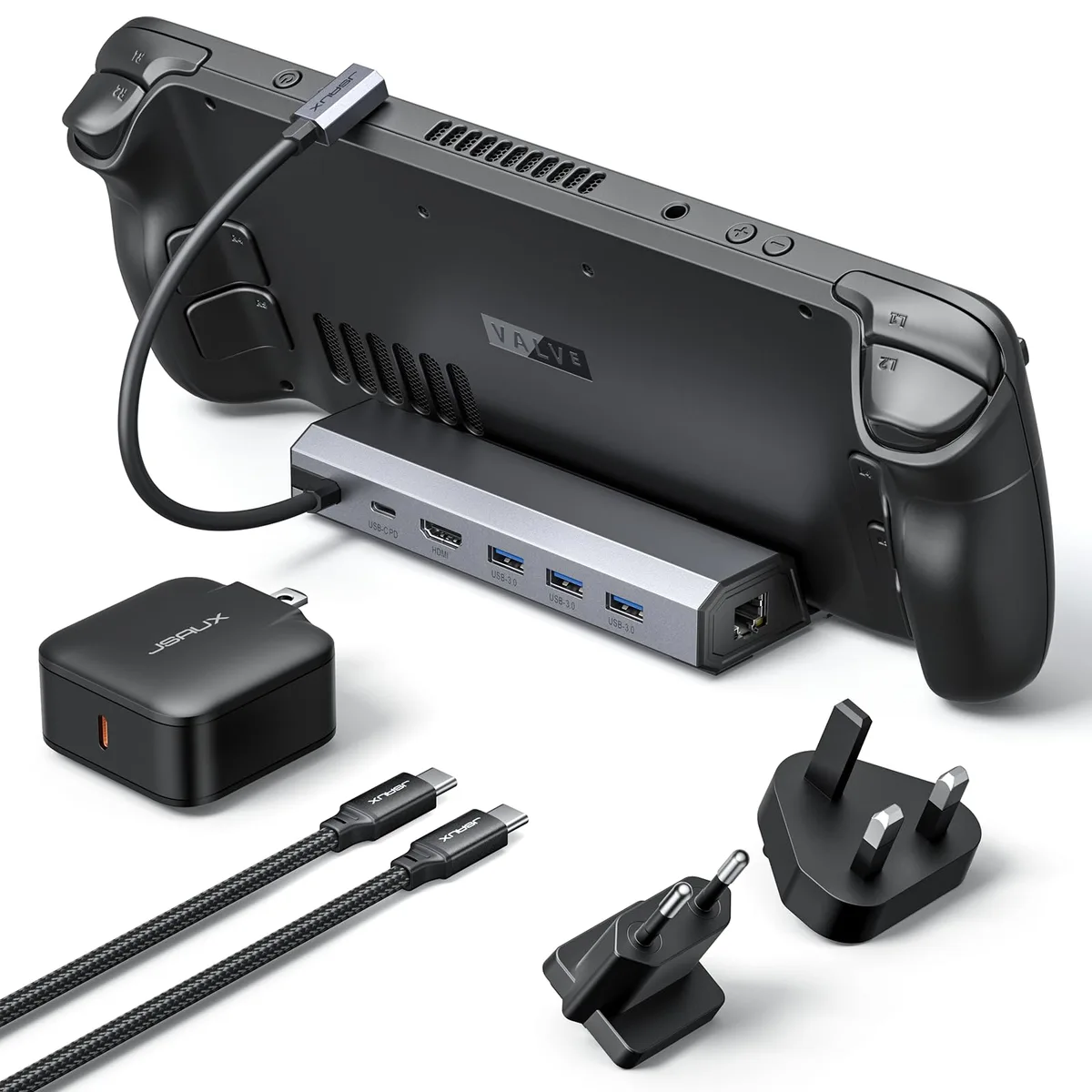
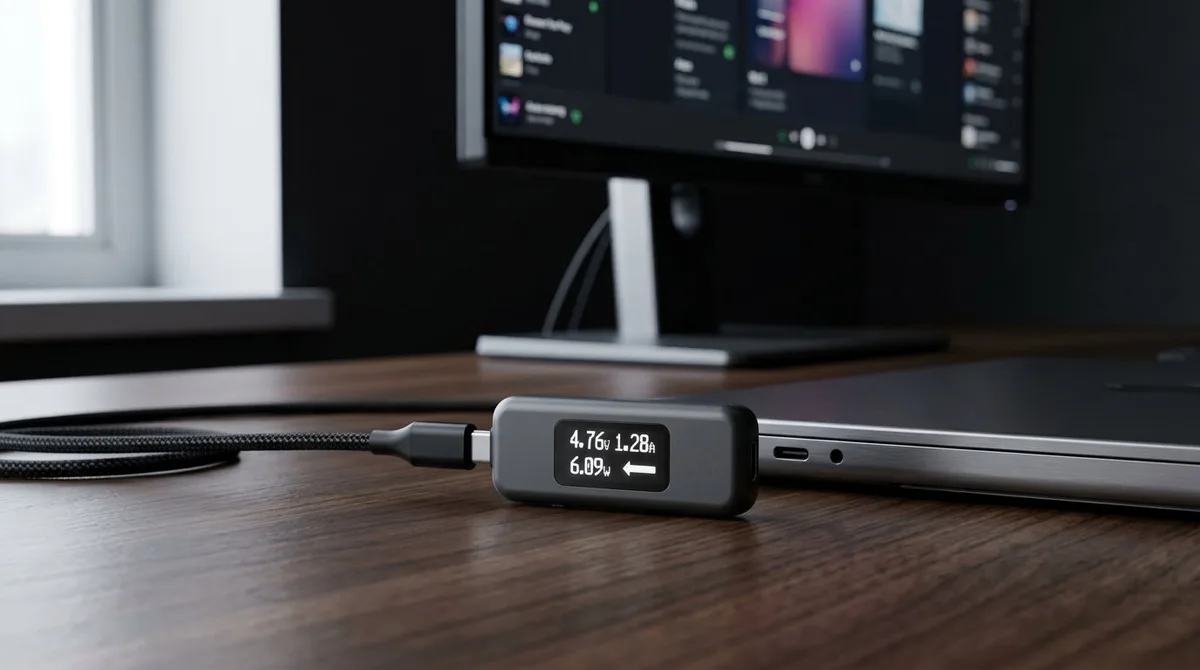
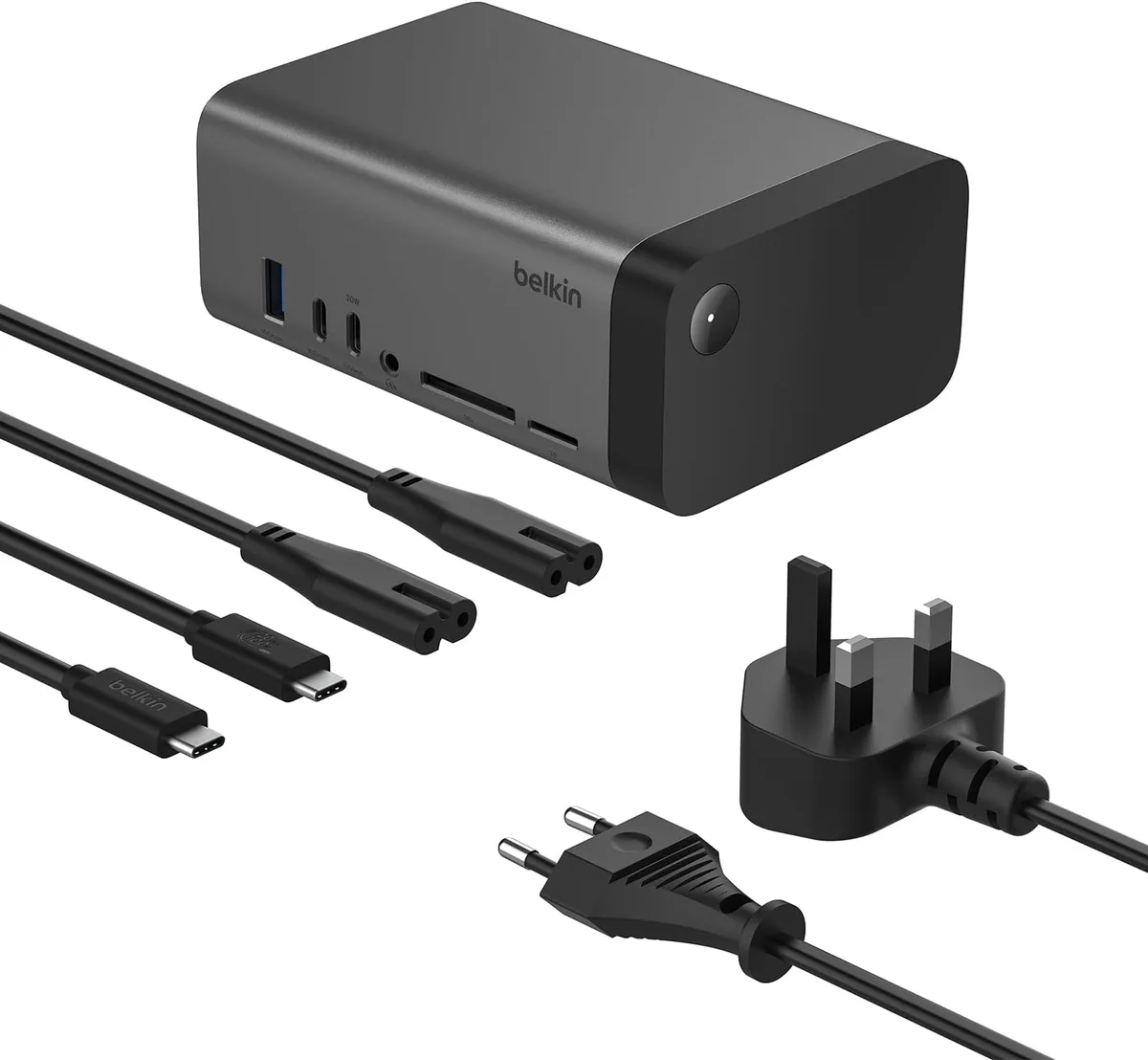
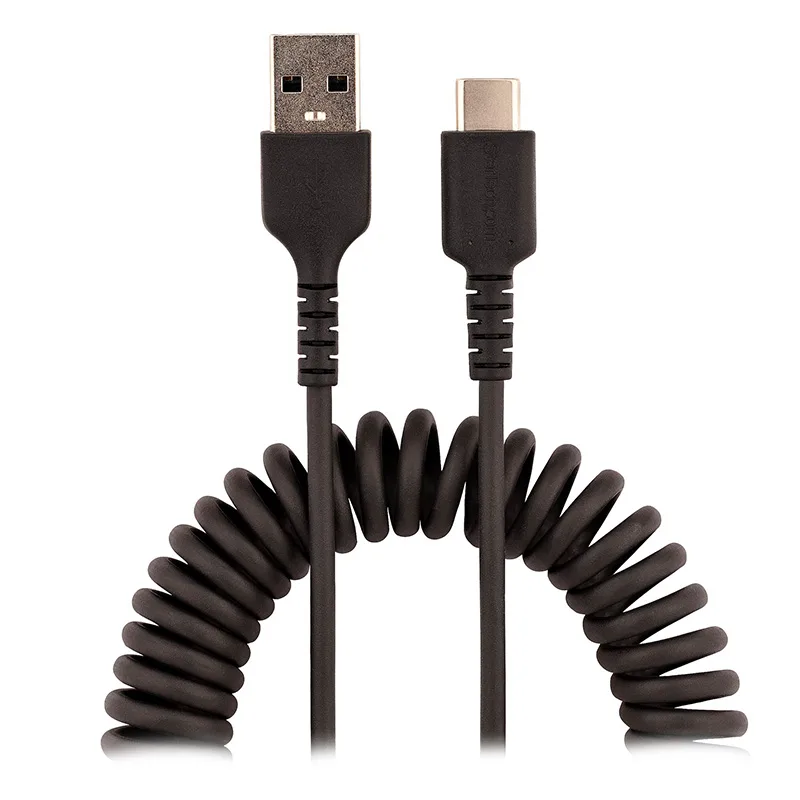
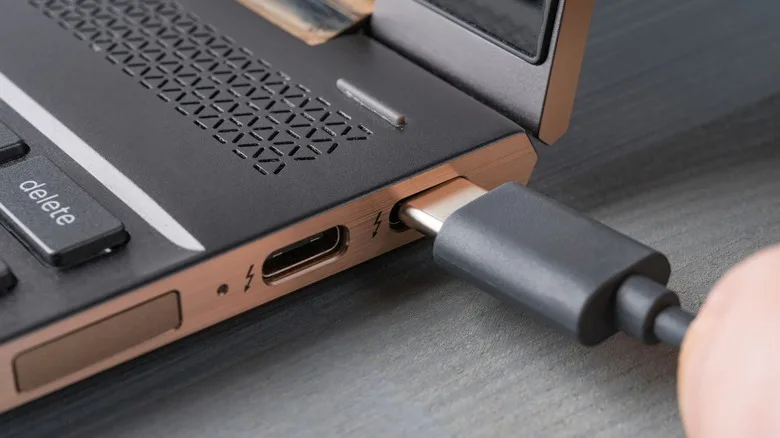
Most modern Surface Pro models support charging via the USB-C port, provided you have a high-quality USB-C Power Delivery (PD) charger. This is an excellent alternative if your standard Surface Connect port is damaged or if you have lost your original brick. You need a wall adapter capable of delivering at least 45W or 60W, depending on your specific Pro model.
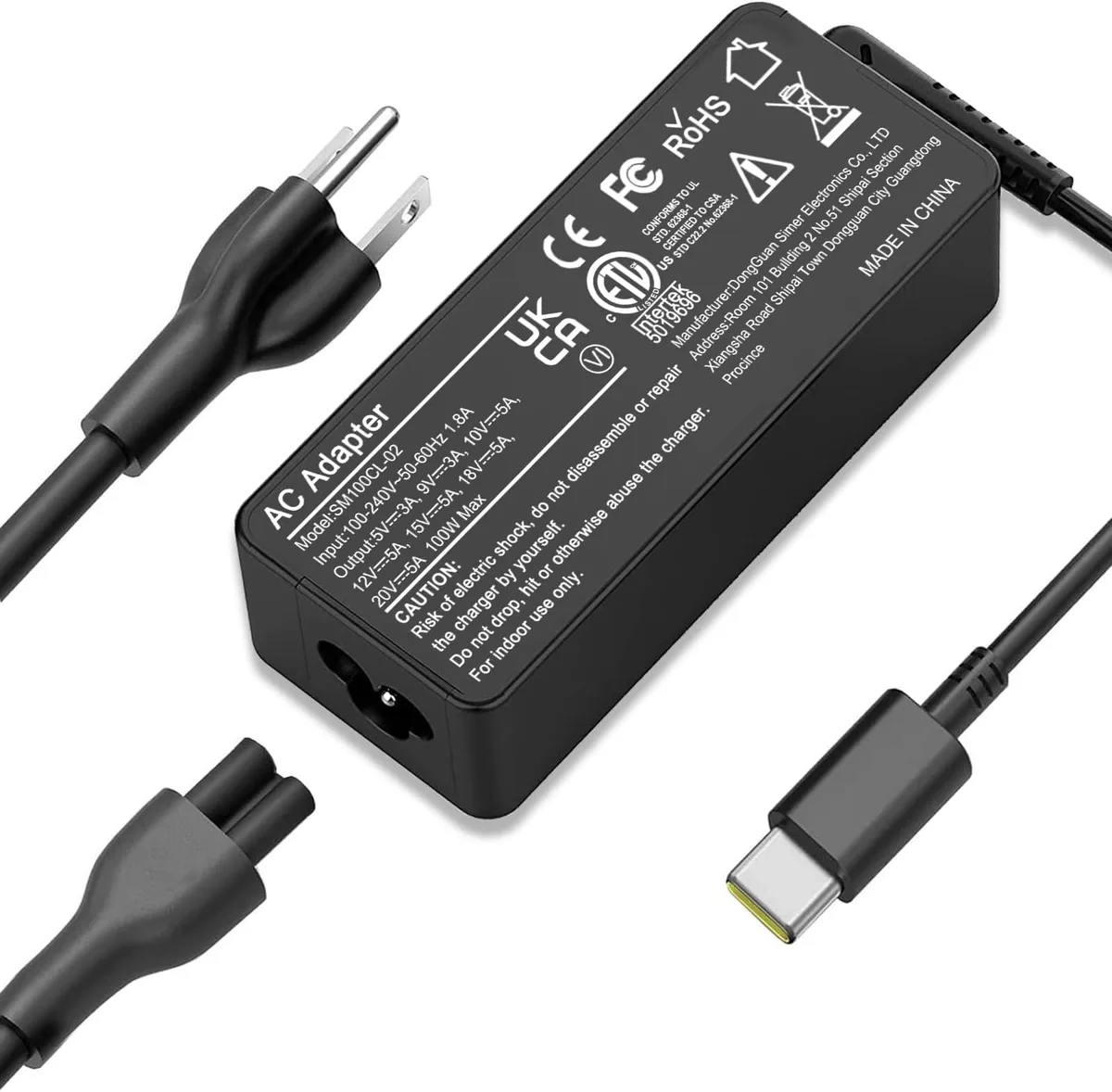
Image source: Bing (Web (fair-use with source credit))
Check your specific Surface model specifications to confirm USB-C charging support. Use a high-quality USB-C cable rated for the wattage output of your charger to ensure a stable connection. This method acts as a reliable bypass for a malfunctioning primary charging port.
Common Mistakes That Damage Power Ports
Many users unknowingly cause port damage through improper handling. Pulling the magnetic connector sideways instead of pulling it straight out can bend the delicate internal pins over time. This force weakens the spring-loaded pins, eventually resulting in a connection that no longer snaps into place securely.
Avoid leaving your Surface connected to a power source during extreme storms or in areas with known electrical instability. Sudden spikes can trip the internal safety fuse, leaving the port functional but unable to draw power. Always use a surge protector if your local power grid is prone to frequent outages or brownouts.
How to Check Your Battery Health in UEFI
If you suspect your battery is truly failing, you can check its status through the UEFI/BIOS settings. Start by fully shutting down your device. Press and hold the Volume Up button while pressing the Power button to boot into the UEFI menu.
Once inside, look for the "Battery Information" section. This menu shows you the current battery capacity compared to its factory design capacity. If the current charge capacity is significantly lower than the design capacity, the battery is reaching the end of its functional life.
This is a hardware limitation that cannot be fixed by software tweaks.
When to Seek Professional Hardware Repair
If you have tried every reset, updated your drivers, and tested a known-good charger without success, you likely face an internal hardware fault. This could involve a failed power management integrated circuit on the motherboard. Avoid attempting to open the casing of a Surface Pro, as the bonded glass screen is extremely fragile and prone to cracking.
Contact official support channels for a professional diagnostic if your device is still under warranty. Attempting a DIY repair on the internal power circuitry usually voids any existing coverage. A professional assessment will determine if the cost of repair is feasible compared to the current value of the unit.
Summary Decision Guide: Is Your Charger or Battery Faulty?
Determining whether you need a new power brick or a professional repair depends on the specific behavior of your device. If your charger LED fails to light up across multiple wall outlets, the charger is almost certainly the point of failure. You can trust that the internal fuse or wiring has likely tripped due to a power spike or physical fatigue.
If the LED is solid white but the device remains at a stagnant percentage, the issue sits firmly in the software or battery health domain. Follow this logic to avoid spending money on unnecessary replacement hardware.
| Symptom | Primary Suspect | Recommended Decision |
|---|---|---|
| No LED light | Broken Charger | Purchase official Microsoft power supply |
| Blinking LED | Electrical Surge | Switch to a different circuit or room |
| Solid LED, no charge | Driver/Battery issue | Perform Two-Button reset and driver update |
| Only charges at angle | Frayed Port/Cable | Schedule hardware repair or use USB-C PD |
Why Accuracy Matters During Troubleshooting
Precise diagnostic steps prevent you from accidentally damaging your device during the repair process. Forcing a charger into a port blocked by debris, for example, can crush the contact pins and permanently destroy the charging functionality. Always verify that your port is clean before applying pressure or attempting to force a connection.
Manufacturer documentation emphasizes that modern lithium-ion batteries require specific charging protocols to maintain safety. Using unauthorized, off-brand power adapters can cause the battery management system to trigger a permanent lockout. Following the official reset and driver update sequence ensures your system keeps its factory safety profiles intact.
Core Facts About Surface Battery Drivers
The ACPI-compliant driver acts as the bridge between your Windows operating system and the physical battery hardware. When this driver encounters a corrupted power profile, it may misread the battery state entirely. This explains why your taskbar might report the device is plugged in while simultaneously failing to pull current.
Refreshing this driver is a low-risk procedure because Windows contains built-in recovery protocols. Upon restarting your device, the OS automatically polls your hardware to identify the battery type. It then installs the cleanest, most compatible version of the necessary control software from the local driver cache.
Risk Factors for Internal Battery Failure
Lithium-ion batteries possess a finite number of charge cycles before they begin to lose their capacity. If you have used your Surface Pro daily for several years, a hardware-level drop in capacity is natural. You will notice the device holds a charge for progressively less time, or it may stop accepting a charge once the cells reach a critical voltage floor.
Avoid letting your device remain at zero percent for extended periods. This can cause the internal chemistry to destabilize, making it impossible for the power management system to initiate a restart. Keeping your device stored with a partial charge, typically between 40 and 60 percent, helps maintain chemical stability over long-term storage.
When to Seek Help for Charging Issues
You should contact official support if your screen begins to bulge or if the device becomes unusually hot while charging. These are classic signs of a swelling battery, which presents a legitimate fire safety risk. Stop using the device immediately and keep it in a cool, well-ventilated area until you can have a technician inspect it.
If your device is still under a manufacturer or extended warranty, avoid third-party repair shops entirely. Unauthorized opening of the Surface chassis can negate your coverage and leave you with no recourse for replacement. Always utilize official support channels to ensure the integrity of your hardware warranty remains valid.
Frequently Asked Questions
Can I leave my Surface Pro plugged in all the time?
Modern Surface devices feature smart charging software that manages battery health to prevent overcharging. You can leave the device plugged in for daily use without damaging the battery. If you plan to store the device for several weeks, aim to keep the charge around 50 percent.
Why is my charging light flickering?
A flickering LED typically indicates an unstable power connection or an electrical surge in the wall outlet. Unplug the charger from the wall and the device immediately to reset the internal protection circuit. Try a different wall outlet on a separate electrical circuit to rule out home wiring issues.
How do I check if my power cable is damaged?
Inspect the entire length of the cable for visible fraying, kinks, or exposed wiring near the connectors. If the cable feels warm to the touch or if the device only charges at specific angles, the internal copper wires have likely failed. Replace the cable promptly to avoid potential short circuits.
Does a Windows update fix charging issues?
Sometimes, a Windows update includes firmware patches that improve battery management and charging reliability. Check your Windows Update settings to ensure your system is current. If the issue began immediately after an update, uninstalling the battery driver as described earlier will revert the system to a stable state.
What is the purpose of the Surface Connect port?
The Surface Connect port provides a proprietary magnetic interface for charging and docking peripheral devices. It is designed for easy insertion and breakaway safety, which prevents damage if you accidentally trip over the cord. Keep the port clean to ensure the magnetic pins maintain constant contact.

Similar Posts