65W vs. 100W Charger for Dell XPS 13: Which Do You Need?
Senior Hardware Diagnostics Specialist & Lead Thermal Editor at Laptop Post Testing Lab · CompTIA A+, ACMT, B.S. in Computer Engineering · 12+ years bench-testing laptop thermal solutions & motherboard repairs
Deciding how to choose between 65w and 100w charger for dell xps 13 models often comes down to balancing your daily mobility needs against potential performance demands. While the laptop hardware regulates how much power it draws, choosing the right adapter ensures the system remains stable and fully charged during intensive tasks.
Most XPS 13 units function perfectly with the standard 65W power adapter provided by the manufacturer. However, as of 2026, many users are exploring higher wattage options for universal compatibility across their tech ecosystem. Understanding these power profiles helps you avoid carrying unnecessary weight in your bag.
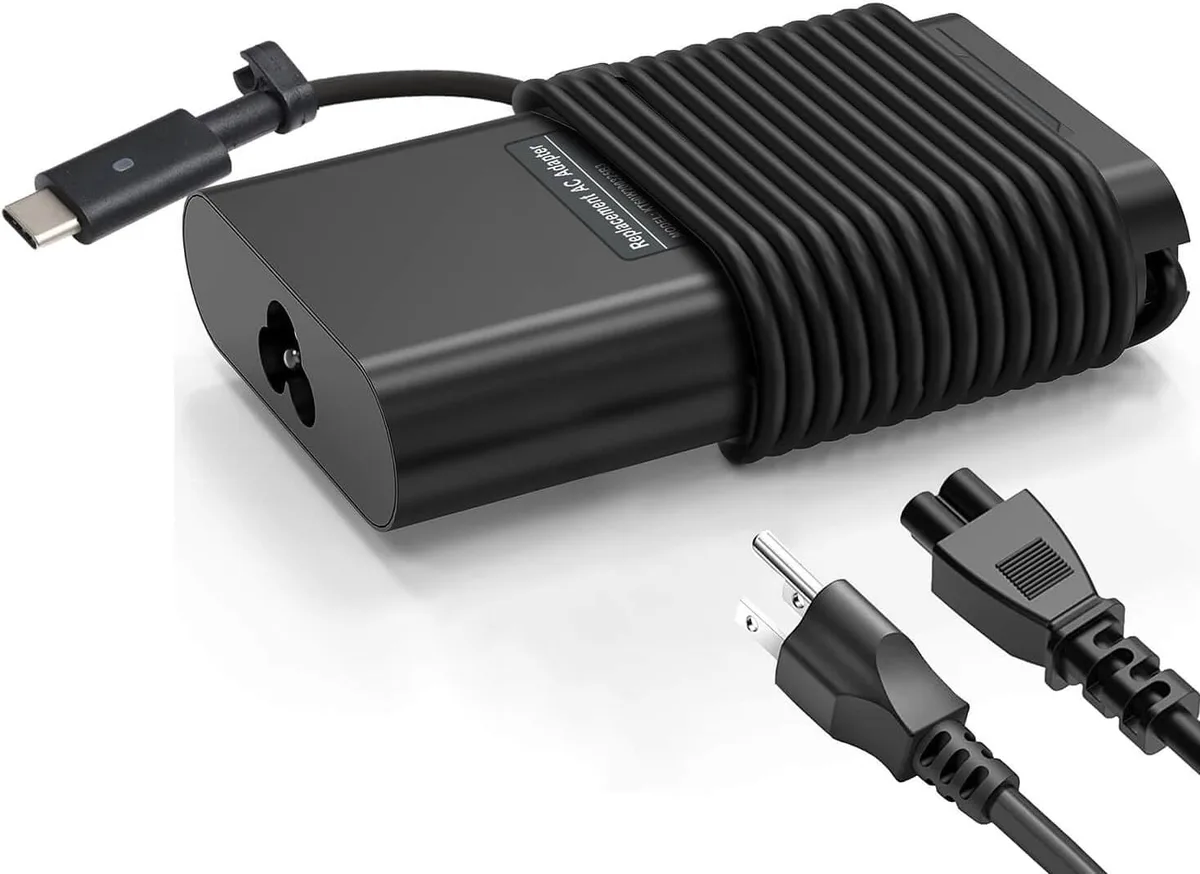
Image source: Bing (Web (fair-use with source credit))
Quick Answer
Choose 65W chargers for maximum portability during daily travel. Pick a 100W charger if you use multiple high-power USB-C peripherals. The Dell XPS 13 only pulls its rated power requirements.
Higher wattage bricks will not damage your internal laptop components. Match your charger to your specific laptop model specifications. Ensure your USB-C cable supports your chosen wattage.
The Reality of Laptop Power Requirements
The Dell XPS 13 is designed to optimize power consumption based on the task at hand. Manufacturer specifications indicate that the internal power management controller governs the electrical intake. Even if you connect a 100W charger, the laptop will only pull the amperage it is engineered to accept.
This system prevents over-voltage damage to your internal battery. You do not need to worry about the charger forcing too much electricity into the device. The charging process is a negotiated handshake between the brick and the laptop.
The two devices agree on the safe voltage and current before power begins to flow.
The Slow Charger Warning: What It Actually Means
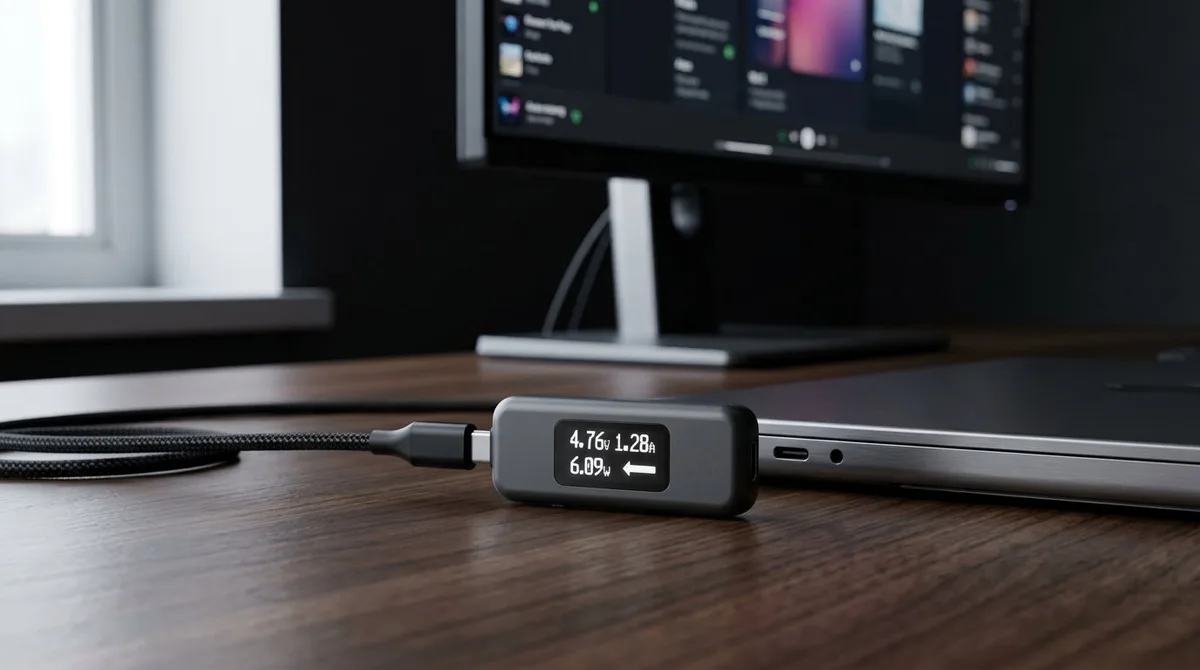
You might occasionally see a warning message on your screen stating that a slow charger is connected. This happens when the system detects a power adapter providing less wattage than the laptop's peak requirement. The Dell BIOS periodically checks for the power adapter ID to ensure compatibility.
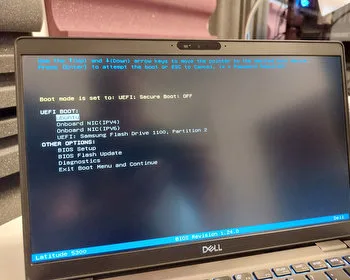
Image source: Bing (Web (fair-use with source credit))
This alert serves as a safety notification rather than an error. It indicates the laptop might charge slower than usual or drain the battery during heavy processing loads. If you see this, the system is simply informing you that it has throttled performance to match the available power supply.
Why 65W is the Sweet Spot for Most XPS 13 Owners
The 65W charger is widely considered the standard for this laptop line. It aligns with the original specifications provided by Dell for nearly all XPS 13 configurations. This power level provides enough juice to maintain a full battery while performing productivity tasks.
The primary advantage here is the physical size. Modern 65W bricks utilize Gallium Nitride technology to remain incredibly slim and light. They occupy minimal space in a backpack, which is ideal for students or office commuters.
You get the perfect balance of performance and portability for typical daily use.
When You Should Actually Reach for a 100W Charger
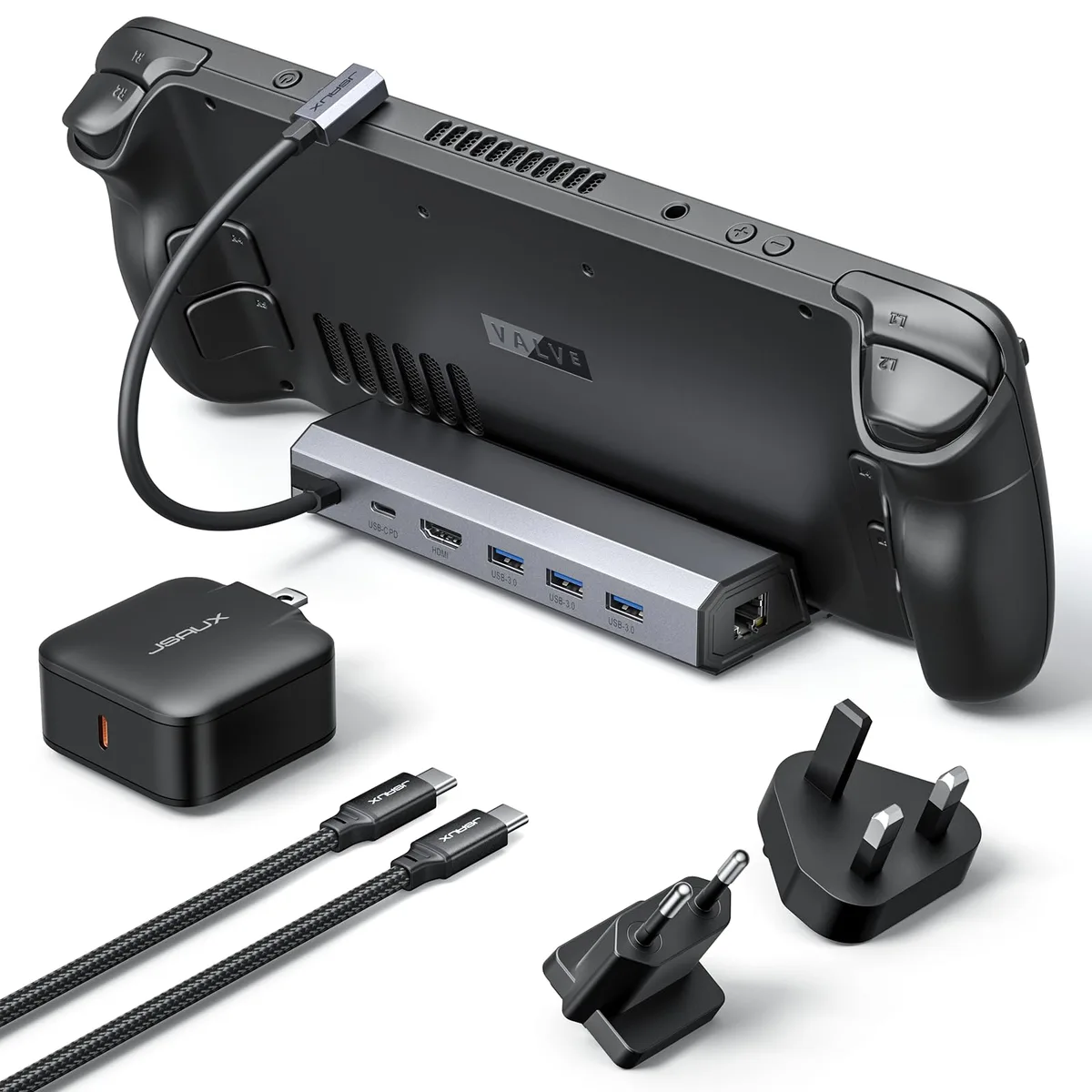
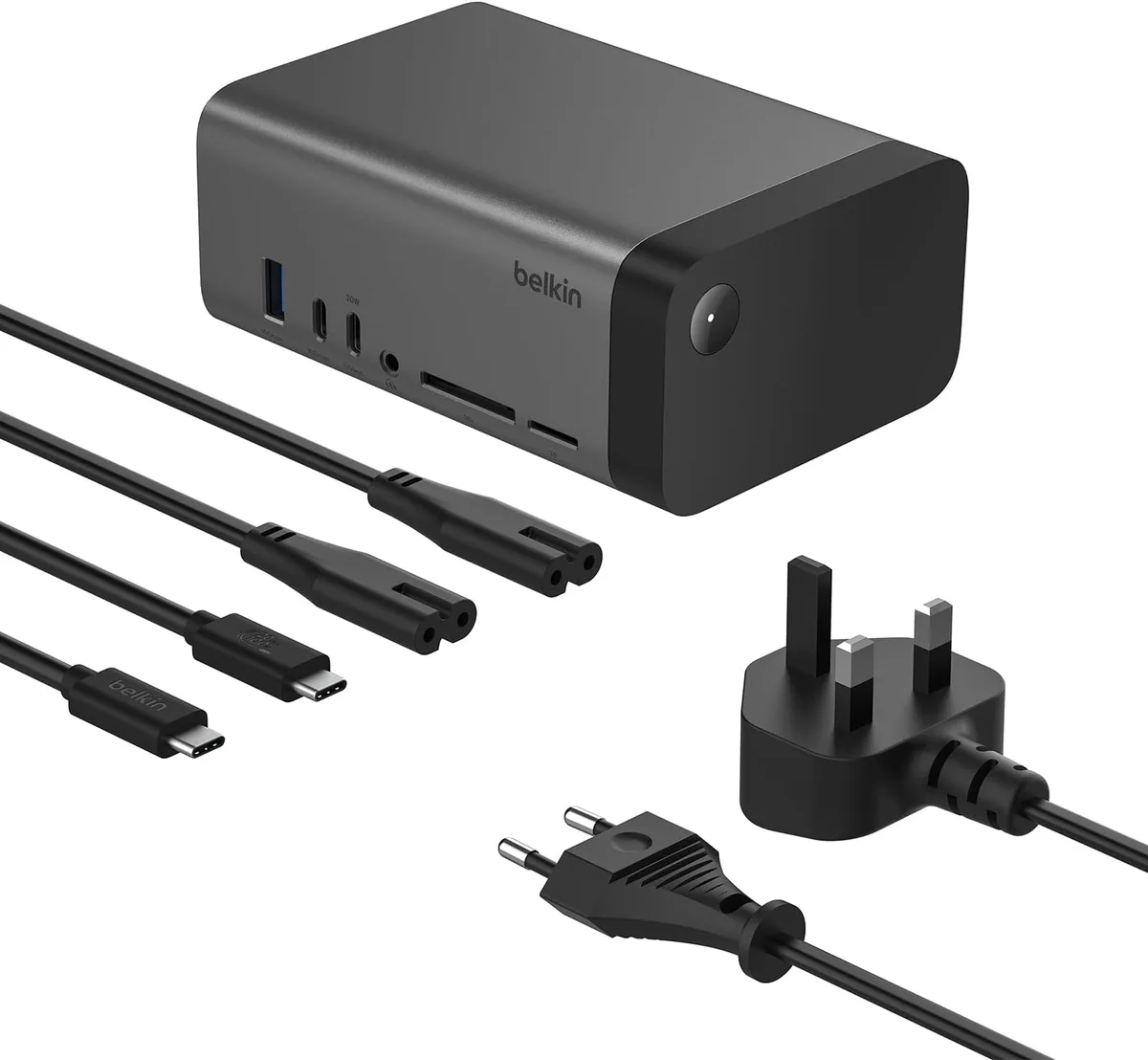
The 100W charger becomes a valuable asset if you maintain a complex desktop setup. If you frequently connect your XPS 13 to a docking station with multiple monitors, external hard drives, and high-speed peripherals, the laptop needs more overhead. A standard 65W charger might struggle to power both the laptop and these energy-hungry accessories.
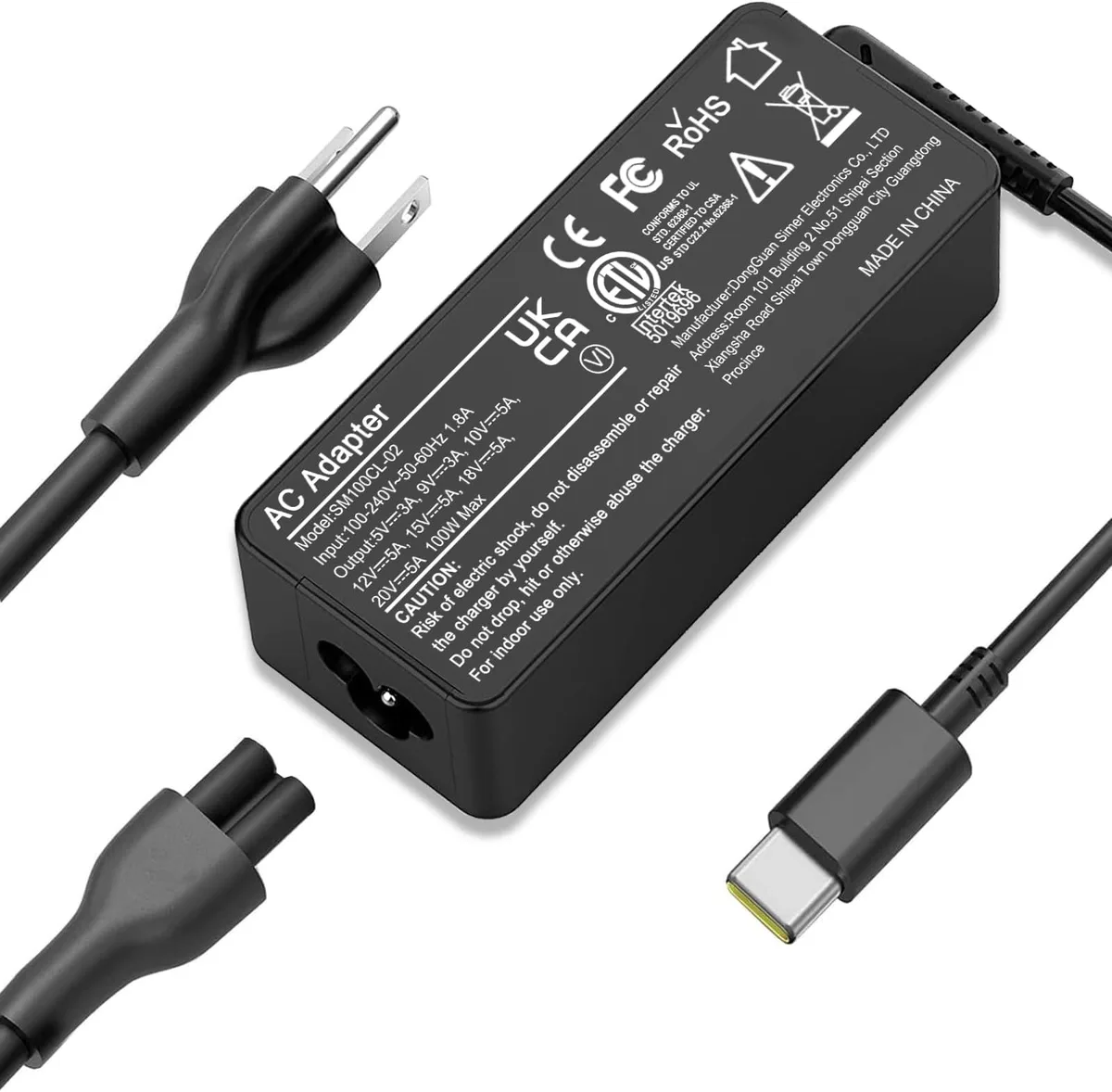
Image source: Bing (Web (fair-use with source credit))
Using a 100W brick provides a buffer that prevents the dock from pulling power away from the laptop. This ensures your CPU maintains its full boost clock speeds during demanding video rendering or data processing. It also allows you to use a single charger to power other devices, such as a large tablet or a secondary phone, at their own maximum charging speeds.
Side-by-Side: Performance, Size, and Weight Trade-offs
Choosing the right adapter is a process of prioritization. You must weigh the benefit of universal, high-speed charging against the physical burden of carrying heavier equipment. The table below compares the typical characteristics of these two power profiles.
| Feature | 65W Adapter | 100W Adapter |
|---|---|---|
| Portability | High | Low to Moderate |
| Primary Use | Daily Commuting | Fixed Desk/Docking |
| Device Compatibility | XPS 13 + Phone | XPS 13 + Dock + Tablets |
| Heat Output | Moderate | Higher (Under load) |
As shown in the table, the 65W unit is designed for mobile efficiency. The 100W unit is designed for versatility in a stationary environment. Your decision should reflect where your laptop spends the majority of its time.
Decoding USB-C Power Delivery and Cable Requirements
USB-C Power Delivery is the intelligence behind modern charging. It allows the laptop and charger to communicate their maximum capabilities through a rapid digital handshake. Without this protocol, high-wattage chargers would default to a standard, slower output to ensure device safety.
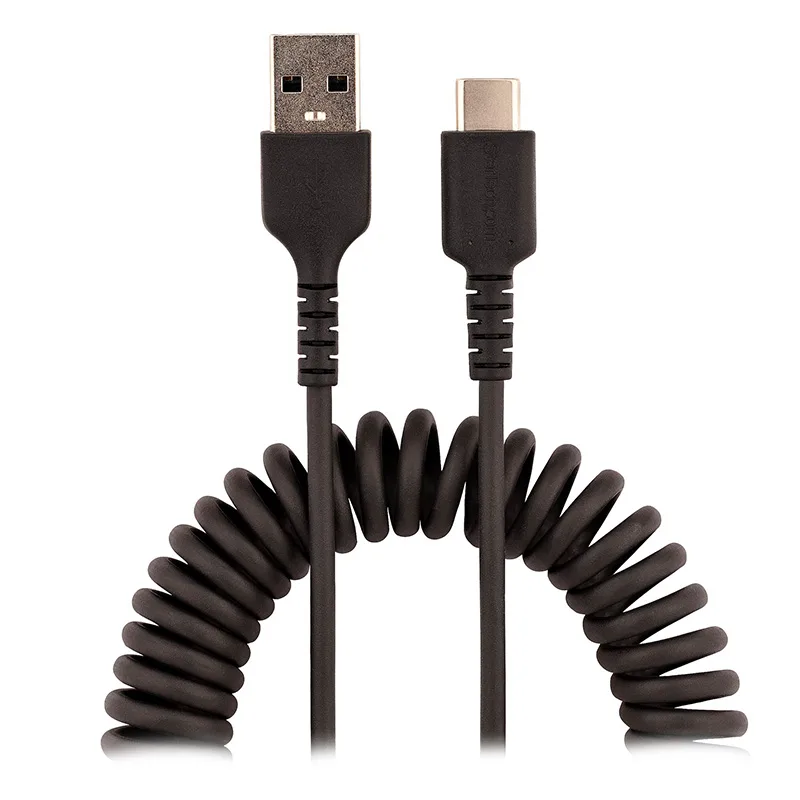
You must ensure your cable matches the wattage of the power adapter. Many standard USB-C cables are limited to 60W of power flow. If you connect a 100W adapter using a 60W cable, the laptop will not receive the full power boost.
Always check the packaging for a 100W or 5A certification label.
The Role of E-Marker Chips in Safe Charging
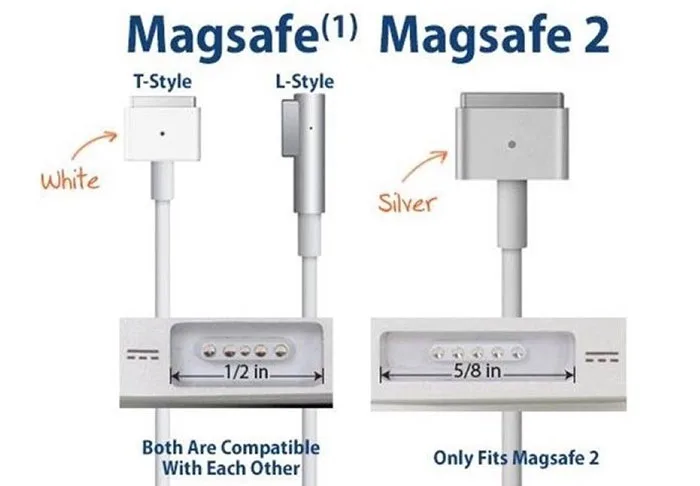
The E-marker chip is a tiny electronic component embedded within the connector head of high-speed USB-C cables. It acts as an ID card, telling the charger that the cable is physically capable of handling high power loads safely. Without this internal chip, the charger restricts the flow to a lower, safer wattage.
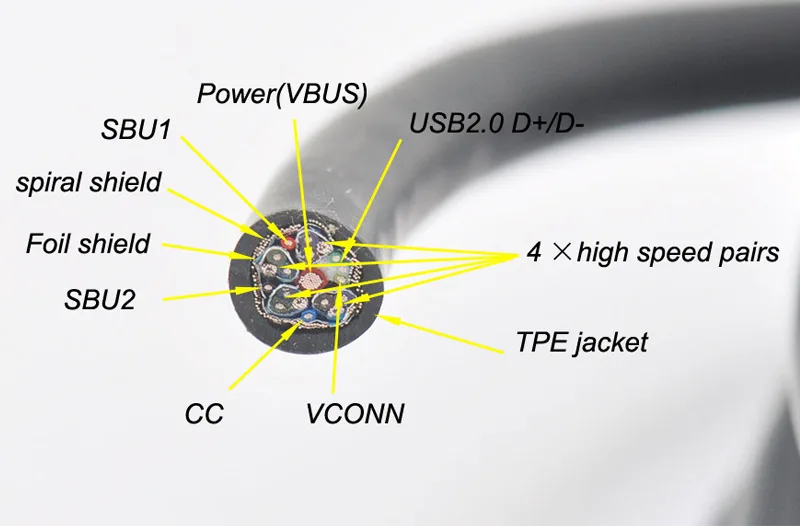
Image source: Bing (Web (fair-use with source credit))
This technology is essential for preventing overheating during the power negotiation process. When shopping for accessories, look for cables explicitly labeled as E-marked or 5A compatible. This is the only way to guarantee your laptop receives the full wattage promised by your adapter.
Avoiding the Bottleneck: Matching Cables to Your Brick
A common mistake is assuming that any USB-C cable will work for fast charging. The bottleneck often lies in the cable, not the charger itself. If you purchase a 100W charger but use an old phone charging cable, you are essentially crippling your power setup.
You can verify your cable performance by checking the specifications on the manufacturer website. Look for USB Implementers Forum certification logos on the cable packaging. These markers confirm that the product adheres to the industry standards required for reliable energy delivery.
Why Your Laptop Throttles Performance on Weak Chargers
Throttling occurs when the system BIOS detects insufficient wattage for the current task load. The computer deliberately slows down the CPU to prevent the battery from draining while you are plugged in. This is a protective measure to keep the device functional despite the power deficit.
This performance reduction is noticeable during intensive software operations like video editing or heavy multitasking. The system prioritizes stability over raw speed in these scenarios. Using the recommended wattage for your specific XPS 13 model eliminates this bottleneck entirely.
How to Choose the Right Charger for Your Daily Workflow
Your decision tree should prioritize where you spend most of your time. If your workflow involves frequent movement, choose a compact 65W GaN charger. It fulfills your needs without adding unnecessary bulk to your daily carry.
If you are a desk-based user with a multi-port hub, a 100W charger is the superior investment. It ensures consistent power delivery to all connected devices without forcing the laptop to throttle its performance. Assess your peripheral needs before finalizing your purchase.
Safety Standards: Why UL and IEC Certification Matter
Safety certifications indicate that a charger has undergone rigorous testing against electrical hazards. Regulatory bodies like Underwriters Laboratories verify that adapters meet strict fire and overheating standards. Purchasing non-certified chargers creates significant risks for both your laptop hardware and your safety.
Always look for the specific safety logos on the charger chassis or the product page. Official manufacturers prioritize these standards to ensure the longevity of your battery and system board. Never prioritize price over these critical safety benchmarks.
Final Verdict: Determining Your Ideal Power Setup
The final choice depends on the balance of portability and power overhead. Most XPS 13 users find the 65W charger perfectly adequate for their daily routine. It is light, efficient, and meets the baseline power requirements defined by the manufacturer.
Upgrade to a 100W setup only if you require universal charging for multiple high-drain devices. Ensure that every part of your setup, from the brick to the cable, supports your target wattage. Making an informed choice ensures your laptop stays fast and your gear bag remains manageable.
Managing Heat and Thermal Output in Chargers
High-wattage charging generates more heat than lower-wattage alternatives. When a charger works near its limit, the internal components produce excess energy as thermal waste. This is why manufacturers house 100W chargers in larger plastic shells with better ventilation.
If your 100W charger feels hot to the touch, don't panic. These units are built to withstand higher operating temperatures than smaller, low-power adapters. However, keeping the brick on a hard surface allows for better airflow compared to burying it under a stack of papers or a rug.
Why Quality of Components Impacts Battery Health
Charging is a chemical process that relies on a steady flow of energy. High-quality power adapters use advanced circuitry to smooth out electrical ripples before they reach your laptop battery. Cheap, unregulated bricks can introduce noise into the power delivery, potentially accelerating battery degradation over time.
Stick to reputable manufacturers that adhere to international power standards. These brands use higher-grade capacitors and heat sinks that protect your laptop’s sensitive power management chip. Investing a little more in a recognized brand saves you the cost of a premature battery replacement.
Identifying Authentic versus Aftermarket Adapters
Counterfeit or low-cost aftermarket chargers are a major risk factor for your device. These products often skip essential safety features like short-circuit protection and over-current shielding. You can identify genuine equipment by checking for branding, part numbers, and official compliance logos on the brick.
Retailers sometimes list generic chargers that mimic official hardware. If the price seems too good to be true, it likely is. Always compare the physical weight and the finish of the plastic against genuine documentation to ensure you have authentic gear.
Troubleshooting Common Power Negotiation Errors
Sometimes your laptop refuses to charge despite being plugged into a capable brick. This is usually a communication failure between the device and the charger. Try unplugging the cable from both ends and waiting ten seconds before reconnecting to reset the negotiation.
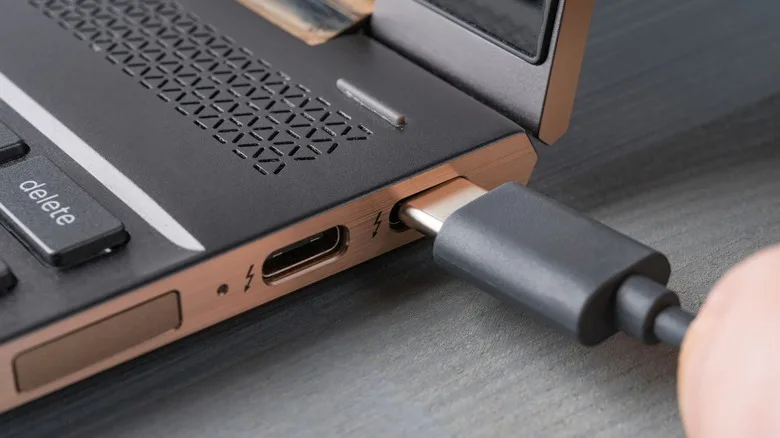
If the issue persists, inspect the USB-C port on your laptop for debris. A small amount of lint or dust can physically block the connection pins. Use a non-conductive tool like a wooden toothpick to gently clean the port if you spot obstructions.
Long-Term Maintenance and Optimization Strategies
You can extend the life of your charging equipment with simple habits. Avoid sharp bends near the connector head, as this strains the internal wires. Coil your cables in large, loose loops instead of wrapping them tightly around the charger brick.
Keep your charging setup in a cool, dry area when not in use. Dust accumulation in the charger vents can act as an insulator, trapping heat inside. A quick wipe-down with a dry cloth periodically keeps your gear in top shape for years of service.
Frequently Asked Questions
Will a 100W charger damage my Dell XPS 13?
No, the charger will not damage your laptop. The XPS 13 hardware contains a power controller that regulates the electrical intake. It only draws the exact amount of power it needs to function.
The charger will provide what the laptop requests during the initial handshake process.
Can I use my phone charger for my XPS 13?
You can use a phone charger if it supports USB-C Power Delivery and matches the required voltage. Most phone chargers are too low-wattage for a laptop. You will likely see a slow-charging notification or the laptop will refuse to charge entirely.
Check the output label for a 45W or 65W rating.
Do I need a special cable for 100W charging?
Yes, you need a cable equipped with an E-marker chip. Standard charging cables are usually limited to 60W or lower. An E-marked cable communicates its capacity to the charger, allowing it to safely provide more than 60W of power.
Always look for the 5A or 100W label.
Why does my laptop charge slower than expected?
Slow charging often results from a mismatch between the charger, the cable, or the power outlet. Ensure you are using a certified cable and a charger with sufficient wattage. If you are using a hub or a dock, ensure it is plugged into a high-output power source.
Is it worth upgrading to GaN chargers?
Yes, Gallium Nitride technology is worth the investment for most users. GaN chargers are significantly smaller and lighter than traditional silicon-based chargers. They offer high power efficiency and less heat buildup.
This makes them the ideal choice for anyone prioritizing a lightweight travel kit.

Similar Posts