Can You Use a 70W MacBook Charger for Your Chromebook?
Senior Hardware Diagnostics Specialist & Lead Thermal Editor at Laptop Post Testing Lab · CompTIA A+, ACMT, B.S. in Computer Engineering · 12+ years bench-testing laptop thermal solutions & motherboard repairs
You’ve likely wondered if you can fast charge a Chromebook with a MacBook 70W charger when you are low on power and only have one cable handy. The good news is that most modern laptops follow universal charging standards that make this crossover possible.
As of 2026, most devices utilize USB-C Power Delivery (PD) to negotiate safe power transfers. This technology ensures your hardware only draws the wattage it is actually built to handle, preventing damage to your internal battery.
Quick Answer
Yes, you can safely use a MacBook 70W charger for a Chromebook. USB-C Power Delivery manages the specific power needs automatically. Your laptop will only draw the required amount of electricity.
This method is safe for most modern USB-C devices.
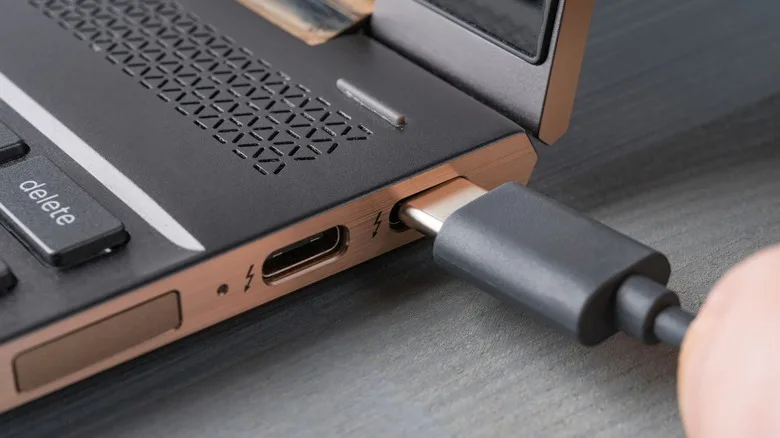
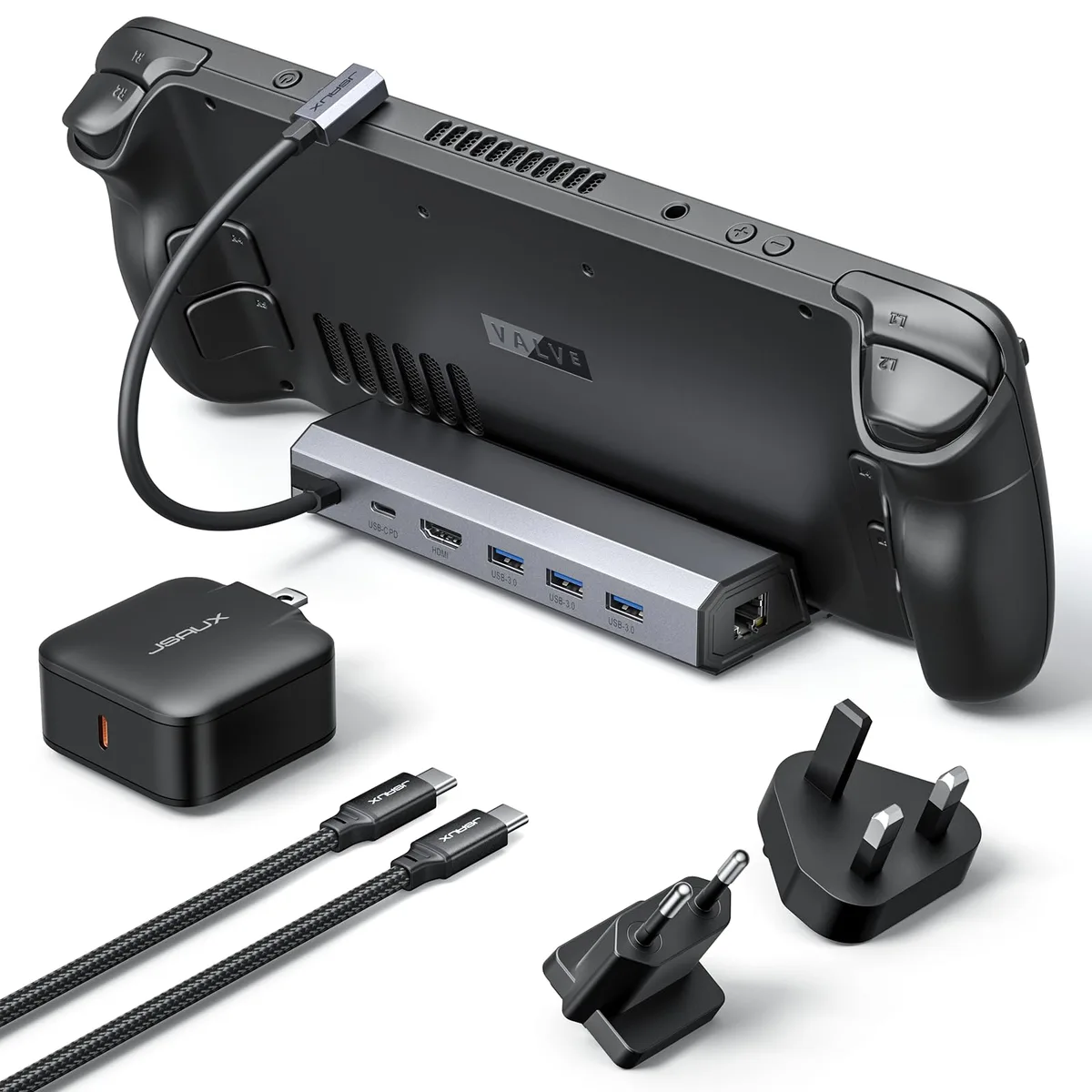
Image source: Bing (Web (fair-use with source credit))
How USB-C Power Delivery (PD) Makes Cross-Charging Possible
USB-C Power Delivery is a technical standard that enables devices to share power over a single USB-C cable. Instead of relying on a fixed voltage, the charger and the laptop perform a digital handshake. They negotiate exactly how much power the laptop needs at that moment.
This means a 70W charger is smart enough to throttle down its output if your Chromebook only needs 30W or 45W. Because the USB Implementers Forum (USB-IF) governs these specifications, the hardware stays cool and efficient during the transfer. You get the benefit of a high-speed charger without any risk of overvolting your internal components.
The Handshake: How Your Charger and Laptop Communicate
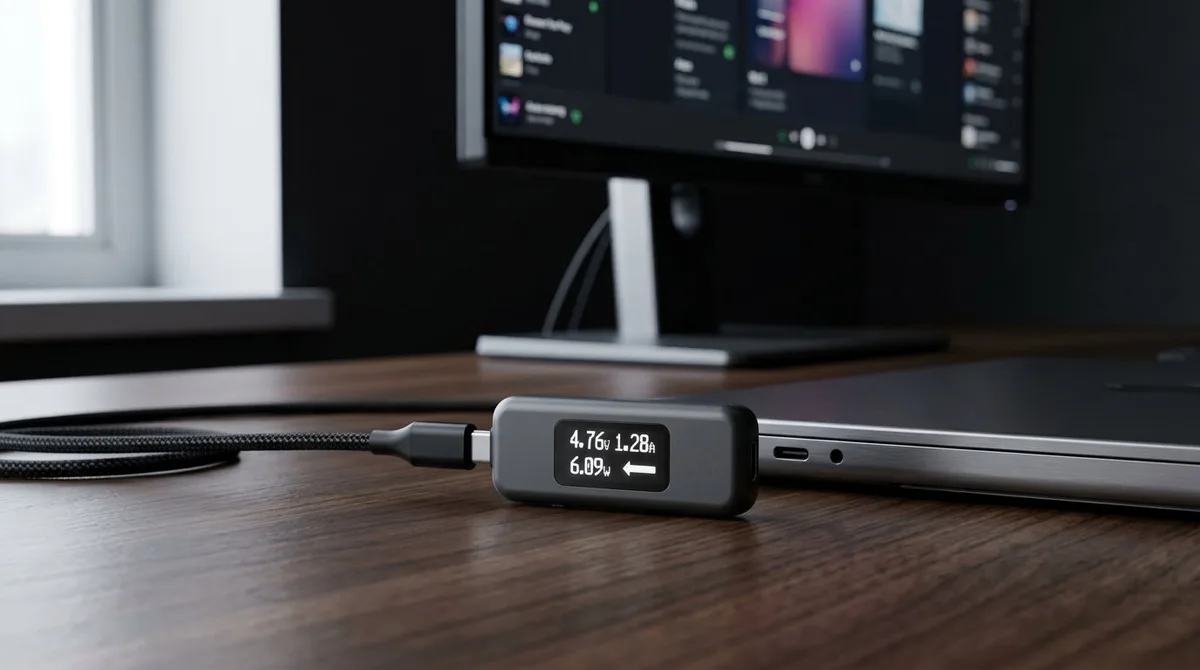
The charging handshake is a rapid digital exchange that happens the millisecond you plug in your device. The laptop tells the charger which voltage and current levels it supports. If the charger is compatible, it adjusts its output to match those requirements perfectly.
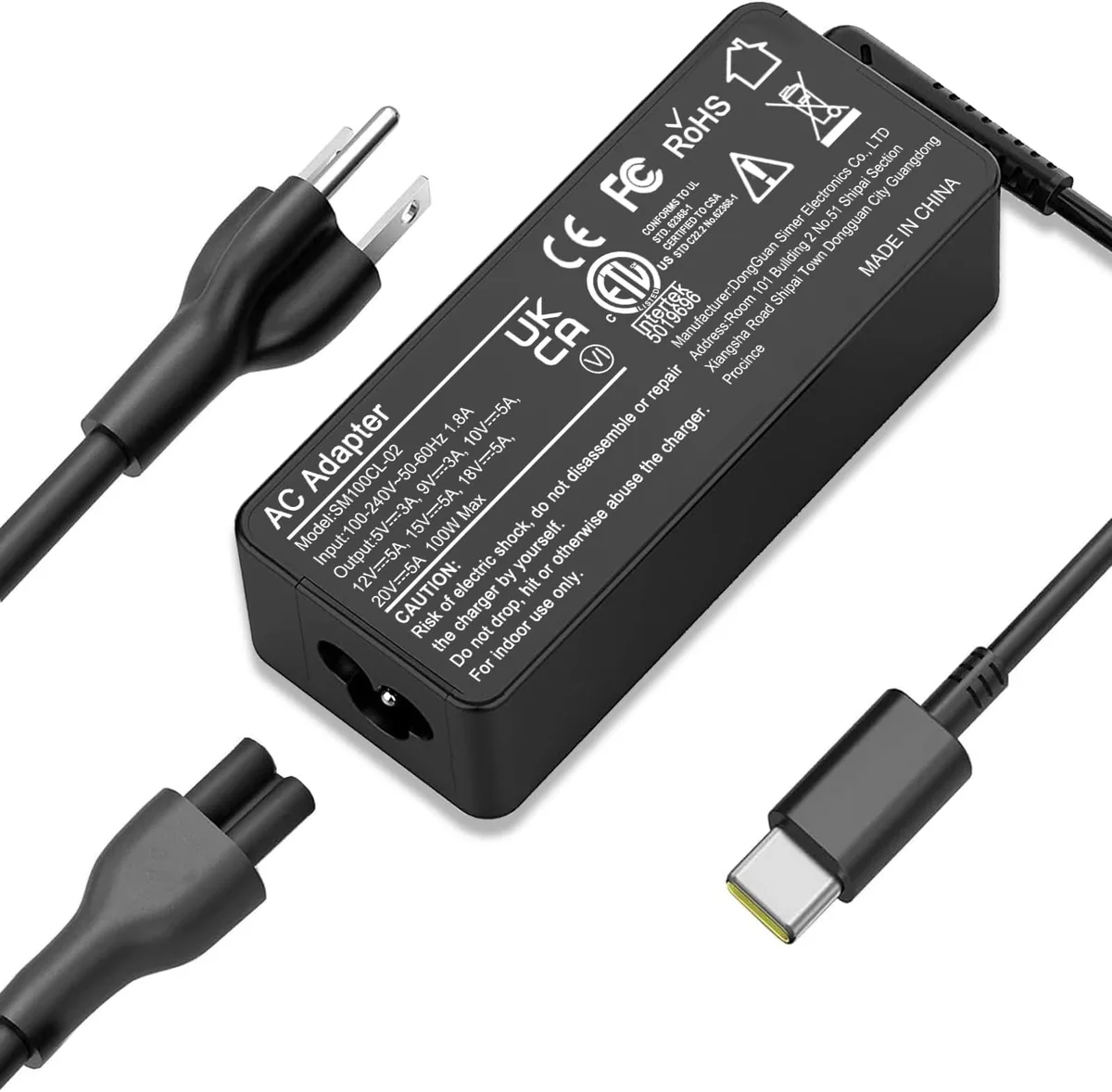
Image source: Bing (Web (fair-use with source credit))
This process prevents the charger from forcing too much energy into a system that cannot handle it. If the laptop detects an incompatible power source, it simply ignores the extra power. This sophisticated communication makes modern USB-C charging far safer than the old barrel-style adapters of the past.
What to Check Before You Plug In
Before you assume your charger will work, look for specific labels on the charging brick. You want to see the PD symbol or text identifying it as a Power Delivery device. If the charger does not support this protocol, it may default to a very slow legacy charging speed.
Also, verify your Chromebook's charging port supports USB-C charging. Most Chromebooks made after 2020 include this feature, but some budget models still use older, proprietary pins. Check your specific manufacturer manual if you are unsure about the port's capabilities.
Step-by-Step: Testing Compatibility with Your Chromebook
Start by ensuring your MacBook charger is plugged into a functional wall outlet. Connect the USB-C cable securely into both the power adapter and your Chromebook's USB-C port. Look for the standard charging indicator light on the side of your laptop.
Check your system status bar for the charging icon. If the icon shows a power plug or a lightning bolt, the handshake was successful. Open your settings menu to confirm the system reports the device is charging rather than plugged in, not charging.
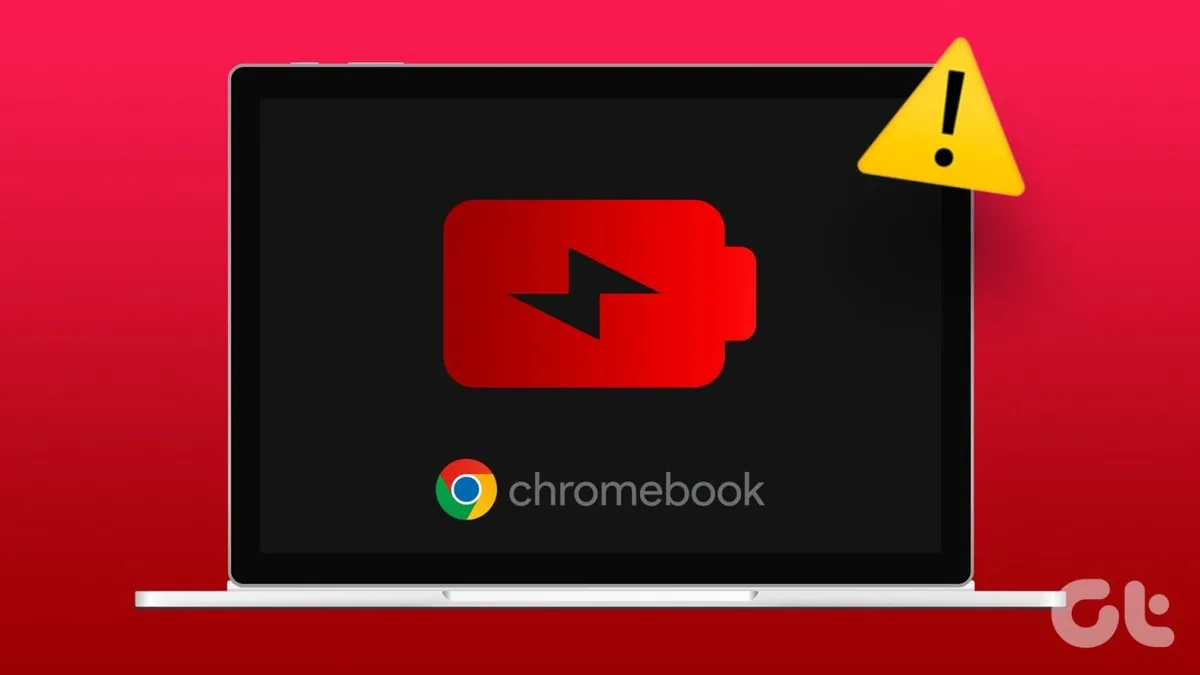
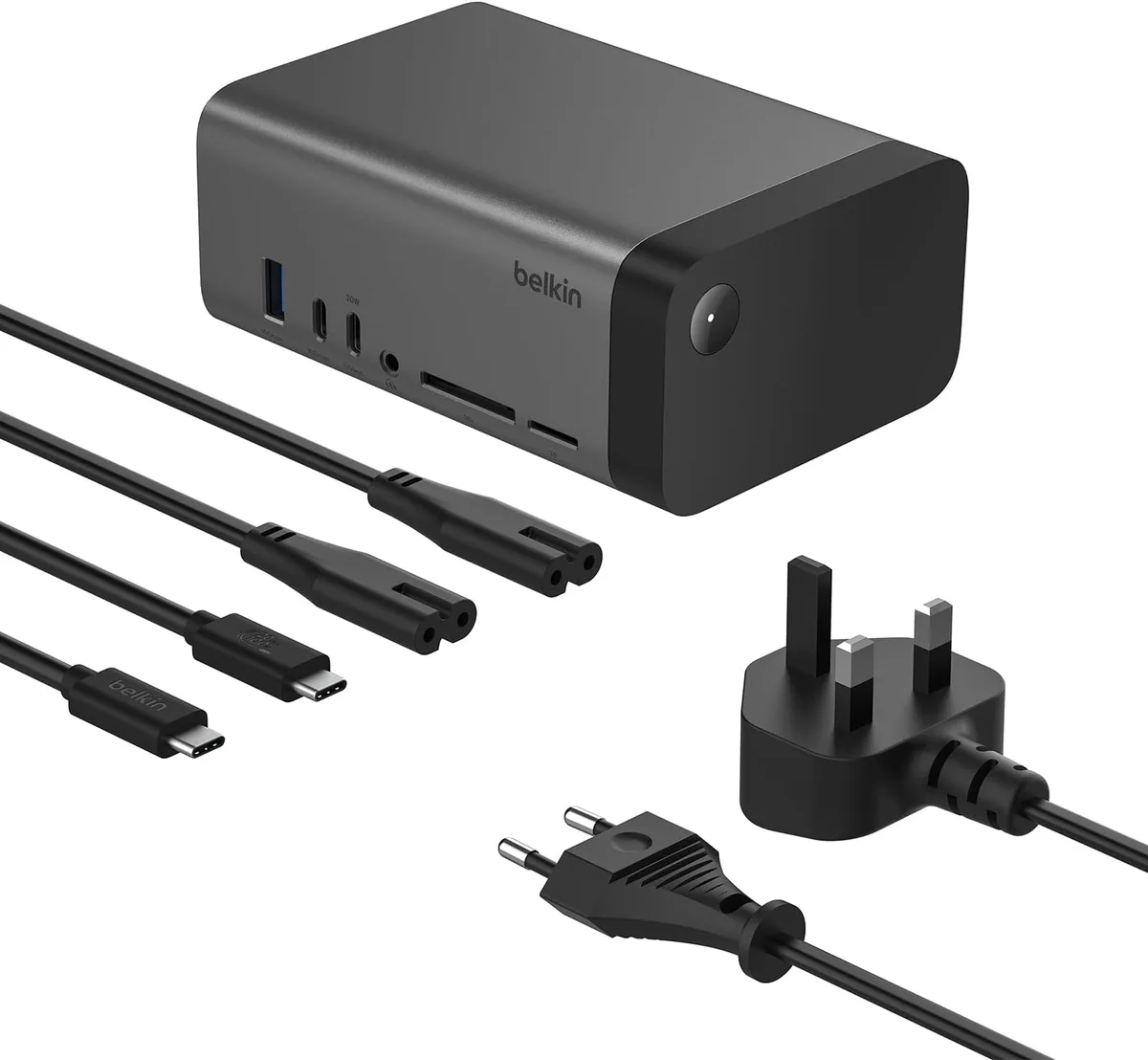
Image source: Bing (Web (fair-use with source credit))
If the system indicates slow charging, consider unplugging and reconnecting to reset the handshake. Occasionally, the charger might need a moment to detect the device requirements. If the connection remains unstable, the charger may lack the specific profile your Chromebook requires for full-speed input.
How to Identify a High-Quality USB-C Cable
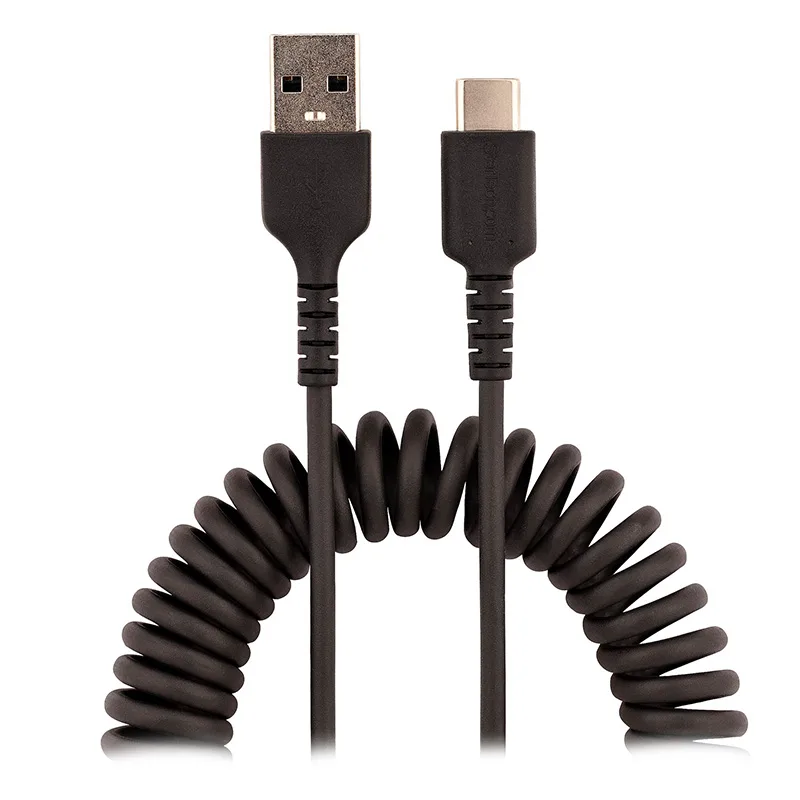
The cable is just as important as the charging brick when it comes to performance. A high-quality cable will be marked with a PD logo or a wattage rating like 60W or 100W printed on the casing. These cables contain a tiny E-marker chip that confirms the cable can handle high power safely.
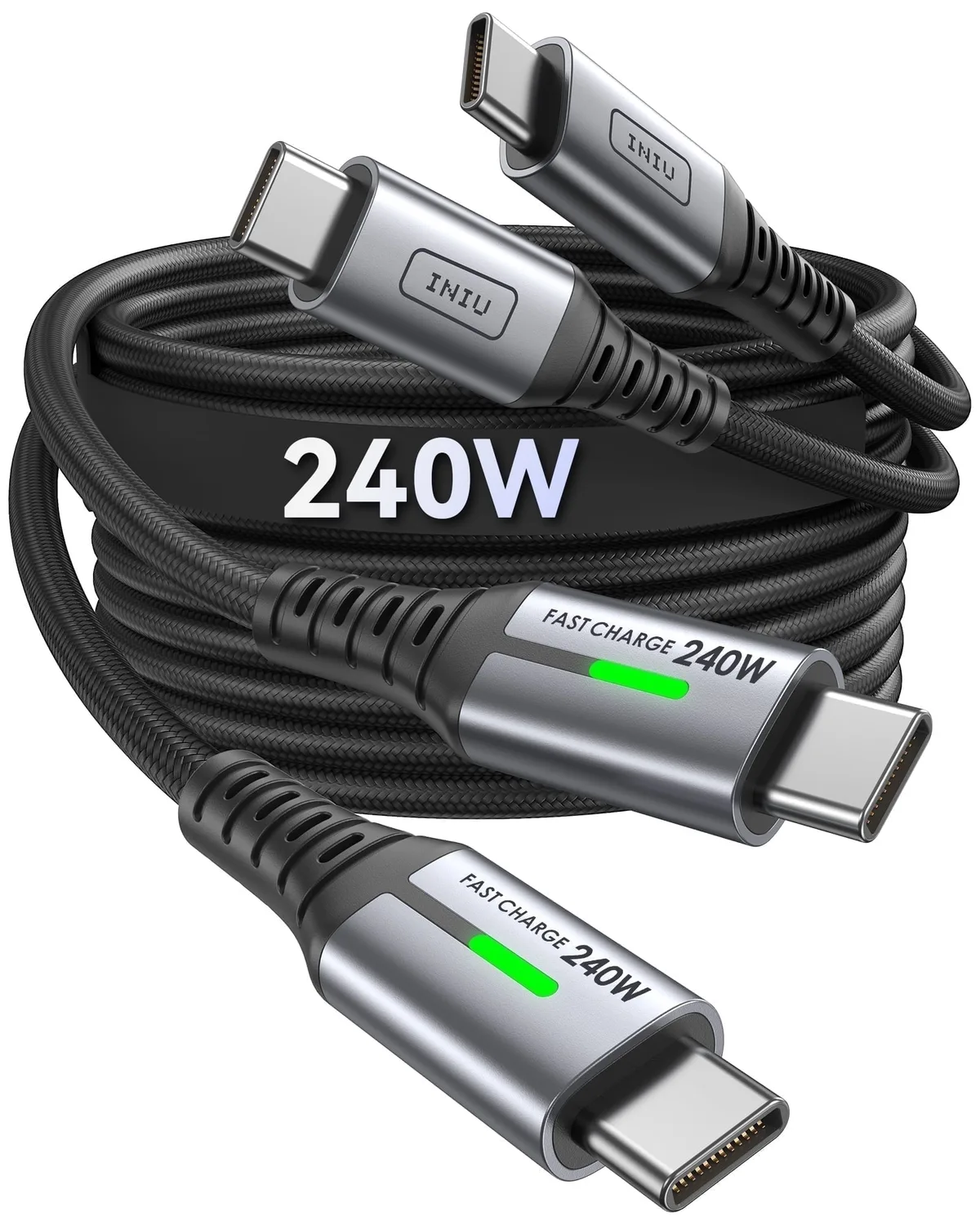
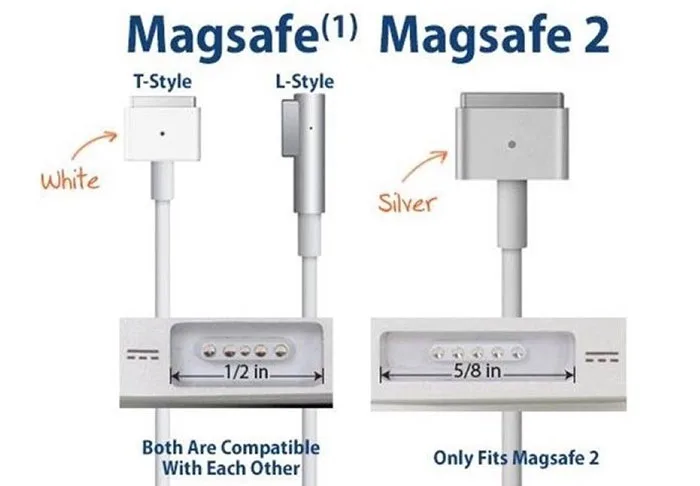
Image source: Bing (Web (fair-use with source credit))
Avoid using thin, cheap, or damaged cables for high-wattage charging. If you notice the cable jacket fraying or the plug feels loose in the port, replace it immediately. Damaged cables are the most common cause of intermittent charging, as they cannot maintain the steady data connection required for the power handshake.
Benefits of Consolidating to One Charger
The primary advantage of using a high-wattage charger for your devices is physical simplicity. Carrying a single 70W power brick allows you to charge both your laptop and phone, significantly reducing the weight in your bag. This consolidation is helpful for frequent commuters who want to avoid fumbling with multiple cables.
Beyond convenience, high-performance chargers often feature superior heat management. Many newer models use advanced materials that keep the brick cooler than legacy silicon-based chargers. You will save desk space and minimize cable clutter, creating a more organized workspace.
Why You Might See a Low Power Notification
Your Chromebook triggers a low power alert when the connected charger fails to meet the specific voltage requirements of the device. This does not mean the charger is dangerous or broken. It simply means the two devices could not negotiate the high-speed profile required for rapid charging.
In this state, the laptop will often still charge, but it will do so at a much slower rate. You might also notice the battery icon draining even while plugged in if the system is under a heavy load. If you see this warning, check if your cable is fully pushed into the port or try a different cable known to support higher wattages.
Common Mistakes and Safety Risks to Avoid
The most frequent error is using a low-quality cable that cannot handle the wattage requested by the device. While the power brick might be capable of 70W, a low-grade cable acts as a bottleneck. This resistance creates excess heat that can melt the connector or damage the charging port over time.
Another risk involves using non-certified third-party adapters that claim to support USB-C PD but lack the proper electrical safety components. Always inspect your hardware for signs of wear, like exposed wires or bent pins. Never force a connector into a port if it feels resistant.
Comparing MacBook Adapters vs. Dedicated Chromebook Chargers
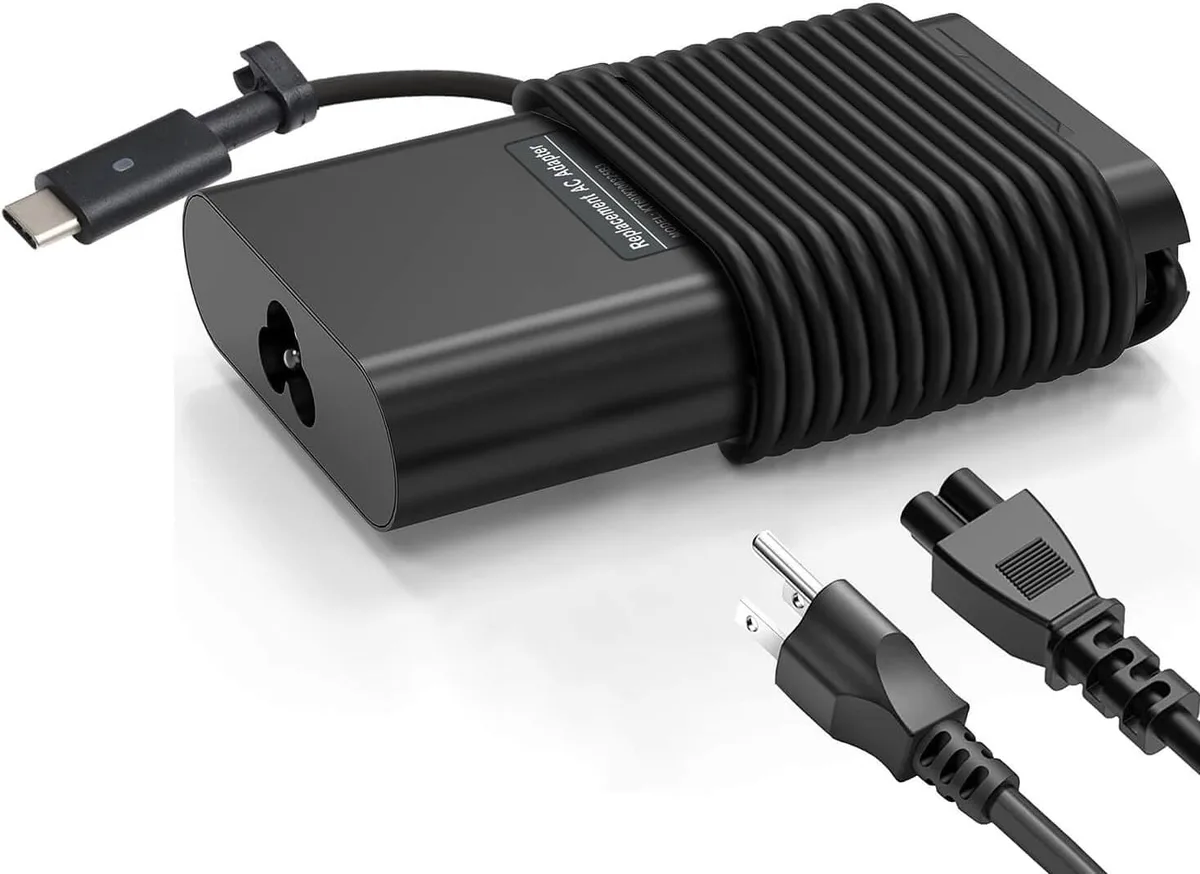
Apple’s 70W adapter and a standard Chromebook charger both rely on the same industry-standard protocol. The main difference often comes down to build quality and proprietary design features. Apple products are engineered for maximum efficiency with specific heat dissipation profiles.
| Feature | Apple 70W Adapter | Standard Chromebook Charger |
|---|---|---|
| Protocol | USB-C Power Delivery | USB-C Power Delivery |
| Build Quality | High (Internal shielding) | Variable (OEM specific) |
| Heat Management | Advanced (GaN) | Varies by manufacturer |
| Portability | Excellent | Varies (Some are bulky) |
Dedicated Chromebook chargers are sometimes tuned to the specific power curves of a single laptop model. However, an Apple charger is often more robust, making it a reliable substitute in most scenarios. You will find that both perform almost identically in real-world charging scenarios.
Expert Tips for Managing Different Power Needs
Label your power bricks if you have several devices with different wattage requirements. This prevents the confusion that leads to choosing the wrong cable or brick for your most demanding hardware. If you frequently charge multiple devices, consider a multi-port GaN charger.
These chargers distribute power intelligently across several ports, ensuring each device gets exactly what it needs. Keep your firmware updated on your Chromebook to ensure the system is optimized for different charging profiles. Staying updated allows your laptop to recognize and accept power from a wider range of high-quality, third-party accessories.
Safety Standards and Why USB-IF Certification Matters
The USB Implementers Forum, or USB-IF, provides the essential certification that guarantees your charger meets global safety standards. When a device is USB-IF certified, it has undergone rigorous testing to ensure it handles electrical loads without overheating or sparking. These standards prevent common issues like short circuits or improper power surges that could ruin your laptop.
You can often find the official logo on the packaging or the device body itself. While non-certified chargers might work in a pinch, they lack the verified thermal protection of official hardware. Relying on certified equipment is the most effective way to ensure your battery stays healthy over its lifespan.
Final Decision Guide: When to Swap and When to Stick to OEM
Use the following logic to decide if your secondary charger is the right choice for your workflow. Always prioritize your official original equipment manufacturer (OEM) charger if you have concerns about the specific power profiles supported by your laptop. If your secondary charger meets the PD standard and provides equal or greater wattage, it is a safe and effective replacement.
- Stick to OEM if you notice unusual warmth during charging or if the laptop occasionally refuses to recognize the power source.
- Use the MacBook charger if it passes the PD certification check and provides a stable, consistent charge during your standard tasks.
- Discard the charger if you hear faint buzzing, the plastic housing shows discoloration, or the cable connection feels loose or intermittent.
Frequently Asked Questions
Is it harmful to use a higher wattage charger than required?
No, your laptop's charging circuitry acts as a regulator. It only draws the exact amount of power it needs to charge efficiently. Even if the charger is capable of 70W, your device will pull only what the onboard management chip requests.
How do I know if my charger is failing?
Watch for intermittent charging, where the device rapidly toggles between charging and not charging. If the brick feels hot to the touch or makes a high-pitched whine, these are signs of internal component failure. Unplug the device immediately if you notice these symptoms to prevent potential damage.
Does fast charging degrade the laptop battery faster?
Fast charging does not inherently destroy a battery, but it does create more heat than slow charging. Modern laptops are designed to manage this heat effectively through software-controlled power scaling. The impact on battery life is minimal when using official or high-quality certified charging hardware.
Why does my charging speed fluctuate?
Charging speeds often throttle down to protect the battery when it reaches 80 percent capacity. This is a standard practice called trickle charging that extends the overall lifespan of lithium-ion cells. If the speed fluctuates early in the cycle, it may be due to an unstable connection or the system prioritizing performance over rapid input.
Can I charge my Chromebook with a phone charger?
You can, but it will charge much slower or may not work at all. Most phone chargers provide significantly lower wattage than what a laptop requires. If the charger cannot supply the minimum voltage your laptop needs, it will likely ignore the connection or show a persistent low-power warning.

Similar Posts