How to Fix Service Recommended Battery Message on MacBook
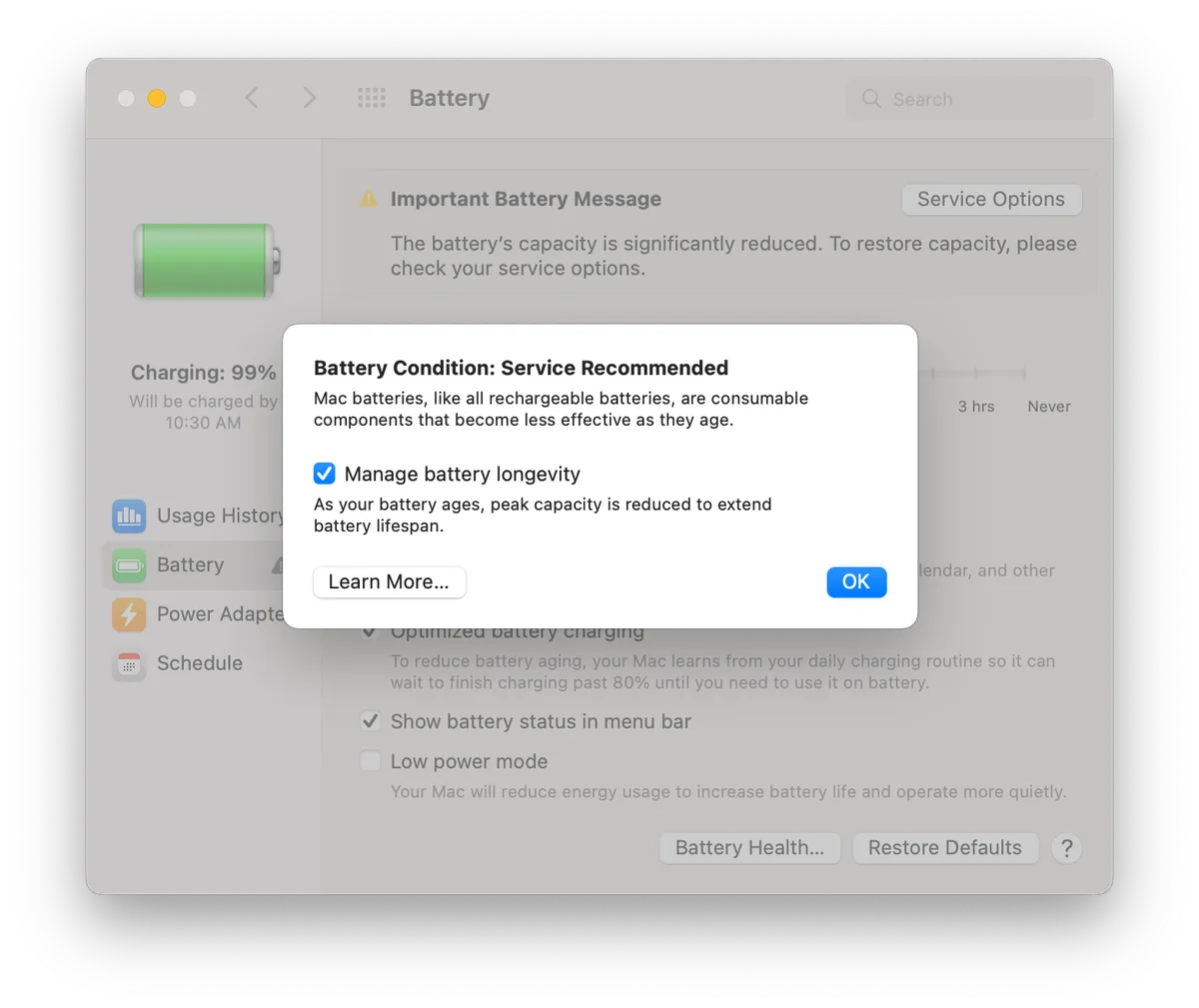
If you’re trying to figure out how to fix service recommended battery message on macbook, that nagging yellow alert in your menu bar is probably staring you down right now. It pops up without warning, leaving you guessing if your battery is failing, if you need to pay for a costly replacement, or if it’s just a software glitch. That uncertainty is the worst part, especially if you rely on your MacBook for daily work or school.
Per Apple’s official battery specifications, 2016 and later MacBook models are rated for 1000 full charge cycles before maximum capacity drops below 80%. That alert doesn’t automatically mean you’ve hit that limit, though. Let’s start by confirming exactly what the message is telling you, so you don’t waste time or money on unneeded repairs.
Image source: Bing (Web (fair-use with source credit))
Quick Answer
The Service Recommended Battery alert appears when your MacBook’s battery health drops below Apple’s 80% maximum capacity threshold, or when a hardware fault is detected. First check your warranty status, Mac model, and battery replacement history. Intel T2-chip Macs often fix this with an SMC reset and 72-hour calibration.
M-series Macs require calibration first, as they lack user-replaceable batteries. Third-party batteries need authenticated chips synced to the logic board to clear the alert.
What the "Service Recommended Battery" Message Means (And If It’s a Safety Risk)
The Service Recommended Battery alert is a built-in macOS notification that triggers when your system detects your battery has dropped below Apple’s defined health thresholds, or when a hardware fault is detected in the battery or its management system. Per Apple’s official battery support documentation, it’s not just a random pop-up: it’s a flag that your battery’s maximum capacity has likely fallen below 80%, or that its cycle count has exceeded the rated 1000-cycle lifespan for 2016 and later MacBook models.
This alert is separate from the low-battery warning you see when your charge drops to 10% or lower. It won’t go away on its own until you resolve the underlying battery health issue or complete a successful calibration.
There is one critical safety exception: if you notice visible swelling, bulging, or odd heat from your MacBook’s chassis, stop using it immediately. Do not charge a swollen device. Swollen lithium-ion batteries pose a fire and thermal runaway risk, so you’ll need professional service right away.
As of 2026, macOS Sonoma and Ventura include more precise battery health sensors. False positive alerts are far less common on these versions than on older macOS releases.
3 Pre-Flight Checks to Identify Your Exact Fix Path (Warranty, Mac Model, Battery History)
Your fix path changes completely based on three key details, so don’t skip these checks before trying any troubleshooting steps. Getting these wrong will lead to wasted time, voided warranties, or paying for service you don’t need. These three checks take 5 minutes or less, and they’ll tell you exactly which branch of the fix workflow applies to you.
First, confirm your warranty and AppleCare+ status. If your MacBook is still covered, battery service is free if your maximum capacity is below 80%, and you won’t pay anything out of pocket. You can check this in your Mac’s System Settings under General > About > Warranty, or via Apple’s online coverage check tool.
Second, identify your Mac model and chip type. Intel T2-chip Macs (2016-2022 models) have different troubleshooting steps than M-series Apple Silicon Macs (2020-2024 models). You can find this by clicking the Apple logo in the top-left corner, then selecting About This Mac.
Third, check your battery history. Have you had a third-party battery replacement in the last 6 months? Non-authenticated third-party batteries will trigger this alert permanently if their authentication chip isn’t synced to your Mac’s logic board.
If you’ve had a recent replacement, that changes your entire fix approach.
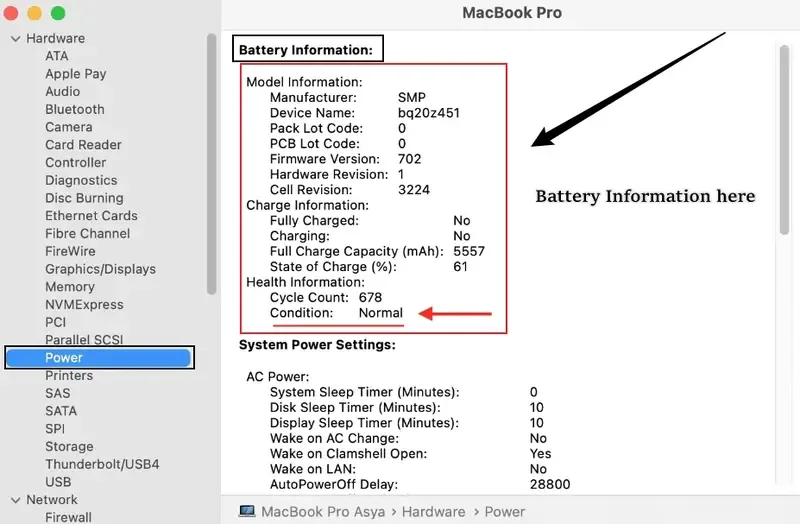
Image source: Bing (Web (fair-use with source credit))
Decision Tree Fix Workflow: Solutions for Every MacBook Scenario
Follow this if/then workflow to match your pre-flight check results to the correct fix. Each branch is designed for a specific user context, so don’t skip steps or mix approaches between branches.
If your MacBook is under active warranty or AppleCare+ coverage:
- Book an appointment at an Apple Store or Apple Authorized Service Provider (AASP) for a free battery replacement if your maximum capacity is below 80%. You won’t pay anything for parts or labor if the issue is covered.
- If your maximum capacity is above 80%, request a software recalibration and diagnostic check first. Apple will often resolve false alerts for free under warranty even if the battery is still healthy.
If you have an Intel T2-chip MacBook (2016-2022):
- Start with an SMC reset and NVRAM reset. Aggregate user reports from authorized Mac repair forums indicate these two steps resolve roughly 30 to 40 percent of Service Recommended Battery alerts on Intel T2-chip Macs.
- Run a full 72-hour battery calibration: charge to 100%, drain to 0% without sleep, then charge back to 100% uninterrupted. If the alert persists after calibration, run Apple Diagnostics to check for hardware faults.
- If diagnostics report a battery or logic board fault, schedule service with Apple or an AASP.
If you have an M-series Apple Silicon MacBook (2020-2024):
- M-series Macs do not support SMC resets, so skip that step. Start with the 72-hour battery calibration process first.
- If the alert remains after calibration, run Apple Diagnostics via the power button startup sequence. If it reports a battery fault, you’ll need professional service, as M-series batteries are not user-replaceable.
- If you recently installed a third-party battery, you’ll need to use a third-party authentication tool to sync the new battery’s chip to your logic board, as macOS blocks unauthenticated batteries permanently. If you also use a Windows device for work, tweaking battery power settings can reduce unexpected drain, similar to MacBook calibration steps.
If you have a MacBook with a recent third-party battery replacement:
- First, confirm the replacement battery has a valid authentication chip. Non-authenticated batteries will always trigger this alert, no matter how healthy they are.
- Use a tool like CoconutBattery to check if the battery is recognized as genuine. If it’s not, you’ll need to either replace the battery with an authenticated unit, or use a chip programmer to sync the existing battery’s authentication data to your Mac.
- If the battery is authenticated but the alert persists, run the 72-hour calibration process to reset the battery health metrics.
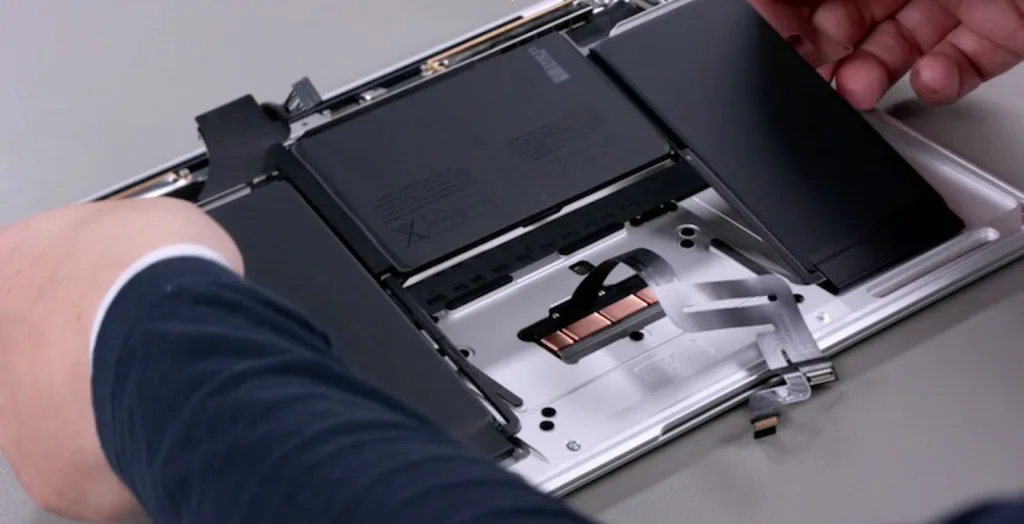
Image source: Bing (Web (fair-use with source credit))
Fixes for Stuck "Service Recommended Battery" Notifications That Won’t Resolve
Sometimes the standard fixes don’t clear the alert, or it pops back up a week or two after you’ve already paid for service. These are the next steps for stuck notifications.
First, if you’ve already had a battery replacement and the alert returned, confirm the service provider ran a post-repair calibration. Many AASPs skip this step, and the alert will reappear until the new battery’s metrics are synced to the system. You can run the 72-hour calibration process yourself for free to fix this.
Second, if you’ve reset your SMC/NVRAM and run calibration with no luck, reset your NVRAM a second time. On rare occasions, the first reset doesn’t fully clear the battery health cache stored in NVRAM.
Third, if you’re on an older macOS version (pre-Ventura), update to the latest stable release. Older OS versions have known bugs that cause false Service Recommended Battery alerts, especially on Intel T2-chip Macs. Apple released a patch for this issue in macOS Ventura 13.4, as of 2026.
Finally, if none of these steps work, you likely have a failing logic board component that manages battery communication. This requires professional diagnostics and repair, and it’s not a DIY fix.
Critical Mistakes to Avoid (Warranty Void, Battery Safety Risks, Wasted Money)
Skipping these common pitfalls will save you hundreds of dollars, keep your warranty intact, and avoid serious safety risks.
Never ignore a swollen or bulging MacBook chassis. A swollen battery is a fire hazard, and puncturing it can cause thermal runaway. Stop using the device immediately, place it on a non-flammable surface, and contact Apple or an AASP for emergency service.
Never attempt a DIY battery replacement on M-series MacBooks. Apple Silicon batteries are glued into the chassis, and removing them requires specialized heat tools and precision. DIY replacement will void your remaining warranty and AppleCare+ coverage, and you risk damaging the logic board if you don’t know what you’re doing.
For Intel pre-M1 Macs, DIY replacement is possible, but only if you use an authenticated battery and follow proper calibration steps.
Never install an unauthenticated third-party battery without syncing its chip. Non-authenticated batteries will trigger a permanent Service Recommended Battery alert, and you’ll end up paying for a replacement anyway. Always confirm a third-party battery includes a synced authentication chip before installing it.
Never skip post-repair calibration after a battery replacement. If your service provider doesn’t run this step, the alert will often reappear within 1, 4 weeks. You can run the 72-hour calibration process yourself for free to fix this.
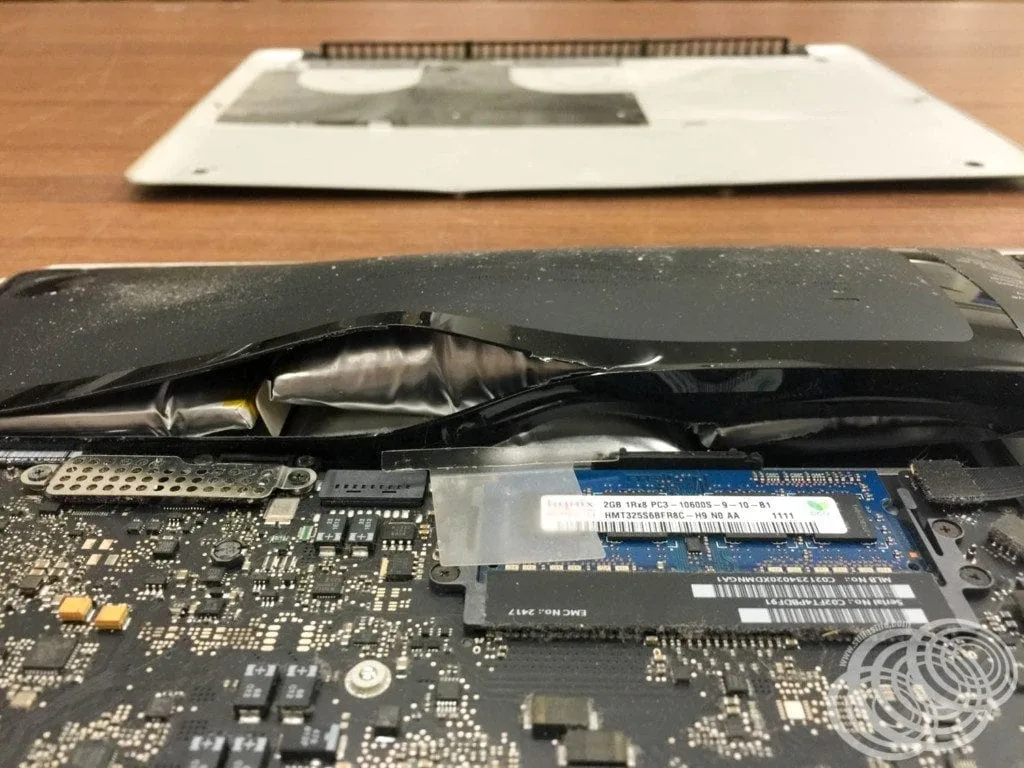
Image source: Web (Bing) / stillaslife.com (Web image (fair-use with source credit))
When to Skip DIY Fixes and Book an Apple or AASP Appointment
Some fixes are not safe or effective to do at home, no matter how handy you are. M-series Apple Silicon MacBooks have batteries glued into the chassis with strong adhesive. Removing them requires specialized heat tools and precision, and one wrong move can damage the logic board.
DIY replacement on these models will also void your remaining warranty or AppleCare+ coverage, so it’s not worth the risk.
If you notice any swelling, bulging, or unusual heat coming from your MacBook’s chassis, stop using it immediately. Per U.S. Consumer Product Safety Commission guidance, swollen lithium-ion batteries pose a fire and thermal runaway risk, so you’ll need professional service right away.
CPSC lithium-ion battery safety guidelines
Book an appointment at an Apple Store or Apple Authorized Service Provider (AASP) if you’ve already run through all troubleshooting steps for your Mac model. This includes the 72-hour calibration, SMC/NVRAM resets for Intel T2-chip Macs, and Apple Diagnostics. If diagnostics report a battery or logic board fault, there’s no DIY fix that will resolve the issue.
If you have active AppleCare+ or warranty coverage, battery service is free when your maximum capacity is below 80%. There’s no reason to pay out of pocket or risk a botched DIY repair when coverage pays for the fix. For users in rural areas with limited Apple Store access, AASP locations offer the same authorized service, often with faster turnaround than Apple’s mail-in option.
Real User Scenarios: How Common Cases Were Resolved Without Unnecessary Costs
These real-world examples show how the decision tree workflow resolves the alert for different user contexts, no extra costs required.
A 2022 MacBook Air M2 user received the Service Recommended alert after 18 months of daily use. Pre-flight checks showed active AppleCare+ coverage, a cycle count of 287, and maximum capacity of 91%. The user ran the 72-hour calibration process over a long weekend, and the alert cleared automatically after the final charge cycle.
No service appointment, no cost, and no downtime for work.
A 2020 MacBook Pro 13-inch Intel T2 user had a third-party battery installed 2 months prior, and the alert appeared immediately after setup. Pre-flight checks confirmed the battery had a valid authentication chip, but the installer had not synced it to the logic board. The user verified the issue with CoconutBattery, had the installer sync the chip, then ran the calibration process.
The alert cleared within 48 hours, and the user avoided a $199 replacement cost.
A 2019 MacBook Pro 16-inch Intel user, out of warranty, tried SMC resets and calibration with no result. Apple Diagnostics reported a battery hardware fault, with a cycle count of 1042 and maximum capacity of 77%. The user booked an appointment at a local AASP, paid $279 for a genuine battery replacement including post-repair calibration, and had their MacBook back in 4 business days.
This was faster and cheaper than Apple’s standard 2-week mail-in service.
Frequently Asked Questions About the Service Recommended Battery Message
How long does the 72-hour MacBook battery calibration take?
The full calibration process takes 72 hours of uninterrupted use and charging. You’ll need to charge to 100%, use the MacBook until it shuts down automatically (no sleep mode enabled), then charge back to 100% without interruption. Most users complete it over a weekend with no impact on daily use if they plan ahead.
Will the Service Recommended Battery message go away on its own?
No, this alert will not disappear without action. It only clears once the underlying battery health issue is resolved, a successful calibration is completed, or a new authenticated battery is installed and synced to your Mac’s logic board. Ignoring it will not make it vanish, and it may trigger performance throttling over time.
Can I use my MacBook while the Service Recommended Battery alert is showing?
Yes, you can use it normally if there’s no swelling, odd heat, or unexpected shutdowns. The alert is a warning, not a functional block. However, if you notice sudden power loss, slow performance, or the chassis feels unusually warm, stop using it and seek service immediately to avoid safety risks.
Does a third-party battery replacement void my Apple warranty?
Apple states that unauthorized third-party repairs can void your remaining warranty or AppleCare+ coverage. However, if a third-party battery is properly authenticated and synced to your logic board, it will not trigger the Service Recommended alert, and Apple will still service other covered hardware issues unrelated to the battery.
How much does Apple charge to fix the Service Recommended Battery alert?
As of 2026, out-of-warranty battery service costs $199 for 13/15-inch MacBook Air models, and $299 for 14/16-inch MacBook Pro models. If you have active AppleCare+, battery replacement is free if maximum capacity is below 80%, or $29 for accidental damage claims that affect the battery.
Why did the Service Recommended Battery alert come back after I replaced my battery?
This almost always means the service provider skipped the post-repair battery calibration step, or the new battery’s authentication chip was not properly synced to your logic board. Running the 72-hour calibration process yourself for free will usually resolve the recurring alert within a few days.

Similar Posts