How to Hibernate Your Laptop with Keyboard Shortcuts
Senior Hardware Diagnostics Specialist & Lead Thermal Editor at Laptop Post Testing Lab · CompTIA A+, ACMT, B.S. in Computer Engineering · 12+ years bench-testing laptop thermal solutions & motherboard repairs
Are you tired of the hassle of shutting down your laptop or navigating through lengthy menus, just to put it into hibernation? If you frequently shift between working on your laptop and taking quick breaks, knowing how to effectively hibernate your laptop using keyboard shortcuts could be a game-changer.
In this comprehensive guide, I will tell you about the intricacies of hibernation, its benefits. And also demonstrate step-by-step how to hibernate your laptop with ease using your keyboard.
Why You Should Use Hibernation
Before I talk about the specifics of hibernating your laptop with keyboard shortcuts, it’s crucial to understand what hibernation actually is, and why it’s a preferable option in many situations.
What is Hibernation?
Hibernation is a power-saving state designed primarily for laptops and portable computers. It allows your machine to save the current session’s information directly to the hard drive before completely powering off. Upon being powered back on, the laptop resumes from exactly where you left off. This hibernation process is different from Sleep Mode, where the laptop remains on but consumes a minimal amount of power.
Benefits of Hibernation
The advantages of using hibernation over sleep or shutdown options are notable:
- Power Conservation: Hibernation uses no power, making it a perfect choice when you won’t be using your laptop for an extended period.
- Quick Resumption: Hibernate allows you to pick up your work right where you left off without the delay of booting up from scratch.
- Data Safety: If your laptop runs out of battery while in hibernation, your session is still saved, reducing the risk of data loss.
With these three (03) benefits in mind, let’s explore the ways to easily hibernate your laptop using keyboard shortcuts.
Enabling Hibernate Mode
Before we can hibernate your laptop with keyboard shortcuts, it is important to ensure that the hibernation mode is enabled on your machine.
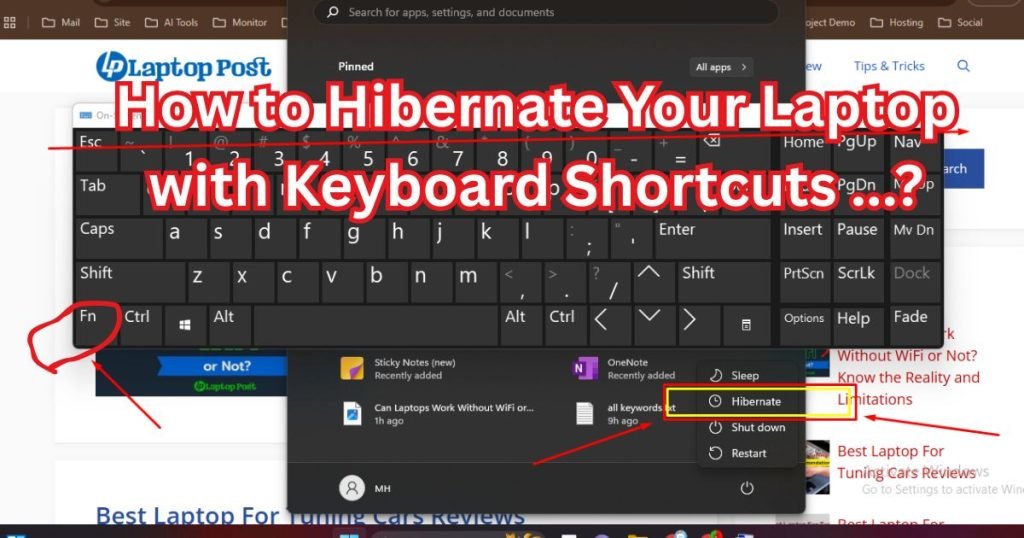
10 Practical Steps: How to Enable Hibernate in Windows 10 & 11
Just follow these STEPS:
Open Power Options:
- Right-click on the battery icon in the taskbar.
- Select “Power Options.”
Access Additional Power Settings:
3. Click on “Additional power settings” in the resulting window.
Change Plan Settings:
4. Click on “Change plan settings” next to your selected power plan.
Change Advanced Power Settings:
5. Click on “Change advanced power settings.”
Find Hibernate Settings:
6. Expand the “Sleep” option, then expand “Hibernate after.”
7. Set the time according to your preference.
Control Panel Settings:
8. Go to Control Panel > Hardware and Sound > Power Options > Choose what the power buttons do > Change settings that are currently unavailable.
9. Check the “Hibernate” option under “Shutdown settings” to make it available in your power menu.
Save Settings:
10. Click “Save changes” to apply your settings.
By following these steps, you can easily enable hibernation mode on your laptop.
How to Hibernate Your Laptop with Keyboard Shortcuts
After enabling hibernation, you can choose from various keyboard shortcuts to activate it seamlessly.
Using Built-In Keyboard Shortcuts
Most Windows laptops have a built-in keyboard shortcut for hibernation, typically integrated with the Fn key. Here’s how it usually works:
Fn + F keys: On many laptops, the function keys (F1, F2, etc.) serve dual purposes. Look for a key with a moon or a sleep symbol and press it; while holding down the Fn key.
Example: If your laptop has the “Sleep Symbol” on the F4 key, press Fn + F4 to initiate hibernation.
Creating Custom Keyboard Shortcuts
If your laptop doesn’t have a direct keyboard shortcut, or if you want to use your own method, you can create one by following the steps below:
Create a Hibernate Shortcut:
- Right-click on the desktop and choose “New” > “Shortcut.”
- In the location field, enter:
C:\Windows\System32\shutdown.exe /h - Click “Next,” then name the shortcut “Hibernate” and click “Finish.”
Assign a Keyboard Shortcut:
- Right-click on the “Hibernate” shortcut and choose “Properties.”
- In the “Shortcut key” field, press the key combination you want to use (for example, Ctrl + Alt + H).
- Click “OK” to save your changes.
After this, whenever you press your designated keyboard combination, your laptop will hibernate.
Troubleshooting Hibernate Issues
Although hibernation is relatively easy to enable and use, but some users may encounter issues. If your laptop is not hibernating properly, consider the following troubleshooting tips:
Check Power Settings
Sometimes, the hibernate option may seem disabled due to specific power settings. Ensure that the hibernate option is not only enabled but also not overridden by other power settings.
Driver and System Updates
Make sure your laptop’s drivers, especially graphics and chipset drivers, are up to date. Outdated drivers can cause problems with sleep and hibernation functionality. Also, check to see if there are any pending Windows updates.
Running Command Prompt Commands
If hibernation problems persist, try using Windows Command Prompt:
Open Command Prompt as an Administrator:
- Type “cmd” in the search bar, right-click on “Command Prompt,” and select “Run as administrator.”
Enable Hibernate:
- Type in the command: powercfg /hibernate on
- Press Enter. This command forces Windows to enable hibernate functionality.
Disable Hibernate (optional):
- If you need to disable it later, use the command: powercfg /hibernate off
Learn More: Can a laptop work without WiFi, or not? Know the Reality and Actual Limitations.
Final Thoughts on Laptop Hibernation
Knowing how to hibernate your laptop using keyboard shortcuts can increase your productivity. and effectively save energy.
The convenience of resuming work without a delay during startup makes hibernation a valuable feature for everyone. Especially those who are often out and about or work on multiple projects.
I hope: By following the steps outlined in this guide, you can easily enable hibernation and create custom shortcuts to your liking, which will make managing your workflow a breeze.

Similar Posts