How to Use a Laptop Stand on an Airplane Tray Table
Senior Hardware Diagnostics Specialist & Lead Thermal Editor at Laptop Post Testing Lab · CompTIA A+, ACMT, B.S. in Computer Engineering · 12+ years bench-testing laptop thermal solutions & motherboard repairs
Knowing how to use a laptop stand on an airplane tray table during long flights is a skill that separates comfortable travelers from those dealing with stiff necks. Economy class seating often forces you into a hunched position that isn't sustainable for hours of work.
Effective in-flight setups focus on stability and size because airline trays are notoriously small and slick. As of 2026, air travel standards remain focused on cabin safety and managing narrow space constraints while you work.
Quick Answer
You can use a laptop stand on an airplane tray table easily. Select a small, foldable, independent-leg stand model. Place a non-slip silicone mat on the tray first.
Secure the stand legs before mounting your device. Monitor the seat in front to prevent screen damage. Always stow the stand during periods of turbulence.
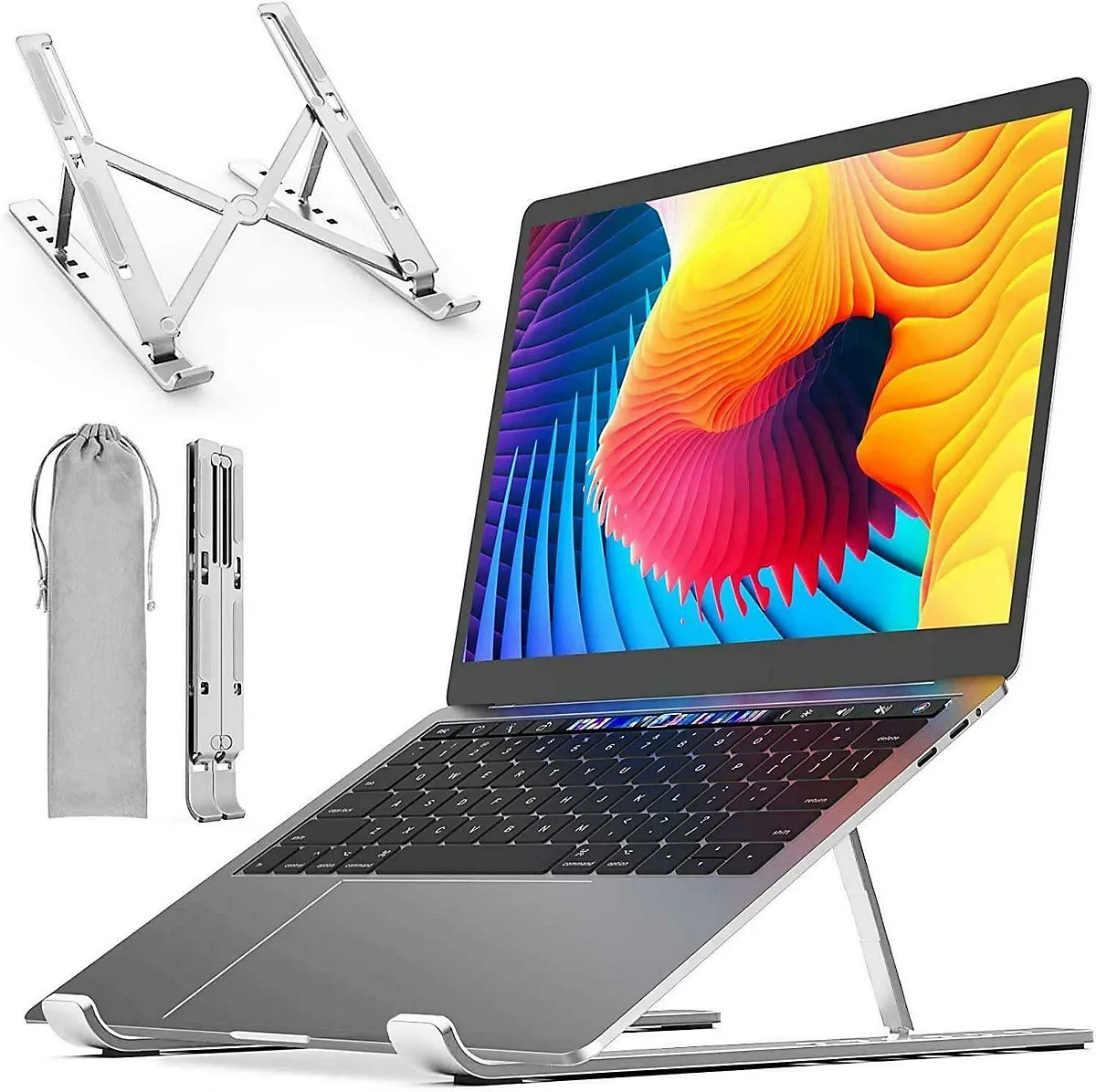
Image source: Bing (Web (fair-use with source credit))
Why Airplane Tray Tables Are Not Designed for Laptops
Airplane tray tables are primarily designed for food service rather than computing. Most tray surfaces consist of thin, flexible plastic that vibrates with every keystroke. This lack of rigidity makes your typing experience frustrating and potentially hazardous for your hardware.
The average tray table offers about 14 to 16 inches of depth in total. Once you factor in the space needed for a drink or a meal, you are left with very little room for a traditional desk-style laptop stand. These surfaces are also highly polished and smooth, which causes standard rubberized feet to slide during even minor movements.
Research from Federal Aviation Administration guidance on cabin safety highlights that loose items on tray tables can become hazards during sudden turbulence. You must consider the surface material and the limited workspace when selecting your setup. Creating a stable platform requires more than just placing a stand on the plastic tray.
Identifying Your Available Workspace Constraints
You have to look at the total seat pitch before pulling out any equipment. Seat pitch is the distance from a point on one seat to the same point on the seat in front of it. In many domestic economy cabins, this distance is only 28 to 30 inches.
Your laptop screen needs clearance to open fully without hitting the headrest in front. If the passenger ahead reclines, your available working depth can shrink by several inches instantly. You should measure your laptop height when opened at a 90-degree angle before your next flight.
This simple check helps you decide if a stand is even feasible. If your laptop is tall and the seat pitch is tight, a high-profile stand will likely force your screen into the seatback. Aim for a low-profile stand that raises the device just enough for ergonomic comfort without sacrificing clearance.
Choosing the Right Stand for Tight Quarters
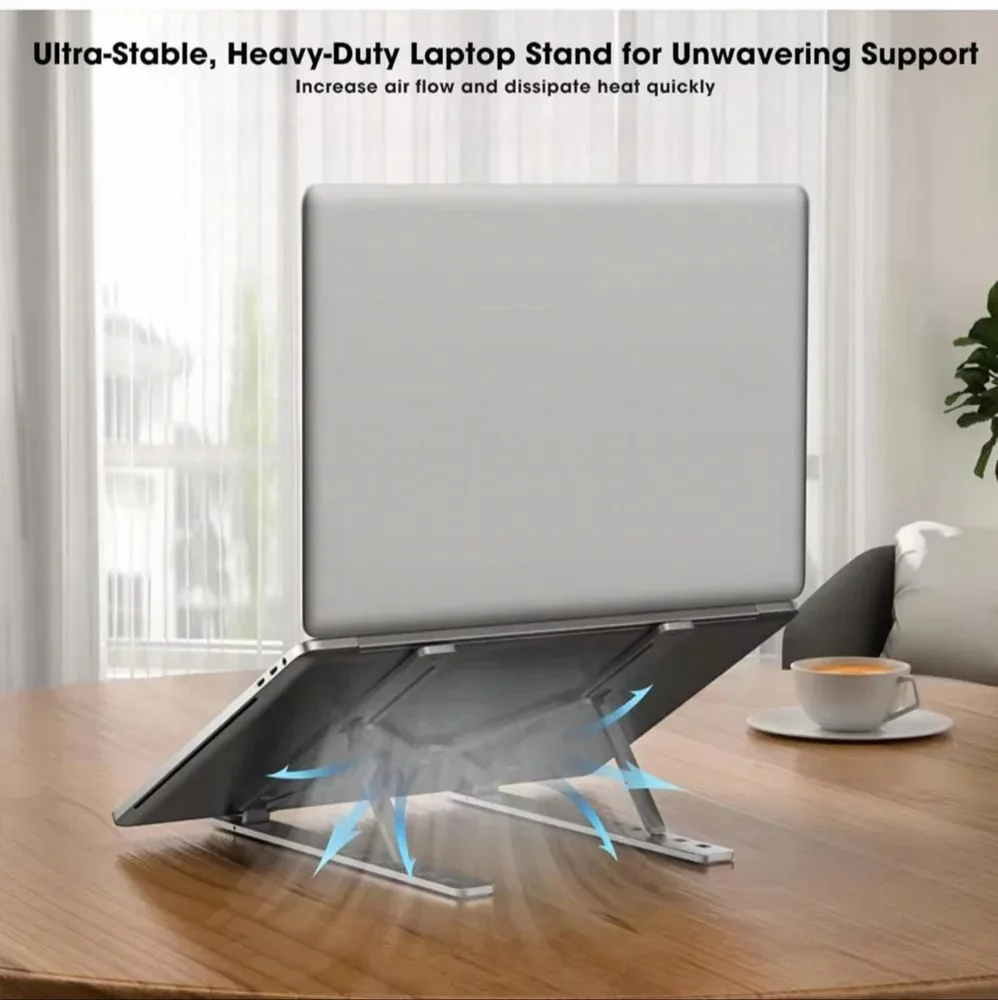
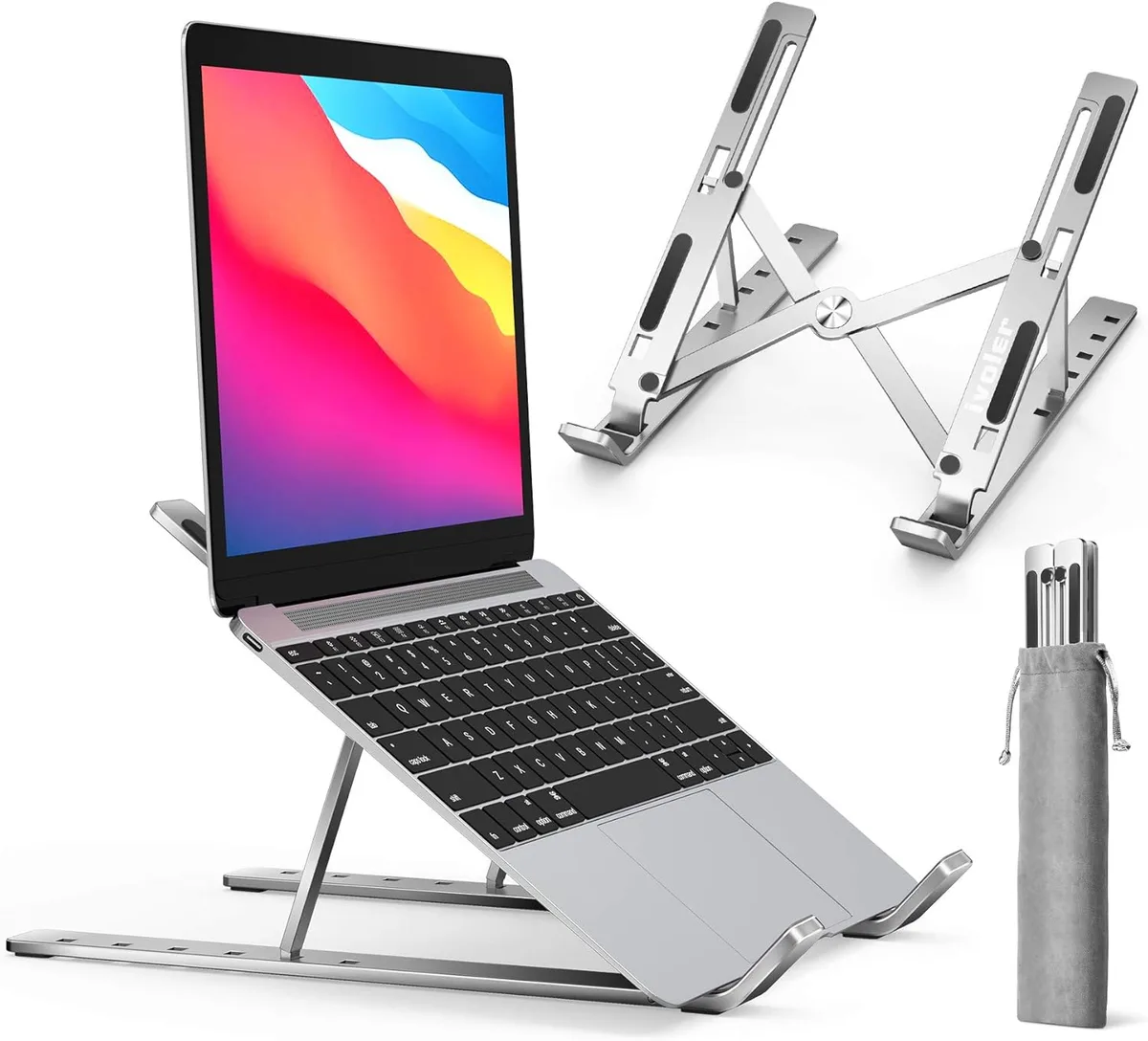
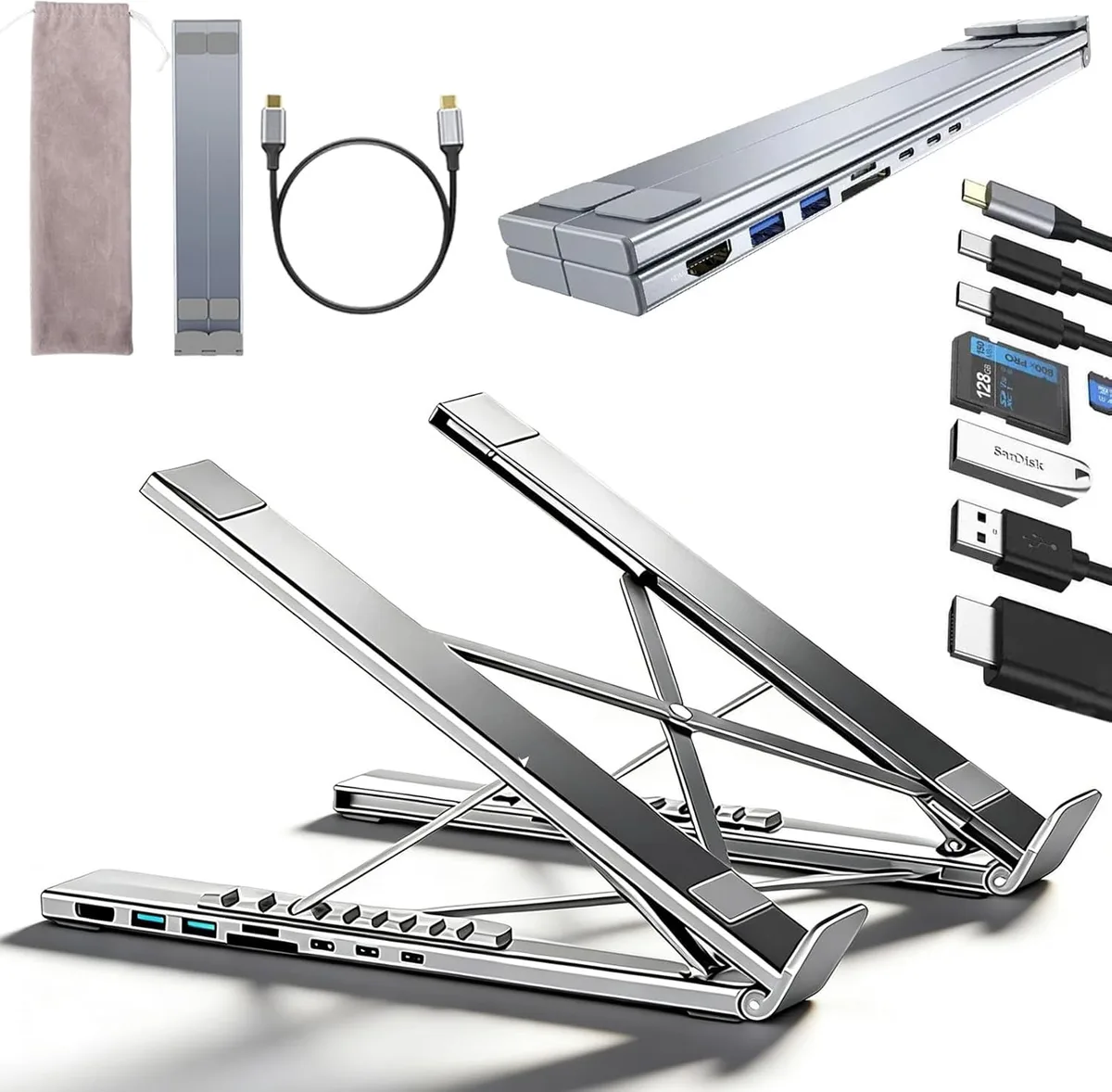
A folding, minimalist stand is your best choice for air travel. Look for models that consist of two separate legs rather than one solid base. This design allows you to adjust the width to fit the specific constraints of your tray.
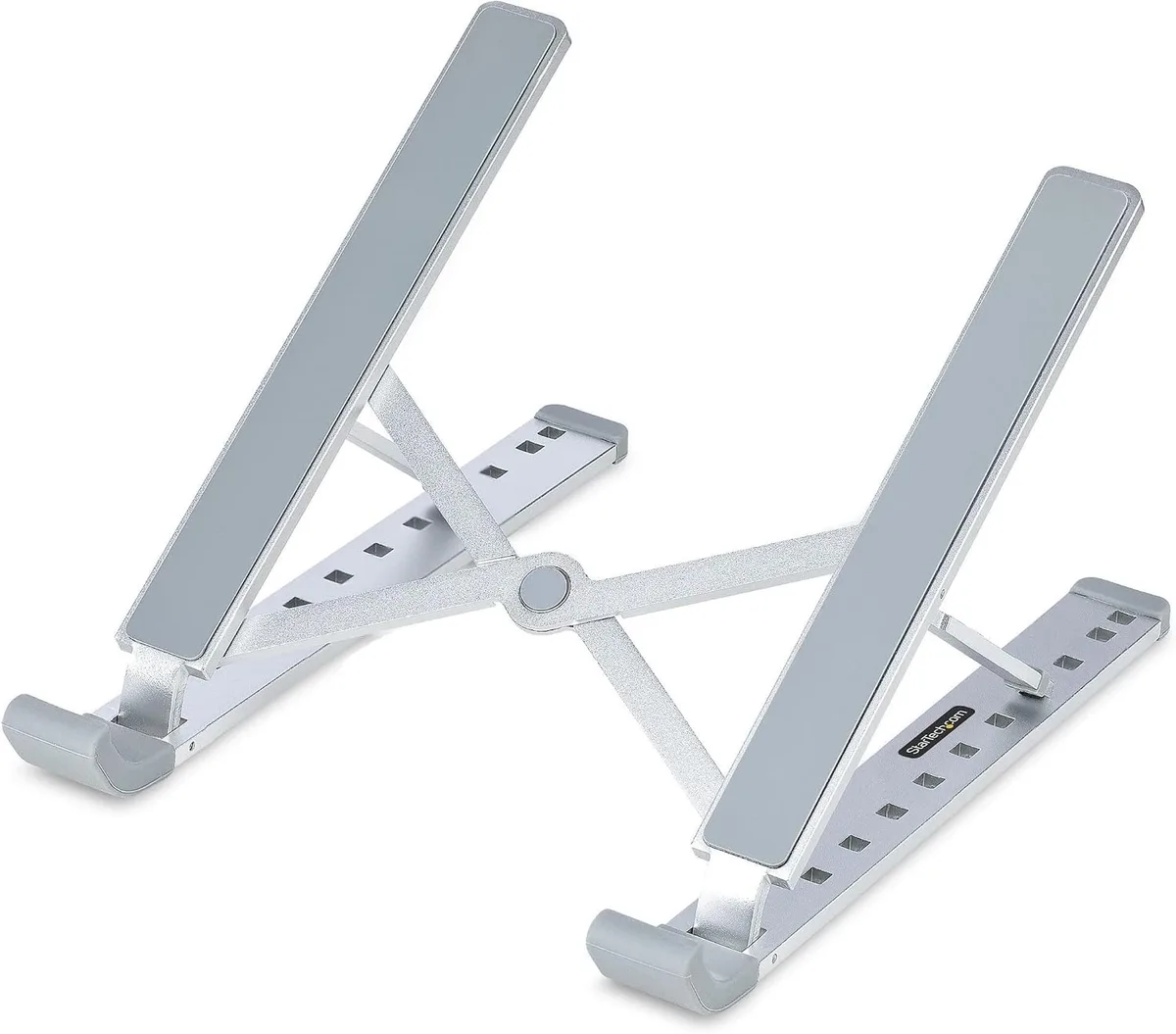
Image source: Bing (Web (fair-use with source credit))
Independent-leg stands weigh significantly less than solid aluminum platforms. This makes them easier to pack in a carry-on bag without adding unnecessary bulk. You should avoid bulky risers that feature complex height-adjustment mechanisms or oversized feet.
| Stand Type | Stability | Footprint | Best For |
|---|---|---|---|
| Independent Legs | Moderate | Very Small | Economy Class |
| Solid Riser | High | Large | Tray Tables |
| Seatback Clips | High | None | Narrow Spaces |
Side-by-Side: Tray-Top Stands vs. Seatback Mounts
You generally have to choose between a stand that sits on the tray and a mount that attaches to the seat. Tray-top stands provide a familiar feel similar to using a desk. They are easy to deploy and stow once you finish your work.
Seatback mounts remove the device entirely from the tray surface. These hooks usually latch onto the tray table hardware or hang over the headrest. They are excellent for watching movies or long-term typing in very cramped rows.
The drawback to seatback mounts is that they often depend on the specific seat design of the aircraft. A tray-top stand is more versatile because it works on every flight regardless of the specific seat model. If you travel on various aircraft types, a modular, folding tray-top stand is the most reliable option.
Step-by-Step Setup: From Boarding to Deployment
Begin your setup only after the flight attendants indicate that portable electronic devices are allowed. Clear your tray table completely of any cups or trash from the previous service. This ensures you have a level surface for your equipment.
Follow these steps for a secure, stable installation:
- Unfold your laptop stand legs to the narrowest possible configuration.
- Place the non-slip mat directly on the tray table where the stand will rest.
- Position the legs on the mat and ensure they are flush against the surface.
- Place your laptop onto the stand and open the screen slowly.
- Verify the screen does not touch the seatback of the person in front.
Always keep your hardware within the boundary of the tray. If your laptop is too large for the tray, the center of gravity may shift too far forward. A slight tilt during the flight could cause the entire setup to tip toward your lap.
Mastering Friction and Stability on Slick Surfaces
Stability on a tray table relies almost entirely on the coefficient of friction between the stand's feet and the plastic surface. Most airline tray surfaces are injection-molded plastics that are intentionally slick to allow for quick cleaning. A hard rubber foot on a plastic tray will slide under the weight of a laptop during even minor turbulence.
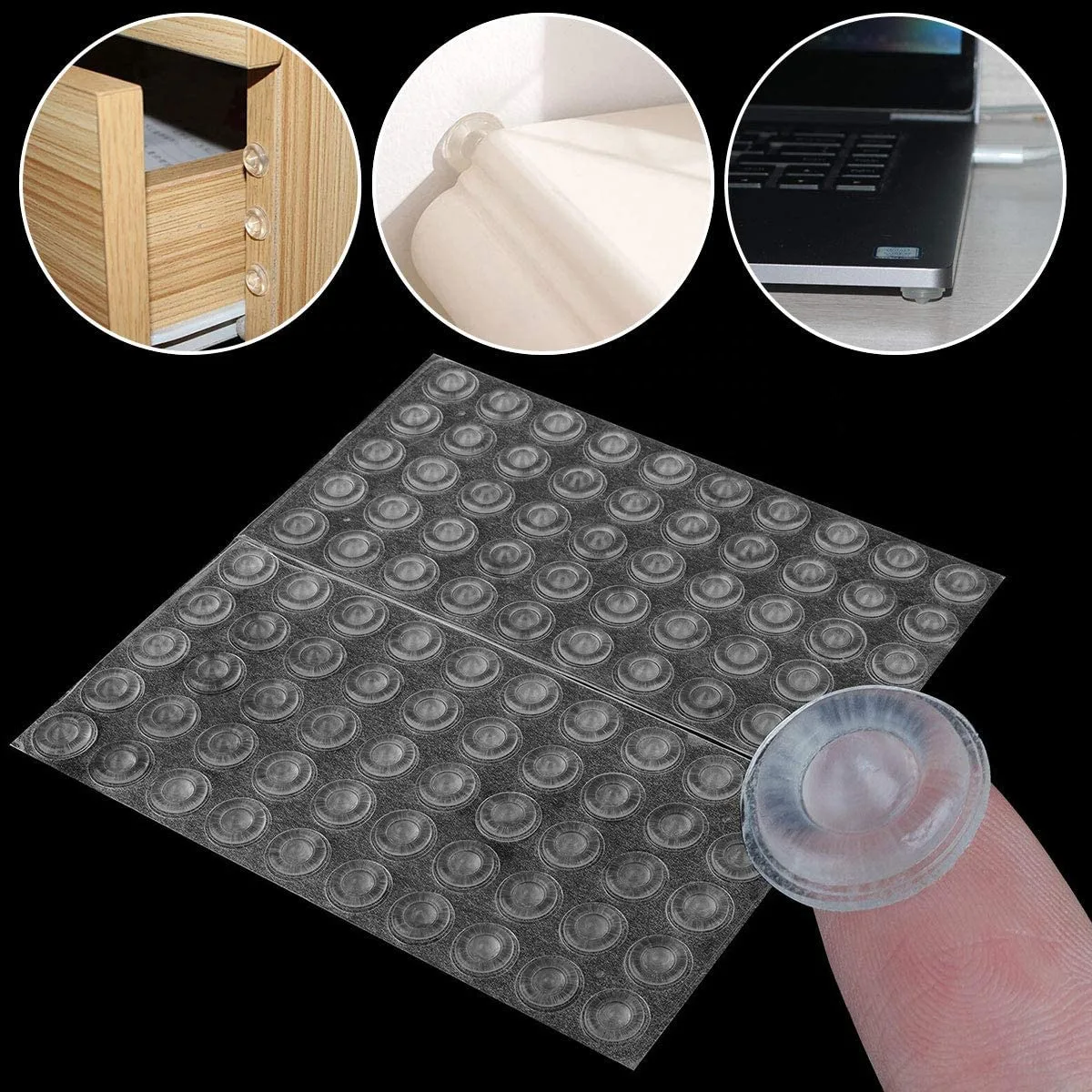
Adding a dedicated non-slip layer is the most reliable way to anchor your gear. A thin silicone mat or a piece of rubberized shelf liner creates enough mechanical resistance to prevent the stand from migrating during the flight. This simple addition eliminates the need to constantly readjust your setup as the plane navigates through air pockets.

Image source: Bing (Web (fair-use with source credit))
When you pack for your flight, look for a mat that is roughly the size of a standard smartphone. You want a material that is pliable and thin enough to fold into your laptop sleeve without adding weight. Ensure the mat is clean, as dust on the bottom of a silicone pad significantly reduces its ability to grip the tray table.
Common Visual Errors: Recognizing Poor Stand Geometry
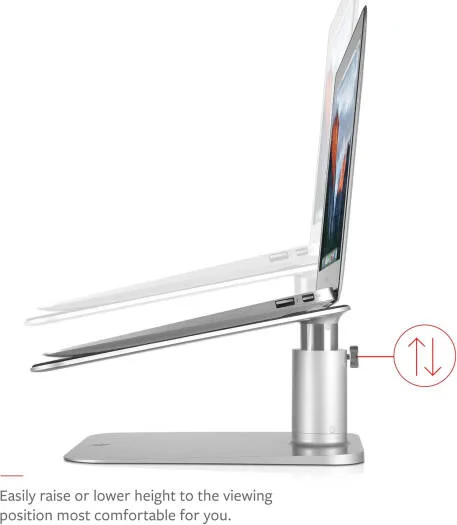
A common mistake is using a stand that sets your laptop at a steep angle, which makes the screen top-heavy. In a cramped airplane seat, high-angle setups increase the risk of the stand tipping backward or sliding forward. You can identify poor geometry by looking at the profile of your stand once it is deployed.
If the stand creates a viewing angle greater than 20 degrees, it likely places the laptop’s center of gravity outside the footprint of the stand's base. This instability is exacerbated by the slight slope of most tray tables. Aim for a lower, flatter angle that keeps the laptop profile as close to the tray surface as possible.
Another visual warning sign is the protrusion of stand legs beyond the edges of the tray. If your stand is wider than the usable space, it will be impossible to secure. You want a setup that fits entirely within the molded recess of the tray, ensuring the stand isn't bumped by the movement of the seat in front of you.
Protecting Your Gear During In-Flight Turbulence
Turbulence is the greatest threat to a laptop setup in the cabin. Sudden vertical movements can cause a device to launch off a stand or tip over if it isn't properly secured. You must treat the tray table as a temporary workspace that requires immediate stowing during rough air.
Follow the seatbelt sign as your cue for equipment management. If the captain turns the sign on, you should collapse your stand and return your laptop to your bag. Even if the ride feels smooth, an unexpected bump can dislodge a stand in a fraction of a second.
Consider the potential for physical damage to the hinge or screen if the laptop falls from the tray. Your laptop is an expensive asset, and the limited space of an aircraft cabin leaves little room for recovery if it tips. Always keep a firm hand on the device if you feel the aircraft start to shake.
Managing Seat-Recline Interference
Reclining seats are the most common cause of damage to laptops on planes. A passenger suddenly pushing their seat back can pin your screen against the tray or the base of your stand. This impact can cause immediate cracks in the display or damage the hinge mechanism.

Image source: Bing (Web (fair-use with source credit))
You can mitigate this risk by checking the seat ahead before you begin your setup. If the passenger is already reclined, you have a fixed boundary and can position your stand accordingly. The real danger is the passenger reclining after you have set your workstation.
Communicate clearly and politely with the person sitting in front of you if you notice they are preparing to recline. Briefly mentioning that you have a laptop set up is usually enough to encourage them to recline slowly. Always maintain a small buffer of empty space between your screen and their headrest to account for accidental pushes or sudden movements.
Ergonomic Adjustments for Preventing Tech-Neck
Tech-neck occurs when you spend hours looking down at a device screen placed too low for your natural eye line. While you cannot replicate a full ergonomic desk setup on a plane, you can make micro-adjustments to improve your posture. The goal is to raise the top third of your screen to eye level.
Use your stand to reach a moderate height that keeps your head in a neutral position rather than tilted down. If the stand makes your keyboard feel too high, consider using an external travel keyboard that sits directly on the tray table. This setup mimics a professional workstation without requiring a bulky desk.
Take frequent breaks to stand up, stretch your neck, and reset your seating position. Long-haul flights require you to move your body to maintain blood flow and prevent muscle stiffness. Your laptop stand should be a tool that aids your comfort, but it should not prevent you from maintaining healthy movement during the flight.
Safety Guidelines for Cabin Crew and Transit Compliance
You are responsible for your own gear and its impact on cabin safety. Flight attendants have the authority to ask you to stow any item they deem a hazard, particularly during takeoff and landing. Never attempt to use your stand while the cabin crew is performing safety demonstrations or mid-flight service.
If you are seated in an exit row, you face stricter regulations regarding loose items. Most airlines require all carry-on items to be stowed in the overhead bins or under the seat during taxi, takeoff, and landing. Always follow the instructions provided by the crew, as these rules exist to ensure a clear path during potential evacuations.
Per Department of Transportation guidelines, passengers must follow crew instructions regarding electronic devices at all times. If a flight attendant asks you to put away a laptop stand, do so immediately without debate. Maintaining a compliant and helpful attitude ensures you can continue to use your setup once the fasten-seatbelt sign is switched off.
Final Verdict: Which Setup Fits Your Travel Style
The right setup depends on how frequently you work while in the air. For occasional travelers, a compact, foldable aluminum stand paired with a silicone mat is the most cost-effective and versatile choice. It provides enough lift to reduce strain without adding significant weight to your carry-on.
If you are a frequent business traveler, you might prefer a seatback-mounted system. These eliminate the need to worry about tray table size or the behavior of the passenger in front of you. While they require a small upfront investment, the gain in desk space is worth the cost for those working on multi-hour flights.
Decide based on your typical flight duration and your tolerance for cabin constraints. A simple stand works for most people, but specialized mounts are better for power users who need every square inch of the tray. Whichever path you choose, test your gear at home to ensure you can deploy it in under thirty seconds.
Frequently Asked Questions
Can I leave my laptop stand on the tray during meals?
You should always collapse and stow your stand when flight attendants begin the meal or drink service. Trays are already crowded during these times, and adding a stand creates a risk of spills. Putting the stand away prevents accidents and clears space for your food.
Will security agents flag a laptop stand?
Airport security officers generally do not flag laptop stands as prohibited items. You can keep your stand inside your carry-on bag or laptop sleeve during the screening process. Some high-density metal stands might trigger a secondary screening if they look suspicious on the X-ray, but they are rarely confiscated.
Can I use a heavy-duty stand on an airplane?
Heavy-duty stands are typically unsuitable because they take up too much space and may exceed the weight capacity of a flimsy tray table. Stick to lightweight materials like aluminum or reinforced plastics. If your gear feels heavy or bulky in your hands, it will likely be problematic inside the cramped cabin.
What do I do if my stand vibrates too much?
Vibration usually happens when the stand legs aren't making full contact with the tray or if the tray itself is damaged. Try adjusting the stand position to a more rigid part of the tray, closer to the seat hinge. If the vibration persists, folding the tray down slightly more or placing a thicker mat underneath often absorbs the movement.
Are there specific stands designed for airplanes?
While few brands market products exclusively for airplanes, many travel-focused stands offer features that make them ideal for this environment. Look for labels like "ultra-compact," "travel-fold," or "minimalist footprint" when browsing. These features indicate the stand is designed for tight spaces where every inch matters.

Similar Posts