Will a Vertical Stand Scratch Your Space Black MacBook?
Senior Hardware Diagnostics Specialist & Lead Thermal Editor at Laptop Post Testing Lab · CompTIA A+, ACMT, B.S. in Computer Engineering · 12+ years bench-testing laptop thermal solutions & motherboard repairs
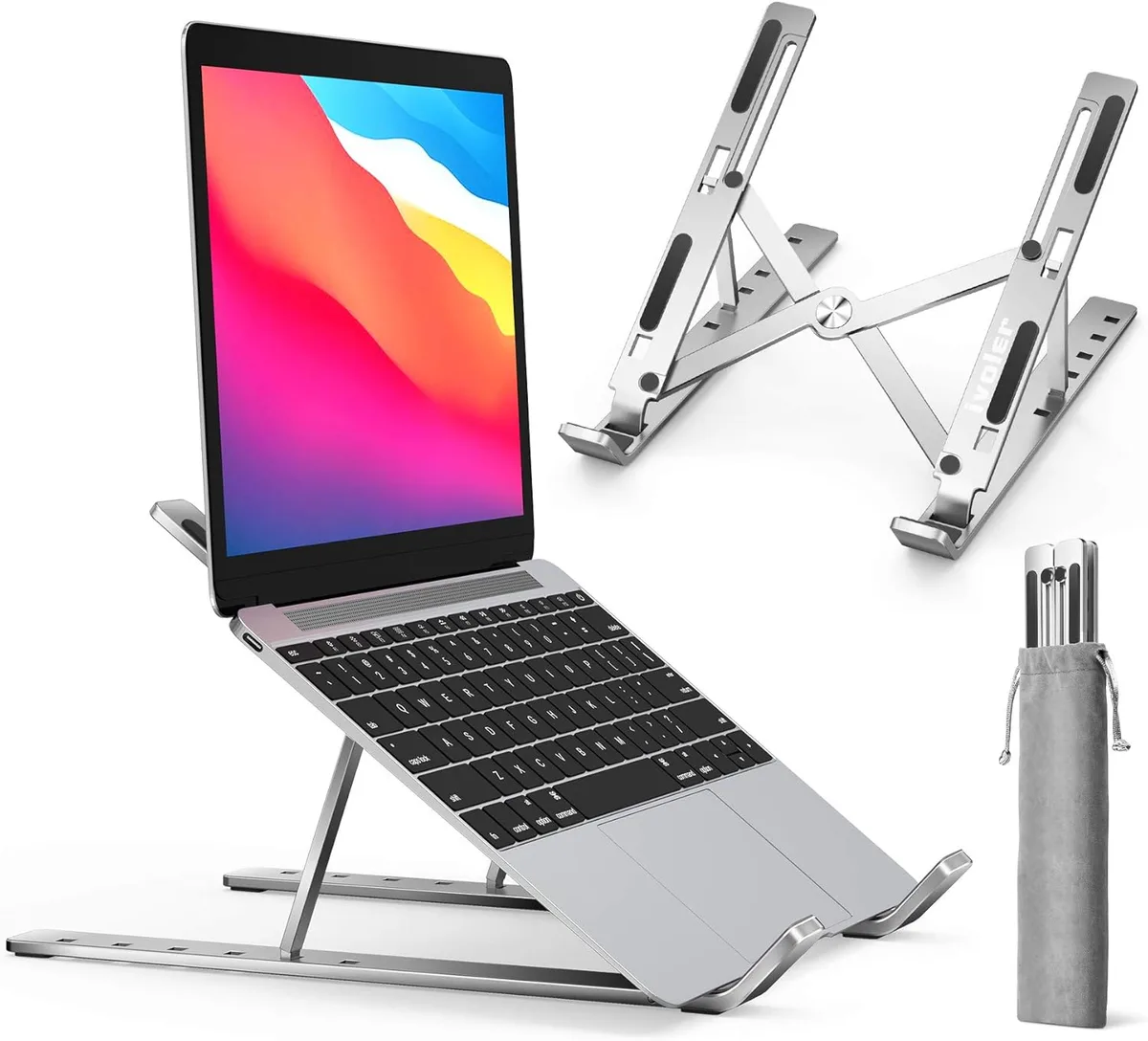
If you are worried that a vertical laptop stand can scratch an anodized Space Black MacBook finish, you have good reason to be cautious. The specialized coating on these devices provides a sleek, dark appearance, but it is susceptible to physical abrasion from rigid materials.
Apple utilizes an anodization process to create the durable, dark oxide layer on the aluminum chassis. As of 2026, user reports and material science data confirm that while this finish resists fingerprints, it remains vulnerable to friction from hard surfaces. Proper setup and regular maintenance are essential to keeping your device in pristine condition.
Quick Answer
A vertical laptop stand can scratch an anodized Space Black finish. Hard materials often cause surface-level abrasion. Contact points must be soft silicone or rubber.
Clean the stand regularly to remove dust. Dust particles act like sandpaper against your metal finish.
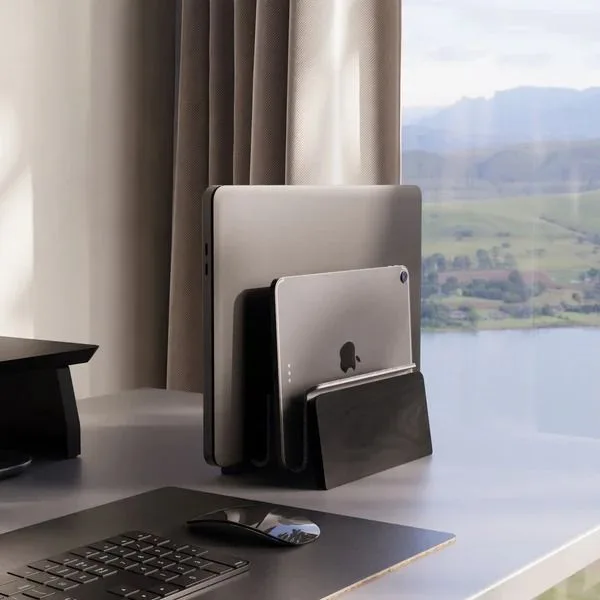
Image source: Bing (Web (fair-use with source credit))
Why Space Black is More Vulnerable to Scratches
The Space Black finish is not just a paint job. It involves an electrochemical process called anodization. This process thickens the natural oxide layer on the surface of the aluminum.
It provides a harder, more corrosion-resistant exterior than raw metal.

Image source: Bing (Web (fair-use with source credit))
Despite this durability, the dark pigment sits within the porous structure of that oxide layer. Sharp edges or hard plastic surfaces can cause micro-scratches. These marks often appear as lighter, silvery lines against the dark background.
Mechanical stress from sliding the device into a tight slot can wear down this layer over time. Even if the stand looks smooth, microscopic debris can bridge the gap between the stand and the chassis. This causes premature finish degradation.
The Anatomy of a High-Risk Stand
Not all stands pose the same level of danger to your machine. The risk factor depends on the physical interface between your hardware and the stand. You should evaluate your current gear based on the materials used at the contact points.
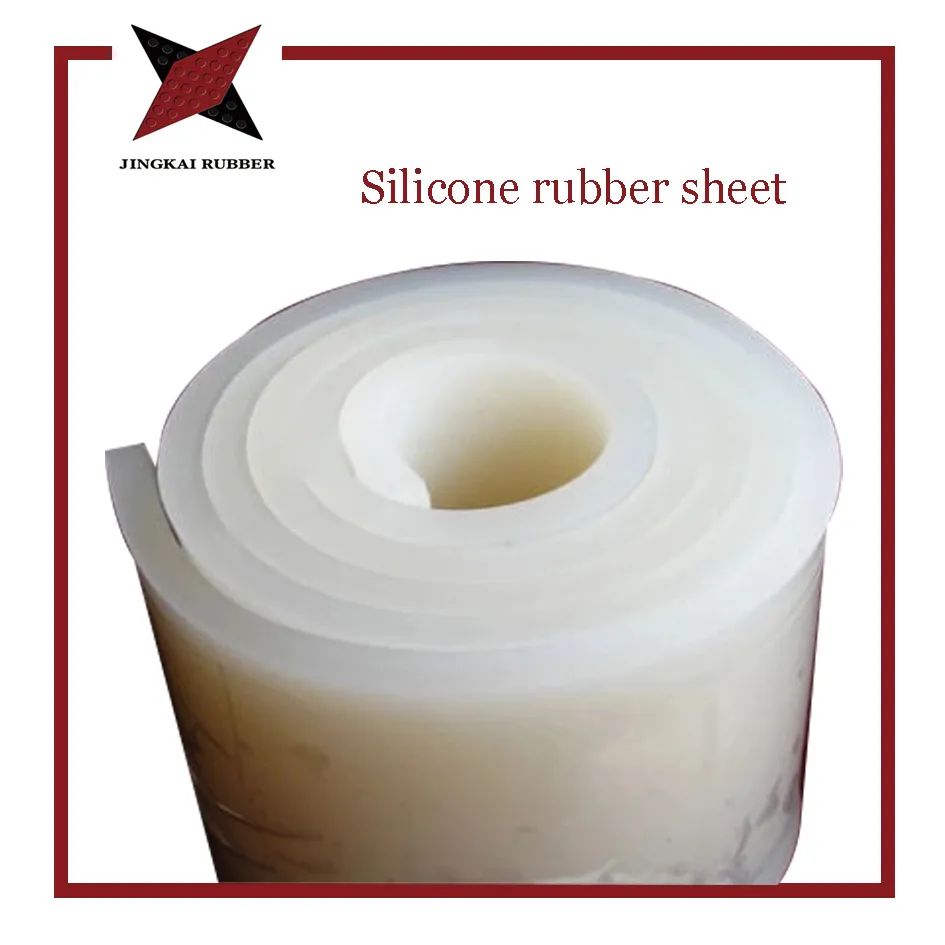
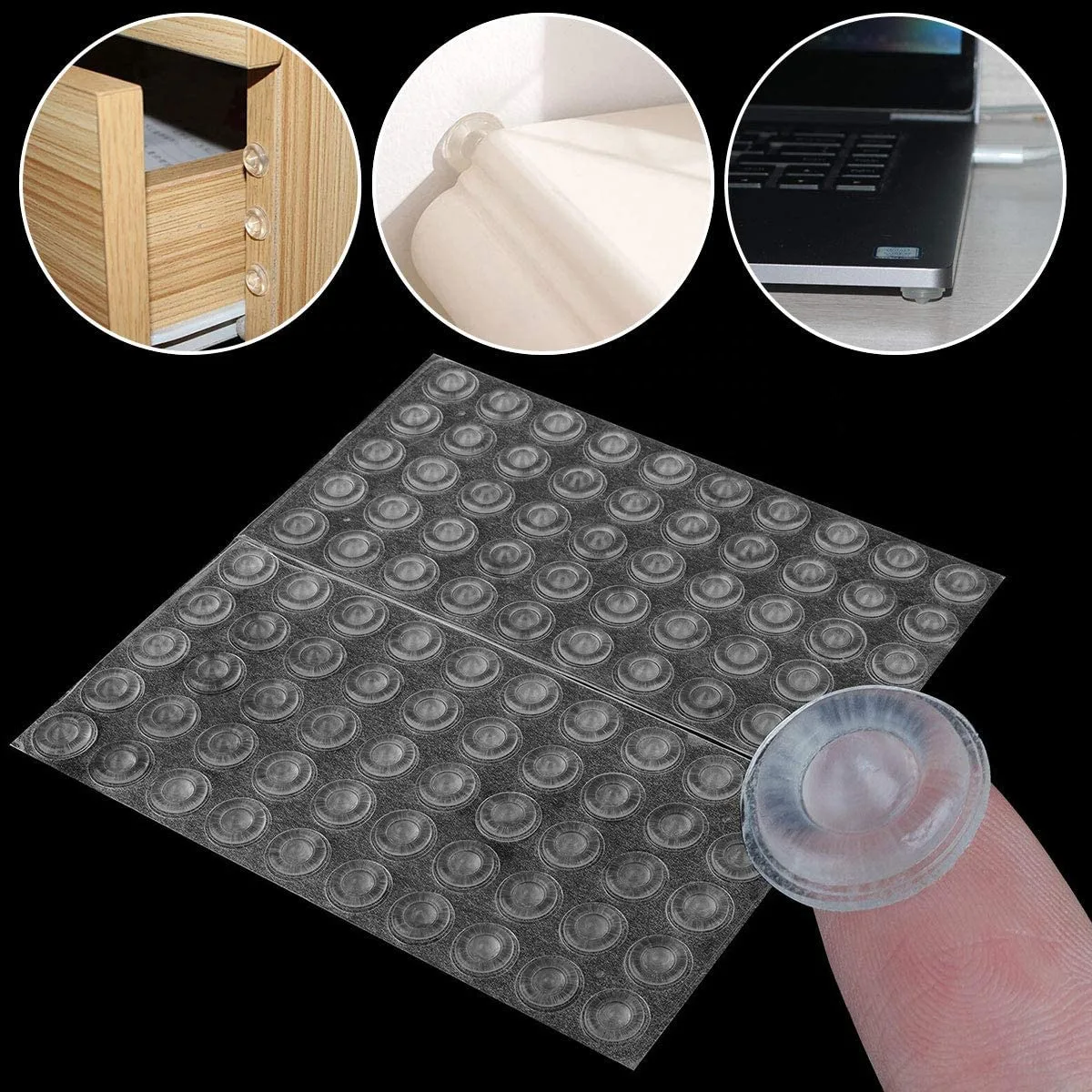
Image source: Web (Bing) / jingkairubber.en.made-in-china.com (Web image (fair-use with source credit))
- Hard Plastic or Metal: These surfaces provide no cushion. Any shifting of the laptop causes direct metal-on-metal or plastic-on-metal friction.
- Thin or Degraded Padding: Old rubber can harden or crack. Hardened pads lose their protective qualities and may pick up grit.
- Exposed Fasteners: Some cheap stands have screws or seams near the slot. A momentary slip during insertion can lead to a permanent scratch.
Protective Material Comparison
| Material Type | Risk Level | Recommendation |
|---|---|---|
| Bare Aluminum | High | Avoid completely |
| Hard Plastic | Medium | Only if smooth |
| Soft Silicone | Low | Best for protection |
How to Evaluate Your Stand’s Fit and Materials
You can determine the safety of your stand through a simple hands-on evaluation. Begin by checking the width tolerance. The stand should hold the laptop securely without needing excessive force to insert or remove it.
If the laptop feels tight, it is creating friction. Friction is the enemy of an anodized finish. Ideally, the device should slide into the slot with minimal resistance.
Check if the padding is removable or fixed. Removable pads are easier to clean and replace if they begin to show signs of wear.
Per technical guidelines from organizations like the National Institute of Standards and Technology, surface integrity depends on maintaining consistent environmental conditions and reducing abrasive contact. If your stand feels loose, the laptop might wobble. A wobbling device creates intermittent pressure points that can buff the finish over time.
Step-by-Step: The Safe Insertion Workflow
Developing a consistent habit when docking your laptop significantly reduces the risk of damage. You should treat the docking process as a deliberate, controlled movement rather than a casual one.
- Clear the deck: Remove any dust or debris from the desk surface surrounding the stand.
- Inspect the slot: Look directly into the stand to ensure no particles are stuck in the silicone liners.
- Vertical alignment: Hold the laptop by the sides. Lower it into the stand vertically to prevent the edges from grazing the frame.
- Confirm seating: Ensure the laptop is fully seated and stable. Do not force it if you feel resistance.
- Adjust tension: If your stand has an adjustment screw, calibrate it so the laptop is held firm but not clamped.
Follow these steps every time you dock your machine. Consistency prevents the accidental slips that usually cause finish-related damage. Keep your workspace clean to ensure no grit accumulates inside the stand's cradle.
Common Mistakes That Lead to Finish Degradation
Even with the best hardware, minor oversights often result in visible wear. One of the most frequent errors is treating a vertical stand as a permanent storage slot without performing regular check-ups. Over time, the contact points collect microscopic dust that acts as an abrasive agent.
Another common mistake involves inserting the laptop at an angle. If you tilt the device while docking, the corner of the chassis often strikes the edge of the stand frame. These impacts eventually chip the anodized layer, exposing the raw aluminum underneath.
- The Slide-In Error: Dragging the laptop across the stand’s frame during insertion is a recipe for scuffs. Always aim for a straight, vertical drop.
- Forcing the Fit: If your stand is too narrow, the pressure creates heat and friction. This combination is particularly hard on the protective oxide coating.
- Neglecting the Surface: Many users ignore the bottom of the stand itself. If the stand slides on your desk, your device will constantly shift, creating unnecessary movement against the padding.
Why Dust is Your Laptop’s Worst Enemy
Dust might seem harmless, but it consists of fine, hard particles that effectively turn your silicone pads into sandpaper. When you place a high-end laptop into a stand, the weight of the device compresses these particles into the soft padding. Every time you remove or replace the laptop, these particles grind against the anodized finish.
This is a physical reality of material science. Particles like silica or fine grit are significantly harder than the anodized surface of your MacBook. Once those particles become embedded in the silicone lining of your stand, they become a permanent abrasive surface that will mar your finish within days.
Pro Maintenance for Your Contact Points
Maintaining your stand is just as important as maintaining your laptop. You should include your stand in your regular desk cleaning routine. At a minimum, wipe the interior of the stand with a clean, dry microfiber cloth every few days to keep the surface free of particulates.
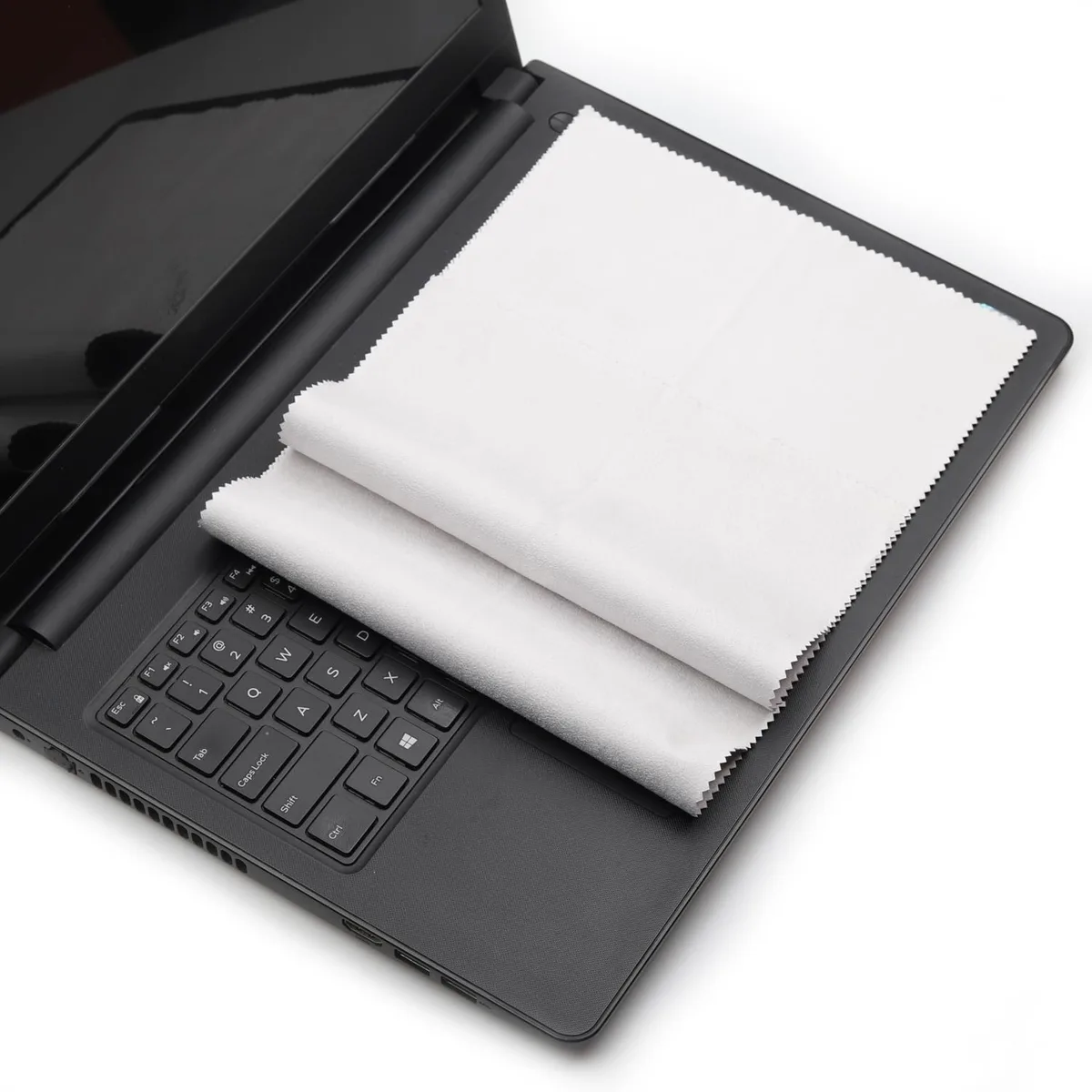
Image source: Bing (Web (fair-use with source credit))
If the silicone padding looks dirty, use a slightly damp cloth with water. Avoid chemical solvents or harsh cleaners, as these can degrade the rubber compounds over time. Allow the stand to air dry completely before returning your laptop to its slot.
This simple habit keeps the interface clean and prevents grit from building up.
Alternatives: When to Ditch the Stand Entirely
If your workspace design makes it difficult to keep the stand free of dust, or if you find yourself rushing during your daily workflow, consider an alternative. A flat desk mat is the safest way to store a laptop while it is not in use. Felt or heavy-duty synthetic mats provide a soft, non-abrasive landing zone.
Horizontal placement eliminates the friction caused by the sliding motion required for vertical stands. If you must use a vertical orientation for desk space efficiency, look for stands with a wide, open-frame design. These allow for easier visual inspection of the contact points.
If you are a mobile user, avoid using vertical stands altogether. Constant transport of the laptop combined with daily docking in a dust-prone environment significantly increases the probability of surface marks. Use a dedicated sleeve instead to protect the finish during transit.
Expert Advice on Managing Cosmetic Wear
Managing cosmetic wear is mostly about prevention. Once an anodized finish is scratched, it is extremely difficult to restore to its original, uniform appearance. While there are dyes or markers marketed for covering scratches, they rarely match the specific, deep hue of the Space Black finish.
Understand that these devices are tools intended for use. Minor imperfections do not impact functionality. However, if you are particularly focused on aesthetics, focus your efforts on the environment surrounding your device.
Keep your desk clean, ensure your stand is properly padded, and maintain a consistent, gentle insertion technique.
Decision Guide: Keeping Your Setup Scratch-Free
Use this guide to ensure you are protecting your investment at every step. If you find yourself frequently frustrated by the risk of scratching, it is time to pivot to a different storage method.
- If you see light-colored marks: Your stand is likely too tight or the padding has worn down to the hard frame. Adjust the width or replace the unit.
- If you see small pits or chips: You are likely striking the frame during insertion. Practice your alignment or use a stand with a larger, guided entrance.
- If you feel grit on the pads: Stop using the stand immediately. Clean the silicone surface thoroughly and inspect for deep scratches that might have trapped debris.
Comparison: Fixed-Width versus Adjustable Stands
Choosing between a fixed-width and an adjustable stand depends on how often you plan to swap devices. Fixed-width stands are rigid and often lack protective adjustments. They rely on universal sizing that might not match your specific MacBook chassis thickness.
Adjustable stands offer more versatility. They allow you to set the gap exactly to your laptop's width, which reduces wobble and ensures consistent contact. However, adjustable parts have more failure points.
Check that the tension screws or slide mechanisms don't feature exposed metal corners that could graze your laptop during movement.
Use Cases: Who Needs a Vertical Stand
Vertical stands are most practical for users who want to save desk real estate while using a monitor and keyboard in clamshell mode. If your workspace is limited, these stands effectively organize your area and hide cables. They turn a bulky laptop into a sleek, stationary tower.
These setups work best for professional creative or administrative tasks. They are less ideal for mobile users who constantly dock and undock throughout the day. If your workflow involves taking your laptop out of the stand five times every morning, the risk of accidental finish wear rises significantly.
Mistakes to Avoid When Organizing Your Workspace
Avoid placing your stand in a location prone to high airflow or dust accumulation. Desk fans, window-side placements, and high-traffic corners tend to deposit more grit into the stand's lining. This debris is the primary source of those unwanted surface marks.
Another mistake is placing the stand directly on a surface without a desk mat. The base of the stand can shift, causing the entire assembly to vibrate or slide slightly as you dock the laptop. Use a high-friction mat to stabilize the stand and prevent unnecessary movement.
Costs and Technical Specs to Keep in Mind
High-quality stands often command a premium price because of their material science. Brands that invest in premium, high-durometer silicone pads provide significantly better protection than those using cheap, thin rubber. Expect to pay more for stands that offer precision tension adjustments and non-marring interior finishes.
When reviewing specs, look for the minimum and maximum aperture widths. A stand should match the thickness of your device precisely. If you have a case or skin on your MacBook, account for that extra millimeter of width.
Failure to do so will create the tight, high-pressure fit that damages your finish over time.
Maintenance for Long-Term Optimization
Keep your stand clean to protect your device. Dust builds up quickly in narrow slots. A quick wipe with a dry cloth prevents grit from grinding against the finish.
Check your padding monthly for signs of degradation. Hardened rubber or exposed plastic frames are early warning signs. Replace the stand or its liners before you see surface wear.
Safety Warnings and Best Practices
Always position your stand away from high-traffic areas. Accidental bumps are the leading cause of lateral movement. This movement creates friction that marks your MacBook casing.
Verify your stand stability on the desk surface. Use non-slip feet to prevent shifting. Secure setups mean safer devices.
The Role of Desk Environment
Maintain a clutter-free desk to reduce ambient dust. Particles settling into the stand cradle act as an abrasive. Consider using an air purifier if your office is prone to dust.
Avoid placing drinks near your stand. Spills can seep into the stand’s lining and cause residue buildup. Clean surfaces ensure a safer dock for your machine.
Final Decision Guide for Setup
Choose a stand with adjustable, thick silicone contact points. Check that the inner frame has no exposed sharp corners. Proper fitment is your primary defense.
If the stand feels insecure, do not use it. Invest in hardware that supports your laptop without tension. Prevention is always cheaper than a ruined finish.
Frequently Asked Questions
Can I fix a scratch on a Space Black MacBook?
True scratches that penetrate the anodized layer are permanent. The pigment is part of the metal surface itself, so there is no clear coat to buff or repair. Avoid using markers or paints, as these rarely match the factory color and often look worse than the original scratch.
Will a skin protect my MacBook from stand damage?
A high-quality vinyl skin provides an effective barrier between the laptop and the stand. If you choose this route, apply it carefully to avoid bubbles and ensure it covers the bottom edges. Always verify that the skin does not increase the laptop thickness so much that it causes the stand to clamp down with too much force.
Do wooden vertical stands scratch the finish?
Wooden stands are often softer than metal, but they can still collect dust and debris that causes wear. If the interior is not finished with a smooth, clear lacquer or lined with felt, the grain of the wood might eventually buff the finish. Always inspect the inner contact surfaces of a wooden stand for splinters or rough patches before use.
Should I remove my laptop from the stand when it is not in use?
Removing the laptop when it is off is not necessary for finish protection, but it can help manage heat. If you store your laptop for long periods, placing it flat on a desk mat is a safer alternative than leaving it in a vertical stand. This eliminates the potential for accidental bumps while the device is in a high, narrow position.
How do I know if my stand padding is worn out?
You can check for wear by running your finger lightly over the silicone or rubber lining. If the material feels hard, brittle, or has visible indentations, it is time for a replacement. Worn-out padding no longer absorbs vibrations or cushions the metal, making it significantly more likely to scratch your MacBook during insertion.
Does Apple’s warranty cover scratches from a stand?
No, Apple’s standard limited warranty typically excludes cosmetic damage. Scratches caused by stands, cases, or other accessories are considered wear and tear. Protecting the finish is entirely your responsibility, so taking preventive measures early is the only way to avoid long-term cosmetic issues.
Should I use a screen protector if my stand touches the laptop?
A screen protector does not protect the exterior chassis finish, so it will not help with vertical stand scratches. If your concern is the finish on the body of the MacBook, focus on the stand's contact points rather than the screen. Using a keyboard or palm rest cover can also prevent debris from transferring onto your laptop when closed, which helps keep the entire chassis cleaner.
Does the temperature of the MacBook affect finish wear?
Heat buildup is a real concern if the stand blocks the cooling vents. While it does not directly cause scratches, extended heat exposure can sometimes make the protective coatings more susceptible to surface-level degradation over long periods. Ensure your stand design allows for proper airflow, and check that the device is not running excessively hot while in clamshell mode.
Is it safer to keep the laptop in a sleeve while using the stand?
Placing your MacBook in a sleeve while it is inside a vertical stand is generally counterproductive and often dangerous. Most sleeves are designed for transport and will trap heat, leading to potential thermal throttling when the device is under load. Furthermore, the thickness of a sleeve will force you to open the stand wider, potentially causing the stand to lose its grip and leading to instability.
Stick to using a clean, well-fitted stand without additional layers.
Can I use a clear protective film on the MacBook to prevent scratches?
Applying a clear skin or protective film to the chassis is one way to add a physical barrier against the stand. While this effectively separates the metal from the stand's contact points, it can be difficult to apply perfectly without trapping bubbles or lint. Furthermore, removing these films after they have been on for a long time can sometimes leave adhesive residue or even peel the anodized layer if the film's adhesive is too strong.
If you decide to go this route, choose a high-quality skin specifically designed for your MacBook model and follow the manufacturer's application instructions precisely.

Similar Posts