How to Set Up Dual Cameras for Twitch on a Laptop Stand
Senior Hardware Diagnostics Specialist & Lead Thermal Editor at Laptop Post Testing Lab · CompTIA A+, ACMT, B.S. in Computer Engineering · 12+ years bench-testing laptop thermal solutions & motherboard repairs
Learning how to set up a laptop stand for Twitch live streaming with a dual-camera layout requires balancing physical stability with visual composition. You need to keep your main gear accessible while ensuring both cameras remain steady and clear during high-intensity gaming or creative sessions.
Proper placement minimizes vibrations that can ruin your stream quality. As of 2026, many professional streamers follow guidelines similar to those outlined by the ISO/TC 159 ergonomic standards to prevent repetitive strain while maintaining optimal camera sightlines.
Quick Answer
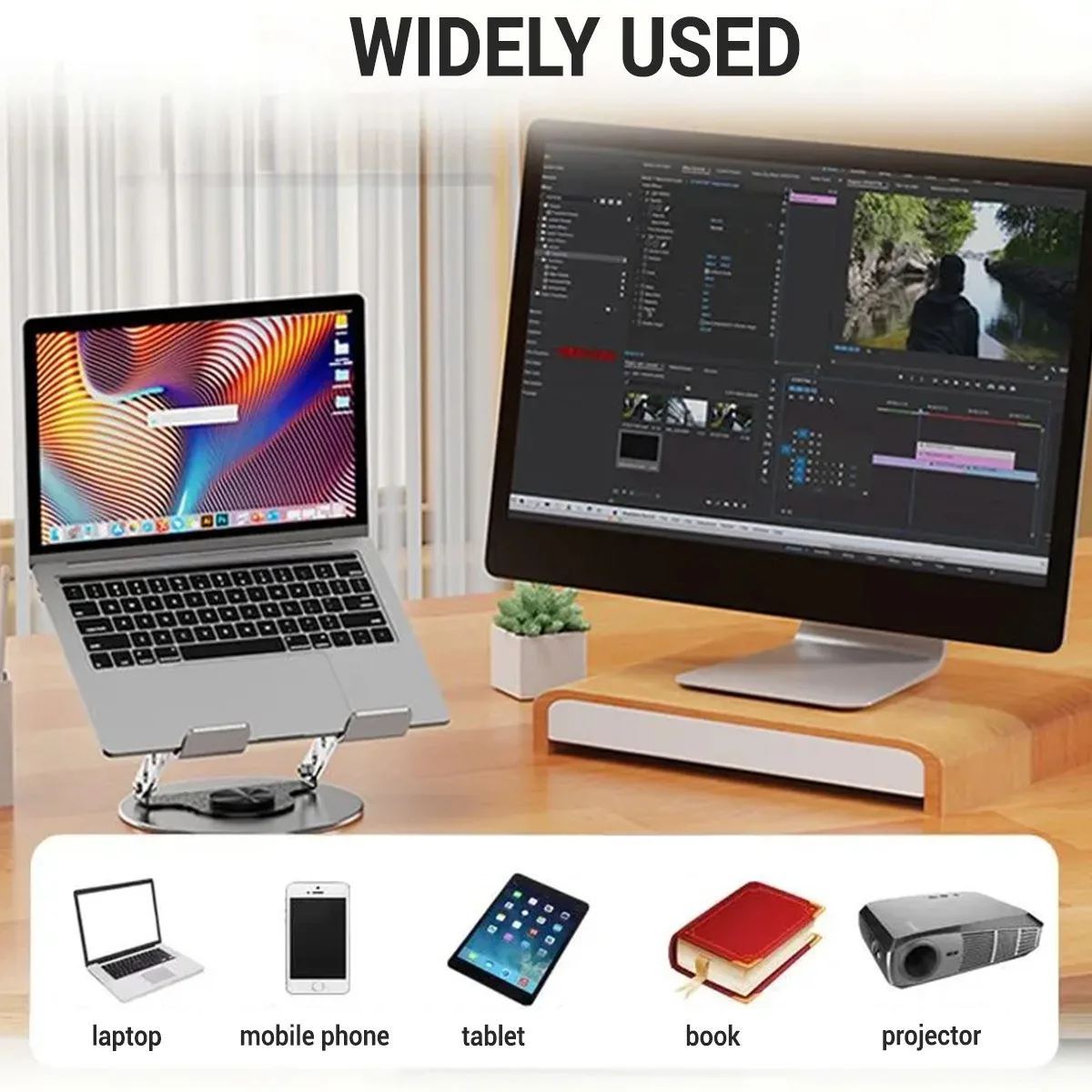
You should position your laptop stand at eye level for the main camera. Use a separate, desk-mounted boom arm for your secondary camera. This prevents vibration when typing.
Route all cables along the desk edges using clips. Always test your framing before going live to ensure steady, clear visuals.
The Dual-Camera Struggle: Why Your Setup Keeps Shaking
The most common issue in dual-camera streaming is the dreaded camera shake. When you mount a camera directly to a laptop stand, every keystroke travels through the metal frame and into the lens. This creates a jittery image that is distracting for your viewers.
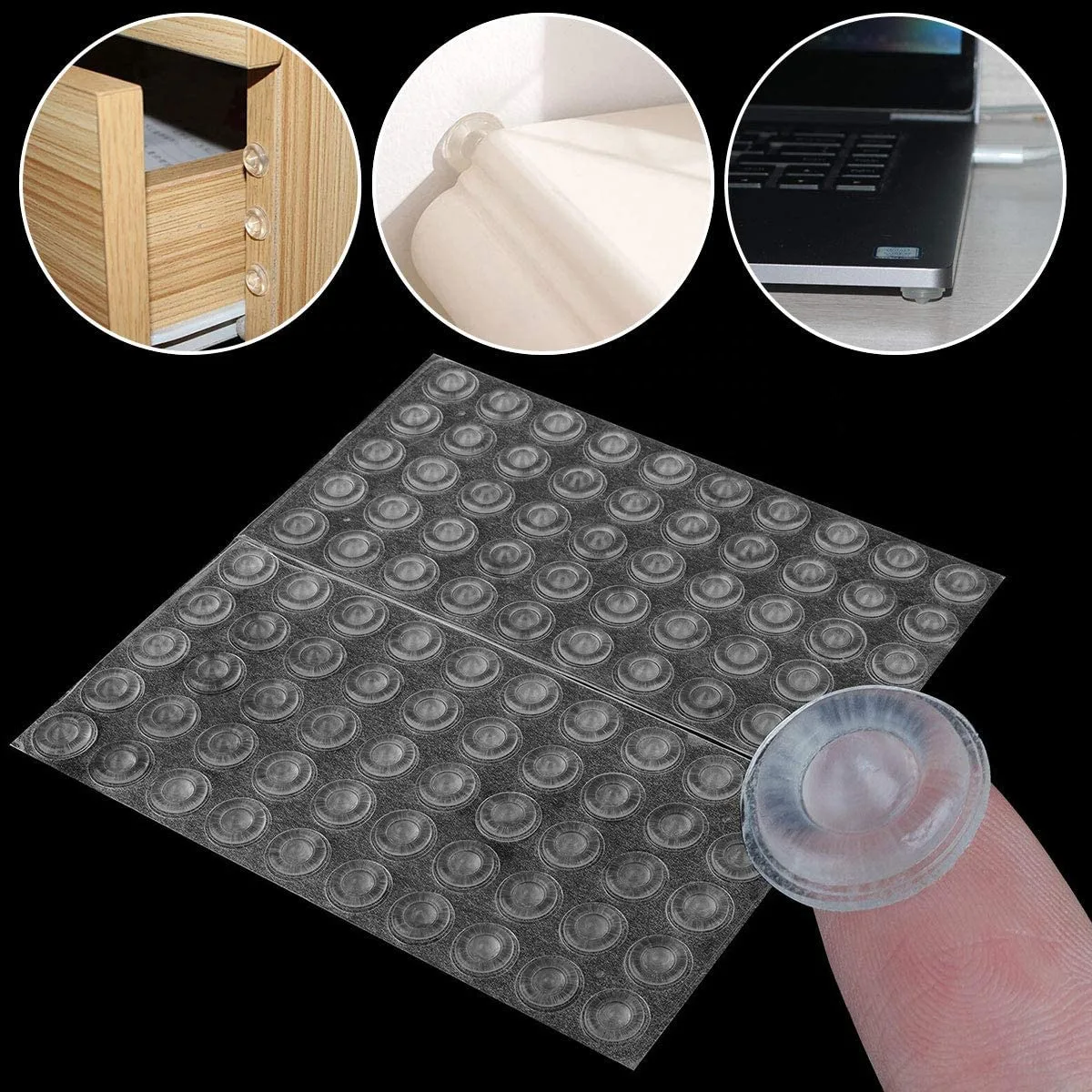
Stable setups rely on isolation. If your primary webcam sits on your laptop, ensure your laptop stand has high-friction rubber feet. If your secondary camera is mounted to the same surface, the vibration from your desk will inevitably bleed into both feeds.
Why Visual Framing Makes or Breaks Your Stream
Visual framing defines the perceived quality of your content. A well-framed shot establishes a professional atmosphere, while poor framing often makes the streamer look distant or unprepared. You should treat each camera angle as a distinct storytelling tool.
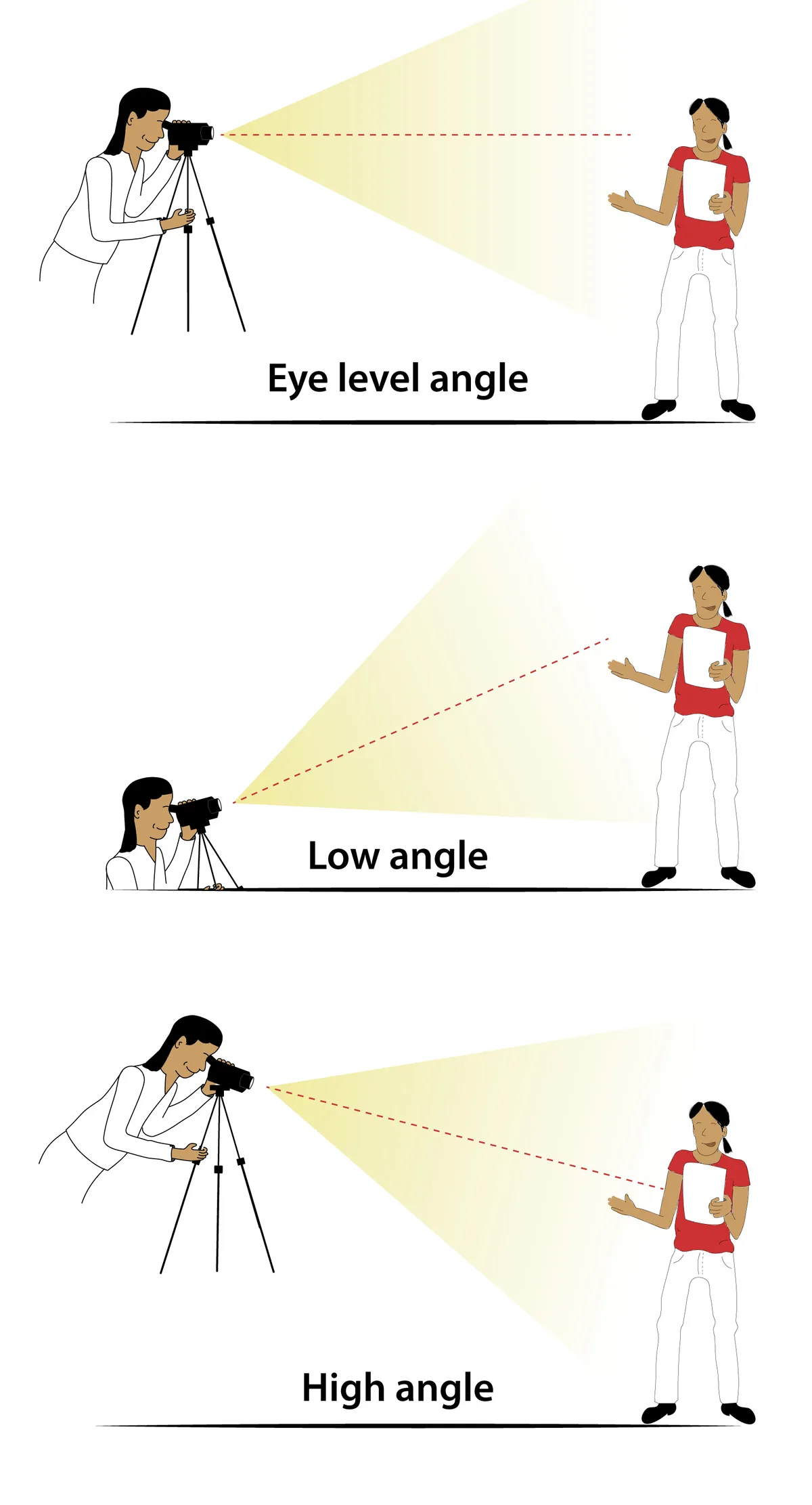
Standard cinematography rules suggest using the rule of thirds. Your eyes should align with the top third of the frame on your primary camera. This creates a natural, conversational connection with the audience.
The Hero vs. Accent Camera Strategy
You need to distinguish between your Hero camera and your Accent camera. The Hero camera is your primary lens. It captures your face at eye level for most of the broadcast.
It should remain stationary throughout the entire session.
The Accent camera serves as a secondary perspective. It shows off your workspace, controller movements, or artistic process. This camera does not need to be at eye level.
It should focus on the action rather than your expression.
Essential Hardware for a Stable Dual-Cam Setup
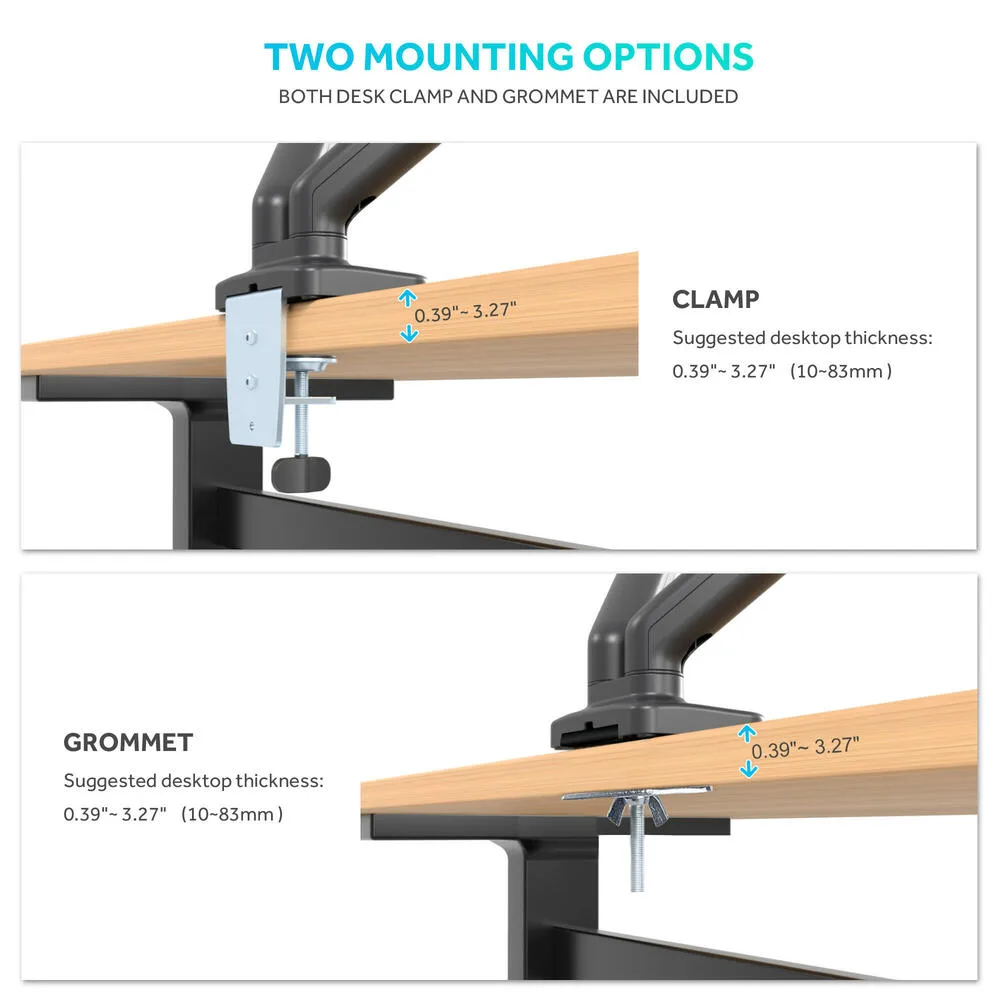
Investing in the right mounting hardware is the difference between a shaky stream and a crisp, professional broadcast. You need equipment that clamps independently to your desk surface to avoid shared vibrations.
| Hardware Type | Best Use Case | Stability Level |
|---|---|---|
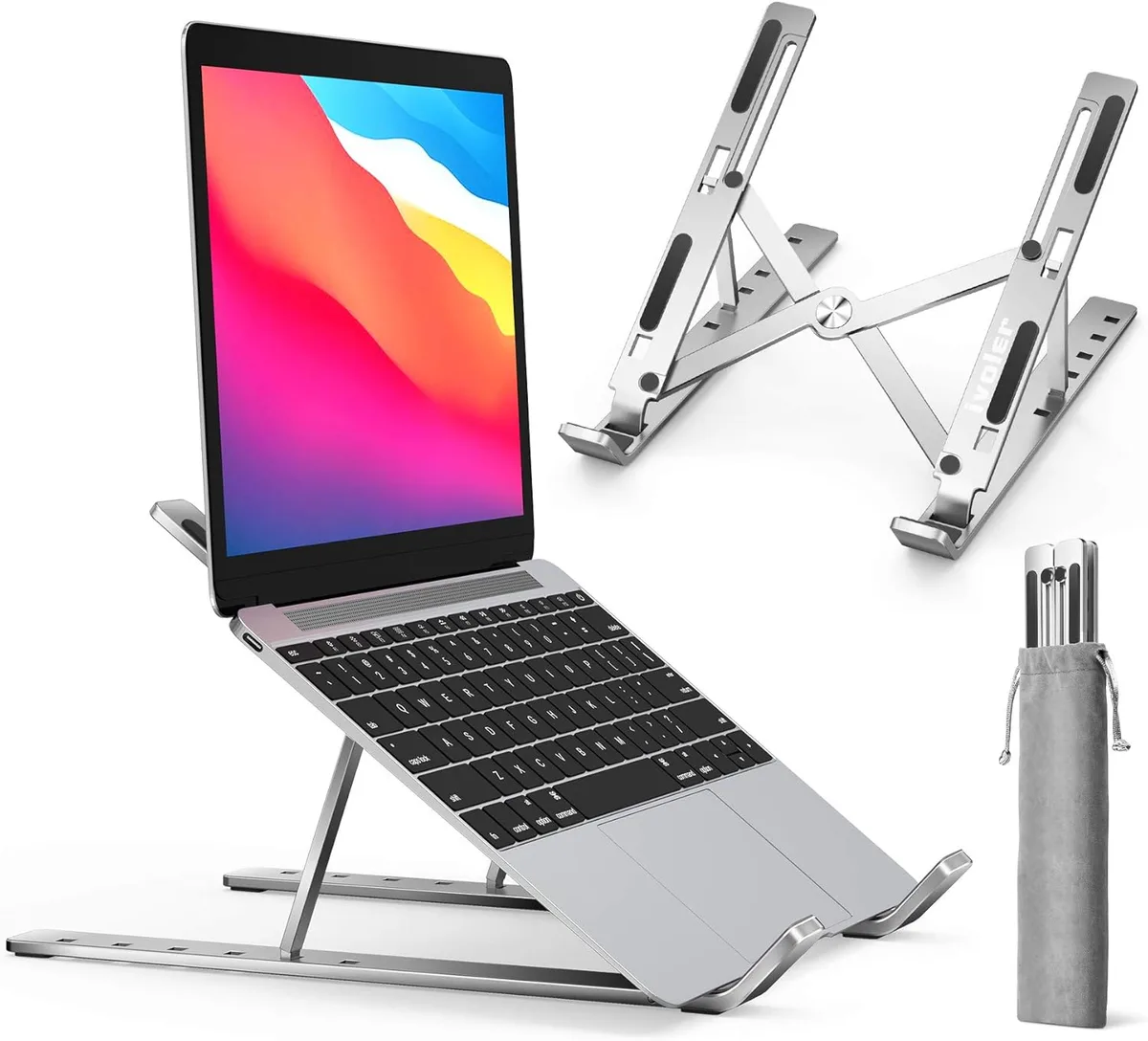
| Laptop Riser Stand | Primary webcam mounting | Moderate |
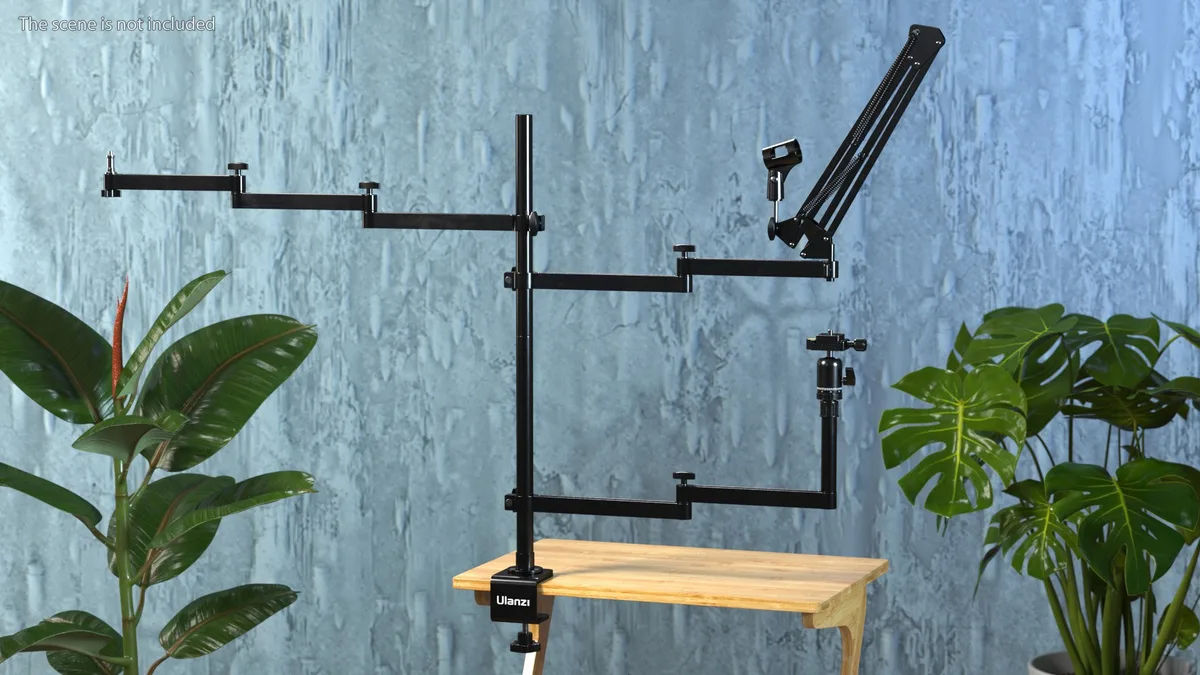
| Boom Arm | Secondary camera angle | High |
| Desk Clamp | Structural support | High |
| Cable Ties | Organizing data flow | Essential |
Step-by-Step: Positioning Your Laptop Stand for Maximum Stability
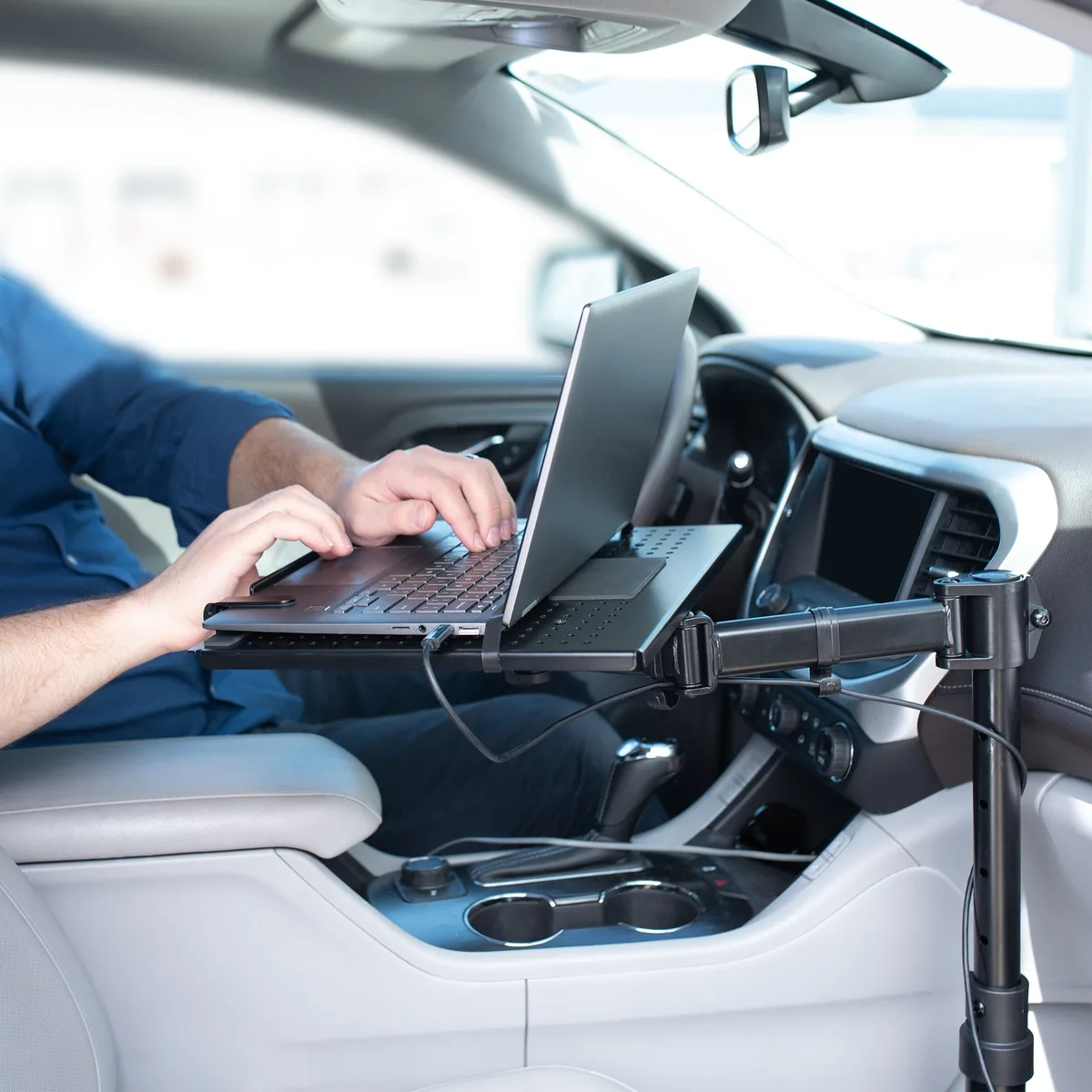
First, place your laptop stand on a heavy, solid desk. Avoid glass tables that tend to amplify vibrations from your keyboard. Position the stand so the screen is roughly 20 inches from your face.
Second, tighten all tension bolts on the stand. Loose joints act as hinges for vibration. Third, use an external mechanical keyboard positioned on the desk surface rather than on the stand itself.
Finally, verify the center of gravity. Ensure your laptop is centered to prevent the stand from tipping forward or backward. Adjust the height until the camera lens is perfectly level with your eyes while you are sitting in your standard streaming posture.
Framing Your Shots: Where to Place the Secondary Camera
Place your secondary camera to the side of your main field of view to create a sense of depth. You want it at a 45-degree angle to your primary position for the best results. This placement mimics a cinematic interview look and keeps the secondary camera from obstructing your main workspace.
If your camera has a zoom lens, pull it back slightly to include more of your desk. This is perfect for showing your hands while using a controller or drawing on a tablet. Always keep the secondary camera slightly lower than your eye line.
This creates a clear visual distinction between your main direct-to-viewer shot and your secondary activity shot.
Routing Cables to Prevent Pulls and Snags
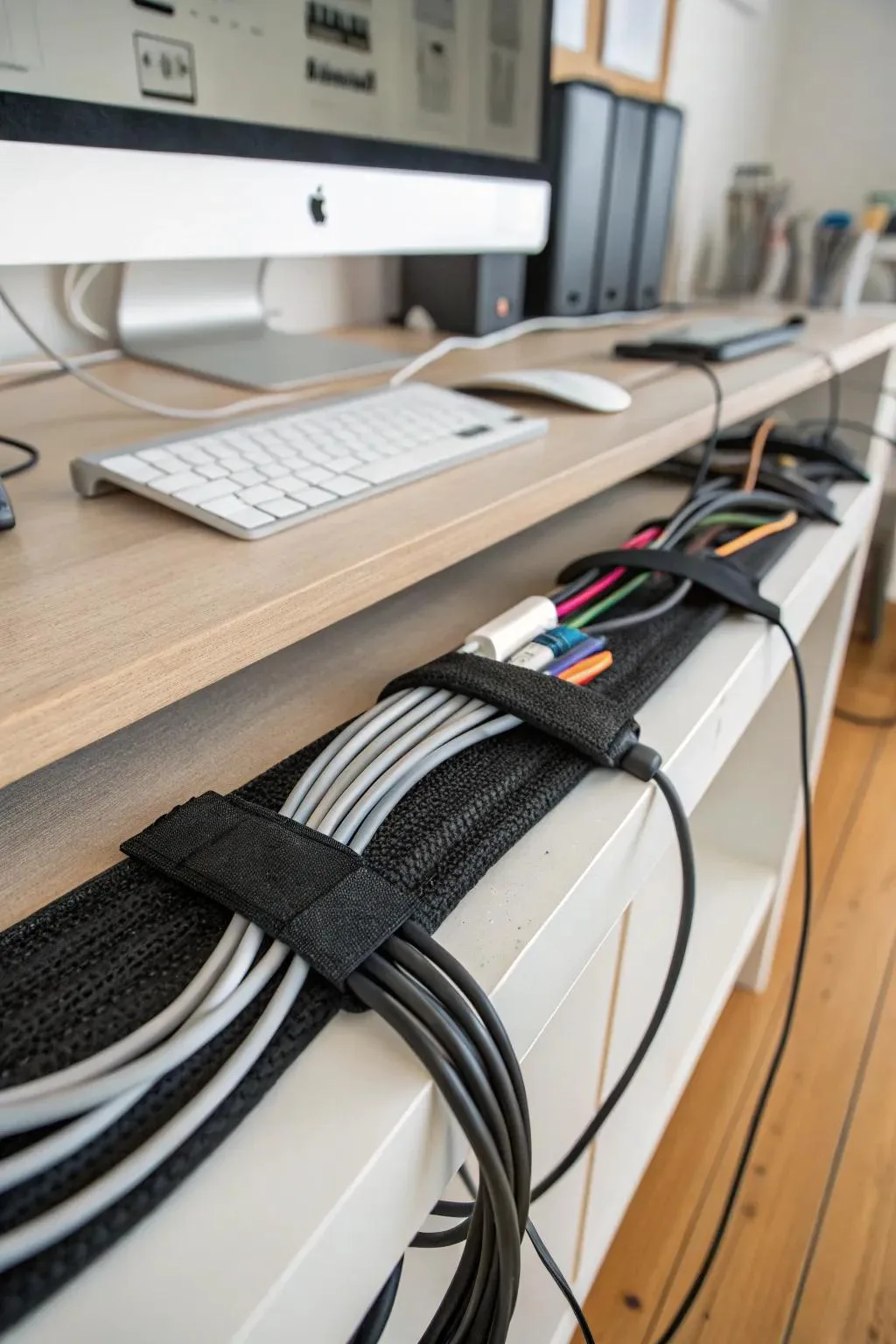
Loose cables are the primary cause of equipment accidents during a stream. Use adhesive cable clips along the back of your laptop stand to secure all power and data lines. This creates a clean channel that prevents the wires from catching on your sleeve as you move.
Gather all extra cable length and secure it with velcro ties to the stand's vertical leg. This keeps the cords tight against the structure, preventing loops that could snag on your chair or desk equipment. A neat cable path also reduces visual clutter on camera, which keeps the viewer’s focus on your content instead of your hardware.
Common Visual Mistakes: Avoiding the Floating Head and Wobble
The floating head mistake happens when your camera is angled upwards, showing your chin and the ceiling behind you. Adjust the tilt of your stand until the lens is perpendicular to your face. This creates a flat, professional-looking image that avoids unnecessary background distractions.
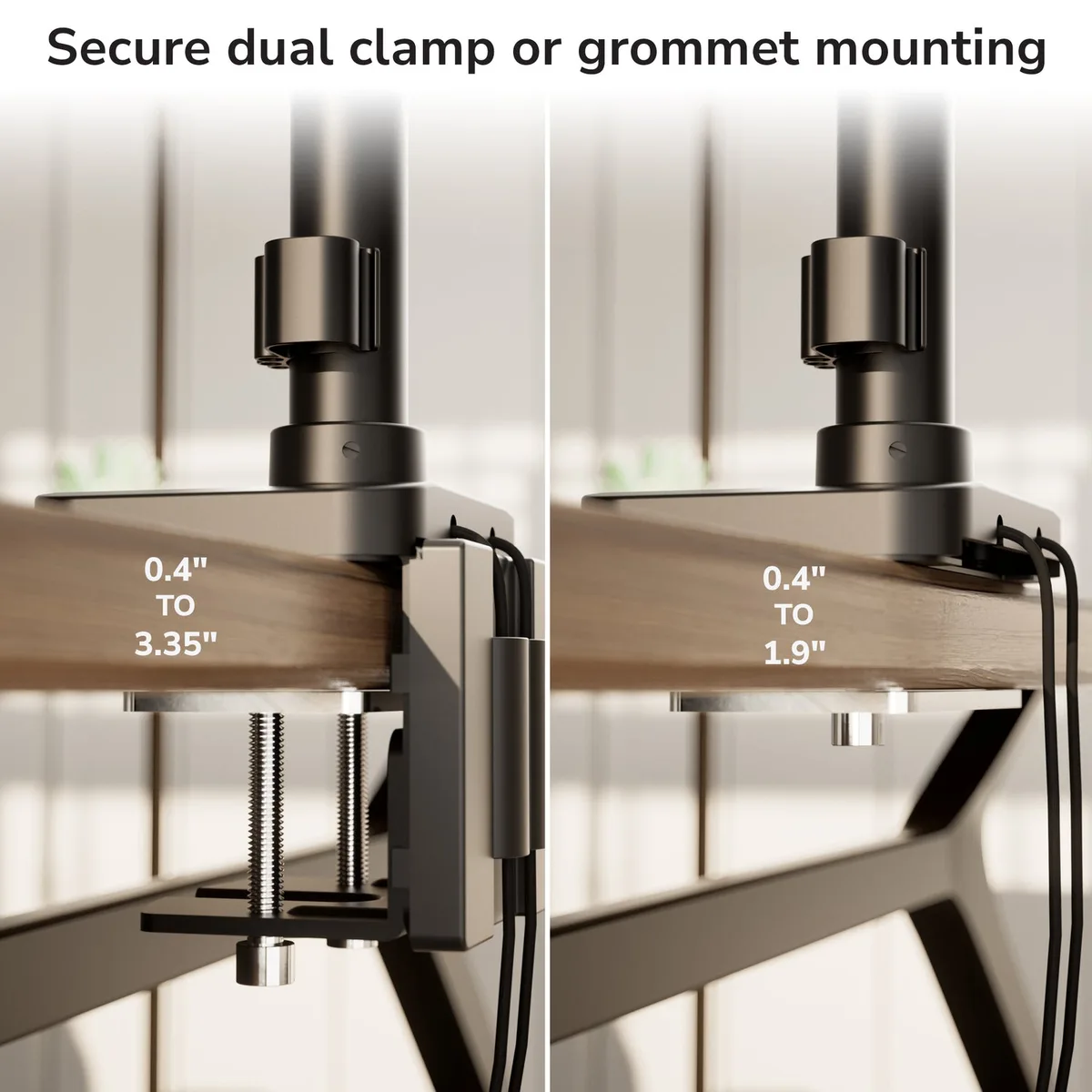
Camera wobble is another common issue caused by mounting everything to a single, lightweight stand. If you notice your camera shaking during gameplay, disconnect the camera from the laptop stand entirely. Move it to a separate, sturdy boom arm clamped directly to the desk.
This isolation is the single most effective way to eliminate mechanical vibrations from your feed.
Comparing Mounting Methods: Boom Arms vs. Desk Stands
Boom arms provide the greatest flexibility for dynamic shots in small studio spaces. They allow you to pull the camera in close for tight, high-quality shots and push them away for a wider perspective. They are perfect for streamers who frequently switch between chatting and active gaming or desk work.
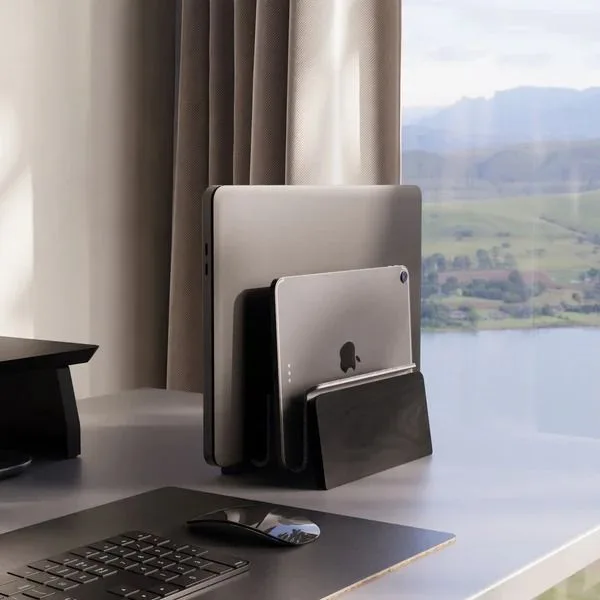
Desk stands offer more stability for static, permanent camera positions. They don't require the same amount of desk-edge space as a clamp-based boom arm. If your desk has limited depth, a heavy-based desk stand for your primary webcam is often the better choice.
Choose a boom arm if you need to clear your desk surface instantly for other tasks.
Optimizing Lighting for Two Different Angles
Your secondary camera requires a dedicated light source to match the quality of your primary feed. Don't rely on room lighting because it is rarely bright enough to produce a clean, grain-free image. Use a small LED panel clamped to the same boom arm as your secondary camera.
Position this light at a 45-degree angle to your face to create soft, flattering shadows. If your cameras have different color profiles, adjust the white balance in your streaming software to match them. A quick test record helps you see if the secondary angle looks too dark or cool compared to your main camera.
Adjust the Kelvin settings on your lights until both feeds look consistent.
Balancing Color and Quality Across Both Cameras
Color mismatch between your Hero and Accent cameras creates a distracting viewer experience. Most cameras process skin tones and ambient light differently even when placed in the same room. Use manual white balance settings in your streaming software to force both cameras toward a shared color temperature.
Aim for a target of 5600K for a daylight-balanced look. If your cameras don't allow manual kelvin adjustments, use "preset" modes that match. Keep both cameras on the same frame rate, typically 30 or 60 frames per second.
This prevents audio-sync issues or glitchy transitions when you switch scenes in your software.
Pro Tips for Seamless Scene Switching in OBS
A hardware-based control device like a stream controller saves you from manual mouse clicking during a broadcast. Map your scene transitions to dedicated buttons for instant, professional cuts between your primary and secondary angles. This removes the "dead air" associated with dragging windows around on your monitor.
Configure your scene transitions in your streaming software to use a "cut" or a short 200-millisecond fade. A simple cut feels more natural for fast-paced gaming sessions. Fades are better for slower, interview-style streams where the shift between cameras should feel softer.
Test these transitions with a recording to ensure no frame tearing occurs during the switch.
Keeping Your Gear Safe: Airflow and Weight Distribution
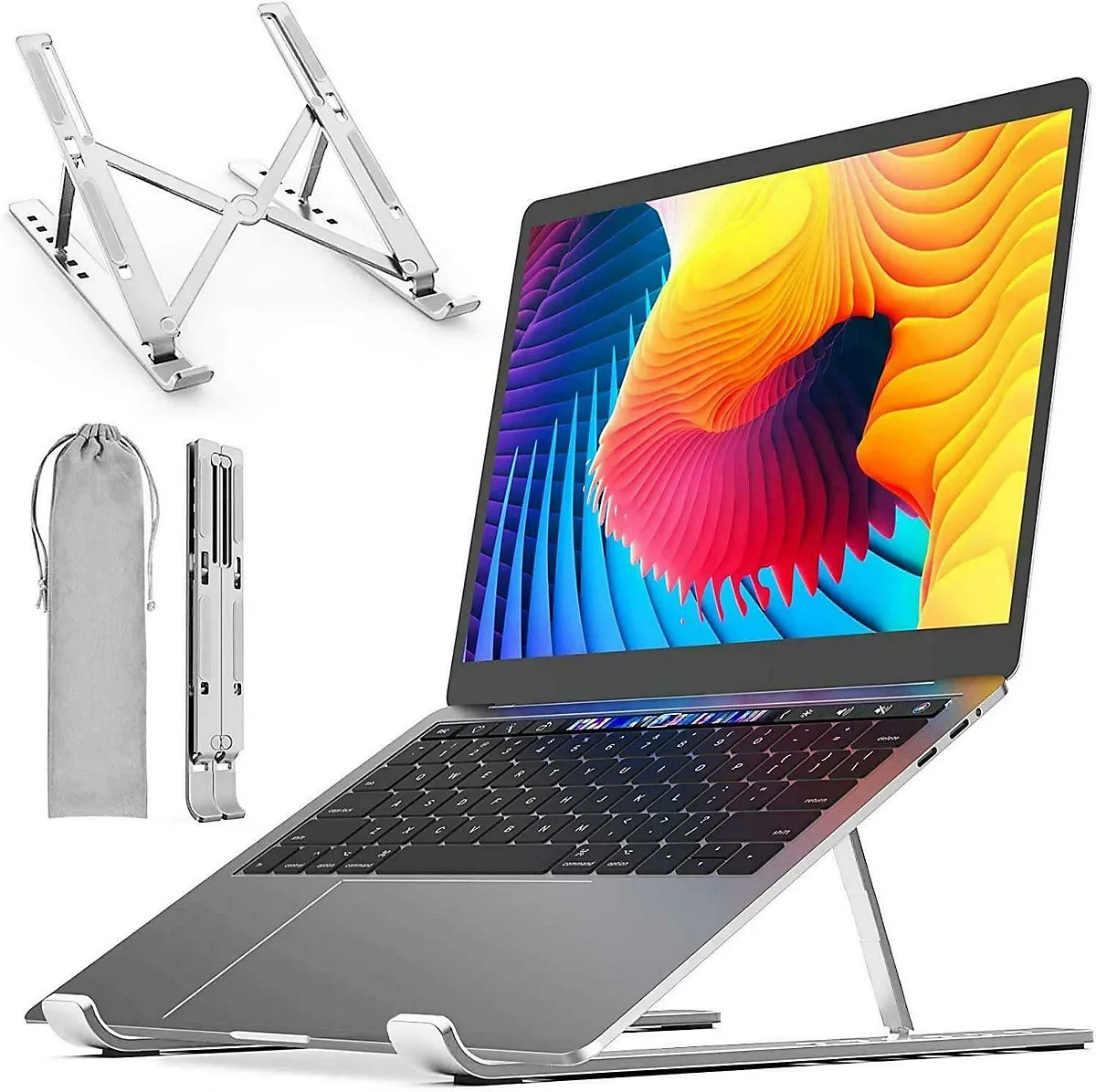
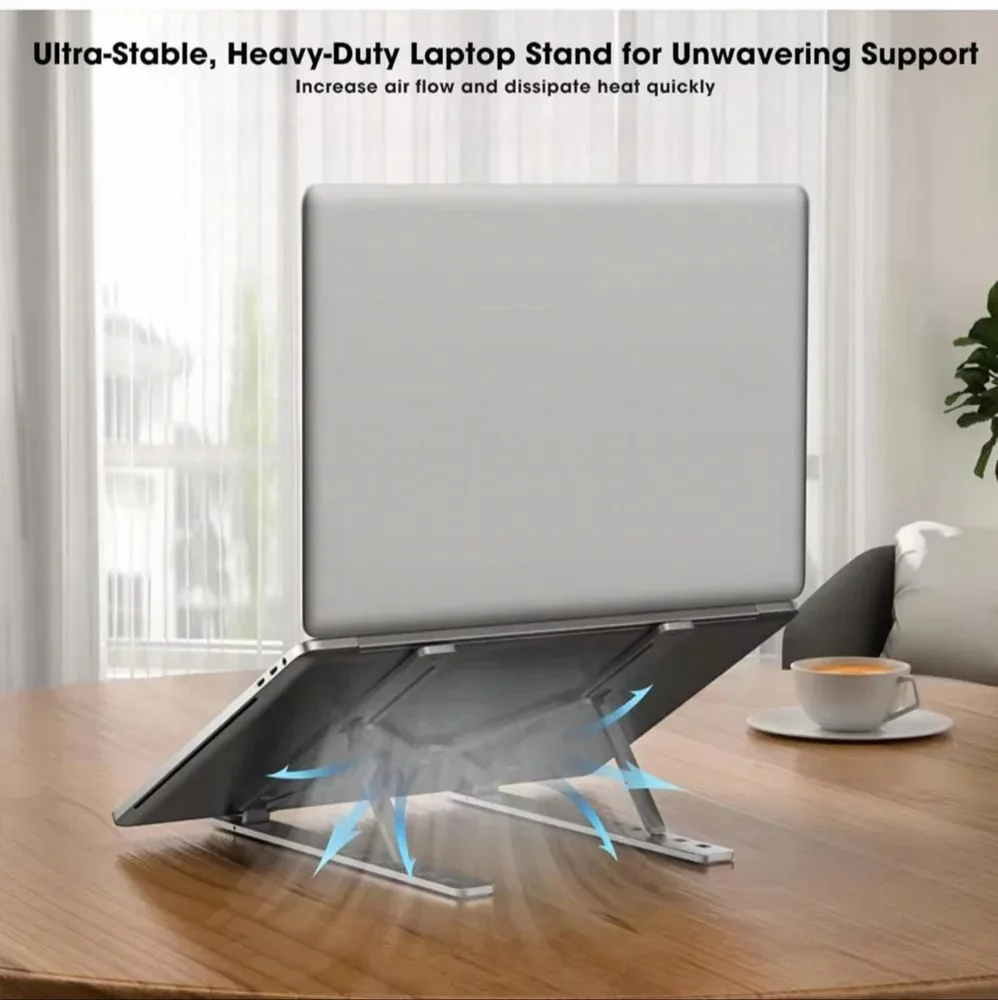
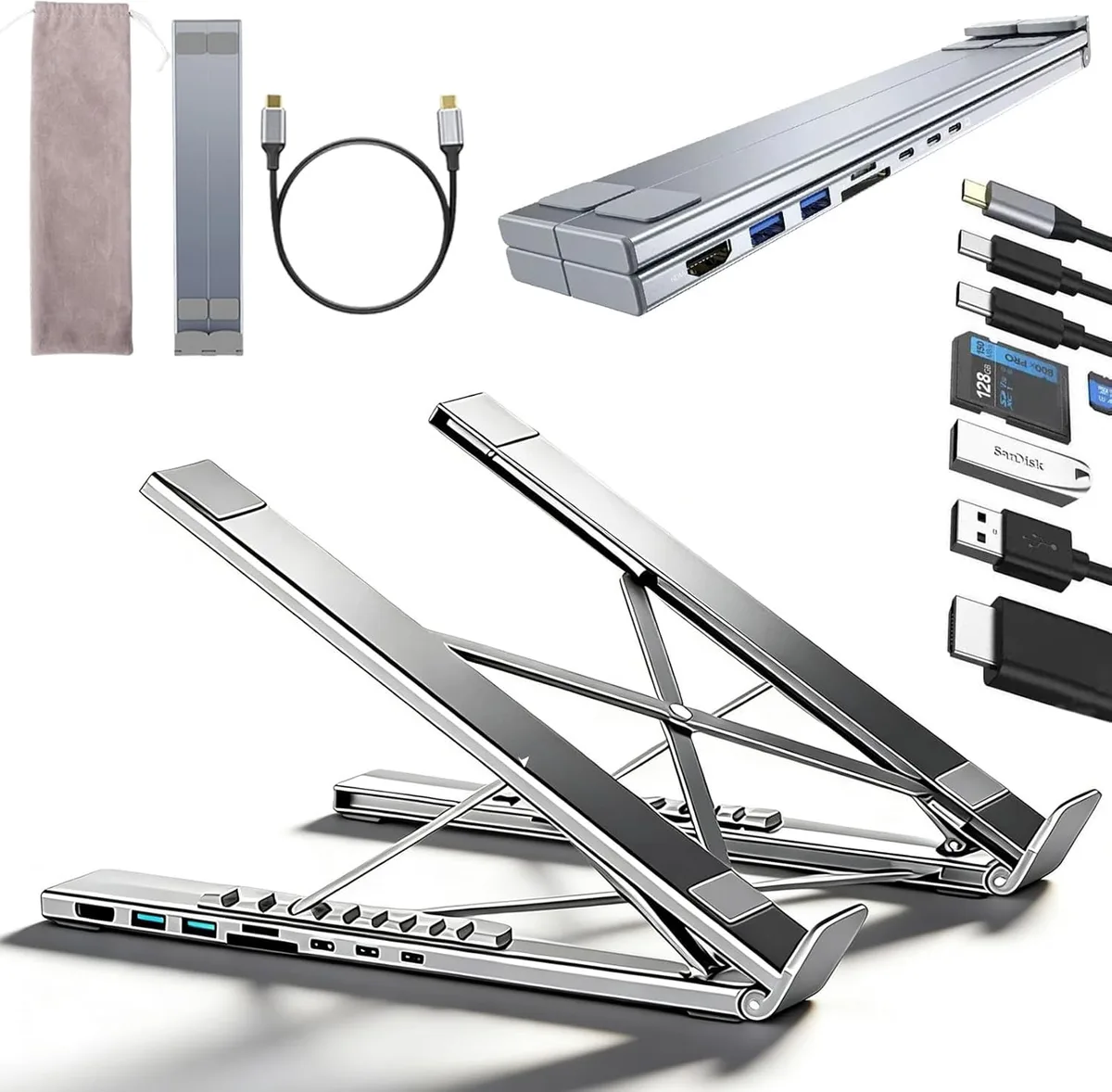
Elevating your laptop on a stand is excellent for thermal management, provided the base remains stable. Choose a stand with an open-frame design that doesn't block the air intake vents on the bottom of your machine. Proper airflow prevents thermal throttling, which can cause frame drops during long streaming sessions.
Check the weight limit of your stand before adding external equipment like a webcam or a secondary arm. Most aluminum risers are rated for specific loads. Exceeding these specs can cause the stand joints to slip over time, leading to a slow downward drift in your camera angle during a broadcast.
Always verify that your desk mount point can handle the combined weight of the stand and your laptop.
Long-Term Maintenance: Tightening Joints and Checking Connections
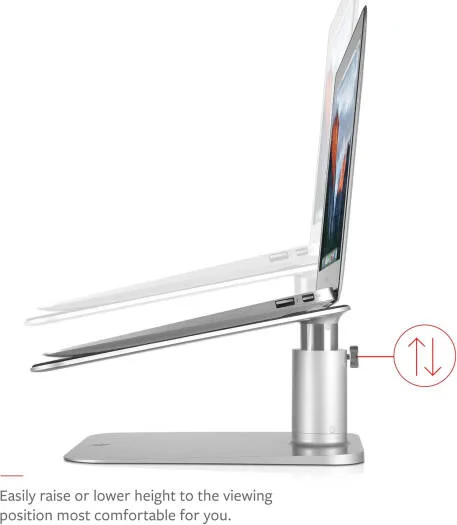
Metal stands with adjustable joints eventually lose their tension after repeated movement. Spend five minutes each month tightening the hex screws that hold your stand at its desired height. This simple habit prevents the "sagging" that happens when the internal friction mechanism wears out.
Inspect your cable connections for signs of strain or fraying. The constant tension of a hanging cable can damage the port on your webcam over time. Leave enough slack in your cable runs so that moving your camera or laptop doesn't put stress on the connection point.
This extra inch of cord protects your expensive hardware from port failure.
Troubleshooting Your Dual-Camera Layout
If you notice a flickering image on one of your cameras, check your local power frequency settings. Some regions use 50Hz, while others use 60Hz. Mismatched settings between your camera and the room lighting will cause visible lines to roll across your feed.
Adjust this in your camera's software control panel to match your local power standard.
If you struggle with autofocus "hunting" during your stream, switch your secondary camera to manual focus. Autofocus sensors often jump between your hands and your background during high-motion activities. Set the focus once, lock it in place, and your image will stay sharp even when you move your hands rapidly.
This ensures your accent camera remains focused on the action regardless of what happens in the frame.
Frequently Asked Questions
How do I stop my camera from shaking when I type?
Move your camera off the laptop stand and onto a separate, desk-mounted boom arm. By separating the camera from the laptop surface, you break the path of vibration. Using a mechanical keyboard with lighter switches or a desk mat under your keyboard also reduces physical impact transfer.
Does the height of my laptop stand matter?
Yes, you should position the top of your camera lens at eye level. This prevents you from looking down at your audience, which establishes a more natural connection. Using an adjustable stand allows you to change the height as your chair or desk setup changes over time.
Why do my two cameras look like different colors?
Cameras use different internal sensors and white balance algorithms that interpret color temperature differently. You must manually set the white balance to a specific Kelvin value in your software for both cameras. This forces them to output consistent skin tones and ambient color profiles for your viewers.
Can I mount both cameras to the same stand?
You can, but it is not recommended for professional-looking streams. Shared mounts transfer every movement from one camera to the other, which creates distracting wobbles in both feeds. Always use separate mounting points like a boom arm or a secondary tripod to isolate each camera for the best stability.
What should I look for when buying a laptop stand?
Look for a stand with a solid, wide base and tension-adjustable joints. Ensure the material is high-quality aluminum for durability and thermal conductivity. Avoid stands that are top-heavy or have thin, flexible legs that might bounce when you type on your keyboard.

Similar Posts