How to Adjust Your Laptop Stand to Stop Screen Glare
Senior Hardware Diagnostics Specialist & Lead Thermal Editor at Laptop Post Testing Lab · CompTIA A+, ACMT, B.S. in Computer Engineering · 12+ years bench-testing laptop thermal solutions & motherboard repairs
If you are struggling with a screen covered in reflections, you have likely asked how to adjust laptop stand angle for anti glare in sunny room. Natural sunlight creates intense specular reflections on glass display panels, often forcing you to adopt uncomfortable postures to maintain visibility.
Changing your physical setup is often more effective than turning up your screen brightness. According to OSHA Computer Workstation Guidelines, managing light intensity and reflection is a primary factor in reducing long-term digital eye strain. We have compiled a practical approach to using your hardware to solve this issue as of 2026.
Quick Answer
You can adjust your laptop stand angle for anti glare by tilting the screen forward. Use the mirror test to locate the specific reflection source. Increase the stand height to shift the viewing plane away from windows.
Combine these adjustments with an external keyboard for better ergonomics. Always avoid direct light hitting the display surface at an angle.
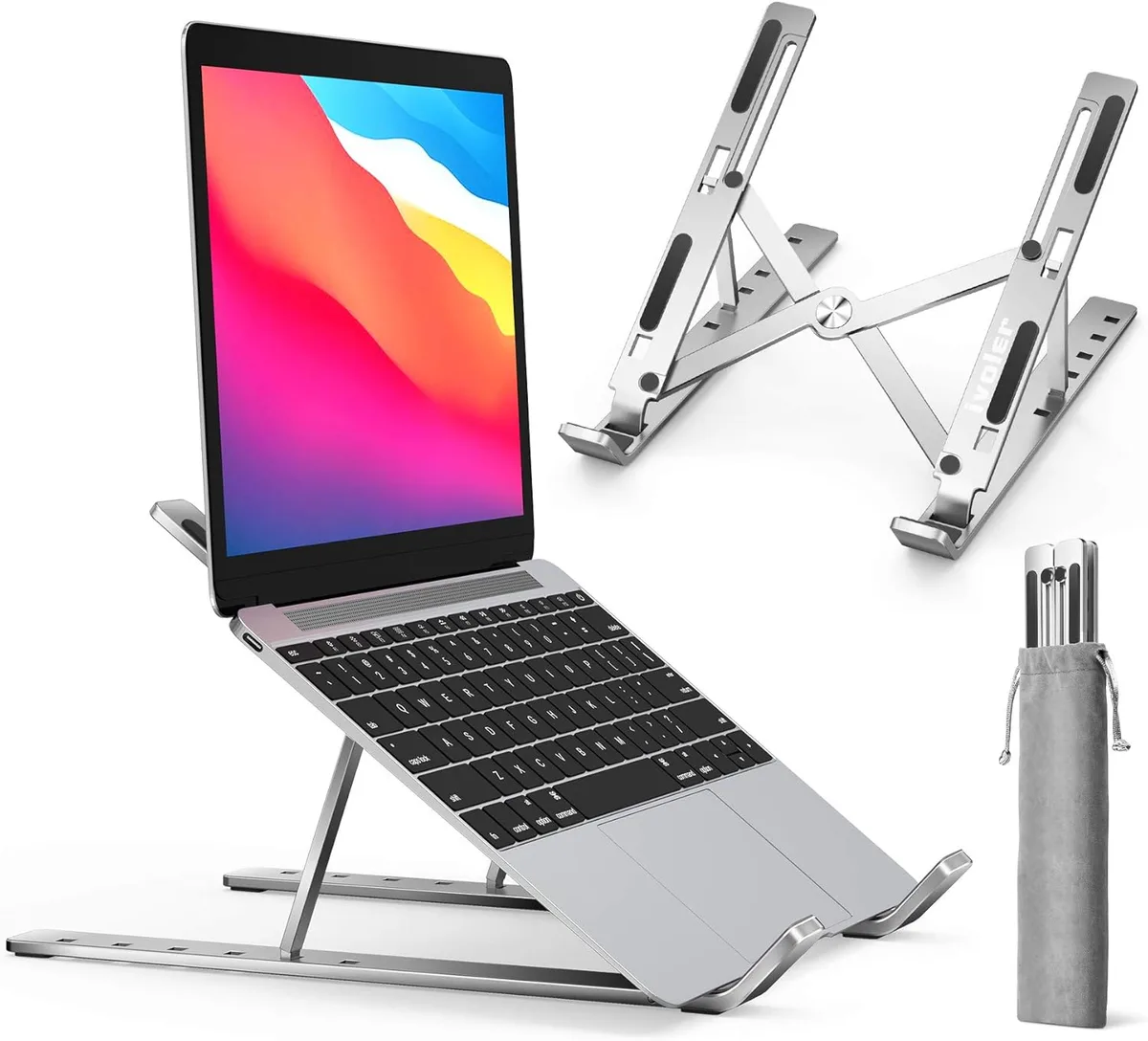
Image source: Bing (Web (fair-use with source credit))
The Reality of Glare: Why Your Laptop Screen Feels Like a Mirror
Glare occurs when light hits your screen and bounces directly into your eyes. This is called a specular reflection. Because most laptop screens have a glossy finish, they act like a high-quality mirror for any light source behind you.
When sunlight enters your workspace, the intensity of the light overwhelms the display's contrast. You lose the ability to distinguish text and images from the reflected environment. This forces your eyes to work harder to focus, leading to rapid fatigue.
Most users respond by slouching to find a better angle. This creates secondary pain points in your neck and shoulders. Understanding how light bounces is the only way to break this cycle without sacrificing your comfort.
Understanding the Physics of Light Reflection and Your Workspace
Light acts like a ball bouncing off a wall. The angle of incidence equals the angle of reflection. If light hits your screen from a 45-degree angle, it will bounce off at that same 45-degree angle toward your eyes.
To stop the glare, you must break this geometric connection. You do not necessarily need to block the light. You only need to ensure the reflection is directed away from your pupils and toward a neutral surface.
A neutral surface could be the floor, the desk mat, or a dark wall. Once the light is bouncing away from you, your screen becomes readable again. This remains true even if the room itself stays bright.
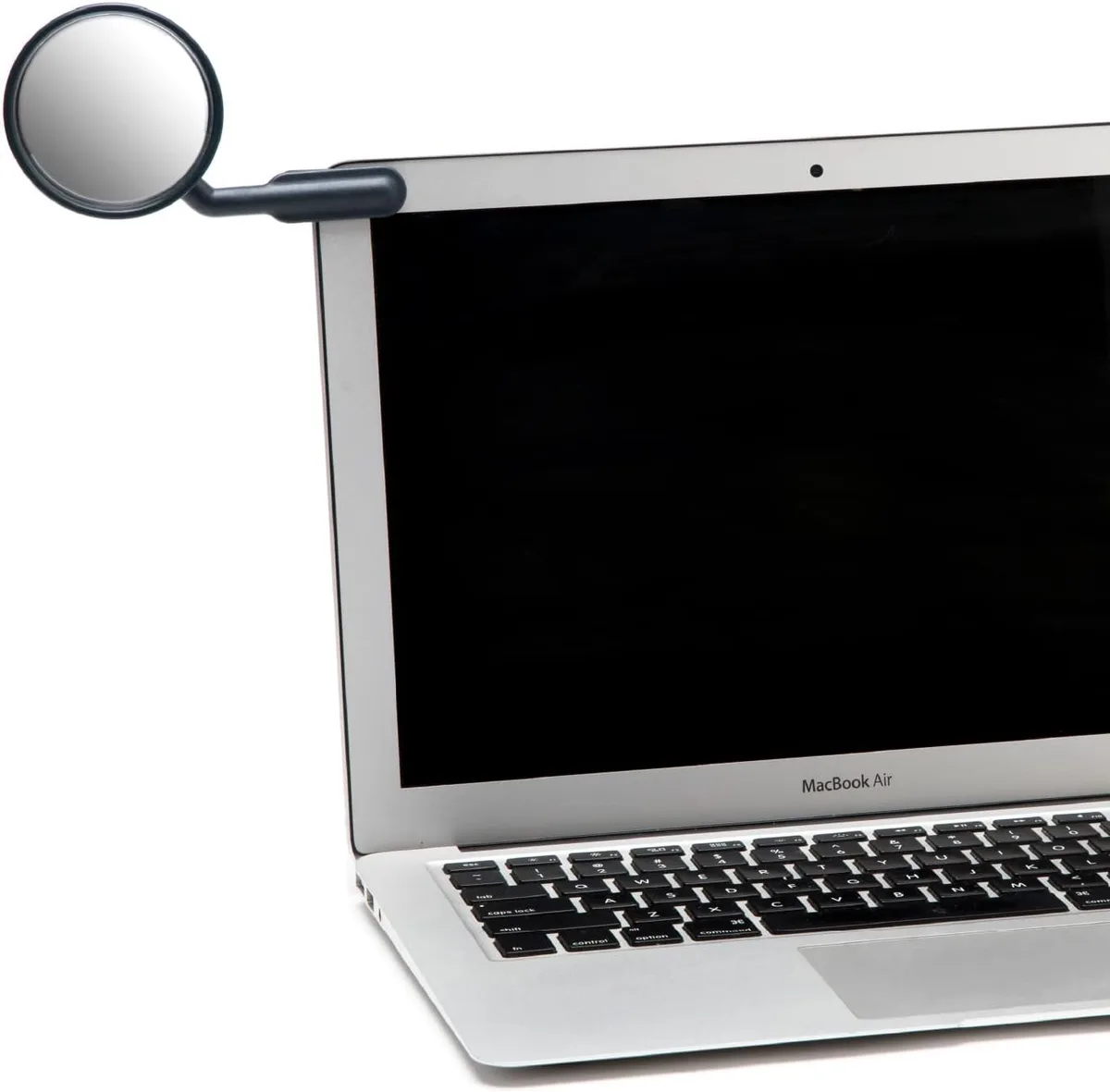
Image source: Bing (Web (fair-use with source credit))
The Mirror Test: How to Visualize Your Glare Problem
The mirror test is the fastest way to confirm where your glare is coming from. Hold a small mirror or a dark mobile device screen flat against your laptop panel. Look at what the surface shows you.
If you see a bright window, that is your primary target for adjustment. If you see overhead lights, the issue is coming from above. This test gives you a clear target rather than guessing which way to tilt your device.
Once you know the source, you can physically manipulate the stand. You are no longer guessing at the angle. You are making an intentional change to deflect the light path.
Step-by-Step: Adjusting Your Stand for Maximum Visibility
Adjusting your stand requires a three-step movement pattern. First, adjust the height to ensure the screen is at eye level. Second, manipulate the tilt to change the reflection angle.
Third, rotate the base to account for side-angle light sources.
Vertical Elevation and Tilt Optimization
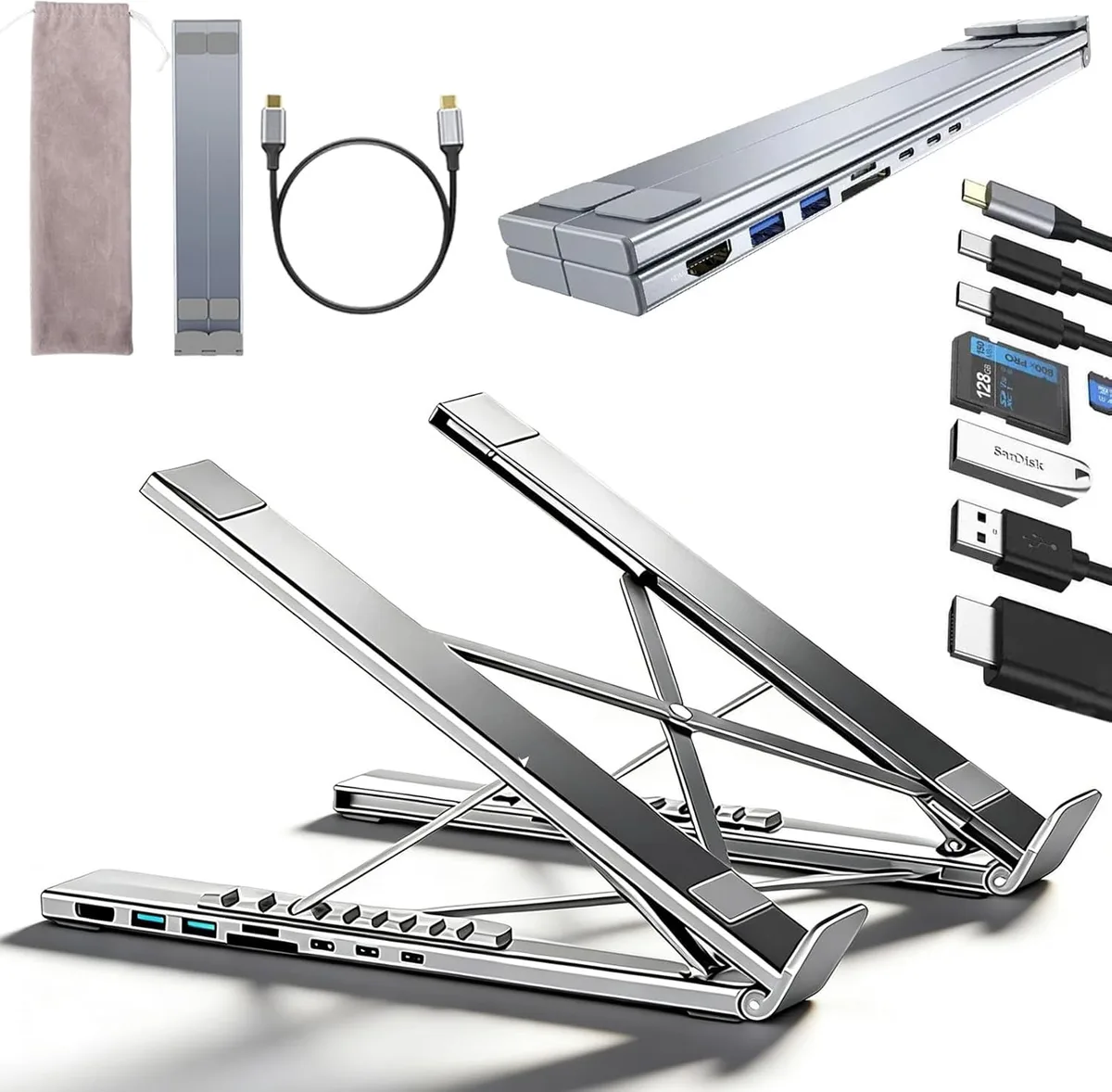
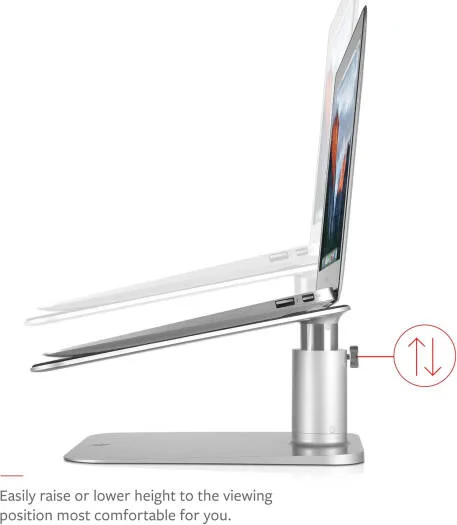
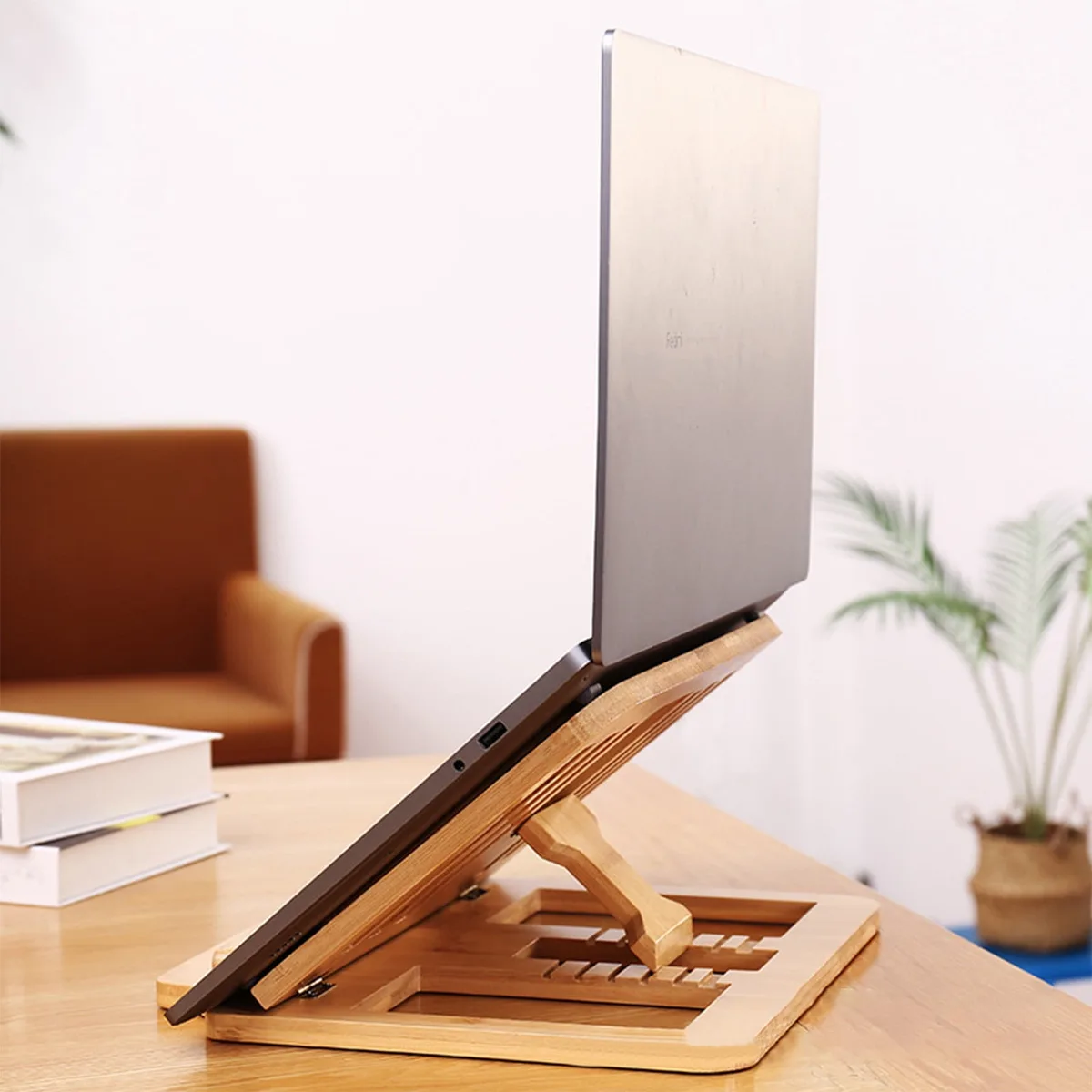
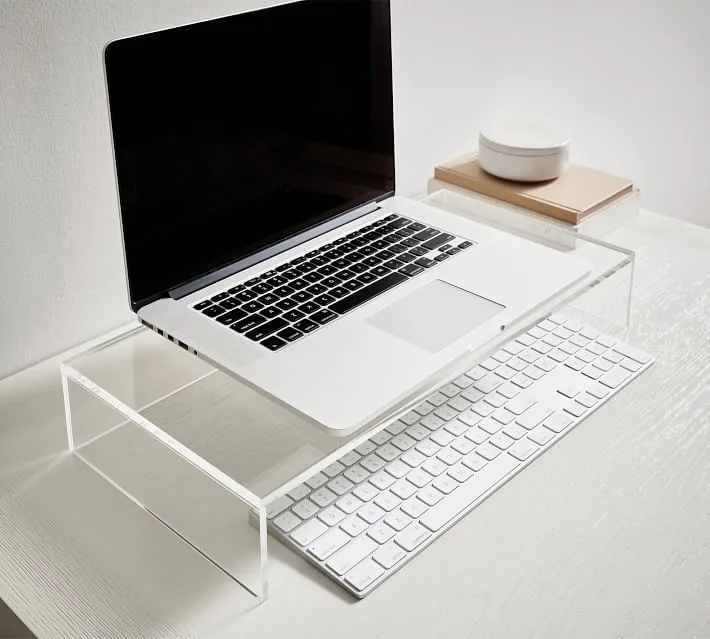
Start by raising the laptop stand to its maximum comfortable height. A higher screen position often changes the angle of light hitting the panel. Tilting the screen forward, so it faces slightly toward your lap, will push reflections downward.
This is often counter-intuitive because it feels like you are losing the viewing angle. However, the drop in reflection brightness usually outweighs the minor loss in viewing clarity. Try small increments of 5 degrees until the reflection disappears from your direct field of vision.
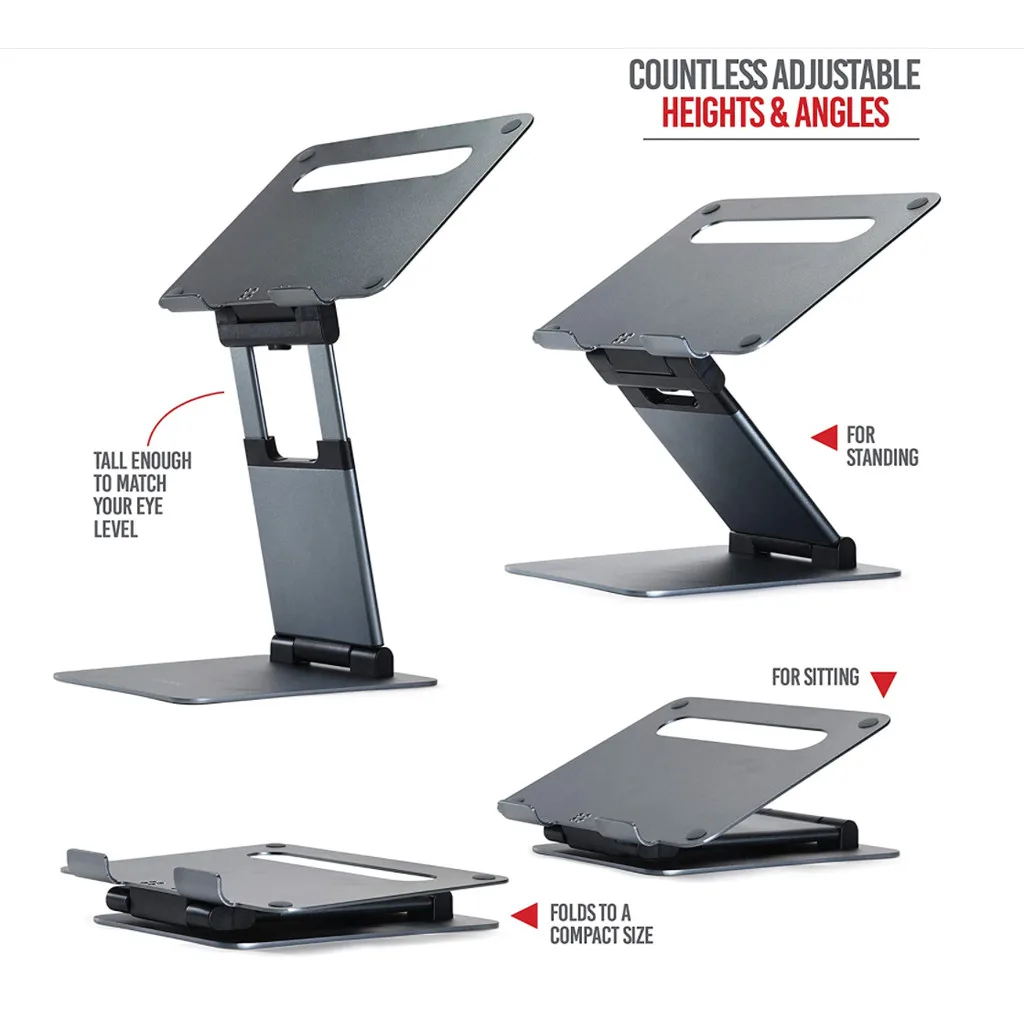
Image source: Bing (Web (fair-use with source credit))
Mastering the Base Rotation
If the light is hitting your screen from the side, a simple tilt will not solve it. You must rotate the base of the stand. Even a 10 to 15-degree rotation can shift the light bounce completely off your display.
Check the stand base for a swivel function. If it lacks a swivel, pick up the entire assembly and reposition it. Look at the screen while you move it to find the exact point where the glare dissipates.
Common Pitfalls: When Your Setup Makes Glare Worse
One common mistake is tilting the screen backward to try and dodge the glare. This usually makes the problem worse by exposing more of the panel to incoming window light. It also puts your neck in a permanent upward tilt.
Another error is relying on screen brightness to overpower the sun. High brightness drains your battery rapidly and increases the temperature of your laptop chassis. It also does nothing to remove the actual reflection.
Finally, do not forget about your ceiling lights. Many people focus on windows while ignoring overhead recessed lighting. If the mirror test shows a bright spot in the center of your screen, check if it is actually coming from the light fixture above your head.
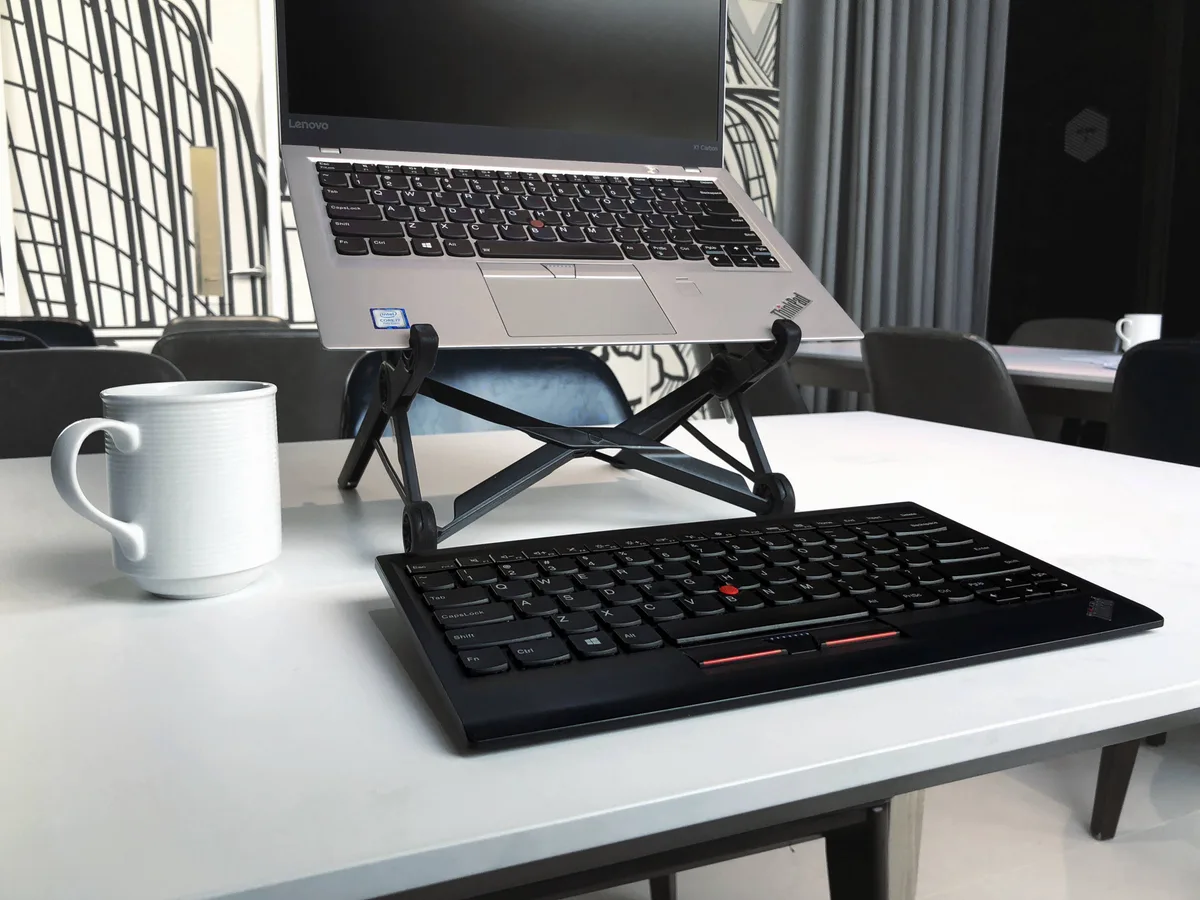
Image source: Bing (Web (fair-use with source credit))
Beyond the Stand: Effective Alternatives to Combat Sun Glare
When you have exhausted your stand’s range of motion, you need to alter the environment around you. Blocking incoming sunlight is the most direct way to eliminate the root cause of reflections. Physical barriers stop light before it ever reaches your desk surface.
You can use several low-cost options to manage the light flow. Sheer curtains are excellent because they diffuse harsh direct sun into a softer glow. If you need total control, blackout blinds are the standard for high-intensity glare scenarios.
Consider where the light originates. If the window is behind your screen, a window shade is non-negotiable. If the light is hitting your screen from a side window, a simple piece of cardboard can act as a DIY monitor hood to block the light from striking the panel.
Decoupling Your Display: Why an External Keyboard Changes Everything
Moving your laptop display to a better viewing angle often forces your keyboard into an awkward, high-reaching position. Decoupling the input from the screen is the best way to maintain comfort while optimizing for glare. An external keyboard lets you keep your screen at eye level while your hands stay relaxed on your desk.
This setup prevents the hunching effect that often leads to upper-body strain. It also allows you to push the stand back or forward without worrying about your wrist position. You effectively turn your laptop into a dedicated monitor.
Many users find that a compact Bluetooth keyboard is sufficient for this purpose. It adds almost no clutter to your workspace but provides total freedom of movement. You can adjust the stand height or angle to the exact degree required for glare mitigation.
Ergonomics and Eye Health: Avoiding Digital Eye Strain
The goal of your adjustment is to create a neutral, relaxed eye position. If your screen has a glare, your eyes are forced to switch focus between the reflection and the text. This constant refocusing leads to rapid muscle fatigue.
Keep the top of your display at or slightly below eye level. This prevents you from tilting your head backward, which can strain your neck muscles over time. If your stand is too low, you will naturally hunch over, which increases the likelihood of reflection in your line of sight.
Maintain a distance of about 20 to 30 inches from the display. This is the optimal range for most adult vision, according to American Optometric Association guidelines. A consistent distance reduces the work your eye muscles perform throughout the day.
| Ergonomic Factor | Recommended Position | Reason |
|---|---|---|
| Screen Height | Top at eye level | Reduces neck strain |
| Viewing Distance | 20 to 30 inches | Limits muscle focus fatigue |
| Screen Tilt | 10 to 20 degrees | Minimizes light reflection |
| Keyboard Height | Elbows at 90 degrees | Prevents wrist tension |
Pro Tips for Managing Changing Sunlight Throughout the Day
Sunlight moves across your room as the earth rotates. A stand setting that works perfectly at 9:00 AM may be useless by 2:00 PM. We recommend keeping a sun schedule to anticipate when you need to make adjustments.
If you know the sun hits your desk hard in the afternoon, pre-emptively close your blinds or tilt your screen slightly further forward before the glare begins. You might notice your screen has a golden hour where the light is especially problematic. During these times, you can shift your stand’s base rotation to compensate for the moving light angle.
Some setups rely on a light-colored wall to bounce indirect light into the room. If that wall suddenly gets hit by the sun, it becomes a secondary light source. Watch out for these white surfaces, as they can cause glare even if they aren't directly in front of a window.
When to Consider Physical Screen Upgrades or Window Treatments
Sometimes, you have run out of adjustment range, and the glare remains too intense. This is when you should look at physical modifications to the display or the window. An anti-glare screen protector is a common solution, though it can slightly reduce screen sharpness.
Matte films are the most popular choice for this. They work by scattering the incoming light instead of letting it bounce off like a mirror. Before installing one, check the finish of your specific laptop screen, as some high-end displays are already treated with an anti-reflective coating.
If the glare is purely from a window, permanent treatments are often worth the investment. Solar shades filter out ultraviolet rays and reduce brightness without blocking all the natural light. This improves your visibility while keeping your workspace feeling bright and inviting.
Troubleshooting Persistent Glare Issues
If you still see reflections after adjusting your stand and blocking windows, you might have a multi-source problem. This happens when light bounces off secondary surfaces like a light-colored desk, a white wall, or even your own shirt. You need to identify every surface reflecting light toward your face.
Start by placing a dark cloth or desk mat on your workstation surface. Many desks have high-gloss finishes that act like secondary mirrors. A matte desk mat will absorb the light instead of sending it upward into your screen.
If the reflection persists, check your clothing. Wearing a bright white shirt can cause a noticeable ghost reflection on dark areas of your screen. Changing to a darker color is a simple fix that works surprisingly well for graphic designers and editors who need perfect visibility.
Quick-Reference Decision Guide: How to Adjust Based on Your Environment
The right adjustment depends entirely on where the light originates. Use this quick guide to determine your next move when the sun shifts.
| Scenario | Primary Action | Secondary Action |
|---|---|---|
| Light from behind | Use window shades | Tilt screen forward |
| Light from side | Rotate stand base | Use side-panel hood |
| Overhead lighting | Increase screen tilt | Lower stand height |
| Reflective surfaces | Use dark desk mat | Adjust body position |
If you are currently in a high-glare environment, follow the decision tree below.
- Is the light source behind you? If yes, close the blinds or move the desk.
- Is the light source to your side? If yes, rotate the stand 15 degrees away from the window.
- Is the light source overhead? If yes, tilt the top of your screen toward your keyboard until the glare disappears.
Frequently Asked Questions
Will tilting my laptop screen forward hurt the hinges?
Most modern laptop stands and hinges are designed to support a wide range of angles. Using a stand to tilt the screen forward does not put excessive stress on the internal components. Ensure your stand has a secure locking mechanism to keep the screen stable while you type.
Does screen brightness help with glare?
Increasing your screen brightness does not remove the reflection, but it does help the display content compete with the ambient light. This is a temporary solution that consumes more battery power. It is better to change your angle than to rely on high brightness levels to maintain visibility.
Are matte screen protectors worth the investment?
Matte screen protectors are effective for diffuse glare but often slightly reduce the sharpness and vibrancy of your display. They are best for office environments with many overhead lights. If your primary issue is direct sunlight, you will get better results by controlling the light source first.
Can a laptop stand really prevent neck pain?
A stand elevates your screen to eye level, which prevents the tech neck caused by looking down at a laptop. This ergonomic improvement is significant for long-term comfort. Pair it with an external keyboard to ensure your hands and eyes are both positioned naturally.
How do I stop glare without blocking the view?
If you want to keep your view, use light-filtering solar shades or sheer curtains instead of total blackout blinds. These options reduce the intensity of incoming sun while allowing enough light to keep the room feeling open. You can then use your stand to fine-tune the final viewing angle.

Similar Posts