How to Set Up Your Ergonomic Standing Desk and Laptop Stand
Senior Hardware Diagnostics Specialist & Lead Thermal Editor at Laptop Post Testing Lab · CompTIA A+, ACMT, B.S. in Computer Engineering · 12+ years bench-testing laptop thermal solutions & motherboard repairs
Learning how to set up an ergonomic standing desk converter with a laptop stand is the most effective way to protect your posture during long work hours. Without proper adjustments, you risk neck strain and shoulder fatigue.
Our research confirms that equipment height dictates your physical alignment. By following specific calibration steps, you can create a professional-grade workstation at home. As of 2026, experts recommend keeping your screen at eye level to minimize cervical stress.
Quick Answer
Place the converter on a stable desk. Position the keyboard at elbow height. Raise the laptop stand to reach eye level.
Use an external mouse and keyboard. Test your posture for comfort. Avoid keeping the laptop on the converter deck.
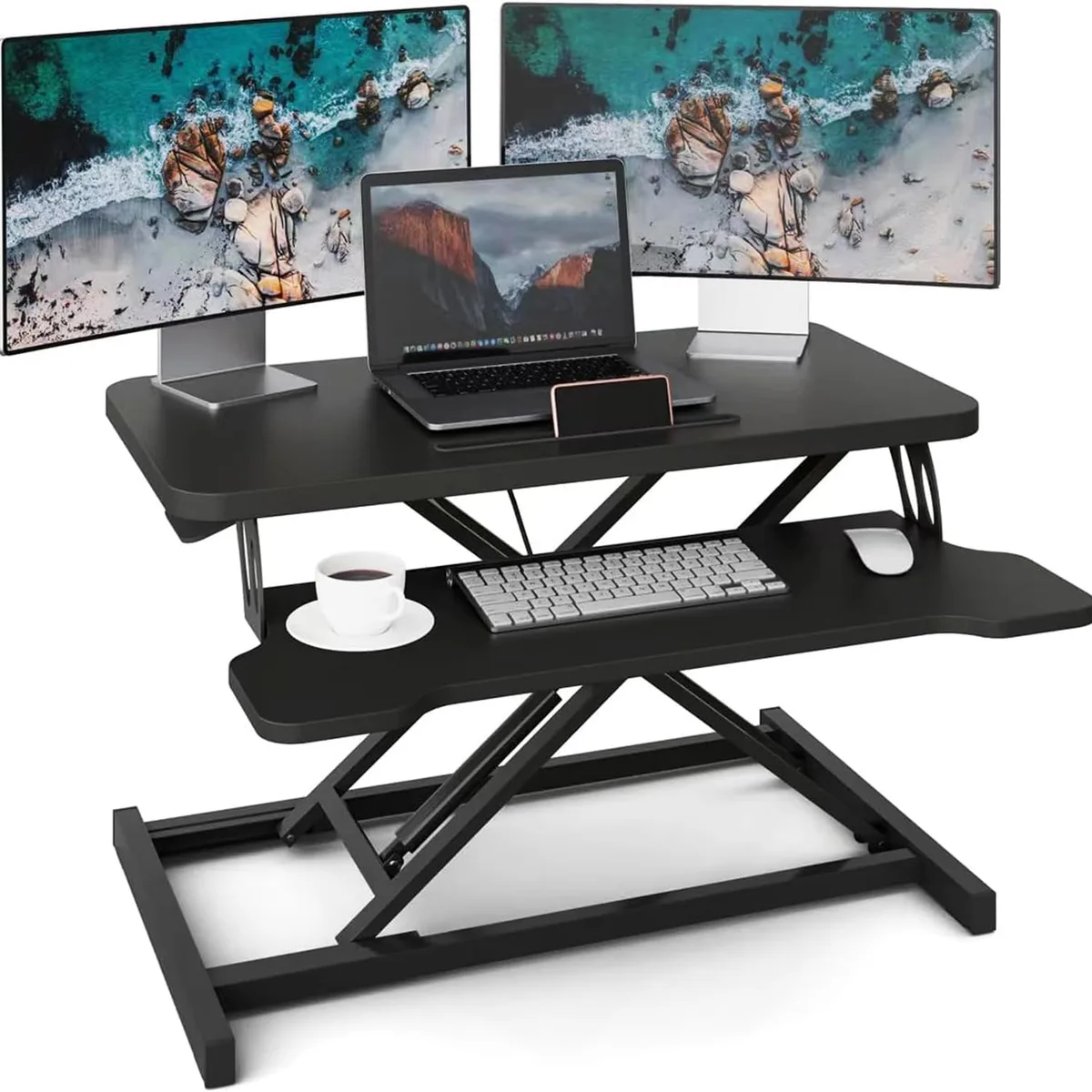
Image source: Bing (Web (fair-use with source credit))
Why Your Ergonomic Setup Needs a Strategic Approach
Many people assume a standing desk converter is a plug-and-play solution. You simply place it on your desk and start typing. However, research from the Occupational Safety and Health Administration highlights that workstation geometry must match the user.
Poor setup leads to repetitive strain injuries.
When your gear is positioned incorrectly, you experience muscle tension. Your body compensates by slouching or reaching. These small misalignments cause cumulative damage over time.
A strategic approach focuses on body-centric measurements instead of product-centric ones.
Identifying Your Neutral Posture Baseline
Neutral posture represents the position where your joints remain in natural alignment. You aren't forcing your shoulders up. You aren't bending your wrists.
Your spine maintains its natural curve.
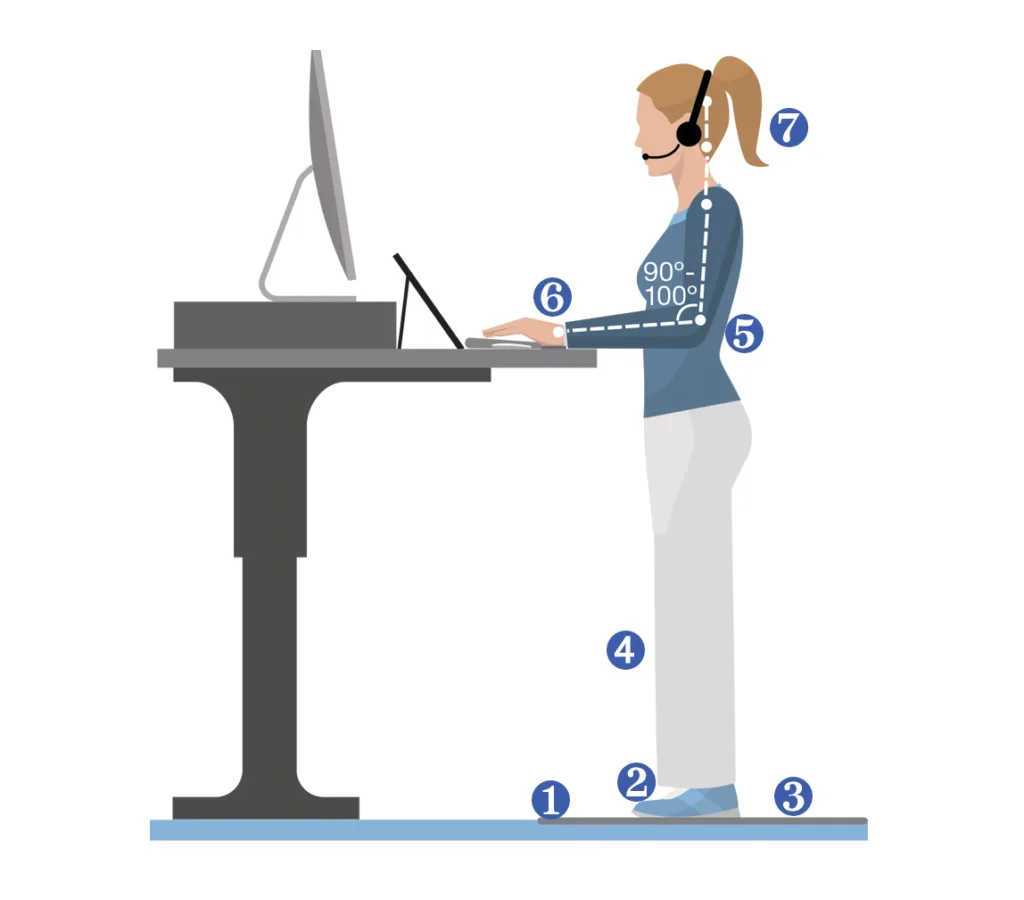
Image source: Bing (Web (fair-use with source credit))
To find this baseline, stand straight and relax your arms. Bend your elbows to a 90-degree angle. This is your target keyboard height.
Anything higher forces your shoulders into an unnatural shrug. Anything lower causes you to hunch forward.
Essential Gear for a Functional Workstation
A standing desk converter rarely functions well with just a laptop alone. The screen and keyboard are physically attached, which forces a compromise. You either place the keyboard too high or the screen too low.
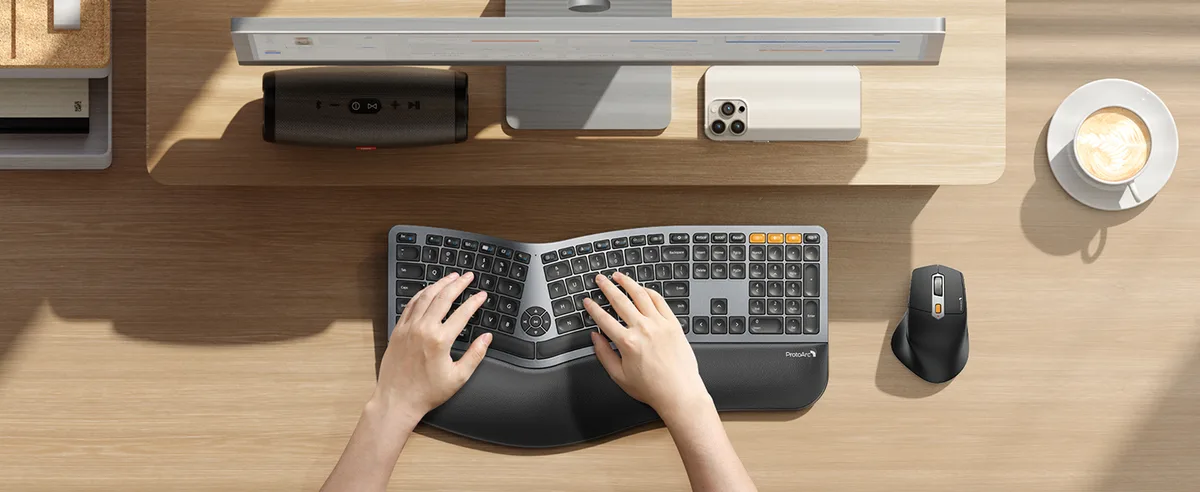
Image source: Bing (Web (fair-use with source credit))
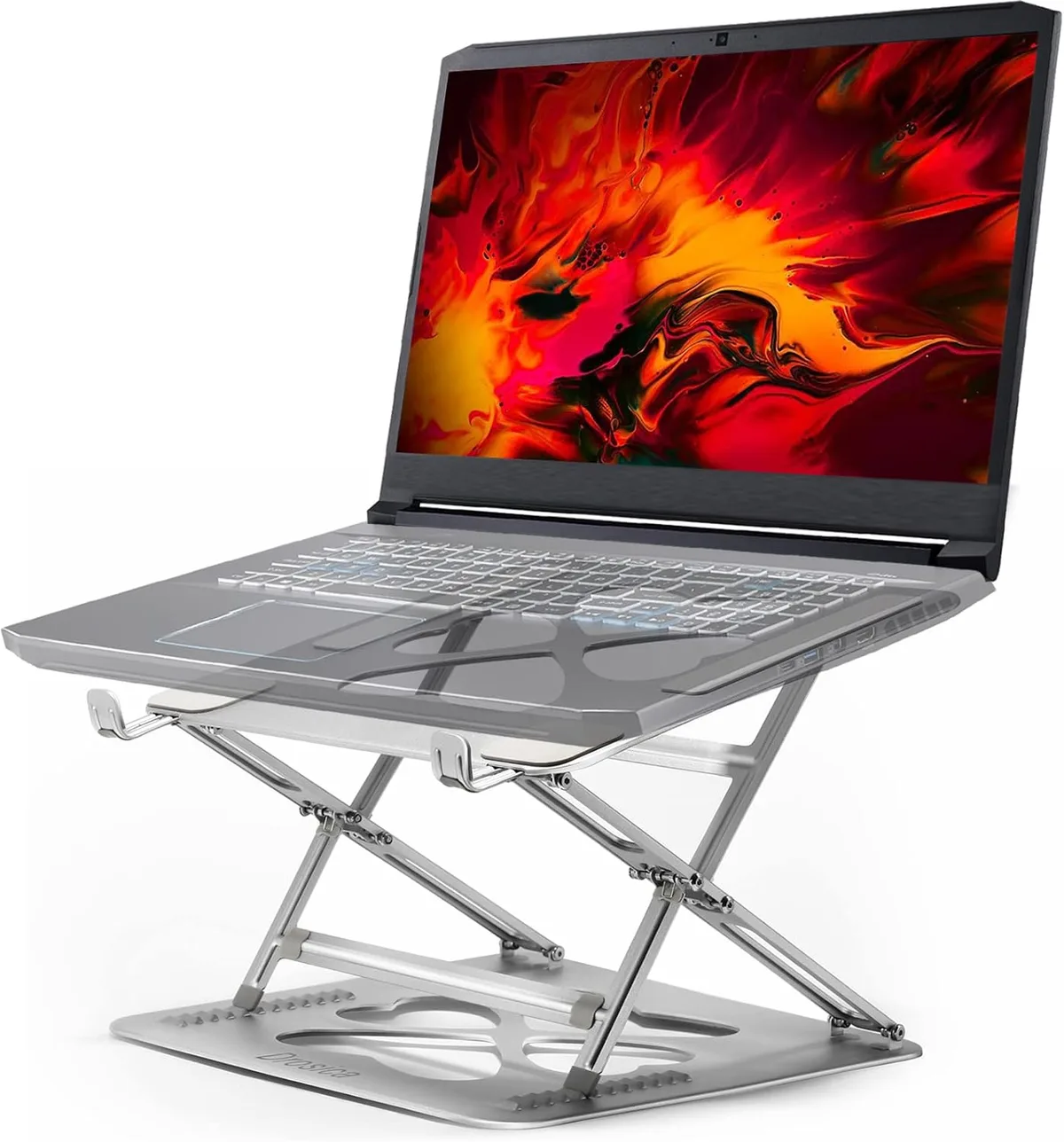
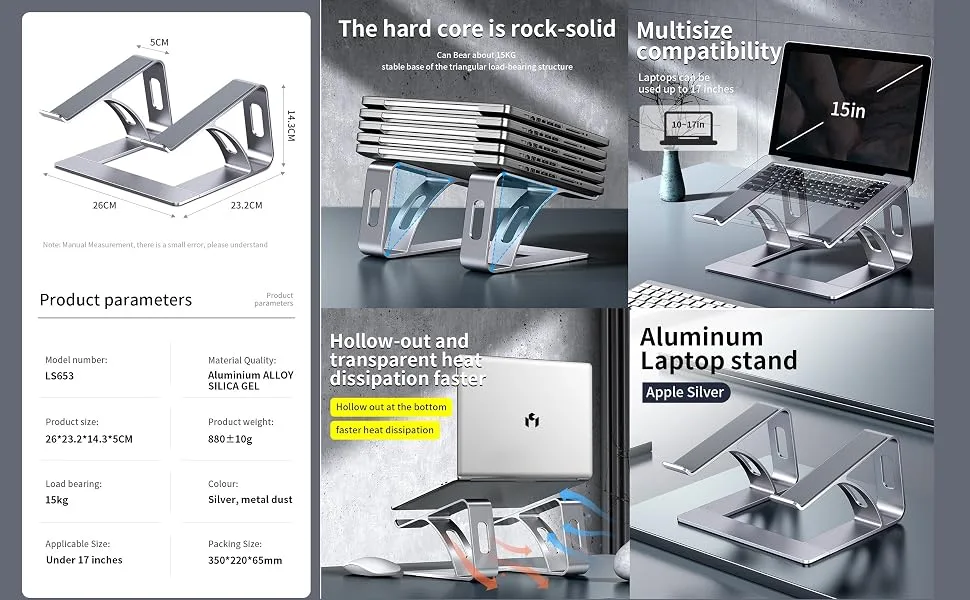
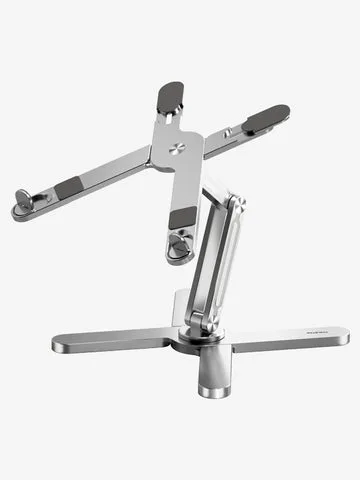
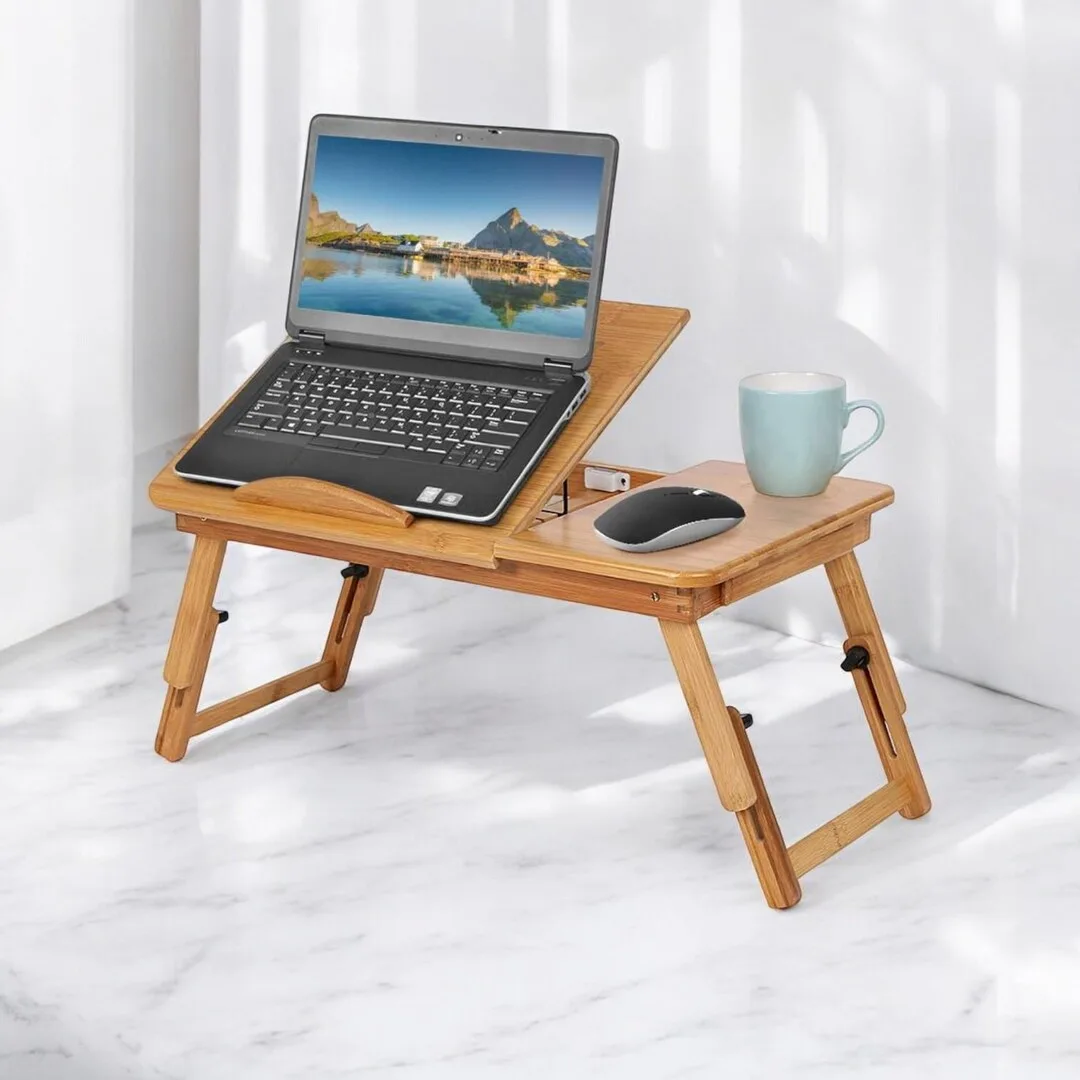
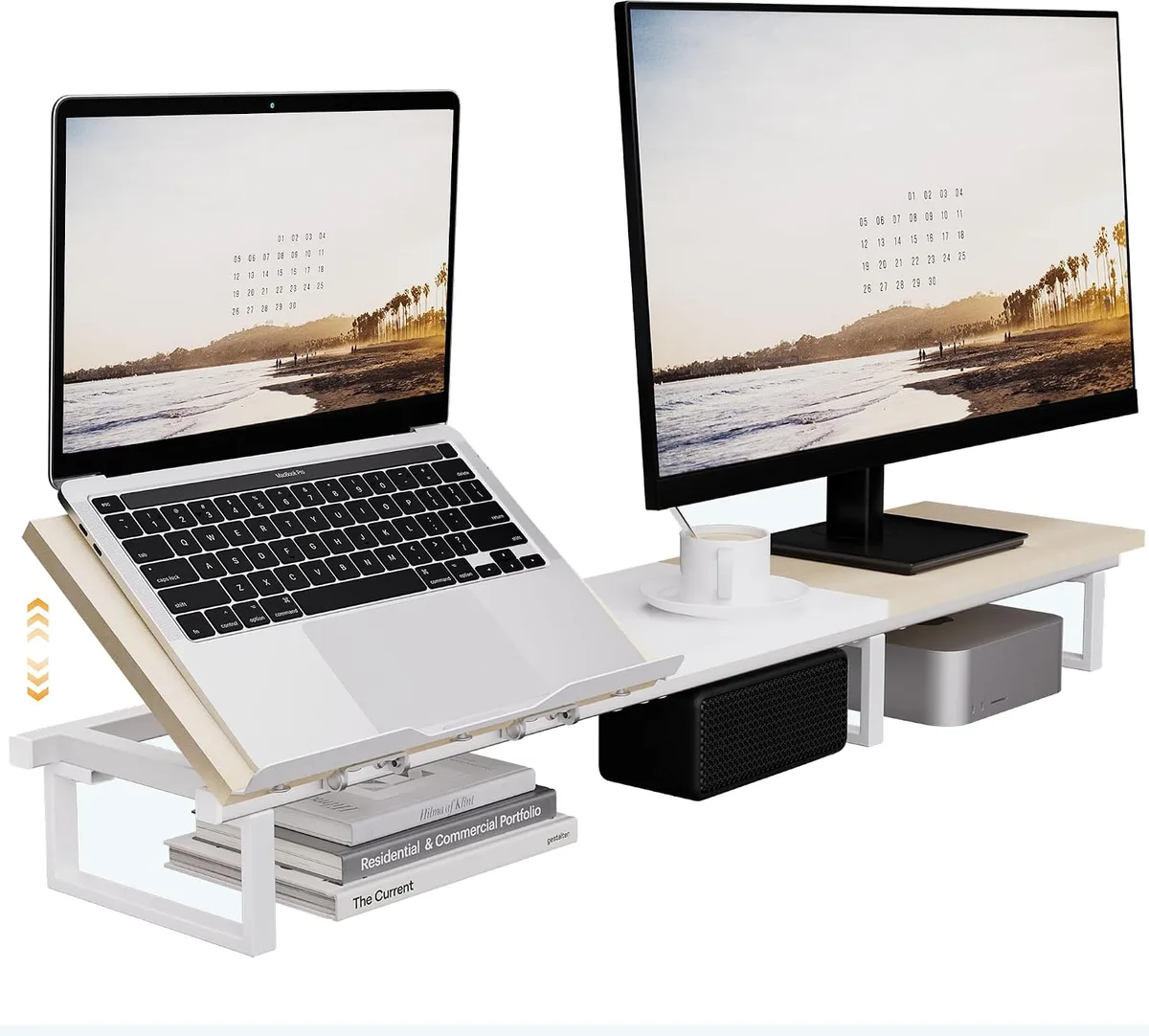
You need an external keyboard and mouse to decouple these components. This allows you to place the inputs on the converter platform. Meanwhile, your laptop screen rests on a separate riser.
This setup ensures that both your hands and eyes land in the optimal, strain-free zone.
| Gear | Purpose | Requirement |
|---|---|---|
| External Keyboard | Input comfort | Wired or wireless |
| External Mouse | Wrist health | Ergonomic shape |
| Laptop Riser | Screen height | Adjustable height |
| Fatigue Mat | Foot support | Anti-fatigue material |
Step-by-Step Calibration
Begin by placing your converter on the primary desk surface. Raise the platform to your standing height. Check that your elbows form a 90-degree angle while your hands rest on the keyboard.
If your desk is too high, use a keyboard tray or lower the converter base.
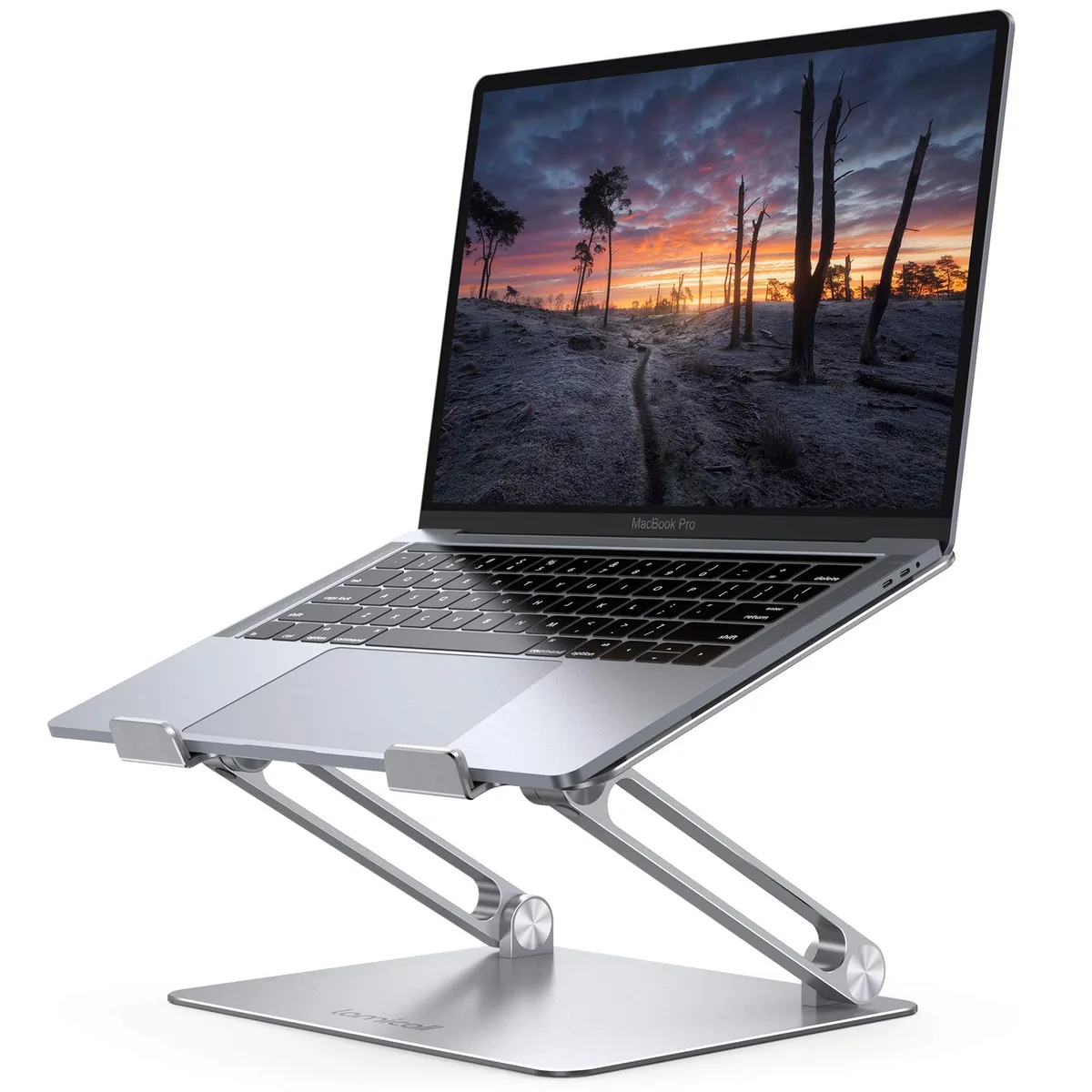
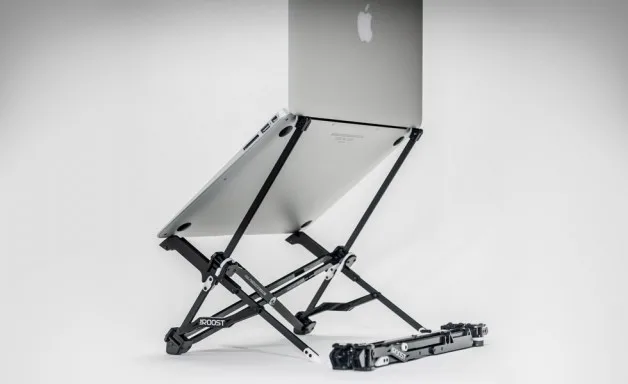
Once the keyboard is set, shift your focus to the laptop. Use a riser or a stack of books to bring the screen up. The top third of your display should sit directly at eye level.
This prevents your head from tilting down, which is the primary cause of neck pain.
Finally, confirm your mouse placement. Keep it on the same level as your keyboard. If you have to reach across the desk to grab your mouse, you are putting unnecessary strain on your shoulder.
Keep it close, centered, and easy to access.
Achieving Proper Elbow and Wrist Alignment
Your elbows and wrists serve as the primary indicators of a successful setup. When you stand at the converter, verify that your forearms are parallel to the floor. If your wrists are angled upward to reach the keys, you are putting pressure on the carpal tunnel.
Adjust the tilt of your keyboard if your converter platform allows it. A slight negative tilt helps keep wrists straight. If you cannot adjust the tilt, keep your keyboard flat.
Ensure you aren't leaning your weight onto the desk, as this adds tension to the wrists.
Monitor your physical response throughout the first few days. If you feel tightness in your forearms, your keyboard is likely too high. If you feel strain in your upper back, your platform might be positioned too low.
Small adjustments of half an inch often solve these issues completely.
The Eye-Level Standard
The screen is the most common failure point in home office setups. If you look down at a laptop screen, your head acts like a weighted lever. This pulls on the cervical spine and leads to tech neck.
Your eyes should rest on the top third of the laptop screen while your chin remains parallel to the floor. This position keeps your neck in a neutral, relaxed state. If you wear progressive lenses, you might need the screen slightly lower to prevent tilting your chin up.
Test your height by closing your eyes, relaxing your neck, and then opening your eyes. If you are looking at the middle or bottom of the screen, raise the laptop another inch. Repeat this process until your natural gaze lands exactly where it should.
Common Visual Errors That Ruin Ergonomics
Most users ignore their peripherals until they start feeling pain. The most frequent visual error is a closed workspace. This happens when the keyboard is too far away or the mouse is pushed too far to the side.
Another mistake involves improper monitor spacing. If your laptop screen is too far away, you will lean forward instinctively to read small text. This breaks the neutral spine position instantly.
Pull the laptop closer, or increase the display scaling on your computer to make text readable.
Check your environment for glare. A screen placed at the wrong angle forces you to tilt your neck to avoid light reflections. Always angle the laptop slightly downward to face your eyes, which minimizes overhead light reflection.
Optimizing Cable Management
Transitions between sitting and standing require slack in your cables. A common frustration is a power cord that pulls tight, threatening to knock your laptop off the stand when you raise the converter.
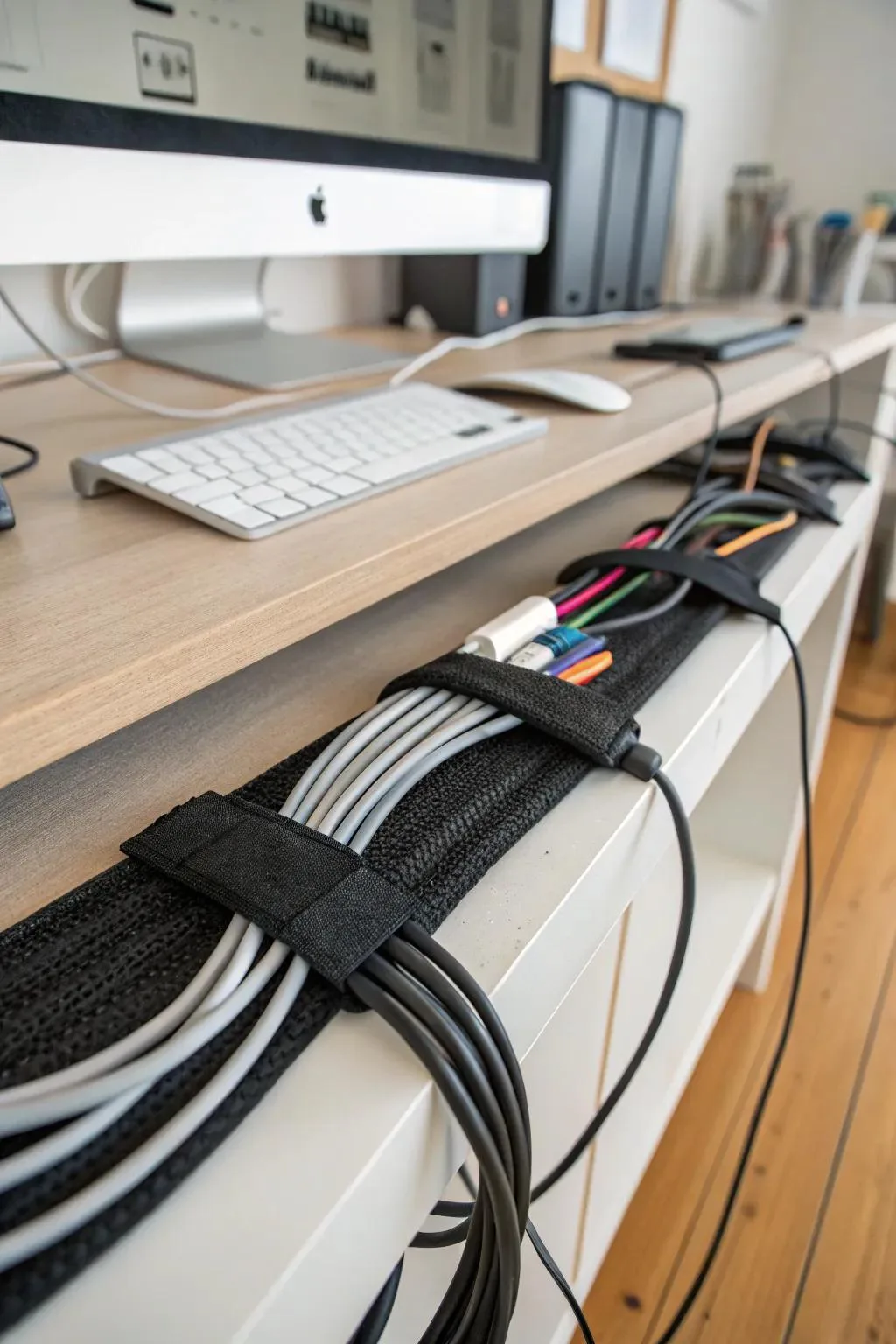
Image source: Bing (Web (fair-use with source credit))
Use velcro ties to secure your cables to the structure of the converter. Create a service loop of extra cord length that allows the platform to move vertically without resistance. Ensure that your keyboard and mouse cables are long enough to reach the computer base from the standing height.
If your cables are too short, use a powered USB hub on the platform. This allows you to plug your peripherals into a single point on the moving deck. Run only one long cable back to your computer to keep the workspace uncluttered.
Maintenance and Long-Term Positional Adjustments
Your body will change how it handles standing over time. Re-evaluate your desk height every few months. If you start wearing different footwear, such as switching from sneakers to boots, your baseline standing height shifts.
Perform a quarterly audit of your workstation. Check that all locking mechanisms on your converter are tight. Lubricate the gas springs if the platform feels jerky.
A smooth, fluid motion ensures you are more likely to actually use the converter.
Vary your posture regularly. Even the perfect setup becomes painful if you hold the same position for four hours. Shift your weight from foot to foot.
Take breaks to walk away from the desk entirely.
OSHA Guidelines and RSI Prevention
The Occupational Safety and Health Administration provides specific guidance on workstation design to prevent musculoskeletal disorders. These standards emphasize that employees should not be forced into awkward postures for extended periods. RSI, or Repetitive Strain Injury, occurs when small, repetitive movements lead to inflammation.
By keeping your joints at neutral angles, you drastically lower the risk of developing conditions like tendonitis. OSHA recommendations suggest using adjustable equipment that can accommodate the specific dimensions of the user. This is exactly what a high-quality converter is designed to facilitate.
Always prioritize comfort over following a rigid rule. If a specific adjustment feels wrong, move it until it feels right. Your body is a highly sensitive instrument, and it will give you immediate feedback through discomfort if your alignment is off.
Pro Advice for Avoiding Strain
Focus on your core strength to support your upper body while standing. Many people collapse into their shoulders when they get tired, which leads to immediate neck pain. Keep your core gently engaged, as if you are standing tall, without locking your knees.
Use a fatigue mat to provide a cushioned surface for your feet. Hard floors are unforgiving, and they encourage you to shift your weight unevenly. A mat encourages micro-movements, which keep your joints lubricated and your muscles active.
Finally, keep your workstation clear of clutter. If you have stacks of papers or office supplies on your converter, you limit the space you have for your keyboard and mouse. A clean surface allows you to optimize the placement of your peripherals for maximum benefit.
Comparison of Converter Mechanisms
Not all standing desk converters work the same way. The mechanism you choose significantly affects your ability to achieve a neutral posture.
Gas-spring models offer the smoothest height transitions. They allow you to stop the platform at almost any height, which is ideal if you prefer fine-tuning. These units rely on internal pressure that balances the weight of your equipment.
X-lift designs move slightly forward as they rise. They are stable but require a desk with enough depth to accommodate the movement. If you have a shallow desk, a post-base or Z-lift model might be better because they move straight up and down.
Use Cases for Small Footprint Workspaces
If you are working with limited desk space, prioritize compact converters. A post-mount converter attaches to the back of your desk, freeing up the rest of the surface. These are excellent for apartments or shared spaces where efficiency is key.
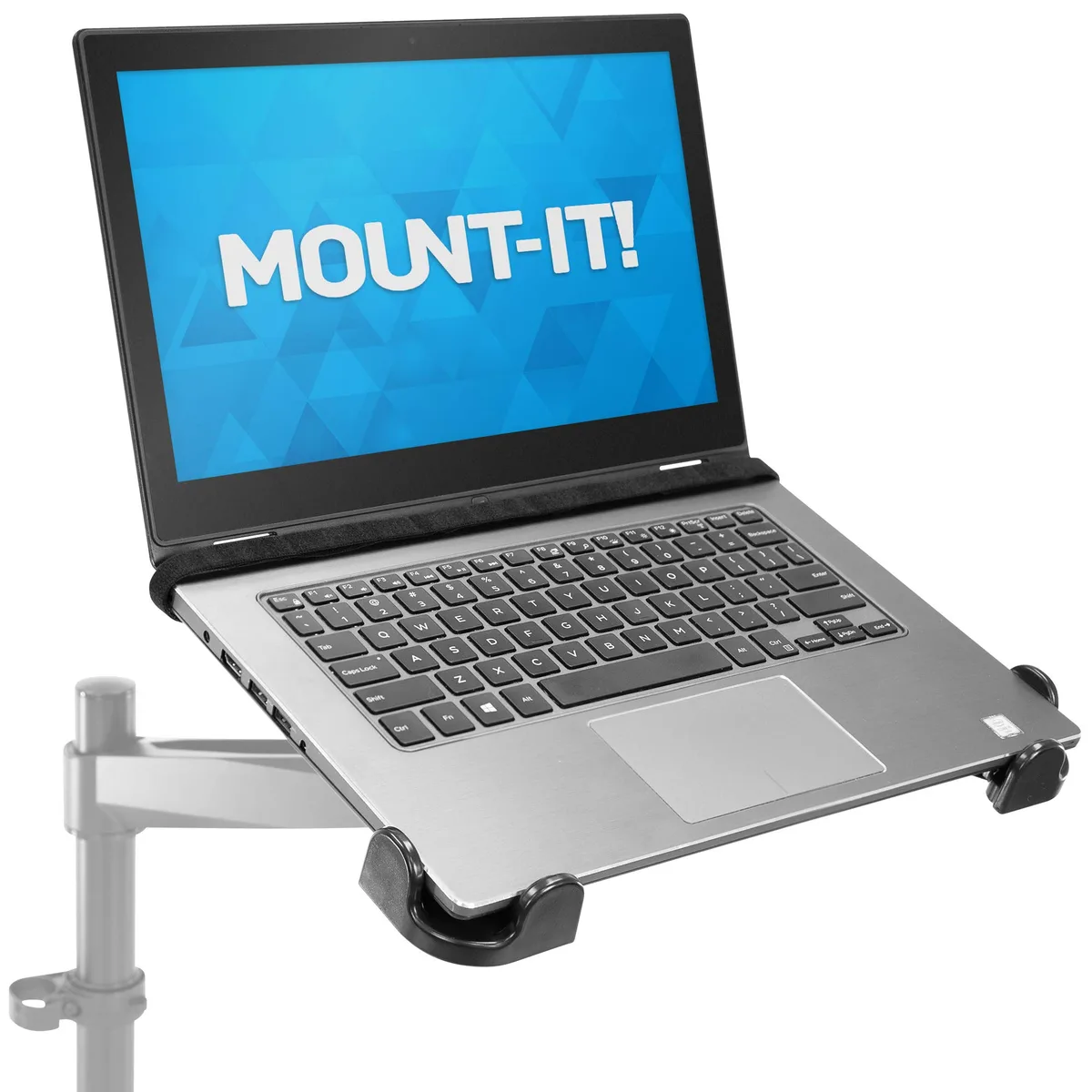
Consider a single-column stand for your laptop if your primary desk area is cluttered. This keeps the footprint small while still allowing you to elevate your screen. If your work requires a lot of paper-based referencing, avoid large platform converters that cover your entire workspace.
Mistakes to Avoid During Installation
Placing the converter too close to the front edge of your desk is a common safety hazard. Most units are front-heavy when fully loaded with a laptop. Ensure that at least 80% of the base plate rests firmly on the desk surface to prevent tipping.
Another frequent error is skipping the level check during the initial setup. If your desk itself is slightly sloped, your converter will feel wobbly. Use a simple bubble level on the base of the converter before loading your equipment.
Even a minor tilt can cause uneven wrist pressure and increase fatigue.
Costs and Specification Considerations
Quality converters vary in price, but they generally reflect the durability of their lift mechanism and the weight capacity of the platform. Entry-level units often use manual locking pins, which are reliable but less convenient. Premium gas-spring models command a higher price but provide much better long-term usability.
Look closely at the maximum weight capacity listed by the manufacturer. Most standard converters support 15 to 30 pounds. If you use a heavy monitor, you must verify these specs.
Overloading a unit is a safety risk that can damage the springs.
Final Decision Guide for Your Workflow
The right setup depends on how frequently you transition between sitting and standing. If you change positions every hour, you need a high-quality gas-spring converter that requires zero effort to move. If you only stand for long blocks at a time, a manual model is a more cost-effective choice.
Start by evaluating your desk depth and the total weight of your gear. If you prioritize stability and have plenty of desk space, an X-lift is your best match. For smaller, tighter setups, look for post-mount or compact vertical lifts.
Troubleshooting Wobbly Platforms
If your converter feels unstable, the primary culprit is an uneven contact point on your desk. Ensure all rubber feet are touching the desk surface equally. If your desk has a textured finish, consider a thin, high-density rubber mat underneath the base to improve grip.
Check the tension settings of your gas springs. If the platform feels bouncy or drifts downward, the tension is too low. Adjust the tension screw, typically located on the side or rear of the unit, until the converter holds your equipment weight firmly.
When Should You Seek Professional Ergonomic Help?
If you continue to experience numbness, tingling, or sharp shooting pain after adjusting your station, stop using the setup. These symptoms can indicate underlying issues that require a specialist. An ergonomic audit is a professional service where a trained evaluator assesses your specific workspace.
Many employers offer these services to employees working remotely. Don't hesitate to reach out to your HR department or an occupational health representative. Professionals can identify subtle habits that you might overlook, such as subconscious leaning, which are difficult to see in a mirror.
Frequently Asked Questions
Can I leave my laptop plugged in while moving the platform?
Yes, you can, provided your cables have enough slack to move without tension. Always test your cable service loops before finalizing the height setup. Make sure your power bricks aren't dangling in a way that pulls on the laptop charging port during the transition.
How do I stop my keyboard from sliding?
Most keyboard trays include a small lip or non-slip adhesive pads to prevent movement. If yours doesn't, apply a few small squares of double-sided mounting tape or a silicone desk mat. This will keep your peripheral devices secure even when the platform is tilted or moving.
Will a converter work on a glass desk?
A converter will work on glass if the desk is tempered and thick enough to support the weight. Use a protective felt or rubber mat between the converter base and the glass to prevent scratches. Always verify the manufacturer's maximum weight capacity to ensure you don't exceed the safe load.
Should I wear shoes while standing at work?
You should wear supportive shoes to reduce strain on your ankles and arches. Standing barefoot on a hard surface for long periods often leads to plantar fasciitis. If you prefer to be barefoot, ensure you have a very thick, high-quality anti-fatigue mat to provide the necessary arch support.
Can I use a dual-monitor setup with a converter?
You can, but check your converter’s weight limit and platform surface area carefully. Most converters can support a dual-monitor arm, but the total weight of two monitors often exceeds standard load limits. Use a dual-monitor stand that attaches to the rear of the converter platform to save desk space.

Similar Posts